How to Connect Multiple Monitors for Premiere Workflow
Your Premiere timeline stutters when you add a second monitor. Mercury Transmit drops frames. The reference monitor shows Rec.709 while your program monitor clamps to sRGB.
Learning how to connect multiple monitors for premiere workflow means matching GPU outputs, Windows display order, and Premiere’s Mercury Transmit handshake before you even open a project. Most editors plug cables into whatever port is free then wonder why scopes flicker or HDR metadata vanishes. The problem is not the monitor count.
The problem is the signal chain.
Per NVIDIA specifications as of 2026, consumer GeForce cards support four display heads while professional RTX A-series cards support four DisplayPort 1.4a outputs with full 10-bit color. AMD Radeon Pro cards match that head count. Thunderbolt 4 hosts deliver 40 Gbps shared across two 4K60 streams or one 8K30 stream.
Understanding these hard limits lets you pick the right path before you spend a dollar.
Quick Answer
Connect monitors directly to GPU outputs in Windows display order. Enable Mercury Transmit in Premiere Preferences. Assign the reference monitor to a DeckLink or UltraStudio for clean 10-bit output.
Disable VRR and HDR on GUI monitors. Verify signal path with SMPTE color bars.
Why Your Premiere Multi-Monitor Setup Keeps Breaking
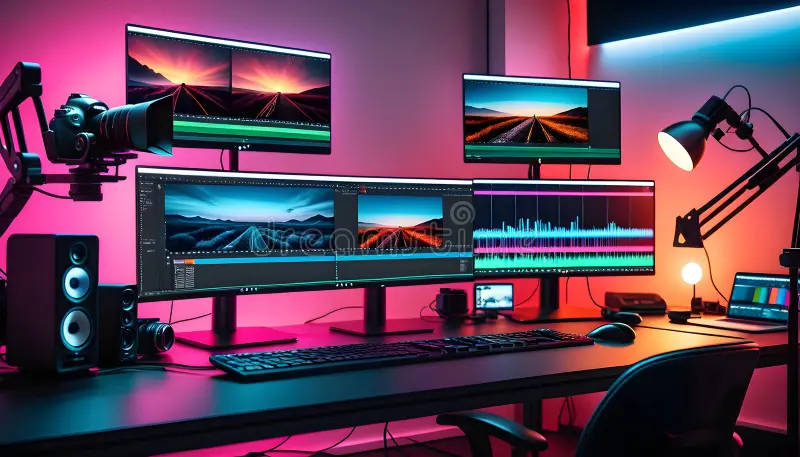
Most editors plug cables into any open port. Windows then assigns display numbers based on port enumeration order not physical layout. Premiere reads that order for Mercury Transmit.
If Windows swaps display 1 and 2 after a driver update your program monitor moves to the client screen. Scope windows detach. HDR metadata follows the wrong EDID.
A single GPU with four ports sounds simple until you mix DisplayPort and HDMI. HDMI 2.0 caps at 4K60 8-bit. DisplayPort 1.4a handles 4K120 10-bit.
Mixing them forces the GPU to a common denominator. The result is clamped color depth on your best monitor. Thermal throttling on laptop dGPUs drops clock speeds during export.
Frame timing drifts. Mercury Transmit loses sync. The fix starts with a deliberate port map not a cable hunt.
The Decision Framework: Match Your Hardware to Your Edit Style
You do not need four monitors. You need the right signal path for your deliverables. A solo editor cutting social verticals needs two GUI monitors plus a program preview.
That fits a single consumer GPU. A colorist delivering Netflix HDR needs a calibrated reference monitor fed by a DeckLink 8K Pro. That requires a dedicated PCIe slot and a GPU with headroom for GUI only.
A multicam editor driving four 144 Hz panels needs VRR disabled and a GPU that holds four high refresh heads without dropping clocks. A traveling editor on a MacBook Pro M3 Max hits Thunderbolt bandwidth limits at two 4K60 10-bit streams. Each path has hard constraints.
Match your most demanding output to the weakest link in the chain. That link is usually GPU head count or Thunderbolt bandwidth.
How Premiere Actually Sees Your Monitors: Mercury Transmit, GPU Heads, and Clean Feeds
Premiere Pro uses two parallel display pipelines. The GUI pipeline drives your timeline bins and scopes through the OS compositor. The Mercury Transmit pipeline bypasses the OS to send raw frames to a designated output device.
When you enable Mercury Transmit in Preferences > Playback you select a transmit plug-in. The Adobe Desktop Video plug-in talks to Blackmagic DeckLink and UltraStudio hardware. The NVIDIA and AMD plug-ins talk to GPU outputs directly.
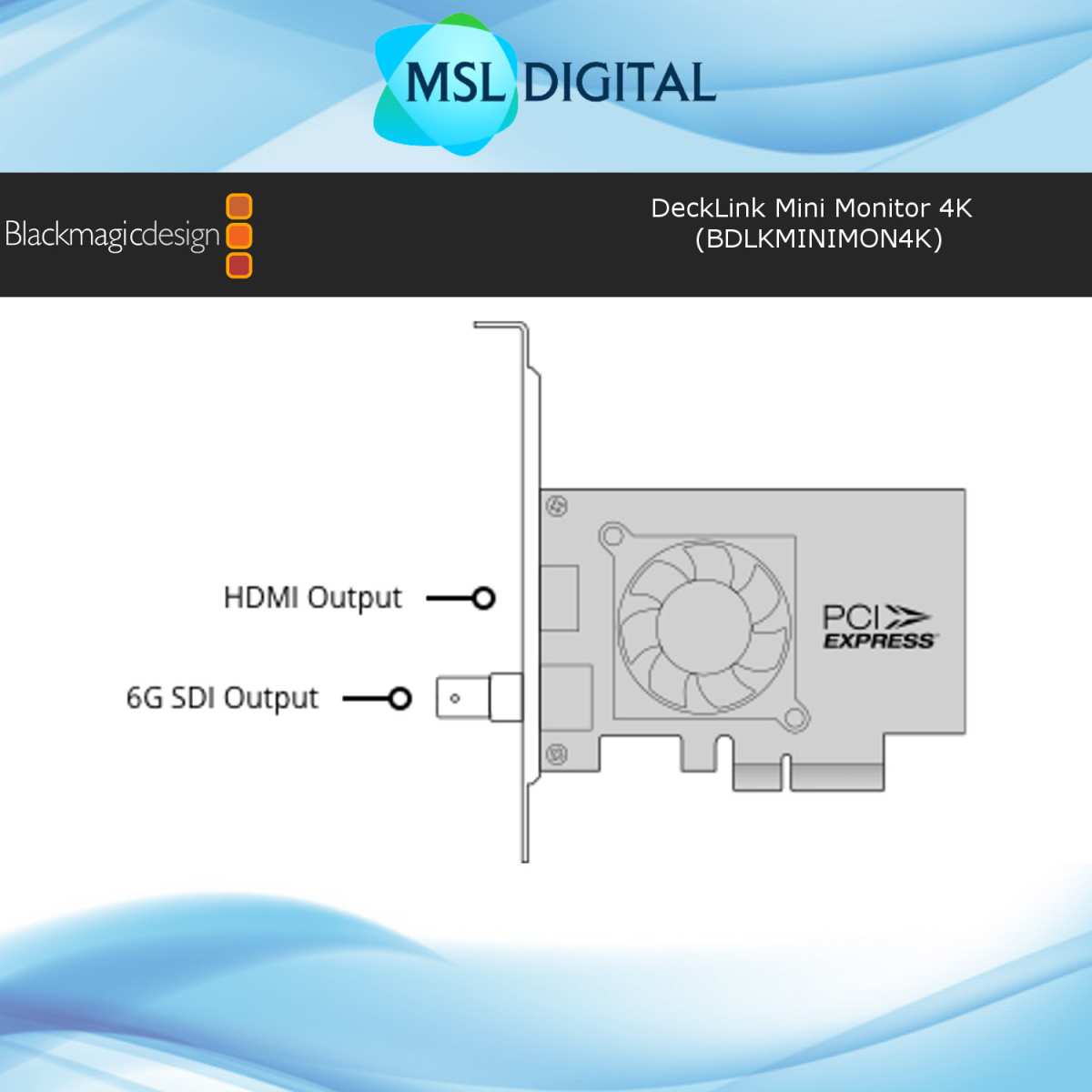
A clean feed means no OS desktop no cursor no window chrome. Only the reference monitor connected via SDI or HDMI from a DeckLink gets a clean feed. GPU outputs always carry the OS desktop.
That is why color critical work requires a DeckLink. The GPU head count limits GUI monitors. The DeckLink availability limits clean feeds.
Windows display numbering controls which GPU head becomes the Mercury Transmit target when you choose GPU output. Reordering displays in Windows Settings reorders the Mercury Transmit list.
The Four Variables That Dictate Your Entire Build
Every build decision traces back to four numbers. First GPU display head count. Consumer GeForce RTX 40 series supports four heads.
Professional RTX A-series supports four heads. AMD Radeon Pro W7000 series supports four heads. Intel Arc Pro supports four heads.
Second Thunderbolt bandwidth. Thunderbolt 3 delivers 22 Gbps effective. Thunderbolt 4 delivers 32 Gbps effective.
Two 4K60 10-bit streams need roughly 28 Gbps. Third PCIe slot availability for DeckLink cards. A DeckLink 8K Pro needs a x4 slot.
A DeckLink 4K Mini Monitor fits x1. Fourth power and thermal budget. Laptop dGPUs throttle at 80 watts sustained.
Desktop RTX 4090 draws 450 watts. eGPU enclosures add 200 watts. Write these four numbers down before you buy anything. They eliminate 80 percent of incompatible builds.
Path A: Solo Editor (2–3 Monitors, Single GPU, SDR Timeline)
Two GUI monitors plus one program preview fits a single RTX 4070 or Radeon RX 7800 XT. Connect the primary editing monitor to DisplayPort 1. Connect the secondary monitor to DisplayPort 2.
Connect the program preview to HDMI 2.1 or DisplayPort 3. Set Windows display order to match physical layout. In Premiere Preferences > Playback enable Mercury Transmit and select the GPU output feeding the program preview.
Disable HDR and VRR on all monitors in GPU control panel. Set color depth to 8-bit for GUI monitors. Calibrate the primary monitor to sRGB or Rec.709 using a colorimeter.
This path costs under 1500 dollars for GPU and monitors. It handles 4K60 ProRes 422 timelines with Lumetri effects. It does not support clean 10-bit output or HDR metadata pass through.
For that you need Path B.
Path B: Color-Critical / HDR Delivery (Reference Monitor + DeckLink/UltraStudio)
A clean 10-bit reference feed requires a DeckLink or UltraStudio. The GPU handles GUI only. Connect the DeckLink 8K Pro via PCIe x4.
Run 12G-SDI to a calibrated reference monitor like an EIZO ColorEdge CG3146 or ASUS ProArt PA32UCG. In Premiere Preferences > Playback enable Mercury Transmit and select Blackmagic Desktop Video. Choose the DeckLink output mapped to your reference monitor.
Set the reference monitor to Rec.2020 PQ for HDR or Rec.709 for SDR. Disable GPU output scaling in NVIDIA Control Panel. Let the DeckLink handle frame rate conversion.
Windows HDR stays off. The OS desktop never touches the reference signal. This path supports Netflix and Apple HDR delivery specs.
It adds 1500 to 4000 dollars for the DeckLink and reference monitor. It requires a desktop workstation with a free PCIe slot. Laptop users need a Thunderbolt 3 or 4 enclosure like the Sonnet Echo Express SE III.
Path C: Multicam & High-Refresh Timeline (4+ Heads, VRR Off, Scopes Dedicated)
Four 144 Hz panels need a GPU that holds four high refresh heads without clock throttling. An RTX 4080 or 4090 handles this. Connect each monitor via DisplayPort 1.4a.
Set all panels to fixed 60 Hz or 120 Hz in Windows. Disable G-Sync and FreeSync globally. VRR introduces frame pacing jitter that breaks multicam sync.
Assign monitor 1 to timeline. Monitor 2 to program. Monitor 3 to source and multicam view.
Monitor 4 to Lumetri scopes full screen. In Premiere Preferences > Playback enable Mercury Transmit on the program monitor output. Keep GPU color depth at 8-bit for GUI.
Scopes read 10-bit internally regardless of output depth. This path excels at live switching and fast turnaround. It does not provide a legal range reference signal.
Add a DeckLink Mini Monitor on a second PCIe slot if you need client preview.
Path D: Laptop / Mobile / eGPU (Thunderbolt Bandwidth, Head Count, Thermals)
MacBook Pro M3 Max supports four external displays via Thunderbolt 4 and HDMI. Windows laptops with RTX 4070 mobile often limit to three external heads. Check the manufacturer spec sheet before buying.
A Thunderbolt 4 dock like CalDigit TS4 delivers two 4K60 streams plus power. Bandwidth math: two 4K60 10-bit 4:4:4 streams need 28 Gbps. Thunderbolt 4 provides 32 Gbps effective.
Leave headroom for SSD and 10GbE. Close the laptop lid to disable the internal panel and free a GPU head. Thermals matter.
Sustained export pushes 80 watts through a thin chassis. Elevate the laptop. Use a cooling pad.
An eGPU like Razer Core X Chroma with an RTX 4080 adds desktop class heads but costs 1000 dollars plus card. Thunderbolt 3 limits PCIe to 22 Gbps. Expect 15 percent GPU performance loss versus native PCIe.
This path works for offline edits and proxy timelines. It struggles with 8K RAW and heavy HDR grading.
Universal Setup Sequence: Port Assignment → Windows Config → Premiere Preferences → Verification
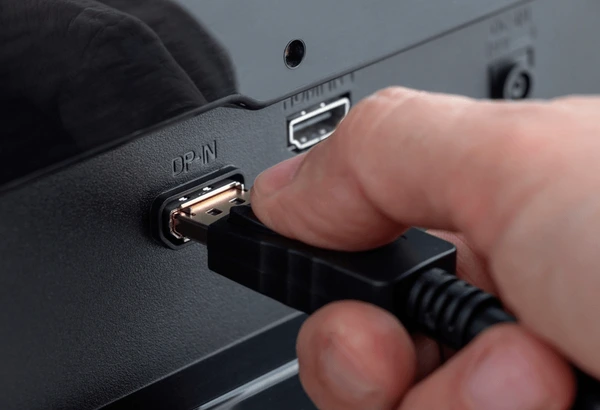
Power down. Connect reference monitor to DeckLink first. Connect GUI monitors to GPU DisplayPort outputs in physical order left to right.
Power on. Open Windows Settings > System > Display. Click Identify.
Drag numbered boxes to match physical layout. Set each monitor to native resolution and max fixed refresh rate. Turn HDR off on all GUI monitors.
Turn HDR on only on reference monitor if running PQ. Open Color Management. Assign ICC profile per monitor.
Open NVIDIA Control Panel. Set Preferred Refresh Rate to Highest Available. Set Power Management to Prefer Maximum Performance.
Disable DSR. Open Premiere. Preferences > General > Renderer set to CUDA or Metal.
Preferences > Playback > Mercury Transmit enable. Select DeckLink output for reference. Select GPU output for program preview.
Play SMPTE bars. Verify reference shows legal range 16-235. Verify GUI shows full range 0-255.
Save workspace.
The Most Common Ways This Goes Wrong (And How to Fix Each)
Windows swaps display numbers after sleep. Fix: use EDID emulator dongles on unused GPU ports. Mercury Transmit shows black.
Fix: restart Premiere after Windows display changes. Reference monitor shows no signal until Premiere launches. Fix: power reference monitor first then workstation.
HDR metadata missing on export. Fix: enable HDR in Windows only on reference monitor and set Premiere Color Management to Auto Detect. Scopes read wrong values.
Fix: assign correct ICC profile to scope monitor in Windows Color Management. VRR causes dropped frames. Fix: disable G-Sync FreeSync in GPU control panel.
Laptop throttles during export. Fix: close lid disable internal panel use external keyboard mouse. Thunderbolt dock drops a monitor.
Fix: update dock firmware and host controller driver. DeckLink not listed in Mercury Transmit. Fix: reinstall Blackmagic Desktop Video latest version match Premiere version.
Pro Optimizations: OCIO, Hardware LUTs, EDID Emulation, Remote Monitoring
OpenColorIO (OCIO) config in Premiere 2024+ aligns the GUI viewer, reference monitor, and export transform. Load a studio ACES 1.3 config or a custom Netflix D65 PQ config. Apply the same config in DaVinci Resolve for roundtrip consistency.
Hardware 3D LUTs in monitors like the EIZO CG3146 or ASUS ProArt PA32UCG offload color transform from the GPU. Calibrate with Calman or LightSpace, upload the LUT to the monitor, then set Premiere to pass through unmanaged video. EDID emulator dongles (like the Lindy 4K EDID Manager) keep Windows display numbering stable across sleep, driver updates, and hot-plug events.
Plug one into every unused GPU port. For remote monitoring, run Parsec on the workstation and Moonlight on the client iPad. Create a virtual display in Windows using the EDID emulator so the GPU renders a dedicated 1080p60 stream for the client.
This keeps the local GUI responsive and the remote feed clean.
Quick Decision Guide: Pick Your Path in 30 Seconds
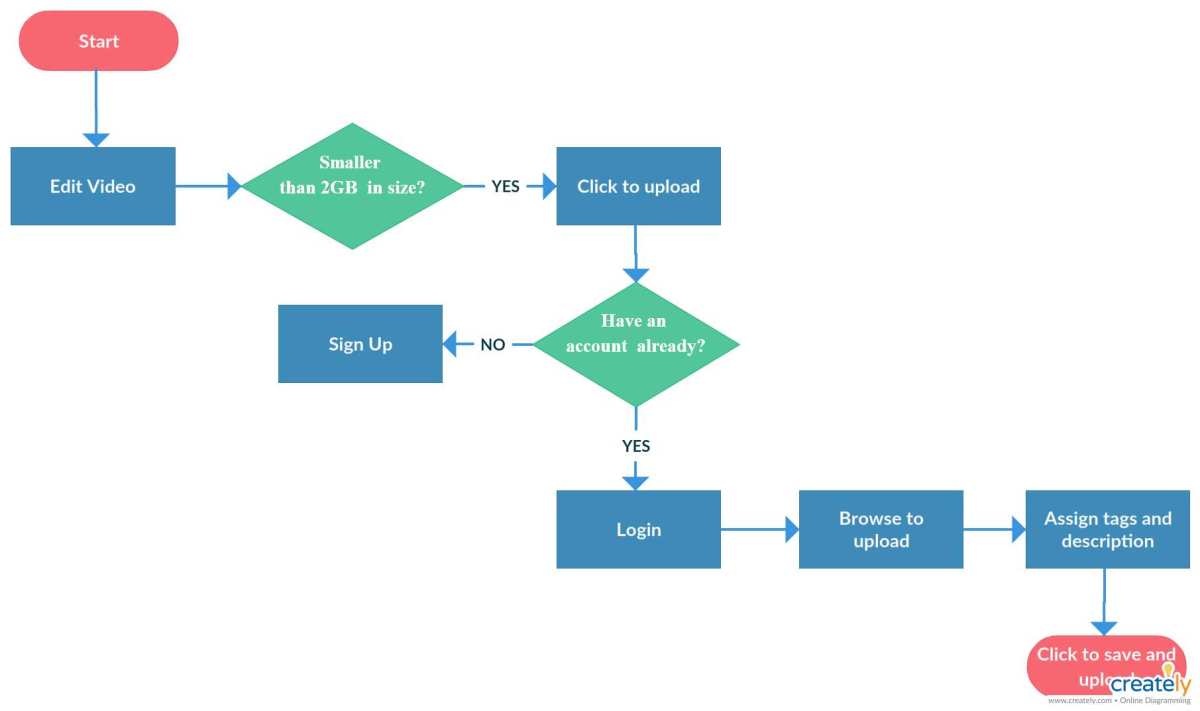
Answer three questions. First: do you deliver HDR to Netflix, Apple, or Disney specs? Yes → Path B.
No → next. Second: do you edit multicam live-switched content or need four high-refresh panels? Yes → Path C.
No → next. Third: is your primary machine a laptop or do you travel weekly? Yes → Path D.
No → Path A. That’s it. Each path lists the minimum viable hardware.
Path A: RTX 4070, two 4K60 monitors, one 1080p preview. Path B: RTX A4000 or 4080, DeckLink 8K Pro, calibrated 1000-nit reference monitor. Path C: RTX 4090, four 144 Hz DisplayPort monitors, VRR disabled.
Path D: MacBook Pro M3 Max or Windows RTX 4070 mobile, Thunderbolt 4 dock, two 4K60 monitors, lid closed. Buy only what your answers demand.
Frequently Asked Questions
Can I use an MST hub to run three monitors from one DisplayPort?
Yes, but bandwidth splits. Two 4K60 10-bit streams exceed DP 1.4 MST capacity. You’ll drop to 4:2:2 or 30 Hz.
Direct GPU ports are always preferred.
Why does Mercury Transmit not list my DeckLink?
Blackmagic Desktop Video version must match Premiere version. Reinstall the exact version listed in Adobe’s compatibility table. Restart after install.
Do I need a reference monitor for YouTube edits?
No. A calibrated sRGB GUI monitor is enough for Rec.709 delivery. Reference monitors matter when legal range, 10-bit, or HDR metadata are required.
How do I keep Windows from rearranging my displays after sleep?
Use EDID emulator dongles on every unused GPU port. They present a constant display ID so Windows never renumbers.
Can I run a reference monitor from an HDMI port on my GPU?
Only for SDR Rec.709 preview. GPU HDMI carries the OS desktop. It cannot output clean legal-range 10-bit with HDR metadata.
Use DeckLink for that.
What’s the cheapest way to get 10-bit clean output?
A used DeckLink Mini Monitor 4K ($195) plus a calibrated 10-bit monitor like the BenQ SW272U. Requires a desktop with a free PCIe x1 slot.

Similar Posts





















