Is 27 Inch 5k Monitor Ideal for Editing
The question "is 27 inch 5k monitor ideal for editing" lands on every editor's shortlist because the spec sheet looks perfect. You get 5120 by 2880 pixels packed into 27 inches. That equals 218 pixels per inch. macOS treats that density as a native 2x Retina target.
Windows treats it as a fractional scaling nightmare. The panel inside every model is the same LG LM270WR5 IPS unit. Factory calibration hits Delta E under 1 in P3.
Brightness tops out at 600 nits sustained. Refresh stays locked at 60 Hz.
Manufacturer specifications confirm the color volume covers 99 percent of DCI-P3. Aggregate reviews report excellent text clarity on Mac and noticeable fringe on Windows at 150 percent scale. As of 2026 only two models ship new: Apple Studio Display and the discontinued LG UltraFine 5K.
Let's break down what actually matters for your timeline.

Quick Answer
A 27 inch 5K monitor is ideal for macOS editing workflows. Integer scaling delivers perfect UI and 1:1 4K preview. Windows editors face fractional scaling blur.
The 60 Hz limit hurts high frame rate scrubbing. Color accuracy is reference grade for Rec.709 and P3. HDR grading requires a different class of display.
The Real Question: Why 27-Inch 5K Exists for Editors
The 27 inch 5K category exists because Apple defined a pixel density sweet spot. The 2014 iMac 5K proved 218 PPI allows 2x integer scaling without visible pixels. macOS renders UI at 2x then down-samples to the panel. Every point becomes four physical pixels.
Text stays sharp at any size. No fractional math required.
Windows never adopted a system wide 2x target. The OS scales at 100 125 150 175 200 percent. At 218 PPI the comfortable setting is 150 percent.
That forces non integer rendering. Sub pixel anti aliasing breaks. Edge contrast drops.
Many Electron apps blur. Win32 apps vary. The result is a monitor built for one ecosystem that struggles in the other.
Editors on Final Cut Pro or DaVinci Resolve Mac see the benefit immediately. The timeline fits more tracks at readable size. The viewer shows 4K footage at 50 percent zoom pixel for pixel.
No interpolation. No softness. That precision speeds color decisions and focus checks.
Photo editors in Lightroom or Capture One gain 1:1 proofing at 200 percent zoom. You see sensor level detail without scrolling. Soft proofing for print matches output sharper. The P3 gamut covers most inkjet targets. Adobe RGB coverage sits near 90 percent. That handles most commercial workflows.
Motion designers in After Effects or Figma get crisp vector previews. UI elements align to the pixel grid. Export assets match design specs.
The 60 Hz refresh is acceptable for keyframe work. It falls short for high frame rate playback tests.
What 27-Inch 5K Actually Delivers (Specs That Matter)

The panel is always the LG Display LM270WR5. It is an IPS type with white LED backlight. No local dimming.
No quantum dot layer. The spec sheet reads the same across brands.
| Spec | Value |
|---|---|
| Resolution | 5120 x 2880 |
| Pixel density | 218 PPI |
| Panel type | IPS (LM270WR5) |
| Backlight | W-LED |
| Gamut | 99% DCI-P3 / 100% sRGB / ~90% AdobeRGB |
| Brightness | 500-600 nits sustained |
| Contrast | 1200:1 typical |
| Refresh rate | 60 Hz fixed |
| Bit depth | 8-bit + FRC (marketed as 10-bit) |
| Factory calibration | Delta E < 1 avg (P3 & sRGB modes) |
| HDR support | No VESA DisplayHDR cert |
| Ports | TB3/4 upstream 96W PD + 3x USB-C 10Gbps down |
The 8-bit plus FRC detail matters. True 10-bit panels do not exist at this size and density. Frame rate control dithers to simulate 10-bit.
In practice banding appears in smooth gradients at low gray. Hardware LUT calibration is absent. Software LUTs load into the GPU.
That adds a processing step and potential banding.
Uniformity compensation is firmware based. Corner brightness variance stays under 10 percent typical. IPS glow appears in dark rooms.
Contrast ratio limits shadow detail in graded suites. The 600 nit peak meets SDR reference. It falls far short of HDR 1000 or Dolby Vision targets.
Thunderbolt 3 or 4 carries video data plus 96 watts power delivery. That charges most 14 inch MacBook Pros at full speed. The 16 inch M-series Max models may throttle under heavy GPU load.
The dock provides three downstream USB-C 10 Gbps ports. One carries Thunderbolt for daisy chaining a second 4K display.
Apple Studio Display adds a 12MP webcam and six speaker array. The nano texture option etches the glass to scatter light. It reduces glare but lowers contrast and adds sparkle on bright whites.
LG UltraFine 5K lacks webcam and speakers. It uses the same panel with a simpler housing.
macOS vs. Windows: The Scaling Dealbreaker

macOS handles 27 inch 5K natively. System Settings shows "Default for display" which enables 2x HiDPI. The effective desktop resolves to 2560 x 1440 logical points.
Every UI element renders at double resolution. Text is razor sharp. Bitmap assets use @2x versions.
No blur. No artifacts.
Windows 11 recommends 150 percent scale at this PPI. That yields 3413 x 1920 logical pixels. The desktop compositor renders at 1.5x then scales to the panel.
Sub pixel rendering breaks because the RGB stripe no longer aligns. ClearType tries to compensate. Results vary by application.
Electron apps like VS Code Slack Discord often blur. Win32 apps with DPI awareness per monitor v2 handle it better. Adobe apps have improved.
Premiere Pro 2024 renders UI sharply at 150 percent. After Effects still shows occasional fringe. DaVinci Resolve Studio on Windows scales cleanly at 150 percent.
The workaround is running 100 percent scale. The logical desktop becomes 5120 x 2880. UI elements shrink to physical pixel size.
Text becomes tiny at normal viewing distance. You lean in. Eye strain follows.
Some editors accept this for the extra timeline real estate.
Linux Wayland compositors like GNOME KDE support fractional scaling with mixed results. X11 requires xrandr transforms. The experience remains inconsistent.
Most Linux editors choose 27 inch 4K at 100 percent or 32 inch 4K at 100 percent.
The decision tree is simple. If your primary OS is macOS the 27 inch 5K is the only monitor that delivers perfect integer scaling at this size. If your primary OS is Windows you pay a clarity tax at the recommended scale.
Many Windows editors choose 32 inch 4K at 100 percent instead.
Head-to-Head: 27″ 5K vs. 27″ 4K vs. 32″ 4K vs. 32″ 6K vs. Ultrawide
The comparison clarifies where 27 inch 5K wins and where it loses. Each alternative solves a different constraint.
| Option | PPI | macOS Scaling | Windows Scaling | Best For |
|---|---|---|---|---|
| 27″ 5K (5120×2880) | 218 | 2x integer (native) | 150% fractional | macOS editors color critical |
| 27″ 4K (3840×2160) | 163 | 1.5x fractional | 150% fractional | Budget dual setup high refresh |
| 32″ 4K (3840×2160) | 140 | 1.5x fractional | 100% native | Windows editors big UI |
| 32″ 6K (6016×3384) | 218 | 2x integer (native) | 150% fractional | HDR grading reference |
| 34″ 5K2K (5120×2160) | 180 | 2x integer (native) | 150% fractional | Ultra wide timeline focus |
27 inch 4K panels cost $300 to $600. They offer 144 Hz to 240 Hz refresh. Variable refresh rate works.
Gaming and editing share the screen. The pixel density forces fractional scaling on both OSes. Text clarity is good not perfect.
Color gamut often matches 5K at 99 percent P3. Factory calibration varies.
32 inch 4K at 140 PPI hits 100 percent scale on Windows. UI elements are large and sharp. macOS runs 1.5x fractional. The larger physical size fits more timeline tracks at readable size.
Price ranges $700 to $1000. High refresh 144 Hz models exist. HDR 600 local dimming models exist.
32 inch 6K means Apple Pro Display XDR or ASUS ProArt PA32KCX. These add 1000+ nit sustained brightness. Hardware 3D LUT calibration.
True 10-bit panels. BT.2100 support. Prices start at $3500.
Overkill for SDR editing. Essential for HDR delivery.
34 inch 5K2K ultrawide matches 5K horizontal resolution. Vertical drops to 2160. The 21:9 aspect ratio expands the timeline.
The viewer window shrinks to 16:9 letterbox. Great for editing. Weak for full frame preview.
Pixel density 180 PPI supports 2x integer on macOS. Windows runs 150 percent.
Dual 27 inch 4K gives maximum timeline width. Bezels split the viewer. Two cables.
Two scaling compromises. Total cost $600 to $1200. Desk space doubles.
The 27 inch 5K sits alone at the intersection of macOS native scaling reference color and compact desk footprint. It fails for high refresh needs HDR grading and Windows native clarity.
Who Should Buy This (And Who Shouldn't)
Buy a 27 inch 5K if you edit on macOS daily. Final Cut Pro DaVinci Resolve Premiere Pro on Mac all benefit. The integer scaling eliminates a whole class of UI friction.
You proof 4K at 50 percent zoom. You grade in P3 with factory accuracy. You dock a MacBook with one cable.
Buy if you photograph and edit stills. Lightroom Capture One Photoshop show 1:1 detail at 200 percent zoom. Soft proofing matches print.
The P3 gamut covers most lab outputs. The Delta E under 1 factory report holds for a year under office light.
Buy if you design UI or motion graphics. Figma Sketch After Effects render vectors crisp. Asset export matches spec.
The 60 Hz refresh is fine for keyframe work.
Do not buy if you edit on Windows primarily. The 150 percent fractional scaling blur persists. You gain no integer scaling advantage.
A 32 inch 4K at 100 percent gives sharper text larger UI same color volume lower price.
Do not buy if you grade HDR. The 600 nit peak lacks specular highlight headroom. No local dimming.
No BT.2100 hardware pipeline. You need a 1000 nit plus reference display.
Do not buy if you need high refresh playback. 60 Hz is the hard ceiling. 120 fps footage plays at half rate. Variable refresh rate is absent. Gaming is a poor experience.
Do not buy if you work in a dark grading suite. IPS glow raises black levels. Contrast ratio 1200:1 reveals panel limits.
Bias lighting helps but cannot fix the physics.
Do not buy if your laptop exceeds 96 watt charge demand. The 16 inch MacBook Pro M3 Max under GPU load can drain while plugged in. A separate charger defeats the single cable benefit.
The Hidden Costs: Cables, GPUs, Calibration, and Desk Space
The monitor price is only the first line item. A Thunderbolt 4 cable rated for 40 Gbps at two meters costs $80 to $120. The included 0.8 meter cable forces the laptop close to the screen.
Active optical cables reach three meters but add $150. Daisy chaining a second 4K display consumes the downstream Thunderbolt port and drops the 5K link to 30 Hz on some host controllers.
GPU decode headroom matters more than raw render power. DaVinci Resolve Studio on Apple Silicon uses the media engine for H.264 HEVC ProRes. A base M3 handles one 4K stream at 60 fps.
Two streams tax the engine. Three streams drop frames. The 5K timeline at 60 Hz demands full decode bandwidth.
Editors cutting multicam 4K need M3 Pro or Max. On Windows an NVIDIA RTX 4070 with dual NVDEC handles four 4K streams. An RTX 4060 struggles past two.
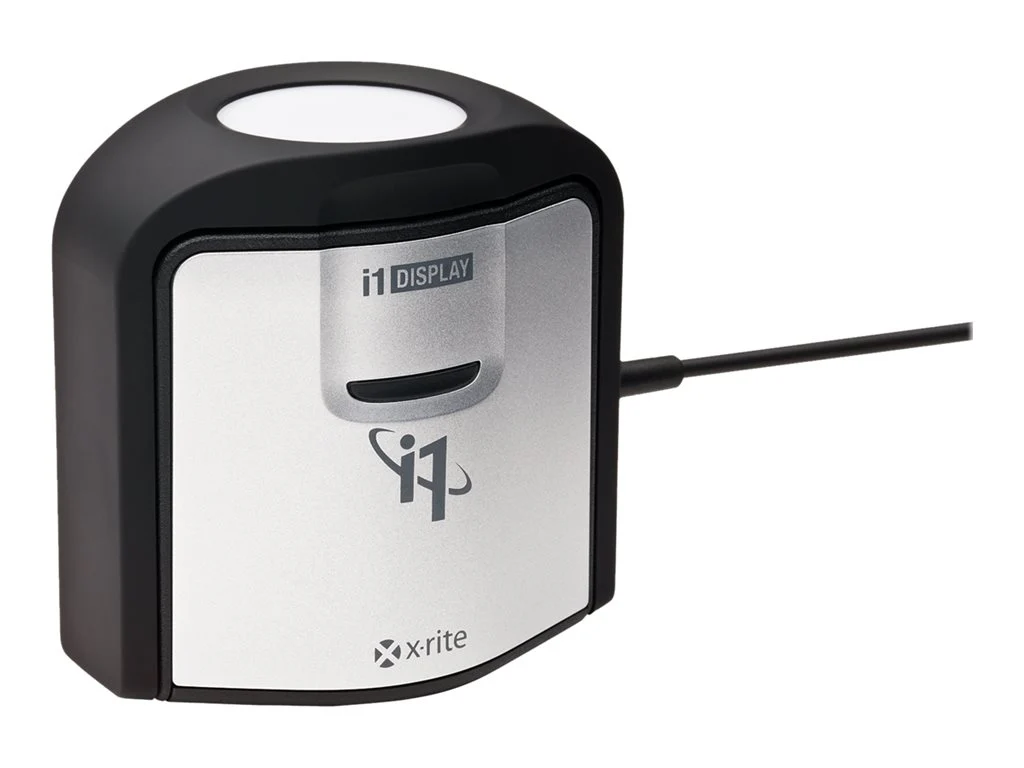
Calibration hardware is non optional for color critical work. The X-Rite i1Display Pro or Calibrite ColorChecker Display Plus costs $250 to $300. Software options include DisplayCAL (free) or Calman Home ($149).
Factory calibration drifts after 12 to 18 months. A monthly check catches green magenta shifts early. Software LUTs load into the GPU pipeline.
They add a processing hop and can introduce banding in 8-bit output paths.
Desk depth must accommodate the monitor base plus cable bend radius. The Studio Display stand adds 8 inches behind the panel. The VESA mount adapter (sold separately $39) reclaims depth but loses height adjustment.
The LG UltraFine 5K stand tilts only. No swivel. No pivot.
Plan for 24 inches of clear depth minimum.
Power delivery creates a hidden trap. The 96 watt PD spec sounds generous. A 16 inch MacBook Pro M3 Max under sustained GPU load draws 120 to 140 watts.
The battery supplements the difference. Over a long session the battery drains while plugged in. The fix is a separate 140 watt USB-C charger.
That breaks the single cable dream.
Common Setup Mistakes That Ruin the Experience
Running Windows at 100 percent scale
Text becomes 4 point equivalent at arm's length. Editors lean forward. Neck strain follows within hours.
The fix is 150 percent scale with ClearType tuned per monitor. Accept the slight fringe. It beats eye fatigue.
Using HDMI or DisplayPort instead of Thunderbolt
The panel requires Thunderbolt 3 or 4 for 5K 60 Hz 10-bit 4:4:4. HDMI 2.1 and DisplayPort 1.4 lack the bandwidth on this controller. The monitor will fall back to 30 Hz or 4K.
Always use the upstream Thunderbolt port.
Skipping GPU 10-bit enable
NVIDIA Studio Driver and AMD PRO Driver default to 8-bit output. In Resolve preferences enable "Use 10-bit OpenGL" or "10-bit DirectX". Without it gradients band even on a 10-bit pipeline.
The monitor only simulates 10-bit via FRC but the GPU must feed 10-bit data.
Placing the monitor against a bright window
IPS glow plus 600 nits cannot overcome direct sun reflection. Nano texture scatters light but lowers contrast. Bias lighting behind the panel at 6500K 10 nits reduces perceived glare.
A monitor hood ($80) works better for critical grading.
Ignoring ICC profile assignment
macOS assigns the monitor profile system wide. Windows requires per app assignment. Lightroom uses the monitor profile automatically.
Premiere Pro needs "Display color management" enabled in preferences. Resolve uses timeline color space to output color space transform. Mismatched profiles shift gamma and saturation silently.
Daisy chaining wrong order
Thunderbolt topology requires the 5K monitor first in chain. A downstream 4K monitor works. Reversing order starves the 5K link.
The host negotiates the lowest common denominator. Always connect 5K direct to host then 4K to 5K downstream port.
Pro Tips: Calibration, Workflow Tweaks, and Longevity
Calibrate to 120 cd/m2 for SDR editing
Brightness at 600 nits crushes shadow detail and fatigues eyes. Target 120 nits (cd/m2) for Rec.709 work. Use a hardware colorimeter.
Set white point D65. Gamma 2.4 for dark room 2.2 for lit room. Save the ICC profile.
Load it at OS level. Verify with a test pattern.
Run a monthly drift check
DisplayCAL with a colorimeter takes five minutes. Measure six gray patches 10 to 100 percent. Track Delta E over time.
A shift above 2.0 in any patch triggers a full recalibration. Factory reports show most units stay under 1.5 for 18 months in stable ambient temperature.
Use Blackmagic Disk Speed Test for RAID planning
5K timeline scrubbing reads 800 MB/s for ProRes 422 HQ 4K. A single NVMe SSD sustains 3000 MB/s. A Thunderbolt RAID 0 pair sustains 1800 MB/s.
Test before committing to a project. Dropped frames often trace to storage not GPU.
Enable "Reduce transparency" in macOS Accessibility
The Studio Display webcam and mic array draw 5 watts. Disabling transparency effects saves GPU cycles. The fan spins less.
Noise drops 2 to 3 dB. In a quiet suite the difference is audible.
Rotate the panel 90 degrees for portrait code review
The VESA mount allows pivot. macOS rotates the logical desktop instantly. Windows requires display settings change. A vertical 2880 pixel height shows 120 lines of code at 14 point font.
Great for script editing alongside timeline.
Clean nano texture only with Apple polishing cloth
Microfiber cloths embed particles in the etch. They create permanent haze. The Apple cloth uses a specific non abrasive fiber.
Store it in the monitor box. Never use spray cleaners. Water only if needed.
Quick Spec & Price Reference Table
| Model | Panel | Peak Nits | PD Watts | Ports | Webcam | Speakers | Nano Option | Street Price 2026 |
|---|---|---|---|---|---|---|---|---|
| Apple Studio Display Standard | LM270WR5 | 600 | 96 | TB4 + 3x USB-C | 12MP Center Stage | 6-speaker spatial | No | $1,599 |
| Apple Studio Display Nano | LM270WR5 | 600 | 96 | TB4 + 3x USB-C | 12MP Center Stage | 6-speaker spatial | Yes | $1,899 |
| LG UltraFine 5K (27MD5KL-B) | LM270WR5 | 500 | 96 | TB3 + 3x USB-C | No | No | No | $1,299 open box |
| Dell UltraSharp U2724DE | Not 5K | 400 | 90 | HDMI DP USB-C | No | No | No | $549 4K only |
Note: Dell U2724DE is 4K 163 PPI. Included for cross shop reference. No true 5K 27 inch from Dell exists as of 2026.
FAQ: Real Questions From Editors
Does 27 inch 5K work with M1 MacBook Air?
Yes. M1 supports one external 5K 60 Hz display. The 96 watt PD charges the Air at full speed.
Thermals stay cool. The single Thunderbolt port handles video data and power.
Can I run two 27 inch 5K monitors on Mac Studio?
M1 Max M2 Max M3 Max support up to four 6K displays. Mac Studio with M1 Ultra supports six. Each 5K monitor needs its own Thunderbolt port.
The Studio Display does not daisy chain 5K to 5K. Use separate ports.
Is the LG UltraFine 5K still supported by Apple?
Yes. macOS recognizes it as a native 5K display. Firmware updates stopped in 2021. The panel and controller remain compatible.
Used units sell fast. Check for backlight bleed before buying.
How does 27 inch 5K compare to iMac 27 5K retina?
Same panel same pixel density. The iMac integrated the computer behind the panel. The Studio Display moves the computer to a separate box.
Color volume and scaling behavior are identical.
Can I use 27 inch 5K for HDR grading?
No. 600 nits sustained fails HDR minimums. No local dimming. No BT.2100 EOTF.
No hardware 3D LUT. Use for SDR and P3 SDR only. HDR grading requires 1000 nits plus reference display.
What cable comes in the box?
Apple includes a 0.8 meter Thunderbolt 4 cable rated 40 Gbps. LG includes a 1.0 meter Thunderbolt 3 cable. Both support full 5K 60 Hz 10-bit.
Longer cables must be active optical Thunderbolt 4 certified.
Final Verdict: Decision Guide for Your Desk
Choose 27 inch 5K if you edit on macOS and need pixel perfect UI with reference color in a compact footprint. The integer scaling advantage is real and daily visible. The single cable dock simplifies laptop workflows.
Factory calibration holds for professional SDR and P3 delivery.
Choose 32 inch 4K if you edit on Windows and want native 100 percent scale with larger UI real estate. You lose the macOS integer scaling magic but gain sharp text at comfortable size. High refresh and HDR 600 options exist in this class.
Choose 32 inch 6K if you grade HDR for streaming delivery. The hardware LUT 1000 nit peak and BT.2100 pipeline are mandatory. Budget $3500 minimum.
Overkill for social content broadcast Rec.709.
Choose dual 27 inch 4K if timeline width trumps all. Accept bezels fractional scaling and cable clutter. Cost stays under $1200.
Great for offline edit suites.
Choose 34 inch 5K2K ultrawide if you cut long form and need timeline spread. The 21:9 aspect fits more tracks. The viewer letterboxes 16:9. macOS integer scaling works.
Windows fractional scaling applies.
The 27 inch 5K remains a macOS specialist tool. It solves a specific problem better than any alternative. Outside that niche it costs more and does less.
Match the monitor to the OS and the delivery spec. That's the only rule that matters.

Similar Posts





















