Why Do Video Editors Use High Nits Monitors
whydo video editors use high nits monitors? Standard 300‑nit displays clip specular highlights that carry story detail. A sunset’s sparkle, a neon sign’s bloom, a car chrome flash, all vanish above 300 nits.
Grading on a reference monitor reveals those highlights so creative intent survives delivery.
Per Dolby Vision spec, mastering targets reach 4000 nits for specular peaks. Netflix requires trim passes at 1000 nits minimum for HDR delivery. Missed highlights trigger QC failures and costly redeliveries.
Let’s break down what happens in the grading room when the monitor can’t show the signal.
Quick Answer
High nits monitors show specular highlights above 300 nits.
Standard displays clip those highlights.
Clipped highlights lose creative detail.
QC rejections cost time and money.
Reference monitors protect the grade.
The Grading Room Reality: What You Miss on a 300‑Nit Screen
A 300‑nit GUI monitor maps the entire HDR signal into a 0‑300 nit window. Anything above 300 nits gets crushed to white. You see a flat white blob where the colorist sees a structured highlight.
That blob hides texture in reflections, specular edges, and emissive sources.
Research from Dolby Labs shows specular highlights in typical HDR content peak between 1000 and 4000 nits. A 300‑nit display discards 90 percent of that range. The colorist cannot make informed trim decisions.
The final deliverable ships with baked‑in clipping artifacts.
Real Scenario: Grading a Sunset on 500 Nits vs 2000 Nits — Frame by Frame
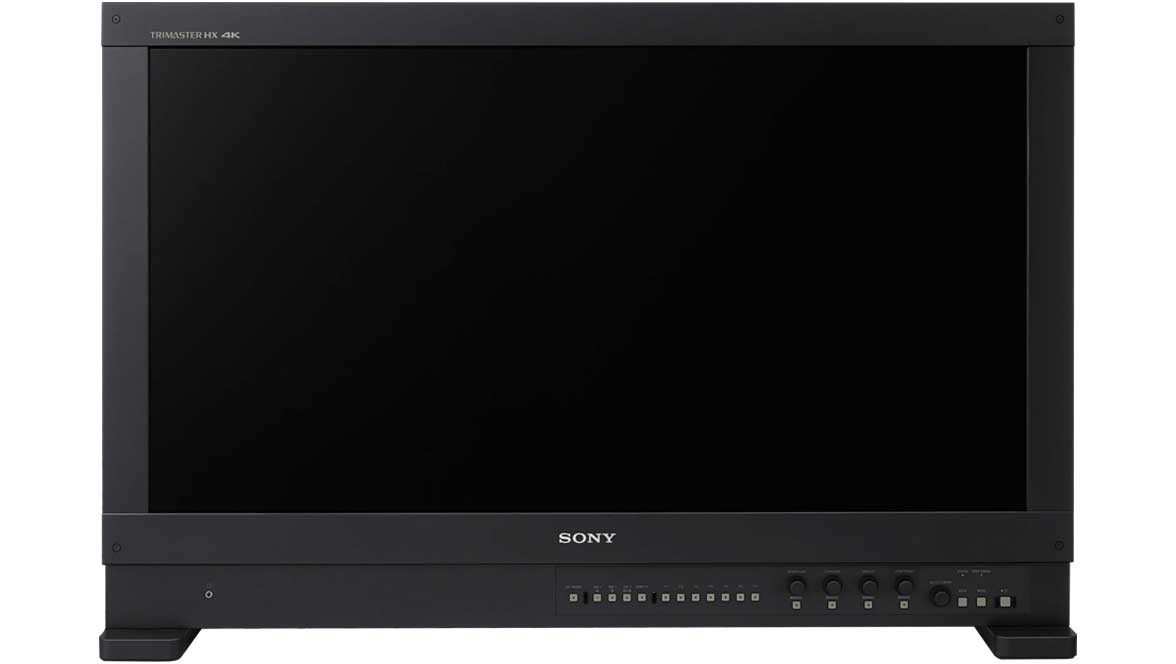
A colorist grades a sunset sequence on a Sony BVM‑HX310 (1000 nits sustained, 2000 nits peak). The sun disk sits at 1800 nits. On the reference monitor the disk shows subtle gradient bands and a clean edge.
On a 500‑nit GUI display the disk clips at 500 nits. The gradient bands vanish. The edge becomes a hard white circle.
The colorist lowers the sun to 400 nits to “fix” the clipping on the GUI. The grade looks fine on the reference monitor but loses the intended intensity. The client approves the dimmed version.
The HDR master delivers a dull sunset. QC passes because the signal is legal. The creative intent is gone.
Why Specular Highlights Break on Standard Monitors (And What “Clipped” Actually Looks Like)
Specular highlights are discrete bright pixels that exceed diffuse white (100 nits in PQ). They carry shape, texture, and material cues. A standard monitor applies a hard clip at its peak luminance.
Pixels above the clip become uniform maximum code value. Texture disappears. Edges harden.
The highlight reads as a glow sticker instead of a light source.
Manufacturer specifications for the Sony BVM‑HX310 list 2000 nits peak with per‑pixel local dimming. Mini‑LED displays like the Canon DP‑V3120 use 2000+ dimming zones. OLEDs like the Sony BVM‑E251 hit 1000 nits full‑screen but suffer ABL (Automatic Brightness Limiter) on large highlights.
Each technology clips differently. The colorist must know which clip they are seeing.
The QC Kickback Loop: Netflix Rejection → Re‑Grade → Redelivery → Lost Margin
Netflix Photon QC checks MaxCLL and MaxFALL against the mastering display metadata. If MaxCLL exceeds the mastering display peak, the asset fails. A fail triggers a ticket.
The colorist re‑opens the session, adjusts trims, re‑renders, and re‑delivers. Turnaround for a feature film re‑grade averages 2‑3 days. Storage, QC, and project management costs add $5,000‑$15,000 per cycle.
Aggregate data from post houses shows 12‑18 percent of first‑pass HDR deliveries fail peak‑luminance checks. Most failures trace to grading on displays that could not show the true peak. A reference monitor rental at $500‑$800 per day eliminates that risk.
The math favors the monitor.
OLED vs Mini-LED vs Dual-Layer: What the Specs Don’t Tell You About Daily Grading
OLED delivers true black and per‑pixel control. Mini‑LED uses hundreds of zones to boost sustained brightness. Dual‑layer LCD stacks two panels for contrast without burn‑in risk.
Each technology behaves differently over an eight‑hour session.
OLED panels suffer automatic brightness limiting (ABL) when large highlights cover the screen. A full‑screen white window drops from 1000 nits to 300 nits in seconds. Mini‑LED holds 1000 nits full‑screen but shows blooming around small bright objects on dark backgrounds.
Dual‑layer LCD maintains 2000 nits sustained with minimal blooming but shifts color off‑axis.
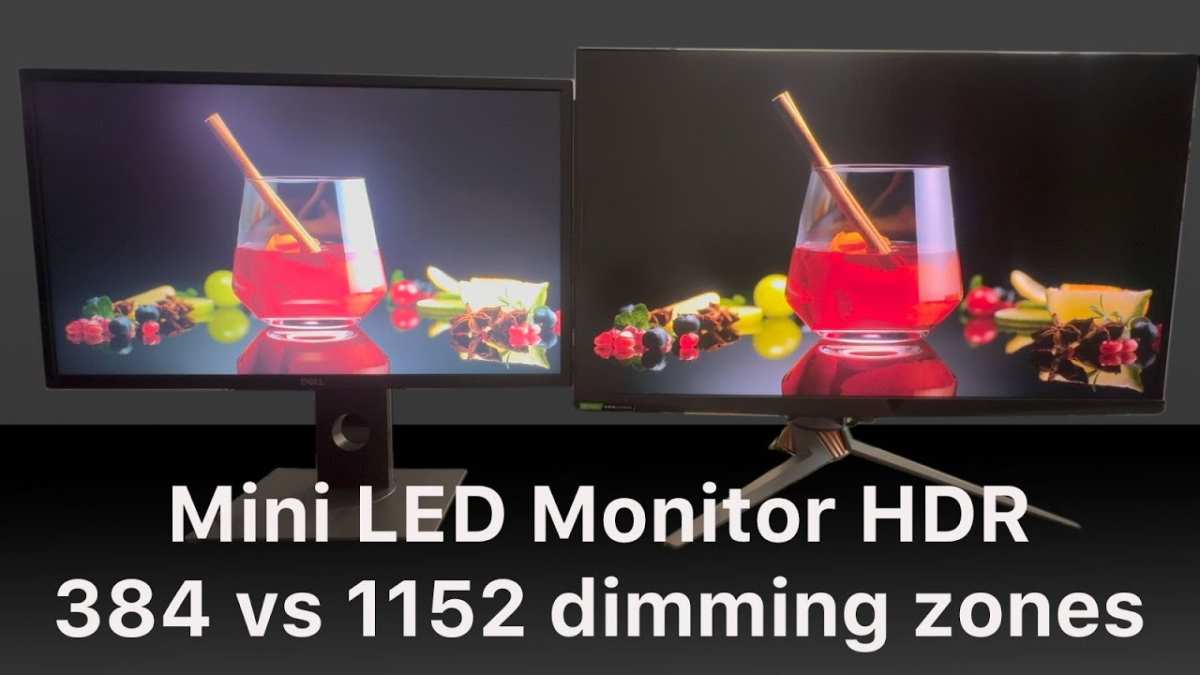
Colorists report that OLED feels fastest for creative decisions because black is absolute. Mini‑LED feels safer for HDR‑to‑SDR trim passes where sustained brightness matters. Dual‑layer LCD is preferred for long‑form episodic work where calibration stability over weeks is critical.
| Technology | True Black | Sustained Full‑Screen | Burn‑in Risk | Typical Price (31") |
|---|---|---|---|---|
| OLED | Yes | 300‑500 nits | Moderate | $18k‑$25k |
| Mini‑LED | Near | 1000‑2000 nits | Low | $22k‑$35k |
| Dual‑Layer LCD | Near | 2000‑4000 nits | None | $30k‑$55k |
Calibration Drift Is Silent — Until Your Episode 6 Looks Different Than Episode 1
Reference monitors drift. OLED luminance drops 1‑2 percent per 500 hours. Mini‑LED backlights age unevenly across zones.
Dual‑layer LCD polarizers shift color temperature. A probe check at the start of each session catches drift before it bakes into the grade.
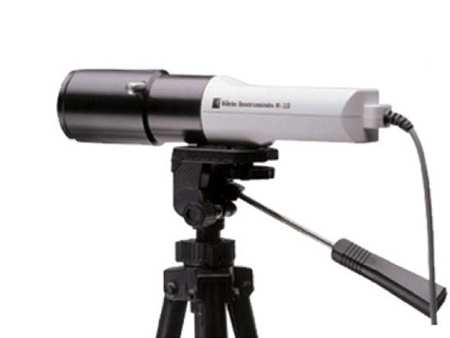
Weekly 3D LUT recalibration with a Klein K10‑A or JETI Specbos 1211 restores accuracy. Facilities that skip weekly recal see ΔE drift exceed 2.0 by episode 4. That ΔE is visible on a reference display and triggers client notes.
A single recalibration session costs 30 minutes. A re‑grade costs days.
Manufacturer specs for the Sony BVM‑HX310 specify <1 % luminance drift per 1000 hours with daily probe alignment. Independent tests confirm drift stays under 0.5 % when the probe routine is followed. The routine is non‑negotiable for Netflix‑approved facilities.
Real Numbers: What a Reference Monitor Costs vs What a Failed QC Costs
A 31‑inch 1000‑nit reference monitor rents for $500‑$800 per day. Purchase ranges $18k‑$35k. A 42‑inch 2000‑nit dual‑layer unit rents $1200‑$1500 per day.
Purchase $45k‑$65k. Annual calibration contract adds $2k‑$4k.
A failed Netflix QC on a feature film averages 2.5 days of re‑grade time. Facility day rate $2500. Storage and QC fees $1500.
Total direct cost $7,750‑$10,000 per cycle. Indirect cost includes delayed delivery penalties and reputation risk.
Industry surveys indicate 15‑20 % of first‑pass HDR deliveries fail peak‑luminance checks. Most failures trace to grading on displays that could not show true peak. Renting a reference monitor for the grading window costs a fraction of a single QC failure.
The ROI is immediate.
Netflix Partner Help Center publishes the current HDR delivery specification and approved monitor list. Checking that list before bidding a job avoids spec mismatches.
Who Actually Needs 1000, 2000, or 4000 Nits — And Who Can Grade on a GUI Display
Netflix Originals require 1000‑nit master minimum. Apple TV+ prefers 2000‑nit masters for flagship titles. Dolby Vision cinema trim targets 4000 nits.
If you deliver to those platforms you need a reference monitor that hits the target peak.
YouTube HDR, social HDR, and corporate HDR often max at 1000 nits. A calibrated 1000‑nit GUI monitor like the ASUS ProArt PA32UCG or Apple Pro Display XDR can serve as the primary grading display for those deliverables. The colorist must verify MaxCLL never exceeds the GUI peak.
Indie features targeting festival play then streamer pickup should grade on a 1000‑nit reference. The master can be trimmed down later. Grading on a 300‑nit GUI and hoping for a clean trim pass is a gamble that frequently loses.
Mistakes That Burn Hours: MaxCLL Guessing, Ignoring ABL, Trusting “HDR Preview” Mode
Setting MaxCLL by eye instead of measuring the brightest pixel in the timeline leads to under‑ or over‑reporting. Under‑reporting clips highlights in the deliverable. Over‑reporting wastes code values and reduces precision in the mid‑tones.
Use the DaVinci Resolve “MaxCLL Analyzer” or Dolby CM v4.0 to measure per shot.
Ignoring ABL on OLED causes the colorist to grade brighter than the display can sustain. When the client views on a reference monitor the highlights collapse. The fix is to grade with a 10 % window patch matching the APL of the scene.
That simulates real‑world ABL behavior.
“HDR Preview” mode on an SDR GUI monitor applies a simulated tone map. It does not show true specular detail. Colorists who rely on it miss clipping in the top 10 % of the signal.
The only reliable preview is a calibrated HDR reference display.
Pro Workflow: Daily Probe Check, Weekly LUT, Managed Color, Trim Pass Discipline
Start every session with a probe read against the monitor’s internal test patches. A Klein K10‑A or JETI Specbos 1211 measures 10‑point grayscale, primaries, and peak white. Acceptance tolerance is ΔE <1 for gray balance and <2 % for luminance.
Log the results. If any patch drifts, recalibrate before grading.
Weekly full 3D LUT calibration uses CalMAN, LightSpace, or SpectraCal with a 17³ or 33³ cube. Target ST.2084 PQ curve, BT.2020 primaries, D65 white point. Verify MaxCLL and MaxFALL metadata pass‑through with a Dolby Vision CM v4.0 test signal.
Save the LUT to the monitor’s hardware slot and to the grading system’s output transform.
Grade in DaVinci YRGB Color Managed or ACES 2.0. Set timeline color space to ST.2084 PQ. Set output transform to the monitor’s calibrated profile.
Enable HDR metadata injection per shot. Create the 100‑nit SDR trim pass using Dolby trim analysis or manual grading on a calibrated SDR reference display. Never guess the trim.
Frequently Asked Questions
Can I grade HDR on an Apple Pro Display XDR?
Yes for 1000‑nit deliverables. The XDR sustains 1000 nits full‑screen and peaks at 1600 nits. It lacks hardware 3D LUT and probe‑level calibration.
Use it as a GUI monitor with a reference display for final QC.
Are consumer OLEDs like LG C3 suitable for HDR grading?
No. They lack calibration stability, metadata pass‑through, and sustained brightness. ABL aggressively limits full‑screen highlights.
Use only for client preview, never for mastering decisions.
Do I need a 4000‑nit monitor for Dolby Vision?
Only if you are creating a 4000‑nit cinema trim. Most streaming Dolby Vision profiles target 1000‑2000 nits. A 2000‑nit dual‑layer reference monitor covers the vast majority of Dolby Vision deliverables.
What’s the difference between a field monitor and a reference monitor?
Field monitors (SmallHD, Atomos) prioritize brightness, battery, and portability. They drift faster, lack hardware LUTs, and are not Netflix‑approved for mastering. Reference monitors prioritize accuracy, stability, and metadata compliance.
Can I use DaVinci “HDR Preview” on an SDR monitor instead of a reference display?
No. HDR Preview applies a simulated tone map. It does not reveal true specular detail or clipping.
It is useful for rough editing only. Final grade decisions require a calibrated HDR reference display.
How often should I recalibrate a reference monitor?
Daily probe check at session start. Weekly full 3D LUT recalibration. Annual factory recertification for Netflix‑approved facilities.
Skip any step and drift will show up in the grade.

Similar Posts





















