Gemini Extensions Explained
If you've ever wished Gemini could just pull up your next meeting, summarize a messy email thread, or find that one file buried in Drive without you opening a single tab, you're exactly the person Google built Gemini extensions for. Gemini extensions explained simply: they're connections between Gemini and your Google apps that let the AI read and act on your real data, right inside the chat.
As of 2026, Google offers seven core extensions covering Gmail, Calendar, Drive, Maps, YouTube, Flights, and Hotels. Not everyone needs all of them, and that's the whole point. The smart move is figuring out which ones actually save you time and which ones just add noise.
Quick Answer
Gemini extensions are add-ons that connect Gemini to your Google apps. They let Gemini read your emails, calendar, Drive files, and more. You can toggle each one on or off individually.
They're available in the Gemini app and on the web at gemini.google.com. You need a Google One AI Premium plan for full access.
What Are Gemini Extensions and Why Should You Care
Think of Gemini without extensions as a brilliant assistant who's locked out of your office. It can answer general questions, help you write, and brainstorm ideas, but it can't see your inbox, your calendar, or your files. Extensions hand over the keys.
Once you enable them, Gemini can pull real information from your Google account and act on it. That means summarizing a 50-message email thread in three sentences, finding a specific document in Drive without remembering the filename, or checking whether you're free next Thursday at 2 p.m.
Here's what makes this different from just opening Gmail or Drive yourself. You're not searching with keywords or clicking through folders. You're asking in plain language: "What did Sarah say about the budget in her last email?" or "Find the PDF I uploaded last week about the project timeline." Gemini handles the retrieval and the summarization in one step.
The catch? Extensions only work with personal Google accounts in most cases, and your Workspace admin may have them turned off entirely for enterprise domains. So availability depends on your account type.
How Gemini Extensions Actually Work
When you toggle an extension on, you're giving Gemini permission to access that specific Google service on your behalf. The extension doesn't run locally on your device. Everything happens server-side through Google's infrastructure.
Here's the flow in plain terms:
- You type a request into Gemini.
- Gemini identifies which connected service has the relevant data.
- Gemini queries that service using your existing permissions.
- Gemini processes the returned data and formulates a response.
- You see the answer in the chat, often with source links back to the original content.
The key thing to understand is that Gemini doesn't store a separate copy of your data for this. It accesses your Gmail, Drive, or Calendar in real time, the same way the apps themselves do. When you turn an extension off, Gemini can no longer query that service.
Permissions are granular. Enabling the Gmail extension doesn't automatically give Gemini access to your Drive. You control each one independently, and you can revoke access at any time from the same settings menu where you turned them on.
Which Extensions Are Available Right Now
Google launched with seven core extensions, and they cover the services most people use daily. Here's the full lineup:
| Extension | What It Does | Best For |
|---|---|---|
| Gmail | Reads, summarizes, and drafts emails | Heavy email users, anyone drowning in threads |
| Google Calendar | Checks availability, creates and modifies events | Scheduling, meeting planning |
| Google Drive | Searches files, summarizes documents, answers questions about stored content | Finding files fast, extracting info from long docs |
| Google Maps | Provides directions, nearby places, traffic, travel time | Commuting, trip planning, local searches |
| YouTube | Summarizes videos, answers questions about video content | Research, quick video takeaways |
| Google Flights | Searches flights, compares routes and pricing | Travel planning |
| Google Hotels | Searches hotels, compares amenities and prices | Trip planning |
Google has signaled that more extensions are coming, including potential third-party integrations. But as of early 2026, these seven are the ones you'll find in the extensions gallery. If you're hoping for a Slack or Notion extension, that's not here yet.
Who Should Use Gemini Extensions (and Who Shouldn't)
Not every extension makes sense for every person. Here's a practical breakdown.
Enable Gmail if: you get more than 20 emails a day, you frequently lose track of action items buried in threads, or you want help drafting responses quickly.
Enable Calendar if: you juggle multiple meetings, you often double-book yourself by accident, or you want to check availability without opening the Calendar app.
Enable Drive if: you store a lot of documents in Google Drive and struggle to find specific files, or you want quick summaries of long reports and meeting notes.
Enable Maps if: you rely on Google Maps regularly for directions, commute planning, or finding nearby restaurants and services.
Enable YouTube if: you watch educational or research-heavy videos and want quick summaries without sitting through 20 minutes of content.
Enable Flights and Hotels if: you travel at least a few times a year and want to compare options without opening multiple tabs.
Skip extensions entirely if: you're deeply uncomfortable with AI accessing your personal data, you use a managed Workspace account where your admin has disabled them, or you simply don't use Google services heavily enough to benefit.
The honest truth is that most people will only get real value from two or three extensions. Enabling all seven "just in case" usually means more permission prompts and more potential for Gemini to pull from the wrong service. Start with the one or two you'd actually use daily, then add more if you find yourself wanting them.
How to Turn On and Manage Your Gemini Extensions
Getting started takes about 30 seconds. Here's the step-by-step.
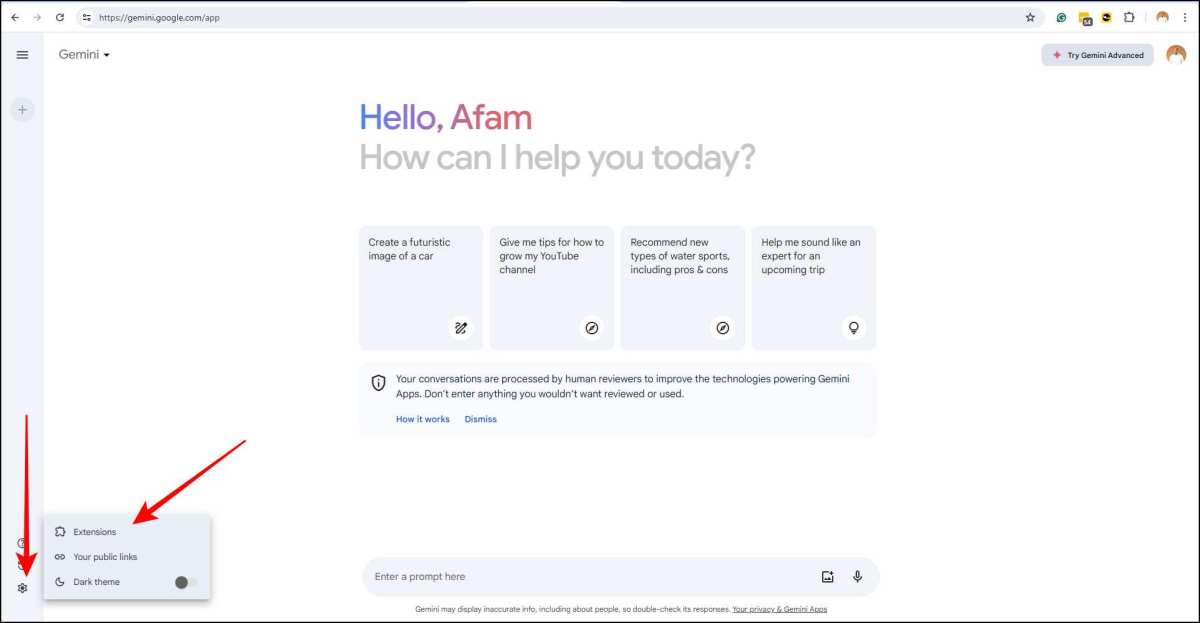
On the Gemini website (gemini.google.com):
- Open Gemini in your browser.
- Click your profile icon in the bottom-left corner.
- Select "Extensions" from the menu.
- You'll see a toggle switch for each available extension.
- Flip the toggle on for any extension you want to enable.
- Grant permissions when prompted. Each extension will ask for the specific access it needs.
On the Gemini mobile app:
- Open the Gemini app on your phone.
- Tap your profile icon in the top-right corner.
- Go to "Extensions."
- Toggle on the extensions you want.
- Follow the permission prompts.
A few things worth knowing:
- You can turn extensions off anytime from the same menu. No penalty, no data loss.
- If you have multiple Google accounts, extensions are tied to whichever account is active in Gemini. Switch accounts and you'll need to enable them again for that profile.
- Workspace admins can disable extensions at the organizational level. If the Extensions menu is missing entirely, that's probably why.
- Some extensions may not appear if your account language or region doesn't support them yet.
Once enabled, you don't need to do anything special. Just ask Gemini a question related to that service, and it'll use the extension automatically. You don't need to say "check my Gmail" or "use the Drive extension." Gemini figures it out from context.
What Gemini Can Do With Each Extension Enabled
Now that you know how to turn them on, let's walk through what each extension actually does in practice. These aren't gimmicks. Each one solves a specific daily friction point.
Gmail Extension
This is the one most people enable first, and for good reason. Once turned on, Gemini can summarize long email threads so you don't scroll through 30 replies. It can also surface specific information, like "find the attachment Sarah sent last Tuesday" or "what's the deadline Marcus mentioned in his email?"
You can also ask Gemini to draft emails based on your thread context. Try: "Draft a reply to John confirming the meeting on Friday at 3 p.m." Gemini pulls the thread content and generates a response you can edit before sending.
The limitation? Gemini can only access emails that are already indexed in your account. If you just received a message seconds ago, give it a moment to appear.
Google Calendar Extension
Ask Gemini: "What's my schedule look like next Tuesday?" or "Am I free on March 15 around 2 p.m.?" It reads your calendar and gives you a direct answer. You can also say "Move my 3 p.m. meeting to 4 p.m." and Gemini will attempt the change, though you'll usually get a confirmation prompt before anything's finalized.
This one shines when you're coordinating with others. "Find a 30-minute slot where both me and Alex are free this week" saves you the back-and-forth of checking manually.
Google Drive Extension
This is your file search on steroids. Instead of remembering exact filenames, ask: "Find the Q3 budget spreadsheet" or "Summarize the meeting notes from last week's client call." Gemini searches Drive and either pulls up the file or gives you a summary of its contents.
It's particularly useful for long documents. Asking Gemini to "extract the action items from the project plan doc" saves you from opening a 40-page file.
Google Maps Extension
Ask for directions, travel times, or nearby recommendations. "How's the traffic to the airport right now?" or "Find coffee shops near my 2 p.m. meeting location" both work. The Maps extension pulls live data, so you get current conditions, not cached results.
YouTube Extension
Paste a video URL or ask about a specific video, and Gemini can summarize its content or answer questions about what's said in it. This is genuinely useful for research. "What are the main points from this 30-minute tutorial?" gets you the highlights without watching the whole thing.
Google Flights and Hotels Extensions
Ask: "Find me a round-trip flight from Chicago to Denver for under $300 next month" or "What hotels are available in Austin the weekend of April 12?" Gemini searches and returns options with pricing.
These aren't booking tools. They're research assistants that save you from opening multiple browser tabs and comparing manually.
Privacy, Permissions, and What You're Actually Sharing
This is the section that matters most, so let's be direct about it.
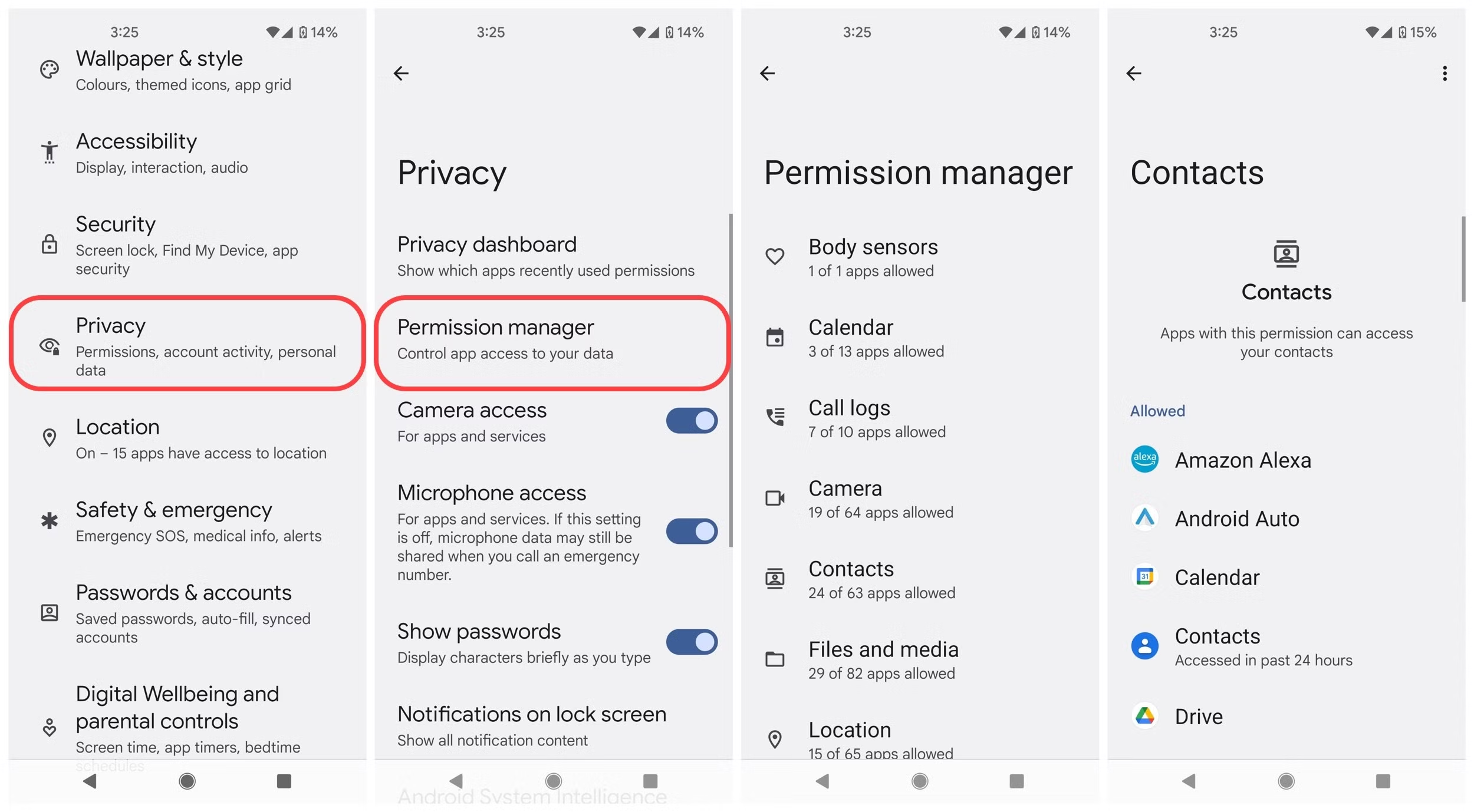
When you enable a Gemini extension, you're giving Google's AI system permission to access the data in that service. That means Gemini can read your emails, view your calendar events, search your Drive files, and so on, depending on what you've turned on.
Here's what Google says about data handling, per their published AI privacy notice: your content isn't used to train their foundational models unless you've explicitly opted into additional programs. Workspace data accessed through extensions stays within your account's existing security boundaries.
What that means in practice:
- Gemini accesses your data the same way any Google app would, using your existing permissions.
- Your emails don't get shared with other users or external parties through Gemini.
- You can review and revoke extension permissions anytime from the same settings menu.
- Gemini's responses are generated and displayed to you, not stored independently as a separate copy of your data.
Practical advice: don't enable an extension for a service you wouldn't be comfortable with an AI reading. If you keep sensitive financial or medical information in a specific Gmail label or Drive folder, consider whether you want Gemini to access it, even technically.
For enterprise users, your Workspace admin has controls over extensions at the organizational level. Google's admin console documentation confirms that admins can disable extensions for entire domains or specific organizational units.
If you ever want to revoke access, just flip the extension toggle off. That's it. Gemini immediately loses the ability to query that service.
Common Mistakes People Make With Gemini Extensions
After reviewing aggregate user feedback and documented support issues, a few patterns come up repeatedly.
Mistake 1: Enabling everything at once. People turn on all seven extensions because they can, then wonder why Gemini sometimes pulls from the wrong service. If you asked about a restaurant recommendation but Gemini checked your calendar instead, you probably have too many extensions active. Start with two or three.
Mistake 2: Assuming real-time accuracy. If you just uploaded a file to Drive or received a new email, there's usually a short delay before Gemini can access it. This isn't a bug. It's how Google's indexing works.
Mistake 3: Not checking which Google account is active. If you personally use one Google account and work uses another, extensions enabled on one don't carry over to the other. It sounds obvious, but people get confused when Gmail extension suddenly "stops working" after switching accounts.
Mistake 4: Expecting Gemini to take permanent actions without confirmation. Gemini will suggest calendar changes, draft emails, and summarize files. It won't send an email or book a flight without you approving it first. Some users assume it's more autonomous than it actually is.
Mistake 5: Forgetting that Workspace admins can block extensions. If you're using a company or school account and the Extensions menu is missing entirely, your admin has likely disabled it at the organizational level. You can't override that from your personal settings.
Gemini Extensions vs. Built-In Gemini Features: What's the Difference
People often confuse Gemini extensions with the built-in Gemini features already inside Gmail, Docs, and other Workspace apps. They're not the same thing.
Built-in Gemini features, like "Help me write" in Gmail or the Gemini sidebar in Docs, live inside those specific apps. They're designed for single-app tasks: drafting an email, summarizing a document, generating an image in Slides.
Extensions, on the other hand, live inside the Gemini app or gemini.google.com. They let Gemini pull data across multiple Google services in a single conversation. You can ask about your calendar, then reference an email, then search Drive, all in one thread, because extensions give Gemini that cross-service access.
Here's a quick comparison:
| Feature | Built-in Gemini in Workspace Apps | Gemini Extensions |
|---|---|---|
| Location | Inside Gmail, Docs, etc. | Inside Gemini app or website |
| Scope | Single app only | Cross-service access |
| Example Use | "Help me write" an email in Gmail | "Check my calendar and draft a reply to John" |
| Setup Required | None, if your plan includes it | Must enable each extension manually |
You don't have to choose one or the other. They complement each other. Built-in features handle single-app tasks quickly.
Extensions handle multi-step requests that span services.
When to Use Extensions vs. Just Opening the App Yourself
Here's the honest truth: extensions aren't always the fastest option. Sometimes opening Gmail directly is quicker. Knowing when to use which saves you time.
Use extensions when:
- You need information from multiple services at once (calendar plus email plus Drive).
- You want a summary of something long (a 40-email thread, a 30-page document).
- You're not sure exactly what you're looking for and want to search with natural language.
- You're already in Gemini and don't want to switch contexts.
Just open the app directly when:
- You need to perform precise, manual actions (formatting a document, creating a detailed calendar event with multiple guests).
- You're responding to something time-sensitive and can't wait for Gemini's response.
- You need to browse visually (scrolling through a spreadsheet, looking at a map layout).
- You want full control over the interface and don't want an AI interpreting your request.
The extensions shine for retrieval and summarization. They're less useful for creation tasks that require fine-grained control. Think of them as your research assistant, not your replacement for the apps themselves.
Troubleshooting: When Extensions Don't Work or Give Bad Answers
Extensions occasionally misbehave. Here's how to fix the most common issues.
Extension not appearing in the menu. Check that you're signed into a personal Google account or a Workspace account that allows extensions. If you're on a managed account, contact your admin. Also verify that your account language and region are supported.
Gemini says it can't access a service even though the extension is on. Try toggling the extension off, refreshing the page or restarting the app, then toggling it back on. This forces a fresh permission handshake. If that doesn't work, check your Google account's app permissions at myaccount.google.com to make sure nothing's been revoked at the account level.
Gemini gives outdated or wrong information. Remember that indexing takes time. A file uploaded five minutes ago might not be searchable yet. Also, if your Drive has thousands of similarly named files, Gemini might pull the wrong one.
Be specific in your requests: "the Q3 budget file I created last Thursday," not "the budget file."
Gemini accesses the wrong service. This usually happens when you have many extensions enabled and your request is ambiguous. Try specifying the service: "Check my Gmail for…" instead of just "Find the email about…" Disabling extensions you rarely use also helps.
Permission prompts won't go away. Clear your browser cache, sign out and back into your Google account, then revisit the Extensions menu. This resolves most stuck-prompt issues on the web version.
Expert Tips for Getting the Most Out of Gemini Extensions
Start with just the Gmail and Calendar extensions if you're unsure. These two deliver the most consistent time savings for the widest range of people. Add Drive once you're comfortable.
Be specific in your prompts. "Summarize the thread about the Q3 launch from Sarah" works better than "check my emails." The more context you give Gemini, the better the result.
Review Gemini's responses before acting on them. Summaries are usually accurate, but they can miss nuance, especially in emotionally charged emails or complex documents.
Final Decision Guide: Which Extensions Are Worth Enabling for You
If you're a heavy email user, enable Gmail. If you manage a busy schedule, enable Calendar. If you store lots of files in Drive, enable Drive.
If you travel regularly, enable Flights and Hotels.
If you're privacy-conscious, enable only what you need and review permissions periodically. If you're on a managed Workspace account, check with your admin first.
Frequently Asked Questions
Do Gemini extensions cost extra?
Full extension access requires a Google One AI Premium plan. Gemini itself is free, but the extensions that connect to your Workspace data are part of the paid tier.
Can I use Gemini extensions on a work or school account?
It depends on your organization's settings. Workspace admins can enable or disable extensions at the domain level. If you don't see the Extensions menu, your admin has likely turned it off.
Does Gemini store my emails and files separately?
No. Gemini accesses your data in real time through your existing Google account permissions. It doesn't create a separate copy of your emails or files for extension use.
Can Gemini send emails or book flights on its own?
No. Gemini can draft emails and search flights, but it won't send anything or make bookings without your explicit approval. You're always in control of the final action.
How do I turn off an extension I no longer want?
Open the Extensions menu from your profile icon in Gemini, then toggle off the specific extension. Access is revoked immediately.

Similar Posts





















