Find Lost Android Phone With Dead Battery: Effective Tips
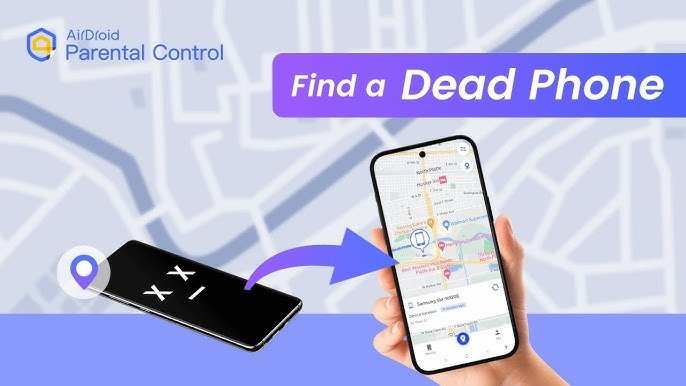
If you’ve lost your Android phone with a dead battery, **the best first step is to charge it briefly or connect it to power**. This quick action can help turn it on long enough to locate it using find My Device.
Even if the battery is fully drained, some apps or devices store last known locations or send signals when recharged. Checking your account from another device can reveal recent activity.
Rest assured, there are practical methods to find your lost Android phone with dead battery, making the search less frustrating and more successful.

Find Lost Android Phone with Dead Battery
Losing your Android phone can feel upsetting, especially if the battery is dead. You might worry that your phone is gone forever or worry about someone finding it and accessing your personal information. But don’t worry! There are ways to find your lost Android device even if the battery is dead or the phone isn’t turning on. In this guide, we will walk you through effective strategies and tips to locate your Android phone when it has a dead battery, so you can recover your device quickly and safely.
Let’s dive into detailed steps, tools, and handy tips that can help you track down your lost Android phone efficiently.
Understanding Why a Dead Battery Makes Finding Your Phone Tricky
Before jumping into solutions, it’s helpful to understand why a dead battery complicates finding your Android phone. When the battery dies, the device turns off completely, meaning it cannot send location signals or respond to commands. This makes real-time tracking impossible until the phone is powered back on.
Even though a dead battery stops the device from sharing its location, there are still some ways you can prepare for this situation and increase your chances of recovery.
Preparing Your Android Device for Better Recovery Chances
Preparation is key. By setting up your device now, you can make it easier to find later, even if the battery is dead at the moment of loss. Here are some important steps to take before losing your phone:
- Enable Find My Device: Make sure your Android device has the “Find My Device” feature turned on. This service allows you to locate, lock, or erase your device remotely.
- Keep Location Services Active: Always keep location services enabled for accurate tracking when the phone is active.
- Allow Location Permissions: Grant apps like Find My Device permission to access your location in the background.
- Sync Your Google Account: Regularly sync your Google account to keep your device data updated.
- Set Up Emergency Contacts: Add trusted contacts who can assist you if your phone is lost.
- Activate Battery Saver Settings: These can help stretch your battery life if your device is running low on power, giving you more time to locate your phone.
Doing these steps now creates a safety net that will be useful if your battery dies.
What To Do When Your Android Phone Is Lost With a Dead Battery
When you realize your Android device is missing, and the battery is dead, your options are limited but not nonexistent. Follow these practical steps:
Wait for the Phone to Power Back On
This might seem obvious, but sometimes, your lost phone just runs out of power. If you believe it’s nearby, give it some time to recharge. Once the device charges enough, it will turn back on and start transmitting its location.
Use Your Google Account to Check Last Known Location
Even if the phone is off, Google often saves the last known location. Here’s how you can check it:
- Go to Find My Device on a computer or another device.
- Log in with your Google account linked to the lost device.
- On the map, see if Google has recorded the last location before the battery drained.
This information helps you identify the area where your phone was last active.
Check your Google Timeline
Google Timeline can show your device’s recent movements based on location data. To see it:
- Open Google Maps on your computer or phone.
- Click the menu icon and select “Your Timeline.”
- Review the history for any clues about where your phone might be.
Remember, Google Timeline needs your location history to be enabled beforehand, so it works better if you set it up early.
Ask Nearby People or Check Common Locations
If you lost your phone somewhere around your home, office, or a familiar place, ask people nearby if they’ve seen it. Sometimes, a simple inquiry or checking the places you visit frequently can lead to finding the device.
Notify Local Authorities and Lost & Found
If you believe your phone might have been stolen or lost in a public area, contact local authorities or the lost & found department of the place where you think you lost it. Providing a detailed description can help recover your phone.
Using Technology to Locate Your Android Phone with Dead Battery
While the phone’s battery is dead, some technologies and tools can help you locate the device once it turns back on or provide clues based on last activity.
Automatic Location Updates via Find My Device
The “Find My Device” service automatically updates the last known location once the device connects to the internet again. When your phone is recharged and turned on, it can send its current location to your account. Keep checking periodically.
Utilize Third-Party Tracking Apps
Some apps have features that log your device’s location even if the battery dies occasionally. If you installed such an app, check whether it maintained logs of your device’s last known location or movement.
Leverage Google Location History
If you enabled Google Location History before losing your device, you can access detailed reports of where your phone has been. This can help narrow down the search area.
Additional Tips for Finding Your Lost Android Phone with Dead Battery
In addition to technical tools, consider these practical tips:
- Stay Calm and Think Logically: Remember the last places you visited with your phone. Retrace your steps.
- Notify Your Service Provider: Inform your mobile carrier about the loss. They can suspend service or help track if someone tries to use your device.
- Use Social Media and Community Boards: Post about your lost phone with details and a contact number. Sometimes, good Samaritans find and return devices this way.
- Secure Your Data Remotely: If you fear your phone might be stolen or isn’t recoverable soon, use “Find My Device” to lock or erase your data to protect your privacy.
Preventive Measures for the Future
Once you recover your phone or if you want to prevent such problems in the future, follow these tips:
- Charge Your Phone Regularly: Keep your device charged to avoid it dying unexpectedly.
- Use a Power Bank: Carry a portable charger when you are out for long periods.
- Enable Always-On Location: Keep location services enabled for immediate tracking.
- Set Up Multiple Recovery Methods: Use third-party apps or services alongside Google’s solutions for redundancy.
Losing an Android phone with a dead battery can be stressful, but with a little patience and the right tools, you still have decent chances of finding it. Preparation is essential in improving these chances—by setting up tracking and security features ahead of time, you create a safety net for yourself. When your device runs out of power, you can rely on last known location data, Google Timeline, and physical clues to recover your phone.
Remember, act calmly, think logically, and keep an eye out in the places you last visited. With persistence and a bit of luck, you might just get your device back without too much trouble.
Frequently Asked Questions
Can I locate my Android phone once the battery is fully drained?
Locating your Android phone after the battery dies can be challenging since most tracking features rely on device power. However, if you’ve set up certain services beforehand, you might still identify the last known location or receive a notification when the battery was last active. Using Google Maps timeline or similar apps can sometimes provide insights into your device’s position before it lost power.
What steps should I take immediately after realizing my Android phone is missing and its battery is dead?
Act quickly by checking the last known location via your Google account or device management tools. If you had enabled location history or device tracking, review that information. Consider alerting local authorities if you suspect theft. Once the phone is recharged, use the tracking features to narrow down its current location and take appropriate action.
Is there a way to find my lost Android phone if I can’t turn it on or access the apps?
If your device remains unresponsive due to a dead battery or power issues, focus on the last known location data from your tracking account. Keep an eye on updates from your phone’s location history, which can provide clues for when and where the device was last connected. When the phone powers back on, you can resume real-time tracking or remote management.
Final Thoughts
Finding a lost Android phone with a dead battery can be challenging but doable. Start by checking places where your phone might have run out of juice, like your car or home. Use GPS history if possible to track recent locations.
Using Google’s Find My Device may be limited if the battery is completely dead. However, waiting for it to charge slightly can help locate it more accurately.
In summary, finding lost android phone with dead battery requires patience and strategic steps. Focus on familiar locations and use available tools when the device is powered temporarily.

Similar Posts