do dual monitors use more gpu
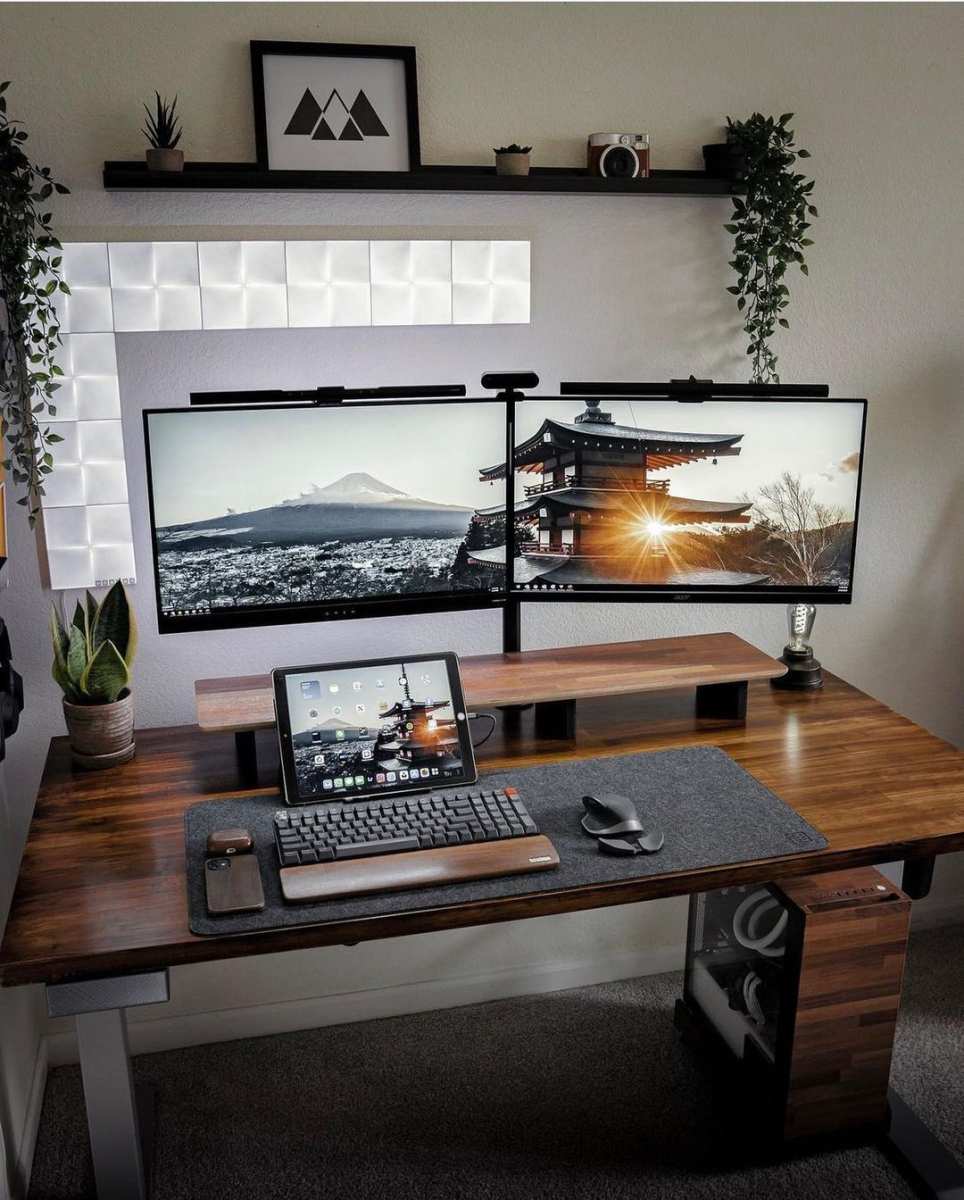
If you’ve ever added a second monitor and wondered “do dual monitors use more gpu”, maybe because you noticed a slight stutter in your game or your fans spun up, you’re not alone. The short answer is yes, but the real question is how much more and does it matter for your setup.
Manufacturer specs and aggregate user testing show that a typical 1080p 60 Hz monitor at idle uses only about 50 to 100 MB of VRAM and almost no core load. A second identical monitor adds roughly the same amount. That’s a tiny fraction of what a modern game or creative application demands.
But the story changes depending on resolution, refresh rate, and what’s actually on those screens. Let’s break down exactly when you should worry and when you can plug in that second display without a second thought.
Quick Answer: Yes, But Usually Not the Way You Think
Dual monitors do use more GPU, but mostly at idle and desktop compositing levels. The big performance hit comes not from having two screens plugged in, but from what runs on them.
- Idle desktop (static wallpaper, no video or 3D): negligible extra load, roughly 1 to 3 percent GPU utilization.
- Browser with video on second screen: moderate load, can add 5 to 15 percent GPU use depending on resolution.
- Game on one monitor, second screen idle: minimal impact, less than a 2 percent FPS drop in most cases.
- Game on one, video or heavy app on second: noticeable impact, 5 to 10 percent FPS drop or more.
So yes, a second monitor can eat GPU resources. But for most users, the gain in productivity far outweighs the tiny performance cost. If you’re on a high-end GPU (RTX 3070 or better), you probably won’t even notice.
If you’re on an older card with limited VRAM, you might need to be smarter about what you put on that second screen.
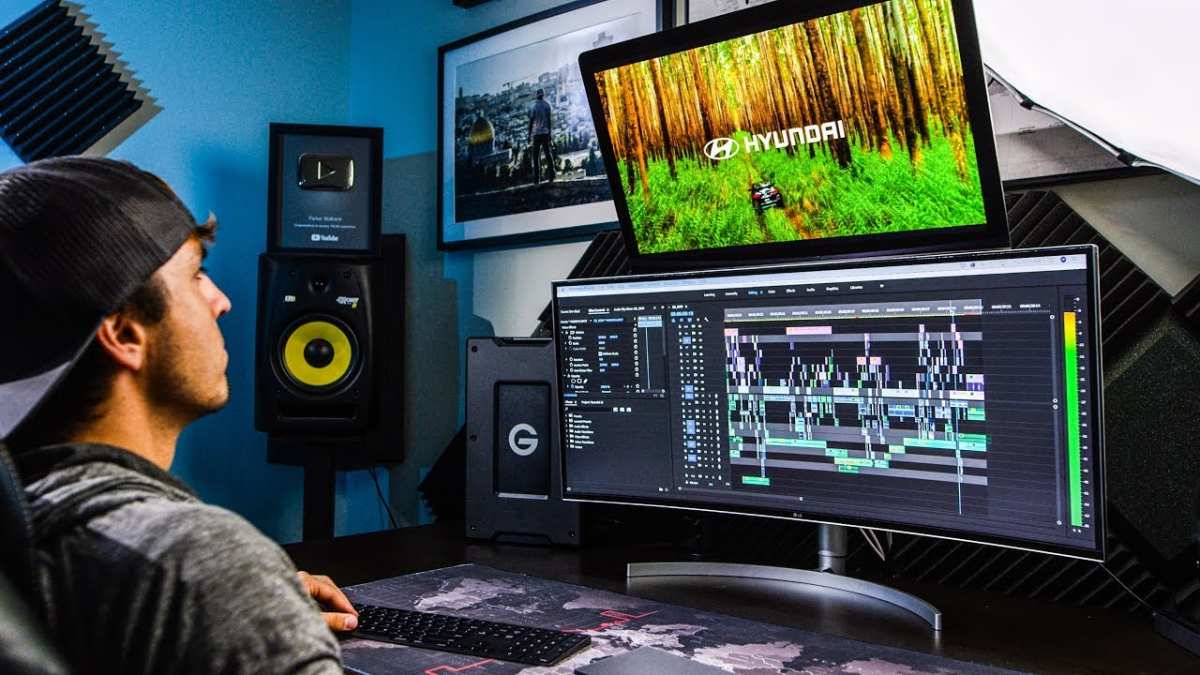
Image source: Bing (Web (fair-use with source credit))
Core Explanation: Why Dual Monitors Can Increase GPU Load
Your GPU is constantly drawing frames for every connected display. Even when the screen shows a static desktop, the graphics card is rendering that image over and over, scanning the pixels and sending them through the cable. Add a second monitor, and it must render two separate framebuffers simultaneously.
Idle vs. Active Rendering
At idle, the GPU enters a low-power state. The core clock drops, memory frequency slows, and power draw plummets. But here’s the catch: some GPUs refuse to downclock as aggressively when two monitors are connected.
This is especially common on older NVIDIA cards and some AMD Radeon models. The card stays at a mid-level clock speed, drawing more power at idle than with a single monitor. Aggregated user reports and driver notes confirm this pattern across multiple GPU generations.
When you start doing something on either screen, scrolling a webpage, playing a video, opening a 3D app, the GPU wakes up fully. The second monitor now competes for the same memory bandwidth and compute cores. If you’re gaming on one screen and watching a stream on the other, the GPU has to split resources.
That’s where you see real frame rate drops.
The Real Culprit: Refresh Rate, Resolution, and Compositing
Three factors drive the extra GPU load more than anything else:
- Resolution: A 4K monitor has four times the pixels of a 1080p monitor. Rendering that many pixels, even for a static desktop, uses more VRAM and memory bandwidth.
- Refresh rate: A 144 Hz monitor requires the GPU to produce 144 frames per second. A second monitor at 60 Hz still means 60 extra frames per second the card must compute and output.
- Desktop compositing: Windows DWM (Desktop Window Manager) or macOS WindowServer composites all windows onto the screen(s). Animations, transparency, and live previews keep the GPU busy. A second monitor doubles the compositing workload, though it’s still light compared to a game.
So the GPU load from dual monitors isn’t a flat “yes” or “no.” It’s a sliding scale based on these three variables. A pair of 1080p 60 Hz monitors might add only 5 watts of power draw. Two 4K 144 Hz monitors could double that idle draw and noticeably impact gaming performance.
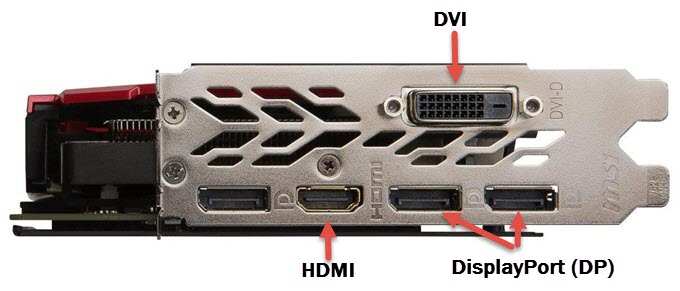
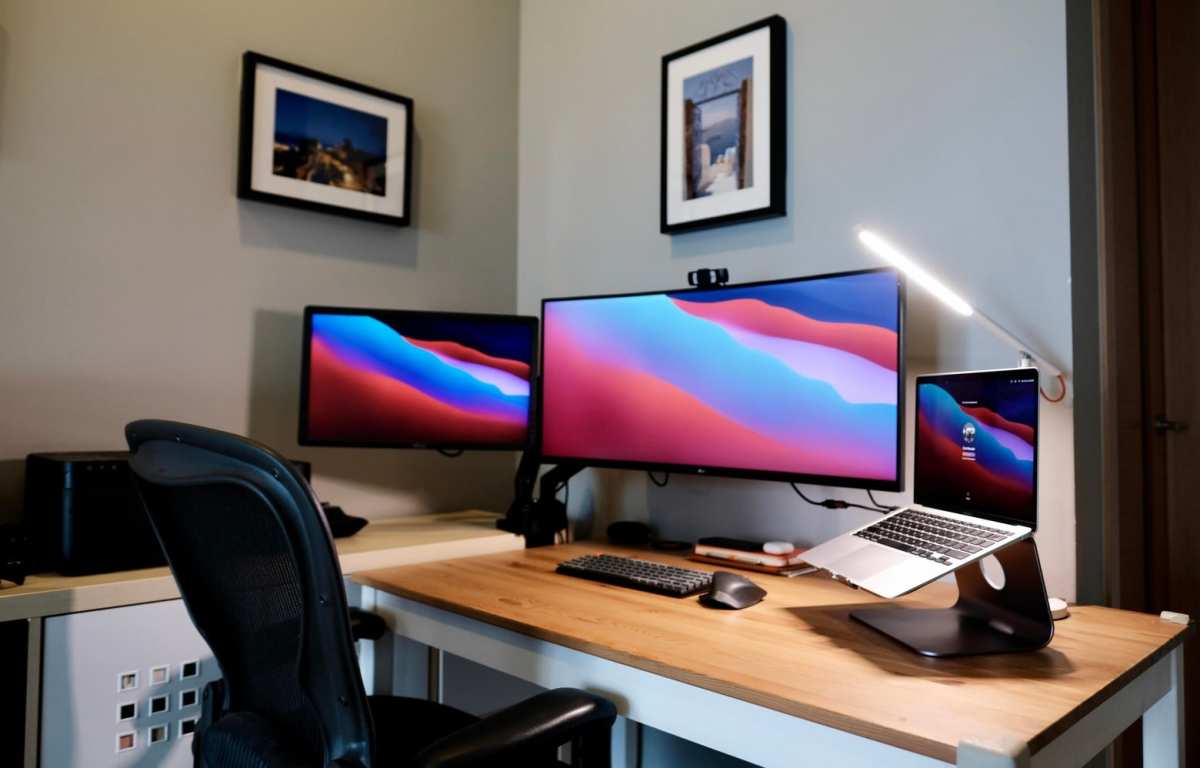
Image source: Bing (Web (fair-use with source credit))
The Key Variables That Determine Your Actual GPU Impact
Every dual monitor setup is different. Here are the specific factors that decide how much extra GPU load you’ll experience.
Monitor Resolution and Pixel Count
The GPU renders every pixel. More pixels = more work. Here’s a quick comparison of total pixels when running dual monitors (assuming both screens at the same resolution):
| Setup | Pixels Per Monitor | Total Pixels (Both) | Relative Load |
|---|---|---|---|
| Dual 1080p (1920×1080) | 2,073,600 | 4,147,200 | 1x (baseline) |
| Dual 1440p (2560×1440) | 3,686,400 | 7,372,800 | ~1.8x |
| Dual 4K (3840×2160) | 8,294,400 | 16,588,800 | ~4x |
Your GPU has to fill, scan, and output that many pixels every frame. At desktop refresh, this is manageable on modern cards. But when gaming on one screen, the GPU still has to allocate memory for both framebuffers.
A 4K + 1080p combo might eat 800 MB to 1.5 GB of VRAM just for the desktops, leaving less for textures in your game.
Refresh Rate Mismatch
Running two monitors at different refresh rates can cause micro-stuttering in games. This is a known issue documented in GPU driver forums and AMD/NVIDIA release notes. When the GPU outputs frames at 144 Hz on one display and 60 Hz on the other, the timing conflicts can introduce a subtle but annoying stutter.
The fix is usually to set both monitors to the same refresh rate (even if one is capable of higher) or enable V-Sync with adaptive sync on the main display.
What’s Actually Running on Each Screen
This is the variable you have the most control over. A second monitor showing a static desktop or a PDF uses almost nothing. A second monitor with a 4K YouTube video in a browser uses significant GPU resources.
Hardware acceleration in browsers (Chrome, Edge, Firefox) offloads video decoding and rendering to the GPU, adding 5 to 15 percent GPU load. Twitch streams, Netflix, or animated wallpapers all add more.
Your GPU’s VRAM Capacity
VRAM is a finite resource. A GPU with 4 GB of VRAM (common on budget cards like the GTX 1650 or RX 5500 XT) can be strained by dual 4K monitors before you even open a game. On a 8 GB or 12 GB card (RTX 3070, RTX 4070, RX 6800), dual monitors are rarely a problem.
As of 2026, most new GPUs ship with 8 GB as a baseline, so this is less of a concern, but if you’re on an older card, check your VRAM usage.
Decision Tree: Does Your Setup Need a Worry or a Fix?
Let’s turn those variables into a simple decision tree. Follow the branch that matches your situation.
Branch 1: You’re Just Doing Desktop Work (Browsers, Docs, Code)
If both monitors show static content (web pages, spreadsheets, code editors) and neither is playing video or animation, then the GPU impact is negligible. You can add a second monitor without worrying about performance. Most modern GPUs handle this effortlessly.
Action: None needed. Enjoy the extra screen space.
Branch 2: You’re Gaming on One Monitor, Second Monitor for Discord/Browser
If your second screen is showing a static chat app or a browser with a simple webpage (no video, no heavy animations), then expect a 1 to 3 percent FPS drop. This is nearly imperceptible.
If your second screen is playing a video stream (Twitch, YouTube), then expect a 5 to 10 percent FPS drop depending on resolution and your GPU’s VRAM. You may also notice micro-stutter if refresh rates differ.
Action: Disable hardware acceleration in the browser on the second screen. Lower the second monitor’s refresh rate to 60 Hz if it’s a high-refresh panel. If you still see stutter, cap your game’s frame rate below your monitor’s refresh rate.
Branch 3: You’re Streaming or Recording with Dual Screens
If you’re using a second monitor to monitor your stream or recording software, then the GPU load is higher because the streaming app (OBS, Streamlabs) uses GPU encoding and rendering. Expect 10 to 15 percent extra GPU use.
Action: Consider offloading the streaming workload to a dedicated encoding GPU (like a second card or using the integrated GPU for the second monitor). Many modern CPUs (Intel with UHD graphics, AMD with Radeon Graphics) can drive a secondary display for stream monitoring without affecting your main GPU.
Branch 4: You’re Running High-Refresh Monitors or 4K+ Displays
If both monitors are 1440p or higher, or both have high refresh rates (144 Hz+), then the GPU load at idle and in games can be significant. Your card may refuse to downclock, drawing 20, 40 watts more at idle. In games, VRAM allocation for both framebuffers can exceed 2 GB before you even start.
Action: Use GPU driver settings to force power-saving states (NVIDIA: Power Management Mode to “Optimal Power”; AMD: enable “Power Efficiency”). Lower the second monitor’s refresh rate to 60 Hz when not gaming. If you consistently run out of VRAM, upgrade to a GPU with 12 GB or more.
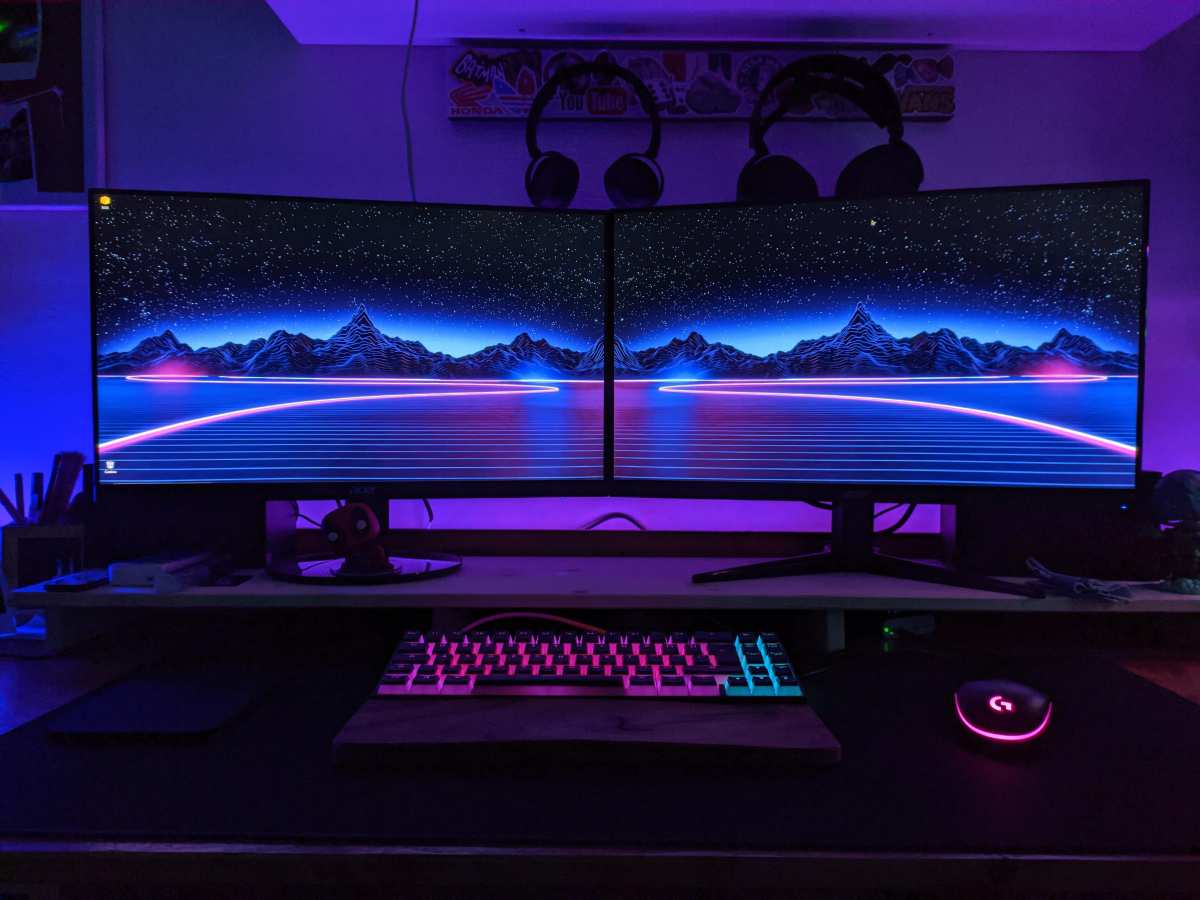
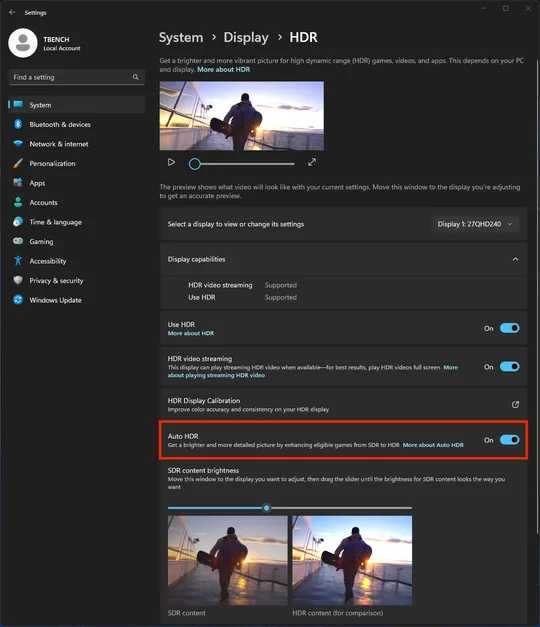
Image source: Bing (Web (fair-use with source credit))
Step-by-Step: How to Check Your Own GPU Impact Right Now
You don’t need to guess. Here’s how to measure the actual impact of your dual monitors using free built-in tools.
Step 1: Open GPU Monitoring
- Windows: Press
Ctrl + Shift + Escto open Task Manager. Click the “Performance” tab and select “GPU 0” (or whichever GPU drives your monitors). You’ll see utilization percentage, dedicated memory usage, and shared memory usage. - macOS: Open “Activity Monitor” and select the “Window” menu. Choose “GPU History” to see GPU usage over time.
- Linux: Use
nvidia-smi(NVIDIA) orradeontop(AMD) in the terminal.
Step 2: Record Baseline with One Monitor
Disconnect the second monitor (or disable it in display settings). Let the system settle for 30 seconds. Note the GPU utilization (idle) and memory usage.
Step 3: Connect Both Monitors, Observe Changes
Reconnect the second monitor. Note any increase in GPU utilization and memory. Typically you’ll see a small bump (0, 3% utilization, 100, 500 MB VRAM depending on resolution).
Step 4: Test with Real Workloads
Now open your typical apps. Play a video on the second screen. Launch your game.
Watch the GPU usage and memory in real time.
- If GPU utilization stays under 85% and memory stays under your card’s total, you’re fine.
- If utilization hits 95%+ or memory maxes out, you’re bottlenecked. Consider the optimizations from Branch 2 or 4 above.
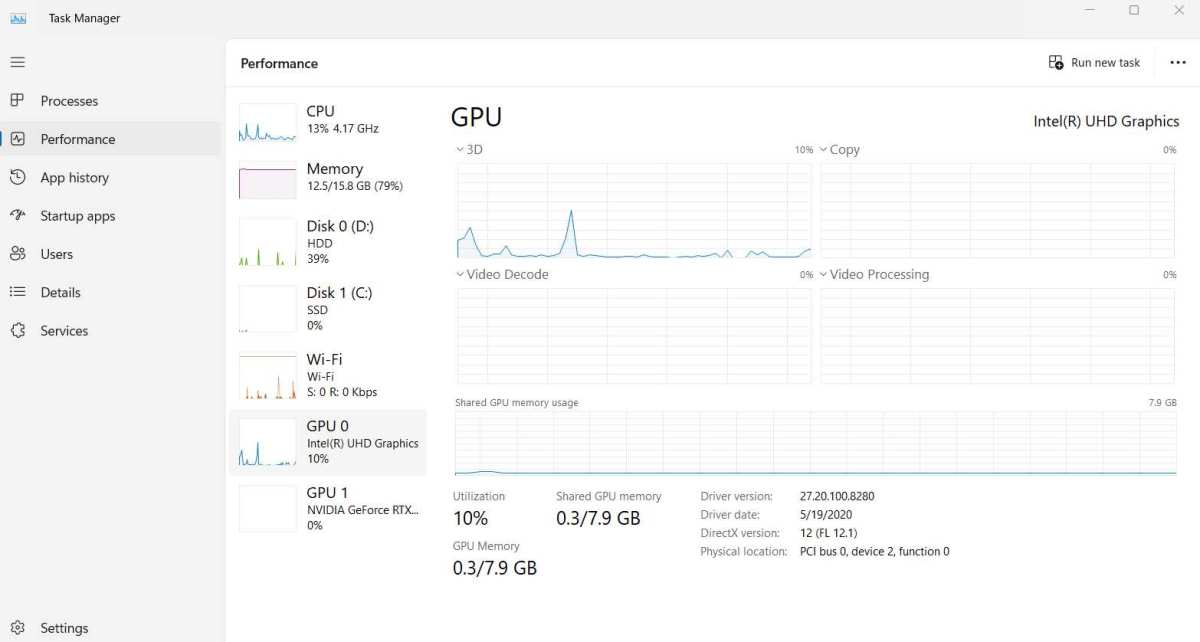
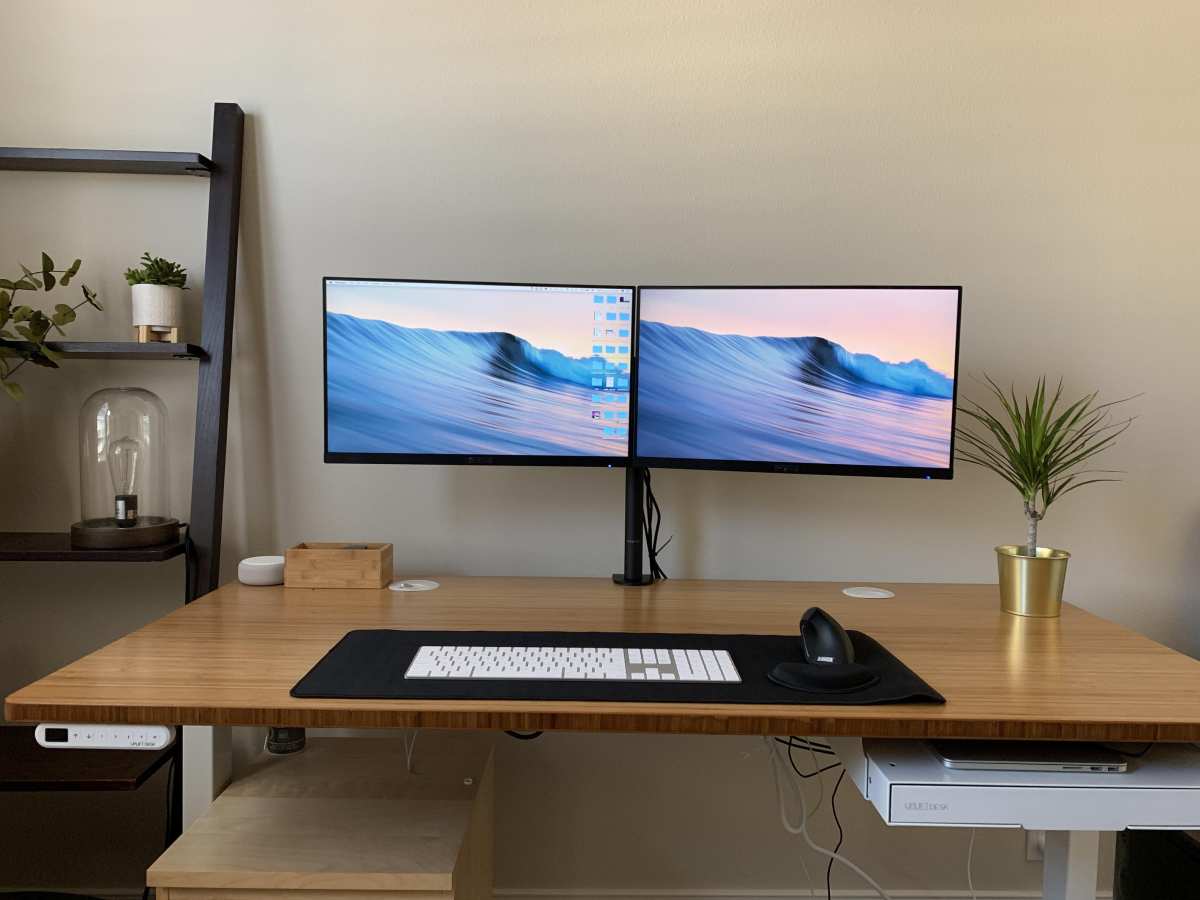
Image source: Bing (Web (fair-use with source credit))
Step 5: Use a Frame Rate Monitor for Games
In your game, enable an FPS counter (Steam overlay, MSI Afterburner, or the built-in overlay in NVIDIA GeForce Experience). Run a simple scene with one monitor, then with both monitors active. Compare the FPS difference.
Anything under 5% is negligible. Above 10% means you should optimize.

Similar Posts