Is Dual Monitor Setup Good for Programmers
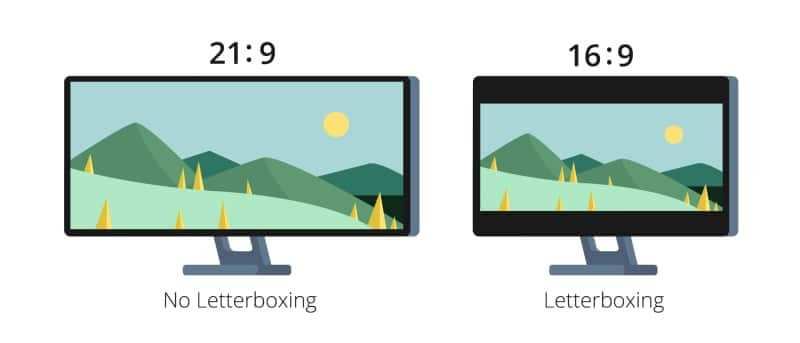

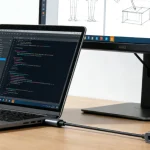
Image source: Wikimedia Commons / Mack Male from Edmonton, AB, Canada (CC BY-SA)
Is dual monitor setup good for programmers? The honest answer is: it depends on what you're building and how you personally handle context-switching. For a lot of developers, a second screen feels like a no-brainer once they've tried it.
But it's not a universal upgrade, and for some workflows it can actually slow you down.
Research on multi-monitor productivity and aggregate developer feedback both point to real gains for certain types of work. But the full picture includes ergonomics, desk space, hardware compatibility, and whether you'd be better off with a single ultrawide instead. Let's walk through it step by step so you can figure out what actually makes sense for your situation.
Quick Answer
A dual monitor setup is good for most programmers who juggle multiple tools simultaneously. It reduces context-switching overhead and keeps reference material visible. However, it's not ideal for every developer.
Backend-only coders, tiling window manager users, and anyone tight on desk space may prefer a single high-quality display.
The Short Answer (It Depends on What You Build)
Here's the thing. There's no single answer that applies to every programmer, and anyone who tells you otherwise is oversimplifying it.
If you're a frontend developer constantly bouncing between your code editor, a browser preview, and a design tool like Figma, a second screen is a genuine quality-of-life upgrade. Same goes for DevOps engineers who need to watch logs, dashboards, and terminal sessions all at once. Having that extra screen real estate means less alt-tabbing and fewer moments where you lose your train of thought.
But if you're a backend developer who lives mostly in a single IDE and a terminal, or if you're already comfortable with virtual desktops and keyboard-driven window management, a second monitor might just be expensive desk clutter. Some developers actually find that two screens create more distraction than focus, especially when Slack and email are sitting right there in your peripheral vision.
The decision really comes down to three things: what kind of development you do, how you manage your workflow, and whether your current setup is actually causing you friction. If you're constantly alt-tabbing and losing context, that's a signal. If you're not, the second screen might be solving a problem you don't have.
How to Decide: A Decision Tree for Developers
Rather than giving you a blanket yes or no, let's run through a simple decision tree. Answer these questions honestly and you'll land on the right setup.
Do you regularly use more than two full-screen applications at the same time?
If yes, a dual monitor setup is probably worth it. Think: IDE + browser + terminal, or code editor + database GUI + API documentation. If you're mostly working in one or two windows and using virtual desktops for everything else, you can probably skip it.
Does your current single-screen workflow feel cramped or slow?
Pay attention to how often you're switching between windows. If you're hitting alt-tab more than a few times per minute, that's cognitive overhead adding up. A second display eliminates most of that.
Do you have the desk space and budget?
A decent 27-inch 1400p monitor runs around $200 to $350 as of 2026. Add a monitor arm ($40 to $100) and you're looking at a real investment. If your desk is already crowded or you're on a tight budget, a single ultrawide might give you more bang for your buck.
Does your current hardware support it?
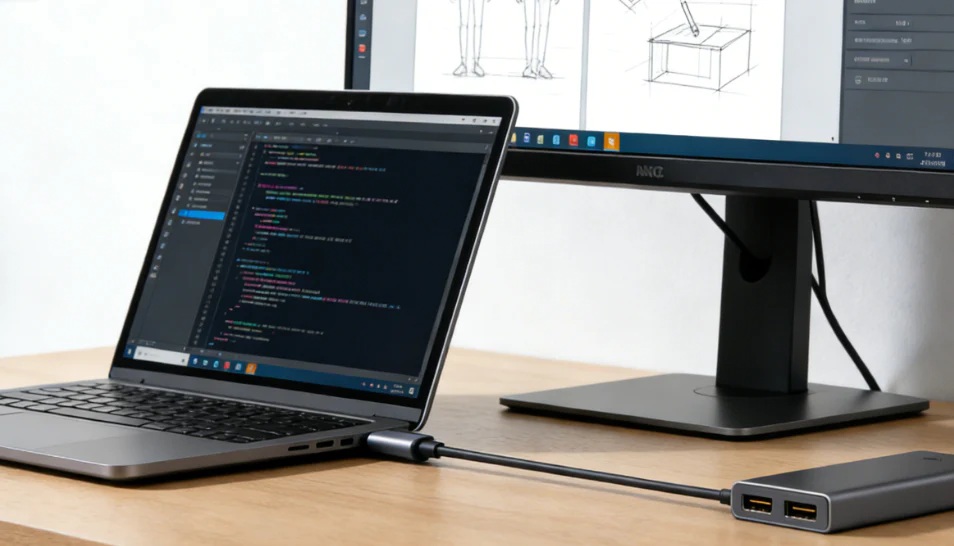
Most modern laptops handle at least one external display through USB-C or Thunderbolt. But if you're on an older machine or a budget laptop with limited ports, you might need a docking station or a USB display adapter, which adds cost and potential hassle.
Here's a quick reference table to help you decide:
| Your Situation | Recommended Setup |
|---|---|
| Frontend or full-stack dev with IDE + browser + tools | Dual monitors (27" 1400p each) |
| Backend-only, single IDE workflow | Single high-quality monitor or ultrawide |
| DevOps / sysadmin with multiple terminals and dashboards | Dual or triple monitors |
| Data science with notebooks, dashboards, and scripts | Dual monitors |
| Tiling window manager user (i3, dwm, etc.) | Single large monitor, virtual desks |
| Tight desk space | Single ultrawide (34" 21:9) |
| Frequent travel or hot-desking | Laptop + portable USB monitor |
Who Benefits Most from Dual Monitors
Not all programming work is created equal. Some workflows practically beg for a second screen, while others don't gain much at all.
Frontend and Full-Stack Developers
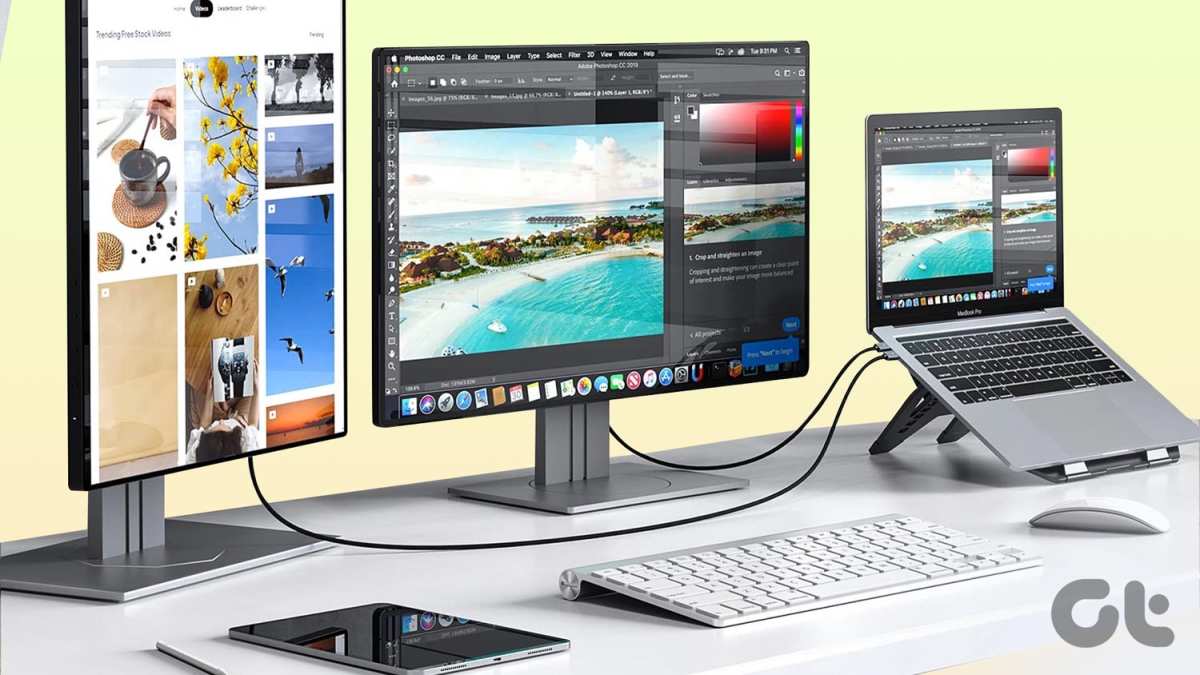
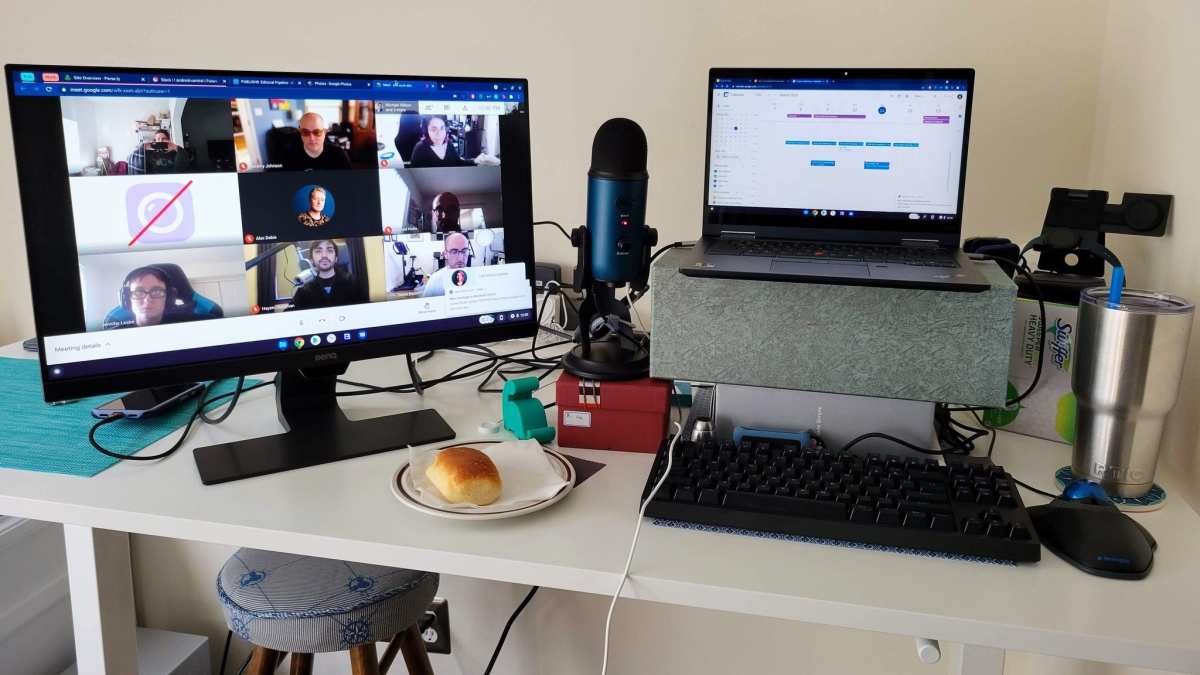
This is the group that benefits the most. You're typically working across three or four applications simultaneously: your code editor (VS Code, JetBrains IDE, or similar), a browser for live preview, a browser DevTools panel, and possibly a design tool or API client. Having your code on one screen and your output on the other means you see changes instantly without rearranging windows every thirty seconds.
DevOps and Sysadmin Engineers
If you're managing servers, watching deployment pipelines, or monitoring infrastructure dashboards, you need multiple terminal sessions and browser-based tools open at the same time. A dual monitor setup lets you keep your primary terminal on one screen and your monitoring dashboards or documentation on the other. When something breaks at 2 AM, you don't want to be fumbling through overlapping windows.
Data Scientists and ML Engineers
Jupyter notebooks, Python scripts, data visualization dashboards, and database query tools all compete for screen space. A second monitor lets you keep your analysis on one screen and your code or documentation on the other. It's especially useful when you're iterating on visualizations and need to see both the code and the output side by side.
Developers Who Do Frequent Code Reviews
If your job involves reviewing pull requests regularly, having the diff view on one screen and the full codebase or documentation on the other makes the process significantly smoother. You can read the changes in context without constantly scrolling back and forth.
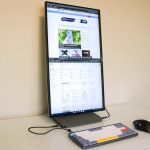
Image source: Wikimedia Commons / Mack Male from Edmonton, AB, Canada (CC BY-SA)
Who Might Not Need Two Screens
Dual monitors aren't for everyone. Here's when you should probably save your money.
Backend-Only or API-Focused Developers
If your workflow centers on a single IDE, a terminal, and maybe a database client, you might not need a second screen. Many backend developers work perfectly well on a single 27-inch 1400p or 4K display, especially if they use split-screen or virtual desktops effectively.
Developers Who Prefer Tiling Window Managers
If you're running i3, dwm, awesome, or another tiling window manager on Linux, you already have powerful window management built into your workflow. These tools let you arrange multiple applications across a single screen with keyboard shortcuts, and many tiling WM users find that a single large monitor serves them better than two separate displays.
Anyone Tight on Desk Space or Budget
A dual monitor setup requires a desk that's at least 60 inches wide to accommodate both screens comfortably with proper ergonomic spacing. If you're working with a smaller desk or a shared workspace, a single monitor with good window management might be the more practical choice. And if you're spending less than $150 on a second monitor, you're likely getting a display with poor color accuracy and low resolution that won't serve you well for reading code.
Developers Who Travel or Hot-Desk Often
If you're moving between offices, working from coffee shops, or traveling frequently, a dual monitor setup at home doesn't help you on the road. In that case, a good laptop display plus a portable USB monitor might be a better investment than two full-size desk monitors.
Image source: Bing (Web (fair-use with source credit))
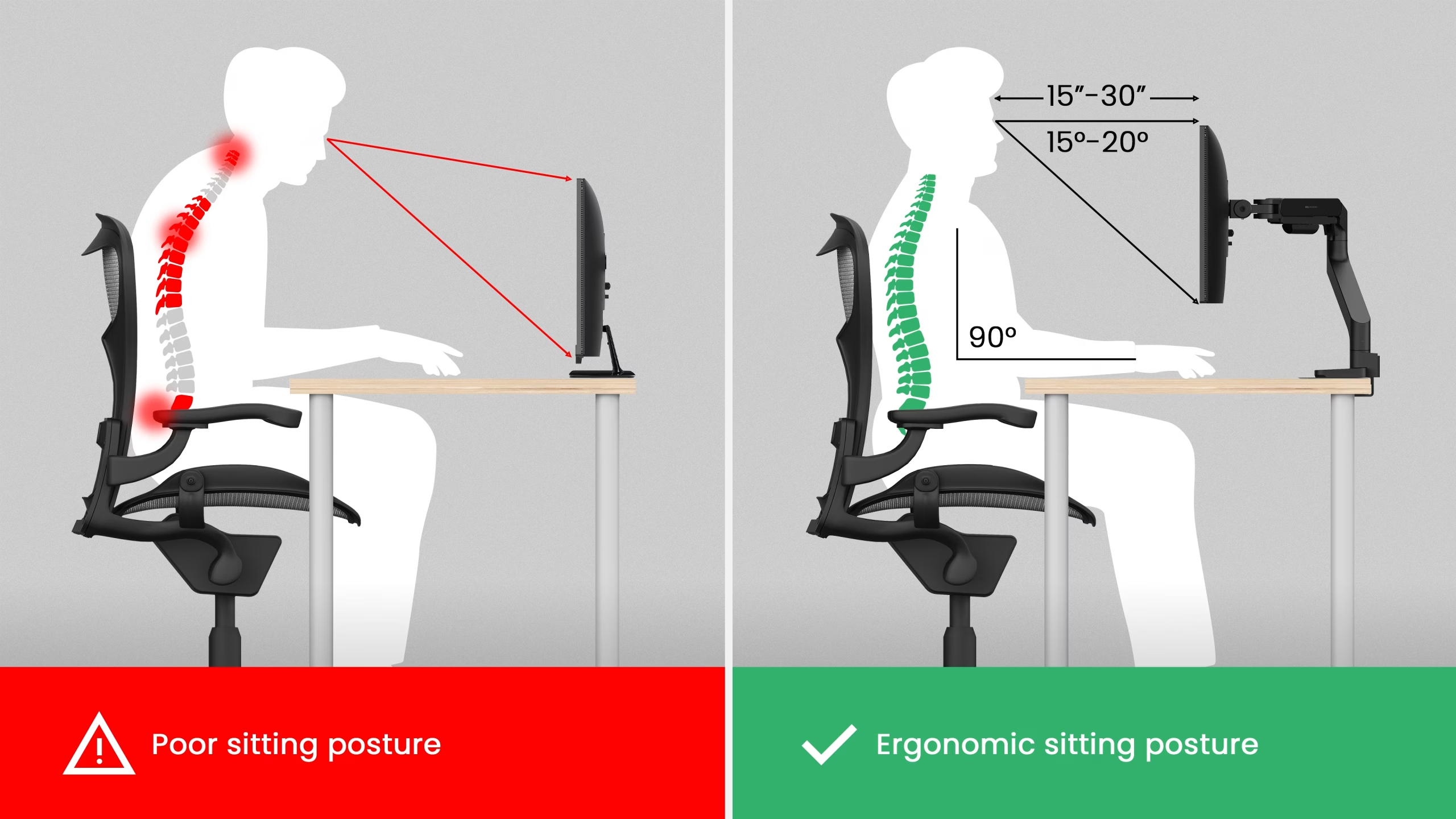
Image source: Bing (Web (fair-use with source credit))
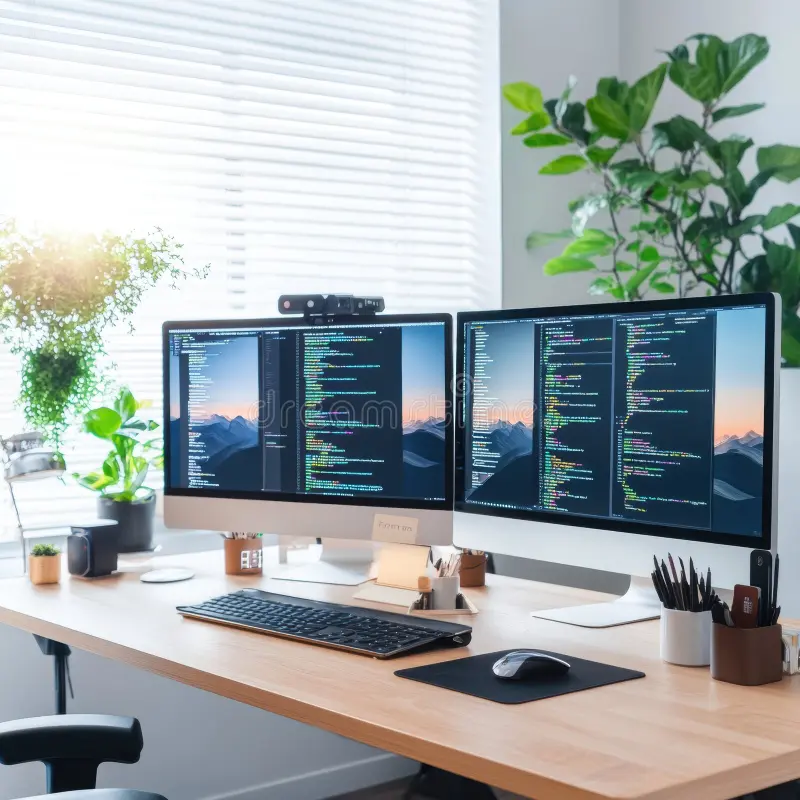
Image source: Bing (Web (fair-use with source credit))

Similar Posts