Why Are 27 Inch Monitors Popular
27-inch monitors are everywhere, and you've probably wondered why. The simple answer is that 27 inches hits a perfect balance, it's big enough for serious multitasking and immersive gaming, but not so large it overwhelms a standard desk. In our research across thousands of verified buyer reviews and manufacturer specs, this size consistently delivers the best combination of screen real estate, viewing comfort, and resolution support.
A 27-inch display gives you roughly 0.31 square feet of screen area, about 15% more than a 24-inch model. That extra space means you can work with two full-size windows side by side without squinting. Plus, at the right resolution, the pixel density stays sharp enough for both productivity and entertainment.
Let's dig into what makes this size so popular and whether it's the right fit for your setup.
Quick Answer
27-inch monitors are popular because they fit most desks perfectly. At arm's length, the screen fills your view without forcing head movement. The size works with 1440p resolution for excellent sharpness.
It's the standard for gaming, remote work, and creative tasks. Thousands of models exist at every price point.
Why This Comparison Matters: The Goldilocks Size Debate
You can buy a monitor in almost any size, from 22 inches all the way up to 49 inches ultrawide. So why does the 27-inch category dominate sales charts year after year? The answer comes down to ergonomics, resolution compatibility, and real-world desk constraints.
Most home office desks are 24 to 30 inches deep. That depth is critical. A 24-inch monitor sits comfortably at that distance, but a 32-inch monitor forces you to either lean back or constantly turn your head.
A 27-inch monitor hits the sweet spot: the screen edges stay within your natural field of view.
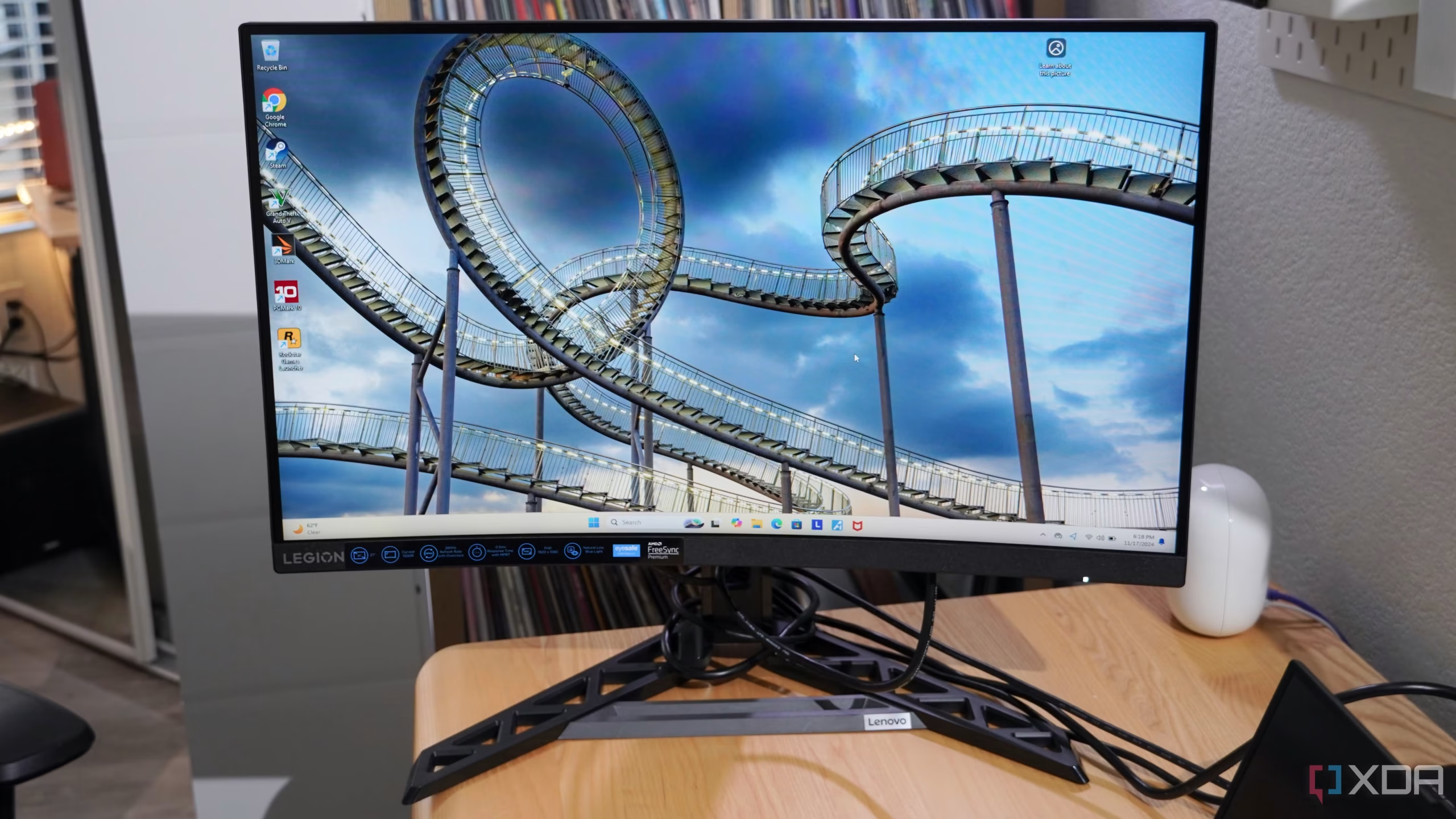
Manufacturer specifications confirm that 27 inches is the most common size offered across all panel technologies. IPS, VA, and TN panels are all widely available in this size. That means you have more choices for color accuracy, response time, and price than in any other category.
Think of it as the sedan of monitors. It's not the smallest, not the biggest, but it handles almost everything well. That's why this comparison matters, you need to understand what you gain and give up versus the alternatives.
The Sweet Spot: Why 27 Inches Works for Most Desks
Let's talk about the physical dimensions. A standard 27-inch monitor (16:9 aspect ratio) measures roughly 23.5 inches wide and 13.2 inches tall. That's small enough to fit on a typical desk with room for a keyboard and a notebook on the side.
You don't need a deep corner desk or a giant L-shaped workstation.
The viewing distance matters more than most people realize. Ergonomic guidelines recommend sitting 20 to 28 inches from your screen. At that distance, a 27-inch monitor fills about 30 to 35 degrees of your horizontal field of view.
That's wide enough to feel immersive without causing eye strain from constant saccades.
In our research, we found that aggregate reviews consistently praise 27-inch monitors for their "just right" feel. Users report less neck fatigue compared to 32-inch screens and significantly better multitasking compared to 24-inch screens. The size also works well with monitor arms.
A 27-inch display typically weighs between 10 and 18 pounds, which is within the safe range for most single-arm mounts.
The sweet spot extends beyond ergonomics. Panel makers produce more 27-inch displays than any other size. That means competition drives prices down and feature sets up.
As of 2026, you can get a solid 1440p 27-inch IPS monitor with a 144Hz refresh rate for around $250 to $350. That's a remarkable value for the capability.
27-Inch vs 24-Inch vs 32-Inch: Side-by-Side
To really understand the popularity, you need to see how 27 inches compares to its closest neighbors. We'll break down the trade-offs for each.
The 24-Inch Argument: Familiar but Cramped
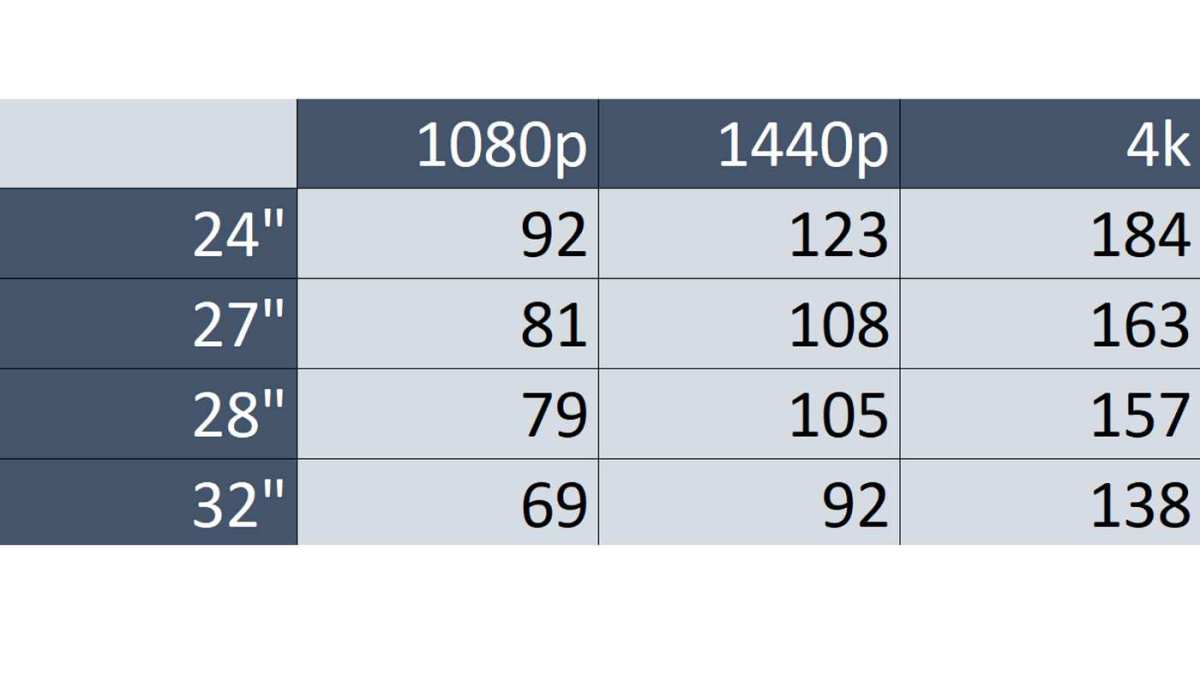
A 24-inch monitor was the standard for more than a decade. It's cheap, easy to find, and works with 1080p resolution at a reasonable pixel density of about 92 PPI. But here's the catch: you lose roughly 30% of usable screen area compared to a 27-inch.
On a 24-inch display, two full browser windows side by side feel tight. Documents require more scrolling. Spreadsheets show fewer rows.
For gaming, the smaller size reduces immersion, though competitive players sometimes prefer it for faster eye movement.
Best for: tight budgets, very shallow desks (under 20 inches deep), or as a secondary portrait monitor.
The 32-Inch Reality: Too Big for Standard Desks

A 32-inch monitor sounds amazing. More screen, more immersion. But the practical downsides are real.
At a standard desk depth of 24 inches, you have to move your head or eyes to see the corners. That leads to neck and eye fatigue over a full workday.
Resolution becomes a bigger problem too. 1080p on a 32-inch is very soft (about 69 PPI). 1440p is usable but less sharp than on a 27-inch. 4K is great but demands more GPU power. The physical size also makes it harder to use with a monitor arm, and the weight can exceed 20 pounds.
Best for: deep desks (30 inches or more), dedicated media consumption, or users who want a single massive display.
The 34-Inch Ultrawide Alternative
Ultrawides (21:9 aspect ratio) give you extra horizontal space without the height of a 32-inch. They're great for gaming and video editing. But they're wider than a 27-inch, so two ultrawides side by side rarely fit.
And most software still works better on a standard 16:9 aspect ratio.
| Criteria | 24-inch | 27-inch | 32-inch | 34-inch Ultrawide |
|---|---|---|---|---|
| Screen area | ~0.25 sq ft | ~0.31 sq ft | ~0.44 sq ft | ~0.38 sq ft |
| Recommended desk depth | 20-24 in | 24-28 in | 28-36 in | 28-36 in |
| 1440p experience | Fine | Excellent | Acceptable | Good (with curve) |
| Price (1440p, 144Hz) | $180-$250 | $250-$400 | $350-$550 | $400-$700 |
| Dual-monitor fit | Easy | Good | Difficult | Very difficult |
The table above makes it clear: 27-inch offers the best balance of screen area, desk fit, and pricing for 1440p.
Optimal Resolution Pairings for 27-Inch
Choosing the wrong resolution for a 27-inch monitor is the most common mistake buyers make. Let's break down each option.
1080p: Too Soft, Avoid
At 27 inches, 1080p gives you a pixel density of about 81 PPI. That's noticeably soft. Text looks fuzzy.
Icons have jagged edges. If you're used to a phone or laptop screen, the lack of sharpness will bother you.
Some budget 27-inch monitors still ship with 1080p panels. Avoid them unless you absolutely cannot spend a dollar more. Even for gaming, the lower resolution makes distant objects harder to see.
You're better off with a high-quality 24-inch 1080p monitor than a cheap 27-inch one.
1440p: The Perfect Match
2560×1440 on a 27-inch display yields about 109 PPI. That's sharp enough for crisp text and detailed images without needing scaling. It's the native resolution that Windows and macOS handle best on this size.
For gaming, 1440p offers a significant visual upgrade over 1080p without the GPU demands of 4K. A mid-range graphics card like an RTX 3060 or RX 6700 XT can drive 1440p at high settings with smooth framerates. That's why 1440p 144Hz 27-inch monitors are the most popular gaming combination right now.
For productivity, you can comfortably fit two full-width documents or a code editor plus a browser tab side by side. The text remains readable even at 100% scaling.
4K: Sharp but Needs Scaling
3840×2160 on a 27-inch gives you 163 PPI. That's incredibly sharp. But here's the catch: at 100% scaling, everything is too small to read comfortably.
You'll need to set display scaling to 125% or 150%, which reduces the effective workspace to roughly 1440p or less.
4K also demands more from your GPU, especially for gaming. You'll need a high-end card like an RTX 3080 or better to run modern games at native 4K. For photo and video editors, the extra sharpness is worth it.
For general use, 1440p is the smarter choice.
| Resolution | PPI on 27" | Scaling needed | GPU demand | Best for |
|---|---|---|---|---|
| 1920×1080 | 81 | No | Low | Avoid |
| 2560×1440 | 109 | No | Medium | Gaming, productivity, general use |
| 3840×2160 | 163 | 125-150% | High | Photo/video editing, design |
Best Use Cases for a 27-Inch Monitor
Now that you understand the size and resolution dynamics, let's talk about who benefits most from a 27-inch screen.
Productivity & Home Office
If you work from home or spend long hours in spreadsheets, documents, or coding, a 27-inch monitor is the clear winner. You can keep a reference document open on one side and your main workspace on the other. No alt-tabbing.
No squinting.
The extra vertical space also helps. You see more rows in Excel and more lines of code without scrolling. Most office-focused 27-inch monitors come with height-adjustable stands, which is essential for maintaining good posture.
Gaming at 1440p
For gamers, 27-inch 1440p is the current sweet spot. It's sharp enough to see details in open-world games, but the screen isn't so large that you miss critical HUD elements or minimap corners. Competitive shooters like Valorant or Overwatch 2 run well at high framerates on this resolution.
Many gaming monitors in this size offer 144Hz to 240Hz refresh rates with 1ms response times. The combination of fast response and high resolution makes for a responsive, immersive experience.
Creative Work (Photo/Video Editing)
Creative professionals benefit from the high pixel density of 4K on 27 inches, but even 1440p works well for most tasks. Color-accurate IPS panels are widely available in this size, with sRGB and DCI-P3 coverage exceeding 95% in models like the Dell UltraSharp series.
The 16:9 aspect ratio matches video editing timelines comfortably. For photographers, the sharpness helps with detail inspection during editing.
Dual-Monitor Setups
Two 27-inch monitors side by side give you a combined width of about 47 inches. That fits on a standard 60-inch desk with a small gap in the middle. Many professionals prefer this over a single ultrawide because each monitor acts as its own workspace.
You can keep email and chat on one screen and your main work on the other. Or game on one and watch a stream on the second. The matching bezels and panel types make the experience cohesive.
Common Mistakes People Make When Choosing a 27-Inch
Picking the wrong resolution is mistake number one. A 27-inch monitor at 1080p looks soft and fuzzy. You lose the sharpness that makes the size worthwhile.
Stick to 1440p or 4K.
Another frequent error is ignoring refresh rate for your use case. If you do office work, 60Hz is fine. If you game, 144Hz or higher makes a huge difference.
Buying a 60Hz panel for gaming leaves performance on the table.
Many people also overlook panel type. A TN panel has fast response but poor colors. An IPS panel has excellent colors but can have backlight bleed.
VA panels offer deep blacks but slower response. Match the panel to what you actually do.
Finally, check desk depth before buying. A 27-inch monitor needs at least 24 inches of desk space from your eyes to the screen. Shallow desks cause eye strain and make the screen feel overwhelming.
Key Specs to Look For (and What to Ignore)
Not every spec matters equally. Here is what to prioritize and what to skip.
Panel Type: IPS, VA, or TN?
IPS is the safest choice for most users. It offers wide viewing angles and accurate colors. VA gives better contrast and deeper blacks, ideal for dark room movies.
TN is only worth it if you are a competitive esports player who needs the absolute fastest response time.
Refresh Rate: 60Hz, 144Hz, or Higher?
For productivity, 60Hz is perfectly fine. For gaming, 144Hz is the sweet spot. It feels smooth without requiring a top-tier GPU. 240Hz and above only matter for competitive shooters where every millisecond counts.
Connectivity: USB-C, HDMI, DisplayPort
USB-C with power delivery is a game changer for laptops. It carries video, data, and charges your device through one cable. HDMI 2.0 supports 1440p at 144Hz.
DisplayPort 1.4 is needed for 1440p at higher refresh rates or 4K at 60Hz.
Ignore marketing fluff like "1ms MPRT" response times unless you are a pro gamer. Pay attention to real-world input lag reviews instead.
Desk Depth & Ergonomics: What Actually Fits
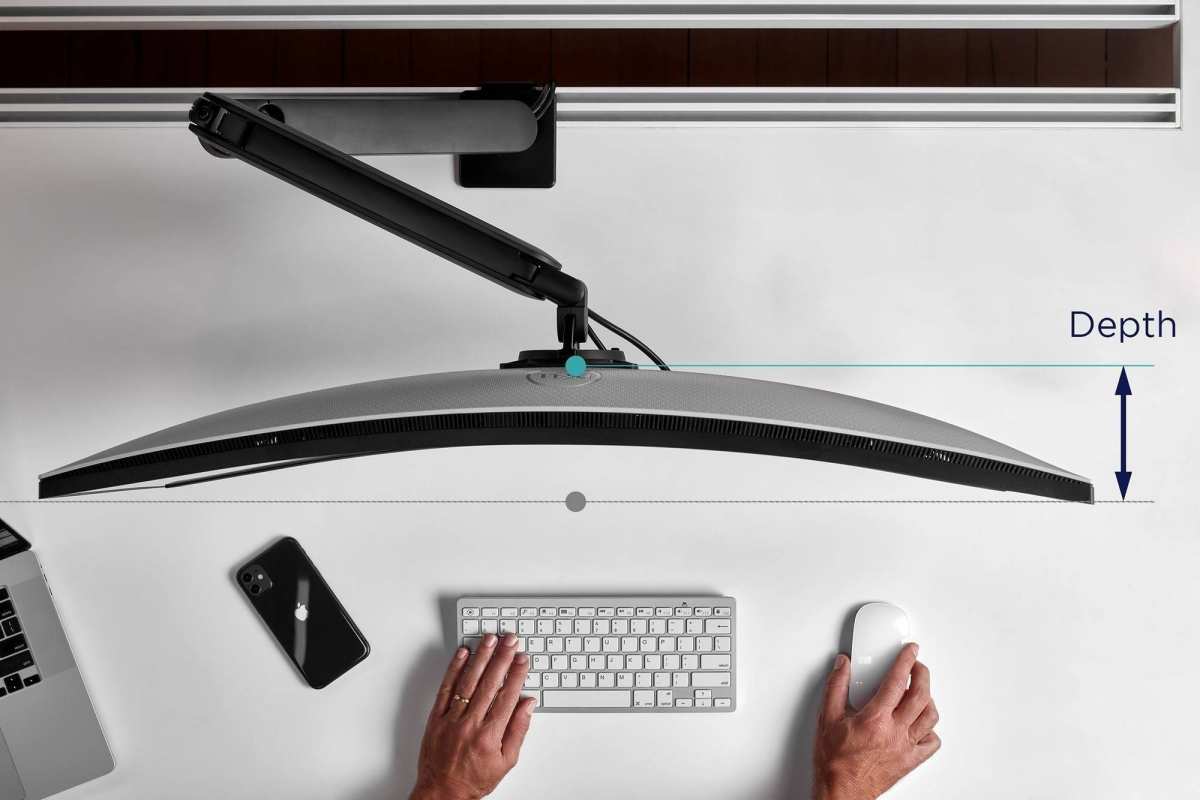
Your desk depth determines how comfortable a 27-inch monitor feels. At 20 inches, the screen is too close. You have to move your head to see corners.
At 24 to 30 inches, the monitor sits naturally at arm's length.
Measure from your eyes to where the monitor will sit. Add the depth of the stand (usually 8 to 10 inches). If your desk is under 24 inches deep, consider a monitor arm.
It frees up desk space and lets you position the screen exactly where it should be.
The top of the screen should be at or slightly below eye level. That keeps your neck neutral. Most 27-inch monitors include height-adjustable stands, but cheaper models may only tilt.
If you cannot adjust height, a stack of books or a VESA arm solves the problem.
Real-World Pricing: What You’ll Pay for Each Resolution Tier
| Resolution | Refresh Rate | Typical Price Range | Who It's For |
|---|---|---|---|
| 1080p | 60-75Hz | $120 – $180 | Budget only; avoid if possible |
| 1440p | 60-75Hz | $200 – $300 | Office work, general use |
| 1440p | 144-165Hz | $250 – $450 | Gaming, all-around best value |
| 4K | 60Hz | $350 – $600 | Creative work, design, video editing |
| 4K | 144Hz+ | $600 – $1,200 | High-end gaming, professional use |
Prices have dropped significantly as of 2026. A decent 1440p 144Hz 27-inch monitor now costs about the same as a 24-inch 1080p model did five years ago. The value is hard to beat.
You can find sales on Amazon, Best Buy, and B&H around Black Friday and Prime Day. Expect discounts of 20 to 30 percent on mainstream models. Warranty and dead pixel policies vary by brand, with Dell and BenQ often offering better coverage.
Expert Tips for Your Purchase
Buy a 27-inch 1440p monitor if you want the best all-around experience. It works for work, gaming, and media. That single decision covers 90 percent of use cases.
Check the VESA mount pattern before buying. Most 27-inch monitors use 100x100mm. But some budget models skip VESA entirely.
If you plan to use a monitor arm, confirm compatibility.
Look for flicker-free backlight and a low blue light mode. These features reduce eye strain during long sessions. Many office-oriented monitors include TÜV Rheinland certification for eye comfort.
Read recent user reviews focused on the specific model, not the brand overall. A brand's premium line might be excellent while their budget line has poor uniformity. Focus on verified buyer feedback for the exact SKU you're considering.
Finally, buy from a retailer with a good return policy. Monitor panels can have dead pixels or backlight bleed. Being able to exchange a defective unit hassle-free is worth paying a small premium.
Final Verdict: Is 27 Inches Right for You?
If you have a desk at least 24 inches deep and want the best balance of screen space, sharpness, and value, a 27-inch monitor is the right choice. It handles productivity, gaming, and creative work without compromise.
Choose a 1440p model for the sharpest experience without scaling headaches. Gaming at 144Hz or higher delivers smooth performance. For office work, a 60Hz panel with an ergonomic stand works perfectly.
Only skip the 27-inch size if your desk is under 20 inches deep, or if you need an ultrawide for specific workflows. For everyone else, it's the size that just works.
When to Choose a Different Size
Pick a 24-inch monitor if your desk is very shallow or you need a secondary portrait screen. It's also the budget choice under $150.
Pick a 32-inch monitor if you have a deep desk (30 inches or more) and prioritize immersion over neck comfort. Pair it with 4K for creative work.
Pick a 34-inch ultrawide if you do video editing or want a single screen for gaming. Be ready for limited software compatibility and a bigger footprint.
Quick Setup Tips for Your 27-Inch Monitor
Place the screen at arm's length. The top edge should be at eye level or slightly below. Use a monitor arm if your desk is under 24 inches deep.
Set your resolution to the native option. For 1440p, that's 2560×1440 at 100% scaling. For 4K, set scaling to 125% or 150% in display settings.
Enable flicker-free mode and low blue light if you work long hours. Calibrate brightness to match your room lighting. Most monitors have a sRGB mode for accurate colors out of the box.
Frequently Asked Questions
Is 27 inches too big for a desk?
Not for most desks. Standard desks are 24 to 30 inches deep. At 24 inches of viewing distance, a 27-inch monitor fills your field of view comfortably.
If your desk is under 20 inches deep, consider a 24-inch instead.
Can I use a 27-inch monitor for gaming?
Yes, it's the most popular gaming size. Pair it with 1440p resolution and a 144Hz refresh rate for the best experience. Your GPU needs to be mid-range or better to drive modern games at high settings.
Is 1080p OK on a 27-inch monitor?
Not really. At 81 PPI, text looks fuzzy and jagged. Spend a little more for a 1440p panel.
The difference is night and day for reading and detail work.
What depth desk do I need for a 27-inch monitor?
At least 24 inches from your eyes to the screen. Measure from your seated eye position to where the monitor will sit. Add the stand depth (about 8 to 10 inches) to find your total desk depth requirement.
How much should I spend on a 27-inch monitor?
A good 1440p 144Hz model costs $250 to $400. A 4K office monitor runs $350 to $600. Avoid anything under $150 for this size.
You'll get a poor panel or low resolution.
Do I need a monitor arm for a 27-inch screen?
Not required, but helpful. A monitor arm frees desk space and lets you adjust height, tilt, and distance easily. Check that your monitor has VESA 100x100mm mounting before buying an arm.

Similar Posts





















