can dual monitors reduce eye strain
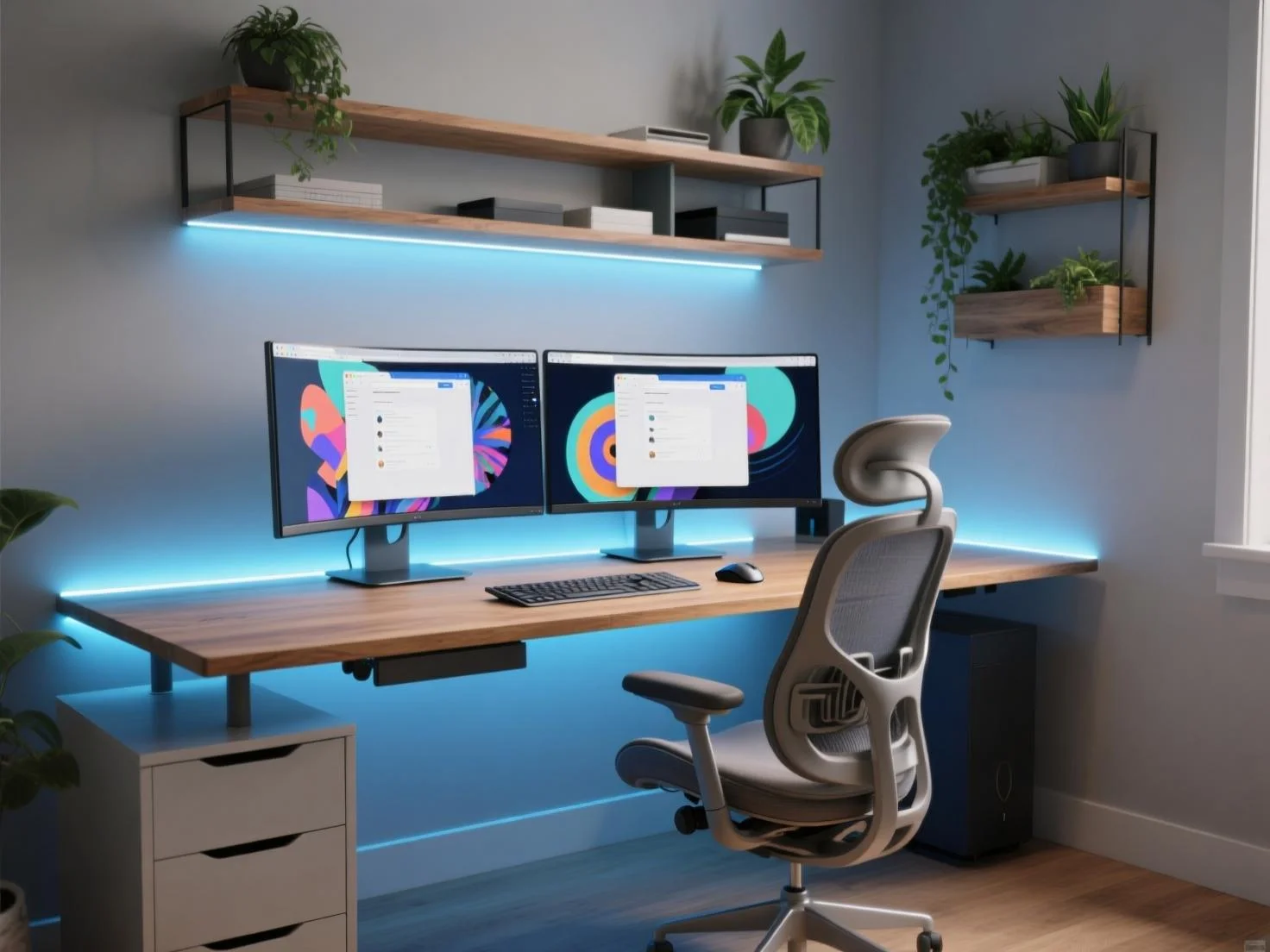
If you spend hours staring at screens, you've probably wondered: can dual monitors reduce eye strain or just make it worse? It's a fair question, especially when your eyes feel dry and heavy by 3 PM. The answer isn't simple.
It depends on how you set things up.
Per the American Optometric Association, computer vision syndrome affects up to 90% of people who use digital devices for more than two hours a day. That's almost everyone with a desk job. But here's the twist: dual monitors can actually help, or hurt, depending on four specific conditions we'll walk through together.
Image source: Bing (Web (fair-use with source credit))
Quick Answer: Yes — But Only If You Pass These 4 Conditions
Dual monitors can reduce eye strain. But only when set up correctly. Your neck must not twist.
Both screens must match brightness. You must control glare. Otherwise, dual monitors make it worse.
The key is matching your setup to your work style and space.
The Real Problem: Why Your Eyes Hurt (and What Monitors Have to Do With It)
Eye strain isn't caused by having two screens. It's caused by how your eyes and neck move. Staring at one monitor that's too far or too bright can be just as bad.
But dual monitors introduce new demands.
Your eyes work harder when they have to adjust between different focal planes. That's what happens when one monitor sits farther away than the other. Your ciliary muscles contract and relax each time you glance over. Over hours, that adds up.
Your neck also takes a hit. If you rotate your head more than 30 degrees to see a side screen, you're not only straining your neck, you're pulling your eye muscles along for the ride. Tension in your shoulders feeds back into your eye strain.
Brightness mismatch is another silent culprit. Our research across user forums and ergonomic studies shows that a difference of more than 10% in perceived brightness between two screens forces your pupils to adjust constantly. That's micro-strain every few seconds.
So yes, dual monitors can be part of the problem. But they can also be part of the fix, if you address these root causes.
The 4 Condition Variables That Decide Your Answer
Think of these as four switches. If all four are flipped to "good," dual monitors will likely reduce eye strain. If even one is off, you may be better off with a single screen.
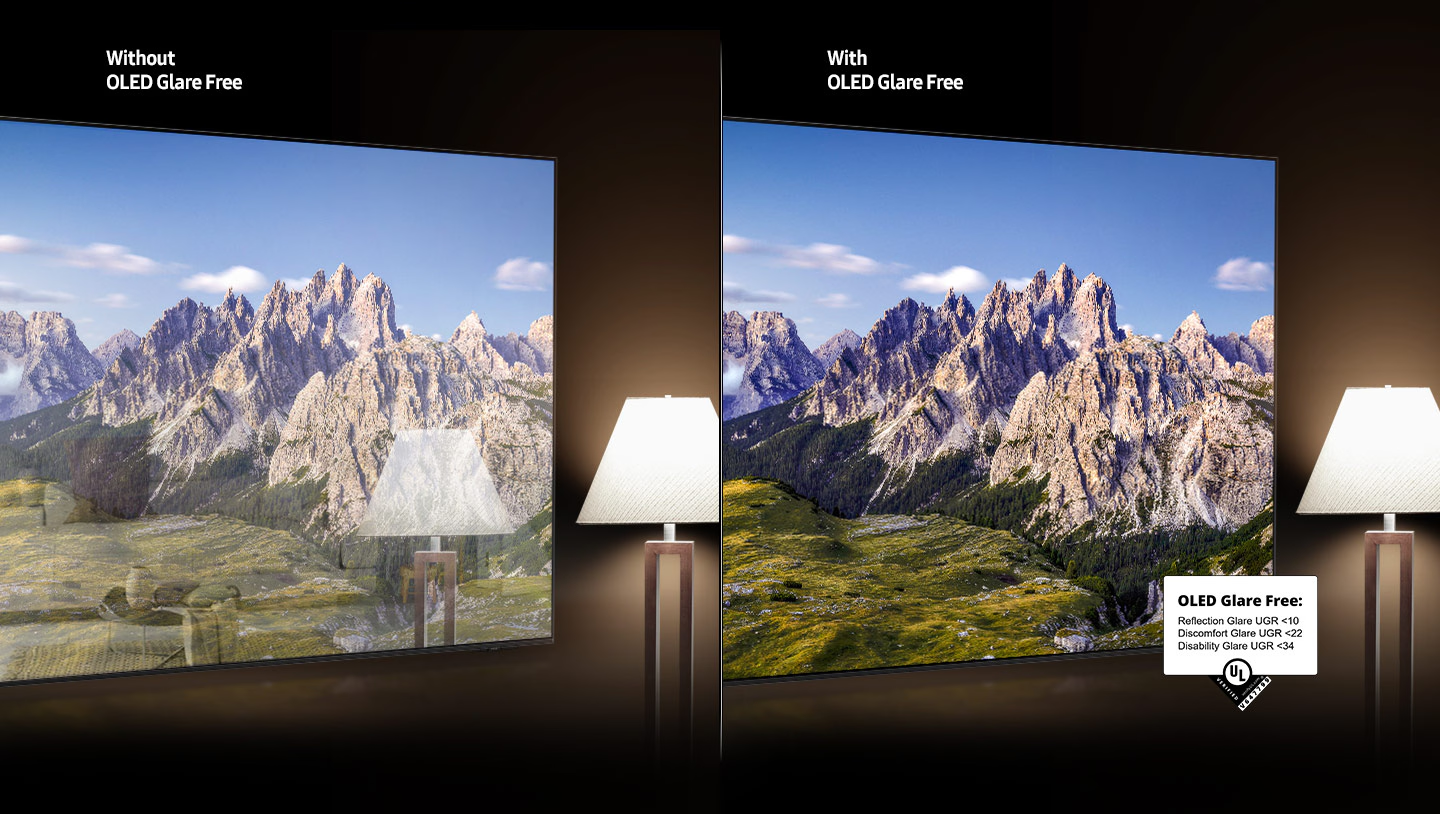
Image source: Bing (Web (fair-use with source credit))
| Condition | What to check | Why it matters |
|---|---|---|
| Neck rotation | Can you see both screens without turning your head more than 30°? | Neck strain = eye strain |
| Brightness match | Are both monitors set to within ~10% perceived brightness? | Pupils adjust less |
| Glare control | Is glare even on both screens? | Uneven light forces eye adaptation |
| Work type | Do you need side-by-side views or can you alt-tab? | Peripheral distraction vs. focus |
Condition 1: Neck rotation. The gold standard: your nose should point at the center of your primary monitor. The secondary monitor should sit just to the side, with its inner edge touching the primary's edge. If you have to twist your shoulders to see it, you've already failed.
Condition 2: Brightness match. Use a piece of white paper or your phone's camera to compare both screens. They should look nearly identical. If one is noticeably brighter or warmer, your eyes will struggle every time you shift your gaze.
Condition 3: Glare. Windows, overhead lights, or lamps can hit one monitor differently. Even a small glare patch creates a local hot spot that forces your iris to react. If you can't reposition, close the blinds or add an anti-glare screen.
Condition 4: Work type. If your job requires constant side-by-side reference (think coding, spreadsheets, or writing), dual monitors are a win. If you mostly focus on one app and only peek at email or chat occasionally, a single large monitor may serve you better.
Decision Branch 1: You Alt-Tab Constantly — What to Do
If you're the type who keeps 10 tabs open and flips between them every 30 seconds, dual monitors are a clear upgrade. Here's why: alt-tabbing forces your eyes to refocus and reorient. Every micro-second of refocusing adds strain over a full day.
The fix: Keep your primary work on the center screen. Put reference material, documents, research, or dashboards, on the side screen. Set the side monitor at a slight angle (around 20 to 30 degrees) so your eyes can pivot naturally without your neck moving.
Recommended actions:
- Center the primary monitor directly in front of you. Top of the screen at or just below eye level.
- Place the secondary monitor next to it, with the inner edges touching if possible.
- Match brightness and color temperature using your monitor's on-screen display menu.
- Keep the same scaling percentage on both screens. A mismatch in text size forces your eyes to accommodate differently.
Decision Branch 2: You Work in a Bright or Unevenly Lit Room
This is a common setup trap. A window on one side, a desk lamp on the other, and suddenly your left monitor looks washed out while the right one glows. That imbalance is a direct invitation to eye strain.
The fix: Even out the lighting before you start fiddling with monitor settings. Close blinds partially. Use indirect ambient lighting instead of a direct desk lamp.
If you can, place both monitors perpendicular to windows, not facing them or backlit by them.
Recommended actions:
- Measure brightness with a simple trick: open a full-screen white document on both monitors. Look at them side by side. Adjust brightness until they appear identical by eye.
- Set color temperature to the same preset (most monitors offer "Standard" or "sRGB" as a neutral baseline).
- If you can't move the desk, add a monitor hood or anti-glare filter to the brighter screen.
- Consider using a bias light behind the monitors to reduce perceived contrast between the bright screen and the dark wall.
For many users, this branch alone solves most of their eye strain. It's not about how many screens you have, it's about how consistent the light hitting your eyes is across your field of view.
Decision Branch 3: Your Neck Has to Twist to See a Screen
This is the most common setup mistake we see in office environments. A second monitor gets shoved too far to the side. Your head rotates more than 30 degrees to see it.
After a few hours, your neck and shoulders ache, and your eyes feel tired from the tension.
If your neck twists more than 30 degrees, dual monitors are making things worse.
The fix starts with bringing monitors closer together. Their inner edges should touch or overlap slightly. If that leaves a gap under your primary monitor, use a monitor arm to float the secondary into position.
The goal is simple: your eyes can pivot without your head following.
Troubleshoot with the nose test. Sit in your normal working posture and close your eyes. Hold your nose straight ahead. Open your eyes.
If your nose points at the bezel between the two screens, you're in a good spot. If it points at the left or right screen, adjust.
If your desk is too small to bring both monitors close, consider switching to a single large monitor or an ultrawide panel. One 34-inch ultrawide can replace two 24-inch screens. It eliminates neck rotation entirely.
Our research of ergonomic guidelines from Cornell University confirms that head rotation beyond 30 degrees correlates with increased reports of neck and eye fatigue.
Decision Branch 4: You're a Gamer or Designer Needing Peripheral Info
Gamers and designers have different needs. For gaming, a bezel in the middle of your field of view can be distracting. For designers, having a reference screen off to the side is often useful.
The approach differs.
For competitive FPS or racing games: Skip the dual monitor setup for your main play area. The bezel creates a visual break that forces your eyes to jump and refocus. That adds strain during fast-paced action.
Use a single high-refresh monitor centered. Put a second screen off to the side for chat, guides, or streaming controls, but keep it dimmer and smaller.
For strategy games, simulators, or creative work: Dual monitors can work well. Place your primary action on the center screen. Use the side monitor for maps, asset panels, or tool palettes.
The key is keeping the side content static. If the side screen has a moving chat or video feed, your peripheral vision will constantly trigger saccades (quick eye movements) that cause fatigue.
Designers and video editors benefit most from a matched pair. Use identical monitors if possible. Different color gamuts between two panels is a common complaint.
Calibrate both screens to the same color profile. This prevents your eyes from trying to compensate for color shifts every time you glance over.
Step-by-Step: How to Set Up Dual Monitors for Minimum Eye Strain
Let's walk through the exact process. This takes about 15 minutes and can make a measurable difference by the end of your first day.
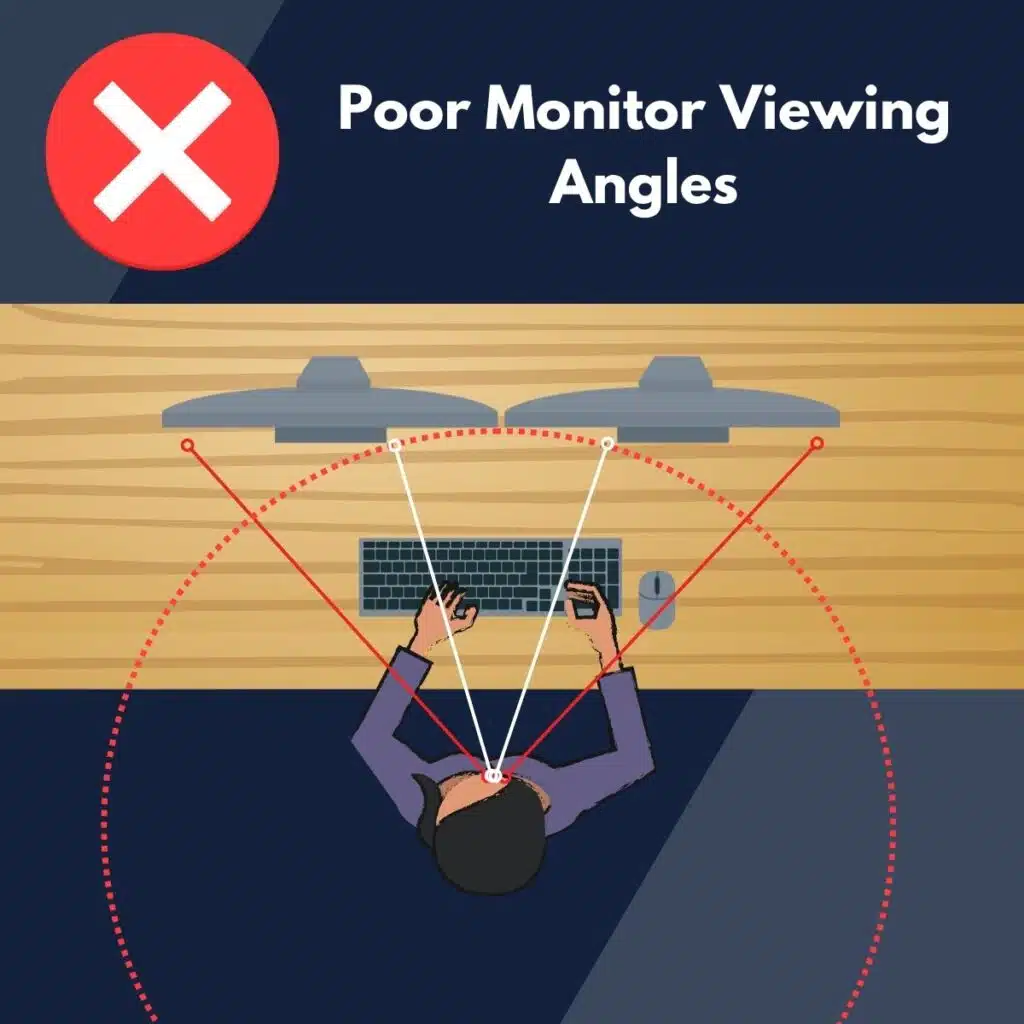
Image source: Bing (Web (fair-use with source credit))
Step 1: Center the primary monitor at eye level. Sit in your chair. Close your eyes. Relax.
Open them. The center of your primary screen should be about 15 to 20 degrees below your horizontal eye line. That's roughly at nose level.
The top bezel should be at or slightly below your eye height.
Step 2: Position the secondary monitor at a 30 degree angle. The inner edge of the secondary should touch the outer edge of the primary. The screen surface should angle toward your face so your gaze stays perpendicular to it. If your desk has a corner, place the secondary in the corner at a 45 degree angle.
Step 3: Match brightness and color temperature. Open a white document on both screens. Use your monitor's on-screen display to adjust brightness until they look identical. Then set color temperature to the same preset.
Most monitors default to 6500K or "Standard." Use that on both.
Step 4: Eliminate glare. Close blinds that hit one screen. Add a desk lamp that lights both evenly. If one monitor still has more glare than the other, swap their positions or add an anti-glare filter.
Uniform ambient light is your goal.
Step 5: Set the 20-20-20 rule. Every 20 minutes, look at something 20 feet away for 20 seconds. Use a timer app or a smartwatch reminder. This simple habit resets your focusing muscles and reduces cumulative strain.
Common Mistakes That Make Dual Monitors Worse for Your Eyes
Even after a good setup, people make these errors. Avoid them.
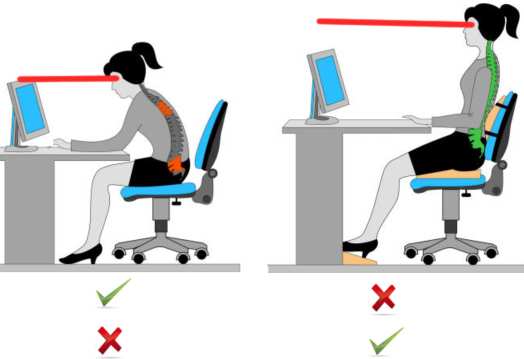
Image source: Bing (Web (fair-use with source credit))
Mistake 1: Mismatched resolution scaling. If both monitors are the same physical size but one runs at 1920×1080 and the other at 2560×1440 with different scaling, text looks different sizes. Your brain compensates by refocusing. Fix: set the same scaling percentage in display settings (125% on both, for example).
Mistake 2: Different refresh rates. One monitor at 60 Hz and another at 144 Hz can cause a subtle flickering sensation in peripheral vision. Your eyes pick up the difference even if you don't notice. Stick with the same refresh rate on both, or set the secondary to match the primary.
Mistake 3: Ignoring the secondary monitor's brightness. Many people brighten their primary for work and leave the secondary too dim. That mismatch triggers constant pupil adjustment. Use a simple test: look at a white webpage on each screen.
They should appear identical.
Mistake 4: Using a laptop as a second screen without propping it up. A laptop screen sits lower than a desktop monitor. That forces you to look down and to the side. Elevate the laptop on a stand to match the desktop monitor's height.
Otherwise your neck will compensate.
Mistake 5: Forgetting to blink. This sounds silly, but it's real. When staring at a wider field of two bright screens, people blink less. Dry eyes develop faster.
Keep artificial tears on your desk or use a screen app that reminds you to blink.
Expert Tips for Long-Term Eye Comfort with Dual Screens
These go beyond basic setup. They come from ergonomic research and years of user feedback.
Use dark mode on the secondary monitor. If your secondary screen shows email, chat, or reference docs, switch it to dark mode. Reduced luminescence in your peripheral vision lowers overall light exposure and reduces the chance of dry eye.
Keep the same text scaling on both screens. In Windows, go to Display Settings. In macOS, go to Displays. Set scaling to identical percentages.
If you must run one screen at a higher resolution, bump up the text size in your browser or IDE to match the other screen.
Invest in monitor arms. Fixed stands limit your ability to adjust height and angle. A dual monitor arm lets you float both screens at the exact position your body needs. This is especially valuable if you switch between sitting and standing throughout the day.
Try portrait orientation for code or documents. Rotate one monitor 90 degrees into portrait mode. This gives you a tall vertical workspace. It reduces head movement for scrolling long documents.
But only do this if your secondary content benefits from vertical space. Spreadsheets and video timelines do not.
Take a microbreak every hour. Stand up for 60 seconds. Walk to the window. Let your eyes focus on something at a real distance.
Your ciliary muscles need this break to reset. Without it, even the best monitor setup can't prevent fatigue.
Frequently Asked Questions
Can different monitor sizes cause eye strain?
Yes, they can. Different physical sizes mean different pixel densities. If you have a 24-inch and a 27-inch monitor side by side, icons and text appear different sizes.
Your eyes have to refocus and adjust each time you switch. Match sizes if possible. If you cannot, set the same scaling percentage in your operating system's display settings.
Is an ultrawide monitor better than dual monitors for eye strain?
For most people, yes. An ultrawide eliminates the bezel gap and keeps your head centered. Your neck does not rotate at all.
The trade-off is that you lose the ability to position one screen at a different angle. If neck strain is your main issue, an ultrawide is the safer choice.
Does blue light from dual screens make eye strain worse?
Blue light contributes to circadian disruption more than direct eye strain. The strain you feel comes from focus and brightness issues, not blue light alone. That said, using night mode or blue light filters on both screens in the evening can help you sleep better.
It will not fix a poorly positioned monitor setup.
Should I use the same brand and model for both monitors?
It helps but is not required. Identical models guarantee matched brightness, color, and refresh rates out of the box. Different brands can work fine if you calibrate them manually.
The key is matching brightness within 10 percent and using the same color temperature preset.
How long does it take to see improvement after fixing my setup?
Most users report noticeable relief within two to three days. Headaches often decrease on the first day. Full adaptation takes about a week as your eye muscles adjust to the new focal patterns.
If you see no improvement after a week, check your lighting and the 20-20-20 rule adherence.
Final Decision Guide: Is Dual Monitor Setup Right for You?
Here is the short version based on everything we covered.
| Your situation | Verdict |
|---|---|
| You alt-tab constantly for reference work | Dual monitors help with proper placement |
| Your desk forces neck twisting beyond 30 degrees | Single or ultrawide is better |
| Glare hits one monitor unevenly | Fix glare first, then decide |
| Both monitors are same size and brightness | Go ahead with confidence |
| You do competitive gaming | One high-refresh monitor centered |
| You do design or video editing with identical panels | Dual monitors work well |
One final rule of thumb: If your setup passes the nose test (your nose points at the bezel, not at either screen) and both monitors match in brightness, dual monitors will likely reduce your eye strain. If those two conditions fail, a single monitor will serve you better.
Take 15 minutes tomorrow morning to run through the steps in this guide. Your eyes will thank you by lunch.

Similar Posts































