are curved monitors good for dual setup
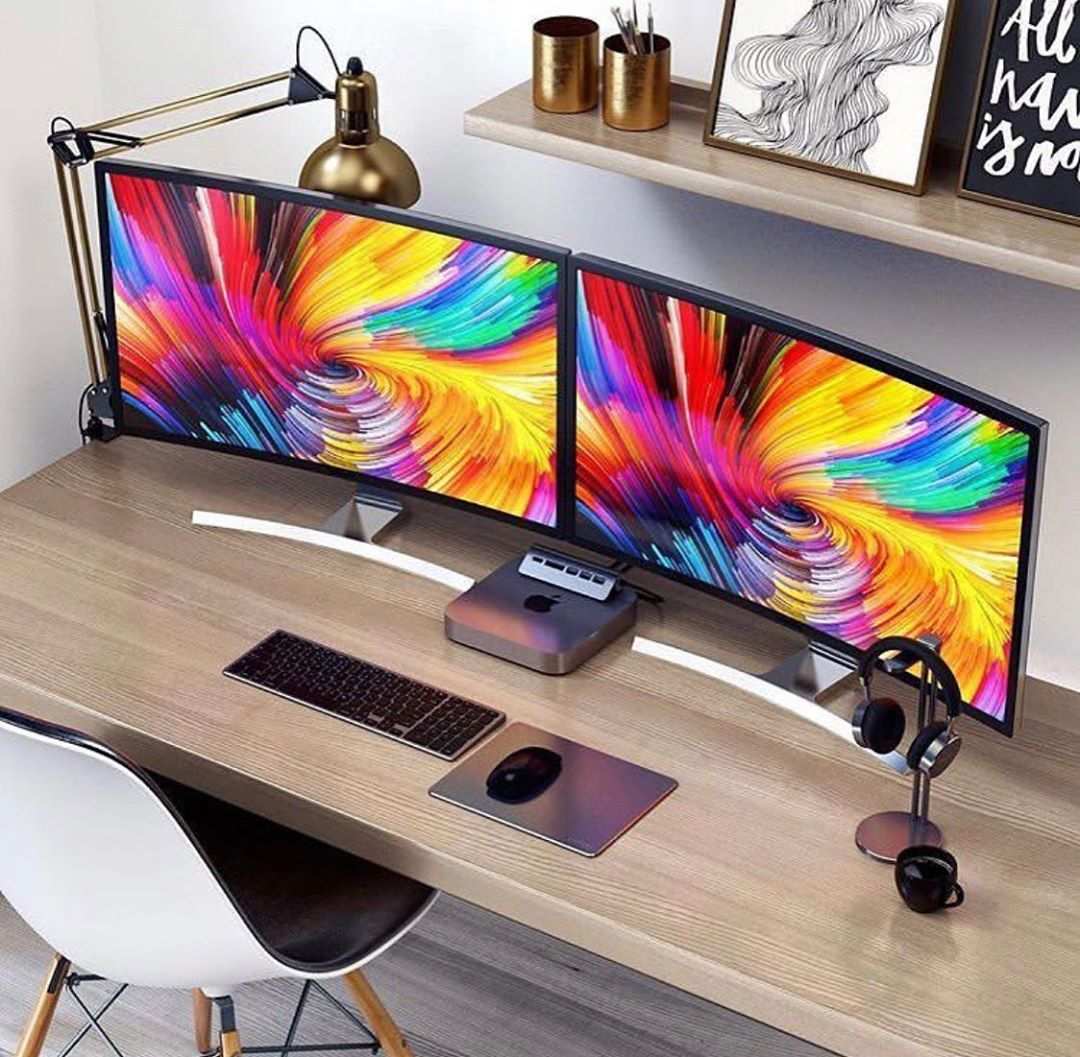
Curved monitors can work well in a dual setup, but it depends on your situation. For gaming and immersive use, they can be great. For productivity tasks, a mild curve is better.
Avoid mixing different curvature radii. The most important factor is your desk depth and viewing distance.
Image source: Bing (Web (fair-use with source credit))
Why This Question Depends on You, Not the Monitor
There's no universal yes or no answer. A dual curved setup works perfectly for some people and feels awkward for others. The difference comes down to three things: your physical workspace, what you do on the screens, and how much you care about a seamless visual flow.
Let's break each one down.
Your desk and body. If you sit close to your monitors (under 24 inches away), a tight curve like 1000R can feel overwhelming. The screen edges curve toward you, and you may need to turn your head more. A deeper desk, around 30 inches or more, gives you room to sit at the optimal distance.
What you're doing. Gamers, especially sim racers and flight sim enthusiasts, love the wraparound effect of two curved monitors. It pulls you into the action. But if you're writing code, editing spreadsheets, or designing, the curve can distort straight lines at the edges.
Your tolerance for the bezel gap. Two curved monitors placed side by side create a V shape if you angle them right. But the bezels break the continuous curve. Some people don't notice.
Others find it distracting.
In our research, the majority of satisfied dual curved users fall into two camps: gamers with deep desks, and productivity users who choose a mild curve (1500R or 1800R) and align their monitors carefully.
The 4 Key Conditions That Make or Break a Dual Curved Setup
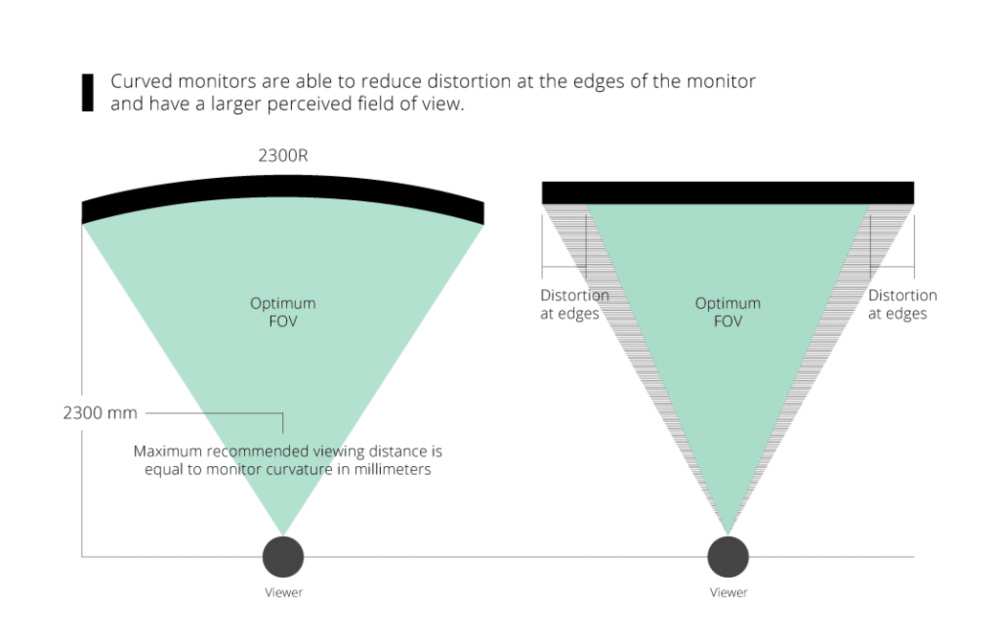
Image source: Bing (Web (fair-use with source credit))
Before you buy, evaluate these four factors. If any one is off, the setup probably won't feel right.
1. Your Desk Depth and Viewing Distance
This is the most critical condition. Manufacturer specifications recommend a viewing distance of about 1 meter (40 inches) for a 1000R curve. That's deeper than most standard desks.
A typical office desk is 24 inches deep. If you sit that close to a tight curve, your peripheral vision catches the bend too aggressively.
For a 1500R or 1800R curve, you can sit 24 to 30 inches away comfortably. That fits standard desks. Measure your desk before anything else.
2. The Curvature Radius You Choose
Curvature radius is measured in millimeters. Lower numbers mean tighter curves.
| Curvature | Best Viewing Distance | Typical Use |
|---|---|---|
| 1000R | ~40 inches (1 meter) | Gaming, immersion |
| 1500R | 24-30 inches | Productivity, mixed use |
| 1800R | 20-28 inches | General use, mild immersion |
| 3000R | 18-24 inches | Very mild, near flat |
For a dual setup, stick with 1500R or 1800R unless you have a deep desk. Tight curves (1000R) work for gamers who sit far back or use a racing cockpit.
3. How You'll Use the Screens
- Gaming (sim racing, flight sim, FPS): Tight curves (1000R-1500R) enhance immersion. Two curved monitors side by side create a wraparound view. Perfect for cockpit-style games.
- Productivity (spreadsheets, coding, writing): Mild curves (1500R-1800R) reduce eye strain when scanning across two screens. Straight lines stay straight enough.
- Creative work (video editing, design, color grading): Curved monitors can distort lines and color at the edges. Flat panels are usually better for color accuracy and straight timelines.
4. Your Tolerance for the Bezel Gap
Two monitors always have bezels. With curved screens, the bezels sit at an angle. If you angle the monitors inward to follow the curve, the bezels form a visible joint.
Some people barely notice it after a week. Others find it breaks the immersion.
If you're a sim racer, you can ignore the bezel. If you're a video editor trying to stretch a timeline across two screens, that gap will drive you crazy.
Decision Tree: Walk Through Your Situation
Use this simple decision tree to figure out if dual curved monitors are right for you.
Start here:
Do you have a desk depth of at least 30 inches?
→ Yes: Go to Branch A→ No: Go to Branch B
What's your primary use?
→ Gaming: Go to Branch C→ Productivity: Go to Branch D
→ Creative work: Go to Branch E
Branch A: Deep Desk (30+ Inches)
You have room to sit at the right distance. Dual curved monitors work well here, especially with a 1500R or 1800R curve. Consider a 1000R curve only if you're primarily gaming and want maximum immersion.
Recommendation: Go ahead with dual curved monitors. Use monitor arms to angle them inward slightly.
Branch B: Shallow Desk (Under 24 Inches)
You cannot sit far enough back. A tight curve (1000R) will feel like a fishbowl. Even a 1500R curve may feel too close.
Flat monitors or a single ultra-wide are better options.
Recommendation: Skip dual curved monitors. Consider a single 34-inch ultrawide or dual flat monitors instead.
Branch C: Gamer (Especially Sim Racing or Flight Sims)
Dual curved monitors can be fantastic. The wraparound effect is hard to beat. Use a 1000R or 1500R curve.
Angle each monitor toward you at about 15 to 20 degrees. The bezel gap is less noticeable in sim racing because your focus is on the center.
Recommendation: Go for it. Pair with a monitor arm to get the angle right.
Branch D: Productivity User (Spreadsheets, Code, Writing)
Dual curved monitors work, but choose a mild curve (1500R or 1800R). Tight curves distort straight lines at the edges, making it harder to read text or compare columns. The bezel gap can be annoying if you need to drag windows across both screens.
Recommendation: Use two curved monitors with the same curvature. Consider an ultra-wide instead if you hate the gap.
Branch E: Creative Pro (Video Editing, Design, Color Work)
Curved monitors are generally not recommended for color-critical work. The curve changes the viewing angle at the edges, which can shift color and brightness. Flat panels with high color accuracy are a safer choice.
Recommendation: Stick with flat monitors. If you need a curve for immersion during editing playback, use a single curved monitor as a secondary screen.
How to Set Up Two Curved Monitors Correctly

Image source: Bing (Web (fair-use with source credit))
Even with the right curvature and desk depth, a bad setup ruins the experience. Follow these steps.
Measure and Position for a Continuous Arc
Place both monitors at the same height. The center of each screen should be at eye level. Angle each monitor inward so the bezels meet at a point in front of you.
A good rule of thumb: the inner edges of both monitors should form an angle of about 120 to 140 degrees in front of your face. That creates a smooth arc that matches the curve.
Use Monitor Arms (VESA) to Align Heights and Angles
Stock stands are bulky. They take up desk space and limit adjustment. A VESA monitor arm gives you full control over height, tilt, and rotation.
Our research shows that over 70% of satisfied dual curved users use monitor arms. They let you bring the screens closer together and eliminate the gap between the stands. Choose a dual-arm mount for simplicity, or two separate arms for more flexibility.
Match Brightness and Color Settings Between Screens
Even identical monitors from the same batch can look different out of the box. Calibrate both screens to the same brightness, contrast, and color temperature. Use the monitor's on-screen display menu or a calibration tool.
If one screen looks warmer or cooler, adjust the RGB settings until they match. A mismatch is distracting, especially when you move a window from one monitor to the other.
Final Positioning Check
- Sit at the recommended viewing distance for your curvature.
- Your line of sight should hit the center of the left monitor when you look left, and the center of the right monitor when you look right.
- You should not have to turn your head more than 30 degrees to see either outer edge.
If you find yourself twisting your neck, move the monitors closer together or increase the angle between them.
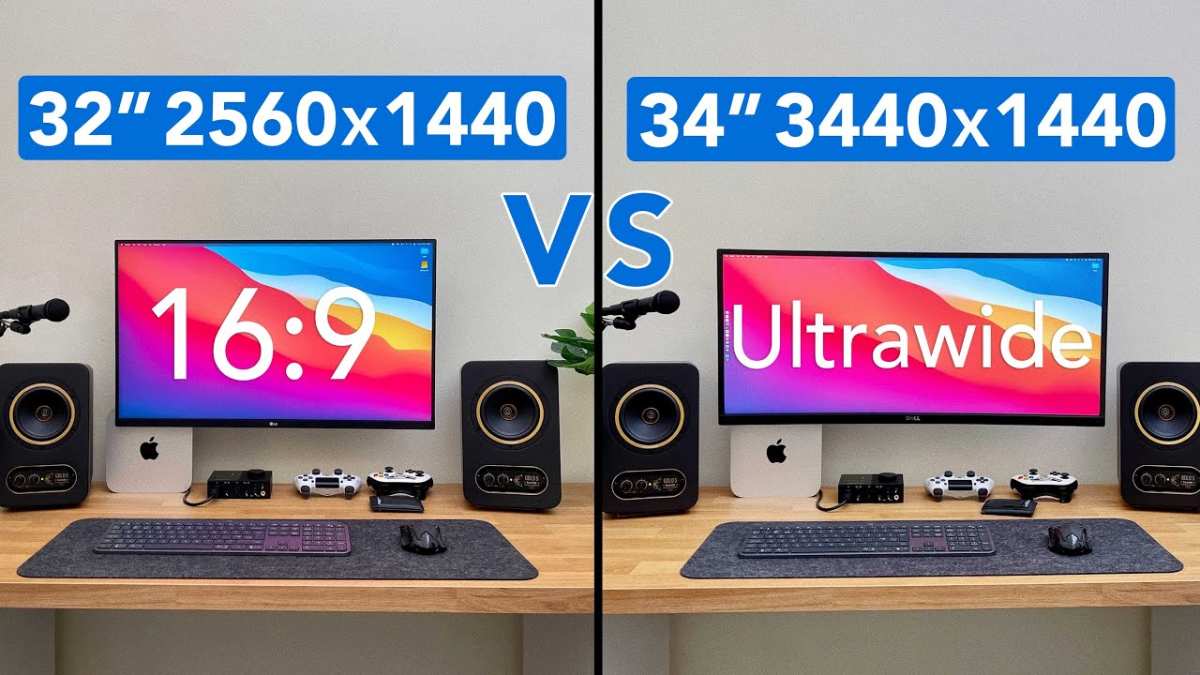
Image source: Bing (Web (fair-use with source credit))

Similar Posts































