Effective Tips For Android Battery Reset To Improve
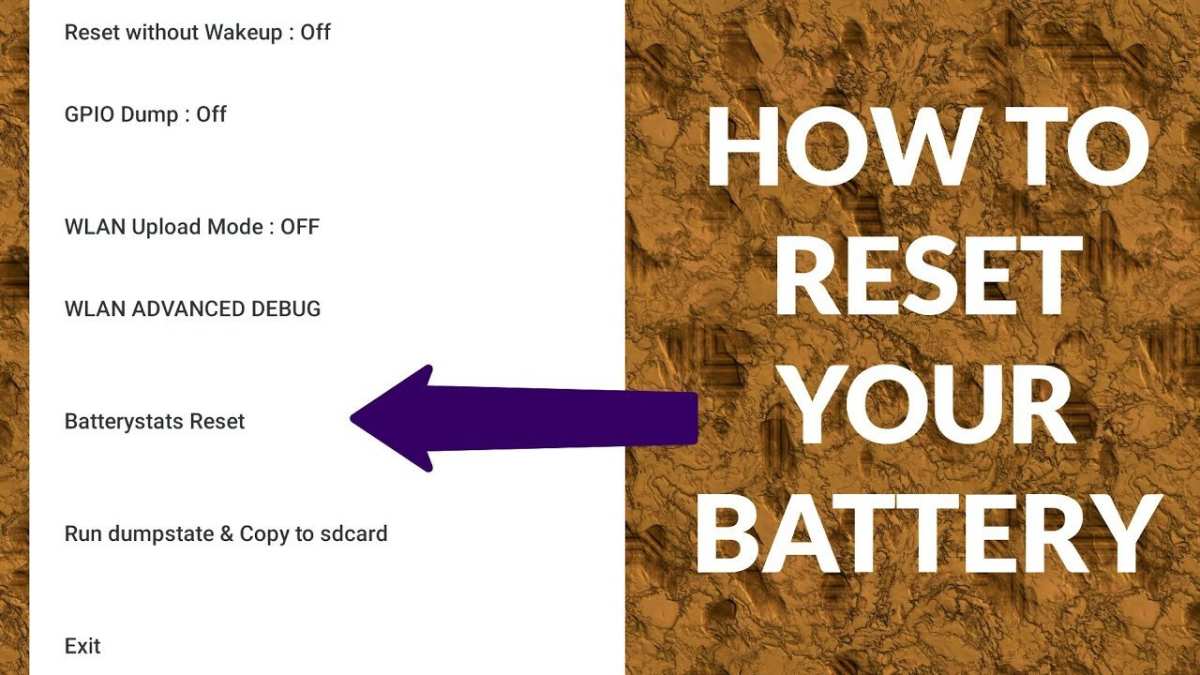
If your Android battery drains quickly or behaves unpredictably, performing an Android battery reset can often fix the issue. **Simply turning off your device, removing the battery if possible, and then reinserting it can reset the system’s battery stats.** This process helps recalibrate your battery and improve performance.
Sometimes, your device’s software needs a refresh to operate smoothly. An Android battery reset is a straightforward step that can restore battery life and stability. Keep this method in mind whenever your phone’s power struggles become a concern.

Understanding and Performing an Android Battery Reset
When your Android device starts to lag, drains its battery quickly, or behaves unpredictably, it may be time to perform a battery reset. This process can breathe new life into your device by refreshing how it manages power and ensuring that the battery information displayed is accurate. But what exactly does a battery reset mean, and how can you do it safely? Let’s delve into the details to help you understand this essential maintenance procedure.
What Is an Android Battery Reset?
An Android battery reset isn’t about physically replacing the battery. Instead, it’s a process that involves recalibrating the software to correctly read and report the battery’s capacity. Over time, your device’s battery meter might become inaccurate due to various reasons such as software glitches, overcharging, or extreme temperature exposure.
By resetting the battery, you are essentially instructing your phone to forget the inaccurate readings and retrain itself to display the correct battery level going forward. This process can improve battery life, provide more precise percentage readings, and prevent unexpected shutdowns.
Why Does Your Android Battery Need a Reset?
Understanding why your Android battery might need a reset helps you decide when it’s time to take action. Some common reasons include:
- Incorrect Battery Percentage: Your phone shows a percentage that doesn’t match the actual battery status.
- Unexpected Shutdowns: The device turns off before reaching 0% or when it still shows a partial charge.
- Quick Battery Drain: The phone consumes battery faster than usual, even with minimal usage.
- Battery Meter Not Updating: The battery icon remains static or jumps erratically.
- After Replacing the Battery: To recalibrate the new battery and ensure proper reporting.
Resetting the battery can help your device better understand its current battery health and improve overall performance.
How to Perform a Battery Reset on Your Android Device
There are different methods to reset your Android battery, depending on whether you aim to recalibrate the battery software or perform a hardware reset. Here’s a step-by-step guide on the most common and effective approaches:
Method 1: Complete Battery Drain and Recharge
This simple method helps recalibrate the battery meter by allowing it to learn the actual battery capacity.
- Use your phone normally until the battery is completely drained.
- Allow the device to turn off automatically once it reaches 0%.
- Charge your device uninterrupted to 100% without using it.
- Keep charging for an additional 30 minutes after reaching 100% to ensure full calibration.
- Unplug the charger and use your phone as usual.
Repeat this process once or twice if you notice the battery percentage still acting irregularly.
Method 2: Using Built-in Battery Calibration Tools
Some Android devices come with a built-in feature or a manufacturer’s app that allows you to reset or calibrate the battery more precisely.
- Navigate to your device’s Settings menu.
- Look for Battery or Device Maintenance options.
- If available, select Battery Health or Calibration.
- Follow the on-screen instructions to complete the calibration process.
Note: Not all phones have this feature; if yours doesn’t, proceed with manual methods.
Method 3: Hard Reset or Factory Reset (Use With Caution)
A factory reset can sometimes help with battery issues caused by software corruption, but it erases all your data, so back up your files beforehand.
- Go to Settings > System > Reset options.
- Select Factory Data Reset.
- Follow the prompts to reset your device.
Remember, this method should be used only when other options have failed and the battery issues persist.
Best Practices for Maintaining Battery Health
Resetting your battery can improve accuracy, but keeping your battery healthy over time requires good habits:
- Avoid Full Discharges: Try not to let your battery completely drain frequently.
- Charge Regularly: Keep your battery between 20% and 80% when possible.
- Use Proper Chargers: Always use the charger and cable supplied by your device manufacturer.
- Avoid Extreme Temperatures: Keep your phone away from very hot or cold environments.
- Update Your Software: Keep your device’s software up to date to benefit from battery optimization improvements.
By following these practices, you can reduce the need for frequent resets and prolong your battery’s lifespan.
Common Mistakes to Avoid During a Battery Reset
While resetting your battery is generally straightforward, some missteps can cause more harm than good. Be mindful of the following:
- Using Third-party Apps: Avoid apps promising to recalibrate your battery — they often do more harm than good.
- Overcharging: Don’t leave your device plugged in after reaching 100%; it can stress the battery.
- Repeated Deep Discharges: Frequently draining the battery to 0% can reduce its overall capacity.
- Ignoring Physical Damage: If your battery swells or shows signs of damage, do not attempt to reset; replace it immediately.
Balancing your approach helps ensure your device remains in good shape after the reset.
When to Seek Professional Help
If your battery problems persist despite performing a reset and practicing good habits, it might be time to consult a professional:
- Your device still drains quickly despite proper charging routines.
- The battery swells or shows physical damage.
- Software solutions don’t fix the reading inaccuracies.
- Battery health shows poor capacity even after calibration.
A technician can perform a thorough diagnosis and suggest solutions such as replacing the battery or repairing hardware issues.
Summary: Key Takeaways for Android Battery Reset
To sum up, resetting your Android battery is a useful step to improve performance and accuracy. Whether through simple full-cycle charging or more advanced calibration tools, the process can help your device better understand its power capacity. Remember:
- Perform a full drain and recharge cycle periodically for calibration.
- Use manufacturer-specific tools when available.
- Practice good battery habits to prolong its life.
- Seek professional help if issues persist after resets.
Keeping your Android device’s battery in top shape ensures smoother performance, longer usage times, and fewer surprises when you need your phone the most. Regular maintenance, including resets when necessary, keeps your device running efficiently and saves you time and frustration down the road.
Frequently Asked Questions
How can I improve my Android battery life through resets?
Performing a reset on your Android device can help eliminate temporary bugs or glitches that drain the battery. To do this, restart your device regularly to clear background processes. If battery drain persists, consider performing a factory reset after backing up your data, which can remove corrupted files or problematic apps that cause excessive power consumption. This process restores your device to its original settings, helping your battery last longer.
What steps should I follow to reset my Android battery calibration?
Battery calibration involves fully charging your device to 100%, then unplugging and using it until the battery drains completely. Once it turns off, charge it back to 100% without interruptions. This process recalibrates the battery sensor, providing more accurate readings of your remaining battery life. Keep in mind, this method can improve battery reporting but does not replace hardware issues.
Can resetting my Android device help resolve rapid battery drainage?
Yes, resetting your device can resolve software issues that cause rapid battery drain. When you restart or perform a factory reset, you eliminate rogue apps or processes that consume excessive power. Always check for software updates or app updates before resetting. If problems continue after reset, consider replacing the battery or consulting a professional technician for further diagnosis.
What precautions should I take before performing a reset related to the battery?
Before resetting your Android device, back up all important data such as photos, contacts, and app data. Ensure your device is sufficiently charged or plugged into power during the reset process. Confirm your account credentials and understand the steps to restore your data afterward. This preparation helps prevent data loss and allows a smooth reset process.
Is there a specific way to reset only the battery settings on an Android device?
Android devices typically do not have a dedicated option to reset only battery settings. Instead, you can reset app preferences or clear cache to improve battery performance. To do this, go to Settings > Apps > [Menu] > Reset app preferences or clear cache data for individual apps. This approach can refresh how apps interact with your battery and may help extend its lifespan.
Final Thoughts
In conclusion, performing an android battery reset can effectively improve your device’s performance and extend its battery life. This simple step removes minor glitches that drain power unexpectedly. Regularly resetting the battery ensures your device runs smoothly. Remember, taking these small actions helps maintain your device’s longevity and efficiency.

Similar Posts