Android Battery Replacement Tips For Better Device

Android Battery Replacement: Everything You Need to Know
When your Android phone starts to lose its charge quickly or the battery no longer lasts as long as it used to, it might be time to think about replacing the battery. A healthy battery is essential for your phone’s performance, making sure it charges fast and lasts through your busy day. In this guide, we will walk you through everything related to Android battery replacement, including how to tell if your battery needs replacing, the options available, and step-by-step instructions to do it yourself or find professional help.Signs Your Android Phone Needs a Battery Replacement
Before rushing into a replacement, first look for signs that indicate your battery is wearing out. Here are common indicators:- Your phone drains quickly even when not in heavy use
- The battery percentage drops suddenly or fluctuates randomly
- Your phone doesn’t reach a full charge or shuts down unexpectedly at high battery levels
- Your phone feels unusually warm or hot while charging or in use
- You see a warning message about a “weak, damaged, or degraded battery”
- The battery health status in settings shows a low or critical condition
Understanding Android Battery Health
Your phone’s battery is made of lithium-ion cells, which degrade over time and with usage. Each charge cycle — that’s the process from 0% to 100% charge — gradually reduces the battery’s capacity to hold power. After about 300 to 500 full charge cycles, most batteries start to show significant capacity loss. You can check your battery health through built-in settings or third-party apps. Typically, Android phones provide a battery status indicator that shows whether the battery is in good condition or needs attention.How to Check Battery Health in Android Settings
Depending on your device, the method varies:- Go to Settings
- Select Battery or Battery & Device Care
- Look for Battery Health or similar options
Choosing the Right Battery for Your Android Phone
When it comes to replacing your battery, selecting the right type is crucial. Here are your main options:- Original Equipment Manufacturer (OEM) Batteries
- Third-Party Batteries
These are the batteries made by the same company that built your phone. They fit perfectly and are designed specifically for your model.
Produced by other companies, these batteries are often cheaper but may vary in quality and longevity. Always choose reputable brands with good reviews to ensure safety and performance.
Factors to Consider When Choosing a New Battery
– Compatibility with your specific phone model – Capacity measured in milliamp-hours (mAh)—higher means longer battery life – Warranty period offered by the seller – Certification and safety features – Price and reviews Choosing the right battery ensures your phone functions well and lasts longer after replacement.DIY Battery Replacement: Is It Possible?
Many Android phones have removable batteries, making DIY replacements straightforward. However, newer models often feature sealed or non-removable batteries, which require special tools and skills.Pros and Cons of DIY Replacement
- Pros
- Cost-effective compared to professional services
- Convenient—can do it at home
- Immediate solution without waiting for repairs
- Cons
- Risk of damaging your phone if not done properly
- Void warranty if not authorized
- May require special tools and technical knowledge
Steps for Replacing a Removable Battery
If your phone has a removable battery:- Power off your device and remove the SIM card and memory card
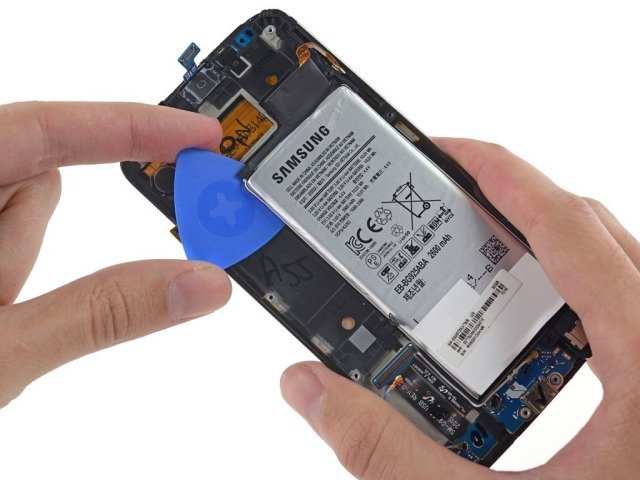
- Locate the back cover latch or clips and gently pry it open using a plastic tool
- Carefully lift out the old battery
- Insert the new battery, ensuring it aligns properly with the connectors
- Replace the back cover and secure it tightly
- Power on your device and calibrate the new battery by charging it fully before use
Professional Battery Replacement Services
If your phone has a sealed battery or you feel uncomfortable doing it yourself, professional repair shops can replace the battery efficiently. Here’s what to expect:- Qualified technicians use specialized tools to open the device safely
- Certified parts are used for durability and safety
- The process usually takes less than an hour
- Warranty is often provided on the replacement work and parts
- Reading reviews and ratings online
- Checking if they offer genuine parts
- Confirming their experience with your specific phone model
Cost of Replacing an Android Battery
The price varies widely depending on:- The phone model and brand
- Type of battery (OEM vs third-party)
- Service provider (DIY vs professional shop)
- DIY Replacement
- Usually between $10 and $50, primarily for the battery and tools
- Professional Replacement
- Ranges from $50 to $150 depending on the device and location
Maintaining Your New Battery for Long-Lasting Performance
After replacing your battery, adopting good habits helps extend its lifespan:- Avoid letting the battery drain completely — try to keep it above 20%
- Don’t overcharge — disconnect once it reaches 100%
- Use the original charger or certified fast chargers
- Keep your device in a cool, dry place while charging
- Disable unnecessary apps and services to conserve battery
Tips to Extend Your Battery Life
Here are simple tricks to maximize your battery longevity:- Reduce screen brightness and timeout duration
- Turn off Wi-Fi, Bluetooth, and GPS when not in use
- Enable battery saver modes available in device settings
- Limit background app refresh and notifications
- Close apps properly instead of leaving them running in the background
Summary
Replacing an Android battery is a practical way to breathe new life into your device. Whether you choose to do it yourself or seek professional help, understanding the signs of battery wear, selecting the correct replacement, and maintaining good charging habits make all the difference. Always prioritize safety by using quality parts and following proper procedures. A well-maintained battery guarantees your phone stays powerful and reliable for your daily needs.Frequently Asked Questions
How can I tell if my Android battery needs replacement?
If your Android device drains battery quickly, takes longer to charge, or unexpectedly shuts down, these signs indicate that your battery may need replacing. Additionally, swelling or physical damage to the battery also suggests replacement is necessary. Keep an eye on your usage patterns to determine if the battery performance declines significantly over time.
What steps should I follow to replace my Android battery safely?
Start by powering off your device and removing the back cover carefully. Use appropriate tools to disconnect the battery connector and lift out the battery without damaging other components. Replace it with a compatible new battery, reconnect the connector securely, and reassemble your device. Always handle batteries with care and avoid puncturing or bending them during the process.
Can I replace my Android battery myself or should I visit a professional?
If your device’s battery is easily accessible and you feel comfortable handling small components, you can replace it yourself by following detailed tutorials. However, for devices with sealed or complex designs, consulting a professional technician ensures a safe and proper replacement. Incorrect handling can damage your device or pose safety risks, so evaluate your skill level before attempting the replacement on your own.
What should I do if my new battery doesn’t hold a charge?
If your newly installed battery doesn’t last as long as expected, check that it is compatible with your device and properly installed. Sometimes, calibration helps the device accurately measure battery life; you can do this by fully charging the battery to 100%, then discharging it completely before recharging. If issues persist, contact the manufacturer or a technician for further assistance.
How can I prolong my Android battery’s lifespan after replacement?
Avoid exposing your device to high temperatures, and try to keep your battery charged between 20% and 80% for optimal longevity. Use power-saving modes when necessary and avoid keeping your device plugged in continuously after reaching full charge. Regularly updating your device’s software can also optimize battery performance and extend its lifespan.
Final Thoughts
Replacing your Android battery is a cost-effective way to boost phone performance and extend its lifespan. It’s a simple fix that can save you money and reduce electronic waste. Choosing a quality replacement battery ensures your device stays reliable and efficient. Proper maintenance and timely replacement keep your phone running smoothly. In summary, Android battery replacement offers an easy solution to regain your device’s original performance and avoid unnecessary costs.
Similar Posts































