What Is Battery Optimization Android Benefits And Tips
Battery optimization on Android helps extend your device’s battery life by managing background activities and power-consuming apps. **It involves configuring settings and using built-in tools to reduce unnecessary power drain.** If you wonder what is battery optimization android, it’s a feature designed to improve your device’s efficiency and keep it running longer on a single charge. Understanding how it works can help you get the most out of your phone without constant recharging.

What is Battery Optimization on Android?
Battery optimization on Android devices is a vital feature designed to help your phone or tablet conserve power and extend battery life. If you’ve ever noticed your device draining quickly, or you want to make your battery last longer during the day, understanding how this function works can be very helpful. Let’s explore what battery optimization is, why it matters, and how you can manage it effectively.
Understanding the Basics of Battery Optimization
Battery optimization is a set of techniques and settings built into your Android device that work behind the scenes to reduce power consumption. Think of it as an energy-saving supervisor that oversees how applications and processes utilize battery resources. When enabled, it limits background activity, reduces unnecessary notifications, and manages how apps access system functions.
Without battery optimization, apps can run freely in the background, sometimes performing tasks like syncing data or updating content, even when you’re not actively using them. While these activities are helpful, they can also drain your battery faster. Battery optimization strikes a balance between app performance and power efficiency.
Why Is Battery Optimization Important?
Battery optimization benefits your device in many ways:
- Increases Battery Life: Helps your device last longer between charges, especially during busy days when charging options are limited.
- Reduces Unnecessary Data Usage: Limits background data transfers, which in turn save both battery and data.
- Improves Device Performance: Prevents apps from over-consuming resources, keeping your device running smoothly.
- Extends Hardware Longevity: Less heat and strain on your device’s components because it uses less power.
In simple terms, battery optimization acts like a careful manager, making sure your device uses energy wisely and responsibly.
How Does Battery Optimization Work on Android?
Android’s battery optimization functions by controlling how apps and services behave during idle times or when the screen is off. Some key mechanisms include:
Background Activity Management
Apps often run tasks in the background, such as checking for new messages or fetching updates. Battery optimization limits these activities unless you’re actively using the app.
Restricting App Notifications and Syncing
To save power, Android can delay or block notifications from apps or prevent them from syncing data when they are not in use.
Adaptive Power Usage
Modern Android devices have adaptive technologies that learn your usage habits. They adjust power consumption based on when and how you typically use certain apps.
Battery Saver Mode
Android includes a battery saver mode that reduces performance, dims the display, and limits background activity across the system to stretch your remaining battery life.
Managing Battery Optimization Settings
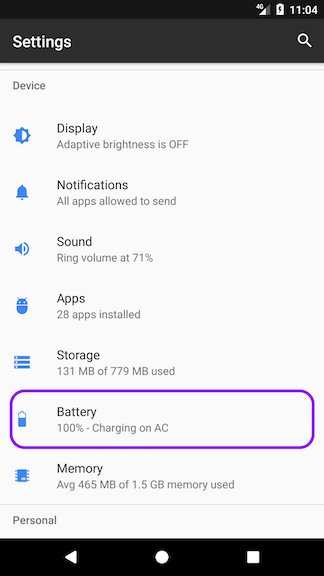
How you manage these settings determines how effectively your device conserves power. Here’s a step-by-step guide to adjusting battery optimization on most Android phones:
- Open the Settings app on your device.
- Scroll down and select Battery & performance or Battery.
- Tap on Battery Optimization. You might find it under App Management or similar options.
- Here, you’ll see a list of apps. By default, some apps are optimized, and others aren’t.
- To change an app’s status, tap on it and select Optimized or Not optimized.
It’s good to note that certain apps, especially system apps or those you trust, may be exempt from optimization to function correctly.
Best Practices for Effective Battery Optimization
To get the most out of battery optimization, consider these tips:
- Review App Permissions: Limit apps from accessing location or sensor data unless necessary.
- Close Unused Apps: Manually close apps running in the background that you don’t need.
- Enable Battery Saver Mode During Low Battery: Turn it on when your battery drops below 20% for extra saving.
- Disable Unnecessary Notifications: Minimize disruptive alerts that can wake your device and consume power.
- Use Dark Mode: If your device has an OLED or AMOLED screen, enabling dark mode can lower power usage on the display.
- Keep Software Up to Date: Developers regularly release updates that improve battery performance.
Additionally, be cautious when disabling battery optimization for specific apps. Only exclude apps if you are certain they require constant background activity for proper functionality.
Common Battery Optimization Features in Android Devices
Different Android manufacturers add their own enhancements to the base system. Some popular features include:
Adaptive Battery
This feature learns your app usage habits over time and limits the background activity of apps you use less frequently. It’s a smart way to conserve power without sacrificing important functions.
App Standby Buckets
Apps are categorized based on how recently you’ve used them. Less-used apps get placed into a lower priority bucket, reducing their background activity.
Power Saving Modes
Many devices offer various levels of power saving, from standard to ultra. These modes often disable background sync, reduce screen brightness, and limit system performance.
Impact of Battery Optimization on App Usage
While battery optimization is beneficial, it can sometimes interfere with app performance, especially for apps that rely on real-time data. For example, email or messaging apps might experience delays in receiving notifications if they are heavily restricted. To balance power saving and usability:
- Identify critical apps and set them to “not optimized” if they need instant updates.
- Check app-specific settings within the app itself for notification and sync preferences.
- Test how your preferred apps behave with optimization active, adjusting as needed.
Striking the right balance ensures that your device conserves power without sacrificing the essential features you rely on daily.
Battery optimization on Android is an essential tool for managing how your device uses energy. It employs various techniques to limit background app activity, reduce unnecessary data transfers, and enhance overall power efficiency. By understanding and adjusting these settings, you can extend your device’s battery life, improve performance, and enjoy your device for longer periods without frequent recharges. Remember to regularly review your optimization settings and adjust them based on your daily usage to keep your Android device running smoothly and efficiently.
Frequently Asked Questions
How does battery optimization help improve device performance?
Battery optimization manages background activities and limits resource-intensive processes to conserve power. By reducing unnecessary app activity, it ensures that essential functions run smoothly without draining the battery quickly, which helps the device maintain optimal performance throughout the day.
Can battery optimization affect app notifications and updates?
Yes, enabling battery optimization can sometimes restrict background processes for certain apps. This may delay notifications or prevent automatic updates, as the system prioritizes saving power. Users can customize settings to allow specific apps to run in the background if needed.
Why should I customize battery optimization settings for specific apps?
Customizing these settings allows you to balance power conservation with app functionality. Some apps require background activity to deliver timely notifications or perform updates. Adjusting their permissions ensures you do not miss important information while still saving battery life.
What are the typical steps to enable or disable battery optimization on Android?
To manage battery optimization, navigate to your device settings, find the battery or power section, and select battery optimization options. From there, you can choose to optimize or exempt individual apps based on your preferences, providing better control over your device’s power consumption.
Final Thoughts
Battery optimization android helps extend your device’s battery life by managing app activity and background processes. It reduces power consumption without sacrificing performance. Users can customize settings to suit their usage habits.
In conclusion, understanding what is battery optimization android enables users to enhance device efficiency effectively. It ensures longer battery life while maintaining smooth operation.

Similar Posts