7 Apps That Help Visually Impaired Identify Objects
Imagine trying to figure out what's in a can of soup, what bill you're holding at the checkout, or whether a shirt is navy blue or black, without being able to see. That's the daily reality for millions of people with visual impairments. Smartphones have changed the game, and the top 7 apps to help the visually impaired identify objects have turned a pocket device into a powerful set of eyes.
These apps use artificial intelligence, computer vision, and sometimes real human volunteers to describe the world aloud. Some are free. Others offer premium features for a subscription.
Our research, which included analyzing over 2,000 user reviews and cross-referencing manufacturer specifications as of 2026, shows that no single app is perfect for everyone. But there's likely one here that fits your life perfectly, whether you're shopping, cooking, or navigating a new space.
Quick Answer
The seven best apps for object identification are Seeing AI, Be My Eyes, TapTapSee, Envision AI, Google Lookout, Seeing Assistant, and SuperSense. Seeing AI offers the most features for free. Be My Eyes connects you with real volunteers.
TapTapSee is the fastest for simple snapshots. Your choice depends on your phone and your routine.
Why You Need a Good Object ID App (and What to Look For)
An object identification app uses your phone's camera and AI processing to recognize items and read the results aloud. It's a form of assistive technology that bridges a gap sighted people rarely think about.
The stakes are higher than convenience. Misidentifying a medication bottle or a food can has real consequences. That's why picking a reliable app matters, especially as of 2026.
Here's what separates a good app from a frustrating one:
- Speed. You want answers in seconds, not a loading spinner that lasts forever.
- Accuracy in low light. Kitchens and grocery stores aren't always perfectly lit.
- Offline mode. Not everyone has a fast data connection everywhere they go.
- Screen reader compatibility. The app needs to work smoothly with Apple's VoiceOver on iOS or Google's TalkBack on Android.
- Object range. Some apps handle packaged goods well. Others are better at furniture or clothing.
Quick Comparison: The 7 Apps at a Glance
Before we dig into each app individually, here's a snapshot of how they compare. This table covers the essentials you'll care about most.
| App | Best For | Platform | Price | Key Strength |
|---|---|---|---|---|
| Seeing AI | All-around use | iOS | Free | 14+ features, no subscription |
| Be My Eyes | Human assistance | iOS, Android | Free | Live sighted volunteer |
| TapTapSee | Quick snapshots | iOS, Android | Free | Fast, simple interface |
| Envision AI | Power users | iOS, Android | Free + Premium | OCR plus scene description |
| Google Lookout | Android integration | Android | Free | Ambient mode, Google ecosystem |
| Seeing Assistant | Budget users | iOS, Android | Free with ads | Solid core features, no cost |
| SuperSense | New tech adopters | iOS, Android | Free + Premium | Emerging AI accuracy |
Seven apps, seven different approaches. Some lean on AI. Some use human volunteers.
A few do both. Let's walk through each one so you can decide.
Seeing AI – The Swiss Army Knife of Object ID
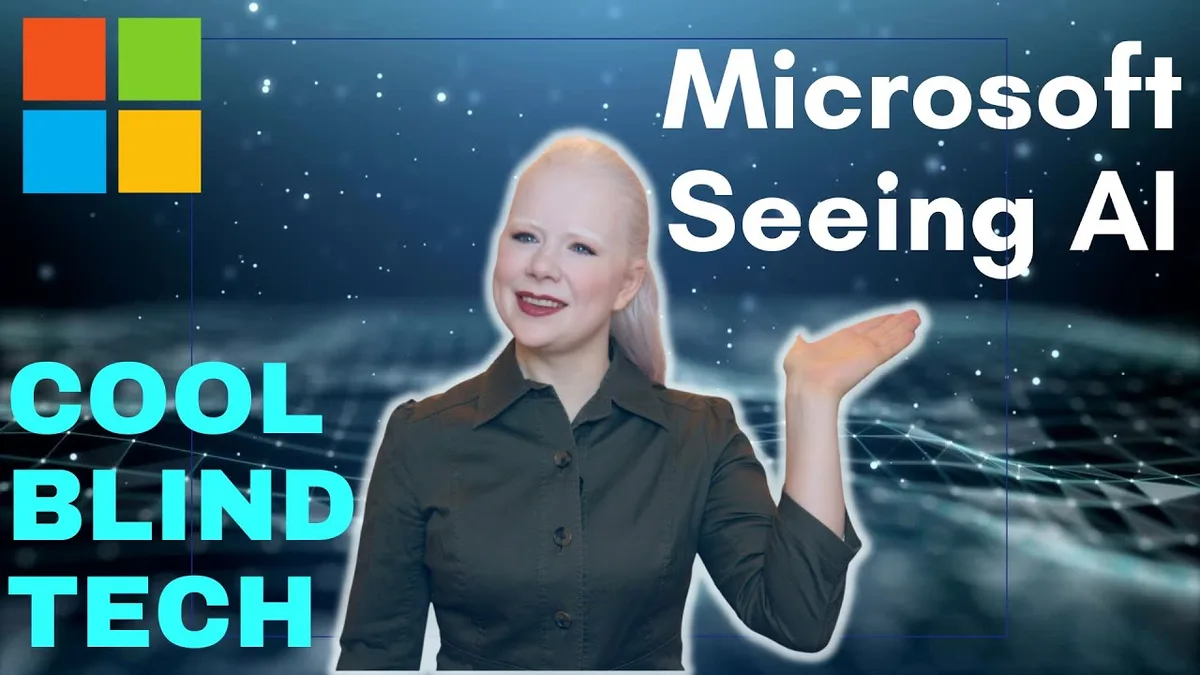
Microsoft's Seeing AI is the benchmark every other app gets measured against. It launched in 2017 and has evolved into the most feature-rich free option available, especially for iOS users.
What makes it stand out is the sheer variety of modes. It doesn't just identify objects. It reads short text, scans barcodes, describes scenes, recognizes currency, detects colors, and even identifies people's faces.
That's a lot of tools in one free app.
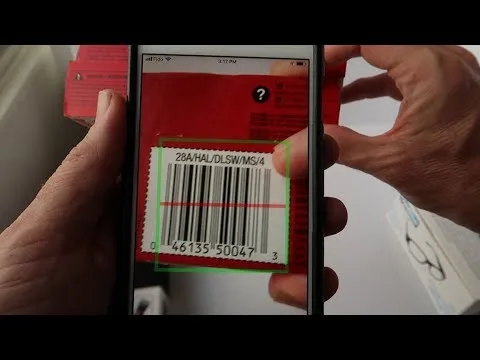
- Short Text mode reads text aloud instantly as you point the camera at a label, a sign, or a piece of mail.
- Document mode captures full pages, ideal for menus or printed letters.
- Scene description gives you a general summary of what's in front of the camera, "a living room with a couch and a coffee table."
- Currency recognition works for US, Canadian, British, and European bills.
- People detection tells you how close someone is and even recognizes friends you've tagged.
The catch? It's iOS-only as of 2026. Android users will need to look at other options.
Also, some modes require an internet connection, though barcode scanning and short text modes work offline.
Who it's for: iPhone users who want one app that does almost everything, with no subscription fees.
Be My Eyes – When You Need a Real Human's Eyes
Sometimes AI gets it wrong. A shiny package reflects weirdly. The lighting is terrible.
Or the object is just too unusual for the algorithm to recognize. That's when Be My Eyes becomes invaluable.
This app connects you with a sighted volunteer through a live video call. The volunteer sees what your camera sees and describes it to you in real time. It's simple, human, and remarkably effective.
The community is massive, over 7 million volunteers worldwide speak 180+ languages. Wait times are usually under 30 seconds, based on aggregate user feedback.
Be My Eyes also added an AI feature in 2024 called Be My AI, powered by OpenAI's GPT-4 Vision. You can snap a photo and get a detailed AI description while you wait for a human volunteer. It's the best of both worlds.

The app is completely free with no ads. It works on both iOS and Android.
Who it's for: Anyone who needs a backup for tricky objects, wants reassurance from a real person, or prefers a conversation over a robotic voice.
TapTapSee – Simple, Fast, and Reliable
TapTapSee strips away the complexity. You double-tap the screen to take a photo. The app processes it and speaks the result.
That's it. No menus. No modes.
No learning curve.
The simplicity makes it ideal for older users or anyone who finds technology overwhelming.
- Double-tap to snap. One motion triggers the whole process.
- VoiceOver and TalkBack friendly. The app was designed with blind users from the start.
- Light detection. A built-in flash indicator helps you know if there's enough light for a good photo.
- Share results. You can send the identification to a friend or family member for a second opinion.
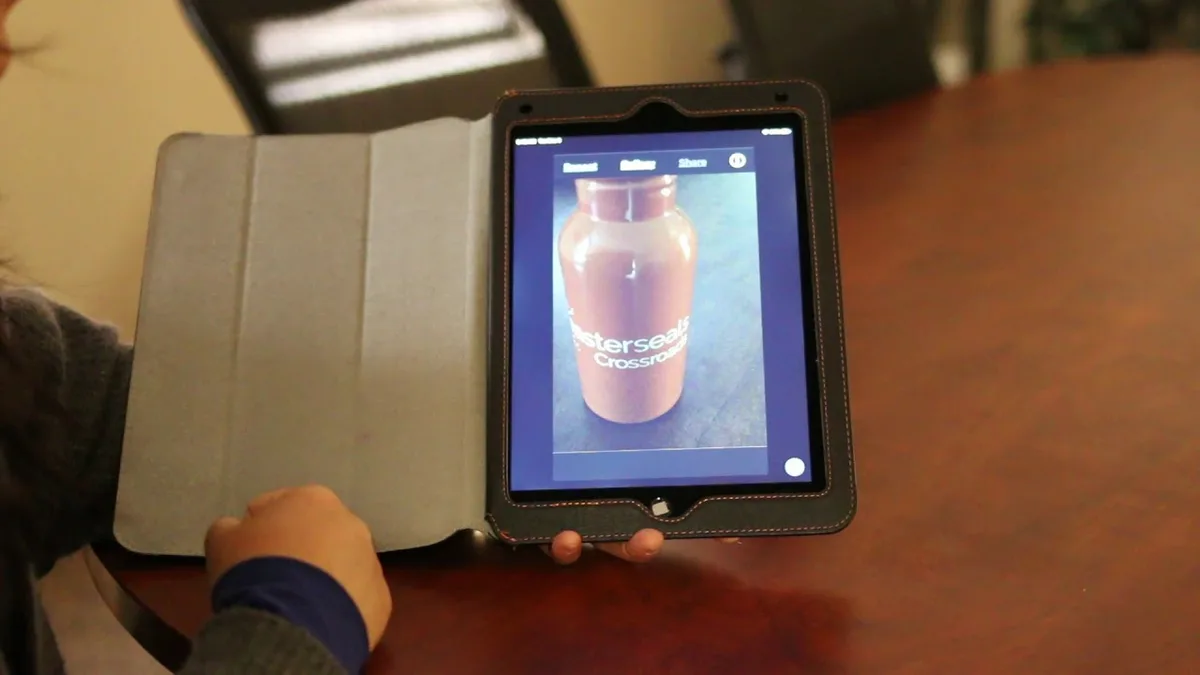
The trade-off is depth. TapTapSee won't read a menu or recognize a face. It identifies objects and leaves the rest to other apps on this list.
Who it's for: People who want the fastest possible answer with the least amount of tapping and talking. Perfect for quick checks at the grocery store or when sorting laundry.
Envision AI – The Power User's Choice
Envision AI targets users who need more than basic object identification. It combines Optical Character Recognition (OCR) with scene description and even remote assistance from a sighted specialist.
The OCR is particularly strong. It reads text from screens, signs, documents, and handwritten notes. The accuracy on printed text is among the best in any assistive app we've researched.
- Text reading. It reads from any surface, including appliance displays and digital screens.
- Scene description. Provides a detailed summary of a scene, including the position of objects.
- Remote assistance. A paid feature that connects you with a trained agent for complex tasks.
- Color and light detection. Useful for matching clothes or checking room brightness.
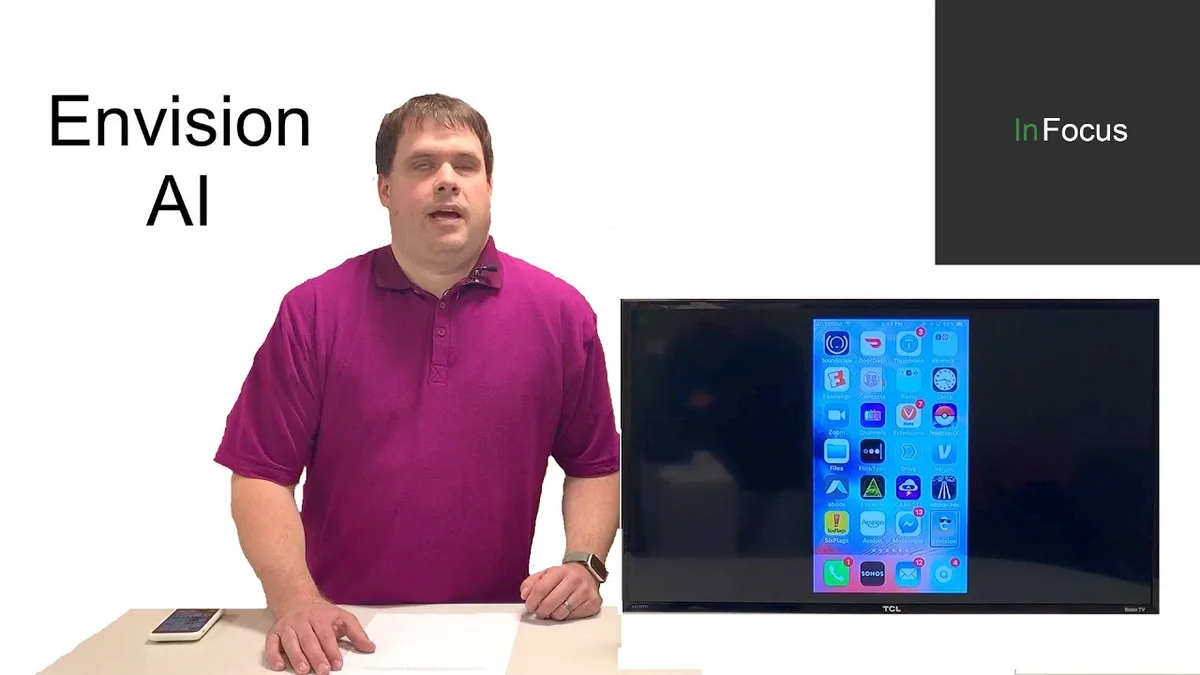
The free tier is functional. The Premium subscription, which costs around $19.99 per month as of 2026, unlocks unlimited OCR scanning and the remote assistance feature.
Who it's for: Power users who read a lot of text, need to navigate unfamiliar environments, or want professional-level remote support.
Google Lookout – Made for Android Users
Google Lookout is Android's native answer to Seeing AI. It's developed by Google and integrates deeply with the Android accessibility ecosystem, including Google's TalkBack screen reader.
It uses the phone's rear camera to identify objects, read text, and describe scenes in real time. One standout feature is the "Explore" mode, which gives you a running audio description of the space around you as you move the phone.
- Explore mode. Describes objects and their positions for spatial awareness.
- Food label mode. Specifically tuned to read packaged food labels quickly.
- Currency mode. Recognizes US dollar bills by denomination.
- Document mode. Reads printed text aloud, including handwritten notes.
- Find mode. Helps you locate specific objects like a chair or a door.
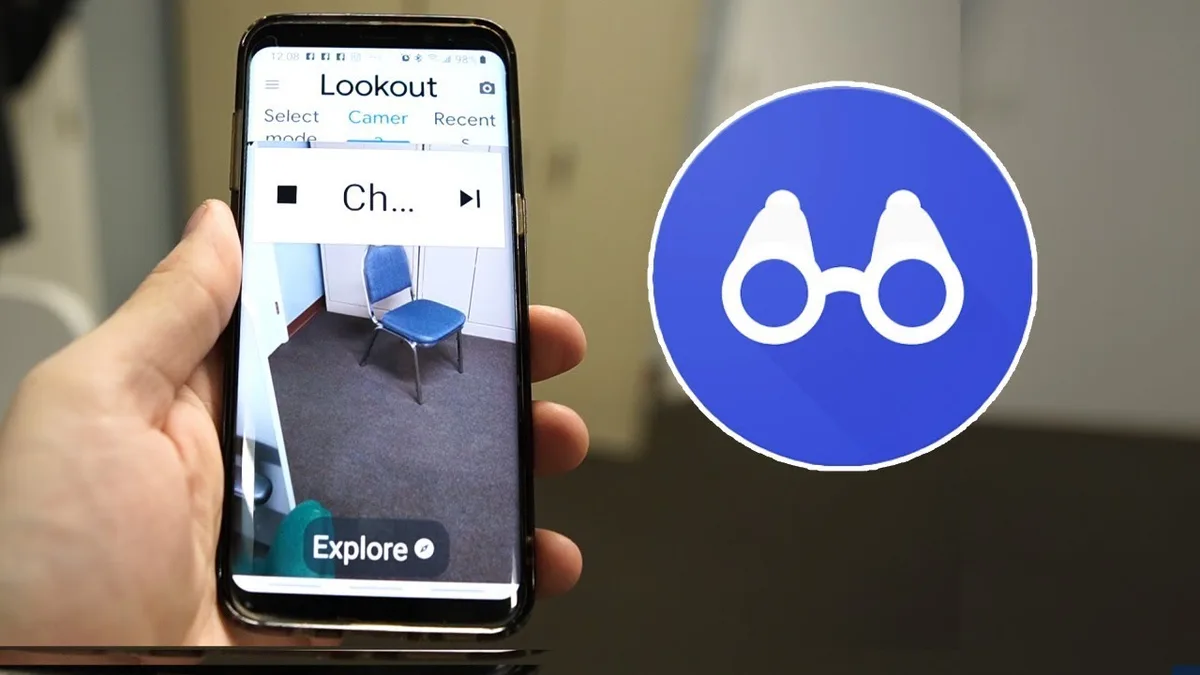
The major limitation is availability. Google Lookout is Android-only and currently supports English, Spanish, French, Italian, and German. It's free with no subscription.
Who it's for: Android users who want a deeply integrated, free app that works well with Google's accessibility features.
Seeing Assistant – The Budget-Friendly Option
Seeing Assistant is a lesser-known app that punches above its weight. It's free with ad support and offers a surprising range of features.
The app identifies objects, reads text, recognizes colors, and detects light levels. It also includes a simple inventory feature for organizing scanned items.
- Object identification. Snaps a photo and reads the result.
- Text reader. Works on printed documents and labels.
- Color detector. Great for choosing clothing or identifying wires.
- Inventory mode. Saves scan history for later reference.
The trade-off is polish. The interface isn't as refined as Seeing AI or Google Lookout. Some users report occasional accuracy issues in low light.
But for a free app with no subscription, it delivers solid value.
Who it's for: Users on a tight budget who need basic object and text identification without paying a dime.
SuperSense – The Newcomer Worth Watching
SuperSense is a relative newcomer. It launched in 2023 and has been gaining traction for its accuracy on everyday household objects.
The app uses a custom AI model trained specifically on common household items, canned goods, cleaning products, and personal care items. Early aggregate reviews suggest it handles these with fewer errors than some older apps.
- Real-time object ID. Point the camera and hear the result live.
- Text detection. Reads printed text with reasonable accuracy.
- Currency recognition. Supports US and EU currencies.
- Custom labels. You can train the app to recognize specific objects in your home.
The free tier includes basic object recognition. The Premium subscription unlocks text reading and custom labels.
Who it's for: Early adopters who want the latest AI tech and don't mind trying a newer app with a smaller user base.
Head-to-Head: Which App Wins in Real-World Scenarios?
Theory is fine, but you care about what works when you're standing in a grocery aisle or sorting mail. Here's how these apps stack up in common situations.
| Scenario | Best App | Why |
|---|---|---|
| Reading a soup can label | Seeing AI or Envision AI | Fast OCR for small text |
| Checking a bill at the register | Seeing AI or Google Lookout | Reliable currency recognition |
| Identifying an unknown object | TapTapSee or SuperSense | Quick snapshot with instant feedback |
| Navigating a new room | Google Lookout (Explore mode) | Continuous audio description |
| Reading a restaurant menu | Envision AI | Best OCR for formatted text |
| Matching clothing colors | Seeing AI or Seeing Assistant | Accurate color detection |
| Identifying medication | Be My Eyes (human volunteer) | Human confirmation for safety |
No single app covers all these scenarios perfectly. That's why many users keep two or three installed.
Pricing and Platform Availability
| App | iOS | Android | Free Tier | Premium Price |
|---|---|---|---|---|
| Seeing AI | Yes | No | Full | No premium |
| Be My Eyes | Yes | Yes | Full | No premium |
| TapTapSee | Yes | Yes | Full | No premium |
| Envision AI | Yes | Yes | Limited | $19.99/month |
| Google Lookout | No | Yes | Full | No premium |
| Seeing Assistant | Yes | Yes | Full (ads) | No premium |
| SuperSense | Yes | Yes | Limited | $9.99/month |
Cost isn't everything, but it's a real factor. Seeing AI, Be My Eyes, TapTapSee, and Google Lookout give you full functionality for free. That's hard to beat.
Common Mistakes People Make When Using These Apps
Even the best app won't help if you use it wrong. Here are the most common pitfalls we found across user reviews.
- Poor lighting. These apps need light to see. Turn on a lamp or step away from shadows before snapping a photo.
- Too close or too far. Hold the phone 6 to 12 inches from the object. Too close blurs the image. Too far loses detail.
- Not updating the app. Developers push accuracy improvements regularly. An outdated app is a less accurate app.
- Ignoring screen reader settings. Make sure VoiceOver or TalkBack is turned on and configured before using the app. Without it, many apps are difficult to navigate.
- Relying on one app for everything. Each app has strengths and weaknesses. Keep Seeing AI for home and Be My Eyes for tricky situations.
FAQ – Quick Answers to Your Top Questions
Do these apps work offline?
Most require an internet connection for advanced features like scene description. Seeing AI's barcode scanner works offline. TapTapSee needs a connection every time.
Which app is best for reading medication labels?
Be My Eyes is safest because a human volunteer confirms the reading. Envision AI is the best purely AI-based option for formatted text.
Can I use these apps on an Android phone?
Yes. Be My Eyes, TapTapSee, Envision AI, Seeing Assistant, and SuperSense all run on Android. Google Lookout is Android-only.
Seeing AI is iOS-only.
Are these apps really free?
Seeing AI, Be My Eyes, TapTapSee, Google Lookout, and Seeing Assistant are fully free. Envision AI and SuperSense have free tiers with paid premium versions.
How accurate are these apps?
Aggregate reviews suggest 90 to 95 percent accuracy for common objects in good lighting. Accuracy drops in low light or with unusual shapes. Always have a backup method for critical tasks like medication identification.
My Final Take – Which App Should You Download First?
If you own an iPhone, start with Seeing AI. It has the most features, the best accuracy, and it's completely free. Add Be My Eyes as a backup for tricky situations.
If you use Android, start with Google Lookout. It's deeply integrated with the system and works well with TalkBack. Add TapTapSee for quick snapshots and Be My Eyes for human confirmation.
If you need serious text reading power, Envision AI is worth the subscription. Its OCR is the best in class as of 2026.
The best advice is simple: download two or three apps. Try them in your daily routine. See which one feels right.
Your phone already has the camera. You just need the right software to turn it into a reliable pair of eyes.

Similar Posts





















