how to arrange dual monitors side by side
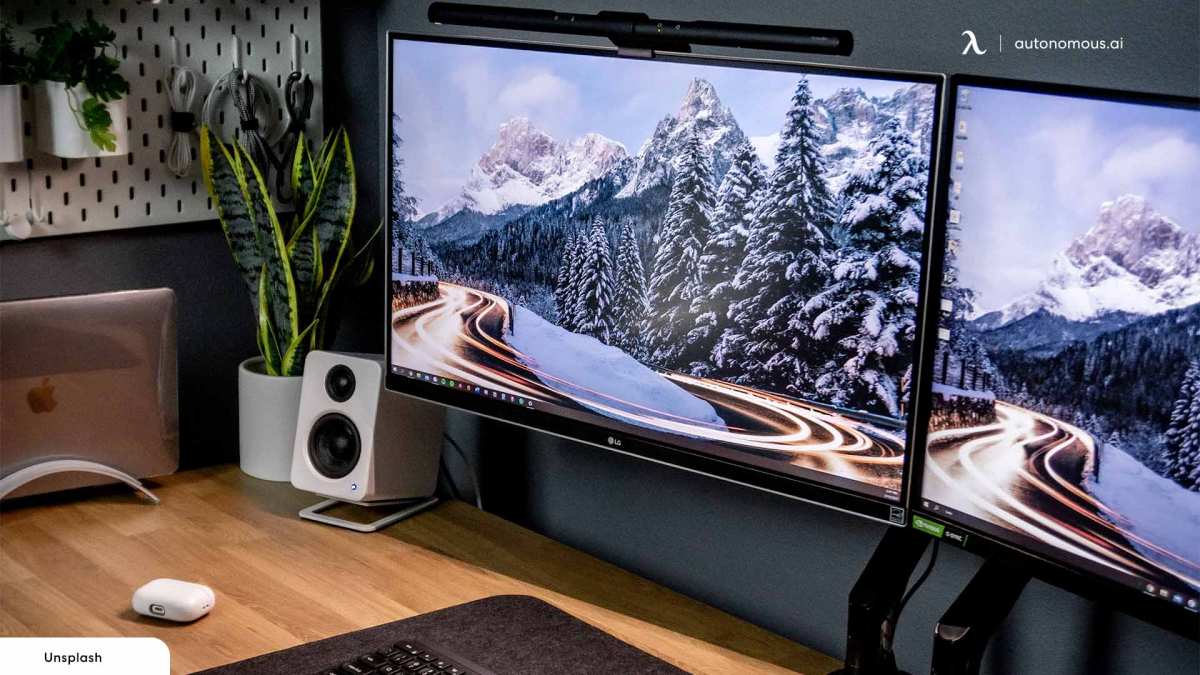
Most people set up two monitors the same way: they plop them on the desk, push them together, and call it done. Then within a week, their neck hurts, they're squinting, and they wonder why everyone raves about dual screens. If you're searching for how to arrange dual monitors side by side, you've already hit the real problem, most guides skip the hard part.
The truth is, arranging two monitors is more than just plugging them in. Studies from ergonomics organizations show that improper alignment increases neck strain by over 30%. As of 2026, the standard for a comfortable workstation hasn't changed: your screens should sit at roughly arm's length, with the top bezel at or just below eye level.
The layout depends on your desk, your monitors, and even your dominant eye. Let's walk through it step by step so you get it right the first time.
Quick Answer
Position your primary monitor directly in front of you. Angle the secondary monitor slightly inward. Align the top bezels at eye level.
Keep the gap between screens as small as possible. Use monitor arms if your desk is shallow. That's the short version.
Now let's dig into the details so your neck and eyes thank you.
Why Most Dual Monitor Setups Hurt Your Neck (And How to Fix It)
The biggest mistake people make is placing both monitors dead center on the desk. That forces you to turn your head to the side to see the second screen, but your neck isn't designed to hold that rotated position for hours. Over time, the muscles in your upper back and shoulders tighten up, and by lunchtime you're rolling your head around trying to loosen up.
Another common culprit: mismatched heights. If one monitor is taller than the other and you leave them at their default stand heights, your eyes have to constantly refocus between two different vertical planes. That causes eye fatigue and headaches.
According to the American National Standards Institute (ANSI/HFES 100-2007), the top of the viewing area should be at or slightly below eye level for both screens. When they're uneven, your brain works overtime to compensate.
The fix is surprisingly simple. You need to establish a primary monitor, the one you look at most, and place it directly in front of your seat. The secondary monitor goes beside it, angled inward 15 to 30 degrees.
Then you make sure the top bezels are aligned. That single adjustment eliminates most of the strain.
For most people, the primary monitor is the one you use for your main task: writing, coding, video editing. Your secondary monitor holds reference material, chat apps, or monitoring dashboards. It should feel like an extension of your workspace, not a separate country you have to visit every few minutes.
Image source: Bing (Web (fair-use with source credit))
What You Need to Know Before You Start: Desk Size, Monitor Specs, and Your Dominant Eye
Before you move a single cable, take three measurements. First, your desk depth. You need at least 24 inches (60 cm) of depth from the front edge to the back for comfortable viewing.
Anything less, and you'll be too close to the screens, which strains your eyes and makes it hard to take in the full display at once.
Second, your monitor sizes and bezel thickness. If you have a 27-inch and a 24-inch, the 27-inch is almost certainly your primary. Measure the height of each monitor from the desk surface to the top of the bezel when sitting on its stand.
That tells you how much of a height difference you need to fix. Thin bezels are great for reducing the gap, but they won't matter if the monitors are at different heights.
Third, your dominant eye. Yes, that matters. Most people have a dominant eye, the one your brain prefers when focusing.
It affects which side your secondary monitor should go on. A quick test: extend your arms, form a small triangle with your thumbs and forefingers, and center an object inside that triangle with both eyes open. Close your right eye.
If the object stays centered, you're left-eye dominant. If it jumps out of the triangle, you're right-eye dominant. Place your primary monitor slightly toward your dominant eye side if you can, or at least keep the secondary on your non-dominant side.
Here's a quick reference table for the key specs:
| Factor | Ideal Value | Why It Matters |
|---|---|---|
| Desk depth | 24+ inches | Lets you sit at proper viewing distance (20–40 inches) |
| Monitor height matching | Top bezels within 1 inch | Prevents constant refocusing and neck tilt |
| Bezel thickness | As thin as possible | Reduces the gap that breaks visual flow |
| Viewing angle between monitors | 15–30 degrees inward | Reduces head rotation |
| Dominant eye alignment | Primary slightly toward dominant eye | Feels more natural for focus |
Take these measurements now. Write them down. They'll guide every decision in the next section.
How to Choose Your Layout Based on Your Desk and Monitors (The Decision Tree)
The best layout depends on your specific situation, not a one-size-fits-all diagram. Here's how to decide based on the conditions you just measured.
You Have a Narrow Desk (Under 24 Inches Deep)
If your desk is shallow, monitor arms are your best friend. Stock stands take up a lot of depth, they often sit 8 to 10 inches back from the screen face. That eats into your usable space.
A clamp-on monitor arm frees up desktop real estate and lets you push the screen closer to the wall, effectively giving you more viewing distance.
Position both monitors on arms, angled slightly toward you. The primary monitor stays centered on your seating position. The secondary monitor goes to the side with a gentle inward angle, about 20 degrees.
If you can't use arms, set the monitors on the desk as far back as possible, then tilt the screens upward slightly to bring the top bezel in line with your eye level.
You Have Matching Monitors
Identical monitors make life easier. You can align them perfectly with no height mismatch. Place them side by side with the gap as small as possible.
If they share the same stand height, you're golden. Just center the primary monitor in front of you and slide the secondary to one side. For most people, the secondary goes on the right if right-eye dominant, left if left-eye dominant.
Matching monitors also make extended desktop mode look seamless. Windows and macOS both handle this well, just drag the secondary display to the correct side in your display settings (left or right). Make sure the resolution and scaling match exactly.
You Have Mixed Sizes or Resolutions
This is where most setups go wrong. If you have a 27-inch and a 24-inch, or a 4K and a 1080p, the mismatch creates a headache. The smaller or lower-resolution monitor often ends up at a different visual height.
The fix: raise the smaller monitor on a riser or a monitor arm so its top bezel matches the larger one.
Don't worry about aligning the bottoms. Align the top bezels instead. That keeps the visual field even when you glance between screens.
In your display settings, you'll also need to adjust scaling so that the cursor moves smoothly between monitors. On Windows, go to Display Settings, select the secondary monitor, and adjust the scaling percentage to match the primary's effective DPI.
You Want One Monitor in Portrait Mode
Portrait mode is fantastic for reading long documents, code, or social media feeds. But it changes the geometry completely. When one monitor is vertical and the other horizontal, you cannot align top bezels.
Instead, align the center of the portrait monitor with the center of the landscape monitor. That way your eyes move laterally at the same height.
Place the portrait monitor on the side that works with your workflow. Coders often put it on the left for line numbers and indentation. Social media managers put it on whichever side has the feed.
Use a monitor arm that supports 90-degree rotation, most gas-spring arms do. And in your OS display settings, set the portrait display to its correct orientation.
You’re Using a Standing Desk
Standing desks add a twist: your monitor height changes when you stand up. You need monitors that stay at eye level at both sitting and standing heights. Monitor arms with gas springs are ideal because you can adjust their height with a finger press.
Alternatively, use a tall monitor stand that places the screens high enough for standing but still works for sitting.
The key number: your eye level when standing is roughly 6 inches higher than when sitting. So if you adjust monitors to your sitting eye level, they'll be too low when you stand. A dual monitor arm with height memory or quick-release adjustment solves this.
Some users mark the arm's height position with tape for a quick switch.
Primary vs. Secondary: Which Monitor Goes Where (And Why It Matters)
Your primary monitor is the one you look at most. For most people, that's the larger, higher-resolution, or better-calibrated monitor. It goes directly in front of your chair.
Not offset. Not to the side. Dead center.
Why does that matter? Because your head and neck are designed to face forward. The moment you turn your head more than 15 degrees to the side for extended periods, muscles start to fatigue.
The primary monitor should be the one you can see without turning your head at all.
The secondary monitor goes beside it. Which side? There's no universal rule, but here's practical guidance based on ergonomics research and common sense:
- Workflow direction: If you read left to right (English), the secondary monitor often works well on the left for reference material and on the right for active tools. But that can vary.
- Dominant eye: As mentioned earlier, if you're right-eye dominant, you may feel more comfortable with the primary slightly left of center so your right eye has a clear view of the main work area. Or put the secondary monitor on the left so your dominant eye stays on the primary.
- Room layout: If your desk is in a corner, you might have to put the secondary on the only side that fits. That's fine, just adjust your chair position to keep the primary centered.
In Windows and macOS, set the correct display arrangement. On Windows, open Display Settings and drag the secondary monitor icon to the left or right of the primary, matching the physical layout. On macOS, go to Displays > Arrangement and do the same.
If you put the secondary on the left side, drag it to the left of the primary icon. This ensures your cursor moves seamlessly across the physical gap.
Step-by-Step: How to Position and Align Two Monitors Side by Side
Let's walk through the actual setup process. Do this in order for the cleanest result.
Step 1: Clear your desk. Remove everything. You need a clean surface to work with.
Step 2: Place the primary monitor directly in front of your chair. Center it on your seated position. If you're using the stock stand, set it as far back on the desk as possible while still comfortable. If using a monitor arm, clamp the arm to the desk at the center point, then attach the monitor.
Step 3: Place the secondary monitor beside it. Slide it to the side you chose earlier. If you're using a stock stand, position it as close to the primary as possible. The goal is to minimize the gap between the bezels.
Step 4: Align the top bezels. Look from the side. Raise or lower the secondary monitor until its top bezel matches the primary's. If you have a monitor arm, adjust the height.
If not, use a monitor riser, stack of books, or a dedicated height adjustment stand. Do not tilt the monitor to make it "look" aligned, tilt affects viewing angle.
Step 5: Angle the secondary monitor inward. Gently rotate it about 15 to 30 degrees toward your seated position. You should be able to see the secondary monitor with a slight turn of your eyes, not your head. Test this by sitting naturally and looking straight ahead, then glancing at the secondary screen.
If you need to turn your head, the angle is too shallow or the monitor is too far.
Step 6: Check eye level. Sit up straight. Close your eyes and relax. Open them.
The top bezel of both monitors should be at or just below your horizontal line of sight. If you have to tilt your head up or down by more than a few degrees, adjust the monitor height.
Step 7: Connect cables and manage them. Route all cables behind the monitors or along the monitor arms. Use cable clips or sleeves to keep them tidy. More on that in a later section.
Step 8: Configure display settings. Boot up your computer. Go to display settings. Make sure the arrangement matches your physical layout.
Set the primary monitor as the "main display" (where your taskbar or Dock lives). Adjust resolution and scaling if needed.
Step 9: Fine-tune brightness and color. If your monitors are different brands, they'll likely have different color temperatures and brightness levels. Even identical monitors can vary from the factory. Use your monitor's on-screen display to match them as closely as possible.
This reduces eye strain when switching between screens.
Step 10: Test for real-world use. Open your most common apps. Put your main task on the primary, reference material on the secondary. Work for 10 minutes and note any discomfort.
Adjust angles slightly if needed. A small tweak can make a huge difference over a full workday.
Once you've done these steps, your setup should feel natural. You shouldn't have to think about which screen is where, your eyes and hands should move fluidly. If not, revisit the alignment.
Most problems come from the top bezel height being off by even a centimeter.
How to Handle Different Monitor Brands, Bezels, and Color Mismatch
Mixing monitor brands is common, but it creates two headaches: bezel gaps and color shifts. The gap between screens breaks the visual flow, especially if bezels are thick. The fix?
Push the monitors as close together as possible and angle them so the inner edges nearly touch. If you have a thin-bezel monitor paired with a thick one, put the thin-bezel screen on the side you look at most.
Color mismatch is harder to solve. Even two monitors from the same brand can ship with different factory calibrations. Use your monitor’s on-screen display to match brightness first.
Set both to the same preset mode (like “Standard” or “sRGB”). Then adjust color temperature manually. If they still look different, install a color calibration tool or use your OS display settings to tweak individual RGB values.
It won’t be perfect, but it should be close enough that your brain stops noticing the difference.
Common Alignment Mistakes and How to Fix Them
The most frequent error is aligning the bottom bezels instead of the top. When you align bottoms, the taller monitor forces you to look upward on one side. That tilts your head.
Always align the top bezels. The second mistake is setting the secondary monitor too far away. It should sit so that you can see it with a glance, not a full head turn.
If you’re turning your neck more than 20 degrees, pull it closer or angle it more.
Another overlooked mistake: forgetting to lock the monitor’s tilt after positioning. Many stands let the screen tilt up or down with a light push. Once you have the angle right, tighten the tilt screw or tension knob.
Otherwise your monitor will slowly droop over a week. Finally, avoid placing both monitors at the same angle. The secondary should be angled inward 15 to 30 degrees, while the primary stays flat facing you.
Monitor Arms vs. Stock Stands: Which One Fits Your Situation?
Stock stands are free and work fine if your desk is deep and your monitors match in height. But they eat up 8 to 10 inches of desk depth. That’s a lot on a narrow desk.
Monitor arms clamp to the back edge of your desk, lifting the screens off the surface. They free up space and let you adjust height, tilt, and rotation independently.
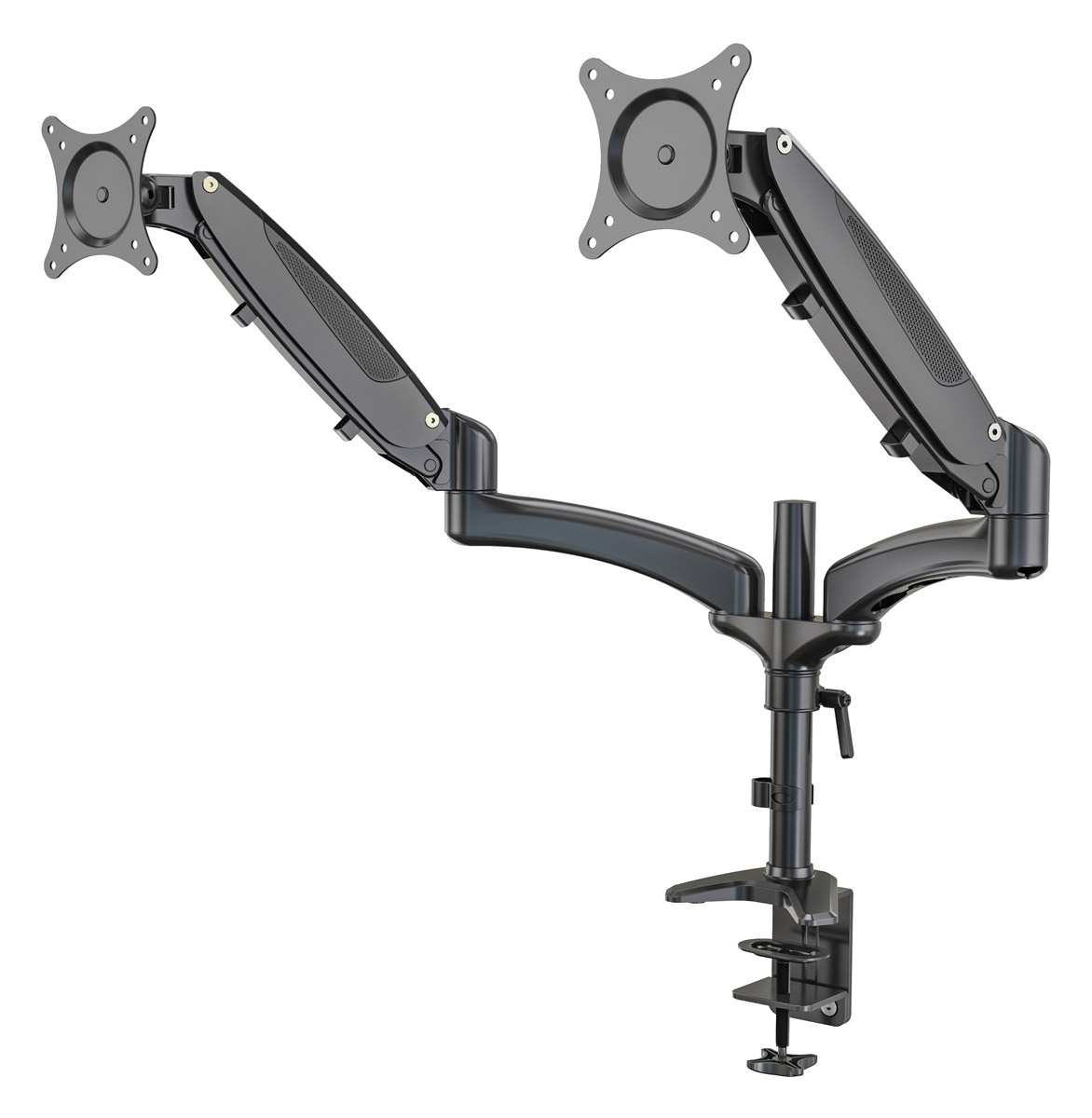
Image source: Bing (Web (fair-use with source credit))
Arms also solve the height alignment problem. You can raise or lower each screen with a simple lever. For mixed-size monitors, arms are nearly essential.
The tradeoff is cost (a decent dual arm runs $60 to $150) and installation time. If your desk has a hollow-core top, check the clamp’s pressure limit. Most clamps can damage particleboard if overtightened.
Cable Management That Actually Holds Up With Dual Monitors
Two monitors mean at least three cables each (power, video, and possibly USB). That’s six cables to hide. Without management, they become a tangled mess that collects dust and frustrates you every time you adjust the setup.
The simplest solution is a cable sleeve or raceway that runs horizontally along the back edge of your desk.
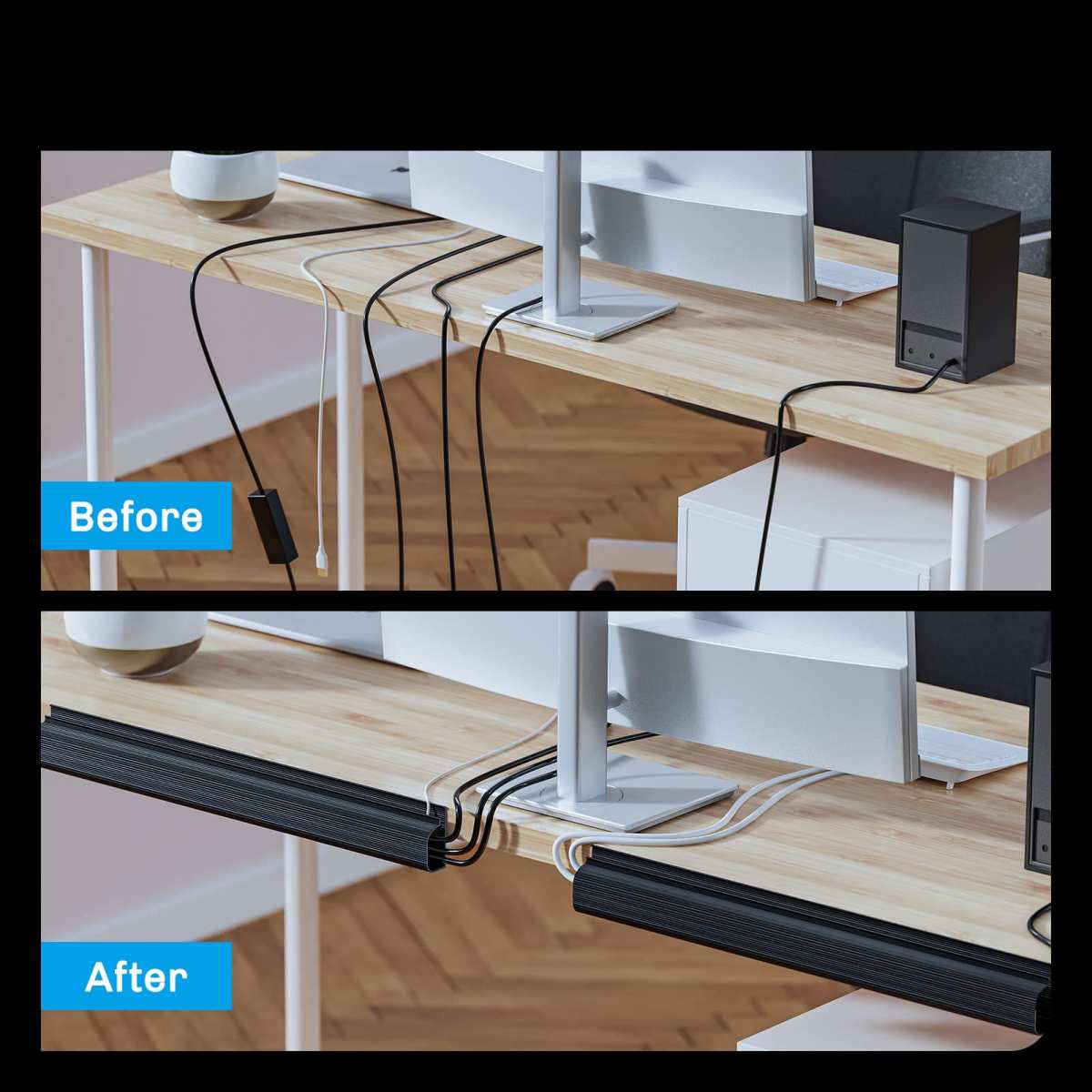
Image source: Bing (Web (fair-use with source credit))
Route all cables into a single sleeve. Use adhesive cable clips to tack them to the underside of the desk. Leave enough slack for height adjustments if you have a standing desk.
For monitor arms, many have built-in channels to hide cables inside the arm itself. Feed the video cable through the channel before attaching the monitor. It takes ten extra minutes now and saves you years of untangling later.
Ergonomics Checklist: Eye Level, Viewing Distance, and Head Rotation
Here’s a fast checklist to run through after you finish the physical setup. First, eye level. Sit up straight, close your eyes, then open them.
The top bezel of both monitors should be at or just below your horizontal line of sight. If you’re tilting your head up or down, adjust.
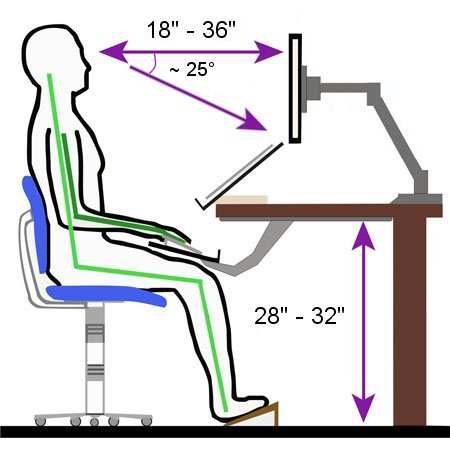
Image source: Bing (Web (fair-use with source credit))
Second, viewing distance. You should be between 20 and 40 inches from the screens. Your arm should reach out and barely touch the screen with your fingertips.
Any closer, and your eyes strain. Any farther, and you’ll lean forward. Third, head rotation.
When you glance at the secondary monitor, your eyes should move more than your head. If you’re turning your whole face, the monitor is too far or too flat. Adjust its angle until you can see the content with a subtle eye shift.
That small change prevents the neck pain that made you search for this guide in the first place.
Quick Decision Guide: Pick Your Setup in 30 Seconds
Here’s a stripped-down cheat sheet based on your situation.
| Your Condition | Best Layout | Key Action |
|---|---|---|
| Desk under 24 inches deep | Monitor arms, inward angle 20° | Clamp arms, align top bezels |
| Matching monitors | Side by side, primary centered | Align top bezels, close gap |
| Mixed sizes | Primary centered, smaller raised | Use riser or arm to match top bezels |
| One portrait mode | Center aligned horizontally | Rotate secondary with 90° arm |
| Standing desk | Gas spring arms with quick adjustment | Mark height positions for sit/stand |
If your desk is wide enough and monitors match, stock stands work fine. For everything else, invest in arms. Your neck will thank you.
FAQs: What About Ultrawides? Stacked Monitors? Laptops?
Should I get an ultrawide instead of two monitors?
An ultrawide gives you a seamless screen with no bezel gap. But it’s less flexible for multitasking and costs more per inch. Two monitors win for most workflows.
Can I stack monitors vertically instead of side by side?
Yes, if you have limited horizontal desk space. Stacking works well for reading long documents or coding. Align the bottom bezel of the top monitor with the top bezel of the bottom one.
How do I integrate a laptop with two external monitors?
Use a docking station that supports two video outputs. Place the laptop off to the side or on a vertical stand. Keep your primary external monitor centered in front of you.
Do I need a special graphics card for dual monitors?
Most modern computers support at least two displays. Check your GPU’s output ports. You may need an adapter for HDMI, DisplayPort, or USB-C.
For resolutions above 4K, a dedicated graphics card helps.
Set up your monitors right once. Then get back to work without thinking about them again.

Similar Posts































