how far should you sit from a 27 inch monitor
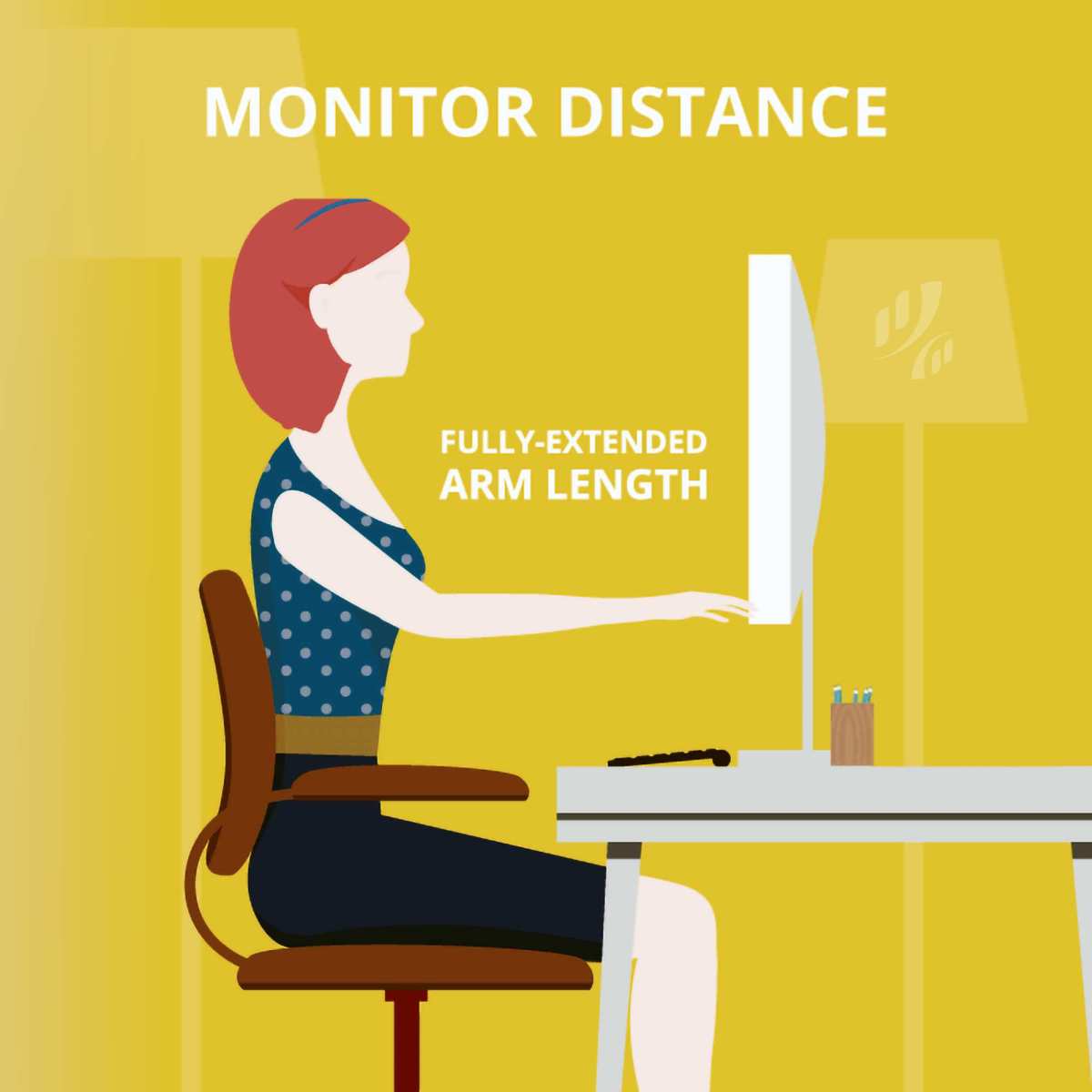
You might have heard the standard advice before: sit at arm's length from your screen. That's fine as a starting point, but it doesn't tell you much. When someone asks how far should you sit from a 27 inch monitor, the real answer depends on your eyes, your desk, and what you're doing on that screen.
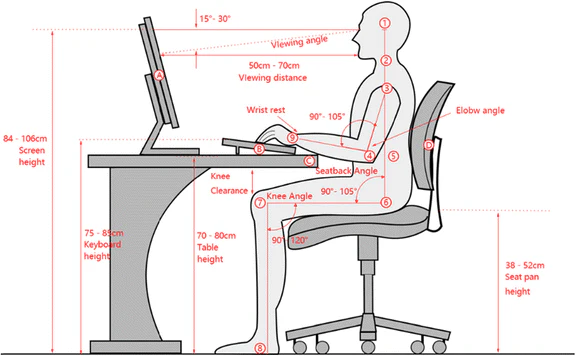
Aggregate user feedback and ergonomic guidelines point to a safe range of 20 to 40 inches. But within that range, the "right" distance shifts based on resolution, vision, and even the type of work you're doing. As of 2026, monitor sizes and resolutions vary widely, so you need a process to dial in your own number, not a one-size-fits-all rule.
Let's walk through how to find yours.
Quick Answer
Sit so your eyes are 24 to 30 inches from the screen. That's roughly arm's length. Adjust closer for 4K detail or farther for 1080p clarity.
Keep the top bezel at eye level. Use the field-of-view test: you shouldn't have to turn your head to see the edges. If your eyes feel strained, move back an inch.
If text looks blurry, move forward.
Why Distance Matters for a 27-Inch Monitor
A 27-inch screen fills more of your field of view than a smaller monitor. That's great for immersion, but only if you sit at the right distance. Too close, and you have to scan the screen with your eyes, which leads to fatigue.
Too far, and small text becomes hard to read.
The American Optometric Association identifies viewing distance as a key factor in computer vision syndrome. Symptoms include dry eyes, headaches, and blurred vision. The good news is that small adjustments can prevent most of these issues.
A 27-inch monitor also has a different "sweet spot" than a 24-inch or 32-inch screen. At 24 inches, the recommended distance is slightly shorter. At 32 inches, you need more room.
The 27-inch size sits right in the middle, which makes it popular but also means you need to be intentional about your setup.
The Arm's Length Rule – And Why It's Only a Starting Point
The old rule says to extend your arm. Your fingertips should just barely graze the screen. That's a quick way to get in the ballpark.
For most people, that's about 20 to 28 inches between eyes and screen.
But the arm's length test has a flaw. It doesn't account for resolution. A 27-inch monitor at 1080p will look pixelated if you sit as close as you would to a 4K version.
The rule also doesn't factor in your natural posture. If you lean forward when you work, arm's length is too far. If you recline, it's too close.
So treat the arm test as a baseline. Once you have that starting point, you'll fine-tune based on the factors below.
Resolution, PPI, and Field of View – The Real Drivers of Distance
Three numbers actually control how far you should sit: resolution, pixel density, and horizontal field of view.
Resolution is the number of pixels on screen. Common resolutions for 27-inch monitors are 1920×1080, 2560×1440, and 3840×2160 (4K). Higher resolution lets you sit closer because individual pixels are smaller and harder to see.
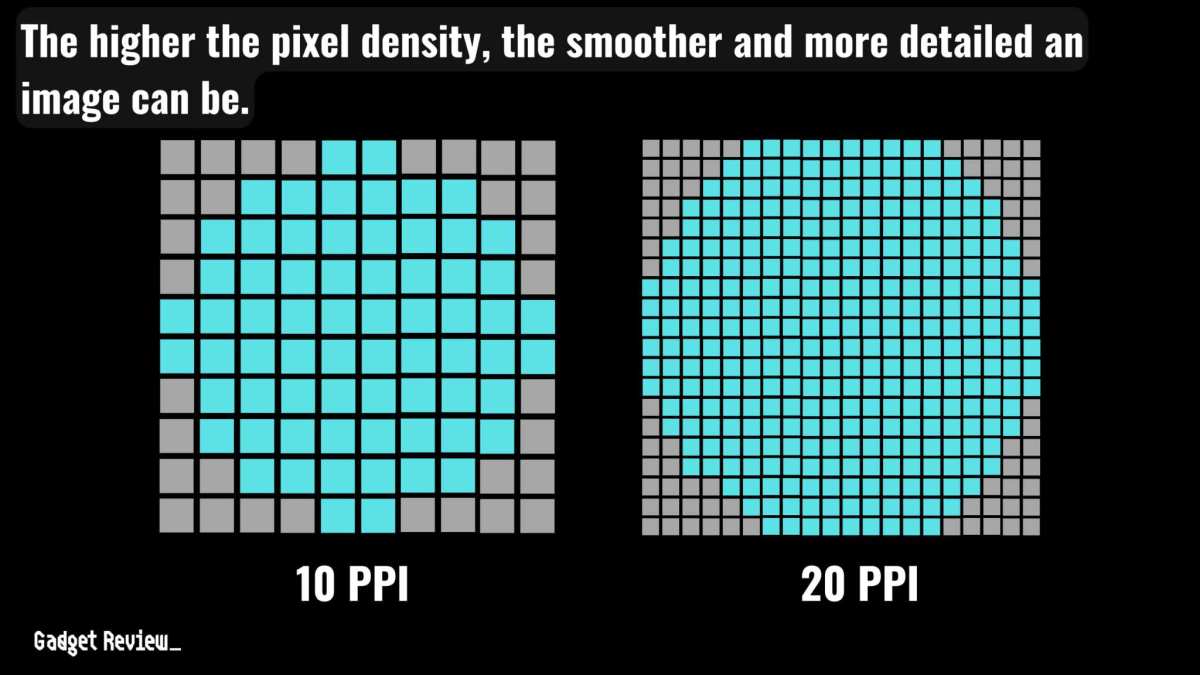
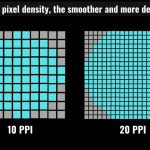
Pixel density (PPI) tells you how sharp the image looks at a given distance. For a 27-inch screen:
| Resolution | PPI | Sharpness Level |
|---|---|---|
| 1080p | ~81 | Lower – sit farther back |
| 1440p | ~109 | Sweet spot for most |
| 4K | ~163 | Very sharp – sit closer |
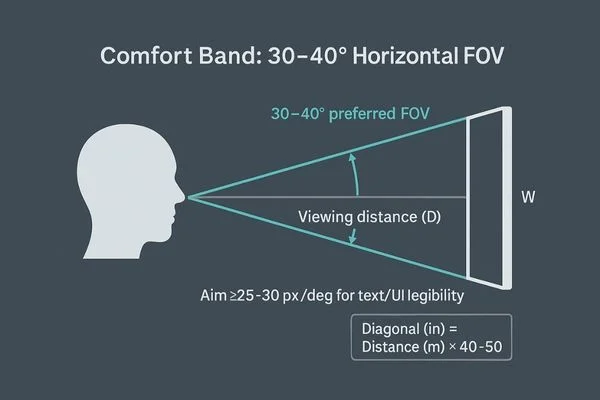
Field of view is the angle your eyes cover when looking at the screen. Ergonomic standards from ISO 9241-5 recommend a horizontal viewing angle between 30 and 40 degrees. For a 27-inch monitor, a 30-degree field of view puts you at about 24 inches away.
A 40-degree field puts you closer to 18 inches. You can measure this with a protractor app on your phone, but a simpler method works: you should see the entire screen without moving your head.
If you sit too close for your resolution, you'll see individual pixels. If you sit too far, you lose detail. The sweet spot is where text looks crisp and you can read without squinting.
Three Variables That Change Your Optimal Distance
Everyone is built differently. Here are the three main variables that shift your personal distance.
1. Your vision. If you wear glasses or contacts, distance matters more. People with presbyopia (age-related difficulty focusing up close) often need to sit a bit farther back.
People with nearsightedness might prefer closer distances, especially for detail work. If you use progressive lenses, you may need to tilt your head slightly, distance adjustment helps.
2. Your desk depth. Standard desks are 24 to 30 inches deep. If your desk is shallow, you might be forced closer than ideal.
A monitor arm can help by letting you push the screen back. If you can't move the monitor, consider a keyboard tray to pull yourself back.
3. Your primary use. Gaming, coding, design work, and document editing all benefit from different distances. Gamers often sit closer for immersion and faster reaction times.
Coders and writers prefer a distance where they can see the whole screen without scanning. Designers need consistent color and detail, which means sitting within the panel's optimal viewing cone.
Decision Tree – Find Your Distance Based on Your Setup
Use this flow to narrow down your exact distance. Start with your monitor's resolution, then adjust for your use case and desk constraints.
If you have a 1080p 27-inch monitor
Sit 28 to 36 inches away. At this resolution, pixels are bigger. If you sit closer than 28 inches, you'll see jagged edges on text.
Ergonomic reviews from verified buyers suggest that most people with 1080p 27-inch screens prefer the far end of that range. If you wear reading glasses, try 32 to 36 inches.
If you have a 1440p 27-inch monitor
Sit 24 to 30 inches away. This is the most forgiving setup. 1440p at 27 inches gives you enough sharpness to sit close without seeing pixels. The 109 PPI hits the sweet spot for both gaming and office work.
Start at arm's length (about 25 inches) and adjust forward or back based on comfort.
If you have a 4K 27-inch monitor
Sit 20 to 26 inches away. The high pixel density (163 PPI) lets you get closer without visible pixels. Many users report that 22 inches feels natural for coding and design work.
But note: if you sit closer than 20 inches, you may need to enable scaling (200% in Windows) to avoid tiny text. Scaling can introduce slight blur in some apps, so test before committing.
If you game vs. do office work
Gamers: sit on the closer end of the range for your resolution. A wider field of view helps with spatial awareness. For a 27-inch 1440p panel, 22 to 24 inches is common among competitive players.
Office workers: sit on the farther end. Give your eyes more room to relax. For documents and spreadsheets, 30 inches is typical.
You shouldn't have to turn your head to see a full-width spreadsheet.
If your desk is too shallow
Desks under 24 inches deep force you closer than ideal. Solutions in order of effectiveness:
- Mount the monitor on a wall arm (pushes it back).
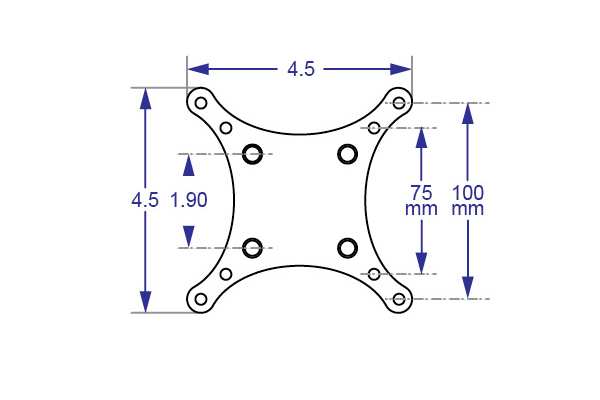
- Replace the stock stand with a low-profile VESA arm.
- Move the desk away from the wall if possible.
- Use a smaller keyboard to free up depth.
If none of those options work, accept a slightly closer distance and increase scaling in your operating system. That keeps text readable without eye strain.
How to Measure and Dial In Your Exact Sitting Distance
Start with a tape measure. Sit in your normal working posture. Measure from the corner of your eye to the center of the screen.
Write that number down.
Now run the field-of-view check. Hold a ruler horizontally at arm's length. It should span about 30 to 40 degrees of your vision.
A simpler method: extend both arms toward the screen. You should touch the left and right edges with your fingertips. If you can't, you're too close.
Adjust in 1-inch increments. Move the monitor back or forward. Test each position for 10 minutes.
Does your neck feel relaxed? Can you read small text without squinting? Do the edges stay in your peripheral vision?
When all three answers are yes, you've found your distance.
Common Distance Mistakes (and How to Fix Them)
Sitting too close to a 1080p panel. This is the most common error. Users lean in to see detail, but they end up seeing pixel grid lines instead. Fix: move back to at least 28 inches.
If text still feels small, increase display scaling rather than leaning forward.
Sitting too far from a 4K monitor. At 30 inches, a 4K 27-inch screen loses its sharpness advantage. You're paying for pixel density you can't see. Fix: bring it closer, between 20 and 24 inches.
Enable 200% scaling in your OS to keep text readable.
Using the wrong desk depth. Many people accept their desk as fixed. If your desk is 20 inches deep, you physically can't sit far enough. Fix: use a monitor arm to push the screen back.
If you can't mount one, pull the desk away from the wall by a few inches.
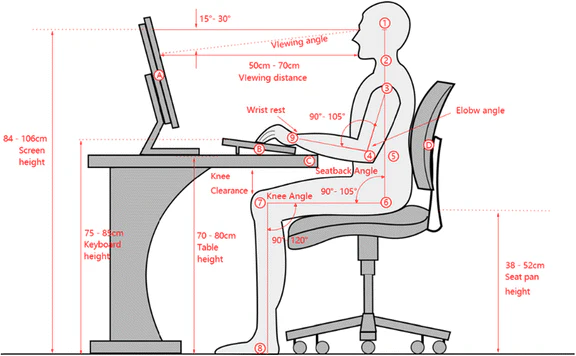
Ignoring monitor height. Distance and height work together. If your monitor is too low, you'll hunch forward. That effectively reduces your distance.
Fix: raise the monitor so the top bezel is at eye level. Your gaze should angle slightly downward toward the center of the screen.
Who Benefits From What – Best Distance by Use Case
| Use Case | Recommended Distance | Why |
|---|---|---|
| Competitive gaming | 20–24 inches | Wider field of view, faster reaction time |
| Casual gaming | 24–28 inches | Comfortable immersion without eye strain |
| Programming / coding | 26–30 inches | Full window visibility, less head turning |
| Graphic design / video editing | 22–26 inches | Detail visibility, color accuracy at close range |
| Office work / spreadsheets | 28–32 inches | Relaxed posture, reduced eye fatigue |
| Reading / document review | 30–36 inches | Easier focus over long sessions |
If you fall between categories, pick the closer distance for detail work and the farther distance for reading. Adjust as your tasks change during the day.
Expert Tricks – Monitor Arms, Scaling, and Desk Hacks
Use a monitor arm. A good VESA arm gives you about 6 to 10 extra inches of depth. That alone can fix a shallow desk. It also lets you tilt and swivel, which helps maintain a consistent distance as you shift posture.
Enable fractional scaling. In Windows 11, set scaling to 125% or 150% instead of 200%. That keeps the physical distance benefits of a high-PPI monitor without blowing up UI elements too much. On macOS, use "More Space" or "Scaled" modes to fine-tune text size.
Push your desk back. If your desk sits flush against a wall, pull it out 3 or 4 inches. That small gap can be the difference between 22 and 26 inches of eye-to-screen distance. Use cable management to hide the gap.
Use a keyboard tray. A tray pulls your keyboard closer to your lap. That lets you keep the monitor farther away while your hands stay comfortable. This is especially helpful for deep desks where you'd otherwise hunch forward.
Real-World Examples – Three Different Setups
Setup A: The gamer. 27-inch 1440p monitor, 24 inches from eyes. Desk depth 28 inches. Monitor arm pushes the screen back 4 inches.
Chair reclined slightly. Field of view covers 35 degrees. User reports no eye strain after 4-hour sessions.
Setup B: The remote worker. 27-inch 1080p monitor, 30 inches from eyes. Desk depth 24 inches, no monitor arm. User leans back in their chair.
Scaling set to 125% in Windows. Text readable without squinting. Neck posture improved after moving from 22 inches.
Setup C: The designer. 27-inch 4K monitor, 22 inches from eyes. Desk depth 30 inches. Monitor arm extends forward.
Scaling at 200%. Color accuracy maintained. User can see individual pixels only when they look for them.
Headaches stopped after moving from 28 inches.
Frequently Asked Questions
Is 24 inches the ideal distance for a 27-inch monitor?
It's a good middle ground for 1440p monitors. For 1080p, 28 to 30 inches works better. For 4K, 20 to 24 inches is ideal.
Always adjust based on your vision and comfort.
Should I sit closer for gaming?
Yes, closer distances improve immersion and peripheral awareness. 20 to 24 inches is common for competitive gaming. Casual gamers can use 24 to 28 inches comfortably.
Can I use a smaller desk with a 27-inch monitor?
Yes, but you'll need a monitor arm or wall mount. Desks under 24 inches deep force you too close. A monitor arm can add 6 to 10 inches of effective depth.
Does monitor height affect sitting distance?
Absolutely. If the monitor is too low, you'll lean forward, reducing distance. Set the top bezel at eye level.
Your gaze should angle slightly downward.
How do I know if I'm sitting too close?
You'll feel eye strain, headaches, or dry eyes. You may also notice visible pixels or need to turn your head to see screen edges. If any of these happen, move back 2 to 3 inches.
Final Decision Guide – Your Next Step
Start at arm's length. Measure your exact distance. Match it to your resolution and use case using the table above.
Adjust in 1-inch steps until text is clear, your neck is relaxed, and your eyes don't strain.
If you hit 40 inches and still feel discomfort, check your monitor height. If you're under 20 inches, buy a monitor arm. Your ideal distance is the one that lets you work or play without thinking about it.
Long-Term Maintenance of Your Setup
Your ideal distance isn't permanent. Vision changes over time. Your posture shifts.
Even your chair height can affect the distance.
Check your distance every six months. Use the same measurement method from earlier. If you notice eye strain returning, adjust by an inch or two.
Many users find they need to sit slightly farther as they age due to presbyopia.
Keep your monitor clean too. Dust on the screen forces you to lean in. A microfiber cloth every two weeks keeps clarity high at your set distance.
Adjusting Distance for Multiple Monitors
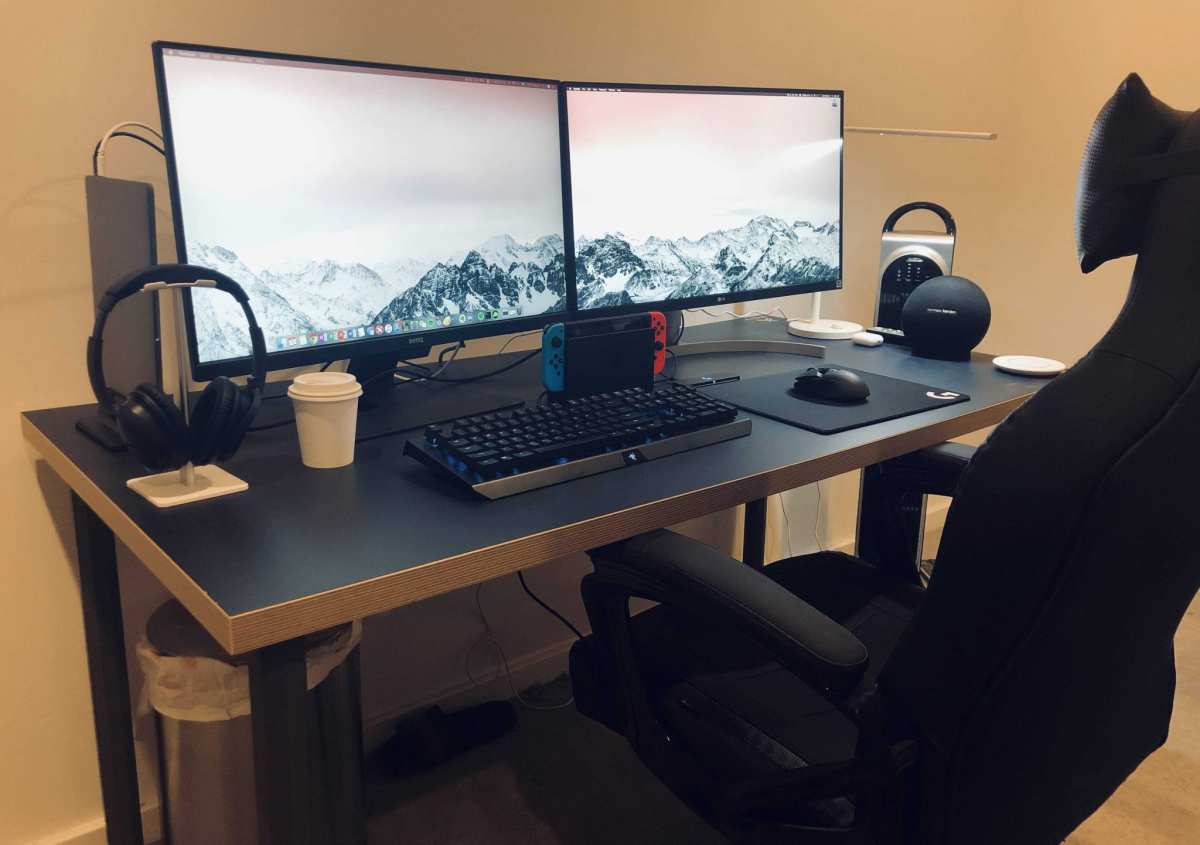
If you use a 27-inch monitor alongside a second screen, distance rules change. Your primary display should sit at the distance matching its resolution and use. The secondary monitor should be placed at the same depth.
Side-by-side setups work best when both monitors are equidistant. That prevents your eyes from refocusing constantly. If you use a vertical stack, the top monitor should be slightly farther back to maintain a consistent focal length.
For a 27-inch primary with a 24-inch secondary, align the bottom bezels. Center the primary directly in front of you. Keep the secondary off to one side at the same distance.
Your field of view will naturally cover both without neck strain.
How to Test Your Distance with an Eye Strain Checklist
Run this quick test after setting your distance. Work normally for 30 minutes. Then check for these signs:
- Dryness or burning in your eyes
- Frequent blinking or rubbing
- Headache at the front of your skull
- Blurry vision when you look away
- Neck or shoulder tension
Score one point for each symptom. Zero points means your distance is correct. One or two points means adjust back by 2 inches and retest.
Three or more points means your setup needs a full reset, starting with monitor height and lighting.
The Role of Ambient Lighting in Viewing Distance
Bright lighting can trick you into sitting closer. When glare hits the screen, you naturally lean in to see past it. That defeats your carefully measured distance.
Position your monitor perpendicular to windows. Use blinds or curtains to control direct light. Bias lighting behind the monitor helps reduce perceived glare without moving the screen.
If you work in a bright room, try sitting 2 to 4 inches farther back than your usual distance. The increased contrast from ambient light makes text harder to read up close. Farther distance combined with proper screen brightness (around 120 cd/m²) reduces eye fatigue significantly.
When to See an Eye Doctor
Persistent eye strain despite correct distance signals a deeper issue. You might need an updated prescription. You might have undiagnosed astigmatism or dry eye syndrome.
The American Optometric Association recommends an annual eye exam for computer users. Tell your doctor your exact viewing distance. They can adjust your prescription for that specific range.
If you experience double vision, sudden blur, or eye pain, stop adjusting your monitor and see a professional immediately. Distance alone cannot fix structural vision problems. Your monitor setup supports your eyes.
It does not replace medical care.

Similar Posts