How do I enable YouTube Mini Player?
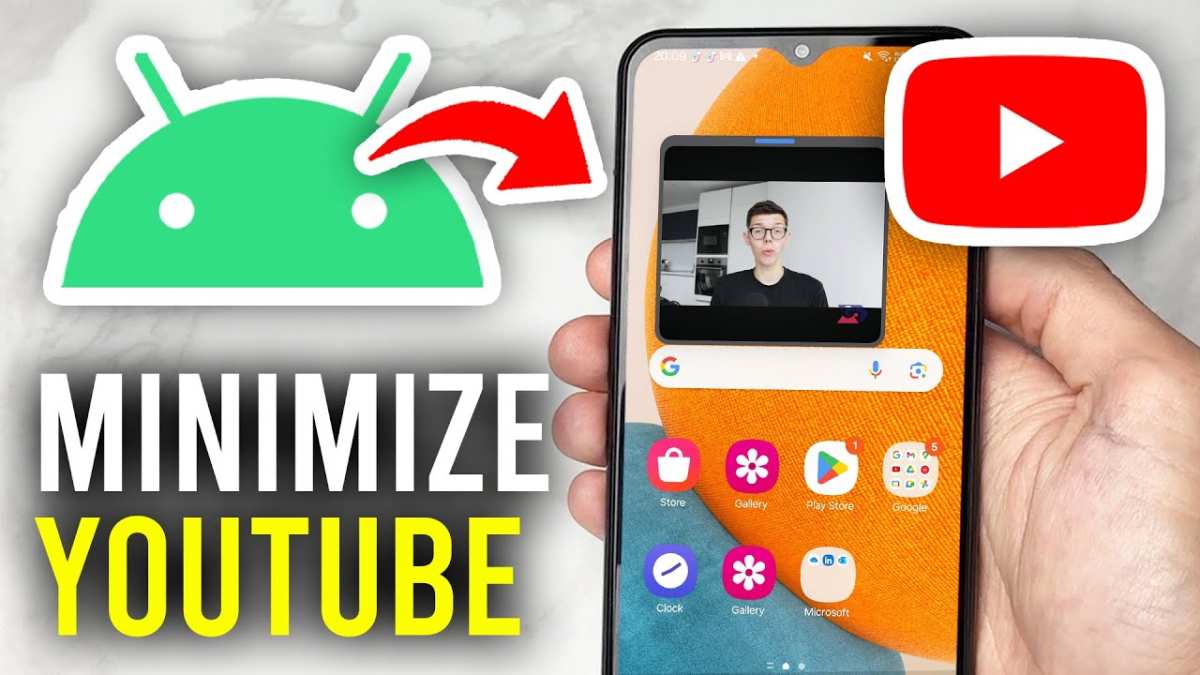
You’re watching a video on YouTube. You need to check a text message or look up a recipe. You don’t want to lose your place in the video.
So how do you enable YouTube Mini Player? It’s the floating window that keeps your video playing while you do other things, and the answer depends entirely on what device you’re holding or sitting at. As of 2026, the feature works differently on Android phones, iPhones, and desktop browsers, and a few settings can block it entirely.
The good news? There’s usually one quick move that works. But first, let’s untangle the confusion between “mini player,” “Picture-in-Picture,” and “background play.” They’re not the same thing, and knowing the difference saves you a lot of frustration.
When YouTube Mini Player Won’t Work – What’s Actually Going On

Image source: Wikimedia Commons / Wikisquack (CC BY)
If you’ve tapped the home button and the video just stops, you’re not alone. The most common reason is simple: YouTube’s mini player only works when both the app and your device support it. On Android, that means Android 8.0 or newer with the feature toggled on in YouTube’s settings.
On iOS, it requires iOS 14 or later, plus a specific setting in the iPhone’s system preferences, not inside the YouTube app itself. And on a desktop computer, you need to click the pop-out icon in the video player, not the full-screen button.
Another frequent blocker: content restrictions. Some music videos, live streams, and age-restricted content disable the mini player on purpose. If you’re trying to use it on a video that’s marked “made for kids,” it won’t work either.
YouTube enforces these rules, so no workaround exists for those cases.
Quick Answer: The One Command That Gets It Done on Any Device
On an Android phone: start a video then press the home button. The video shrinks automatically.
On an iPhone: start a video, then swipe up from the bottom or press the home button. Make sure Picture-in-Picture is enabled in iOS Settings.
On a desktop: click the mini player icon in the bottom‑right corner of the video player. It looks like a small square with an arrow.
That’s the core command. If it doesn’t work, check the settings below.
First, What Is the Mini Player? (And What It’s Not)
YouTube’s mini player is a floating video window that stays on top of other apps or browser tabs. You can resize it, move it around, and tap it to return to full video. On mobile, this is officially called Picture-in-Picture (PiP).
On desktop, YouTube calls it the pop-out player.
It’s not the same as background playback. Background playback lets the audio continue after you lock your phone or switch apps entirely. That requires a YouTube Premium subscription (roughly $13.99 per month in the US as of 2026).
The mini player, however, keeps the video visible. If you close the mini player or navigate away, the video stops on a free account. That’s a key distinction people miss.
It’s also not the same as the watch later queue or mini player in the YouTube Music app. The YouTube Music app has its own mini player for songs, but that’s a separate feature.
Mobile Path 1: Android – Auto PiP vs. Manual Swipe
Image source: Bing (Web (fair-use with source credit))
On most Android phones, YouTube PiP activates automatically when you press the home button or swipe up to go to the home screen. You don’t need to tap any extra button. However, you must first enable it in the YouTube app settings.
How to enable it:
- Open the YouTube app.
- Tap your profile picture (top‑right corner).
- Go to Settings > General.
- Toggle Picture-in-picture on.
That’s it. Once it’s on, any video you start should shrink when you leave the app. If it doesn’t, check your phone’s system settings.
Some manufacturers (Samsung, Xiaomi, OnePlus) let you block apps from using PiP. Go to Settings > Apps > YouTube > Picture-in-picture and make sure it’s allowed.
One nuance: on Android, you can also manually trigger PiP by swiping up slowly from the bottom while the video is playing. That’s the “manual swipe” method. Some users prefer it because it gives them control over when the video shrinks.
But the automatic home‑button method is more widely used.
Mobile Path 2: iOS – The Region Lock and Settings Tweak
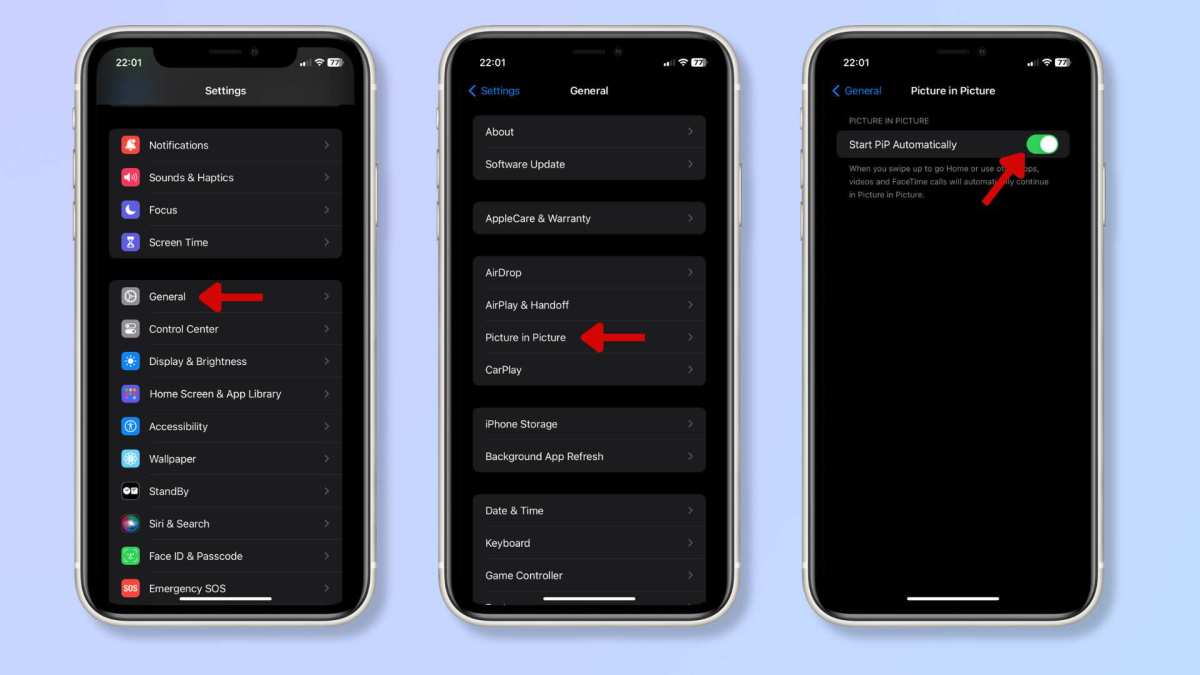
Image source: Bing (Web (fair-use with source credit))
iOS PiP works similarly but has an extra step. YouTube’s Picture-in-Picture on iPhone is enabled through iOS system settings, not the YouTube app itself. And there’s a region lock: Apple originally restricted PiP to the United States for YouTube.
As of 2026, it’s available in most countries, but some regions still lack support. If you live outside the supported areas, your best bet is to use a VPN set to the US while you enable the setting.
Step by step for iPhone or iPad:
- Open Settings (the gear icon, not the YouTube app).
- Tap General.
- Tap Picture in Picture.
- Toggle Start PiP Automatically to on.
Now, when you’re in the YouTube app and start a video, press the home button or swipe up. The video should shrink into a small window. You can drag it to any corner of the screen.
Tap once to show controls (play/pause, close), and double‑tap to return to full video.
One common frustration: even with PiP enabled, some YouTube videos refuse to go into PiP. That’s usually because the video is music content or has a region restriction. YouTube’s licensing agreements sometimes block PiP for certain music labels.
No app setting can override that. If you hit this wall, the only workaround is to use the YouTube website in Safari and request the desktop site, but that’s a hack, not a reliable fix.
Desktop Path: Browser Pop-out vs. Native PiP (Two Different Things)
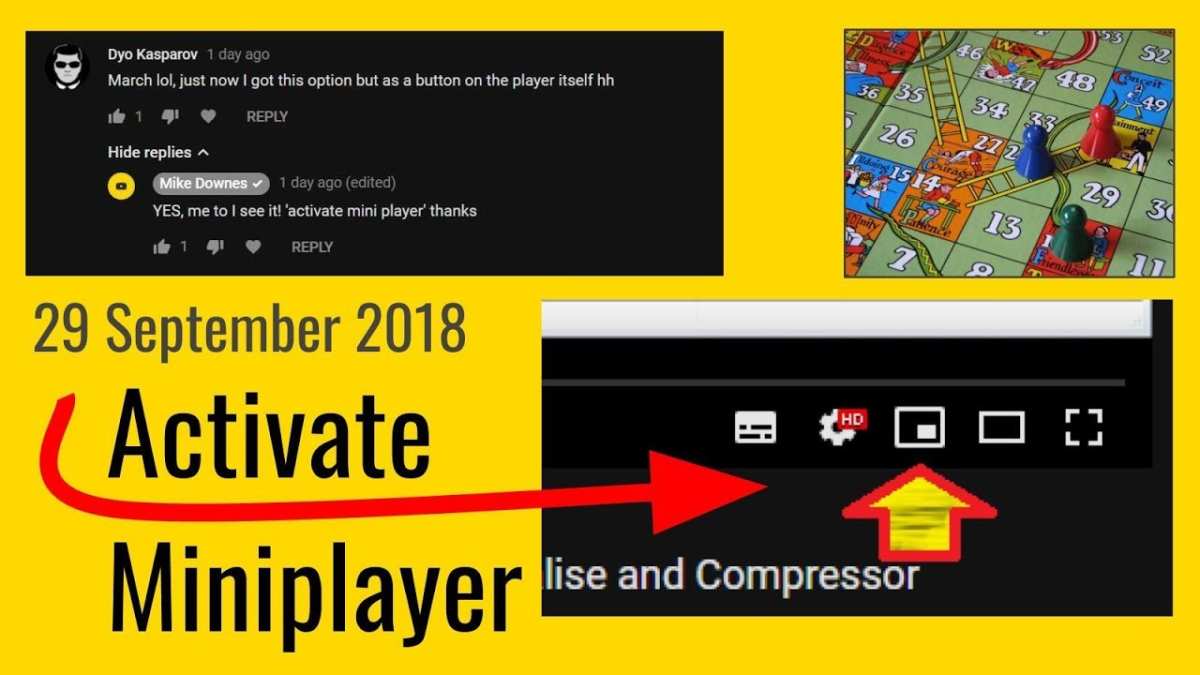
Image source: Bing (Web (fair-use with source credit))
On a desktop computer, you have two ways to float a YouTube video. The first is YouTube’s own pop-out player. The second is your browser’s native Picture-in-Picture feature.
They look similar but behave differently.
YouTube’s pop-out player is a button inside the video player. You’ll find it in the bottom‑right control bar, next to the settings gear. It looks like a small square with an upward‑pointing arrow.
Click it, and a separate window pops out that stays on top of other windows. You can resize it, move it to another monitor, and keep watching while you work in other tabs or applications. This is the official method.
The browser’s native PiP works differently. In Chrome, Edge, or Firefox, you can right‑click a video twice (the second right‑click shows a different menu) and select “Picture in picture.” This creates a floating window managed by the browser, not by YouTube. The native version doesn’t include YouTube’s controls like the play bar or the “skip ad” button.
It’s a stripped‑down view that just shows the video. Some users prefer it because it works on any video site, not just YouTube.
Which one should you use? If you want YouTube’s full controls and the ability to queue up videos, use the YouTube pop‑out button. If you want a cleaner, smaller window that works across multiple sites, use the browser’s native PiP.
Both are free and don’t require any subscription.
Still Not Working? The Most Common Settings That Block It
If you’ve tried the commands above and nothing happens, check these settings first. They’re the most common culprits.
On Android:
- YouTube app settings: Profile icon > Settings > General > Picture‑in‑picture must be ON.
- Phone system settings: Settings > Apps > YouTube > Picture‑in‑picture > Allow.
- Battery optimization: Some phones (especially Xiaomi, Huawei, OnePlus) aggressively kill background apps. Go to Settings > Battery > App launch and set YouTube to “No restrictions.”
On iOS:
- iOS system settings: Settings > General > Picture in Picture > Start PiP Automatically must be ON. This is separate from YouTube’s own settings.
- YouTube app settings: Profile icon > Settings > General > Picture‑in‑picture should also be ON (though on iOS this toggle sometimes doesn’t appear unless PiP is enabled system‑wide first).
- Background App Refresh: Go to Settings > General > Background App Refresh and make sure YouTube is toggled on.
On Desktop:
- Browser permissions: In Chrome, click the lock icon next to the URL. Make sure “Picture in picture” isn’t blocked under site settings.
- Extensions: Some ad blockers or privacy extensions (like uBlock Origin or Ghostery) interfere with the pop‑out player. Try disabling them temporarily.
- YouTube’s own restrictions: If the video is a music video, a live premiere, or marked “made for kids,” the pop‑out button will be missing or grayed out.
One more thing: on some corporate or school networks, IT policies block pop‑out windows entirely. If you’re on a work laptop, that could be the issue. Try a personal device or a different network.
Mistakes That Make You Think It’s Broken (When It’s Not)
A few common misunderstandings lead people to believe the mini player is broken. Here’s what’s actually happening.
Mistake 1: You’re pressing the home button too slowly on Android. If you swipe up to go home but pause mid‑gesture, YouTube might treat it as a swipe to the app drawer rather than a home command. The video won’t shrink. Solution: a fast, complete swipe up or a single press of the home button (if you have a dedicated button).
Mistake 2: You’re expecting PiP on a locked screen. On a free YouTube account, the mini player only works while the phone is unlocked and you’re using other apps. If you lock your screen, the video stops. That’s not a bug; it’s by design.
Only YouTube Premium allows background playback with the screen off.
Mistake 3: You’re looking for the pop‑out button on a mobile browser. The pop‑out player is a desktop feature. On a phone, you must use the YouTube app for PiP. The mobile website (m.youtube.com) doesn’t support it.
Mistake 4: You think the mini player works on YouTube Music. The YouTube Music app has its own mini player that shows album art and controls. But it doesn’t play video. If you’re trying to get a video to float inside YouTube Music, it won’t happen.
Use the main YouTube app instead.
Mistake 5: You’re on an iPad and the video is in split view. iPadOS allows you to use YouTube in split screen, but the PiP feature is separate. If you have two apps open side by side, the video doesn’t automatically go into PiP. You still need to press the home button or the PiP button.
Pro Tips: Resizing, Closing, and Switching Back to Full Video
Once you have the mini player running, a few tricks make it smoother.
On mobile:
- Resize (Android only): Pinch in or out on the floating window to make it bigger or smaller. Not all Android versions support this, but most recent ones do. On iOS, the window size is fixed.
- Move it: Drag the window to any corner of the screen. It usually snaps to the edges.
- Close it: Swipe the window off the screen to the right, or tap the close button (an X in the top corner). On iOS, you can also swipe down on the window.
- Return to full video: Tap the mini player once. On Android, it opens the full video again. On iOS, double‑tap the window.
On desktop:
- Resize: Drag any corner of the pop‑out window. You can make it as small or as large as you like. The native browser PiP also supports resizing.
- Close it: Click the X button. On YouTube’s pop‑out, the X is in the top‑right corner. On browser PiP, it’s usually a small X in the top corner.
- Return to full video: Click the pop‑out window to open the video in the main YouTube tab. If you closed the original tab, the pop‑out keeps playing. Clicking it will open a new tab with the video.
A pro tip for desktop multitaskers: Use the browser’s native PiP when you want the smallest possible window. It has no borders or buttons, just the video. You can tuck it into a corner of your screen while you work on a document or browse the web.
YouTube’s pop‑out is better when you want to see the video title, timeline, and controls.
When Background Audio Is Really What You Want (And How That Changes Things)
Let’s be honest. Sometimes you don’t need to watch the video. You just want the audio to keep playing while you lock your phone or open a different app.
That’s background playback, not the mini player.
Background playback requires a YouTube Premium subscription. On mobile, if you have Premium, you can start a video, then press the home button. The video will stop showing, but the audio continues.
You get a small lock screen player with play/pause and skip controls. On desktop, Premium also lets you listen to audio in the background if you close the browser tab, but that’s less common.
If you don’t have Premium, the mini player is your only option for multitasking. And it has one big advantage over background audio: you can still see the video. For tutorials, live streams, or vlogs where visuals matter, the mini player is actually better.
But what if you want background audio without paying? The only legal workaround is to use YouTube Music’s free tier (which includes ad‑supported background playback for music) or to download videos via the official YouTube app for offline viewing (requires Premium). Third‑party apps that claim to enable background audio without Premium violate YouTube’s Terms of Service and can get your account suspended.
Decision point: If you’re frequently listening to long interviews, podcasts, or music while driving or working out, consider Premium. If you’re watching how‑to videos while following along on another device, the free mini player does the job.
Decision Guide: Which Mini Player Method Should You Use Right Now?
Here’s a quick framework based on your situation.
If you’re on Android and you just want the video to float when you leave the app: Use the automatic home button method. Enable PiP in YouTube settings and your phone system settings. That’s it.
If you’re on iOS and the video stops when you press home: Check iOS Settings > General > Picture in Picture. If it’s off, turn it on. If it’s on but still doesn’t work, the video likely has region or content restrictions.
Try a different video to confirm.
If you’re on desktop and you need YouTube controls: Click the pop‑out button in the video player. If the button is missing, use the browser’s native PiP via right‑click.
If you’re on mobile and you want audio only: You need YouTube Premium for background playback. The mini player keeps video visible, which is better for tutorials but not for music.
| Device | Best Method | Extra Step |
|---|---|---|
| Android phone | Home button swipe | Enable PiP in YouTube and system settings |
| iPhone | Home button or swipe up | Enable PiP in iOS Settings |
| Desktop (Chrome, Edge, Firefox) | Pop‑out button or right‑click twice | Check browser and extension restrictions |
Frequently Asked Questions
Why does my YouTube video stop when I switch apps?
That means the mini player is either disabled or your device doesn’t support it. On Android, check the YouTube app settings and your phone’s system PiP settings. On iOS, make sure PiP is enabled in the main Settings app.
If it’s on, the video may be restricted by content type.
Can I use the mini player on YouTube Music?
No. The YouTube Music app has a mini player for audio tracks, but it doesn’t support video PiP. Use the main YouTube app if you need a floating video window.
Does the mini player work on a laptop?
Yes. Click the pop‑out button in the video player (bottom right). If you don’t see it, right‑click the video twice and select “Picture in picture” from your browser’s menu.
Both methods work on Chrome, Firefox, and Edge.
Is there a way to get the mini player on a free account?
Yes. The mini player is free on all platforms. Only background playback (audio with screen off) requires YouTube Premium.
Why is the pop‑out button missing on my computer?
The button only appears on the YouTube website, not in the YouTube app for Windows or macOS. If you’re using the website and still don’t see it, the video may be restricted (music, live, or kids content). Try a different video.
Can I resize the mobile mini player?
On recent Android versions, yes. Pinch in or out on the floating window. On iOS, the size is fixed.
A Quick Note on Browser Compatibility
The browser’s native PiP works on Chrome, Firefox, Edge, and Safari. The YouTube pop‑out button works on all major browsers too. The only difference is the right‑click method.
On Safari, you may need to enable “Picture in Picture” in the browser’s settings first: Safari > Settings > Websites > Picture in Picture > Allow.
The One Thing People Forget
The mini player respects the video’s restrictions, not just your settings. If a video won’t go into PiP, try a different video first. That isolates whether the problem is your device or the content itself.
Nine times out of ten, it’s the content.
What About Third‑Party Apps?
Some third‑party browsers and extensions claim to force PiP on any site. Our research shows these are unreliable and sometimes violate YouTube’s Terms of Service. Stick with the official methods we’ve covered here.
They’re safer and always up to date.
Final Takeaway
You now know how to enable YouTube Mini Player on any device. Start with the quick answer for your platform. If it doesn’t work, move through the settings checklist.
And remember: the mini player is free. Background audio is not. Choose the right tool for what you’re doing.

Similar Posts































