How Do I Turn Off the YouTube Floating Window?
Open your device Settings. On iPhone, go to Settings > General > Picture in Picture and toggle it off. On Android, go to Settings > Apps > YouTube > Picture in picture and turn it off.
On desktop, right click the video and uncheck Picture in Picture. That stops the floating window immediately.
The Floating Window Problem (And Why You'd Want It Gone)
Picture this: you're watching a YouTube video, you tap home to check a text, and suddenly the video shrinks into a tiny floating window. It follows you around your screen, blocking buttons, covering maps, hovering over your keyboard. For many people, that's not helpful.
It's a frustration.
You might want it gone for a few reasons. Maybe the overlay keeps popping up when you're trying to focus. Maybe it drains your battery faster because the video keeps playing in the background.
Or maybe you've accidentally triggered it so many times you're ready to throw your phone across the room.
As of 2026, Picture in Picture (PiP) is standard on most smartphones and desktops. Apple introduced it back in iOS 14 in 2020. Android has had it since version 8.0 in 2017.
The feature is meant for multitasking, but it doesn't always cooperate. That's why so many people search "how do I turn off the YouTube floating window?" in the first place.
Image source: Bing (Web (fair-use with source credit))
Quick Fix: The Fastest Way to Kill PiP on Any Device
If you just want it gone right now, here's the shortest path for each platform.
On iPhone or iPad:
- Swipe up to open Control Center.
- Tap the Picture in Picture icon (it looks like a rectangle with a smaller rectangle inside).
- The floating window disappears.
On Android:
- Tap the floating window once to reveal controls.
- Tap the X in the corner, or swipe the window off the bottom of the screen.
On Desktop (Chrome, Firefox, Edge):
- Right click the video itself.
- Click "Picture in Picture" to uncheck it.
- Or click the PiP icon in your browser's address bar.
That's it. No settings needed. But if you want the floating window to never come back, you'll need the steps below.
How PiP Actually Works on Your Phone vs. Desktop
Picture in Picture is a system level feature. On mobile, it's controlled by your phone's operating system, not by YouTube itself. That's important because it means you can't always fix it inside the YouTube app.
On iPhone, there's no YouTube setting for PiP. You have to go to your phone's Settings. On Android, you have two places: the phone's system settings and the YouTube app settings.
Most people miss the system setting and wonder why the floating window won't stay off.
On desktop, PiP is handled by your browser. YouTube's website can trigger it, but the actual toggle is in the browser's video controls. Right click any video, and you'll see the option.
Some browsers also have a dedicated PiP button in the toolbar.
The floating window behaves a bit differently depending on your device. On phones, it's draggable and resizable. On desktop, it sits in a corner and can be resized by dragging the edges.
The core idea is the same: a video that stays on top of other apps. But the off switch lives in different places.
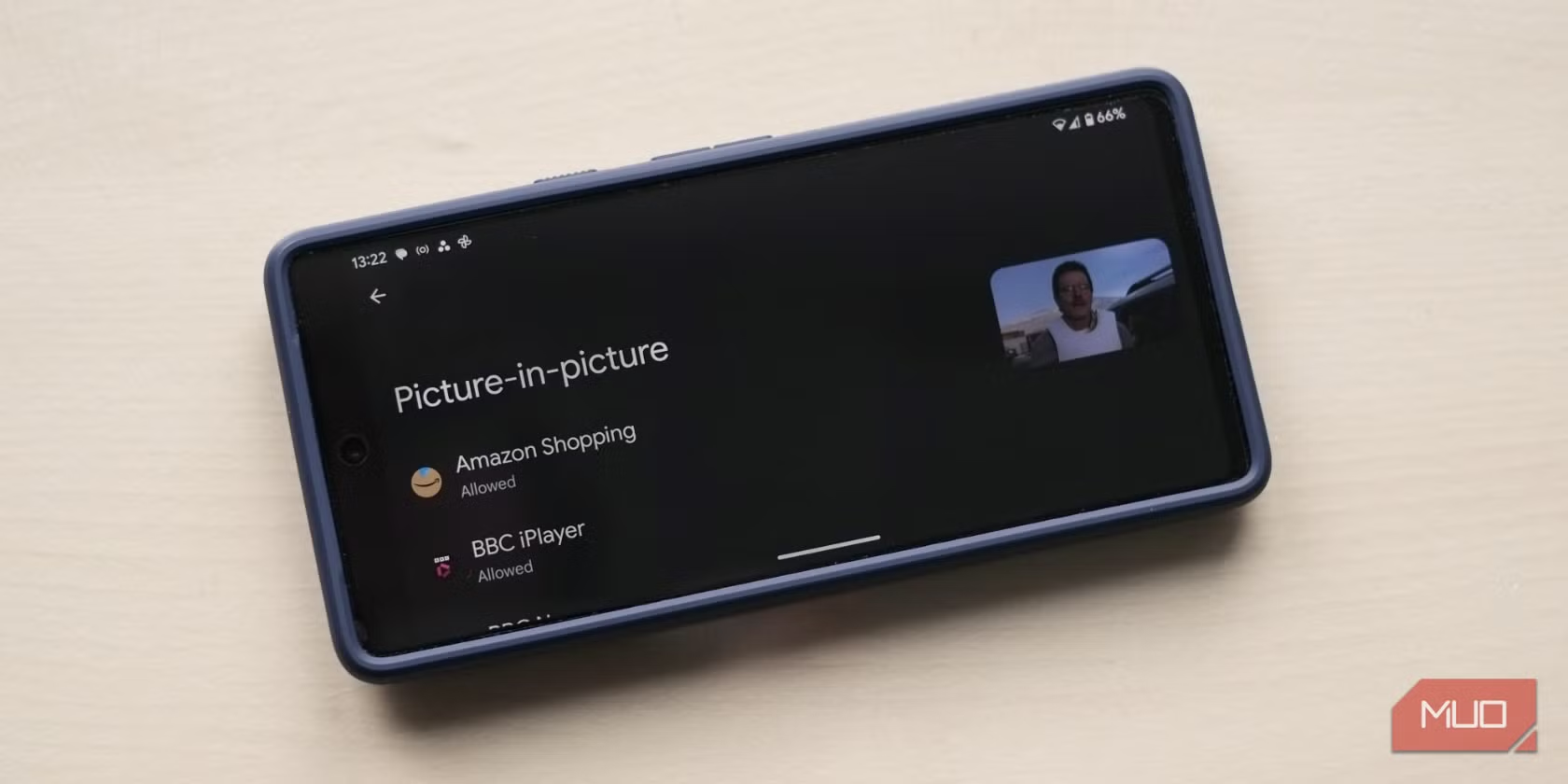
Image source: Bing (Web (fair-use with source credit))
Decision Guide: Pick Your Device to Get the Right Steps
Before you dive into the settings, figure out what you're using. That decides everything. Use this quick table to find your path.
| Device | Where to Disable PiP | Steps Needed |
|---|---|---|
| iPhone / iPad | System Settings only | Settings > General > Picture in Picture |
| Android phone / tablet | System Settings AND YouTube app | Both need to be off for full disable |
| Windows / Mac (Chrome) | Browser right click menu | Right click video > Picture in Picture |
| Windows / Mac (Firefox) | Browser right click menu | Right click video > Picture in Picture |
| Windows / Mac (Edge) | Browser toolbar button | Click PiP icon in address bar |
| Windows / Mac (Safari) | Browser right click menu | Right click video > Enter/Exit PiP |
If you have an iPhone, you only have one stop to make. No YouTube app setting exists for PiP on iOS. We'll cover that next.
If you have an Android, you might need to disable it in two places. First, the system setting. Then, the YouTube app setting.
We'll walk through both.
If you're on a desktop, you're in luck. The floating window is controlled per video. No permanent setting to turn off.
You just stop using it each time.
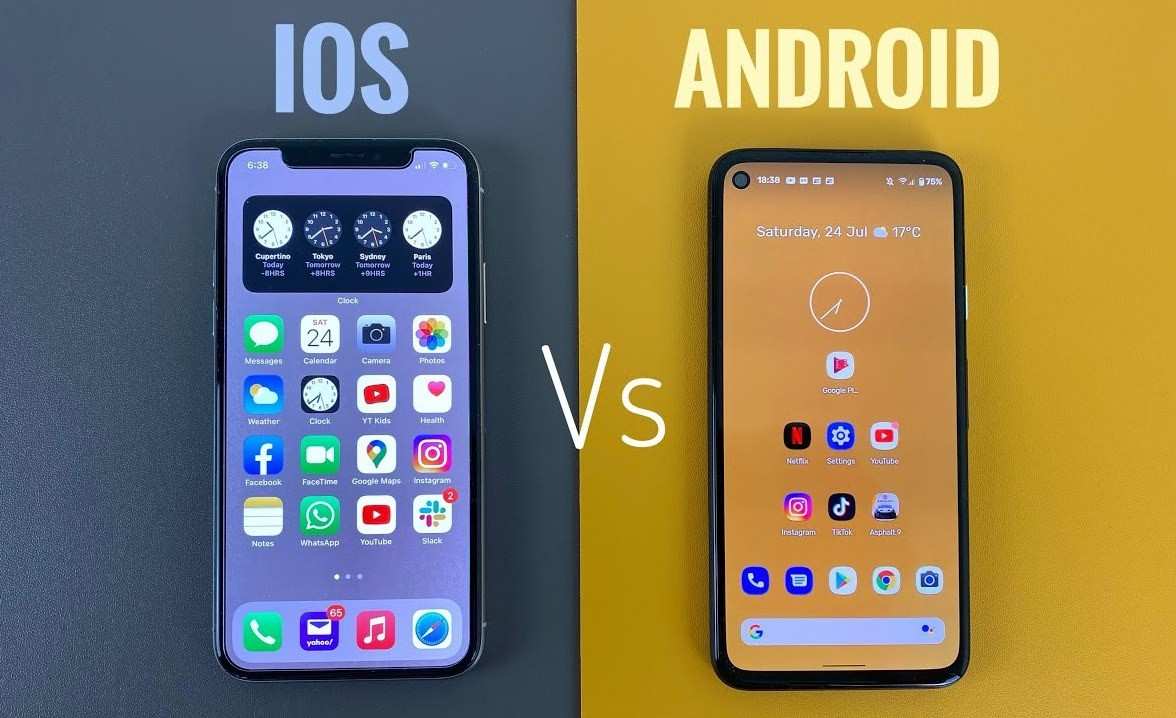
Image source: Bing (Web (fair-use with source credit))
How to Turn Off PiP on iPhone and iPad (System Settings Only)
Apple keeps things simple. There's no YouTube app toggle for Picture in Picture on iOS. That means you control PiP through the phone's settings, and it applies to all apps that support it.
Here's how to turn it off completely:
- Open Settings on your iPhone or iPad.
- Scroll down and tap General.
- Tap Picture in Picture.
- Toggle Start PiP Automatically to off.
That's it. The floating window will never appear again, no matter how you swipe or tap. If you want to keep PiP available but stop it from starting automatically, leave the toggle on.
The feature only activates when you manually tap the PiP button on a video. That's a good middle ground.
One thing to watch out for: some older iOS versions (below iOS 14) don't have PiP at all. If you don't see the option, your device likely doesn't support it. Also, if you use a third party YouTube client, PiP might behave differently.
Stick with the official YouTube app for consistent results.
This setting applies globally. That means other apps like FaceTime or Apple TV will also lose the floating window. If you use PiP for other things, consider the "Start PiP Automatically" toggle instead of a full disable.
How to Turn Off PiP on Android (Two Paths, One Goal)
Android gives you two control points, and you might need to adjust both. The system setting stops PiP for all apps. The YouTube app setting stops it just for YouTube.
If you only shut it off in one place, the other might still let the floating window sneak through.
Path 1: System-wide disable
- Open Settings on your Android phone or tablet.
- Tap Apps (or Apps & notifications depending on your manufacturer).
- Tap Special app access.
- Tap Picture in picture.
- Find YouTube in the list and tap it.
- Toggle Allow picture in picture to off.
That kills PiP for YouTube entirely. The floating window won't appear no matter what you do inside the app.
Path 2: In-app disable
Some Android versions also have a toggle inside the YouTube app itself.
- Open the YouTube app.
- Tap your profile icon in the top right.
- Tap Settings.
- Tap General.
- Scroll to Picture in picture and toggle it off.
If you already turned it off at the system level, this second step is just insurance. Do both to be safe. Aggregate user feedback on forums suggests that a few phone manufacturers (Samsung, OnePlus) override the system setting if the in-app toggle is still on.
One catch: on Android, some YouTube videos are set by the creator to block PiP entirely. Those won't float no matter what. But that's rare.
How to Turn Off PiP on Desktop (Chrome, Firefox, Safari, Edge)
Desktop browsers handle PiP differently than phones. There's no permanent "off" switch. The floating window is per video.
You control it each time you watch.
Chrome and Edge (Chromium-based)
Method 1: Right click the video itself. A menu appears. Click Picture in picture.
If it's checked, click again to uncheck. The floating window disappears immediately.
Method 2: Look at the browser's address bar. When a video is playing, a small PiP icon appears to the right of the URL. Click it to toggle the floating window on or off.
Firefox
Right click the video. A menu pops up. Click Picture in Picture to toggle it.
Firefox also has a PiP button that appears in the video player's control bar when you hover over the video.
Safari (Mac)
Right click the video. Choose Enter Picture in Picture or Exit Picture in Picture. Safari also has a PiP button in the browser toolbar when a video is playing.
No system setting to disable PiP permanently. That means if someone else uses your browser, they can trigger PiP again. To prevent accidental triggers, avoid the right click menu or keyboard shortcuts.
On Chrome, Ctrl+P or the PiP button in the address bar are common accidental triggers.
The Confusion Trap: Miniplayer vs. Floating Window vs. Background Play
These three features get mixed up all the time. They're not the same thing. Knowing the difference saves you a lot of frustration.
Miniplayer is a YouTube app feature on mobile. When you swipe down on a video, it shrinks into a small player docked at the bottom of the screen. It stays inside the YouTube app.
It does not float over other apps. To close it, tap the X in the corner or swipe it away.
Floating window (PiP) is system level. It leaves the YouTube app entirely and hovers over your home screen, texts, or any other app. That's what this article is about.
To close it, use the system settings we already covered.
Background play is a YouTube Premium feature. It lets the audio keep playing when you lock your phone or switch to another app. No video window appears.
The sound just continues. To stop it, tap the notification bar and hit pause, or turn off background playback in YouTube Settings > Background & downloads.
Why this matters: People often search "how do I turn off the YouTube floating window?" when they actually want to stop background audio. Or they're trying to close the miniplayer and think it's PiP. Check what you're really dealing with.
If there's a small video at the bottom of your screen inside the YouTube app, that's the miniplayer. If the video floats over your home screen, that's PiP. If you hear audio but no video, that's background play.
Common Mistakes That Keep the Floating Window Stuck
Even after following the right steps, the floating window sometimes refuses to die. Here are the most common reasons why.
Mistake 1: You only disabled it in the YouTube app, not system settings (Android). This is the #1 fix. Many users toggle it off in YouTube but forget Android's system setting. The system setting overrides the app setting.
Turn both off.
Mistake 2: You turned off PiP on the wrong device. If you use YouTube on both your phone and tablet, you need to disable PiP separately on each. Same for desktop. The settings don't sync.
Mistake 3: You disabled PiP but the video keeps playing audio. That's not PiP. That's background play. You need to turn off background playback in YouTube's settings.
PiP and background play are two different toggles.
Mistake 4: You disabled PiP on iPhone but it still pops up for FaceTime or other apps. Remember, iOS PiP is global. If you turned it off in Settings > General > Picture in Picture, it's off for everything. If you only toggled "Start PiP Automatically" but left the main setting on, other apps can still trigger it.
Mistake 5: You're using a third party YouTube client. Some third party apps (like Vanced, ReVanced, or older YouTube versions) handle PiP differently. The official YouTube app is the only one we can guarantee works with these steps. If you're using a modified client, check that app's own settings.
When PiP Won't Close — Real Troubleshooting Steps
Sometimes the floating window gets stuck. You swipe, tap, press the X, and nothing happens. Here's what to try.
On mobile: force close the YouTube app. This kills the floating window immediately. On iPhone, double tap the home button or swipe up to the app switcher, then swipe YouTube away. On Android, open recent apps and swipe YouTube off the screen.
If force close doesn't work, restart your device. A reboot clears any stuck video processes. It's a brute force solution, but it works every time.
Check for pending updates. An outdated YouTube app or operating system can cause PiP glitches. On iPhone, go to Settings > General > Software Update. On Android, go to Settings > System > System Update.
Also update the YouTube app from the App Store or Play Store.
Disable PiP globally on Android temporarily. Go back to Settings > Apps > Special app access > Picture in picture. Toggle off YouTube. If that doesn't work, toggle off all apps in the list.
Then restart. This resets PiP permissions.
On desktop, close the browser tab. That ends the video and the PiP window. If the PiP window stays open even after closing the tab, go to your browser's task manager. In Chrome, hit Shift+Esc and end the YouTube process.
Last resort: clear the YouTube app cache. On Android, go to Settings > Apps > YouTube > Storage > Clear cache. This doesn't delete your account or history. It just wipes temporary data that might be corrupted.
On iPhone, offload the app (Settings > General > iPhone Storage > YouTube > Offload App) and reinstall. That's more aggressive, but it fixes stubborn PiP bugs.
Pro Tips for Handling PiP on Shared or Kid Devices
If you're setting up a phone for a child, PiP can be a real distraction. A floating video makes it harder for them to focus on homework or stay off YouTube during school hours.
The best move is to disable PiP through the system settings we covered earlier. On iPhone, that's a single toggle under Settings > General > Picture in Picture. On Android, go to Settings > Apps > Special app access > Picture in picture and turn off YouTube.
For shared family devices, consider using Screen Time (iPhone) or Family Link (Android) to lock the setting. That way a curious kid can't just go turn it back on. Also, turn off background play in YouTube's settings to stop audio after the window disappears.
Image source: Bing (Web (fair-use with source credit))
Should You Ever Keep PiP On? (Situations Where It Actually Helps)
Picture in Picture isn't all bad. In the right context, it saves time and makes multitasking smoother.
If you're following a recipe video while cooking, PiP lets you keep the video visible while your hands are messy. Same goes for workout videos. You can follow along without holding your phone.
PiP is also useful for live streams or lectures. You can listen and glance at the video while taking notes in another app. If you find yourself doing this often, consider leaving PiP enabled but turning off the automatic start.
That way you control when it appears.
The decision comes down to how you use YouTube. If you rarely need to do two things at once, turn it off. If you're a serial multitasker, keep it on but set it to manual activation only.
Final Decision Guide: One-Click Cheat Sheet for Every Setup
Here's your quick reference for any situation. Match your device and intent below.
| Your Situation | Action to Take | Where to Do It |
|---|---|---|
| iPhone, want PiP gone forever | Toggle off "Start PiP Automatically" | Settings > General > Picture in Picture |
| Android, want PiP gone forever | Toggle off PiP for YouTube in both places | Settings > Apps > Special app access + YouTube app > Settings > General |
| Desktop, want to stop PiP temporarily | Right click video, uncheck PiP | In the browser while watching |
| Desktop, want to never see PiP | Not possible permanently, but avoid right clicking and keyboard shortcuts | No system setting exists |
| Kid's device | Disable PiP + background play + use parental controls | System settings + YouTube settings + Screen Time/Family Link |
| Occasional PiP only | Leave system setting on, turn off automatic start | iPhone: Settings > General > Picture in Picture; Android: YouTube app > Settings > General |
If you're still unsure, start with the Quick Fix section. Temporary fixes are fast and reversible. Permanent changes take one extra minute but save you years of frustration.
Frequently Asked Questions
Why does the floating window keep coming back after I turn it off?
You likely only disabled it in one place. On Android, you need to turn it off in both system settings and the YouTube app. On iPhone, check that you toggled "Start PiP Automatically" to off, not just left the main PiP setting on.
Does turning off PiP stop YouTube audio in the background?
No. PiP and background play are separate features. To stop audio when you leave the app, turn off background playback in YouTube Settings > Background & downloads.
Can I turn off PiP for just YouTube and keep it for other apps?
On iPhone, no. The system setting controls PiP for all apps. On Android, yes.
Go to Settings > Apps > Special app access > Picture in picture and toggle off only YouTube. Other apps keep their PiP ability.
Why is there no PiP setting in the YouTube app on iPhone?
Apple restricts app-level control over system features. YouTube can't add a PiP toggle inside the iOS app. You must use the system Settings app.
Does YouTube Premium affect PiP behavior?
Yes, in some countries. YouTube Premium removes regional restrictions on PiP for free users. But the settings to disable it are the same regardless of Premium status.
What do I do if the floating window is stuck and won't close?
Force close the YouTube app. On iPhone, swipe it away in the app switcher. On Android, do the same.
If that fails, restart your device. That clears any stuck video processes.

Similar Posts































