do dual monitors need displayport
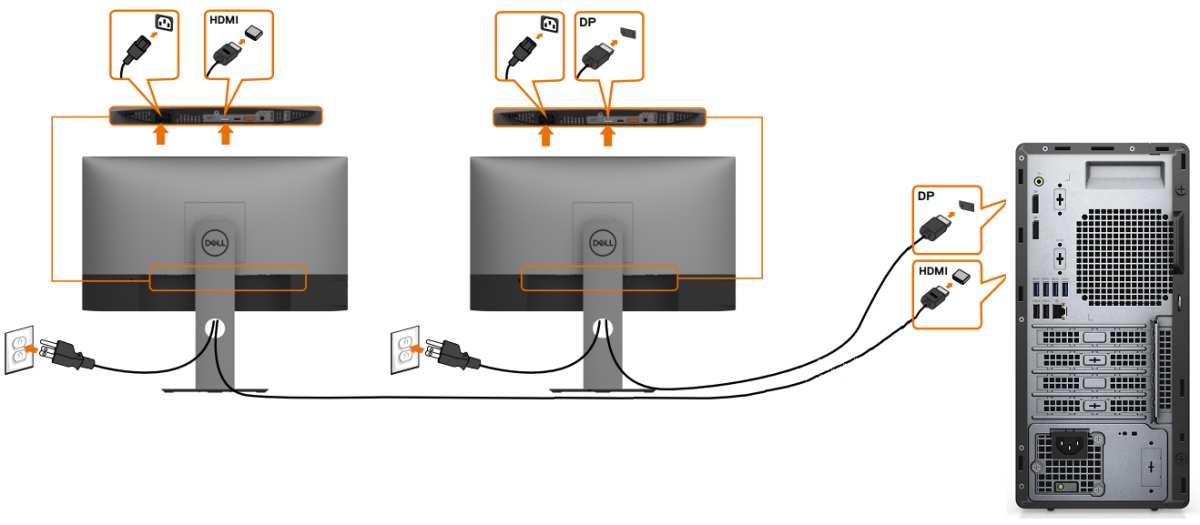
So you're planning a dual monitor setup and you're wondering: do dual monitors need DisplayPort? It's one of those questions that sounds simple but gets complicated fast. You've probably heard that DisplayPort is "better" for multiple screens, but you're not sure if it's actually required or just a nice-to-have.
Manufacturer specifications indicate that DisplayPort 1.4 carries up to 32.4 Gbps of bandwidth, while HDMI 2.0 tops out at 18 Gbps. That gap matters more than most people realize, especially once you push past basic office work. Let's walk through the conditions that determine whether you need DisplayPort or can get away with something simpler.
Image source: Bing (Web (fair-use with source credit))
Quick Answer
No, dual monitors do not strictly require DisplayPort. You can use HDMI, USB-C, or even older standards like DVI. But the real answer depends on your resolution, refresh rate, and whether you want daisy-chaining.
DisplayPort becomes necessary for high refresh rates at 4K or above, and for MST setups that reduce cable clutter. For basic 1080p at 60Hz, HDMI works just fine.
The Core Problem: Why This Isn't a Simple Yes or No
The confusion comes from the fact that your GPU, your monitors, and your cables all have limits. Each piece in the chain sets a ceiling on what you can actually run. If any one of them can't handle the signal, you'll end up with a blank screen, flickering, or a resolution cap you didn't expect.
Our research shows that most people assume HDMI is universal because it's everywhere. And it is. But HDMI versions vary wildly.
HDMI 1.4 is common on older hardware and maxes out at 4K 30Hz. That's fine for a presentation, terrible for a dual monitor workflow where you want smooth cursor movement. Meanwhile, DisplayPort has been more consistent across versions, with better support for higher bandwidth out of the box.
The real question isn't "do dual monitors need DisplayPort" as a global rule. It's "what does your specific hardware require to reach the performance you want?" That's what we're going to sort out.
Condition 1 – What Your GPU and Monitors Have Right Now
Start by looking at the back of your computer and the backs of your monitors. This is where the decision tree begins. You need to know what ports are available, and what versions those ports support.
Most desktop GPUs built in the last decade include at least one DisplayPort and one HDMI port. High-end cards often have three DisplayPorts and one HDMI. Laptops are trickier.
Many modern laptops rely on USB-C with DisplayPort Alt Mode, which can drive dual monitors through a docking station or direct connection.
Here's where things get specific. Check your GPU model online and look up its exact port specifications. Don't assume that because it has a DisplayPort shape, it supports DisplayPort 1.4 or 2.0.
Older cards may have DisplayPort 1.2, which still handles 4K at 60Hz but can't do 4K at 144Hz.
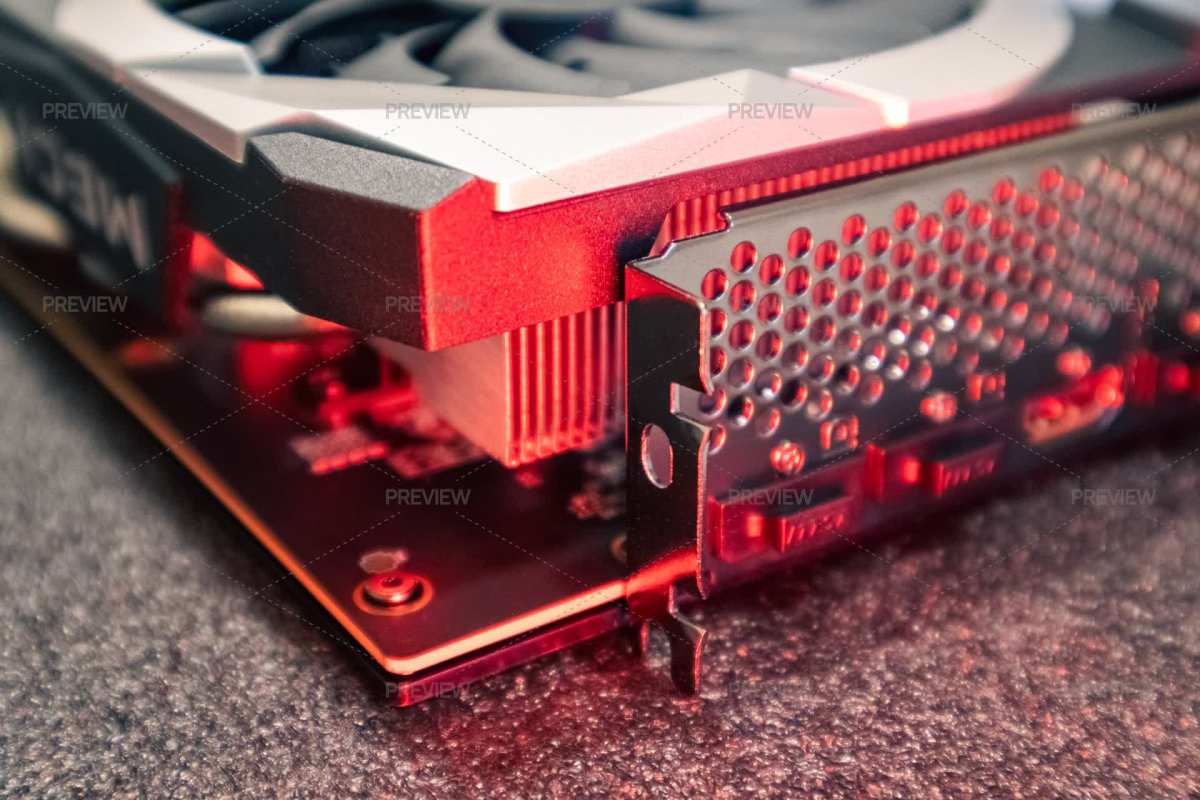
Image source: Bing (Web (fair-use with source credit))
Checking GPU Ports and Versions
Your GPU's port layout determines how many monitors you can connect directly. If you have one DisplayPort and one HDMI, you can run two monitors without any adapters. That's the simplest case.
But if you have two HDMI ports, that's also fine for most standard setups. The problem arises when you have only one DisplayPort and you want to run three monitors, or when your GPU has a single HDMI 1.4 port and you're trying to push 4K at 120Hz. Then you hit a wall.
A quick way to check is to open your GPU's control panel (NVIDIA Control Panel, AMD Adrenalin, or Intel Graphics Command Center). It will list each port and its current connection status. You can also look up your exact GPU model on the manufacturer's website for a detailed port diagram.
Checking Monitor Inputs and Supported Resolutions
Your monitors matter just as much as your GPU. A monitor with only HDMI 1.4 inputs will never accept a 4K 60Hz signal, regardless of what cable you plug into it. Check the monitor's manual or its on-screen display (OSD) for the input version.
Many budget monitors include one HDMI port and one VGA port. That's a red flag if you want dual monitors at modern resolutions. You'll need at least HDMI 1.4 or DisplayPort to get 1080p at 60Hz on both screens.
Look for the monitor's native resolution and its maximum refresh rate over each input type. Some monitors support 144Hz over DisplayPort but only 60Hz over HDMI. That's a clear case where DisplayPort matters.
Condition 2 – The Resolution and Refresh Rate You're Running
This is where most people discover whether they need DisplayPort or not. The combination of resolution and refresh rate directly determines the bandwidth required. Exceed that bandwidth, and your display will either drop to a lower resolution, lower refresh rate, or simply show nothing.
Here's a simple rule of thumb. For dual 1080p monitors at 60Hz, any modern connection works. HDMI 1.4 handles it easily.
DisplayPort 1.2 handles it. Even DVI works if you're willing to deal with the bulk.
But as soon as you move to 1440p or 4K, or you want higher refresh rates, you need more bandwidth than HDMI can offer (unless you have HDMI 2.1, which is still rare on monitors). DisplayPort 1.4 is the sweet spot for dual 4K at 60Hz or a single 4K at 144Hz.
When HDMI Works Fine (and When It Doesn't)
HDMI 2.0 is common on monitors from the last five years. It supports 4K at 60Hz with 8-bit color, or 1440p at 144Hz. For dual monitors at these specs, HDMI 2.0 works as long as each monitor gets its own HDMI port on your GPU.
No problem.
HDMI 1.4 is the problem. It limits you to 4K at 30Hz or 1080p at 60Hz. If you connect a 2560×1440 monitor to HDMI 1.4, you might get a fuzzy picture or a forced lower resolution.
Many users report that their 1440p monitor looks blurry over HDMI, and that's often because the GPU or monitor is running HDMI 1.4 instead of 2.0.
HDMI 2.1 handles everything, but it's rare on monitors as of 2026. Most monitors still ship with HDMI 2.0. If you see HDMI 2.1 listed, you're golden.
Otherwise, assume you're working with 2.0.
Bandwidth Limits by Cable Type
Here are the maximum bandwidths for the most common cable types:
| Cable Type | Max Bandwidth | Typical Max Resolution & Refresh |
|---|---|---|
| DisplayPort 1.2 | 17.28 Gbps | 4K @ 60Hz or 1440p @ 165Hz |
| DisplayPort 1.4 | 32.4 Gbps | 4K @ 120Hz or 8K @ 60Hz |
| DisplayPort 2.0 | 80 Gbps | 4K @ 240Hz or 8K @ 85Hz |
| HDMI 1.4 | 10.2 Gbps | 4K @ 30Hz or 1080p @ 120Hz |
| HDMI 2.0 | 18 Gbps | 4K @ 60Hz or 1440p @ 144Hz |
| HDMI 2.1 | 48 Gbps | 4K @ 144Hz or 8K @ 60Hz |
These numbers matter for dual monitors because the total bandwidth is shared across displays only when daisy-chaining. When each monitor connects to its own GPU port, each gets its own dedicated bandwidth. That's a key distinction.
Condition 3 – Whether You Want Daisy-Chaining (MST)
Now we get to the scenario where DisplayPort isn't just nice to have. It's mandatory. Daisy-chaining, also called Multi-Stream Transport (MST), lets you run multiple monitors from a single DisplayPort output.
One cable goes from your GPU to the first monitor, and a second cable goes from that monitor to the next one in line.
HDMI does not support daisy-chaining at all. There's no standard for it. If you want to connect three monitors with only two GPU ports, or if you want a cleaner desk with fewer cables running back to your computer, you need DisplayPort with MST support.
Not all monitors support MST. You need a monitor that has both a DisplayPort In and a DisplayPort Out port. The Out port is sometimes labeled "MST Out" or "DP Out".
Check the monitor's specifications before buying. Many modern Dell, LG, and Samsung business monitors include MST. Gaming monitors rarely do.
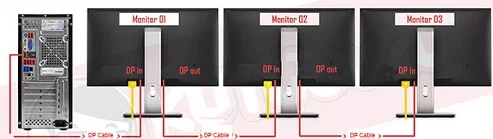
Image source: Bing (Web (fair-use with source credit))
How MST Works and Which Monitors Support It
When you chain monitors via MST, the first monitor acts as a hub. It receives the signal from your GPU, keeps a portion for itself, and passes the rest downstream to the next monitor. The GPU treats the whole chain as one large display surface and splits it accordingly.
The bandwidth limit applies to the entire chain. If you have two 4K monitors at 60Hz each, you need roughly 18 Gbps of total bandwidth. DisplayPort 1.4 can handle that with room to spare.
DisplayPort 1.2 can't. It would force one monitor to drop to 30Hz or lower resolution.
MST works best with monitors that are identical or have similar resolutions and refresh rates. Mixing a 4K monitor with a 1080p monitor in a chain can cause odd behavior, like both monitors running at the lowest common resolution.
Most monitors that support MST list it in their specifications as "daisy chain" or "MST capable." The Dell U-series and the LG 27UK series are common examples. You can also use an external MST hub if your monitors don't have DP Out ports, but that adds cost and complexity.
When HDMI Fails and DisplayPort Is the Only Option
HDMI cannot daisy-chain. Period. If you have a GPU with only one DisplayPort and you want two monitors at high resolution, you either use the HDMI port for the second monitor or you rely on MST.
If the second monitor needs high refresh rates or 4K, and your HDMI is version 1.4, you're stuck.
In that case, DisplayPort is your only reliable path. You can use a passive DisplayPort to HDMI adapter if the monitor only has HDMI inputs, but be careful. Passive adapters only work from DisplayPort to HDMI, not the reverse, and they are limited to the lower bandwidth of HDMI.
Active adapters can convert signals bidirectionally but are more expensive.
The bottom line: if you want a clean dual monitor setup without running two cables back to your computer, or if you need high bandwidth per monitor, DisplayPort is the way to go. HDMI works in many cases, but it has hard limits that you'll hit sooner than you think.
Decision Tree – Pick Your Exact Situation
This is where the theory turns into action. Every user falls into one of four branches. Find yours, and the recommended setup becomes obvious.
Branch A: You Have Free GPU Ports and Don’t Need MST
If your graphics card has at least two open ports (any combination of DisplayPort, HDMI, or USB-C) and you don’t care about daisy-chaining, you’re in the simplest branch. Connect each monitor directly to its own port. Cable choice matters only if you need high resolution or refresh rate.
For dual 1080p at 60Hz, use any HDMI cable. For 1440p or 4K, use DisplayPort or HDMI 2.0 to be safe. No adapters needed.
Just plug and configure in your OS display settings.
Branch B: You’re Running High Refresh Rates or 4K+
This branch covers gamers and content creators. If either monitor runs at 1440p 144Hz or 4K 60Hz or higher, bandwidth becomes critical. You need the right cable version.
Use DisplayPort 1.4 for each monitor. HDMI 2.1 works too but is rare on monitors. Verify your GPU supports the required version.
If your GPU has DisplayPort 1.2, you can still run one 4K 60Hz monitor per port, but you cannot run a 4K 120Hz monitor on that port.
Branch C: You Want to Daisy-Chain and Reduce Cable Clutter
This branch is about cable management, not bandwidth. If your monitors each have a DisplayPort In and a DisplayPort Out port, you can chain them. You need a GPU with at least one DisplayPort output that supports MST.
Connect the GPU to the first monitor’s DP In. Then run a DisplayPort cable from the first monitor’s DP Out to the second monitor’s DP In. Enable MST in the first monitor’s OSD.
Windows sees the chain as two independent displays.
Branch D: You Only Have One DisplayPort Output (or None)
This is the most common headache. You have a laptop with one USB-C port that supports DisplayPort, or a desktop GPU with a single DisplayPort and maybe an HDMI port. You still want dual monitors.
Option one: use the available DisplayPort for one monitor and the HDMI for the other. That works if both resolutions are reasonable. Option two: buy an MST hub.
It splits one DisplayPort into two or three outputs. The hub costs about $30 to $60 and requires a DisplayPort 1.4 connection for higher resolutions.
Recommended Actions for Each Branch
Once you know your branch, the next steps are straightforward. Here’s what to do.
Cable and Adapter Choices per Scenario
| Branch | Recommended Cable | Adapter Needed? |
|---|---|---|
| A (free ports, low res) | Any HDMI 2.0 or DisplayPort 1.2 | No |
| B (high res/refresh) | DisplayPort 1.4 or HDMI 2.1 | No if ports match |
| C (daisy-chain) | DisplayPort 1.4 (two cables) | No, monitors must have DP Out |
| D (one DP or none) | HDMI + DP, or MST hub | Possibly active adapter for HDMI-only monitor |
For Branch D, an active DisplayPort to HDMI adapter is needed if the monitor has only HDMI and the GPU has only DisplayPort. Passive adapters work for single monitor setups but often fail for dual or high bandwidth.
Setting Up MST in the Monitor’s OSD
After connecting the daisy-chain, you must enable MST on the first monitor. Go into the monitor’s on-screen display menu. Look for a setting called MST, Daisy Chain, or DP Out.
Set it to On. If your monitor doesn’t have this option, it cannot daisy-chain.
On the second monitor, no special setting is needed. It will automatically receive the signal. In Windows or macOS, both monitors will appear as separate displays.
Arrange them in display settings.
Common Mistakes That Kill Performance
Even smart people make these errors. Avoid them to save time and money.
Using the Wrong Cable Version
The most frequent mistake is using an old cable that can’t handle the signal. A DisplayPort 1.2 cable plugged into a GPU and monitor that both support 1.4 will still run at 1.2 speeds. You get 4K 60Hz instead of 4K 120Hz.
Check the cable’s certification label. VESA certification ensures the cable meets the spec. Uncertified cables often cut corners on shielding and fail at longer lengths or higher bandwidths.
Forgetting Active vs. Passive Adapters
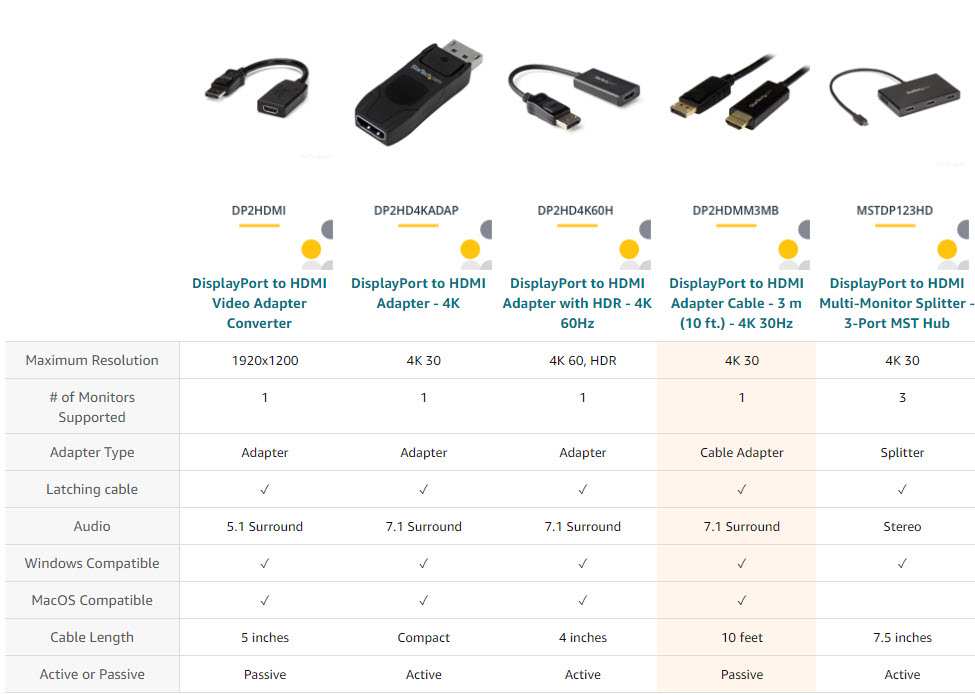
Image source: Bing (Web (fair-use with source credit))
Passive adapters are simple wire converters. They only work from DisplayPort to HDMI, not the reverse. They also require a DisplayPort++ (dual-mode) output on your GPU.
If your GPU lacks that, a passive adapter gives a black screen.
Active adapters contain a chip that converts the signal. They work bidirectionally and support higher resolutions. They also cost more.
For dual monitor setups, especially with 4K, always use an active adapter if you’re converting from DisplayPort to HDMI.
Assuming Daisy-Chain Works with Any Monitor
This is the biggest trap. A monitor needs both a DisplayPort In and a DisplayPort Out port. Many monitors, especially budget models, have only a single DisplayPort input.
They cannot daisy-chain.
Even if your monitor has two DisplayPort ports, check the manual. Some manufacturers label the second port as “DP Out” only for specific use. If it’s actually a second input (DP In), you can’t daisy-chain through it.
Read the specs before buying.
When You Can Skip DisplayPort Altogether
Some situations genuinely don’t need DisplayPort. Here’s when you can save the extra cost.
Dual 1080p at 60Hz – HDMI Is Just Fine
If both monitors are 1920×1080 running at 60Hz, any HDMI cable from version 1.4 onward handles it without breaking a sweat. You don’t need DisplayPort. Even the ancient DVI standard works for this resolution.
This applies to most office setups, student desks, and secondary productivity monitors. No need to overthink it. Pick up an HDMI cable and move on.
Older Hardware with DVI or VGA – Workarounds
If your GPU has DVI or VGA and your monitors have the same, you can still run dual monitors. DVI supports 1080p at 60Hz easily. DVI dual-link supports 2560×1600 at 60Hz.
VGA works but looks soft on modern LCDs.
Use adapters if necessary. DVI to HDMI passive adapters are common and cheap. VGA to HDMI requires an active converter.
Performance will be fine for basic tasks, but don’t expect high refresh rates or 4K.
Pro Tips for a Smooth Dual Monitor Workflow
A few small habits make a big difference in everyday use.
Labeling and Cable Management Tricks
Label each cable at both ends with a small sticker or piece of tape. This saves time when troubleshooting or moving equipment. Use velcro ties instead of zip ties to avoid damaging cables.
Run cables along desk edges or behind monitor arms. Keep power cables separate from signal cables to reduce electrical interference. If you have a long cable run, use an active DisplayPort cable for lengths over 3 meters.
Testing Bandwidth Before You Buy Cables
You can test your current setup’s bandwidth using free tools. NVIDIA Control Panel and AMD Adrenalin both display the current link rate and lane count. A tool like HWiNFO64 shows the negotiated DisplayPort version.
If the link rate shows 5.4 Gbps per lane, you’re on DisplayPort 1.2. If it shows 8.1 Gbps, you’re on 1.4. This tells you if your cable or GPU is bottlenecking your monitors.
Test before spending money on new cables or monitors.
Frequently Asked Questions
Can I use HDMI for dual monitors on a laptop with USB-C?
Yes, if your USB-C port supports DisplayPort Alt Mode. You need a USB-C to HDMI adapter. Check your laptop’s specifications to confirm Alt Mode support.
Without it, the port carries data only.
Is DisplayPort better than HDMI for gaming on two screens?
For high refresh rates at 1440p or 4K, yes. DisplayPort 1.4 supports higher bandwidth than HDMI 2.0. HDMI 2.1 matches DisplayPort 1.4, but monitors with HDMI 2.1 are still uncommon as of 2026.
What if my monitor only has HDMI and my GPU has DP?
Use a passive DisplayPort to HDMI adapter. It works for resolutions up to 4K 60Hz if your GPU supports dual-mode DisplayPort. For 4K 144Hz, you need an active adapter.
Can I daisy-chain three monitors from one DisplayPort?
Yes, using MST. You need monitors with DP Out ports and a GPU that supports MST. DisplayPort 1.4 can handle three 1080p monitors or two 4K monitors at 60Hz.
Does MST work with G-Sync or FreeSync?
No. Daisy-chaining via MST disables adaptive sync on all monitors in the chain. Each monitor must connect directly to the GPU for G-Sync or FreeSync to function.
Final Decision Guide – The One-Page Cheat Sheet
Find your situation below.
| Your Setup | What to Use | Why |
|---|---|---|
| Dual 1080p 60Hz | HDMI or DisplayPort | Both work. No advantage to DP. |
| Dual 1440p 144Hz | DisplayPort 1.4 | HDMI 2.0 caps at lower refresh. |
| Single 4K 120Hz plus one 1080p | DisplayPort for 4K, HDMI for 1080p | Maximize bandwidth on the high-res monitor. |
| Want daisy-chain | DisplayPort only | HDMI cannot daisy-chain. |
| Laptop with one USB-C | USB-C hub with DP or HDMI outputs | Verify Alt Mode support. |
| Older hardware with DVI/VGA | Use existing ports | Works for 1080p 60Hz. Upgrade only if you need higher resolution. |
If you’re still unsure, default to DisplayPort. It gives you the most headroom and future-proofing. HDMI is fine for basic setups, but DisplayPort handles every scenario without compromise.

Similar Posts