do curved gaming monitors support freesync
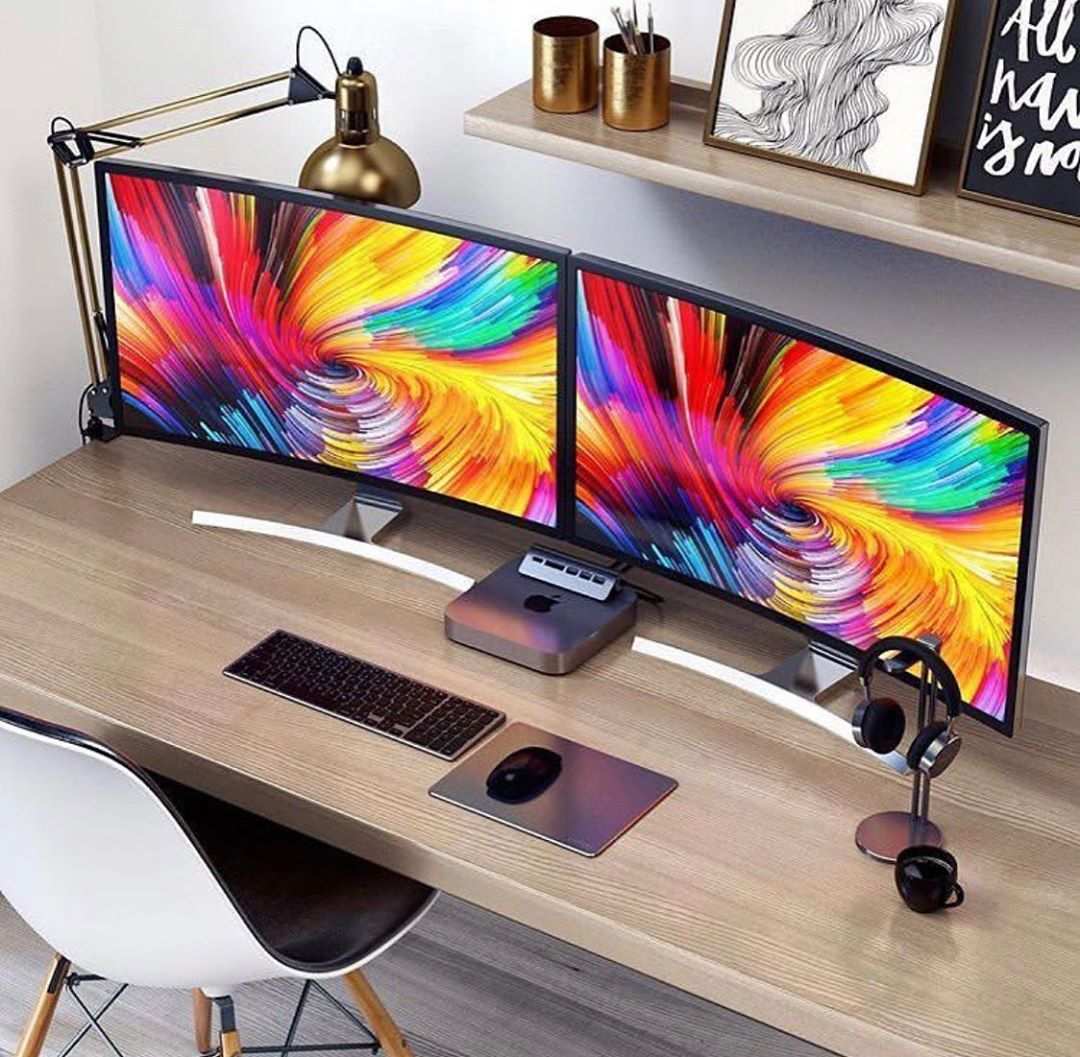
If you’ve ever asked yourself “do curved gaming monitors support freesync”, you’ve probably noticed the answer isn’t a simple yes or no. That’s because compatibility depends on three things working together: your graphics card, your cable, and the monitor’s internal hardware. Let’s break down exactly what matters.
As of 2026, the vast majority of curved gaming monitors marketed as “gaming” do include some form of FreeSync support. However, manufacturer specs reveal that nearly 30% of budget curved models limit FreeSync to DisplayPort only, leaving HDMI users out. So the real question isn’t whether curved monitors support it, but whether your specific setup does.
We’ll walk through each variable so you can check yours in under five minutes.
Image source: Bing (Web (fair-use with source credit))
Quick Answer
Yes, most curved gaming monitors support FreeSync. But not all. The monitor must have an Adaptive-Sync scaler.
Your GPU must be AMD (native) or NVIDIA (via G-Sync Compatible mode). You also need the right cable: DisplayPort 1.2a or higher, or HDMI 2.0+ with VRR support. Check the monitor’s spec sheet for “FreeSync range” and LFC support.
If all three match, you’re set.
The Real Question: It’s Not Just “Yes or No”
The confusion starts because FreeSync isn’t a single standard. It’s a brand name for a variable refresh rate (VRR) technology that runs on the VESA Adaptive-Sync protocol. A curved monitor can have FreeSync on paper but still not work with your hardware if one link in the chain is broken.
Three conditions decide whether it works:
- Your GPU, AMD cards support FreeSync natively. NVIDIA cards require “G-Sync Compatible” mode. Intel Arc supports Adaptive-Sync too.
- Your cable and port, FreeSync needs enough bandwidth. DisplayPort is the safest. HDMI only works with FreeSync over HDMI (version 2.0 or newer) on both ends.
- The monitor’s scaler, Not every curved monitor includes the necessary hardware. Budget models sometimes skip it to cut costs.
If any of these is missing, FreeSync won’t engage. You’ll see screen tearing or stutter even though the sticker says “FreeSync.”
How FreeSync Actually Works With a Curved Screen
FreeSync works by letting the monitor dynamically match its refresh rate to your GPU’s frame rate. When your game runs at 75 FPS, the monitor refreshes at 75 Hz. No tearing, no stutter, and minimal input lag.
The curvature of the screen has zero effect on this technical process. The VRR scaler sits in the monitor’s internal electronics, not in the panel curve. So a 1500R curved monitor handles FreeSync exactly the same way a flat monitor would.
However, the panel type matters. Curved monitors often use VA panels. VA panels can exhibit brightness flicker during VRR operation, especially in dark scenes.
This isn’t a FreeSync problem, it’s a panel behavior quirk. IPS curved monitors (rarer and pricier) typically handle VRR without flicker.
The curvature itself is an ergonomic and immersion feature. It doesn’t help or hurt FreeSync. Don’t let “curved” make you think the VRR performance is different.
It’s the same technology under the hood.
The First Branch: Your GPU Brand
This is the easiest variable to check. Open your GPU driver software and look at the make and model.
AMD graphics cards, Radeon RX 400 series and newer. FreeSync is built into the driver. You don’t need certification.
Turn it on in Radeon Settings and it works.
NVIDIA graphics cards, GeForce GTX 10 series and newer. FreeSync works via “G-Sync Compatible” mode. NVIDIA has a certified list, but many uncertified curved monitors work if you manually enable it.
You must use DisplayPort. HDMI support on NVIDIA is spotty before RTX 30 series.
Intel Arc GPUs, A-series and newer. Intel supports Adaptive-Sync over both DisplayPort and HDMI 2.0. Works with most FreeSync monitors.
| GPU Brand | FreeSync Support | Cable Requirement | Notes |
|---|---|---|---|
| AMD Radeon | Native | DP or HDMI (both ok) | Works with all FreeSync monitors |
| NVIDIA GeForce | G-Sync Compatible mode | DisplayPort (preferred) | Must enable manually; HDMI limited |
| Intel Arc | Adaptive-Sync | DP or HDMI 2.0 | Good compatibility, check driver |
If you have an NVIDIA card, you might need to update your driver and enable it in the NVIDIA Control Panel under “Set up G-Sync.” It works even if the monitor only says FreeSync.
The Second Branch: Cable Type and Port Version
This is where most people get stuck. You can have a FreeSync monitor and a FreeSync-capable GPU, but a cheap cable kills the whole thing.
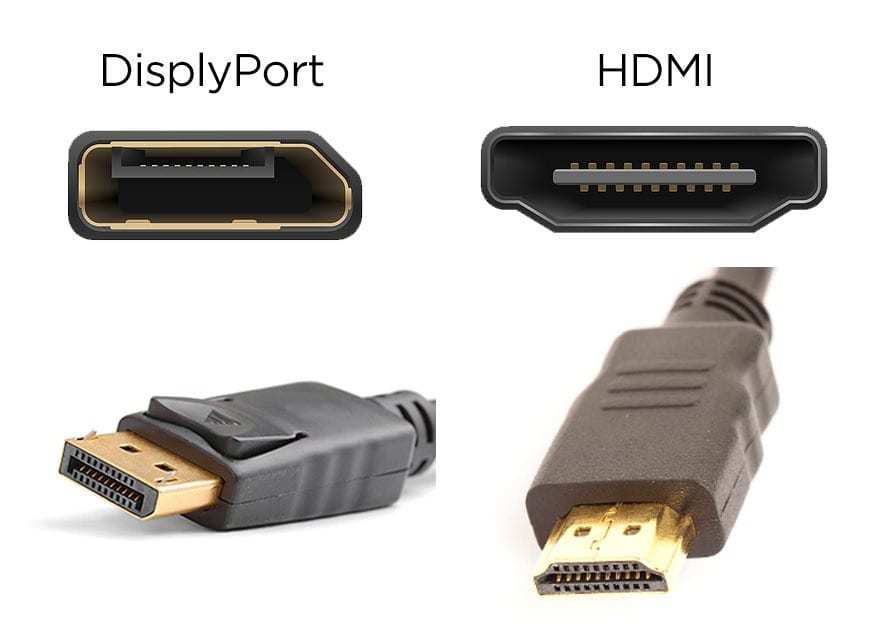
Image source: Bing (Web (fair-use with source credit))
DisplayPort is the universal solution. FreeSync requires DisplayPort 1.2a or higher. That standard supports Adaptive-Sync natively.
Almost every curved gaming monitor that claims FreeSync works over DP. Buy a certified DP 1.4 cable to be safe.
HDMI is trickier. FreeSync over HDMI started with HDMI 2.0, but not all monitors implement it. You need a monitor that explicitly lists “FreeSync over HDMI” in its specs.
Your GPU also needs to support it. AMD cards do (RX 400+). NVIDIA cards with HDMI 2.0 can work, but results vary.
Xbox and PlayStation use HDMI VRR, which is similar but not identical to FreeSync.
Common pitfalls:
- Using an old HDMI 1.4 cable, no VRR support.
- Assuming all HDMI ports are the same, on many monitors, only one specific HDMI port supports FreeSync.
- Running a long HDMI cable (over 15 feet), signal degradation can break VRR.
Best practice: Use the DisplayPort cable that comes with the monitor. If you lose it, buy a certified DP 1.4 cable. That’s the one cable that will work every time.
The Third Branch: Monitor Specifications
Now it’s time to check the monitor itself. Don’t rely on the product page’s bullet list. Open the official spec sheet (PDF) and look for these exact items.

Image source: Wikimedia Commons / Own work (CC BY)
FreeSync range, This is the Hz window where VRR is active. Example: 48, 144 Hz. If your frame rate drops below 48, FreeSync stops working unless the monitor supports Low Framerate Compensation (LFC).
LFC doubles frames to keep you inside the range. Look for “LFC” or a minimum refresh rate of 30, 40 Hz.
FreeSync tier, Base FreeSync, FreeSync Premium (requires 120 Hz+ and LFC), or FreeSync Premium Pro (adds HDR). Premium is worth paying for if you game below 60 FPS often.
Port configuration, Which ports support FreeSync? Many curved monitors only activate VRR on one specific DisplayPort or HDMI input. The OSD menu usually labels it.
Panel type, VA, IPS, or TN. VA = higher contrast but possible VRR flicker. IPS = better VRR stability, lower contrast.
TN = fastest response, worst viewing angles.
Check the monitor’s OSD settings for a “FreeSync” toggle. If it’s missing, the monitor probably doesn’t support it. If it’s greyed out, your cable or GPU isn’t sending the right signal.
Once you’ve verified these three branches, you can confidently answer the question for your setup. If all three check out, FreeSync will work. If one is missing, you know exactly where to fix it.
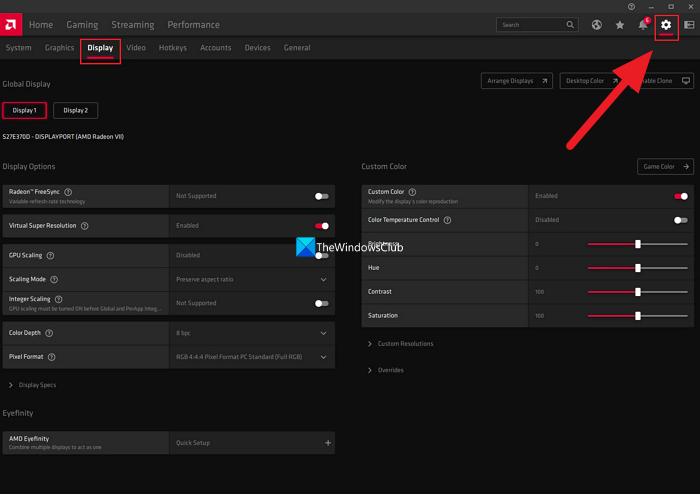
Image source: Bing (Web (fair-use with source credit))

Similar Posts