Can I Put Windows 11 On An Old Computer? Tips And?
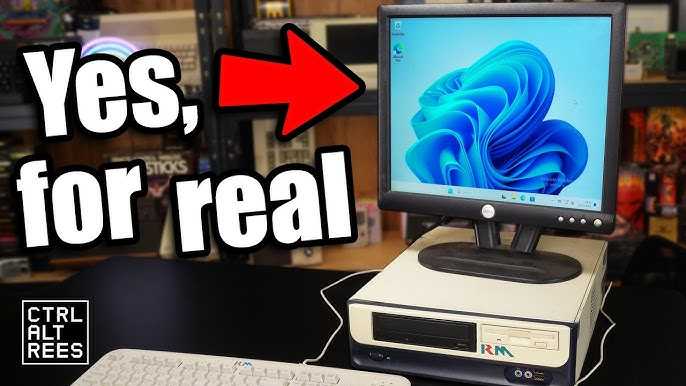
Yes, you can install Windows 11 on an old computer if it meets the system requirements, but chances are it might not run smoothly or even be compatible. Before attempting an upgrade, it’s essential to check whether your hardware is supported, especially given Windows 11’s stricter specifications.
In short, installing Windows 11 on an outdated machine isn’t always straightforward or recommended, as older hardware may not meet the necessary criteria or could experience performance issues. The best approach is to evaluate your computer’s compatibility and consider whether an upgrade or sticking with Windows 10 might be more practical.
Thinking about upgrading your old PC to Windows 11? It’s tempting to get the latest features and security updates, but before jumping in, it’s important to understand whether your device can handle it. Many older computers might struggle with Windows 11 due to stricter hardware requirements, such as a compatible processor, Secure Boot capability, and TPM 2.0 chip. In this article, we’ll explore what it takes to install Windows 11 on an aging machine, how to check compatibility, and what alternatives you might have if your hardware isn’t up to the task. Whether you’re looking for a smooth upgrade or just curious about your options, understanding these factors will help you make an informed decision about breathing new life into your old computer.

Can I put Windows 11 on an old computer?
Understanding the System Requirements for Windows 11
Before thinking about installing Windows 11 on an older computer, it’s important to look at the minimum system requirements. Microsoft has set specific hardware needs that your computer must meet to run Windows 11 properly. These include a compatible 64-bit processor, 4 GB of RAM, 64 GB storage, UEFI firmware with Secure Boot capability, and TPM 2.0.
Meeting these requirements is crucial because it ensures the operating system runs smoothly. If your computer’s hardware is outdated, it might not support some of these features. For example, many older machines lack a TPM 2.0 chip, which is now mandatory for Windows 11.
Can Old Computers Support Windows 11?
Many older computers struggle to meet Windows 11’s hardware demands, especially those manufactured before 2015. Typical issues involve incompatible processors, lack of TPM 2.0, or insufficient RAM and storage.
However, some computers even several years old might be capable of running Windows 11 if they have compatible hardware. It’s essential to verify the specific model’s specifications, as some older systems can be upgraded to meet requirements.
Using the PC Health Check Tool
Microsoft provides the PC Health Check tool, which can help determine if your device qualifies for an upgrade. This tool scans your hardware and compares it to Windows 11’s requirements.
To use it, simply download and run the tool. It will provide a clear yes or no answer along with details on what components need upgrading if your PC doesn’t qualify.
Evaluating Hardware for Compatibility
If you’re unsure whether your old computer can handle Windows 11, you’ll need to evaluate each hardware component carefully.
- Processor: Must be a 1 GHz or faster compatible 64-bit processor with at least two cores.
- RAM: Minimum 4 GB, but more is recommended for better performance.
- Storage: At least 64 GB of available storage space.
- Firmware: UEFI with Secure Boot support—a key requirement for Windows 11.
- TPM: Trusted Platform Module version 2.0 is necessary for most systems.
If your hardware falls short in any of these areas, you will face challenges installing or running Windows 11 effectively.
Can You Upgrade Hardware to Meet Requirements?
Upgrading hardware may extend the life of an old computer. Common upgrades include installing more RAM, adding a solid-state drive (SSD), or enabling TPM and Secure Boot in BIOS settings.
However, not all older computers support hardware upgrades for TPM or BIOS features essential for Windows 11. It’s important to check with your manufacturer or consult the user manual before attempting upgrades.
Ways to Install Windows 11 on an Old Computer
If your computer meets the minimum specifications or can be upgraded, there are several ways to install Windows 11.
Official Method Using Windows Update
The easiest route is through Windows Update once your device qualifies. Microsoft offers a phased rollout to ensure compatibility and stability.
Ensure your device has the latest updates installed, and check for the Windows 11 update in Settings under Update & Security.
Using the Installation Assistant
Microsoft’s Installation Assistant can help install Windows 11 on compatible hardware manually. Download the tool from the official website, and follow step-by-step instructions to upgrade.
This method is useful if your device is eligible but Windows Update doesn’t offer the upgrade automatically.
Creating a Bootable USB Drive
Advanced users may consider creating a bootable USB with the Windows 11 installation media. This method allows a clean installation or upgrade on devices meeting minimum hardware standards.
Remember to back up all important data before proceeding, as this method can erase existing files.
Potential Challenges When Installing Windows 11 on Old Computers
Installing Windows 11 on an older device is not without possible issues.
Performance Problems
Even if your old computer meets minimum specifications, it might struggle with Windows 11, especially with multitasking or demanding applications. Upgrading RAM and switching to an SSD can improve speed.
Hardware Incompatibility
Certain components, like graphics cards or network adapters, may not have drivers compatible with Windows 11. This can result in hardware malfunction or poor performance.
Limited Support for Older BIOS Firmware
Some older systems may not support Secure Boot or UEFI mode, which are necessary for Windows 11. BIOS updates might be available but are not guaranteed.
Alternative Options for Old Computers
If your old device cannot run Windows 11, consider other operating system options.
Installing Windows 10
Windows 10 remains supported until October 2025. It offers good security and stability for older hardware.
Using Lightweight Linux Distributions
Linux distributions like Ubuntu or Mint are less demanding and can bring new life to old computers. They also offer a user-friendly interface similar to Windows.
Why Choose an Alternative OS?
Switching to lighter operating systems can improve speed and efficiency. These options often require fewer system resources and can extend your computer’s usability.
Final Thoughts on Installing Windows 11 on Old Computers
Deciding whether to put Windows 11 on an old computer depends on your specific hardware and needs. While some older machines can run Windows 11 with upgrades, many will face limitations or performance issues.
It’s always wise to verify hardware compatibility carefully using official tools. If your device falls short, exploring other OS options may be the better choice for longevity and user experience.
Considering the cost of upgrades versus buying a new computer is also important. Ultimately, having a clear understanding of your hardware’s capabilities helps ensure a smooth transition or a suitable alternative.
Frequently Asked Questions
Is my old hardware compatible with Windows 11 requirements?
To determine compatibility, check if your device meets the minimum hardware specifications for Windows 11, including a compatible 64-bit processor, at least 4GB of RAM, 64GB storage, and TPM 2.0 support. Use the PC Health Check tool provided by Microsoft to assess whether your hardware qualifies or if you need hardware upgrades.
Can I upgrade my current system to Windows 11 without reinstalling everything?
If your device meets the Windows 11 hardware requirements, you can typically upgrade through the Windows Update feature. This process preserves your files and settings, allowing a smoother transition. However, it’s wise to back up important data before starting the upgrade to prevent potential data loss during the process.
What performance issues might I face when installing Windows 11 on an older computer?
Older hardware may struggle with Windows 11’s more demanding features, leading to slower boot times, lag, or reduced responsiveness. Limited RAM or outdated processors can hinder performance, especially with multitasking. Upgrading certain components or adjusting system settings can help mitigate some issues but may not fully resolve performance limitations.
Are there risks involved in installing Windows 11 on an unsupported device?
Installing Windows 11 on unsupported hardware can cause compatibility issues, instability, or security vulnerabilities. Microsoft might not provide updates or support for devices that do not meet the official requirements. It is generally safer to stick with Windows 10 or consider alternative operating systems if your hardware isn’t compatible.
What are my options if my old computer can’t run Windows 11?
If your device doesn’t meet the necessary specifications, consider sticking with Windows 10, which still receives support until October 2025. Alternatively, you can explore lightweight operating systems like Linux, which are more suitable for older hardware and can extend the usability of your device without compromising performance.
Final Thoughts
Putting Windows 11 on an old computer depends on its hardware. Check if your device meets the essential requirements, including a compatible CPU, RAM, and Secure Boot capabilities. Many older machines may struggle to run Windows 11 smoothly.
If your computer fails to meet the minimum specs, installing Windows 11 might cause performance issues or instability. Consider upgrading key components or sticking to Windows 10 for better reliability.
Can I put Windows 11 on an old computer? It’s possible if the hardware is compatible, but often challenging. Evaluate your system first before attempting the upgrade.

Similar Posts