Effective Tips For Android Battery Calibration In 2023

Understanding Android Battery Calibration: What It Is and Why It Matters
When your Android phone’s battery isn’t performing as it used to, you might notice faster battery drain, inaccurate battery percentage display, or unexpected shutdowns. These issues can be frustrating, but often, they are fixable by performing a process called battery calibration. Battery calibration is a way to help your phone’s software better understand the true state of your battery, ensuring that the battery percentage shown on your screen is accurate. It’s not really about fixing a hardware problem, but rather about syncing the software with the actual battery capacity. In this article, we’ll explore what Android battery calibration is, how it works, why your device may need it, and how you can safely perform it to improve your phone’s overall battery life and accuracy.What Is Battery Calibration and How Does It Work?
To understand battery calibration, first, you need to know how your phone’s battery and software interact. Your Android phone tracks battery charge levels with sensors and software algorithms. These readings are then translated into a percentage displayed on your screen, like 50%, 75%, or 100%. Over time, the software’s understanding of the battery’s capacity can become inaccurate due to several reasons:- Complete charging and discharging cycles without calibration
- Battery aging and wear
- Software bugs or glitches
- Using third-party charging accessories that don’t communicate properly with the device
Signs That Your Android Device Needs Battery Calibration
Noticing the following signs indicates that your phone might benefit from calibration:- The battery drains quickly despite little usage.
- The battery percentage jumps suddenly, for example from 10% to 50%.
- Your device shuts down unexpectedly when the battery percentage shows a certain level.
- The battery percentage reads as 0% but your phone still works for a few minutes.
- The battery indicator is inconsistent or not changing as expected during charging or discharging.
How to Prepare Your Phone for Battery Calibration
Before you start the calibration process, take a few simple steps to make sure everything goes smoothly:- Use your original or high-quality charger and cable to charge your device.
- Charge your phone to 100% and leave it plugged in for an extra 30 minutes to ensure a full charge, especially if the battery indicator isn’t accurate.
- Turn off any background apps that might affect your battery level during the calibration process.
- Temporarily disable any battery-saving modes or third-party battery apps.
- Make sure your device is at room temperature—avoid calibrating immediately after exposure to extreme heat or cold.
Step-by-Step Guide to Calibrating Your Android Battery
Now, let’s walk through the most straightforward method to calibrate your Android device’s battery:Complete a Full Discharge
- Use your device normally until the battery percentage drops to around 5% or the device shuts down automatically.
- Once it turns off, turn it back on to verify the shutdown. If still on, continue using until the battery drains completely.
- If it turns off before reaching 5%, just power it off manually once it reaches the lowest possible percentage.
Charge Without Interruptions
- Connect your device to a wall outlet using the original charger or a good-quality charger.
- Charge your phone uninterrupted until it reaches 100%. Don’t use your device during charging to reduce inaccuracies.
- Once fully charged, keep the device plugged in for an additional 30 minutes to allow the battery to stabilize.
Perform a Calibration Reset
- Unplug your device and restart it.
- Use your phone normally and observe the battery percentage for the next few days.
- If you notice consistent inaccuracies, repeat the process after a few weeks or when necessary.
Additional Tips for Maintaining Battery Health
Calibration is useful, but it’s only one part of keeping your Android device’s battery healthy. Here are some water-tight tips:- Keep your battery level between 20% and 80% to reduce wear and tear. Avoid regularly charging to 100% or letting it drain completely.
- Use power-saving modes when your battery is running low.
- Avoid exposing your device to extreme temperatures, as heat and cold accelerate battery aging.
- Update your device’s software regularly, since updates contain important fixes that can improve battery performance.
- Limit background processes and unnecessary notifications that drain power without you realizing it.
When to Seek Professional Help
If your battery issues persist even after calibration, then it might be time to consult professionals:- If your battery drains extremely fast or the device shuts down unexpectedly despite showing high charge levels.
- If your device overheats during charging or normal use.
- If the battery health shows significant deterioration in diagnostics tools.
Frequently Asked Questions
How can I tell if my Android battery needs calibration?
If your device’s battery percentage jumps unpredictably or drains quickly even after a full charge, it may require calibration. Additionally, if the battery percentage seems to stabilize at a certain point and doesn’t reflect actual usage, calibrating can help improve accuracy. These signs indicate the battery’s reporting system might be misaligned, and calibration can help restore proper readings.
What are the steps to calibrate an Android battery manually?
Start by fully charging your device to 100% without unplugging it. Use the device normally until the battery drains completely and the device turns off. Then, charge it uninterrupted back to 100% to reset the battery reporting system. Once fully charged, restart your device and observe whether the battery percentage now aligns better with actual usage. Doing this process periodically can help maintain accurate battery readings.
Are there any risks associated with calibrating my Android battery?
Battery calibration involves discharging and recharging the battery, which is a safe process if done correctly. However, it might cause temporary battery drain or device shutdown if the battery is already degraded. Avoid frequent calibration, and do not force the battery to drain completely if it appears to be damaged or swollen. Always follow recommended procedures, and consider replacing the battery if issues persist.
Can calibration improve my Android device’s battery life?
Battery calibration primarily corrects inaccurate reporting of battery levels and does not directly increase the battery’s capacity or lifespan. However, it helps you better understand your battery’s actual status, enabling you to manage usage more effectively. Proper calibration can prevent unnecessary charging cycles and help maintain optimal device performance over time.
Should I use third-party apps for battery calibration on Android?
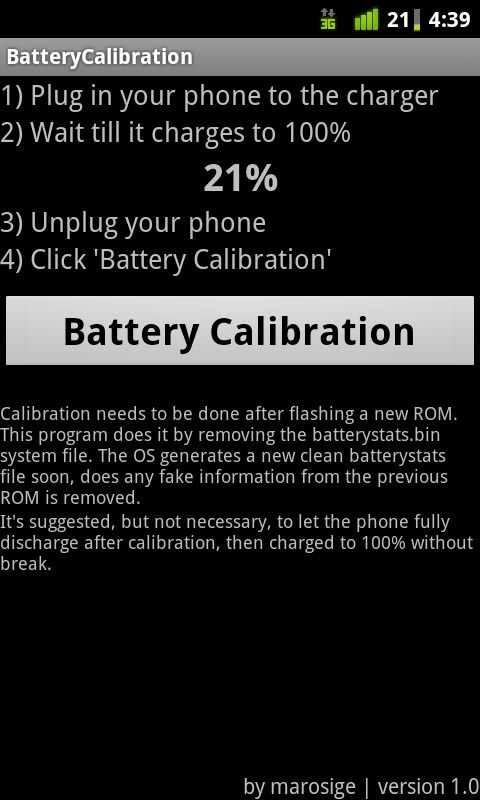
Most Android devices do not require third-party apps to calibrate the battery. Manual calibration by fully charging and draining the battery is usually sufficient. Using third-party apps can sometimes cause more harm than good, especially if they attempt to alter system files or settings. If your battery issues persist, consult your device manufacturer or authorized service center instead of relying solely on third-party tools.
Final Thoughts
In summary, proper android battery calibration can significantly improve device performance and battery life. Regular calibration helps your phone accurately display battery levels, preventing sudden shutdowns. Follow simple steps to recalibrate your device and maintain optimal battery health. Ultimately, understanding how to perform android battery calibration ensures your device runs smoothly and lasts longer each day.
Similar Posts