Optimizing Your Device: Android Battery By App Tips
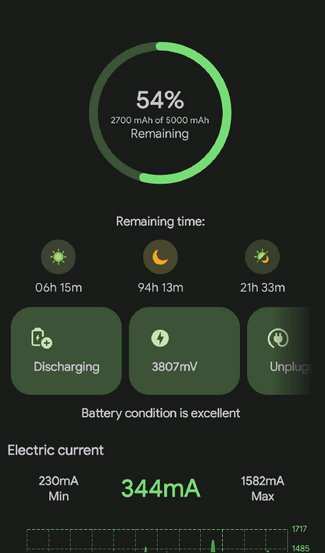

Understanding Android Battery Usage by App
When it comes to using your Android device, battery life often becomes a concern. You might notice your battery draining faster than usual, and wonder which apps are responsible. Knowing how each app impacts your battery helps you make smarter choices about what to keep open and what to close. This section dives into how Android tracks battery consumption by app and what factors influence it.How Android Tracks Battery Usage
Android phones have built-in tools that monitor how much power each app consumes. These tools gather data on energy used during different activities like screen time, background processes, and network connections. The main way Android does this is through the Battery Usage section found in your device settings. Here’s what you’ll find in this section:- Battery percentage used by each app: Shows how much of your battery each app has used since last full charge.
- Foreground vs. background activity: Indicates whether the app was actively used (foreground) or running in the background.
- Time spent on each app: Displays how long each app was open and active.
- Impact on battery health: Some Android versions provide insights into which apps drain your battery more significantly.
Factors That Cause Apps to Use More Battery
Not all apps drain your battery equally. Several factors influence how much power an app consumes:Background Activity
Apps often run tasks in the background, such as updating feeds, fetching emails, or syncing data. This background activity can significantly impact battery life if left unchecked.User Interaction
Apps that you actively use, like games or streaming platforms, typically consume more power during operation. The longer you keep an app open, especially with high graphics or data use, the more battery it tends to use.Location and GPS Usage
Apps that utilize GPS services, like navigation or fitness apps, can be major battery drainers. Continuous location tracking requires the GPS to stay active, which consumes a lot of energy.Network Connectivity
Apps that access the internet, especially video streaming, social media, or file downloads, use network resources. Maintaining an active internet connection, especially over mobile data, can increase battery consumption.Push Notifications and Updates
Frequent notifications and app updates run in the background and require data transfer, which can drain your battery over time.How to View Battery Usage by App in Android
To keep an eye on which apps use the most battery, follow these simple steps:- Open your device’s Settings app.
- Scroll down and tap on “Battery” or “Battery & Power.”
- Look for “Battery Usage” or “App Battery Usage.”
- You will see a list of apps ranked by how much battery they have used.
Identifying Power-Hungry Apps
Once you see the battery consumption data, focus on apps that use a significantly higher percentage of your battery. Sometimes, uncommon apps or those running in the background without your knowledge can be major drains. You might notice:- Apps that run constantly, even when you are not actively using them.
- Apps that have high battery percentage but are rarely used.
- Apps that spend a lot of time in the foreground without delivering enough value for the battery cost.
Managing Battery-Heavy Apps Effectively
Once identified, proper management can improve your device’s battery life. Here are some practical tips:Force Stop or Uninstall
If an app is draining too much battery and isn’t essential, consider stopping it or uninstalling altogether.Restrict Background Activity
Many Android versions allow you to restrict background data for specific apps:- Go to Settings > Apps & Notifications.
- Select the app you want to restrict.
- Tap on “Battery” or “Data Usage,” then toggle off “Background activity.”
Adjust App Permissions
Limit location or other permissions for apps that don’t need them often, reducing unnecessary battery use.Use Power Saving Mode
Most Android devices offer a power-saving mode that reduces background activity, lowers screen brightness, and limits app usage, helping extend battery life.Apps That Help Monitor and Save Battery
Several third-party apps can give a more detailed look at your device’s battery consumption, providing tips and recommendations to cut down energy use. Popular options include:- AccuBattery: Monitors battery health and provides insights into which apps drain your battery most.
- GSam Battery Monitor: Offers detailed analytics for app usage and power consumption.
- Battery Widget Reborn: Displays real-time battery stats and usage history.
Best Practices to Reduce Battery Drain by Apps
Implementing good habits can minimize the impact of apps on your battery life:- Close apps when you’re done using them, especially those that are heavy users like games or streaming apps.
- Disable notifications for apps that are not essential.
- Avoid keeping multiple applications running in the background at the same time.
- Regularly update your apps and device software. Developers often optimize apps to use less battery in updates.
- Limit the use of apps that require continuous location tracking unless necessary.
Impact of App Design on Battery Consumption
Developers play a key role in how much battery an app consumes. Well-designed apps:- Optimize background processes to run only when necessary.
- Reduce the frequency of background syncs or updates.
- Use efficient coding techniques to minimize CPU and GPU usage.
- Implement adaptive brightness and smart location services.
Frequently Asked Questions
How can I identify which apps are consuming the most battery on my Android device?
You can check your device’s battery usage in the Settings menu. Navigate to Battery or Battery Usage to see a list of apps ranked by their energy consumption. This overview helps you determine which apps drain the most power and decide whether to limit their activity or uninstall them.
Is it possible to prevent specific apps from running in the background to save battery life?
Yes, Android allows you to restrict background activity for individual apps. Go to Settings > Apps & notifications > App info, select the app, and then choose Battery or Battery Usage. From there, you can disable background activity or restrict its background data, effectively reducing unnecessary battery drain.
Can I set app-specific battery optimization to extend my device’s battery life?
Definitely. Android offers battery optimization settings that allow you to customize how individual apps use power. Access Settings > Battery > Battery Optimization, then choose the apps you want to optimize or exclude. Optimized apps consume less battery when not actively in use, helping to prolong your device’s overall battery life.
Final Thoughts
L’analyse de l’android battery by app permet aux utilisateurs d’identifier quelles applications consomment le plus d’énergie. En surveillant ces données, vous pouvez ajuster ou désinstaller les applications énergivores pour optimiser la durée de votre batterie. Cela facilite une gestion plus précise de l’utilisation journalière de votre smartphone. En fin de compte, cette démarche aide à prolonger la vie de la batterie et améliore la performance globale de votre appareil.
Similar Posts