Optimizing Your Android Battery App Usage For Better

Understanding Android Battery App Usage: A Complete Guide
What Is Android Battery App Usage?
Android battery app usage refers to tracking how different apps drain your device’s battery over time. Every app on your phone consumes a certain amount of power, whether it’s running in the foreground or background. Knowing which apps use the most battery can help you make smarter choices about when and how you use them. For example, if a social media app is draining a lot of power, you might choose to limit your usage or close it when not needed. Understanding how apps use battery helps you keep your device running smoothly for longer periods. It also allows you to identify apps that may cause your phone to slow down or run out of power faster than expected.Why Is Monitoring Battery Usage Important?
Monitoring battery usage holds many benefits:- Extends battery life: By knowing which apps drain your power, you can limit their usage.
- Prevents unexpected shutdowns: Keeping an eye on your battery health helps avoid sudden power cuts.
- Improves device performance: Reducing background activity of heavy apps frees up system resources.
- Identifies problematic apps: Some apps may use more power than they should, indicating potential issues or malicious behavior.
How Android Tracks Battery Usage
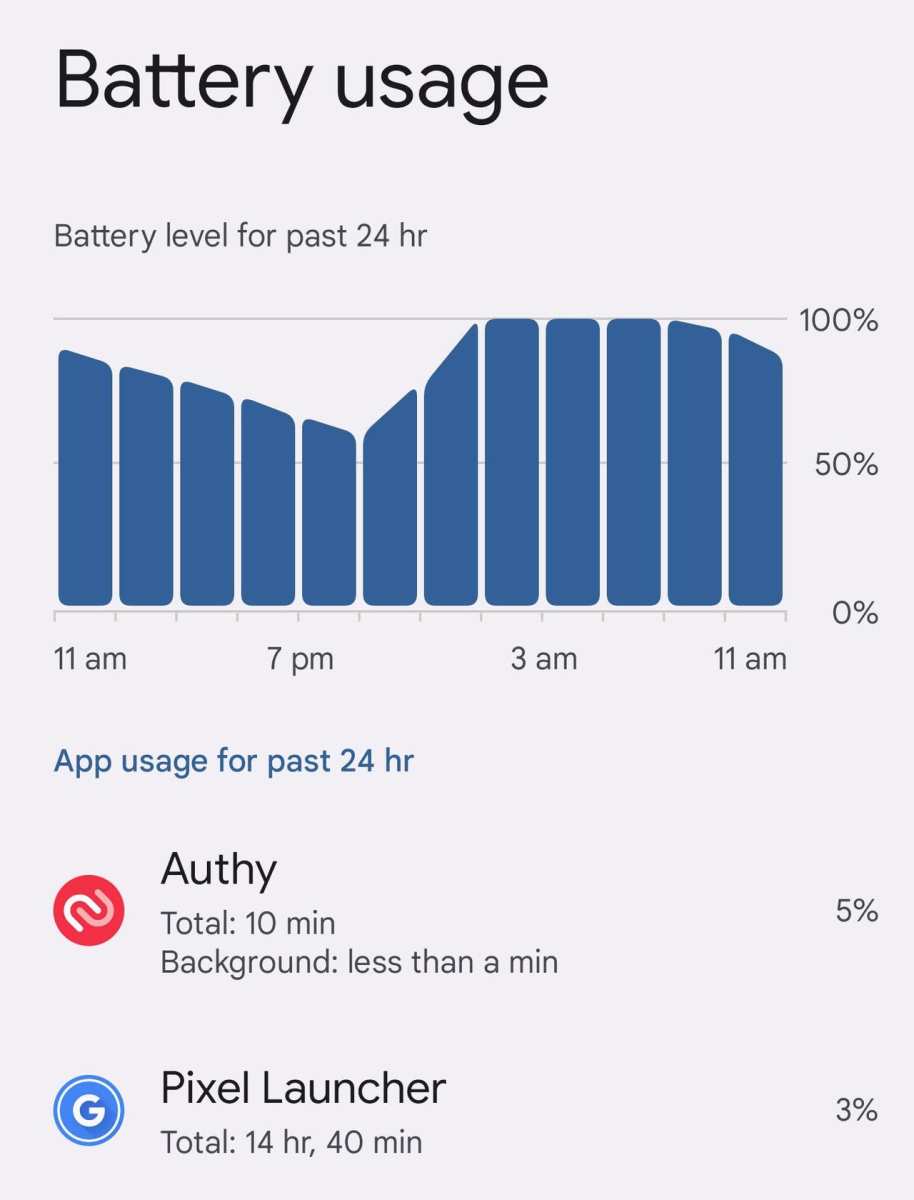
Modern Android phones come with built-in tools to show detailed battery information. These tools track how much power each app consumes and display it in a clear format. To access this information:- Open the Settings app on your device.
- Scroll down and tap on “Battery” or “Battery & device care.”
- Look for options like “Battery usage” or “App usage.” Here, you’ll see a list of apps and their battery consumption percentages.
Analyzing Battery Usage Data
Understanding the data provided by Android helps you make informed decisions. The main points to analyze include:- Battery percentage used by each app: Check which apps consume the most power.
- Foreground vs. background activity: Identify apps that stay active in the background and drain power without your knowledge.
- Time since last full charge: Determine how quickly your battery drains during typical usage.
- Battery health status: See if your battery is degrading over time, which can impact usage and charging times.
Managing Apps to Save Battery
Once you identify power-hungry apps, you can take concrete steps to reduce their impact:- Force stop unnecessary apps: Stop apps that you’re not actively using to prevent them from running in the background.
- Restrict background data: Limit background data usage for apps that don’t need to be constantly updated.
- Disable unnecessary notifications: Turning off notifications can prevent apps from waking your device frequently.
- Limit app permissions: Reduce permissions that lead to background activity, like location access.
Using Battery Optimization Settings
Android offers a feature called “Battery Optimization” that automatically puts less important apps into a sleep mode when not in use. To enable or adjust these settings:- Go to Settings.
- Tap on “Apps & notifications” or “Apps.”
- Select “Special app access” or “Advanced.”
- Choose “Battery optimization.”
- Find the app you want to optimize, then select “Optimize.”
Best Practices for Better Battery Consumption
Adopting basic habits can significantly extend your device’s battery life:- Reduce screen brightness: Lowering screen brightness or enabling auto-brightness can save a lot of power.
- Use Wi-Fi instead of mobile data: Wi-Fi generally consumes less power.
- Limit app activity: Close apps when you’re done using them and avoid keeping many apps open at once.
- Enable airplane mode in low-signal areas: When your signal is weak, your phone uses more power trying to find a connection.
- Turn off Bluetooth and GPS when not needed: These features drain battery when active unnecessarily.
- Update your apps and system software: Developers often release updates that improve power efficiency.
Tools and Apps for Battery Usage Monitoring
Besides your phone’s built-in tools, several third-party apps can help you monitor and manage battery usage more deeply:- AccuBattery: Tracks actual battery capacity, charging speed, and app power consumption.
- GSam Battery Monitor: Offers detailed app usage statistics and charts.
- Battery Widget Reborn: Provides quick access to battery info and usage patterns.
- BetterBatteryStats: Analyzes background processes and wakelocks causing power drain.
Addressing Common Battery Drain Issues
Sometimes, your phone’s battery drains faster than usual. To troubleshoot:- Check for software updates: Outdated software can cause inefficient power management.
- Identify rogue apps: Use your device’s battery usage tool to spot apps that behave abnormally.
- Perform a factory reset: If persistent issues occur, resetting your device might resolve underlying problems.
- Replace aging batteries: Over time, batteries lose capacity. Consider replacing the battery if your device is old.
Concluding Thoughts
Monitoring and managing Android battery app usage empowers you to take control of your device’s power consumption. By understanding which apps use the most energy and adjusting settings accordingly, you can extend your battery life and enjoy your device longer throughout the day. Remember, small changes like closing unused apps, reducing screen brightness, and limiting background activity can add up to significant savings. Keep an eye on your battery stats regularly, and use the tools available to keep your Android device running efficiently.Frequently Asked Questions
How can I identify which apps are consuming the most battery on my Android device?
To determine which apps use the most battery, go to your device’s Settings and select Battery or Battery Usage. This section provides a detailed breakdown of app activity over recent hours or days. Look for apps that are listed at the top, indicating higher power consumption. Managing or limiting the usage of these apps can help extend your battery life.
What are some effective ways to conserve battery on my Android without deleting apps?
You can conserve battery by enabling features like Battery Saver mode, reducing screen brightness, and turning off Wi-Fi, Bluetooth, or Location services when not in use. Additionally, closing background apps and restricting background activity for certain apps helps reduce unnecessary power drain. Adjusting screen timeout settings also contributes to better battery management.
How does app usage impact battery life, and what steps can I take to minimize this impact?
Apps that frequently run in the background or access location and network services can significantly drain your battery. To minimize this impact, restrict background activity for apps that don’t need constant updates, disable notifications for non-essential apps, and keep your apps updated to benefit from performance improvements. Monitoring app usage regularly allows you to identify and manage power-hungry applications effectively.
Final Thoughts
Android battery app usage provides valuable insights into how your device consumes power. By monitoring app activity, you can identify which apps drain your battery most and adjust your usage accordingly. Regular checks help optimize battery life and improve device performance. Staying aware of app behavior ensures you make smarter choices, extending your device’s longevity.
Similar Posts