Android Battery Usage By App: Tips To Improve Battery Life

Understanding Android Battery Usage by App
When you use your Android device, you might notice that some apps seem to drain your battery faster than others. But why does this happen? How can you tell which apps are using the most power? In this article, we’ll explore everything you need to know about Android battery usage by app. From what causes high energy consumption to ways you can manage and reduce it, we’ll cover it all. Knowing how each app affects your battery helps you use your device smarter and keeps it running longer between charges. Whether you’re a casual user or someone who wants to optimize their phone’s performance, understanding this topic is essential. Let’s dive into the details and see how different apps impact your device’s battery life.Why Do Some Apps Use More Battery Than Others?
Many factors influence how much battery an app consumes on your Android device. Some apps are designed to be lightweight, while others require a lot of resources to work properly. For example, social media apps, streaming services, and navigation tools tend to use more battery because they actively run in the background and use data continuously. Here are a few reasons why certain apps drain your battery faster:- Background Activities: Some apps keep running in the background to provide real-time updates. These background processes can consume significant power, especially if they frequently refresh content or send notifications.
- Location Services: Apps that use GPS, like maps or ride-sharing apps, require a lot of energy for accurate location tracking.
- High Data Usage: Streaming videos, downloading large files, or updating content can heavily impact battery life because they require constant data transfer.
- Frequent Notifications: Apps that send a lot of notifications keep your device awake more often, which can drain the battery faster.
- Poor Optimization: Some apps aren’t optimized well, meaning they use more resources than necessary to perform their tasks.
How to Check Which Apps Use the Most Battery
Knowing which apps consume the most power is the first step to managing your battery better. Android has built-in tools that make it simple to see detailed information about battery usage.Using the Android Settings
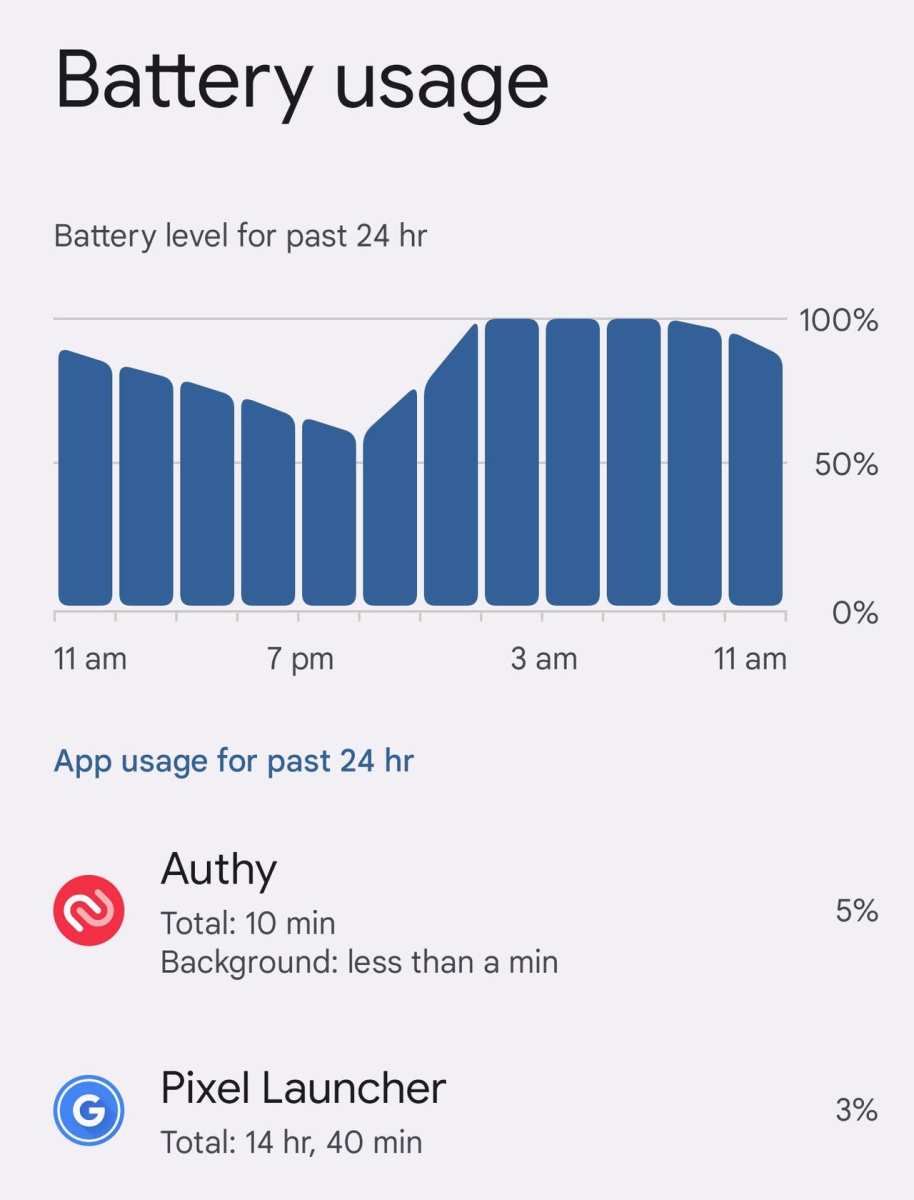
Follow these steps to view your battery consumption data:- Open the Settings app on your Android device.
- Scroll down and tap on Battery.
- In the Battery menu, look for Battery Usage.
- Here, you’ll see a list of apps and services with the percentage of battery they’ve used since your last charge.
Using Third-Party Apps for Deeper Insights
Several apps available on Google Play offer detailed battery monitoring. Some popular options include:- GSam Battery Monitor: Provides detailed graphs and statistics on battery usage, including app activity and background processes.
- AccuBattery: Measures real-time battery capacity and usage, helping you understand how apps impact your device over time.
- Battery Widget Reborn: Offers simple, easy-to-understand visuals showing which apps are most active.
Managing Battery-Heavy Apps
Once you spot apps that drain too much power, you need to manage them effectively. Here are some practical ways to reduce their impact:Restrict Background Activity
Android allows you to restrict background processes for individual apps:- Go to Settings > Apps & Notifications > See All Apps.
- Select the app you want to limit.
- Tap on Battery.
- Choose Background Restriction and turn it on.
Disable Location Services for Non-Essential Apps
Limit GPS use to conserve power:- Open Settings > Location.
- Adjust location permissions for each app by choosing While Using the App instead of Allow All the Time.
Close Apps When Not in Use
Always close apps that aren’t in use, especially those performing tasks in the background. Many Android devices have a recent apps button that shows all open apps; swipe away those you don’t need.Enabling Battery Saver Mode
Most Android phones come with a battery saver feature that reduces background activity, lowers screen brightness, and restricts app functions:- Go to Settings > Battery > Battery Saver.
- Turn it on when your battery is low or before you go to sleep.
Best Practices to Reduce Android Battery Usage by App
Apart from managing individual apps, adopting good habits can most certainly help your device last longer throughout the day.Keep Your Apps Updated
Developers often release updates that include performance improvements and bug fixes that can enhance battery efficiency. Make it a habit to check for app updates regularly through the Google Play Store.Uninstall Unnecessary Apps
Remove apps you no longer use. Often, these apps run background processes without you realizing it.Limit Notifications
Turn off notifications for apps that aren’t important. Notifications can wake your device and cause unnecessary battery drain.Use Dark Mode
If your device has an AMOLED or OLED screen, using dark mode can save power because black pixels on these screens consume less energy.Avoid Excessive Streaming and Downloads
Limit prolonged use of streaming videos or downloading large files, as these activities significantly impact battery life.Understanding System and App Power Usage Breakdown
Knowing how system processes and applications share the burden of power usage helps you prioritize your efforts in conserving battery.| Category | What It Includes | Impact on Battery |
|---|---|---|
| System | Operating system services, background processes | Can be high if the system is performing many tasks or updates |
| Apps | All user-installed applications | Varies greatly depending on activity and optimization |
| Screen | Display brightness and usage | The most significant drain on most devices |
| Hardware | Camera, Bluetooth, Wi-Fi, GPS | Power hungry when in use or left on |
Key Takeaways for Better Battery Life
To keep your Android device running longer, keep these tips in mind:- Check app battery usage regularly to identify power-hungry apps
- Restrict background activity for unnecessary apps
- Turn off location services when not needed
- Keep your apps and device software updated
- Limit notifications and avoid prolonged streaming sessions
- Use battery saver modes when necessary
- Uninstall apps that no longer serve a purpose
- Adjust display brightness and enable dark mode if possible
Frequently Asked Questions
How can I identify which app is consuming the most battery on my Android device?
To see which apps use the most battery, go to your device’s Settings menu and tap on Battery or Battery Usage. Here, you will find a list of apps ranked by their energy consumption. This information helps you understand which apps drain your battery and decide whether to limit their usage or uninstall them.
Why do some apps drain the battery even when not actively in use?
Apps may continue running background processes, syncing data, or updating content, which leads to battery drain. Some apps also send notifications or run services in the background, consuming power. Managing background activity in your device’s settings can help reduce unnecessary battery usage by these apps.
What steps can I take to reduce battery consumption by specific apps?
You can limit an app’s background activity by going to Settings > Apps & Notifications, selecting the app, and choosing Battery or Battery Usage. From there, you can restrict background activity, disable notifications, or force stop the app. Additionally, updating the app or uninstalling it if unnecessary can lower its impact on your battery life.
How does app update frequency affect battery usage on Android?
Frequent app updates, especially those that sync data or fetch content constantly, increase battery consumption. Updating apps only when necessary and adjusting auto-update settings to manual can help reduce this drain. Regularly reviewing your installed apps and updating them selectively can also improve overall battery life.
Can battery usage patterns differ based on app types, like social media vs. navigation apps?
Yes, different app types have varying impacts on battery life. Navigation apps often use GPS, which consumes more power during active navigation. Social media apps may refresh feeds and send notifications frequently, using background data. Understanding these patterns helps you manage app usage accordingly to conserve battery.
Final Thoughts
Android battery usage by app provides clear insight into which applications consume the most power. Regularly checking this data helps identify apps that drain the battery unnecessarily. Managing background activity and disabling unused apps can extend battery life significantly. Monitoring your device’s battery usage ensures optimal performance and reduces the need for frequent recharges.
Similar Posts