New Android Update Draining Battery Causes Quick Power Loss
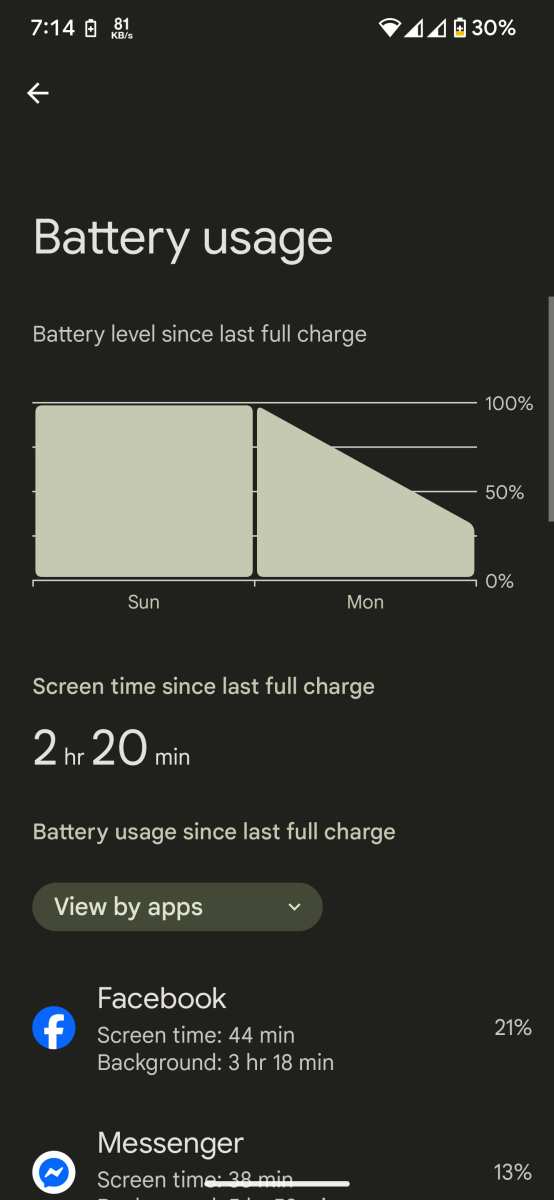

New Android Update Draining Battery: What You Need to Know
Many users have noticed that after updating their Android devices to the latest version, their batteries seem to drain faster than usual. This can be frustrating, especially when you depend on your phone for daily tasks. In this section, we will explore why new Android updates might cause battery drain, what factors contribute to this issue, and how you can troubleshoot your device to improve battery life.Why Do New Android Updates Cause Battery Drain?
Understanding why your battery might drain faster after a software update helps you identify potential solutions. Several reasons explain this phenomenon:- Background Processes and System Optimization
- New Features and Increased Power Consumption
- Software Bugs and Glitches
- Compatibility Problems
- Improper App Updates
Background Processes and System Optimization
Once you install a new update, your device often runs background processes to finalize the installation, verify system integrity, and perform initial optimizations. During this period, some processes may run repeatedly or unnecessarily, causing increased battery use. Over time, as the system stabilizes, this drain usually diminishes. However, if the processes persist, battery life can remain affected.New Features and Increased Power Consumption
Every Android update typically introduces new features or enhances existing ones. These features can sometimes require more power:- Enhanced animations
- Improved location services
- Updated UI themes and effects
- New background activities for security or system health monitoring
Software Bugs and Glitches
New updates may come with bugs that were not apparent during testing. Some bugs cause apps or system components to work inefficiently, which can increase battery drain. For example, a bug might cause the GPS to stay active longer than necessary or prevent certain apps from entering low-power states. Developers often release quick patches to fix such issues, so addressing bugs can significantly improve battery life.Compatibility Problems with Apps and Hardware
Sometimes, apps or hardware components don’t properly adjust to the new Android version. This mismatch can lead to apps running inefficiently, background activity increasing, and hardware components like Bluetooth or Wi-Fi consuming more power. Incompatibility issues often result from outdated apps or drivers that haven’t been optimized for the latest update.Improper App Updates
When your apps update after a system upgrade, they might not be fully compatible with the new OS, especially if the updates are recent or incomplete. Faulty app updates can cause abnormal battery drain by running unnecessary background processes or consuming excessive resources.How to Troubleshoot Battery Drain After Updating Android
If your device’s battery drains quickly after a new update, don’t worry. Several practical steps can help you identify the cause and fix the problem.Check Battery Usage in Settings
Most Android devices allow users to see which apps and services consume the most power. To check this:- Go to **Settings**
- Select **Battery** or **Battery Usage** (depending on your device model)
- Review the list of apps and system processes that are using the most battery
Identify and Disable Unnecessary Background Activities
Some apps or services run in the background without your knowledge. To reduce this:- Navigate to **Settings** > **Apps & Notifications**
- Select the app in question
- Tap on **Battery** or **Data Usage**
- Disable background activity if necessary
Update Apps and Software
App developers release updates to improve compatibility with the latest Android versions. Keep all your apps updated via the Google Play Store. Also, ensure your device has the latest security patches and system updates installed, as these often contain fixes for bugs affecting battery life.Optimize Settings for Better Battery Performance
Adjusting certain device settings can extend your battery life significantly:- Reduce screen brightness or set it to auto-brightness
- Limit screen timeout duration
- Turn off location services when not needed
- Disable Wi-Fi, Bluetooth, or NFC if not in use
- Turn on battery saver mode
Perform a Device Restart or Reset
Sometimes, a simple restart can resolve temporary kinks caused by the update. To do this:- Hold the power button
- Select **Restart**
Advanced Tips for Optimizing Battery Life
For more tech-savvy users, there are additional options to improve battery performance:Use Battery Saver or Ultra Power Saving Mode
Most Android devices come with built-in power saving modes. These modes limit background activity, reduce performance, and disable non-essential features. Enable these settings when your battery is low or when you need longer device uptime.Limit App Background Data and Notifications
Restrict apps from using data or notifying you unless necessary. This reduces background activity that can drain your battery.Monitor Battery Health
Some devices offer a battery health feature, showing the overall condition of your battery. If your battery health is poor, consider replacing it to restore optimal performance.When to Seek Professional Help
If you’ve tried all the troubleshooting tips above and your device still experiences rapid battery drain, it might be time to consult a technician or contact your device manufacturer. Hardware issues, such as a failing battery or damaged components, can also cause excessive power consumption and may require repairs.Summary of Key Points
To summarize, here are the main reasons your Android device might drain battery faster after a new update:- Background processes from system updates causing extra power use
- New features that consume more energy
- Software bugs leading to inefficient resource management
- Compatibility issues with apps or hardware
- Outdated or incompatible app updates
Frequently Asked Questions
What settings can I adjust to reduce battery drain after the Android update?
Review your device’s display brightness and turn on auto-brightness to avoid unnecessary power consumption. Disable Bluetooth, Wi-Fi, and mobile data when you’re not using them. Additionally, limit background activity for apps that drain battery excessively through the device’s battery usage settings. Removing or disabling unnecessary widgets and animations can also help conserve power.
Why are some apps consuming more battery after updating Android?
The update might reset app permissions or cause compatibility issues, leading certain applications to run more frequently or inefficiently. Check your device’s battery usage details to identify which apps consume the most power. Consider updating your apps to their latest versions or reinstalling problematic ones to improve their efficiency.
How can I troubleshoot unusual battery drain caused by the recent Android update?
Start by rebooting your device to resolve temporary software glitches. Clear the cache partition as it can accumulate unnecessary data during updates. If the problem persists, consider performing a factory reset after backing up your data, as this can eliminate residual software issues that may cause excessive battery drain. Also, ensure your device’s software is up to date with all the latest patches.
Are there any specific features in the new Android update that could impact battery life?
Yes, some updates introduce new background processes or enhance location services, which can increase power consumption. Features like adaptive brightness, improved notifications, or new graphics effects may also require more energy. Adjusting these settings in your device’s options can help manage their impact on your battery life.
Can updating apps help mitigate battery drain issues after the Android update?
Absolutely. Keeping your apps current ensures they are optimized for the latest Android version, which can improve their efficiency and reduce unnecessary battery usage. Open the app store and update all installed applications, focusing on those identified as high power consumers. This step often helps in balancing app performance with battery consumption.
Final Thoughts
The new android update draining battery remains a common concern among users. Many experience rapid battery loss after installing the latest version. This issue often results from background processes and poorly optimized features. Users should manage app permissions and disable unnecessary services to improve battery life. Updates frequently include new features that can increase power consumption. In conclusion, addressing the new android update draining battery involves careful settings adjustments and patience. Being proactive helps extend your device’s battery life despite the update challenges.
Similar Posts































