Understanding And Fixing Android Auto Battery Drain Issues
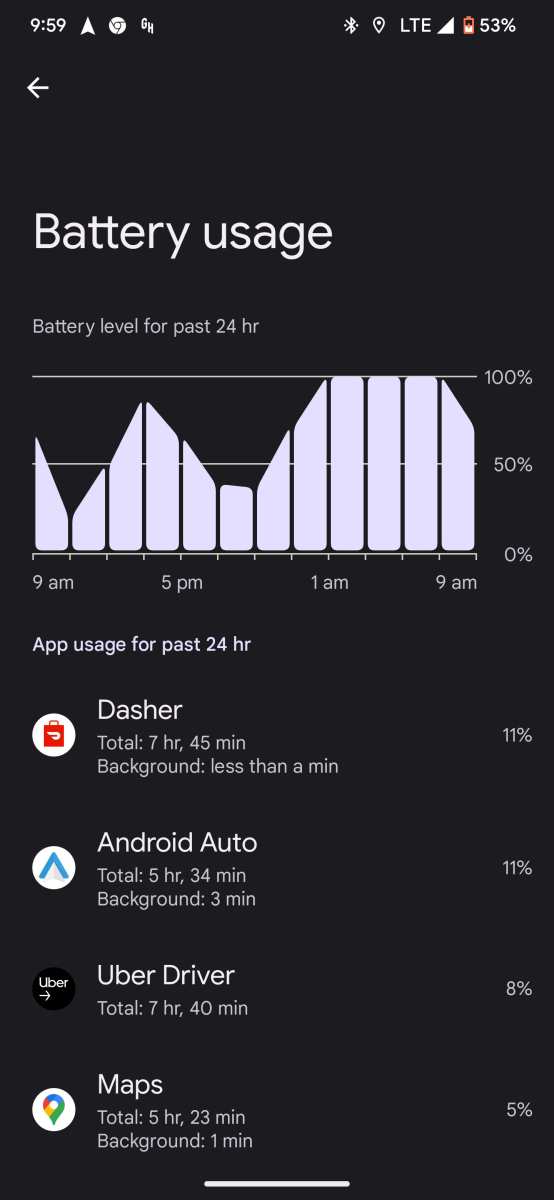
If you’re experiencing rapid battery drain while using Android Auto, **the solution often lies in adjusting settings and managing app usage**. Android Auto battery drain can be frustrating, especially during long drives. To reduce power consumption, limit background activity and disable unnecessary notifications. Staying mindful of these tips makes your drives smoother and your phone last longer.

Understanding Android Auto Battery Drain and How to Prevent It
If you’ve ever used Android Auto in your car, you might have noticed that your phone’s battery seems to drain faster than usual. Many drivers love how Android Auto helps them navigate, listen to music, and stay connected, but the downside is often the rapid battery consumption. In this section, we’ll explore why Android Auto can cause your phone to lose charge quickly and what you can do to reduce battery drain while still enjoying its benefits.
Why Does Android Auto Drain Your Phone’s Battery?
There are several reasons why Android Auto can quickly deplete your phone’s battery. Understanding these causes helps you take practical steps to conserve power without sacrificing the features you enjoy.
Continuous Screen Usage and Display Brightness
Android Auto keeps your screen active to display maps, messages, and media controls. This constant display, especially at high brightness levels, consumes a lot of power. Bright screens are one of the biggest drains on your battery during Android Auto use.
Navigation and GPS Tracking
Using GPS for navigation is energy-intensive. It requires constant GPS signal polling, map rendering, and recalculating routes, which all lead to higher battery consumption. If you frequently rely on maps for directions, expect your phone to run out of juice faster.
Data Transfer and Internet Usage
Android Auto frequently streams music, updates notifications, and accesses cloud data. All these activities involve data transfer, which consumes power, especially when connected to apps that require real-time updates like Google Maps, Spotify, or messaging apps.
Background Processes and App Activity
Many apps continue to run in the background when Android Auto is active. Background processes like syncing emails, downloading updates, or weather updates contribute to additional battery use.
Wireless vs. Wired Connections
Connecting your phone wirelessly to Android Auto often uses more battery than a wired connection because of the constant data exchange required for streaming and screen sharing. Wireless connections also involve Bluetooth and Wi-Fi, which can add to power drain.
Common Android Auto Battery Drain Scenarios
Being aware of typical situations that lead to battery drain can help you make smarter choices when using Android Auto.
Extended Use Without Charging
Long trips where you rely on Android Auto without plugging your phone into a charger are prime situations for battery drain. As the app remains active for hours, your device’s battery gradually diminishes.
Using Power-Intensive Features
Features like live navigation, multimedia streaming, or hands-free calls tend to consume more power. Using multiple features simultaneously can accelerate battery depletion.
Keeping the Screen Bright
Set to maximum brightness, your screen becomes one of the biggest power consumers. If you forget to turn down brightness or enable auto-brightness, your device’s battery takes a hit.
How to Minimize Battery Drain with Android Auto
Reducing battery drain doesn’t mean you have to give up the convenience of Android Auto. Follow these practical tips to keep your phone powered longer.
Adjust Screen Brightness and Use Dark Mode
– Enable auto-brightness to allow your device to adjust the screen brightness based on ambient light.
– Switch to dark mode if supported by your apps and Android Auto interface, as dark screens consume less power on OLED screens.
Use Wired Connection When Possible
Connecting your phone with a USB cable tends to consume less power than wireless connections. Not only does it reduce battery drain, but it can also provide faster data transfer.
Disable Unnecessary Features and Notifications
– Turn off Wi-Fi, Bluetooth, or mobile data that isn’t essential while using Android Auto.
– Limit notifications to only what’s necessary; disable app notifications that aren’t critical to reduce background activity.
Optimize App Settings and Keep Software Updated
– Ensure your Android Auto app, Google Maps, and other relevant apps are up-to-date for improved efficiency.
– Adjust app settings to reduce background activity, such as disabling live traffic updates when unnecessary.
Charge Your Phone Appropriately During Long Drives
– Use a high-quality car charger compatible with your device.
– Consider using a fast charger to replenish the battery quicker during long trips.
Tools and Features to Help Save Battery
Modern smartphones come with features that help manage power consumption effectively. Use these tools to extend your battery life when using Android Auto.
Battery Saver Mode
Most smartphones have a battery saver mode that reduces background activity, lowers screen brightness, and limits app functions. Activating this mode before long drives can significantly slow down battery drain.
Adaptive Brightness and Screen Timeout
– Turn on adaptive brightness to automatically adjust screen brightness based on surroundings.
– Set a shorter screen timeout period so the display turns off faster when not in use.
App Management and Background Restrictions
– Manually close apps running in the background before starting Android Auto.
– Restrict background activity for apps that aren’t needed during your drive.
Troubleshooting Common Android Auto Battery Issues
If you notice your device’s battery draining unusually fast, inspect these common problems and solutions.
Battery Draining Due to Specific Apps
Some apps, especially those running in the background, may be responsible for excessive power drain. Use your device’s battery usage settings to identify and restrict such apps.
Device Compatibility and Software Bugs
Outdated software or compatibility issues can cause increased battery consumption. Keep your device, Android Auto, and related apps updated to prevent bugs that lead to unnecessary drain.
Faulty Cables or Connection Devices
Worn or low-quality cables may cause inconsistent charging and drain your battery faster. Use high-quality, certified cables and accessories.
Overheating and Environmental Factors
High temperatures can negatively affect your battery’s health. Avoid exposing your device to direct sunlight during long drives, and keep your phone in a cool, well-ventilated place.
Final Tips for Better Battery Management During Android Auto Usage
– Regularly monitor your battery percentage and usage patterns.
– Plan long trips with the right charging accessories.
– Keep your device’s software updated for optimal efficiency.
– Limit multitasking and avoid running heavy apps unnecessarily.
– Use car-specific features like Car Mode, which can optimize power consumption.
By understanding what causes Android Auto to drain your battery and adopting simple yet effective habits, you can enjoy your drives without constantly worrying about your phone dying on you. Remember, a little preparation and moderation go a long way in keeping your device powered while you stay connected and navigated through your journey.
Frequently Asked Questions
What settings can I adjust to reduce Android Auto’s impact on my phone’s battery life?
To minimize battery drain, turn off unnecessary features like Wi-Fi and Bluetooth when not in use. Lower the screen brightness and disable notifications or background data for apps that are not essential. Additionally, reducing the frequency of app updates and clearing cache can help conserve power while using Android Auto.
How does using GPS services affect my device’s battery when running Android Auto?
GPS usage significantly impacts battery consumption because it keeps your location services active continuously. To lessen this drain, consider closing navigation apps when not navigating, reduce the accuracy of location services, or turn off GPS when it’s not needed. Using offline maps can also decrease the power used by location tracking features.
Are there specific devices or Android Auto versions that cause more battery drain?
Yes, some devices with older hardware or outdated Android Auto versions tend to consume more power. Updating your device’s software and Android Auto app to the latest versions can improve efficiency. Newer models often optimize power management better, resulting in less battery drain during use.
Can background processes or other apps increase battery consumption while using Android Auto?
Absolutely. Apps running in the background or syncing data can drain your battery faster. Close unnecessary apps and restrict background activity for non-essential applications. Using battery saver modes and limiting background data helps ensure Android Auto doesn’t cause excessive power usage.
What are some signs indicating that Android Auto is causing rapid battery drain?
If your device’s battery percentage drops quickly when using Android Auto, or if your phone gets unusually warm, these are signs of high power consumption. You might also notice decreased battery life even after disconnecting from your vehicle. Monitoring your battery usage in settings can help you identify specific causes related to Android Auto.
Final Thoughts
Android auto battery drain remains a common concern for users. Frequent use and background processes contribute significantly to power consumption.
To reduce drain, close unnecessary apps and disable unused features. Updating your device and app can also improve overall battery health.
In conclusion, managing settings and app activity helps combat android auto battery drain. Staying mindful of usage habits can extend your phone’s battery life efficiently.

Similar Posts































