Best Tips To Fix Android Battery Drain App Issues

Understanding the Android Battery Drain App and How It Affects Your Phone
When your Android phone’s battery drains faster than usual, it can be frustrating. Many users find themselves wondering, “Is there an app causing this quick drain?” This is where the Android battery drain app comes into play. These apps are designed to identify, monitor, and even fix issues related to battery consumption. In this article, we will explore how these apps work, what features to look for, and tips to optimize your phone’s battery life effectively.What Is an Android Battery Drain App?
An Android battery drain app is a tool that helps you keep an eye on your device’s power usage. It provides detailed information about which apps or processes are consuming the most battery. Some apps also offer solutions to reduce unnecessary power drain, ensuring your phone lasts longer throughout the day. These apps serve multiple purposes:- Identify battery-intensive applications
- Provide real-time battery monitoring
- Offer suggestions to improve battery life
- Close or optimize background apps
- Track historical battery usage patterns
How Do Android Battery Drain Apps Work?
Most battery drain apps combine various features to monitor and analyze your phone’s power usage:Battery Usage Tracking
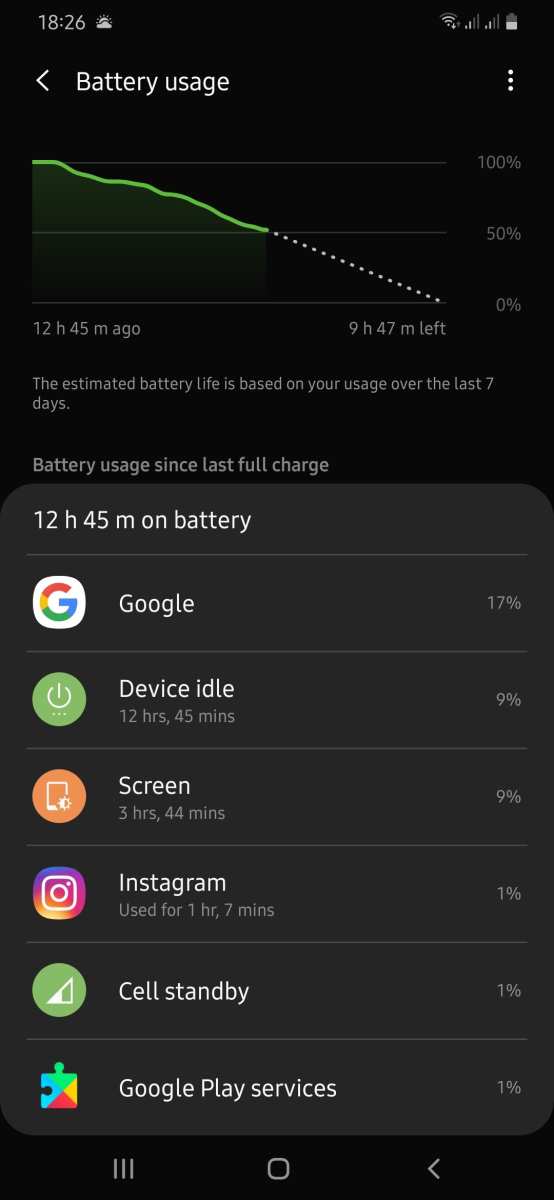
These apps access system data to generate detailed reports showing which apps or processes consume most of the battery. They often display:- Top battery-consuming apps
- Background vs. foreground activity
- Historical consumption over days or weeks
Real-Time Monitoring
Some apps provide live graphs or dashboards that show the energy consumption at any moment. This helps users understand which activity or app causes spikes in battery usage.Optimization Features
Many battery drain apps include features to optimize your device:- Closing background apps automatically
- Adjusting screen brightness
- Disabling unnecessary connectivity like Bluetooth or Wi-Fi
- Managing app permissions that drain power
Alerts and Notifications
Certain apps notify users when an app begins to drain excessive power or when the battery level drops to critical levels. These alerts support prompt action, preventing unexpected shutdowns.Common Features to Look for in an Android Battery Drain App
Choosing the right battery drain app hinges on understanding the features that add the most value. Here are some important features to consider:Detailed Battery Reports
A good app should give you a clear view of your battery usage, highlighting which apps and services consume the most power.Background Activity Management
Since many apps run in the background, managing or restricting their activity can significantly conserve energy.Battery Saver Modes
Some apps offer modes that automatically turn off non-essential functions to extend battery life.Widget Support
Widgets allow quick access to battery stats or a quick toggle for power-saving modes right from your home screen.Compatibility and Ease of Use
Ensure the app works smoothly on your device and has an intuitive interface. An overly complicated app may deter regular use.How to Use an Android Battery Drain App Effectively
Once you install a battery drain app, follow these practical tips to get the most out of it:- Regularly check battery reports to understand usage patterns
- Identify and uninstall or disable apps that drain power unnecessarily
- Enable battery saver modes during low charge situations
- Adjust screen brightness and timeout settings
- Turn off Bluetooth, Wi-Fi, and GPS when not needed
- Close apps running in the background that are not in use
Tips to Minimize Battery Drain Without Apps
While battery drain apps are helpful, you can also take simple steps to conserve power naturally:Reduce Screen Brightness
Your screen is the biggest battery consumer. Lowering the brightness or enabling adaptive brightness can save energy.Limit Background Data
Restrict background data for apps that don’t need constant updates.Turn Off Unused Connectivity Features
Disable Wi-Fi, Bluetooth, NFC, and location services when you’re not using them.Use Dark Mode
Switching to dark themes or wallpapers reduces power consumption, especially on OLED screens.Keep Apps Updated
Developers often optimize battery usage in app updates, so regularly updating your apps can help.Troubleshooting Common Battery Drain Issues
Sometimes, your battery might drain rapidly despite using an app. Here’s what to do:Identify Rogue Apps
Use your battery monitor to see which apps contribute most to power consumption. Consider removing or limiting them.Check System Updates
Operating system updates often include bug fixes related to battery efficiency.Reset App Preferences
Resetting app preferences can resolve conflicts causing excessive power drain.Factory Reset as a Last Resort
If nothing else works, a factory reset can eliminate software issues, but remember to back up your data first. Managing your Android device’s battery life doesn’t have to be a guessing game. An Android battery drain app offers the insight needed to understand and control power consumption effectively. By choosing an app with the right features and applying practical tips, you can keep your phone running longer and avoid the annoyance of sudden shutdowns. Always stay vigilant about your device’s habits and make adjustments based on the detailed reports these apps provide. With a bit of effort, your Android device can stay powered throughout your busy day.Frequently Asked Questions
What are common apps that cause excessive battery drain on Android devices?
Some applications tend to consume more power than others, especially those that run in the background or continuously use sensors. Examples include social media apps like Facebook and Instagram, streaming services such as YouTube and Netflix, navigation apps like Google Maps, and gaming apps that require high graphics processing. Identifying these apps helps you manage their usage better to reduce battery drain.
How can I identify specific apps draining my Android battery?
Android devices provide built-in battery usage trackers that show which apps consume the most power. To access this, go to Settings > Battery & Device Care > Battery use. Here, you’ll see a list of apps ranked by their consumption. Pay attention to apps that use a significant portion of your battery, especially those running in the background for extended periods.
What steps can I take to minimize battery drain caused by background processes?
You can limit background activity by adjusting app settings or using system features. Turn off background data for apps that don’t require constant updates, disable location services when unnecessary, and restrict background activity in the device settings. Additionally, enabling battery saver modes helps restrict background processes and reduce power consumption.
Are there specific settings I can modify to improve my Android device’s power efficiency?
Yes, adjusting various settings can boost your device’s battery life. Reduce screen brightness and shorten screen timeout duration, disable Wi-Fi, Bluetooth, and GPS when not in use, and close apps running in the background. Keeping your device updated also ensures you benefit from performance improvements and power management enhancements introduced in the latest software versions.
Final Thoughts
In conclusion, identifying and removing apps that cause android battery drain app issues can significantly extend your device’s battery life. Regularly monitor app activity and close those running in the background unnecessarily. Opt for updates and app permissions that prioritize battery efficiency. Addressing these factors ensures your Android device runs smoothly and lasts longer throughout the day.
Similar Posts