Effective Android Auto Battery Drain Fix Tips

Android Auto Battery Drain Fix: How to Save Power and Keep Your Phone Healthy
When you connect your smartphone to Android Auto, you expect a smooth experience that helps you stay connected and navigate easily. But many users notice their phone’s battery draining faster than usual after using Android Auto. This can be frustrating, especially if you’re on a long trip or don’t have easy access to a charging point. Fortunately, there are several ways to fix Android Auto battery drain issues effectively. In this guide, we’ll explore what causes battery drain with Android Auto, practical steps to prevent it, and tips to optimize your phone’s battery life while still enjoying all the features Android Auto offers.Understanding Why Android Auto Drains Your Battery
Before jumping into solutions, it’s important to know what aspects of Android Auto can cause your device to lose power quickly. Typically, the battery drain happens because of a combination of factors, such as:- Continuous Use of GPS and Location Services: Android Auto relies heavily on real-time GPS data to provide navigation. Keeping GPS active consumes a lot of power.
- High Screen Brightness: Display brightness impacts battery consumption. If your screen stays bright while using Android Auto, it can lead to faster battery depletion.
- Background Apps and Processes: Other apps running in the background may also draw power, especially if they sync data or use location services simultaneously.
- Wi-Fi and Bluetooth Usage: Staying connected via Bluetooth and sometimes Wi-Fi for music streaming or updates can add to power drain.
- Android Auto App and Car Compatibility: Sometimes, outdated version of Android Auto or incompatible vehicle systems can cause excessive battery usage.
Optimize Your Phone Settings for Better Battery Life
Adjusting your device settings is one of the easiest ways to reduce power consumption when using Android Auto. Here are the key settings to review:Reduce Screen Brightness and Timeout
High display brightness greatly impacts battery life. Set your screen to a lower brightness level or enable adaptive brightness, which adjusts brightness automatically based on ambient light. Also, reduce the screen timeout duration so your phone’s display sleeps sooner after inactivity.Turn Off Unnecessary Features
Disable features like Bluetooth, Wi-Fi, or Location Services when they’re not essential. For example:- Use airplane mode if you don’t need internet access and only want navigation via offline maps.
- Switch off Bluetooth if you’re not using it for calls or music streaming during your drive.
Use Power Saving Mode
Most phones have a power saving mode that limits background activity, reduces brightness, and disables non-essential functions. Turning it on before connecting Android Auto can significantly extend battery life.Update and Maintain Your Android Auto App and Phone Software
Keeping your apps and device firmware up-to-date can resolve bugs and optimize performance, which helps prevent unnecessary battery drain. Here’s what to do:- Check Google Play Store for the latest Android Auto app updates.
- Update your smartphone’s operating system regularly to benefit from battery efficiency improvements.
- Update your vehicle’s firmware if applicable, as manufacturers often release updates to improve compatibility and power management.
Manage App Permissions and Background Usage
Many apps that run in the background can interfere with how Android Auto consumes power. Here’s how to control them:Limit Background Data and App Activity
Access your device settings, and for each app, disable background data or restrict its activity when not in use. Focus on:- Navigation apps
- Music streaming services
- Messaging apps that sync constantly
Close Unused Apps Before Connecting
Before connecting your device to Android Auto, close all unnecessary background apps. This reduces the workload on your device and conserves battery.Adjust Navigation and App Settings for Battery Efficiency
Navigation is a major battery draw. Making smart adjustments can help:- Switch to offline maps if available, reducing data and GPS usage.
- Set the navigation app to avoid rerouting unless necessary.
- Disable voice guidance when not needed, or set less frequent instructions.
Use Charging Accessories Wisely
While using Android Auto, charging your device can help offset battery drain. Consider:- Connecting a fast-charging cable to your car’s USB port or a portable power bank.
- Using wireless charging pads if your vehicle supports wireless charging.
Optimize Car Settings for Minimal Power Consumption
Some vehicles offer settings that impact how Android Auto behaves. Check your vehicle’s user manual for options like:- Reducing screen brightness of the car’s display.
- Disabling unnecessary notifications or background lighting.
- Turning off features like automatic updates or syncing that may interfere with battery life.
Troubleshooting Common Problems that Cause Battery Drain
Sometimes, issues aren’t about settings but software glitches or hardware problems. Here are common troubleshooting steps:Restart Your Phone and Reconnect
A simple restart can clear temporary glitches. Turn off your phone, turn it back on, and reconnect to your vehicle.Reinstall Android Auto
Uninstall and reinstall the Android Auto app. This ensures you have the latest version and can fix bugs causing battery drain.Reset App Preferences and Cache
In your device settings, reset app preferences and clear the cache of Android Auto to resolve issues.Check for Android Auto Compatibility
Ensure your vehicle and smartphone are compatible with the latest Android Auto features. Outdated systems may cause inefficient power use.Implement Long-Term Strategies for Better Battery Health
Beyond immediate fixes, consider these long-term habits:- Regularly clean your device’s cache and storage.
- Limit the use of live wallpapers and animated themes.
- Replace aging batteries if they hold less charge than before.
- Use battery monitoring apps to track which apps consume the most power.
Frequently Asked Questions
How can I identify if Android Auto is causing excessive battery drain?
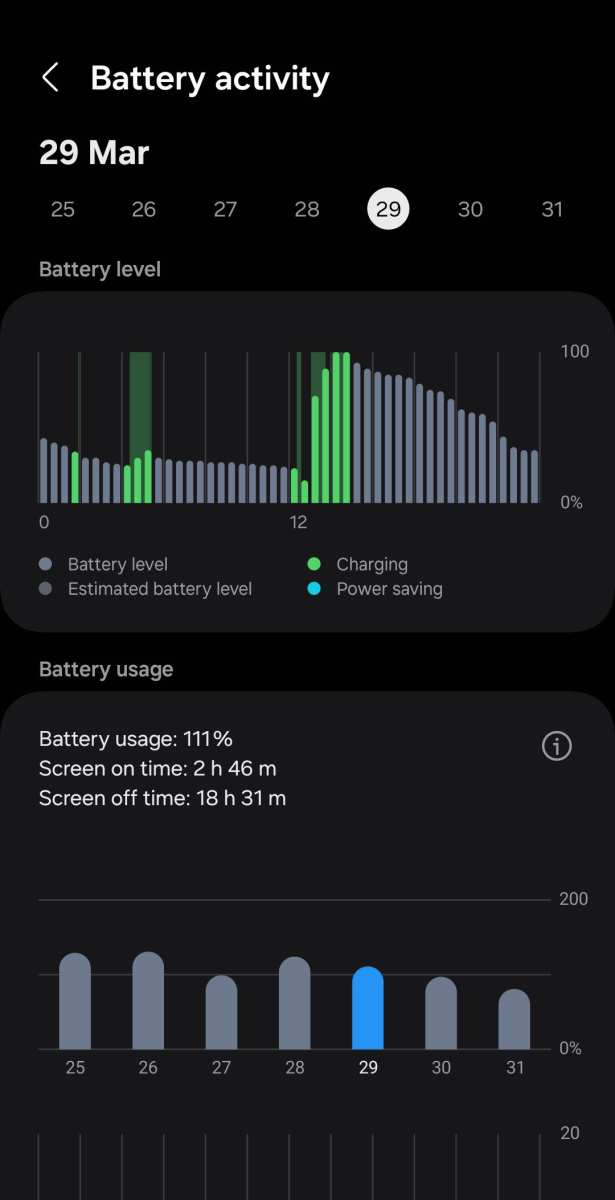
To determine if Android Auto is draining your battery, monitor your device’s battery usage in settings. Look for apps or services related to Android Auto that consume high power. If you notice that Android Auto or its related processes use a significant portion of your battery, it indicates that the app may be responsible for the drain. Additionally, check if the drain occurs only when Android Auto is active or connected, which helps isolate the issue.
What steps can I take to reduce power consumption while using Android Auto?
To minimize battery drain during Android Auto sessions, turn off unnecessary notifications and background processes that might interfere. Adjust your phone’s display settings by lowering brightness or enabling adaptive brightness. Consider disabling features like Wi-Fi, Bluetooth, or location services when not needed. Also, avoid running multiple demanding apps simultaneously with Android Auto, as this can accelerate battery consumption.
Is it beneficial to update my Android Auto app or phone software for battery issues?
Updating your Android Auto app and phone software can significantly help resolve battery issues. Developers often release updates that optimize performance, fix bugs, and improve battery management. To ensure the best experience, check for updates regularly in the Google Play Store and your device’s software update section. Keeping your system and apps current can prevent and fix battery drain problems related to compatibility or software glitches.
Should I consider using a different connection method to reduce battery drain?
Yes, switching from wireless to wired connections or vice versa can impact battery consumption. Wired connections typically draw less power from your device compared to wireless ones. If you notice high battery drain with a wireless connection, try connecting via USB to see if it alleviates the issue. Conversely, if wired connections cause drain, switching to wireless might help, especially if your device and vehicle support energy-efficient modes.
Can disabling certain features within Android Auto help conserve battery life?
Disabling specific features such as automatic updates, real-time notifications, or voice recognition can reduce overall power usage. Turning off features you don’t frequently use, like Wi-Fi or location services when Android Auto is active, minimizes background activity. Adjusting app permissions and settings to limit background processes also helps extend battery life during Android Auto usage.
Final Thoughts
In summary, addressing the common issue of Android Auto battery drain requires a few simple steps. Restart your device, disable unnecessary background apps, and update both your phone and the Android Auto app. Adjusting settings such as GPS and Wi-Fi can also help conserve energy. Focusing on these solutions will significantly improve your experience, ensuring smoother connections and longer battery life. Practicing these tips can effectively fix the Android auto battery drain fix and keep your device running efficiently.
Similar Posts































