Effective Tips For Android Auto Battery Optimization

Effective Strategies for Android Auto Battery Optimization
Maintaining your Android device’s battery life while using Android Auto can be a challenge, especially during long drives or when relying heavily on navigation and media features. Fortunately, there are multiple ways to optimize your phone’s battery consumption without sacrificing the benefits of Android Auto. In this section, we’ll explore practical tips and settings to help extend your battery life, ensuring your device stays functional for your entire trip.Understanding How Android Auto Affects Battery Usage
Before diving into tips, it’s important to grasp how Android Auto impacts your phone’s battery. Using Android Auto involves:- Continuous data transmission for navigation, music streaming, and notifications
- Sensor usage, including GPS and accelerometers
- Background processes that keep your device connected to your car’s system
Adjusting Android Auto Settings for Better Battery Life
One effective way to conserve battery during your drives is by tweaking Android Auto’s settings:Disable Unnecessary Notifications
Notifications can wake your screen frequently and cause additional battery drain. To limit this:- Open your phone’s Settings app
- Navigate to Notifications
- Select Android Auto and disable notifications that are not essential
Limit Screen Brightness and Timeout
Your car’s display can be bright and drain power quickly. Adjust brightness and screen timeout:- Lower screen brightness manually or enable adaptive brightness
- Set a shorter screen timeout duration in Display settings, such as 30 seconds or 1 minute
Enable Power Saving Mode
Many devices have a built-in power saver that reduces background activity and limits app refreshes:- Activate Power Saving Mode from Quick Settings or Settings menu
- Customize options to disable background data and reduce device performance when needed
Managing App Usage for Battery Conservation
Some apps are more power-hungry than others. Managing these can lead to significant savings:Close Unused Apps
Always close apps you aren’t actively using, especially those running in the background:- Open your recent apps menu
- Swipe away apps not needed during your drive
Limit Background Activities
Restrict background data for apps not vital during your journey:- Go to Settings > Apps & notifications > Special app access > Data usage
- Disable background data for non-essential apps
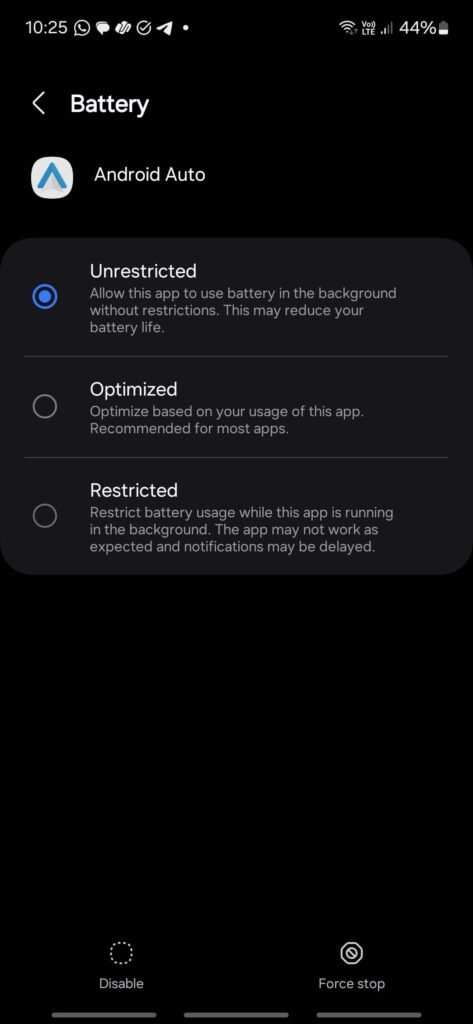
Use App Battery Optimization
Most Android devices include battery optimization tools:- Navigate to Settings > Battery > Battery optimization
- Find the apps you want to optimize and select “Optimized”
Incorporating Car Mode and Auto-Start Features
Many phones include a Car Mode or similar feature designed to reduce unnecessary battery drain:Switch to Car Mode
Car Mode simplifies app interfaces and restricts background activity:- Enable Car Mode from your device’s quick settings or settings menu
- This mode disables unnecessary notifications and apps that aren’t used during driving
Disable Auto-Start of Non-Essential Apps
Prevent apps from starting automatically when connecting to Android Auto:- Check app settings or use your device’s auto-start management feature
- Disable auto-start for apps that don’t need to run during driving
Utilizing Battery-Saving Hardware Features
Hardware features can influence power consumption; managing them effectively boosts battery life:Turn Off Bluetooth When Not Needed
Bluetooth consumes power even when idle, so disable it if you’re not using it:- Access quick settings to toggle Bluetooth off
- Enable Bluetooth only when connecting to your car’s system
Enable Wi-Fi Only When Necessary
If your device supports Wi-Fi, turn it off when using data through your mobile network:- Use quick toggles or Settings > Wi-Fi to disable
- Reconnect only when needed for updates or syncs
Disable Location Services When Not Required
GPS usage is a major drain but necessary for navigation. Turn it off when navigation isn’t needed:- Go to Settings > Location
- Switch it off or set to “Device only” mode for less power use
Choosing the Right Power Banks and Charging Tips
Even with all optimizations, your device may still need a quick boost:- Carry a portable power bank compatible with your device
- Use fast chargers when available to replenish power quickly before long trips
- Avoid charging your device to 100% constantly; keep it between 20–80% for better battery health
Regular Maintenance for Long-Term Battery Health
Good battery health ensures your device consumes less power over time:- Avoid letting your battery drain completely; recharge before it hits low levels
- Keep your device’s software up to date for recent battery optimization improvements
- Monitor battery performance and replace the battery if it loses significant capacity
Utilizing Third-Party Battery Optimization Apps
Several apps can help manage and monitor your device’s power consumption:- Look for reputable battery saver apps in the Play Store
- Use apps that identify unusual power drain and suggest fixes
- Be cautious not to overload your device with too many background apps
Practicing Good Driving and Device Habits
Smart habits also contribute to better battery life:- Avoid leaving your device in extreme temperatures, which can degrade battery performance
- Use dark mode or themes to reduce screen power consumption on devices with OLED screens
- Keep your device clean from malware or unnecessary apps that may run unnoticed
Frequently Asked Questions
How can I identify apps that drain my Android Auto battery the most?
To see which apps consume the most power, go to your device’s Settings and access the Battery section. Here, you can view a detailed breakdown of battery usage by each app. Pay attention to apps that run in the background or use high amounts of resources while Android Auto is active, and consider limiting their usage or adjusting app settings to reduce their impact on battery life.
What steps can I take to prevent Android Auto from consuming excessive power during drives?
Start by disabling unnecessary features such as live wallpapers or animations that may drain battery. Keep your device’s software up to date to benefit from power optimization improvements. When using Android Auto, close other background apps and avoid streaming high-bitrate media. Additionally, use a quality car charger to maintain optimal device power levels during long trips.
Are there specific settings within Android Auto that can help conserve battery life?
Yes, you can enable power-saving modes within your device’s settings while using Android Auto. Turning off features like Bluetooth, Wi-Fi, or location services when they are not necessary can also help reduce battery consumption. Some Android Auto apps have individual settings to limit background activity, which further assists in conserving power during your drives.
Final Thoughts
android auto battery optimization is essential for maintaining your device’s performance and longevity. Adjusting settings such as limiting background activity and disabling unused features can significantly extend battery life. Regular updates and monitoring app usage help avoid unnecessary power drain. By implementing these strategies, users can enjoy smoother connectivity with less worry about battery consumption. Prioritize android auto battery optimization to ensure your device remains reliable during drives. Proper optimization enhances user experience and preserves your device’s health over time.
Similar Posts































