Android Battery Background Usage
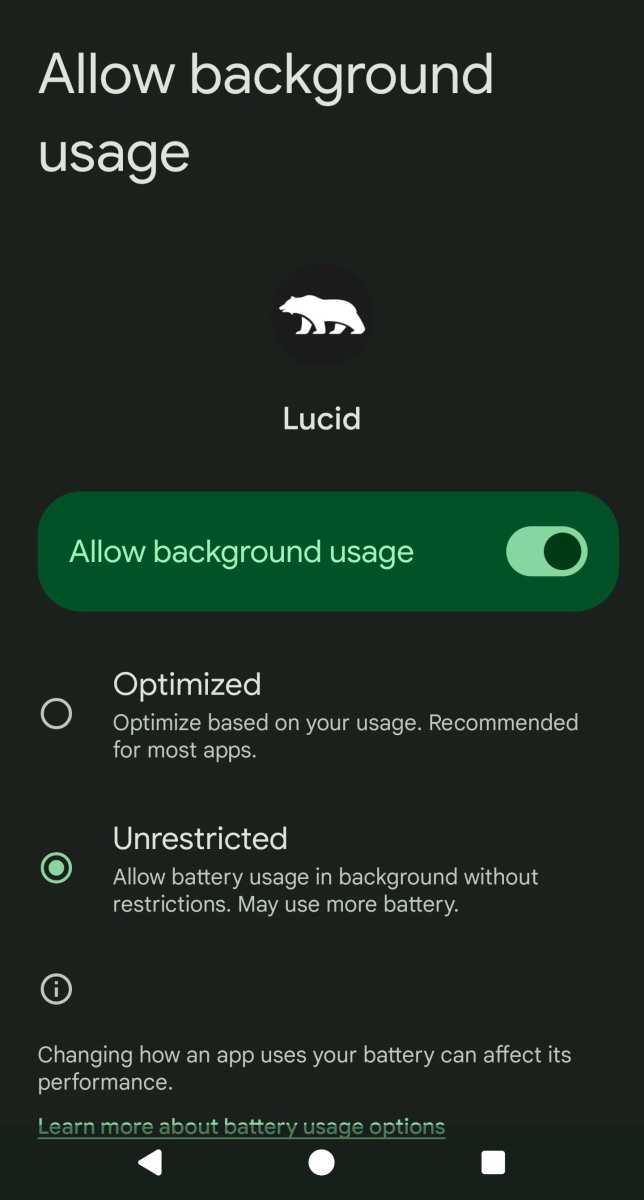

Understanding Android Battery Background Usage and How to Manage It
Keeping your Android phone’s battery healthy is a top priority for many users. One of the biggest factors affecting battery life is what apps and processes run in the background. Background usage refers to the activities and operations that happen on your device even when you’re not actively using an app. These activities can include checking for new messages, updating social media feeds, syncing files, or running location services. While these background activities are helpful because they keep your apps up-to-date and ready to use, they can also drain your battery faster if not managed properly. In this section, we’ll explore what background usage really means, why it impacts your battery life, and how you can keep it under control. Understanding these elements will help you extend your battery life and keep your device running smoothly throughout the day.What Exactly Is Background Usage on Android?
Background usage refers to any activity that occurs on your Android device when you’re not directly interacting with an app. Even when you’re looking at your home screen or using another app, some apps continue to run processes in the background to deliver timely notifications, update content, or keep data synced. Here are some common background activities on Android:- App refreshes and updates data without your direct input
- Location services tracking your position
- Push notifications from social media, email, or news apps
- Media or file downloads happening in the background
- Operating system processes like system updates or backups
Why Does Background Usage Affect Battery Life?
Background activities consume power primarily because they keep your device’s hardware components active, such as the CPU, GPS, and network modules. Every time an app refreshes data or checks for updates, your device uses energy. The more apps running in the background, the more your battery gets taxed. Not all background activities use the same amount of power. For example:- Location tracking with GPS tends to consume more battery than simple background data fetches
- High-frequency app refreshes, like social media apps updating feeds every few minutes, can drain the battery quickly
- Downloading large files or streaming media in the background also significantly impacts power consumption
How to Check Background Usage on Your Android Device
Monitoring what’s running in the background helps you identify apps that may be draining your battery unnecessarily. Most Android devices come with built-in tools or settings to view battery usage. Here’s how you can check background activity:- Open the Settings app on your device
- Navigate to the Battery or Battery Usage section
- View the list of apps and see which ones consume the most power
Managing and Limiting Background Usage for Better Battery Life
Controlling background activity can significantly extend your Android device’s battery life. Here are several strategies you can apply:Restrict Background Data for Specific Apps
You can prevent certain apps from using data in the background, reducing unnecessary power drain:- Go to Settings > Apps > [App Name] > Data Usage
- Disable “Background Data” or select “Restrict background data”
Use Battery Saver Mode
Most Android devices feature a battery saver mode that reduces background activity, lowers screen brightness, and limits app refreshes. Activating this mode is simple:- Open Settings
- Tap on Battery or Battery Saver
- Enable Battery Saver to extend your device’s runtime
Adjust App Permissions and Settings
Some apps request permissions they don’t need for background operation. Review app permissions regularly:- Navigate to Settings > Apps > [App Name] > Permissions
- Disable unnecessary permissions like Location or Background Data
Disable Location Services When Not Needed
GPS usage is a common battery hog. To reduce its impact:- Go to Settings > Location
- Set location mode to ‘Device only’ or turn off location when not needed
- Control location permissions on an app-by-app basis
Using Developer Options to Limit Background Activities
For more advanced control, Android’s Developer Options offer features to restrict background processes:- Enable Developer Options by tapping the build number in Settings > About Phone multiple times
- Navigate to Settings > Developer Options
- Find options like “Limit background processes” and select a limit
Apps That Help Monitor and Manage Background Usage
Several third-party apps assist in monitoring background activity and optimizing battery life, including:- Greenify – Puts apps into hibernation mode when not in use
- GSam Battery Monitor – Tracks detailed battery usage, including background activity
- AccuBattery – Displays real-time battery health and consumption details
Understanding the Impact of App Updates and Notifications
App updates and notifications are essential but can also cause increased background activity:- Set specific times for app updates instead of auto-updating constantly
- Disable unnecessary notifications to prevent frequent wake-ups
Best Practices for Maintaining Optimal Battery Health
Maintaining good battery health involves a combination of managing background activity and overall device care:- Avoid letting your battery drain completely—try to recharge before it hits 0%
- Use original chargers and cables to ensure proper charging
- Keep your device software updated to benefit from the latest battery optimization features
- Turn off Bluetooth, Wi-Fi, and Location services when not in use
- Regularly review app permissions and background settings
Frequently Asked Questions
How can I identify which apps are using the most battery in the background?
You can check your device’s battery usage statistics to see which apps consume the most power when running in the background. Go to Settings > Battery, and then tap on the battery usage chart or list. This will display a breakdown of each app’s contribution to overall battery drain, helping you determine which applications run intensively without your knowledge.
What steps can I take to prevent apps from consuming excessive battery in the background?
To reduce background battery consumption, restrict app activity by adjusting individual app settings. You can disable background activity for specific apps through Settings > Apps & Notifications > [App Name] > Battery or Data Usage. Additionally, enabling battery optimization for problematic apps can limit their background processes. Turning off background data for non-essential apps also helps conserve power.
Does disabling background activity impact the functionality of my apps?
Disabling background activity can prevent apps from refreshing content or updating notifications when they are not actively in use. Some features, like real-time updates or background downloads, may stop working. Before restricting background activity, consider which functionalities are essential and adjust settings accordingly to balance performance and power saving.
Is there a way to automatically limit background app activity when my battery is low?
Many Android devices offer battery saver options that automatically restrict background activities when your battery drops below a certain threshold. You can enable this feature through Settings > Battery > Battery Saver. Activating it will limit background processes, reduce performance, and postpone non-urgent notifications to extend your remaining battery life.
How often should I review app permissions related to background usage?
Regularly reviewing app permissions ensures that only trusted applications access features that allow background activity. Head to Settings > Apps & Notifications > App Permissions to see what permissions each app has. Revoke any permissions that seem unnecessary or intrusive to prevent apps from operating in the background more than needed.
Final Thoughts
Ensuring your Android device maintains optimal battery life requires understanding its background usage. Managing app permissions and closing unused apps reduces unnecessary drain. Monitoring battery consumption through settings reveals which apps run in the background. By limiting background activity, you can significantly extend your device’s battery life. Wi-Fi, Bluetooth, and location services also play roles in background consumption. Regularly reviewing these settings helps keep your device efficient. Android battery background usage can often be reduced with simple adjustments. Staying aware of how apps operate in the background ensures your device lasts longer throughout the day.
Similar Posts































