How To Reduce Battery Usage On Android For Better Device?
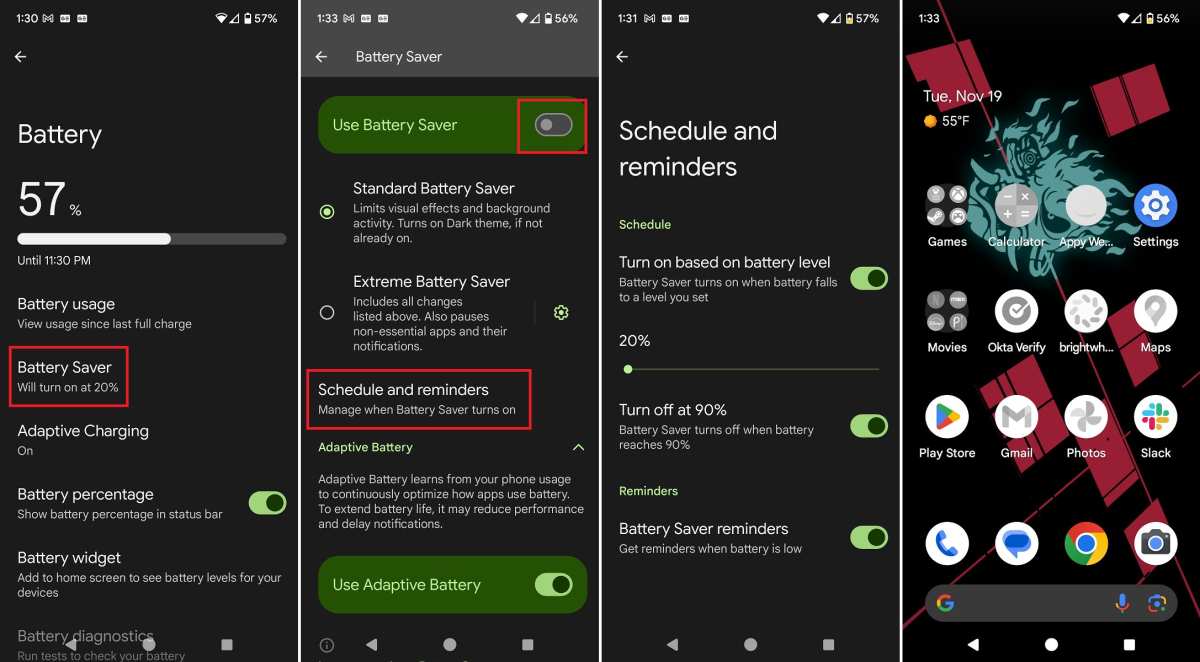
To reduce battery usage on Android, turn off Bluetooth, Wi-Fi, and location services when not needed. **Adjust your screen brightness and limit background app activity.** This simple step can significantly extend your device’s battery life.
Knowing how to reduce battery usage on Android helps you avoid constant recharging. Use battery saver modes and close unused apps to keep your phone running longer. With a few quick adjustments, you can enjoy your device without frequent interruptions.

How to Reduce Battery Usage on Android
Taking care of your Android phone’s battery is important to keep it running smoothly throughout the day. Many factors can drain your battery quickly, but don’t worry—there are simple ways to extend how long your device lasts before needing a recharge. Let’s explore some effective methods to reduce battery usage on Android in detail.
Understanding Why Your Android Battery Drains Fast
Before diving into practical tips, it’s helpful to know what causes your battery to drain. Several common reasons include:
- Background Apps: Apps running in the background consume power even when you’re not actively using them.
- Screen Brightness: A bright screen uses a lot of energy. Keeping it high can rapidly deplete your battery.
- Location Services: GPS and location tracking drain power when active, especially if on all the time.
- Connectivity Features: Wi-Fi, Bluetooth, and mobile data use energy when turned on, especially if actively searching for connections.
- Old or Faulty Battery: Over time, batteries lose their capacity, leading to faster drain.
Knowing these causes helps you focus on the most effective steps to save power.
Adjust Screen Settings for Better Battery Life
The screen is often the biggest power hog on your device. Making small adjustments here can lead to significant energy savings.
Reduce Screen Brightness and Use Adaptive Brightness
- Lower your screen brightness manually to a comfortable level. This decreases the amount of energy your display consumes.
- Activate adaptive brightness in your display settings. Your device will automatically adjust brightness based on ambient light, saving energy without sacrificing visibility.
Limit Screen Timeout Duration
Set your screen to turn off faster when not in use:
- Navigate to Settings > Display > Screen timeout.
- Select a shorter duration, such as 15 or 30 seconds, so your screen powers down quickly when idle.
Use Dark Mode Where Possible
Dark mode uses less power on OLED screens:
- Enable dark mode in your device’s display settings or individual apps that support it.
- This reduces the amount of light each pixel emits, conserving battery life.
Optimize Connectivity Features
Connectivity options like Wi-Fi, Bluetooth, and mobile data can significantly impact battery life. Here’s how to manage them effectively.
Turn Off Unnecessary Wireless Connections
- Disable Wi-Fi, Bluetooth, and mobile data when you’re not using them.
- Use the quick settings panel to toggle these features on or off easily.
Enable Airplane Mode in Low Signal Areas
If your signal is weak, your phone uses more power trying to find a network:
- Activate Airplane Mode temporarily to prevent battery drain and maintain only essential functions.
- Remember to turn it back on when you need to stay connected.
Use Wi-Fi Instead of Mobile Data
Wi-Fi generally consumes less battery than mobile data:
- Connect to Wi-Fi networks whenever possible, especially when downloading large files or streaming videos.
Manage Background Apps and Processes
Apps running in the background can silently drain your battery. Managing them boosts efficiency.
Close Unused Apps
- Use your recent apps button to close apps you aren’t actively using.
- Some apps continue to run in the background, so swiping them away helps conserve power.
Restrict App Background Activity
Control which apps are allowed to run in the background:
- Go to Settings > Apps > [App Name] > Data Usage > Background Data.
- Disable background data for apps that don’t need it.
Use Battery Optimization Features
Many Android devices have built-in battery optimization tools:
- Navigate to Settings > Battery > Battery Optimization.
- Review the list of apps and set non-essential ones to be optimized or restricted.
Implement Power Saving Modes
Most Android devices include power-saving features that limit background activity and reduce performance to save energy.
Activate Power Saving Mode
- Find this option in Settings > Battery > Power Saving Mode.
- Enable it when your battery drops below a certain percentage, such as 20% or 15%.
Use Ultra Power Saving Mode
Some devices offer an even more aggressive mode:
- Activate it to disable most apps and only allow basic functions like calls and messages.
- This mode extends battery life significantly during emergencies.
Update Your Apps and Software
Keeping your device and apps current can improve battery efficiency.
Update Apps Regularly
- Visit the Google Play Store to update apps as developer updates often include optimizations for power use.
Update Your Android System
- Go to Settings > System > Software Update to check for and install the latest Android updates.
- Newer versions often come with improvements for battery management.
Manage Notifications and Location Services
Notifications and location tracking can wake your device unnecessarily.
Limit Push Notifications
- Disable notifications for apps that aren’t vital by going to Settings > Apps > [App Name] > Notifications.
- This prevents alerts from waking your screen and using power.
Control Location Access
- Set location permissions to “While Using” or “Never” instead of “Always” for apps that don’t need continuous tracking.
- Access this via Settings > Location > App permissions.
Additional Tips for Power Saving
- Keep your device’s battery health in check by avoiding complete discharges and overcharging.
- Use a dark or black wallpaper to reduce display power consumption, especially on OLED screens.
- Remove or disable unused widgets and live wallpapers that can consume extra resources.
In conclusion, reducing battery usage on Android involves a combination of adjusting settings, managing app activity, and being mindful of how you use your device. Small changes like lowering screen brightness, turning off unused connections, and limiting background activities can make a big difference. By implementing these strategies, you’ll help your Android phone last longer each day, ensuring it’s ready whenever you need it.
Frequently Asked Questions
How can I manage app permissions to save battery life on Android?
Review the permissions granted to each app in your device settings and revoke any unnecessary access. Limiting app permissions prevents background activities that consume battery, such as location tracking or unnecessary notifications. Regularly checking and adjusting these permissions helps optimize battery usage effectively.
What steps can I take to reduce screen brightness without sacrificing visibility?
Use the auto-brightness feature to adjust screen brightness based on ambient lighting, or manually set it to a lower level that still allows you to see comfortably. Reducing screen brightness directly lowers power consumption, especially when you spend long periods on your device in well-lit environments.
How do I limit background data and activity to conserve battery?
Disable background data for apps that don’t need to refresh constantly. You can do this through the app settings or data usage menu on your device. Additionally, closing apps when not in use and restricting background activity help prevent unnecessary battery drain caused by apps running in the background.
What are the benefits of using battery saver modes, and how do I activate them?
Battery saver modes reduce power consumption by limiting background activities, reducing performance, or turning off non-essential features. Activate these modes through your device’s quick settings or battery menu to extend your device’s usage time when the battery runs low without significantly impacting your experience.
How can I optimize my device’s connectivity settings to save battery?
Turn off Wi-Fi, Bluetooth, or mobile data when you’re not using them. Switching to airplane mode in areas with poor reception can also prevent your device from constantly searching for signals, which consumes additional power. Managing these connectivity options helps reduce unnecessary battery drain.
Final Thoughts
To reduce battery usage on Android, start by closing apps running in the background. Turn off Bluetooth, Wi-Fi, and location services when not in use. Adjust screen brightness and set a shorter screen timeout. Limit notifications and background data to conserve power. Following these simple steps helps extend your device’s battery life efficiently.

Similar Posts































