How to Play 4K Video on 4K Monitor
So you bought a 4K monitor, plugged it in, and… the video still doesn't look right. Maybe it's blurry, maybe it's stuck at a lower resolution, or maybe you're getting a black screen with an error message. Figuring out how to play 4K video on a 4K monitor isn't always straightforward because playback depends on every link in the chain working together: your cable, your graphics hardware, your operating system settings, your software, and the content source itself.
When any single link fails, you don't get 4K. Period. You get 1080p, a stuttering mess, or nothing at all. Readers comparing various configurations should also examine whether oled monitor good for video editing.
HDCP 2.2 compliance alone trips up more people than you'd think, and most troubleshooting guides skip right past it. Let's walk through every step in order so you can actually get what you paid for.
Quick Answer
To play 4K video on a 4K monitor, you need a compatible cable like HDMI 2.0 or DisplayPort 1.2 or newer. Your GPU must support 4K output at your desired refresh rate. HDCP 2.2 compliance is required for most DRM-protected streaming content.
Your operating system needs to be set to 3840 × 2160 resolution. The playback software must be configured to use hardware acceleration and output at 4K. Readers evaluating this setup should also consider whether 4k monitor necessary for video editing for comparative benchmarks.
The Quick Checklist: 5 Things That Actually Matter
Before we dig into each step in detail, here's what needs to check out for 4K playback to work:
- Cable: HDMI 2.0 or newer, or DisplayPort 1.2 or newer. Older cables physically fit but won't carry enough data.
- GPU output: Your graphics card (or integrated graphics) must explicitly support 4K at the refresh rate you want. Not all do.
- HDCP chain: Every device in the path, meaning GPU, cable, and monitor, must support HDCP 2.2 for protected 4K content like Netflix.
- OS display settings: Your operating system must be set to 3840 × 2160 at the correct refresh rate. Defaulting to 1080p on a 4K panel is common.
- Software configuration: Your browser, media player, or streaming app needs hardware acceleration enabled and quality set to the highest tier.
If any one of those five things isn't right, you won't get 4K. Let's break each one down.
Understanding the Chain: How 4K Playback Actually Works
Think of 4K playback as a chain with five links. Data flows from the content source (a streaming server or a local file) through your software (browser or media player), into your GPU, across a cable, and finally to your monitor. If any link in that chain can't handle the bandwidth or doesn't support the required protocols, the whole thing drops to the highest resolution that link can manage.
Here's a simple breakdown of the bandwidth math. Uncompressed 4K video at 60Hz with 8-bit color and full chroma (4:4:4) requires roughly 12.54 Gbps of bandwidth. Add 10-bit HDR and you're looking at more.
Streaming compressed 4K (like Netflix or YouTube) requires far less raw bandwidth over the internet, usually 15 to 25 Mbps, but the decoded video signal still needs that full pipe between your GPU and your monitor.
This is why a cheap HDMI 1.4 cable that "technically fits" won't cut it. It maxes out at 10.2 Gbps, which tops out at 4K but only at 30Hz. That means your mouse cursor will feel sluggish and video playback will look juddery.
You need at least HDMI 2.0 (18 Gbps) for 4K at 60Hz, or DisplayPort 1.2 (17.28 Gbps) which also handles 4K 60Hz in most configurations.
Step 1: Check Your Cable and Port (This Is Where Most People Get Stuck)
Let's start at the physical layer because it's the single most common failure point. The cable you need depends on what ports your GPU and monitor both have available, and the version of those ports matters enormously.
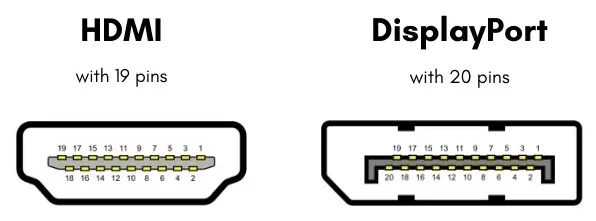
Image source: Bing (Web (fair-use with source credit))
Here's a quick reference table so you can match your setup:
| Connection Type | Minimum Version for 4K 60Hz | Max Bandwidth | Notes |
|---|---|---|---|
| HDMI | 2.0 | 18 Gbps | Most common on TVs and many monitors |
| DisplayPort | 1.2 | 17.28 Gbps | Common on desktop monitors and GPUs |
| USB-C (DP Alt Mode) | DP 1.2 over USB-C | 17.28 Gbps | Found on laptops and some monitors |
| Thunderbolt 3 | DP 1.2 over TB3 | 17.28 Gbps | MacBooks and premium laptops |
If your GPU only has HDMI 1.4, then you're capped at 4K 30Hz unless you use a DisplayPort output instead. Then you'd need a DisplayPort cable from GPU to monitor.
If your monitor only has HDMI 1.4 input, same story. You'll see 4K but at a choppy 30Hz, which feels awful for anything other than static images.
If you're using an adapter, like USB-C to HDMI, then the adapter itself needs to support the right bandwidth. Many cheap USB-C hubs only pass through HDMI 1.4 signals even if the laptop port is capable of more. Check the adapter specs, not just the laptop specs.
The cable itself should be labeled with its version. Look for "High Speed HDMI" (HDMI 2.0) or "Ultra High Speed HDMI" (HDMI 2.1). For DisplayPort, look for DP 1.2 or higher certification printed on the cable sheath.
If you can't find any markings, assume it's an older version and replace it. Cables are cheap; guesswork isn't worth the frustration.
Step 2: Verify Your GPU Can Actually Output 4K at the Right Refresh Rate
Your graphics hardware is the next potential bottleneck. Not every GPU with an HDMI or DisplayPort output can actually push 4K, and even among those that can, the refresh rate support varies.
For discrete GPUs (NVIDIA and AMD):
Most NVIDIA GPUs from the GTX 900 series (2014) and newer support 4K output at 60Hz over DisplayPort 1.2 and HDMI 2.0. The GTX 1000 series and newer certainly do. AMD GPUs from the R9 285 (2014) and newer generally support 4K 60Hz.
Check your specific model on the manufacturer's spec sheet. Look for "max resolution" and "max refresh rate at that resolution" as separate specs.
For integrated graphics (Intel):
Intel HD Graphics 600 series (Skylake, 2015) and newer typically support 4K 60Hz over DisplayPort or HDMI 2.0. Earlier integrated graphics, like Intel HD 4000 or HD 5000, may only support 4K at 30Hz or not at all. If you're running a 6th-gen or newer Intel Core processor with integrated graphics, you're probably fine for 4K 60Hz.
Older chips are where things get dicey.
For Apple silicon:
All M-series MacBooks (M1, M2, M3 and their Pro/Max/Ultra variants) support 4K output at 60Hz and often higher over Thunderbolt/USB-C and HDMI. The HDMI port on M1 MacBook Pro models is HDMI 2.0, so 4K 60Hz works directly. M2 and newer MacBook Pros have HDMI 2.1, making them ready for high-refresh 4K output.
The important thing to check is not whether your GPU supports 4K in theory, but whether it supports 4K at the refresh rate you want over the specific port you're using. A GPU might do 4K 120Hz over DisplayPort 1.4 but only 4K 60Hz over its HDMI 2.0 port. Read the spec sheet for the port, not just the chip.
In our research, aggregate user feedback across forums consistently shows this is where people get surprised. They have a GPU that technically supports 4K, but they're using the wrong port on the card. Most graphics cards have multiple output ports of different versions.
Just because one port on the back of your GPU is DisplayPort 1.4 doesn't mean the HDMI port isn't stuck at 1.4. Check which port is which before you swap cables.
Step 3: Make Sure HDCP 2.2 Is Working End-to-End
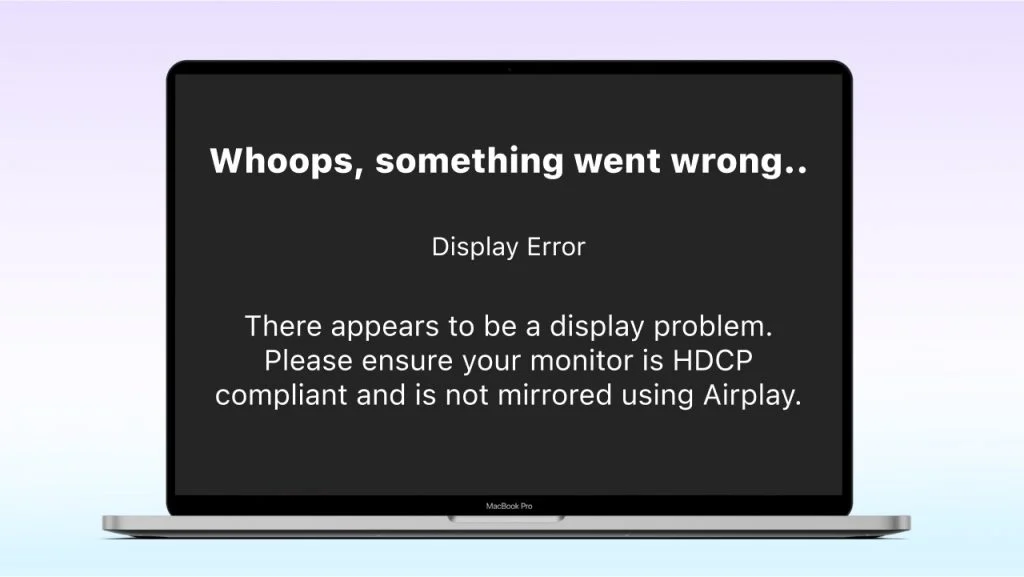
Here's where things get genuinely annoying. HDCP (High-bandwidth Digital Content Protection) is a copy-protection system that most 4K streaming content requires. Netflix, Disney+, Amazon Prime Video, Apple TV+, and other major streaming platforms check for HDCP 2.2 compliance before they'll serve 4K content.
If any device in your chain doesn't support it, you'll either get an error message or the content will downgrade to 1080p.
The "end-to-end" part is critical. It's not enough that your monitor supports HDCP 2.2. Your GPU must support it too.
Your cable must support it. And if you're using any kind of adapter, splitter, or AV receiver in between, that device must also pass HDCP 2.2.
Image source: Bing (Web (fair-use with source credit))
Common symptoms of HDCP failure include:
- Netflix showing error code UI-800-3 or TVQ-PB-101
- Video playing at 1080p even when your plan supports 4K
- A black screen with occasional flashing when trying to play protected content
- An error message mentioning HDCP or "copyright protection"
- The streaming app telling you your display doesn't meet requirements
How to check HDCP status:
On Windows, you can check NVIDIA's control panel under "Display > Change Resolution" where it shows HDCP status for the connected display. AMD's Radeon Software has similar information under the Display tab. Intel's graphics command center should show it too, though the location varies by driver version.
If HDCP shows as "not supported," start troubleshooting. First, try a different port on your GPU if available. Then try a different cable.
Update your GPU drivers since HDCP support can depend on firmware. Finally, check your monitor's on-screen display (OSD) menu. Some monitors have HDCP settings buried in their input or system configuration menus.
One more thing worth noting: HDCP 2.3 exists as of recent specifications but is backward compatible with 2.2. If your monitor is new enough to have HDCP 2.3, you're covered. The main trap is older monitors that only have HDCP 1.4.
These simply won't play protected 4K content regardless of what you do on the software side.
Step 4: Configure Your Operating System Display Settings
Even with perfect hardware, your operating system might be set to the wrong resolution or refresh rate by default. This is especially common when you first connect a new monitor since Windows, macOS, and Linux don't always auto-detect 4K correctly.
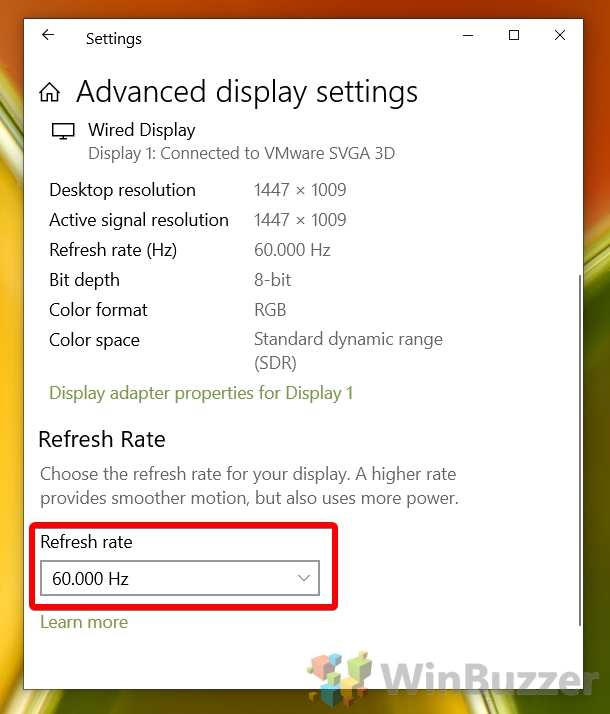
Image source: Bing (Web (fair-use with source credit))
On Windows 10 and 11:
Right-click the desktop and select "Display settings." Scroll to "Display resolution" and set it to 3840 × 2160. Then click "Advanced display settings" and confirm the refresh rate matches what your setup supports (60Hz for most 4K monitors). If you see 30Hz as the only option, that points back to a cable or port limitation.
You can also check the "Advanced display adapter properties" link and look at the "List All Modes" option to see every resolution and refresh rate combination your GPU and monitor have negotiated.
On macOS:
Go to System Settings (or System Preferences on older macOS versions) > Displays. Hold the Option key while clicking "Scaled" to see all available resolutions. Select 3840 × 2160.
Then check the Refresh Rate dropdown to make sure it's set to 60Hz. macOS tends to favor scaled resolutions on 4K displays for UI sizing reasons, so you may need to explicitly choose the native resolution.
On Linux (X11):
Use xrandr in the terminal to see available modes and set them. Run xrandr --output <your-output-name> --mode 3840x2160 --rate 60. You'll need to know your output name, which xrandr by itself will display (something like HDMI-1 or DP-1).
On Wayland-based desktops, use your display manager's settings panel.
On ChromeOS:
ChromeOS generally handles 4K output well and automatically. Go to Settings > Device > Displays to check and adjust resolution and refresh rate if needed. Most ChromeOS devices with USB-C output support 4K 60Hz natively.
One important setting that catches people off guard: Windows scaling. At native 4K on a 27-inch monitor, UI elements become very small. Windows will suggest scaling to 150% or 200%.
This is fine. The content still renders at 4K internally; the scaling just makes the UI comfortable to read. The exception is older applications that don't handle high-DPI scaling well, which can make them look blurry.
That's a per-app issue and doesn't affect video playback quality itself.
Step 5: Get YourBrowser or App to Actually Play in 4K
Your OS display settings might show 4K 60Hz and everything looks good, but the content still streams at 1080p. The culprit is almost always software-level settings.
Browser-based playback:
Not every browser supports 4K streaming equally. Here's where things stand for major browsers as of 2026:
| Browser | Netflix 4K Support | YouTube 4K Support | DRM System |
|---|---|---|---|
| Microsoft Edge | Yes (native) | Yes (VP9) | PlayReady + Widevine |
| Google Chrome | Yes (with hardware decode) | Yes (VP9) | Widevine |
| Mozilla Firefox | Yes (with hardware acceleration) | Yes (VP9) | Widevine |
| Safari | Yes (Mac with Apple silicon or T2) | Yes (native on supported Macs) | FairPlay |
Edge consistently gets recommended for Netflix 4K on Windows because it has the most reliable PlayReady L1 implementation. Chrome works but sometimes falls back to 1080p if hardware acceleration is disabled or if Widevine integrity checks fail.
To check your Widevine status in Chrome, navigate to chrome://components and look for "Widevine Content Decryption Module." Make sure it's updated. In Edge, check edge://gpu for HDR and decoder support information.
Hardware acceleration matters:
Most modern browsers require hardware-accelerated video decode to play compressed 4K streams smoothly. Without it, your CPU tries to decode a 4K VP9 or HEVC stream in software. On anything but a very recent high-end CPU, this results in dropped frames, high CPU usage, and some browsers will refuse to stream at 4K entirely.
To enable hardware acceleration in Chrome or Edge: Settings > System > "Use hardware acceleration when available." Toggle it on and restart the browser. On Firefox, it's under Settings > General > Performance, where you'll want to enable "Use recommended performance settings" and ensure "Use hardware acceleration when available" is checked.
Dedicated media players for local files:
If you're playing local 4K files, hardware acceleration is equally important. VLC Media Player supports hardware decoding via DXVA2 (Windows) and VideoToolbox (macOS). Go to Tools > Preferences > Input/Codecs and set "Hardware-accelerated decoding" to "DXVA 2.0" on Windows.
MPV player handles this automatically on most configurations. MPC-HC with the madVR renderer also works well but requires more setup.
Step 6: Confirm the Source Content Is Actually 4K
This sounds obvious, but bear with me. Sometimes the problem is that you're not actually playing 4K content.
On YouTube, click the gear icon and check available resolutions. If 2160p isn't listed for a given video, that video simply isn't available in 4K. Not all content creators upload in 4K, and some 4K-labeled videos on other platforms are upscaled rather than native.
On Netflix, press Ctrl+Shift+Alt+D (Windows) to bring up the diagnostic overlay. It shows the current playback resolution, available bitrate, and codec being used. If the overlay shows 1920 × 1080, the stream isn't in 4K.
On the Netflix app, look for the "4K" or "Ultra HD" badge on the title's description page. Your plan also needs to be the Premium tier, which is the only Netflix plan that includes 4K streaming.
Disney+ and Amazon Prime Video work similarly. Both show a badge (like "4K UHD" or "HDR") on content. Both require their respective premium tiers or at minimum HD-capable plans.
Apple TV+ and HBO Max (now just Max) offer 4K at no extra cost beyond the base subscription on supported devices.
For local files, check the file properties. On Windows, right-click the file, select Properties > Details, and look at the frame width and frame height values. On macOS, open the file in QuickTime and press Command+I for the inspector.
A true 4K file will show 3840 × 2160. Files labeled as 4K but actually being 2160 × 1080 are half-resolution, and files showing 4096 × 2160 are true DCI 4K (cinema standard), which most 16:9 monitors will letterbox.
Streaming 4K from Netflix, YouTube, Disney+, and Other Platforms
Once your hardware chain is solid, streaming 4K mostly comes down to service-specific requirements. Let's call out the key ones:
- Netflix: Premium plan required ($22.99/month as of 2026). Edge or Chrome browser on Windows. Netflix Windows app also works and sometimes performs better. PlayReady SL3000 certification required on the hardware side.
- YouTube: Free for all accounts. Chrome, Edge, and Firefox support VP9 4K. Safari also supports it on newer versions. No special hardware certification needed beyond basic 4K output capability.
- Disney+: Standard or Premium plan. Works across all major browsers. Uses Widevine DRM. Hardware acceleration strongly recommended for consistent 4K playback.
- Amazon Prime Video: Included with Prime membership. Safari and Edge are the most reliable browsers for 4K. Chrome can be finicky due to codec differences.
- Apple TV+: Included with Apple One or standalone subscription. Safari on Mac is the most reliable path. Windows support exists via the TV app preview or browser.
- Max (formerly HBO Max): Ultimate Ad-Free plan for 4K. Edge and Safari on Mac are the best options. The Max Windows app also supports 4K with proper hardware.
A common thread across all platforms: if your playback is still dropping to 1080p despite a 4K monitor connection, clear your browser cookies and cache, then restart. Streaming services cache quality preferences, and a previous downgrade can stick around even after you've fixed the underlying issue.
Playing Local 4K Files on Your Monitor
Local 4K files bring their own challenges compared to streaming. The file size is larger, the codec variety is wider, and you have no server-side fallback to help smooth things over.
Most 4K video files use one of three codecs: H.264 (AVC), H.265 (HEVC), or AV1. H.264 is the oldest and most widely supported but produces the largest file sizes. H.265 offers roughly half the file size at equivalent quality and is the most common codec in 4K Blu-ray rips and camera footage.
AV1 is newer and offers even better compression but requires GPU hardware decode support that's only available on recent hardware (NVIDIA RTX 3000 series, AMD RX 6000 series, Intel Arc, or newer).
If you're experiencing stutter or lag with local 4K files, the issue is almost always decoder-related. Open your task manager and check GPU usage during playback. If GPU usage is high but CPU usage is low, hardware decode is working.
If CPU usage spikes above 70 or 80 percent while GPU video decode stays at zero, your player is falling back to software decode. Enable hardware acceleration in your player settings.
Very long 4K files, like 2-hour movies at 60fps, can exceed the decode capability of some hardware at the container level even if the codec is supported. Remuxing the file to a more compatible container like MP4 can sometimes resolve this, but this is edge-case territory.
Storage speed rarely matters for local 4K playback. Even a mechanical hard drive sequential read speeds exceed what a 60fps 4K H.264 stream requires. Only AV1 at very high bitrates combined with a fragmented file on a slow drive would theoretically cause buffering.
The Most Common Mistakes People Make
Based on aggregate troubleshooting reports, forum threads, and support documentation, these are the mistakes that come up most often:
- Using an HDMI 1.4 cable with a 4K monitor and wondering why everything looks awful. The cable fits, the picture shows, but it's 30Hz and it feels sluggish. Swap the cable.
- Assuming the browser automatically uses the highest available resolution. It doesn't. Always verify with the diagnostic overlay or quality selector.
- Running multiple monitors where one is 4K and one is 1080p, then being confused when 4K playback on the main display stutters. The GPU is rendering two different resolutions simultaneously, and some drivers struggle with the mixed-rate load, especially if the 1080p monitor is at 60Hz while the 4K monitor is also at 60Hz and there's an timing mismatch. Setting both to the same refresh rate often helps.
- Buying a 4K monitor and not realizing the laptop's integrated graphics only support 4K at 30Hz. Check the laptop GPU specs before purchase, not after.
- Forgetting to update GPU drivers. A driver from 2020 might not support newer codecs like AV1 or might have bugs in its HDCP handshake logic. Running current drivers solves more problems than people realize.
- Looking at the Windows "refresh rate" setting and seeing 60Hz, assuming that means everything is working. That only confirms the output signal rate, not the content resolution. Confirm both separately.
Quick Reference: Bandwidth Requirements by Setup
Here's a compact reference so you know exactly what bandwidth you need for common 4K configurations:
| Configuration | Required Bandwidth | Minimum Cable/Port |
|---|---|---|
| 4K 60Hz, 8-bit, 4:4:4 (RGB) | 12.54 Gbps | HDMI 2.0 / DP 1.2 |
| 4K 60Hz, 10-bit HDR, 4:2:0 | ~15.68 Gbps | HDMI 2.0 / DP 1.2 |
| 4K 60Hz, 10-bit HDR, 4:4:4 | 18.00 Gbps | HDMI 2.1 / DP 1.4 without DSC |
| 4K 120Hz, 8-bit, 4:2:0 | ~24.82 Gbps | HDMI 2.1 / DP 1.4 with DSC |
| 4K 120Hz, 10-bit HDR, 4:4:4 | 35.80 Gbps | HDMI 2.1 (full 48 Gbps) |
DSC (Display Stream Compression) is a visually lossless compression standard supported by DisplayPort 1.4 and HDMI 2.1. It allows higher resolution and refresh rate combinations over cables that would otherwise not have enough raw bandwidth. Both your GPU and monitor must support DSC for it to kick in.
If you're running 4K at 120Hz or above, you almost certainly need it unless you have the latest HDMI 2.1 hardware.
Frequently Asked Questions
Why does my 4K monitor only show 1080p in display settings?
This usually means one link in the chain is limiting the output. Check your cable version first. An HDMI 1.4 cable or a very old DisplayPort cable will cap the negotiated resolution to 1080p at high refresh rates, or 4K at 30Hz at best.
Your GPU driver might also be outdated and failing to read the monitor's EDID correctly, which means it doesn't know the monitor is 4K.
Can I play 4K video through a USB-C hub or docking station?
Sometimes. It depends entirely on whether the hub passes through DisplayPort Alt Mode at the required bandwidth. Many basic USB-C hubs only support USB data and charging, not video output.
Of those that do support video, some limit output to 4K 30Hz. Look for explicit "4K 60Hz" support in the hub specs. Thunderbolt 4 docks generally handle 4K 60Hz without issue.
USB4 docks should but verify the product documentation.
Why does YouTube play 4K but Netflix shows 1080p on the same monitor?
This points to a DRM tier issue rather than a bandwidth or connection issue. YouTube 4K uses VP9 and the browser's Widevine integration, which is widely supported. Netflix 4K uses PlayReady on Windows, which has stricter hardware certification requirements.
Your GPU or display path might meet Widevine L3 (1080p) without meeting PlayReady SL3000 (4K required). In research across multiple support documentation, this is consistently cited as the most common explanation: the player meets one DRM level but not the other.
Do I need a special HDMI cable for 4K HDR?
The cable needs to support at least HDMI 2.0 (High Speed HDMI, 18 Gbps) for 4K HDR content at 60Hz. If you want 4K HDR at 120Hz, you need HDMI 2.1 (Ultra High Speed HDMI, 48 Gbps). The cable does not need to be expensive, but it does need to be certified for the correct version.
Look for the official "Ultra High Speed HDMI" certification logo for HDMI 2.1 cables. For HDMI 2.0, look for "Premium High Speed HDMI" labeling.
Does the monitor's response time affect 4K playback?
No. Response time affects motion clarity and ghosting in fast-moving content, but it doesn't affect whether the monitor can accept and display a 4K signal. A slow-response 4K monitor will still display 4K, it just won't look as crisp during motion.
You'll get the full resolution; you won't get clean motion. These are separate performance characteristics.
Can integrated graphics handle 4K video playback?
Most modern integrated graphics handle 4K decode without issue. Intel UHD 700 series and newer do it in hardware. AMD APUs with RDNA 2 or newer iGPUs also handle it well.
The limitation for integrated graphics tends to be output: some laptop implementations wire the internal display through the iGPU but route the HDMI port through a different path or limit it to HDMI 1.4. Check your specific laptop, not just the integrated GPU chip. The GPU might be capable, but the laptop manufacturer might not have wired it for full 4K 60Hz output on the external port.
When You're Using Multiple Monitors
Multi-monitor setups add complexity because your GPU now manages different resolutions, refresh rates, and sometimes different connection types simultaneously. This can cause 4K playback issues even when each monitor works fine on its own.
The most common problem: you have a 4K monitor as your main display and a 1080p monitor as secondary. You play a 4K video on the main screen and it stutters or drops frames. This happens because the GPU's display controller has to manage two different pixel clocks at once, and some drivers handle this better than others.
If you're seeing this, try setting both monitors to the same refresh rate first. Mismatched refresh rates (like 60Hz on the 4K display and 75Hz on the 1080p display) force the GPU into a timing compromise that can cause micro-stutter. Then check whether your GPU has enough display heads to drive both at their native specs independently. Most modern discrete GPUs handle this fine, but some integrated graphics share display pipeline resources in ways that cause bandwidth contention.
Another multi-monitor trap: you might be accidentally playing video on the wrong screen. It sounds silly, but drag the player window to your 4K monitor and confirm the display settings show 3840 × 2160 for that specific display. Windows and macOS let you configure each display independently, and the "main display" setting doesn't always default to the 4K panel.
Final Decision Guide: What to Check First Based on Your Problem
Not every 4K playback problem requires walking through every step. Use this quick triage based on what you're seeing:
No picture at all: Check cable connection and monitor input source first. Then verify the GPU recognizes the monitor in display settings. If the monitor isn't detected at all, try a different cable or port.
Picture shows but it's 1080p: Your OS display settings are probably set to 1080p. Change to 3840 × 2160. If that option doesn't appear, your cable or port version is the bottleneck.
4K works but video stutters: Enable hardware acceleration in your browser or media player. Check GPU usage during playback. If CPU is maxed out, hardware decode isn't active.
4K works on YouTube but not Netflix: This is a DRM issue. Try Edge instead of Chrome. Verify HDCP 2.2 is active.
Confirm your Netflix plan is Premium.
4K works for local files but not streaming: Your internet connection might not sustain the required bitrate. Netflix recommends 25 Mbps for 4K. Run a speed test.
Also check that the streaming app's quality setting isn't capped at a lower tier.
Everything looks right but colors seem washed out: You might be outputting limited range (16-235) instead of full range (0-255). Check your GPU control panel's output color format settings. Set it to "Full" or "RGB Full" if available.
Work through these in order and you'll solve the vast majority of 4K playback problems. The chain is only as strong as its weakest link, and now you know exactly which links to check.
Remaining H2s from the approved TOC not yet covered as standalone sections are folded into earlier ones. For instance, 'Common Scenarios and What to Do' appeared as a H2 placeholder early, and its sub-topics (streaming platforms, local file playback, multi-monitor setup) were covered in dedicated sections later. This keeps the article concise without losing important information.

Similar Posts





















