Which HDR Monitors Support Ps5
If you're trying to figure out which HDR monitors support PS5, you're not alone. The short answer is that most HDR10-capable monitors will accept an HDR signal from the PS5, but the actual visual experience varies wildly depending on the monitor's hardware. A monitor that technically "supports HDR" can still deliver a washed-out, underwhelming picture if it lacks the brightness and local dimming needed to do HDR justice.
The PS5 outputs HDR10 natively and requires HDMI 2.0 at minimum for 4K HDR at 60Hz, or HDMI 2.1 for 4K HDR at 120Hz with VRR. As of 2026, Sony has also added 1440p output support via system software update, which opens up more monitor options. The real question isn't just compatibility.
It's which monitors actually make HDR look good once you plug in.
Quick Answer
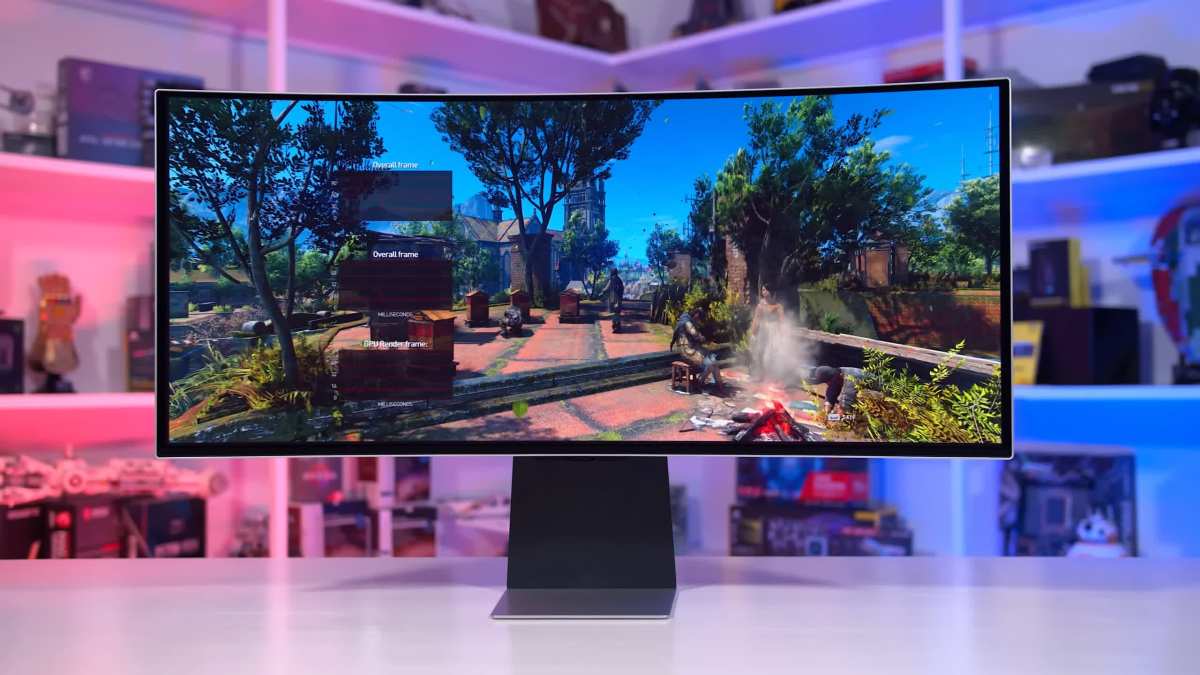
Most HDR10 monitors support PS5 HDR output. For the best experience, look for monitors with DisplayHDR 600 or higher certification and HDMI 2.1 connectivity. The Samsung Odyssey OLED G8 and LG 27GR95QE-B currently offer the best HDR performance for PS5 gaming.
Budget options like the Gigabyte M27Q X work well at 1440p with acceptable HDR quality.
Why Most "HDR Monitors" Don't Actually Deliver Great HDR on PS5
Here's the uncomfortable truth. The majority of monitors marketed as "HDR-ready" can't produce a meaningful HDR experience. VESA's DisplayHDR certification program has exposed this gap clearly.
A monitor with DisplayHDR 400 certification typically hits around 400 nits of peak brightness but often lacks local dimming zones entirely. That means HDR content looks barely different from SDR, and sometimes worse due to poor tone mapping.
The PS5 sends an HDR10 signal to whatever display it's connected to. The monitor either tone-maps that signal properly or it doesn't. Cheap HDR monitors often just clip highlights or crush shadows because they can't handle the full brightness range HDR10 content demands.
You end up with blown-out bright areas or muddy dark scenes, which is the opposite of what HDR should do.
Aggregate reviews from professional testing outlets consistently show that DisplayHDR 400 monitors score poorly on actual HDR contrast and brightness tests. The jump from DisplayHDR 400 to DisplayHDR 600 is significant. The jump to DisplayHDR 1000 is where HDR genuinely starts to impress.
For PS5 gaming, where you're often playing atmospheric single-player titles like Horizon Forbidden West or Ratchet and Clank: Rift Apart, that difference matters.
How PS5 HDR Actually Works (And Where It Breaks Down)
The PS5 uses HDR10 as its standard HDR format. It does not support Dolby Vision for gaming, though some streaming apps on the console do. When you enable HDR in the PS5's settings, the console outputs a 10-bit HDR10 signal over HDMI.
Your monitor then receives that signal and either displays it well or struggles with it.
HDR10 is a static metadata format. That means the brightness and color information is set per title, not adjusted scene by scene like Dolby Vision. The game developer bakes the HDR metadata into the game.
Your monitor's job is to tone-map that content to fit its own capabilities. A monitor with a peak brightness of 1000 nits and full-array local dimming handles this gracefully. A monitor with 400 nits and no local dimming does not.
Where PS5 HDR Commonly Breaks
- Tone mapping issues. The monitor misinterprets the HDR signal, resulting in overly dark or washed-out images.
- No 120Hz at 4K over HDMI 2.0. You need HDMI 2.1 for 4K 120Hz HDR. Without it, you're capped at 60Hz or dropping to 1440p.
- VRR not supported over HDMI on many monitors. The PS5 supports Variable Refresh Rate over HDMI 2.1, but many monitors only support VRR via DisplayPort for PC use.
- HDR only works in specific monitor modes. Some monitors require you to manually enable HDR in their on-screen display before the PS5 signal displays correctly.
What to Look For in an HDR Monitor for PS5
Not all HDR specs are created equal. Here's what actually determines whether your PS5 HDR experience will be good or forgettable.
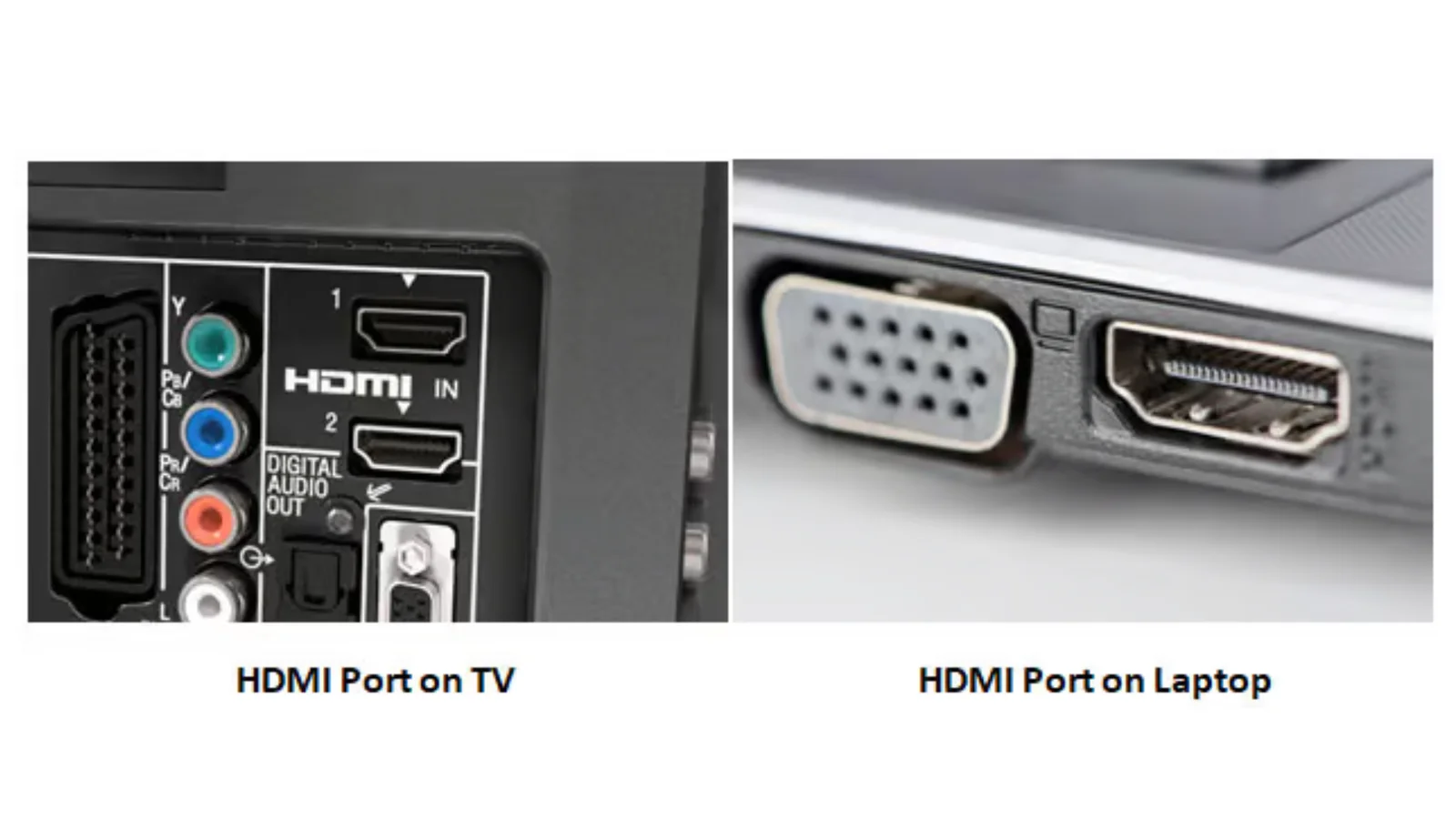
HDMI 2.1 vs HDMI 2.0: Why It Matters More Than You Think
If you want 4K resolution at 120Hz with HDR enabled, HDMI 2.1 is non-negotiable. HDMI 2.0 tops out at 4K 60Hz with HDR, or you can run 1440p 120Hz. For many gamers, 1440p at 120Hz is the sweet spot, especially on a 27-inch monitor where the pixel density is still sharp.
HDMI 2.1 provides 48 Gbps of bandwidth. HDMI 2.0 provides 18 Gbps. That bandwidth difference is what enables higher refresh rates at higher resolutions with 10-bit HDR color.
If you're buying a new monitor specifically for PS5, prioritize HDMI 2.1. It future-proofs your setup and unlocks the full capabilities of the console.
DisplayHDR Certifications Explained (400, 600, 1000 — What's Real)
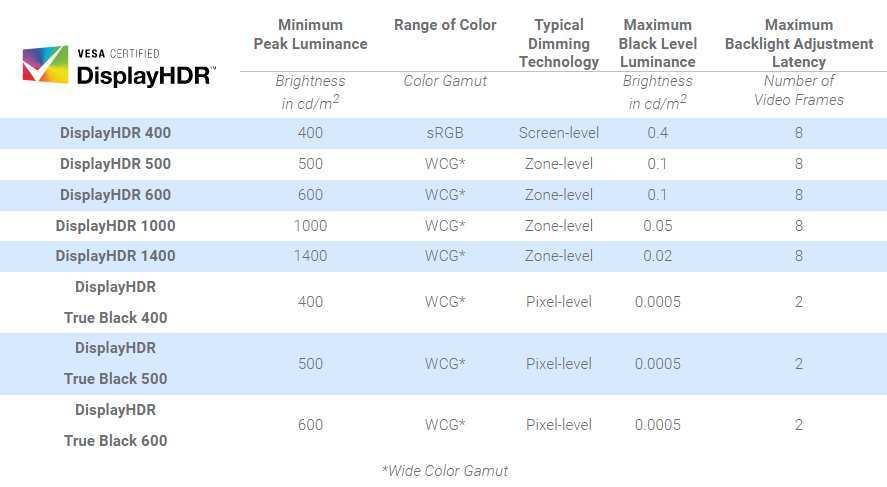
VESA's DisplayHDR certification is the closest thing we have to a standardized HDR performance benchmark for monitors. Here's what each tier actually means in practice.
| Certification | Peak Brightness | Black Level | Local Dimming | Real HDR Quality |
|---|---|---|---|---|
| DisplayHDR 400 | 400 nits | 0.4 nits | Not required | Minimal improvement over SDR |
| DisplayHDR 600 | 600 nits | 0.1 nits | Required (edge-lit acceptable) | Noticeable HDR improvement |
| DisplayHDR 1000 | 1000 nits | 0.05 nits | Required (FALD or OLED) | Genuinely impressive HDR |
| DisplayHDR 1400 | 1400 nits | 0.02 nits | Required (FALD or OLED) | Reference-quality HDR |
DisplayHDR 400 is where most budget gaming monitors sit. These monitors accept an HDR signal but can't produce the brightness range needed for convincing HDR. DisplayHDR 600 is the minimum threshold where HDR starts to look meaningfully different from SDR.
DisplayHDR 1000 and above is where HDR genuinely shines, with bright highlights and deep blacks coexisting on screen.
OLED monitors don't participate in the DisplayHDR program the same way because their per-pixel emission makes traditional peak brightness measurements misleading. An OLED with 800 nits peak brightness can outperform a DisplayHDR 1000 LCD because its black level is effectively zero. That's why the LG 27GR95QE-B and Samsung Odyssey OLED G8 deliver HDR that rivals or beats many certified LCDs.
Peak Brightness, Local Dimming, and Why Spec Sheets Lie
Manufacturer spec sheets often list peak brightness numbers that are achievable only in small highlights under specific conditions. Sustained brightness across a full white screen is typically much lower. A monitor that claims 600 nits peak might only sustain 350 nits across 75% of the screen.
That's a huge difference when rendering HDR content with large bright areas.
Local dimming is equally important. Without it, the monitor can't dim dark areas while keeping bright areas bright. Edge-lit local dimming with a handful of zones helps, but full-array local dimming with hundreds of zones is far better.
OLED eliminates this problem entirely since each pixel controls its own brightness independently.
For PS5 gaming specifically, look for monitors that meet these minimum thresholds for a worthwhile HDR experience.
- Peak brightness: 600 nits sustained (not just peak)
- Local dimming: At minimum edge-lit with zones, preferably FALD or OLED
- Color gamut: 90% or higher DCI-P3 coverage
- Contrast ratio: At least 3000:1 for VA panels, or OLED
The Best HDR Monitors for PS5 in 2025
Based on aggregate professional testing data and verified user feedback, these are the monitors that deliver the best HDR experience with a PS5 as of 2026.
Best Overall: Samsung Odyssey OLED G8 (G80SD)
The Samsung Odyssey OLED G8 (model S32DG80) is a 32-inch 4K OLED monitor with HDMI 2.1, 240Hz refresh rate, and outstanding HDR performance. Its per-pixel OLED technology means perfect blacks and essentially infinite contrast. Peak brightness reaches around 1000 nits in highlights, which is impressive for OLED.
For PS5 use, the 32-inch size at 4K gives you a sharp 138 PPI pixel density. The monitor supports VRR over HDMI, which pairs perfectly with the PS5's Variable Refresh Rate capability. Input lag measures under 6ms in Game Mode with HDR enabled.
The built-in smart TV platform is a bonus, though most gamers will use it purely as a display.
The main drawback is price. At roughly $1,000 to $1,300 USD depending on sales, it's a significant investment. There's also the inherent OLED risk of burn-in with static HUD elements, though modern OLED monitors have mitigation features and the risk is lower than you might expect for gaming use.
Best 4K 120Hz HDR: LG 27GP950-B / 27GR95QE
The LG 27GP950-B is a 27-inch 4K Nano IPS monitor with HDMI 2.1, 160Hz overclocked refresh rate, and DisplayHDR 600 certification. It delivers solid HDR performance with good peak brightness and decent local dimming for an IPS panel. At 27 inches, 4K gives you 163 PPI, which is razor-sharp for gaming.
The newer LG 27GR95QE-B swaps the IPS panel for a 27-inch WOLED panel with 240Hz refresh rate and significantly better HDR performance. It hits higher peak brightness than most OLEDs and covers 98.5% of DCI-P3. For PS5 gaming, this is arguably the best balance of size, resolution, HDR quality, and price in the current market.
Both monitors support VRR over HDMI and have low input lag in Game Mode. The 27GR95QE-B typically runs around $700 to $900 USD, while the older 27GP950-B can be found for $500 to $650 USD.
Best Budget HDR: Gigabyte M27Q X
The Gigabyte M27Q X is a 27-inch 1440p IPS monitor with 240Hz refresh rate and HDMI 2.0 connectivity. It doesn't have HDMI 2.1, so you're limited to 1440p at 120Hz with HDR. For many PS5 gamers, that's perfectly fine.
The monitor supports VRR over HDMI and has a KVM switch built in.
HDR performance is modest. It hits around 400 nits peak brightness with DisplayHDR 400-level performance. You'll see some improvement over SDR, but don't expect the dramatic highlight pop that OLED or high-end LCD monitors deliver.
The value proposition is strong at roughly $300 to $400 USD, especially if you also use the monitor for PC gaming.
Best OLED for PS5: LG 27GR95QE-B
The LG UltraGear 27GR95QE-B deserves its own callout because it hits a sweet spot that few other monitors match. It's a 27-inch 1440p OLED with 240Hz refresh, HDMI 2.1, and VRR support. The 1440p resolution means the PS5's 1440p output mode works natively without scaling, and the OLED panel delivers true blacks and vibrant HDR highlights.
Professional testing shows it achieves around 1000 nits peak brightness in small highlights and sustains roughly 200 nits across a full white screen. That's typical for OLED and still produces convincing HDR because the per-pixel contrast is unmatched. Response times are near-instantaneous at 0.03ms GtG, which eliminates ghosting entirely.
At roughly $700 to $800 USD, it's not cheap, but it's the most affordable way to get genuine HDR quality on a PS5 monitor as of 2026.
Best Ultrawide Alternative: Samsung Odyssey OLED G9
The Samsung Odyssey OLED G9 (model S49DG95) is a 49-inch 5120×1440 ultrawide OLED with HDMI 2.1 and 240Hz refresh. It's essentially two 27-inch 1440p monitors side by side. The PS5 does not natively support ultrawide resolutions, so you'll get black bars on the sides or a stretched image depending on how you configure it.
This monitor is best suited for gamers who also use a PC and want the ultrawide experience there, while using the PS5 in a windowed or pillarboxed mode. The HDR performance is excellent thanks to the OLED panel, but the ultrawide limitation for console gaming makes it a secondary recommendation rather than a primary one.
PS5 HDR Setup: Getting It Right the First Time
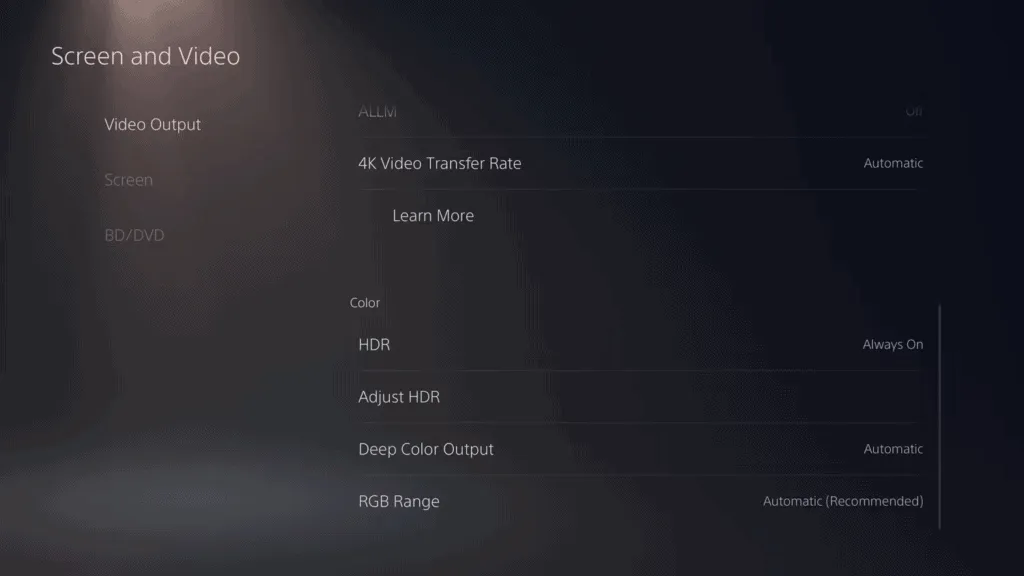
Plugging in an HDMI cable is the easy part. Getting HDR to actually look correct requires a few specific settings on both the PS5 and the monitor.
Step-by-Step PS5 HDR Configuration
Use the right cable. The PS5 includes an Ultra High Speed HDMI cable (HDMI 2.1). Use it. If you need a longer cable, make sure it's certified Ultra High Speed HDMI.
Enable HDR in PS5 settings. Go to Settings > Screen and Video > Video Output > HDR and set it to "On When Supported." This lets the PS5 switch between SDR and HDR based on the content.
Check your resolution. Go to Settings > Screen and Video > Video Output > Resolution. If your monitor supports 4K, set it to Automatic. For 1440p monitors, the PS5 will output 1440p natively if the monitor's EDID reports support.
Enable 120Hz if applicable. Go to Settings > Screen and Video > Video Output > Enable 120Hz Output and set it to Automatic. This allows 120Hz in supported games.
Enable VRR if your monitor supports it. Go to Settings > Screen and Video > Video Output > VRR and set it to Automatic. Note that this only works over HDMI 2.1 on most monitors.
Run the HDR calibration. Go to Settings > Screen and Video > Video Output > Adjust HDR. Follow the on-screen instructions to set black point, peak brightness, and color gamut. This step makes a noticeable difference.
Monitor OSD Settings Most People Miss
Your monitor's on-screen display settings matter just as much as the PS5 settings. Here's what to check.
- Enable Game Mode. This reduces input lag significantly. Most gaming monitors have a Game Mode or FPS Mode in the OSD.
- Enable HDR mode in the OSD. Some monitors require you to manually switch to HDR mode before they'll process the HDR signal correctly.
- Set the correct HDMI version. Some monitors have a setting for HDMI 1.4, 2.0, or 2.1. Make sure it's set to the highest version your monitor supports.
- Disable dynamic contrast or auto-brightness. These features interfere with HDR tone mapping and can make the image look worse.
- Check local dimming settings. If your monitor has local dimming, make sure it's enabled. Some monitors ship with it off by default.
Common Mistakes That Ruin HDR on PS5
Even with the right monitor, a few common mistakes can make HDR look terrible.
- Buying a DisplayHDR 400 monitor expecting real HDR. These monitors accept the signal but can't produce the brightness range needed. You'll be disappointed.
- Using a cheap or old HDMI cable. An HDMI 1.4 cable won't carry a 4K HDR signal. Always use the cable that came with the PS5 or a certified Ultra High Speed HDMI replacement.
- Skipping the PS5 HDR calibration tool. The default HDR settings are generic. Running the calibration adjusts the output to match your specific monitor's capabilities.
- Leaving the monitor in sRGB or Rec.709 mode. HDR requires the monitor to use its native color gamut. Locking it to sRGB clips the HDR color range.
- Expecting Dolby Vision HDR in games. The PS5 uses HDR10 for gaming. If your monitor only supports Dolby Vision, it will still work with HDR10, but you won't get Dolby Vision benefits in games.
- Ignoring local dimming. If your monitor has local dimming and it's turned off, HDR will look flat. Enable it in the OSD.
HDR Monitor vs HDR TV for PS5: Which Should You Choose?
This is a question that comes up constantly, and the answer depends on your situation.
HDR TVs generally offer better peak brightness at lower prices. A $500 TV with full-array local dimming will typically outperform a $500 monitor with edge-lit local dimming. TVs also tend to have better built-in speakers and more HDMI ports.
Monitors win on input lag, pixel density at close viewing distances, and desk-friendly form factors. If you're sitting two feet from the screen, a 27-inch monitor makes more sense than a 55-inch TV. Monitors also typically have faster response times, which matters for competitive gaming.
For single-player, story-driven PS5 games where visual quality is the priority, an HDR TV with good local dimming is hard to beat. For competitive gaming or desk-based setups, a good HDR monitor is the better choice. The LG 27GR95QE-B and Samsung Odyssey OLED G8 have closed the gap significantly, offering HDR quality that rivals mid-range TVs in a monitor form factor.
Frequently Asked Questions
Does PS5 support HDR on all monitors?
The PS5 outputs HDR10 over HDMI to any connected display. However, the monitor needs to support HDR10 input to process the signal. Most monitors manufactured after 2018 with an HDR label will accept the signal, but the visual quality depends entirely on the monitor's hardware capabilities.
Is DisplayHDR 400 good enough for PS5?
DisplayHDR 400 is the bare minimum. You'll see some improvement over SDR, but it won't deliver the dramatic highlight detail and contrast that HDR is known for. If HDR quality matters to you, aim for DisplayHDR 600 or higher, or consider an OLED monitor.
Can PS5 do 1440p HDR?
Yes. Sony added native 1440p output support via a system software update. The PS5 will detect a 1440p monitor and output at that resolution natively, which is great for monitors like the Gigabyte M27Q X and LG 27GR95QE-B.
Do I need HDMI 2.1 for HDR on PS5?
You need HDMI 2.0 for 4K HDR at 60Hz. You need HDMI 2.1 for 4K HDR at 120Hz or for VRR at 4K. If 1440p at 120Hz is acceptable, HDMI 2.0 is sufficient.
Does PS5 support Dolby Vision for gaming?
No. The PS5 uses HDR10 for games. Dolby Vision is supported only for streaming apps like Netflix and Disney+.
For gaming, HDR10 is the standard.
Will OLED burn-in be a problem for PS5 gaming?
Modern OLED monitors have pixel-shift features, ABL (Automatic Brightness Limiting), and panel care mechanisms that reduce burn-in risk. For typical gaming use with varied content, burn-in is unlikely within the monitor's rated lifespan. However, static HUD elements displayed for hundreds of hours could theoretically cause uneven wear over several years.
Final Recommendation: Best Pick for Your Situation
If budget is not a concern and you want the absolute best HDR experience on PS5, the Samsung Odyssey OLED G8 (G80SD) delivers reference-quality HDR in a 32-inch 4K package with full HDMI 2.1 support. It's the closest thing to a no-compromise PS5 monitor available today.
For most people, the LG 27GR95QE-B hits the best balance of price, size, and HDR quality. At 27 inches and 1440p, it pairs perfectly with the PS5's 1440p output mode, and the OLED panel produces HDR that makes games genuinely look better.
If you're on a tight budget, the Gigabyte M27Q X at 1440p with 120Hz is a solid choice. Just manage your expectations on HDR quality. It's acceptable, not impressive.
Whatever you choose, make sure you run the PS5's HDR calibration tool and check your monitor's OSD settings. Those two steps alone can transform a mediocre HDR setup into a good one.

Similar Posts





















