Is HDR Monitor Good for Movies
Is an HDR monitor good for movies? The honest answer is: it depends entirely on what kind of HDR monitor you have and how you've got it set up. A proper HDR display can make movies look absolutely stunning, with deeper blacks, brighter highlights, and colors that actually pop the way the director intended.
But a cheap HDR badge on a budget panel? That can make things look worse than just sticking with SDR.
The problem is that "HDR" on a monitor spec sheet doesn't mean much by itself. VESA's DisplayHDR certification ranges from DisplayHDR 400, which is barely HDR at all, up to DisplayHDR 1400, which is genuinely impressive. Most budget and mid-range monitors sit at the 400 or 600 tier, and the real-world movie-watching experience there is… underwhelming.
Let's walk through exactly what matters, what doesn't, and whether HDR is actually worth enabling for your movie nights.

Quick Answer
An HDR monitor is good for movies if it meets certain conditions. You need at least DisplayHDR 600 or an OLED panel. Your content must be true HDR, not upscaled SDR.
Proper setup is essential, because bad HDR looks worse than good SDR. If your monitor only has DisplayHDR 400, skip it.
Why "Is HDR Good for Movies?" Isn't a Simple Yes or No
Here's where most people get tripped up. They see "HDR" on the box, assume it's automatically better, enable it, and then wonder why everything looks washed out or weird. That's because HDR isn't a single thing.
It's a whole chain of requirements, and if any link in that chain is weak, the whole experience falls apart.
Think of it like this. You wouldn't expect a $200 pair of speakers to deliver a proper Dolby Atmos experience just because the Atmos logo is on the box. Same deal with HDR monitors.
The sticker tells you the monitor can accept an HDR signal. It doesn't tell you whether it can actually display HDR in a way that looks good.
The content matters too. A true HDR master of a movie, graded specifically for HDR playback, looks incredible on a capable display. But if you're watching SDR content that your operating system or monitor is trying to "upscale" to HDR, you're often just adding problems.
Washed-out colors, crushed blacks, and a general flatness that makes you wonder what the fuss was about.
So the real question isn't "is HDR good for movies?" It's "is MY HDR monitor good for movies, with THIS content, in THIS setup?" And that's what we're going to help you figure out.
The Real Problem With HDR on Monitors (Most People Don't Know This)
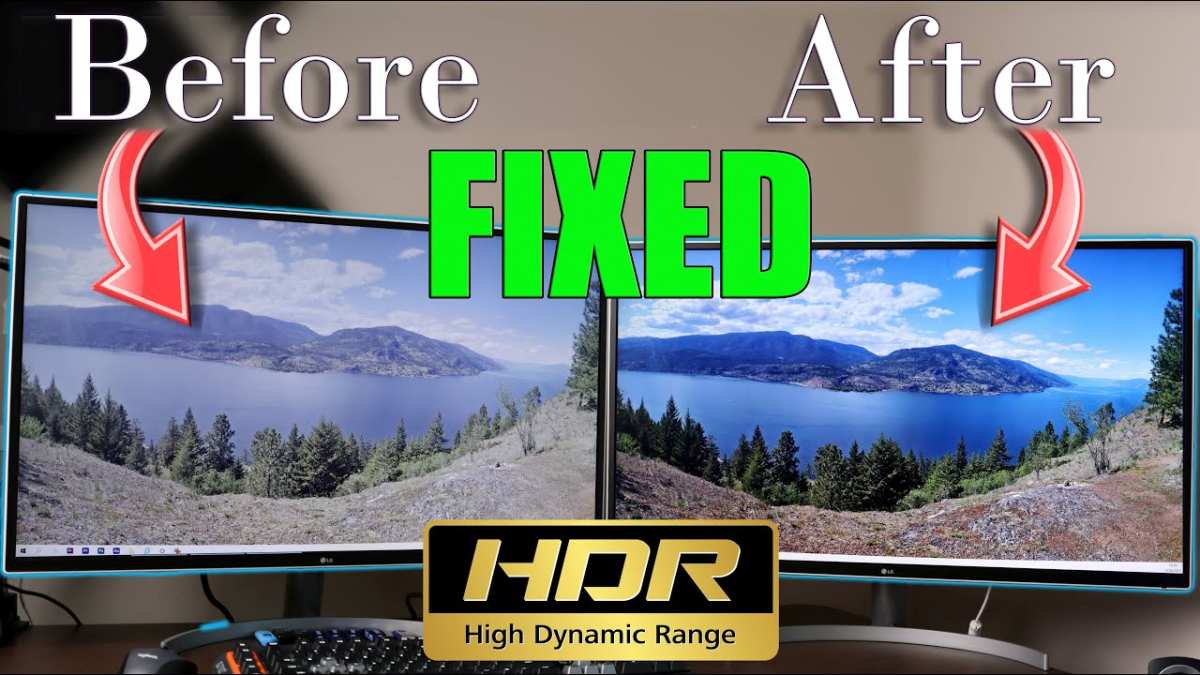
The single biggest issue with HDR on monitors isn't the technology itself. It's that most monitors marketed as "HDR" can't actually deliver a meaningful HDR experience. And the people buying them don't realize it until they've already got it sitting on their desk.
The DisplayHDR Tier System Is Wildly Misleading
VESA created the DisplayHDR certification system specifically to bring some order to the chaos. But the way manufacturers market these certifications creates a false sense of quality. Here's the breakdown:
| Certification | Peak Brightness | Black Level | Color Gamut | Real HDR Experience |
|---|---|---|---|---|
| DisplayHDR 400 | 400 nits | Limited | sRGB | Barely HDR, often worse than good SDR |
| DisplayHDR 500 | 500 nits | Moderate | 90% DCI-P3 | Entry-level, noticeable but underwhelming |
| DisplayHDR 600 | 600 nits | Better | 95%+ DCI-P3 | Decent, the minimum worth considering |
| DisplayHDR 1000 | 1000 nits | Good | 95%+ DCI-P3 | Genuinely good HDR |
| DisplayHDR 1400 | 1400 nits | Excellent | 95%+ DCI-P3 | Excellent, reference-grade territory |
See that DisplayHDR 400 at the top? That's the most common "HDR" monitor on the market. It's in countless budget and mid-range displays.
And honestly, for movie watching, it's not good enough. The peak brightness isn't high enough to make highlights really pop, and the black levels aren't deep enough to create that sense of contrast that makes HDR look special.
The result is a picture that's trying to be HDR but doesn't have the hardware to back it up. It ends up looking flat, desaturated, and just… off. This is the experience most people have with HDR on monitors, and it's why so many conclude that HDR is overhyped.
Windows Makes It Worse
Even if you've got a genuinely capable HDR monitor, Windows can sabotage the experience. By default, Windows treats HDR as a global toggle. You turn it on, and now your desktop, your web browser, your email, everything is running in HDR mode.
But most of that content is SDR.
Windows does try to tone-map SDR content into the HDR space, and it's gotten better over the years. But it's still not great. SDR content often looks washed out or slightly dimmed when HDR is enabled system-wide.
The SDR content brightness slider in Windows display settings helps, but it's a compromise, not a fix.
macOS handles this better on Apple displays, automatically switching between SDR and HDR based on the content. But on Windows, you're often stuck manually toggling HDR on and off, which gets old fast.
The Content Problem
True HDR movie content is growing, but it's still not the default. You'll find HDR on select titles on Netflix, Disney+, Amazon Prime Video, and on 4K UHD Blu-ray discs. But plenty of content is still SDR-only, and some "HDR" streaming is just an upscaled SDR source that doesn't benefit much from the wider container.
If you're primarily watching standard Blu-rays, older streaming content, or anything mastered in SDR, enabling HDR on your monitor is doing nothing useful. You're just adding a processing step that can degrade the image.
How HDR Actually Works on a Monitor
To make a smart decision about HDR for movies, it helps to understand what's actually happening when you hit play on an HDR film. It's not magic. It's a specific technical process with several steps, and each one matters.
What Makes Real HDR Different From the Sticker on the Box
HDR, at its core, is about two things: a wider range between the darkest and brightest parts of the image, and a wider color gamut. Standard Dynamic Range (SDR) is limited to roughly 0.05 to 100 nits of brightness and the Rec. 709 color space. HDR pushes that to potentially 0.0005 to 10,000 nits and the Rec. 2020 or DCI-P3 color space.
But here's the thing. No consumer monitor can actually hit 10,000 nits. The brightest consumer displays top out around 1,500 to 2,000 nits, and most are far below that.
So HDR content has to be tone-mapped to fit the capabilities of your specific display.
Tone mapping is the process of taking the full HDR signal and compressing it into what your monitor can actually show. Good tone mapping preserves the intent of the HDR grade. Bad tone mapping crushes detail into shadows, blows out highlights, or makes everything look dull.
This is why two monitors playing the same HDR movie can look completely different. It's not just about brightness. It's about how intelligently the display handles the tone mapping.
The Panel Types That Actually Deliver HDR
Not all display technologies are created equal when it comes to HDR. Here's how the main panel types stack up:
OLED: The gold standard for HDR. Perfect blacks because each pixel is individually lit and can turn off completely. Infinite contrast ratio. No blooming around bright objects on dark backgrounds. The downside is potential burn-in with static content and lower peak brightness compared to the best LED displays, but for movie watching, OLED HDR is hard to beat.
Full Array Local Dimming (FALD) LED: The best LED option for HDR. Hundreds or thousands of dimming zones allow the display to brighten some areas while keeping others dark. Higher peak brightness than OLED. The downside is blooming, where bright objects on dark backgrounds create a visible halo. The more zones, the less noticeable this is.
Edge-lit LED: A poor choice for HDR. The backlight comes from the edges of the screen, so there's no meaningful local dimming. Bright areas bleed into dark areas, and the contrast benefit of HDR is largely lost.
Direct-lit LED (no local dimming): The entire backlight is one uniform zone. HDR signal is accepted, but the display can't actually show the contrast range HDR is designed for. This is what most DisplayHDR 400 and 500 monitors use.
If you're buying a monitor specifically for HDR movies, OLED or a FALD display with at least a few hundred zones is what you want. Anything else is accepting a compromised experience.
The Decision Tree: Should You Use HDR for Movies on Your Monitor?
This is where we cut through the noise. Walk through these questions in order, and you'll land on a clear answer for your specific situation.
Step 1: What HDR Tier Is Your Monitor?
Check your monitor's specs or look up the model. What DisplayHDR certification does it have, or is it an OLED?
DisplayHDR 400 or no certification: Stop here. Don't use HDR for movies. Your monitor lacks the brightness, contrast, and color gamut to deliver a meaningful HDR experience. You'll get a better picture with SDR and a well-calibrated display.
DisplayHDR 500 or 600: Proceed to Step 2, but temper expectations. You'll see some benefit with true HDR content, but it won't be transformative. This is the "it's nice but not essential" tier.
DisplayHDR 1000 or higher, or OLED: Proceed to Step 2. Your hardware is capable of real HDR. Whether it looks good depends on your content and setup.
Step 2: What Are You Watching?
True HDR content (HDR10, HDR10+, Dolby Vision): Proceed to Step 3. You've got the right source material.
SDR content with Auto HDR or upscaling: Don't bother. Windows Auto HDR and similar features can add some depth to SDR games, but for movies, they usually just introduce color and brightness artifacts. Watch SDR content in SDR mode.
SDR content, no upscaling: Definitely don't enable HDR. You're adding nothing and likely degrading the image.
Step 3: What's Your Playback Setup?
Windows PC with HDR-capable media player: You're in business, but you need to configure things correctly. Jump to the setup section below.
macOS with Apple display or HDR monitor: macOS handles HDR switching more gracefully. You should be fine with default settings.
Dedicated media player or streaming device connected to monitor: This can work well, but make sure the device is actually outputting an HDR signal and the monitor is set to accept it. Check that HDCP 2.2 is supported end to end, or 4K HDR content may downscale or refuse to play.
Step 4: Your Decision Based on Those Answers
Here's the summary:
Capable monitor + true HDR content + proper setup: Yes, HDR is good for movies on your monitor. You'll see a genuine improvement in contrast, color, and overall image quality.
Capable monitor + SDR content: No, keep HDR off. SDR content looks better in SDR mode on a good display.
Budget HDR monitor + any content: No, the HDR implementation isn't good enough to justify the trade-offs. Stick with SDR and enjoy a cleaner, more accurate image.
Any monitor + upscaled "HDR": No, this isn't real HDR. It's a processing effect that rarely improves the image.
HDR Monitor vs HDR TV for Movie Watching
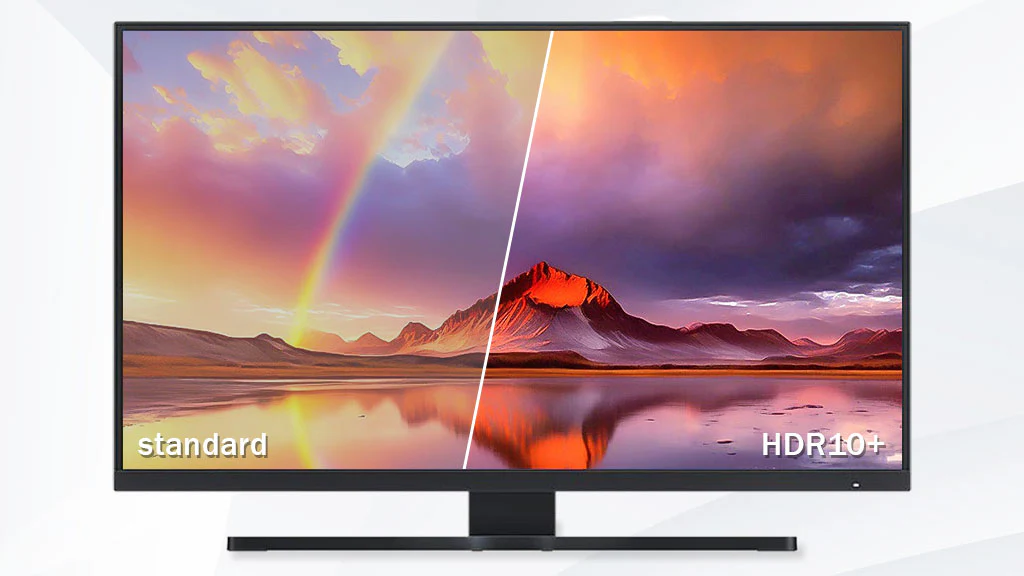
If you're serious about watching HDR movies at a desk or in a personal viewing space, you might be weighing an HDR monitor against an HDR TV. They serve different purposes, and the comparison isn't as straightforward as you'd think.
Size and Viewing Distance
This is the most obvious difference. Monitors sit close, typically 2 to 3 feet from your eyes, and range from 24 to 42 inches. TVs sit farther away and start around 43 inches, going up to 75 and beyond.
For immersive movie watching, a TV's larger screen at a greater distance creates a more cinematic feel. A monitor up close can work, but it's a different experience.
HDR Performance per Dollar
TVs generally deliver better HDR performance at every price point. A $500 TV will typically have better contrast, higher peak brightness, and more effective local dimming than a $500 monitor. TV manufacturers have been investing heavily in HDR for years because it's a major selling point for living room displays.
Monitor manufacturers, until recently, have focused more on gaming specs like refresh rate and response time.
Dolby Vision Support
This is a big one for movie watchers. Dolby Vision is a dynamic HDR format that adjusts the tone mapping scene by scene, and it's widely supported on streaming platforms and 4K Blu-ray discs. Most HDR monitors only support HDR10, which uses static metadata for the entire film.
Dolby Vision support on monitors is rare and usually limited to a handful of premium models. If Dolby Vision matters to you, a TV is the more practical choice.
Input Lag and Desktop Use
Monitors win here, obviously. If you're using the same display for work, gaming, and movie watching, a monitor is far more practical. TVs have improved on input lag, but they're still not ideal for desktop use at close range.
The Verdict
For dedicated movie watching in a personal space, a good HDR TV will almost always outperform an HDR monitor of the same price. But if you need one display for everything and you're sitting at a desk, a capable HDR monitor is the more versatile choice. Just make sure it's actually capable, not just marketed as HDR.
Common Mistakes That Make HDR Look Worse Than SDR
Most people who try HDR on their monitor and hate it are making one of these mistakes. They're not doing anything wrong per se. The technology just isn't plug-and-play yet.
Leaving HDR On All the Time
This is the number one mistake. You enable HDR in Windows, forget about it, and then wonder why your desktop looks pale and your YouTube videos look washed out. HDR mode on Windows forces the entire desktop into an HDR container.
Every SDR element, your taskbar, your browser, your spreadsheet, gets crammed into that container. The result is almost always worse than native SDR.
The fix is simple. Only turn on HDR when you're about to watch HDR content. Turn it off when you're done.
Yes, it's an extra step. No, it's not elegant. But it's the only way to get a good experience on most current Windows setups.
Watching SDR Content and Expecting Magic
If you're playing a movie that was mastered in SDR, enabling HDR won't make it look like HDR. At best, your monitor or OS will apply some tone mapping that might add a bit of brightness range. At worst, it'll introduce color shifts and contrast problems.
SDR content is designed for SDR displays. It looks best on SDR displays. This isn't a limitation to work around.
It's just how the content was created.
Using the Wrong Media Player
Not all media players handle HDR output correctly on a PC. Some will play the file but not actually send an HDR signal to the display. Others will send the signal but with incorrect color space settings.
And a few just crash or display artifacts.
For reliable HDR playback on Windows, your best options are:
- Windows Movies & TV app: Built in, supports HDR10, handles the signal path correctly.
- VLC (recent versions): Supports HDR output but requires correct settings. Make sure you're using a current release.
- MPC-HC or MPC-BE with madVR: The enthusiast choice. madVR offers excellent tone mapping control but requires more setup and a decent GPU.
Web browsers can play HDR streaming content too, but support varies. Microsoft Edge generally has the best HDR support on Windows. Chrome's HDR support has been inconsistent.
Ignoring the SDR Content Brightness Slider
When HDR is enabled in Windows, there's a slider for SDR content brightness. It's buried in the same display settings page. This controls how bright SDR content appears within the HDR desktop container.
If you leave it at the default, SDR content often looks too dim. Bump it up to 50 or 60 as a starting point, then adjust to your preference. This one setting makes a huge difference in how usable HDR mode feels for everyday tasks.
How to Set Up HDR for Movies the Right Way
If you've got capable hardware and true HDR content, getting the setup right is worth the effort. Here's the step-by-step process.
Windows HDR Configuration
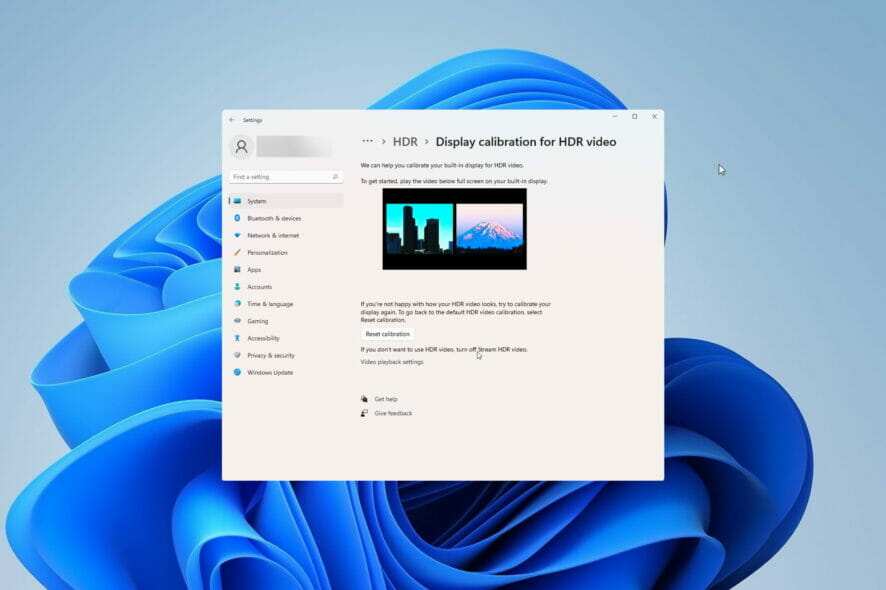
- Open Settings > System > Display.
- Select your HDR monitor if you have multiple displays.
- Toggle "Use HDR" to On.
- Click on "HDR" settings just below the toggle.
- Set SDR content brightness to around 50 as a starting point.
- Toggle "Use HDR" Off when you're done watching.
If the HDR toggle is missing, your monitor or GPU driver may not be reporting HDR support correctly. Check your GPU drivers and make sure you're using a compatible connection. HDMI 2.0a or later, or DisplayPort 1.4, is required for 4K HDR at 60Hz.
GPU Driver Settings
For NVIDIA users, open the NVIDIA Control Panel and check that the color format is set to RGB or YCbCr444, with 10-bit color depth if your monitor supports it. For AMD users, the Radeon Software display settings should show HDR as enabled and allow you to configure the color depth.
Both NVIDIA and AMD drivers have an option to toggle HDR. In some cases, you need to enable it in both Windows and the driver panel for the signal to pass through correctly.
Media Player Setup
If you're using the Windows Movies & TV app, HDR should work automatically when HDR is enabled in Windows display settings. Just open the file and play.
For VLC, go to Tools > Preferences > Video, set the output to "Direct3D11," and make sure "Enable HDR" is checked in the advanced settings. Recent VLC versions handle this better than older ones.
For MPC-BE with madVR, you'll need to configure madVR's tone mapping settings to match your display's capabilities. This is more involved but gives you the most control over how HDR content is rendered on your specific panel.
What Real HDR Movies Look Like on a Good Monitor
When everything lines up, the difference is not subtle. A true HDR master on a capable display is immediately, obviously better than SDR.
The most noticeable improvement is in specular highlights. Sunlight reflecting off water, the glow of a streetlamp at night, the bright core of an explosion. These elements jump off the screen in a way that SDR simply can't replicate.
They're not just brighter. They feel more real because they're closer to the actual luminance those things would have in life.
Shadow detail improves too. In a dark scene, you can still see texture and detail in the shadows rather than just a black void. The scene feels three-dimensional in a way that flat SDR shadows don't achieve.
Color saturation takes a meaningful step up. Wider color gamut means reds are redder, blues are deeper, and skin tones look more natural. It's not an artificial oversaturation.
It's more color information being displayed accurately.
The overall effect is a picture that feels more like looking through a window than looking at a screen. That's the HDR promise, and when the hardware delivers, it genuinely lives up to it.
When SDR Actually Looks Better (And That's Okay)
Here's something nobody in the HDR marketing machine wants to tell you. SDR often looks better than HDR on most monitors, for most content, in most setups. And that's perfectly fine.
A well-calibrated SDR display showing SDR content is a beautiful thing. Accurate colors, proper contrast, no tone mapping artifacts, no washed-out desktop, no fiddling with settings. It just works.
If your monitor is DisplayHDR 400 or 500, SDR is almost certainly going to look better than HDR on that same display. The hardware simply doesn't have the contrast or brightness range to make HDR worthwhile. You're better off investing in a good SDR calibration than trying to force an HDR experience out of inadequate hardware.
Even on capable HDR monitors, SDR content viewed in SDR mode will often look more natural and accurate than the same content viewed through an HDR container with tone mapping. The processing always introduces some compromise.
HDR is a tool, not a universal upgrade. Use it when the content and hardware support it. Don't feel like you're missing out when you're watching SDR in SDR mode.
You're watching the content the way it was meant to be seen.
Frequently Asked Questions
Does HDR work on all monitors?
No. Many monitors accept an HDR signal but can't display it meaningfully. DisplayHDR 400 monitors, which are very common, lack the brightness and contrast to deliver a real HDR experience.
You need at least DisplayHDR 600 or an OLED panel for HDR to look genuinely good.
Why does HDR look washed out on my monitor?
This usually means HDR is enabled in Windows but you're viewing SDR content. Windows forces everything into an HDR container, and SDR content doesn't map well into that space without proper tone mapping. Turn off HDR when you're not watching actual HDR content.
Is HDR worth it for movie watching on a desktop monitor?
It depends on your monitor. On a DisplayHDR 1000 or OLED display with true HDR content, yes, it's a noticeable and worthwhile improvement. On anything below DisplayHDR 600, you're better off sticking with SDR.
Can I watch HDR movies on a 1080p monitor?
Some 1080p monitors carry HDR certifications, but the benefit is limited. HDR's impact is most noticeable at higher resolutions where the added detail complements the added contrast and color range. On 1080p, the improvement is there but less dramatic.
Do I need a special cable for HDR on a monitor?
You need HDMI 2.0a or later, or DisplayPort 1.4 or later, for 4K HDR at 60Hz. Older cables and ports may not have enough bandwidth. Also make sure the entire chain, GPU, cable, and monitor, supports HDCP 2.2 if you're playing protected 4K HDR content from streaming services or Blu-ray.
Does Netflix HDR work on a PC monitor?
Yes, but you need to use the Netflix app from the Microsoft Store or the Microsoft Edge browser. Chrome and Firefox don't support Netflix HDR on Windows. You also need a monitor that supports HDR and a GPU that can output it.
Netflix requires HDCP 2.2 compliance end to end, so an older monitor or cable may block HDR playback entirely.
Final Verdict: Who Should Bother With HDR for Movies
Here's the bottom line. HDR on a monitor is genuinely good for movies, but only under specific conditions. You need capable hardware, true HDR content, and a willingness to manage the setup.
If you've got an OLED monitor or a DisplayHDR 1000 or higher display, and you watch a lot of HDR streaming content or 4K Blu-ray discs, absolutely use HDR. It's a real, visible improvement that makes movie watching more immersive and more faithful to what the filmmakers intended.
If your monitor is DisplayHDR 400 or 500, skip it. The hardware can't deliver the contrast or brightness that makes HDR worthwhile. You'll get a better experience by keeping HDR off and enjoying a clean, accurate SDR picture.
For everyone in between, it's a personal call. Try it with a well-mastered HDR movie that you already know looks good in SDR. Compare the two side by side.
Trust your eyes. If HDR looks better to you, use it. If it doesn't, there's no shame in sticking with what works.
The technology will only get better. Tone mapping will improve, monitors will get brighter and more contrasty, and operating systems will handle the SDR-to-HDR transition more gracefully. But for now, HDR on a monitor is a "your mileage may vary" situation.
Know what you've got, set it up right, and enjoy the movies either way.

Similar Posts





















