Is HDR1000 Monitor Worth It
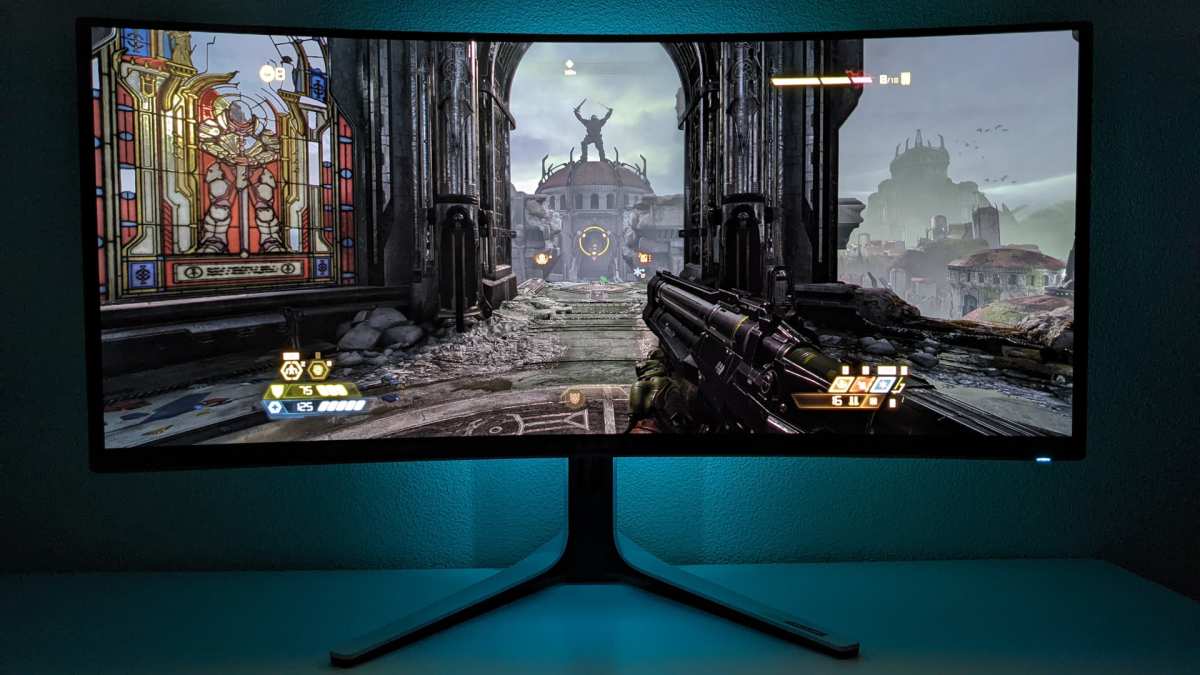
You're eyeing a monitor with serious HDR chops, but the price tag is making you pause. The honest answer depends on what you're actually doing with your setup and whether your expectations match what these panels deliver in practice.
VESA's DisplayHDR 1000 certification sets a real benchmark: 1000 nits peak brightness, local dimming, and wide color gamut. But certification alone doesn't guarantee a great experience, and that's where most buyers get tripped up.
Quick Answer
It depends on your use case. HDR1000 monitors deliver genuinely impressive HDR for gaming and content creation. They cost significantly more than HDR400 or HDR600 alternatives. Most users won't fully benefit from the premium.
If you're a professional colorist or dedicated HDR gamer with capable hardware, the investment makes sense.
What HDR1000 Actually Means (And Why the Label Alone Doesn't Tell You Much)
VESA DisplayHDR 1000 is a certification standard from the Video Electronics Standards Association. It guarantees minimum performance levels for HDR content. The key thresholds include 1000 nits peak luminance, 99% DCI-P3 color coverage, and 10-bit color depth support.
Here's the thing most product pages gloss over. The certification tests specific conditions that don't always reflect real-world use. A monitor might hit 1000 nits on a small 5% window for a brief burst.
Full-screen sustained brightness often drops to 400 or 600 nits. That's still good, but it's not the "1000 nits everywhere" impression many buyers walk away with.
The certification also doesn't mandate a specific number of local dimming zones. Two monitors can both carry the DisplayHDR 1000 logo while having wildly different dimming performance. One might use 576 zones on a Mini-LED backlight.
Another might get by with 192. The visual difference between those two is significant, especially in dark scenes with bright highlights.
What the label does tell you is that the panel meets a baseline. It's a useful starting point. But it's not the whole story, and treating it like a guarantee of premium HDR is where disappointment starts.
HDR1000 vs HDR400 vs HDR600 vs OLED: The Real Comparison
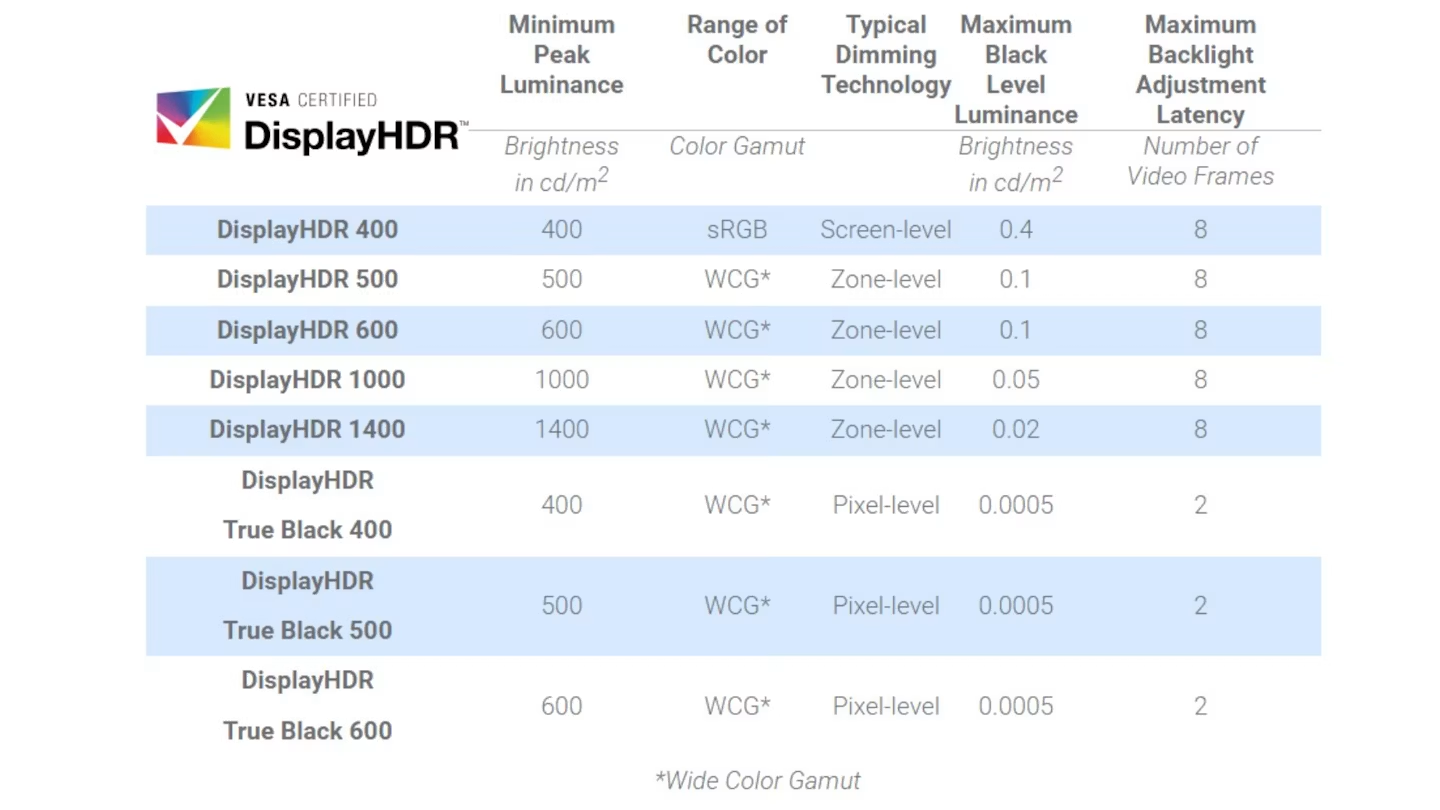
This is the comparison that actually matters. The VESA DisplayHDR tiers create a ladder, and understanding each rung helps you figure out where your money does the most good.
| Feature | DisplayHDR 400 | DisplayHDR 600 | DisplayHDR 1000 | DisplayHDR True Black 1000 |
|---|---|---|---|---|
| Peak Brightness | 400 nits | 600 nits | 1000 nits | 1000 nits |
| Local Dimming | Not required | Required | Required | Per-pixel (OLED) |
| Black Level | ~0.4 nits typical | ~0.1 nits | ~0.05 nits | ~0.0005 nits |
| Color Gamut | 95% sRGB minimum | 96% DCI-P3 | 99% DCI-P3 | 99% DCI-P3 |
| Bit Depth | 8-bit + FRC | 8-bit + FRC or 10-bit | 10-bit native | 10-bit native |
| Panel Type | IPS or VA | IPS, VA, or OLED | Mini-LED or OLED | OLED |
| Price Range (2025) | $250–$500 | $400–$900 | $800–$3,000+ | $1,000–$3,500+ |
DisplayHDR 400 is where things get misleading. Many budget monitors carry this label while lacking meaningful local dimming. The result is HDR that often looks worse than a well-calibrated SDR display.
The backlight can't dim independently, so blacks stay gray and highlights don't pop. If you see "HDR400" on a spec sheet, treat it as a checkbox feature, not a real HDR experience.
DisplayHDR 600 is a meaningful step up. Local dimming is required, and the higher brightness ceiling creates a more noticeable HDR effect. For casual HDR gaming and streaming, a good HDR600 panel hits a sweet spot.
You get visible specular highlights and better contrast without the premium pricing of the top tier.
DisplayHDR 1000 is where HDR starts to feel transformative. The jump from 600 to 1000 nits is perceptible in specular highlights, sunlight reflections, and explosions. Combined with effective local dimming, the image gains real depth.
This is the tier where HDR stops being a spec and starts being an experience.
DisplayHDR True Black 1000 applies the same brightness target to OLED panels. OLED achieves perfect per-pixel dimming, so blacks are truly black. The tradeoff is that OLED panels can't sustain 1000 nits across large areas the way Mini-LED can.
Automatic Brightness Limiter (ABL) technology kicks in to manage power and heat. For mixed content with bright and dark elements, OLED often looks better. For sustained bright scenes, Mini-LED holds an advantage.
The honest takeaway: HDR1000 is the first tier where HDR feels like a genuine upgrade over SDR. But it's not automatically worth the price for everyone. If you're primarily doing office work, browsing, or competitive gaming where you'd disable HDR anyway, that money is better spent on a faster refresh rate or higher resolution panel.
What You Actually Get With a DisplayHDR 1000 Monitor
Let's break down the actual performance characteristics that matter once you're sitting in front of one of these things.
Peak Brightness vs Sustained Brightness
Manufacturer specs will proudly advertise 1000 nits peak brightness. That number is real, but it's measured under specific conditions. Typically, a 5% or 10% white window on a black background.
This simulates a small bright object in a dark scene, like a flashlight or a star.
Full-screen sustained brightness tells a different story. Most HDR1000 monitors sustain between 400 and 700 nits across the entire screen. Mini-LED models with high zone counts tend to sustain more.
OLED models tend to drop more aggressively due to ABL.
For HDR gaming and movies, peak brightness matters more than sustained. Most HDR content has bright highlights against darker backgrounds. The specular pop comes from those peak measurements.
But if you're doing color grading or viewing bright HDR photographs full-screen, sustained brightness becomes more relevant.
Local Dimming Zones Matter More Than You Think
The number of local dimming zones is arguably more important than peak brightness for perceived image quality. More zones mean finer control over which parts of the screen are bright and which are dim.
A 32-inch 4K HDR1000 monitor with 192 zones will show visible blooming. That's the halo effect around bright objects on dark backgrounds. A similar panel with 576 zones reduces this significantly.
Professional-grade monitors with 1000+ zones approach OLED-level contrast in many scenarios.
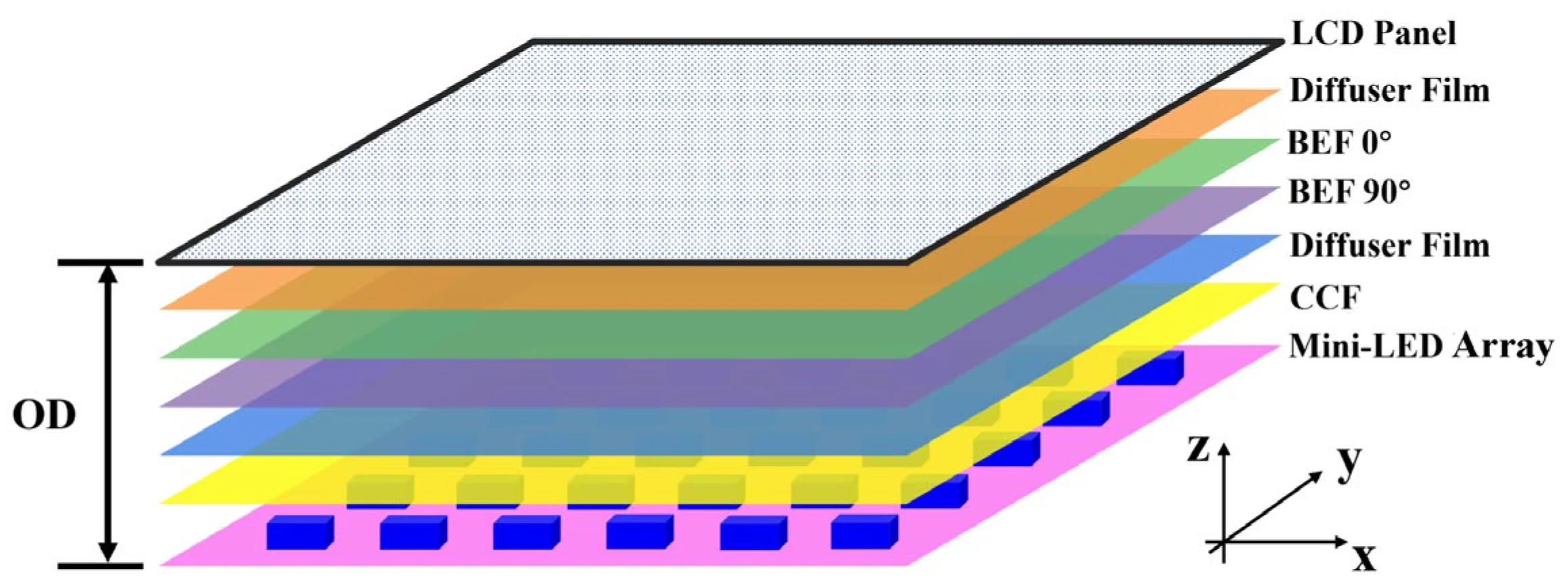
The practical impact: in a dark game scene with a lit candle, fewer zones mean the candle light bleeds into the surrounding darkness. More zones keep the light contained. This is the difference between "wow, that looks amazing" and "that looks like a monitor trying to do HDR."
Color Gamut and Bit Depth
DisplayHDR 1000 requires 99% DCI-P3 coverage. That's a wide color gamut that exceeds standard sRGB by a noticeable margin. Colors in HDR content are mastered in wide gamut, so a monitor that covers most of DCI-P3 renders them more accurately.
The 10-bit color depth requirement reduces banding in gradients. HDR content is typically mastered in 10-bit, so displaying it on a true 10-bit panel preserves smooth transitions. Some HDR1000 monitors use 8-bit + FRC (frame rate control) to simulate 10-bit.
This works well enough that most users won't notice, but it's not identical to a native 10-bit panel.
For professional work, native 10-bit is preferred. For gaming and entertainment, 8-bit + FRC is perfectly acceptable and far more common at this tier.
Who Benefits From HDR1000 (And Who's Wasting Money)
Not everyone needs this level of HDR performance. Let's be specific about who gets real value and who's overspending.
HDR Gaming on PC and Console
This is the strongest use case. HDR1000 monitors deliver a visibly superior gaming experience compared to lower tiers. Specular highlights on water, metal, and explosions gain real intensity.
Dark scenes retain shadow detail without crushing blacks.
For PC gaming, you need a GPU that can actually push frames at the monitor's native resolution and refresh rate. A 4K 144Hz HDR1000 monitor demands an RTX 4080, RTX 4090, or RX 7900 XTX to see its full potential in modern titles. If you're running a mid-range GPU, you'll be lowering settings to hit frame rates, which diminishes the visual upgrade you paid for.
Console gaming is more straightforward. The PS5 and Xbox Series X support HDR output, and most HDR1000 monitors work well with them over HDMI 2.1. The console handles the HDR processing, so you don't need a $2,000 PC to benefit.
Competitive gamers should think carefully. Many competitive titles don't support HDR, and competitive players often lower visual settings for performance. A high-refresh-rate SDR monitor might serve you better than an HDR1000 panel.
Professional Color and Video Work
Colorists, video editors, and photographers working with HDR content benefit from HDR1000 monitors. The wide color gamut and high brightness allow you to evaluate HDR masters accurately. If your deliverables include HDR, you need an HDR reference display.
For SDR-only workflows, an HDR1000 monitor is overkill. A good SDR monitor with accurate sRGB or Adobe RGB calibration will serve you better. The HDR capabilities sit unused, and you're paying a premium for features you don't need.
General Use and Productivity
This is where the value proposition falls apart. Office work, web browsing, and general productivity don't benefit from HDR. In fact, Windows HDR mode can make the desktop look washed out and inconsistent.
You'd likely keep HDR disabled for daily use and only enable it for specific media.
If your monitor use is 80% productivity and 20% entertainment, spend your budget on resolution, panel comfort, and ergonomics instead. A 4K 60Hz IPS panel with good color accuracy will serve you better than a 144Hz HDR1000 gaming monitor you're not fully using.
The Hidden Costs Nobody Talks About
The purchase price is just the start. There are real costs and tradeoffs that don't show up in product listings.
GPU Requirements for HDR Gaming
Driving a 4K HDR1000 monitor at its native resolution and refresh rate requires serious GPU horsepower. Here's what you're looking at for modern AAA titles at high settings:
- 4K 60Hz HDR: RTX 4070 Ti or RX 7800 XT minimum
- 4K 120Hz HDR: RTX 4080 or RX 7900 XTX recommended
- 4K 144Hz+ HDR: RTX 4090 for consistent frame rates
If your current GPU is a generation or two behind, you'll need to factor a GPU upgrade into the total cost. That can add $600 to $1,700 to your investment.
Power, Heat, and Fan Noise
Mini-LED HDR1000 monitors consume significantly more power than standard LED monitors. Expect 60 to 150 watts during HDR content, compared to 25 to 40 watts for a typical SDR panel. That adds up over time, though it's not a dealbreaker for most users.
The extra power generates heat. Many HDR1000 monitors include active cooling fans. Some are barely audible.
Others are noticeable in quiet rooms. Check reviews for noise measurements before buying, especially if you're sensitive to fan noise.
OLED HDR1000 monitors don't need fans, but they face their own thermal management challenges through ABL. The panel dynamically reduces brightness based on the average picture level to manage heat and prevent burn-in.
Windows HDR Is Still a Mess
Microsoft has improved Windows HDR support over the years, but it's still not seamless. Desktop apps look washed out when HDR is enabled. Some games auto-switch to HDR, others require manual toggling.
SDR content within an HDR session often looks dim and undersaturated.
macOS handles HDR more gracefully on supported displays, but the monitor selection is limited. If you're on PC, expect to spend time tweaking settings and toggling HDR on and off depending on what you're doing.
The experience is getting better with each Windows update. As of 2025, Auto HDR for SDR games is a genuine improvement. But it's still not the plug-and-play experience you'd expect from a premium purchase.
HDR1000 Mini-LED vs HDR1000 OLED: Which Path to Take
Both technologies carry the same certification, but they deliver HDR in fundamentally different ways. Your choice here shapes everything about your experience.
Mini-LED uses thousands of small LED zones behind a traditional LCD panel. The advantage is sustained brightness. A Mini-LED HDR1000 monitor can hold 600+ nits across the full screen.
Bright scenes look consistently bright without the dynamic dimming shifts OLED imposes.
The disadvantage is blooming. Even with 576 or more zones, bright objects on dark backgrounds create visible halos. White subtitles on a black movie scene show glow.
Starfields in space games show light bleed around each star. Higher zone counts reduce this, but they don't eliminate it.
OLED HDR1000 monitors use per-pixel emission. Each pixel produces its own light and can turn completely off. Blacks are truly black, at roughly 0.0005 nits.
The contrast ratio is effectively infinite. No blooming, no haloing, no zone-related artifacts.
The tradeoff is ABL. OLED panels can't sustain 1000 nits across large bright areas. A full white screen might only reach 200 to 300 nits.
Small highlights hit 1000 nits fine, but a bright daytime game scene will dim noticeably. This isn't a defect. It's how OLED manages power and longevity.
For dark room viewing and cinematic content, OLED generally looks better. For bright room use and sustained bright content, Mini-LED holds up better. Neither is objectively superior.
They're different approaches with different strengths.
Common Mistakes People Make When Buying HDR1000
The most expensive mistake is buying based on the certification label alone. DisplayHDR 1000 tells you the panel meets minimum thresholds. It doesn't tell you how well the local dimming algorithm handles transitions.
It doesn't tell you how loud the fans are. It doesn't tell you whether the HDR tone mapping is well-tuned out of the box.
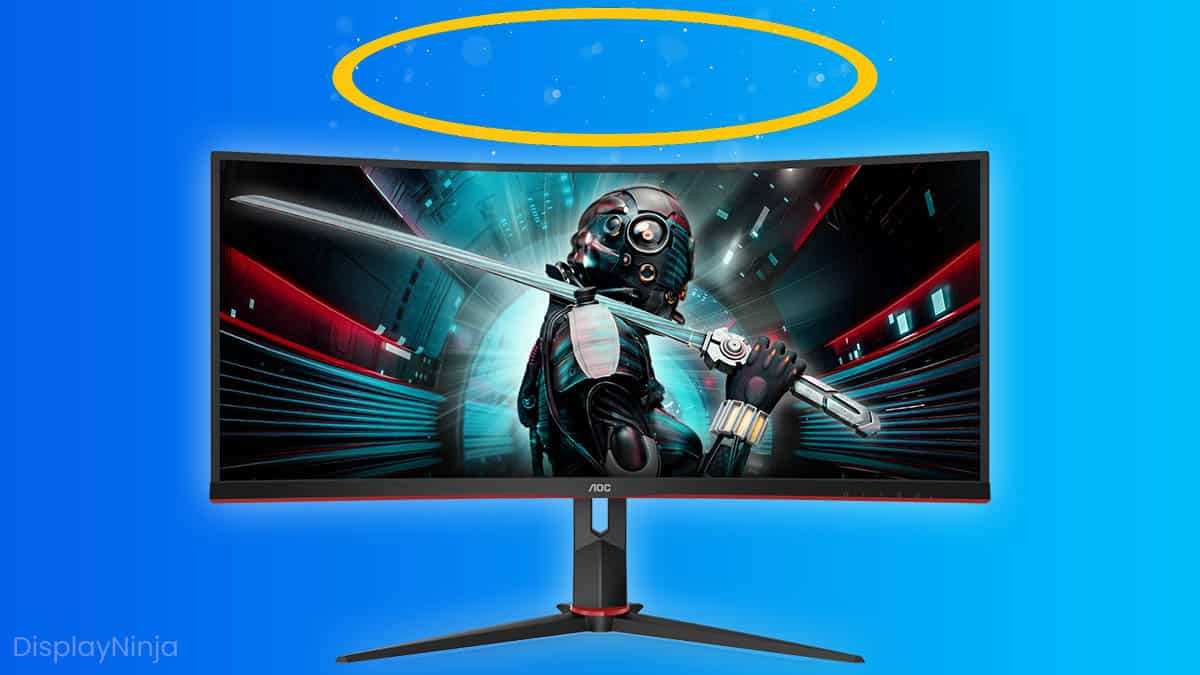
Another common mistake is ignoring the GPU requirement. Buyers spend $1,500 on a 4K 144Hz HDR1000 monitor, then pair it with a GPU that can't push 60 frames per second at that resolution. They end up lowering resolution or refresh rate, negating the benefits they paid for.
Match your hardware to your display, or upgrade both together.
Assuming HDR1000 automatically means "best HDR" is also wrong. Panel tuning matters enormously. A well-calibrated HDR600 monitor can look better than a poorly tuned HDR1000 unit.
Check independent reviews that measure actual HDR performance, not just spec sheet confirmations.
Finally, many buyers don't account for the Windows HDR experience. Desktop use with HDR enabled looks washed out on most monitors. You'll spend time toggling settings.
You'll deal with inconsistent behavior across apps. If you're not willing to manage that, the HDR investment sits partially wasted.
Realistic Price Expectations and What Your Money Gets You
HDR1000 monitors occupy the premium segment. Here's what different budgets get you as of 2025.
$800 to $1,200: Entry-level HDR1000 territory. Expect 192 to 384 dimming zones on a Mini-LED panel. 4K resolution at 60Hz or 1440p at 120Hz+. Good HDR impact but visible blooming in demanding scenes.
Examples include the Cooler Master Tempest GP27U and similar mid-range options.
$1,200 to $2,000: The sweet spot for most buyers. 576+ dimming zones, 4K at 144Hz, better HDR tuning, and more mature firmware. Monitors like the Acer Predator X32 S and Samsung Odyssey Neo G8 sit in this range. HDR performance is genuinely impressive here.
$2,000 to $3,500: Premium tier. High zone counts (1000+), professional-grade color accuracy, and robust build quality. The ASUS ROG Swift PG32UQX and similar flagship models live here.
You're paying for refinement and consistency.
$3,500+: OLED HDR1000 monitors and professional reference displays. The Alienware AW3225QF (QD-OLED) and similar models offer per-pixel HDR with perfect blacks. Professional monitors from ASUS ProArt or Eizo target color-critical HDR work.
The honest advice: the $1,200 to $2,000 range offers the best value. You get meaningful HDR performance without paying for marginal improvements that only enthusiasts or professionals will notice.
My Honest Recommendation Based on Your Situation
If you're a dedicated HDR gamer with a high-end GPU and you play titles that support HDR well, yes, HDR1000 is worth it. The visual upgrade over HDR600 is noticeable and meaningful. You'll see the difference every session.
If you're a professional working with HDR content, it's not a question. You need an HDR reference display, and HDR1000 is the minimum tier that provides useful accuracy.
If you're a casual gamer who plays a mix of titles, many of which don't support HDR, save your money. A good HDR600 monitor or even a high-quality SDR panel will serve you better. Put the savings toward a better GPU or more storage.
If you're primarily doing office work, browsing, or content consumption, HDR1000 is a luxury you won't fully use. Your money is better spent on an ergonomic stand, higher resolution, or a more comfortable panel for long sessions.
The technology is mature and the monitors are genuinely impressive. But impressive doesn't automatically mean right for you. Be honest about what you actually do with your setup, and let that guide the decision.

Similar Posts





















