How to Calibrate Ips Monitor for Color Accuracy
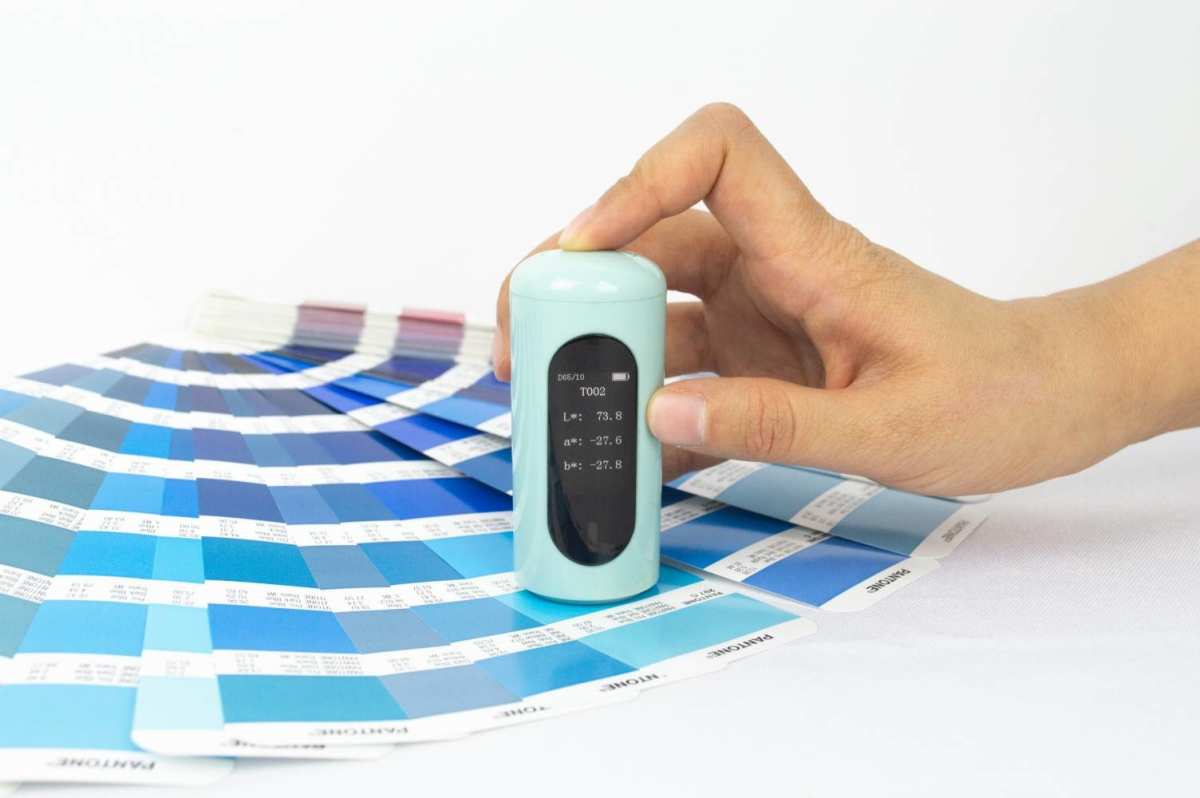
Learning how to calibrate IPS monitor for color accuracy is one of the smartest moves you can make if you edit photos, design for print, or do any color-critical work. The good news is it's straightforward once you understand the process. The bad news is most people either skip it entirely or do it wrong without realizing.
IPS panels ship with solid factory calibration, but individual units vary and colors drift over time. The international ICC standard defines how color profiles communicate across devices, and proper calibration typically gets your Delta E below 2.0, meaning color differences become nearly impossible to detect. Let's walk through exactly how to get there.
Quick Answer
Calibrate your IPS monitor by using a hardware colorimeter with calibration software. Set your target to D65 white point, 2.2 gamma, and 100 to 120 cd/m² luminance. Let the monitor warm up 30 minutes first.
Run the software, save the ICC profile, and recalibrate every 2 to 4 weeks.
Why IPS Monitor Calibration Matters (And When You Can Skip It)
IPS panels are the go-to choice for color-critical work because of their wide viewing angles and consistent color reproduction. But factory calibration is a one-size-fits-all approach. Your specific panel, your ambient lighting, and aging backlight all shift how colors appear over time.
If you're editing photos for clients, preparing files for print, or doing any professional visual work, uncalibrated monitors lead to mismatched colors and wasted time. On the other hand, if you're just browsing the web or watching videos, you probably don't need to bother. Factory calibration on modern IPS displays is decent enough for casual use.
The real risk is false confidence. You think your colors are accurate because you bought a good monitor, but without verification you're guessing. Calibration removes the guesswork.
Understanding Factory Calibration vs. Your Own Calibration
Most mid-range and high-end IPS monitors ship with a factory calibration report. This tells you the display was tested at the factory and met certain standards. That's useful, but it's a snapshot of one moment in time.
Your monitor's backlight shifts as it ages. LED backlights typically lose brightness and shift slightly in color temperature over thousands of hours of use. A monitor that was perfect at the factory six months ago may now be showing a warm or cool cast you can't see with your naked eye.
User calibration with a colorimeter measures your specific panel right now, in your specific environment, and builds a correction profile tailored to it. That's the difference between "this model is generally accurate" and "this screen, today, is accurate."
What You Need Before You Start: Tools, Software, and Setup
You can't calibrate accurately by eye alone. Software-only calibration tools that ask you to squint at contrast patterns are better than nothing, but they're wildly unreliable. For real results, you need a hardware colorimeter.
Essential Tools
| Tool | Purpose | Price Range |
|---|---|---|
| Colorimeter (SpyderX, i1Display Pro, Calibrite ColorChecker) | Measures actual light output from your screen | $70–$280 |
| Calibration software (DisplayCAL, Calman, or manufacturer software) | Generates ICC profile based on measurements | Free–$250 |
| Calm, neutral environment | Eliminates ambient light interference | Free |

Colorimeter Options at a Glance
- Datacolor SpyderX Pro, Fast calibration, good for most photographers and designers. Around $170.
- Calibrite ColorChecker Display Pro, Formerly X-Rite, excellent accuracy, works with most software. Around $170.
- X-Rite i1Display Pro, Professional-grade, faster sensor, wider gamut support. Around $250.
All three work well for IPS panels. The differences show up mainly in speed and software ecosystem, not in accuracy for standard gamut displays.
Software Choices
DisplayCAL is free, open source, and arguably the most powerful option available. It works with virtually every colorimeter on the market. Calman offers a free version with limited features and paid tiers for professionals.
Some monitor brands like BenQ and ASUS include their own calibration software designed to work with specific hardware.
If you're just starting out, download DisplayCAL and pair it with whatever colorimeter you have. That combination handles 90% of use cases without spending extra on software.
How to Calibrate Your IPS Monitor: Step-by-Step Workflow
The process is the same whether you're on Windows or macOS, though the profile storage locations differ. Follow these steps in order and you'll end up with a reliable ICC profile.
Step 1: Prepare Your Environment and Monitor
Turn on your monitor and let it warm up for at least 30 minutes. LED backlights need time to reach stable color temperature. Calibrating on a cold monitor gives you a profile that's wrong by the time you actually start working.
Disable any dynamic features. Turn off auto-brightness, dynamic contrast, blue light filters, night mode, and any "eco" power-saving modes. These features actively change what the display shows, which defeats the purpose of calibration.
Set your room lighting to what you normally work in. If you edit in a dim room, calibrate in a dim room. If you work in bright daylight, calibrate in bright daylight.
The profile needs to match your real conditions.
Reset your monitor to factory defaults through its on-screen display menu. This gives you a clean starting point.
Step 2: Choose Your Calibration Targets
Most color-critical work uses these standard targets:
- White point: D65 (6500K), which matches average daylight
- Gamma: 2.2 for general use, or the sRGB curve if you work primarily for web
- Luminance: 100 to 120 cd/m² for typical editing environments, 80 cd/m² if you're matching prints in a dim viewing booth
If your monitor supports hardware calibration and you're using compatible software like BenQ Palette Master Element or Eizo ColorNavigator, the calibration data gets written directly into the monitor's internal lookup table. This is preferable because it bypasses your graphics card's LUT and works regardless of what computer the monitor is connected to.
For software-only calibration, the correction gets applied through your GPU's lookup table. It works fine, but you need to make sure your graphics driver doesn't reset the LUT after updates or reboots.
Step 3: Run the Calibration Software
Launch your calibration software and select your colorimeter when prompted. Place the colorimeter flat against the center of the screen. The sensor should make full contact with no gaps or ambient light leaking in.
The software will display a series of color patches and grayscale steps while the colorimeter measures each one. This typically takes 5 to 15 minutes depending on your settings and hardware speed.
Don't touch the screen or move the sensor during this process. Vibrations and shifting position introduce measurement errors.
Step 4: Save and Verify Your ICC Profile
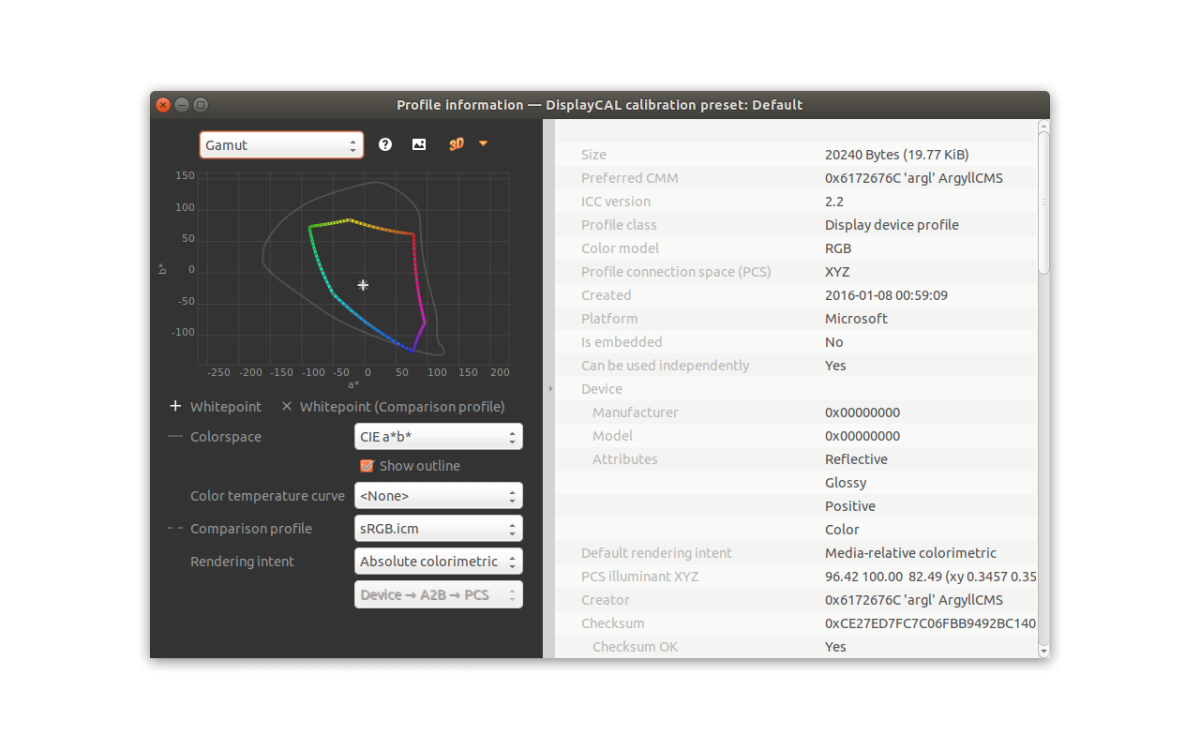
Once measurement completes, the software generates an ICC profile. Save it to the correct system location. On Windows, that's typically C:\Windows\System32\spool\drivers\color.
On macOS, it goes in /Library/ColorSync/Profiles or your user profile folder depending on whether you want it available system-wide.
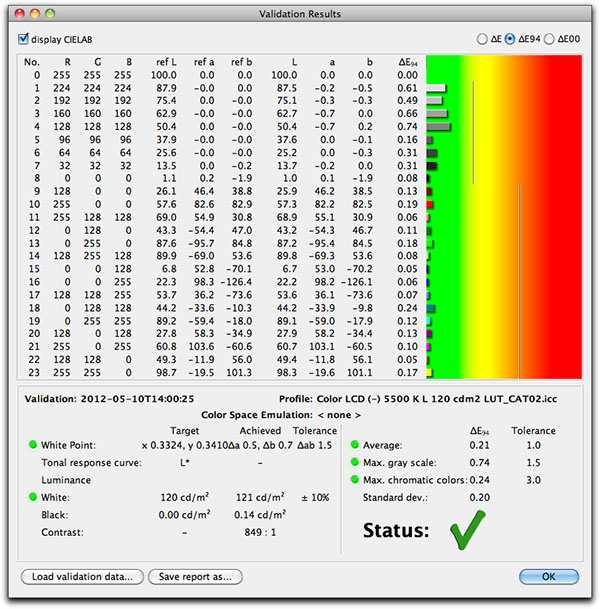
Set the new profile as your default display profile in your operating system's color management settings. Then run a verification measurement. Most calibration software offers this option.
It displays a set of known color patches and measures them against the profile's predictions.
Look at the Delta E results. A Delta E average below 2.0 is good. Below 1.0 is excellent.
If you're seeing values above 3.0, something went wrong. Check your placement, your settings, and your ambient conditions, then recalibrate.
Hardware Calibration vs. Software Calibration: What's the Difference?
Software calibration adjusts your graphics card's lookup table to compensate for your monitor's color errors. The ICC profile tells your GPU to shift certain colors before they reach the display. It works, but it reduces your effective bit depth slightly because you're remapping values through a correction curve.
Hardware calibration goes deeper. It writes correction data directly into the monitor's internal processor. The monitor itself adjusts its output, leaving your GPU LUT untouched.
This preserves full bit depth and means the calibration stays with the monitor regardless of which computer it's connected to.
Not every monitor supports hardware calibration. You need a display with an internal LUT that accepts external data, typically 10-bit or higher. Eizo ColorEdge and BenQ DesignVue monitors with calibration sensors are common examples.
If your monitor doesn't support it, software calibration is your only option and it still gets you very close.
Colorimeter Options Compared: SpyderX vs. i1Display Pro vs. Calibrite
All three major consumer colorimeters produce accurate results on standard IPS panels. The differences come down to speed, software compatibility, and build quality.
| Feature | SpyderX Pro | Calibrite ColorChecker Display Pro | i1Display Pro |
|---|---|---|---|
| Price (approx.) | $170 | $170 | $250 |
| Sensor type | 7-filter | 7-filter | 7-filter |
| Calibration speed | Fast | Fast | Fastest |
| Software ecosystem | SpyderX software, DisplayCAL compatible | Calman, DisplayCAL compatible | Calman, DisplayCAL compatible |
| Wide gamut support | Yes | Yes | Yes |
| Build quality | Plastic, lightweight | Solid, midweight | Compact, durable |
The i1Display Pro is the fastest unit and has the strongest reputation in professional environments. The SpyderX and Calibrite units offer nearly identical accuracy at a lower price point. For most photographers and designers, any of the three will serve well.
Avoid the cheapest no-name colorimeters found on marketplaces. Their sensor accuracy drifts quickly and they often can't handle wide-gamut displays properly.
Common Calibration Mistakes That Ruin Your Results
The most common mistake is calibrating immediately after turning on the monitor. LED backlights need 30 to 60 minutes to stabilize. A cold panel can shift by a noticeable Delta E amount during its first half hour of operation.
Another frequent error is leaving dynamic features enabled. Auto-brightness, dynamic contrast, and ambient light sensors actively change your display's output. Your calibration profile becomes invalid the moment those features kick in.
Calibrating in the wrong ambient conditions catches people too. If you calibrate in a dark room but work in bright daylight, your profile won't match your viewing conditions. Always calibrate in the same lighting you work in.
Using the wrong targets is another pitfall. Setting luminance to 200 cd/m² when you're editing for print makes no sense. Your print will look dark compared to the screen.
Match your luminance target to your output medium.
Finally, some people calibrate once and forget about it. IPS panels drift gradually. Recalibrating every 2 to 4 weeks keeps things accurate.
Monthly is fine for less critical work.
How Often Should You Recalibrate? Maintenance Schedule
For professional color-critical work, recalibrate every 2 to 4 weeks. This accounts for gradual backlight drift and keeps Delta E values consistently low. Photography studios, print proofing houses, and video color grading suites typically follow this schedule.
For hobbyists and semi-professional users, monthly calibration is sufficient. Your monitor won't drift dramatically in a month, and the time investment pays off in consistent results.
If you move your monitor, change your lighting setup, or update your graphics driver, recalibrate afterward. These events can shift your display's behavior or reset your GPU LUT.
Some colorimeters and software combinations offer quick verification modes. These take two to three minutes and check whether your current profile still matches your display. Running a verification between full calibrations helps you decide whether a recalibration is actually needed.
When You Don't Need to Calibrate (And When You Absolutely Do)
You don't need to calibrate if you only browse the web, watch videos, or do general office work. Factory calibration on modern IPS monitors is good enough for those tasks. Your time is better spent elsewhere.
You absolutely should calibrate if you edit photos for clients, prepare files for print, do graphic design work, or color grade video. Any situation where color accuracy affects your output quality demands calibration.
The middle ground is hobbyist photography and content creation. If you share photos online and want them to look consistent across different viewers' screens, calibration helps. It's not mandatory, but it removes one major variable from the equation.
Think of calibration as insurance. You're paying a small amount of time and money to eliminate a source of error that could cost you far more in rework, client dissatisfaction, or wasted prints.
Frequently Asked Questions
Can I calibrate my monitor without a colorimeter?
You can try software-only calibration using your operating system's built-in tools, but results are unreliable. Human eyes adapt to color casts and can't judge accuracy objectively. A colorimeter is the only way to get meaningful results.
Does calibration work on any IPS monitor?
Yes. Any IPS panel can be calibrated regardless of price or age. Older monitors benefit even more from recalibration since backlight drift increases over time.
How long does a full calibration take?
About 10 to 20 minutes including monitor warm-up. The actual measurement process runs 5 to 15 minutes. Verification adds another 3 to 5 minutes.
Will calibration make my monitor look worse?
It might look slightly different from what you're used to. If your monitor had a cool blue cast, calibration will warm it up to accurate D65. Give it a day.
Your eyes adjust and the accurate version starts looking normal.
Do I need to calibrate both monitors if I use two?
Yes. Two different monitors, even the same model, display colors differently. Calibrate each one individually.
Then verify they match using the same target settings.
Is DisplayCAL really free?
Yes. DisplayCAL is open source and free to use. It supports most colorimeters and offers features that rival paid software.
The only cost is your colorimeter hardware.

Similar Posts





















