How to Use HDR Monitor for Netflix
So you bought an HDR monitor, fired up Netflix, and… nothing looks different. The picture might even look worse than before. Figuring out how to use HDR monitor for Netflix is frustrating because there are about six things that all need to line up at once, and if even one is missing, you get no HDR or a washed-out mess.
The good news is this is almost always a settings or setup issue, not a hardware problem. Netflix requires a Premium plan, a compatible GPU, the right browser or app, HDCP 2.2 compliance, and Windows HDR toggled on. Miss any one of those and you're stuck in standard dynamic range.
Let's walk through each requirement so you can get HDR working properly.
Quick Answer
To use HDR on Netflix with your monitor, you need a Netflix Premium plan. Your GPU must support HDR output through HDMI 2.0 or DisplayPort 1.4. Turn on HDR in Windows display settings and your monitor's on-screen display.
Use the Netflix Windows app or Microsoft Edge browser. Verify HDCP 2.2 compliance across your entire chain. Look for the HDR badge on Netflix content to confirm it's working.
The Quick Checklist: Everything That Has to Line Up
Before we dive into step-by-step troubleshooting, here's the full picture. Every single one of these requirements must be met for HDR Netflix to work on your monitor. If you're missing even one, HDR won't engage.
| Requirement | What to Check |
|---|---|
| Netflix Plan | Premium (Ultra HD) tier required |
| GPU Support | Must support HDR10 output over your connection |
| Cable | HDMI 2.0 or DisplayPort 1.4 minimum |
| HDCP 2.2 | Full chain compliance (GPU, cable, monitor) |
| Windows Setting | HDR toggle enabled in Display Settings |
| Monitor Setting | HDR mode enabled in monitor OSD |
| App or Browser | Netflix app or Microsoft Edge (not Chrome) |
| Content | Title must have HDR badge on its page |
That's the checklist. Now let's go through each one in detail so you can verify your setup and fix whatever's blocking HDR.
Step 1: Verify Your Netflix Plan Supports 4K HDR
This catches more people than anything else. Not every Netflix plan gives you access to HDR content. You need the Premium plan, which Netflix calls the Ultra HD tier.
Here's how the plans break down as of 2026:
| Plan | Resolution | HDR | Price (Monthly) |
|---|---|---|---|
| Standard with Ads | 1080p | No | $7.99 |
| Standard | 1080p | No | $17.99 |
| Premium | 4K UHD | Yes (HDR10, Dolby Vision) | $24.99 |
If you're on the Standard or ad-supported plan, you will not get HDR. Period. No amount of settings tweaking will change that.
Netflix gates the HDR stream behind the Premium tier using PlayReady DRM.
How to check your plan:
- Go to netflix.com/planoptions
- Your current plan is displayed at the top
- If you need to upgrade, you can switch directly from that page
One more thing. Even on Premium, not every title has HDR. Netflix has thousands of shows, and a large portion of the library is still SDR only.
Look for the HDR or Dolby Vision badge on the title's detail page before troubleshooting further.
Step 2: Confirm Your GPU Can Actually Output HDR Output
Your graphics card is the starting point of the entire HDR signal chain. If it can't output HDR, nothing downstream matters.
Minimum GPU requirements for HDR output:
| Manufacturer | Minimum GPU Series | HDR Standard |
|---|---|---|
| NVIDIA | GTX 10-series (Pascal) or newer | HDR10 |
| AMD | RX 400-series (Polaris) or newer | HDR10 |
| Intel | 7th-gen Core (Kaby Lake) integrated or newer | HDR10 |
Most GPUs from 2016 onward support HDR10 output. But there's a catch. Some older GPUs support HDR10 for video playback but not for desktop compositing, which can cause issues.
How to verify on Windows:
- Right-click the desktop and select your GPU control panel (NVIDIA Control Panel, AMD Adrenalin, or Intel Graphics Command Center)
- Look for display or color settings
- Check that 10-bit color depth is available
- Confirm HDR output is listed as supported
If your GPU is older than the minimums above, you may need a hardware upgrade. There's no software workaround for a GPU that lacks HDR output capability.
Step 3: Check Your Cable and Connection (HDMI vs. DisplayPort)
This is where things get sneaky. Not all cables that fit the port actually support the bandwidth HDR needs. And the port version on your GPU and monitor both matter.
Minimum connection standards:
| Connection | Max Bandwidth | Supports 4K HDR 60Hz? |
|---|---|---|
| HDMI 2.0 | 18 Gbps | Yes |
| HDMI 2.1 | 48 Gbps | Yes |
| DisplayPort 1.4 | 32.4 Gbps | Yes |
| DisplayPort 1.2 | 17.28 Gbps | No |
| HDMI 1.4 | 10.2 Gbps | No (4K limited to 30Hz) |
What to check:
- The cable itself should be labeled "High Speed HDMI" or "Ultra High Speed HDMI" for HDMI, or "DisplayPort 1.4" for DP
- Both your GPU port and your monitor port must meet the minimum spec
- Cheap cables that come in the box with monitors sometimes don't support full bandwidth
DisplayPort 1.4 is generally the more reliable choice for PC HDR. It handles 4K at 60Hz with 10-bit color and HDR without compression. HDMI 2.0 works too, but you're closer to the bandwidth limit.
If you're using an adapter (USB-C to HDMI, for example), make sure the adapter explicitly supports HDR passthrough. Many cheap adapters do not.
Step 4: Enable HDR in Windows Display Settings
Now we get into the software side. Windows does not enable HDR by default, even if your hardware fully supports it. You have to turn it on manually.
How to enable HDR in Windows 11:
- Right-click the desktop and select "Display settings"
- Click the display you want to enable HDR on (important for multi-monitor setups)
- Scroll to the "Brightness and color" section
- Toggle "Use HDR" to On
On Windows 10:
- Settings > System > Display
- Under "Windows HD Color," toggle "Play HDR games and apps" to On
When you toggle HDR on, the desktop may look washed out or dim. This is normal. SDR content rendered in an HDR container often looks flat.
We'll address this later in the troubleshooting section.

Important settings to check after enabling HDR:
- In the same HDR settings panel, adjust the "SDR content brightness" slider. This controls how non-HDR content (your desktop, most apps, web pages) looks when HDR mode is active
- Set it to around 40-50 as a starting point, then adjust to taste
- If "Use HDR" toggle is grayed out, your GPU driver likely needs updating or your cable doesn't support the required bandwidth
If the toggle is missing entirely:
- Update your GPU driver to the latest version from NVIDIA, AMD, or Intel
- Verify your monitor is detected correctly in Device Manager
- Try a different cable or port
Step 5: Turn On HDR in Your Monitor's On-Screen Display
Here's something people overlook constantly. Your monitor has its own HDR setting, separate from Windows. Even if Windows says HDR is on, the monitor itself might be in SDR mode.
Most monitors with HDR support require you to enable HDR in the on-screen display (OSD) menu. This is usually found under:
- Picture or Display settings
- HDR Mode (sometimes called "HDR10," "HDR Gaming," or "HDR Movie")
- Some monitors have multiple HDR modes for different use cases
Common monitor OSD HDR settings:
| Setting | What It Does |
|---|---|
| HDR Mode On/Off | Enables the monitor to accept and display an HDR signal |
| HDR10 | Accepts standard HDR10 signal |
| Dolby Vision | Accepts Dolby Vision signal (if supported) |
| Local Dimming | Controls backlight zones for better contrast |
If your monitor has an "Auto HDR" or "HDR Detect" option, enable it. This lets the monitor automatically switch between SDR and HDR based on the incoming signal.
A critical note about DisplayHDR ratings. VESA's DisplayHDR certification comes in tiers. DisplayHDR 400, the most common rating on budget HDR monitors, only requires 400 nits peak brightness. That's often not bright enough for a convincing HDR experience.
DisplayHDR 600 and above deliver noticeably better results. If your monitor is DisplayHDR 400 and HDR looks underwhelming, that's likely why.
Step 6: Use the Right App or Browser (This Is Where Most People Fail)
This is the single biggest point of failure. Not every browser can stream HDR Netflix. In fact, most can't.
Browser and app support for Netflix HDR:
| Application | HDR Support | 4K Support | Notes |
|---|---|---|---|
| Netflix Windows App | Yes (HDR10, Dolby Vision) | Yes | Best option for PC HDR |
| Microsoft Edge | Yes (HDR10) | Yes | Only browser that works |
| Google Chrome | No | No (caps at 720p for DRM) | Does not support PlayReady SL3000 |
| Mozilla Firefox | No | No | No HDR, limited to 1080p |
| Safari (macOS) | Yes (supported Macs) | Yes | Requires 2018+ Mac with T2 chip or Apple Silicon |
If you're opening Netflix in Chrome, you will never get HDR. Chrome doesn't support the PlayReady SL3000 DRM that Netflix requires for premium HDR streams. You'll be capped at 720p standard dynamic range.
The two working options on Windows:
Option 1: Netflix Windows App (Recommended)
- Download from the Microsoft Store
- Supports both HDR10 and Dolby Vision
- Generally more reliable than Edge for consistent HDR handshake
- Handles auto-switching between SDR and HDR content better
Option 2: Microsoft Edge
- Already installed on Windows 10 and 11
- Supports HDR10 but not Dolby Vision
- Works well if you prefer a browser over an app
- Make sure Edge is updated to the latest version
On macOS: Safari is your only option for HDR Netflix. It works on 2018 and newer Macs with the T2 security chip, and on all Apple Silicon Macs. Make sure macOS is updated, as earlier versions had inconsistent HDR behavior.
Step 7: Verify HDCP 2.2 Compliance
HDCP 2.2 is a copy protection standard that Netflix requires for all 4K and HDR content. Every link in your chain must support it. Your GPU, your cable, and your monitor all need to be HDCP 2.2 compliant.
If any single component fails the HDCP handshake, Netflix will downgrade your stream. You might get 1080p SDR instead of 4K HDR, or in some cases, you'll get an error message.
How to check HDCP status on NVIDIA GPUs:
- Open NVIDIA Control Panel
- Click "View HDCP status" under the Display section
- It should show "Enabled" for the connected display
How to check on AMD GPUs:
- Open AMD Adrenalin Software
- Go to Settings > Display
- Look for HDCP support indicator
Common HDCP failure points:
- Old HDMI cables that only support HDCP 1.4
- Monitors with HDMI 1.4 ports (no HDCP 2.2)
- KVM switches or HDMI splitters that don't pass HDCP 2.2
- Daisy-chained monitors where the second display doesn't support it
If you're using a KVM switch or any kind of HDMI switch between your GPU and monitor, try connecting directly first. Many switches strip HDCP or don't pass it through properly.
Step 8: Confirm You're Actually Seeing the HDR Badge
You've done everything right. Now how do you know HDR is actually working?
Look for the HDR badge on Netflix:
- Open the title you want to watch
- On the title's detail page, look below the description
- You should see a badge that says "HDR," "HDR10," or "Dolby Vision"
- If you only see "4K" or "Ultra HD" without an HDR label, that title doesn't have an HDR mix
While the video is playing:
- Press Ctrl+Shift+Alt+D (on the Netflix Windows app) to bring up the diagnostic overlay
- This shows you the current resolution, bitrate, and color space being streamed
- Look for "HDR" or "DV" (Dolby Vision) in the color space field
- If it says "BT.709," you're watching SDR
- If it says "BT.2020," you're in HDR territory
Quick visual confirmation:
- HDR content has noticeably brighter highlights (sun reflections, explosions, light sources)
- Blacks look deeper and more detailed, not crushed to solid dark
- Colors appear more saturated but not oversaturated
- If the image looks flat, gray, or washed out, HDR probably isn't active
What to Do When HDR Looks Worse Than SDR
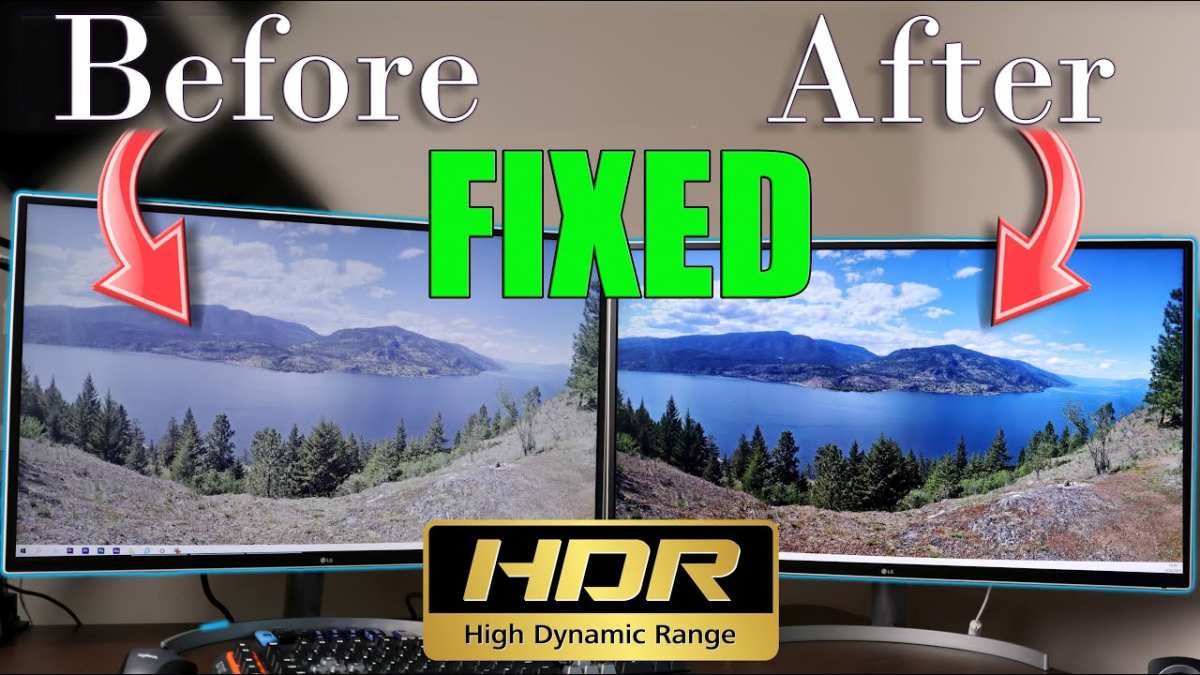
This is a real problem, and it's more common than you'd think. HDR on a monitor can look worse than SDR in certain situations. Here's why and what to do about it.
Why HDR can look bad on monitors:
Your monitor is probably HDR400 or HDR600 at best. True HDR needs high peak brightness and good local diming. Most monitors can't deliver that convincingly.
The result is a dim, flat image that looks worse than a good SDR picture.
Fix 1: Adjust the SDR content brightness slider in Windows
- Go to Settings > System > Display > HDR
- Move the "SDR content brightness" slider up to 50-60
- This makes your desktop and non-HDR apps look normal while keeping HDR active for video
Fix 2: Try different HDR modes in your monitor OSD
- Switch between "HDR Movie," "HDR Gaming," and "HDR Standard" if available
- Some modes are tuned better than others for video content
Fix 3: Turn off HDR in Windows for desktop use, enable it only for video
- This is the honest truth for many HDR400 monitors
- Toggle HDR on when you sit down to watch a movie
- Toggle it off when you're done
- It's annoying, but it gives you the best of both worlds
Fix 4: Check your monitor's local dimming setting
- Some monitors have local diming disabled by default in HDR mode
- Enable it in the monitor OSD for better contrast
- If your monitor doesn't have local dimming at all, that's a hardware limitation you can't fix
DisplayHDR Ratings Explained: Is Your Monitor Actually Good Enough?
VESA's DisplayHDR certification is supposed to tell you what you're getting. In practice, it's misleading for the entry-level tiers.
DisplayHDR tier breakdown:
| Tier | Peak Brightness | Local Dimming | Color Gamut | Real HDR Experience |
|---|---|---|---|---|
| DisplayHDR 400 | 400 nits | No | sRGB | Poor |
| DisplayHDR 500 | 500 nits | No | 90% DCI-P3 | Mediocre |
| DisplayHDR 600 | 600 nits | Optional | 90% DCI-P3 | Acceptable |
| DisplayHDR 1000 | 1000 nits | Yes | 90%+ DCI-P3 | Good |
| DisplayHDR 1400 | 1400 nits | Yes | 90%+ DCI-P3 | Very Good |
The honest truth about DisplayHDR 400:
Most budget HDR monitors carry the DisplayHDR 400 certification. This is the lowest tier. It basically means the monitor can accept an HDR signal and hit 400 nits peak brightness.
It does not require local dimming or wide color gamut.
For Netflix streaming, DisplayHDR 400 is technically functional but rarely impressive. You'll see some improvement over SDR, but it won't blow you away. If you have a DisplayHDR 600 or better monitor, HDR Netflix content looks significantly better.
What matters more than the certification:
- Actual sustained brightness (not just peak)
- Number of local dimming zones (more is better)
- Native panel contrast ratio (VA panels beat IPS for HDR)
- DCI-P3 color coverage (90%+ is ideal)
If your monitor is DisplayHDR 400 and HDR Netflix looks underwhelming, that's not a settings problem. It's a hardware limitation. You can still enjoy HDR content, but manage your expectations accordingly.
Common Mistakes That Kill HDR Netflix Playage
After walking through all the steps above, let's recap the mistakes we see most often. If HDR isn't working for you, one of these is almost certainly the cause.
- Using Chrome. Chrome caps Netflix at 720p SDR. No HDR, no 4K. Switch to the Netflix app or Microsoft Edge.
- Missing the monitor OSD setting. Windows says HDR is on but the monitor itself is still in SDR mode. Check your monitor's picture settings.
- HDMI 1.4 cable. The cable fits the port fine but doesn't have the bandwidth for 4K HDR. You need HDMI 2.0 minimum.
- Wrong Netflix plan. Standard and ad-supported plans don't include HDR. Upgrade to Premium.
- Outdated GPU drivers. Old drivers may not expose HDR support correctly. Update to the latest version.
- HDCP handshake failure. A switch, splitter, or old cable in the chain breaks copy protection. Connect directly to test.
Quick Troubleshooting Flow for Stubborn Setups
Still stuck? Follow this decision tree. Answer each question and follow the branch.
- Do you see an HDR badge on the Netflix title page? , No: That title doesn't have an HDR mix. Try a known HDR title like "Our Planet" or "Stranger Things."
, Yes: Continue to question 2.
- Is the Netflix app or Edge showing "HDR" in the diagnostic overlay (Ctrl+Shift+Alt+D)? , No: HDR signal isn't reaching the app. Check Windows HDR toggle and monitor OSD.
, Yes: Continue to question 3.
- Does the image actually look better, or just different? , Washed out/dim: Your monitor likely has low HDR capability. Adjust SDR content brightness slider. Consider toggling HDR off for casual viewing.
, Better: You're done. Enjoy it.
Frequently Asked Questions
Does Netflix HDR work on Chrome?
No. Chrome does not support the PlayReady SL3000 DRM that Netflix requires for HDR. You'll be limited to 720p SDR.
Use the Netflix Windows app or Microsoft Edge instead.
Can I use HDR Netflix on a DisplayHDR 400 monitor?
Yes, but the experience is often underwhelming. DisplayHDR 400 monitors lack the brightness and local diming needed for convincing HDR. You'll get some improvement over SDR, but don't expect a dramatic difference.
Why does my desktop look washed out when HDR is on?
Windows maps SDR content into an HDR container when the HDR toggle is active. This causes SDR elements like your desktop, taskbar, and non-HDR apps to look flat. Use the "SDR content brightness" slider in Windows HDR settings to compensate.
Do I need HDMI 2.1 for Netflix HDR?
No. HDMI 2.0 (18 Gbps) handles 4K HDR at 60Hz with 10-bit color. HDMI 2.1 is nice to have but not required.
DisplayPort 1.4 also works perfectly.
Does HDR Netflix work on macOS?
Yes. Use Safari on a 2018 or newer Mac (with T2 chip) or any Apple Silicon Mac. Safari supports HDR Netflix streaming.
Chrome and Firefox on macOS do not.
Can I get HDR Netflix through a KVM switch?
Probably not. Most KVM switches don't pass HDCP 2.2 or HDR signals reliably. Connect your monitor directly to your GPU for HDR Netflix.
If you must use a KVM, verify it explicitly supports HDR and HDCP 2.2 passthrough.

Similar Posts





















