How to Know If Monitor Is Ips or Tn
Figuring out how to know if monitor is ips or tn shouldn't require a spec sheet or the original box. Most people asking this question already have the monitor sitting on their desk and just need a reliable way to identify what they're working with. The good news is that IPS (In-Plane Switching) and TN (Twisted Nematic) panels behave visibly differently once you know what to look for.
The three most reliable methods are all visual. The tilt test catches TN's signature color inversion. The side angle test shows where IPS holds its color accuracy and TN washes out.
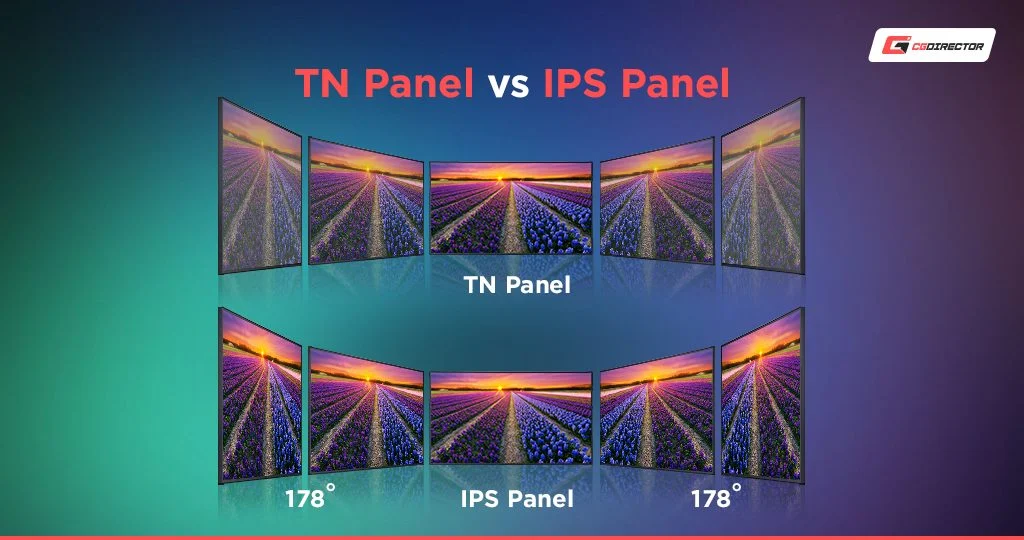
Per VESA display standards, a true IPS panel maintains color consistency at viewing angles up to 178 degrees, while TN panels start losing accuracy well before that. Let's walk through each test so you can check your monitor right now.
Quick Answer
You can identify your panel type with three visual tests. Tilt the monitor upward and watch for color inversion, which signals TN. View the screen from a sharp side angle, where IPS keeps colors accurate and TN shifts dramatically.
Check manufacturer specs or your graphics driver settings for panel information if visual tests are inconclusive.
The Three Visual Tests That Actually Work
These tests exploit the fundamental structural differences between how IPS and TN panels manipulate liquid crystals. You don't need any tools. Just your eyes and a few seconds.
The Tilt Test: TN's Telltale Color Inversion
This is the single fastest way to spot a TN panel. Here's how it works.
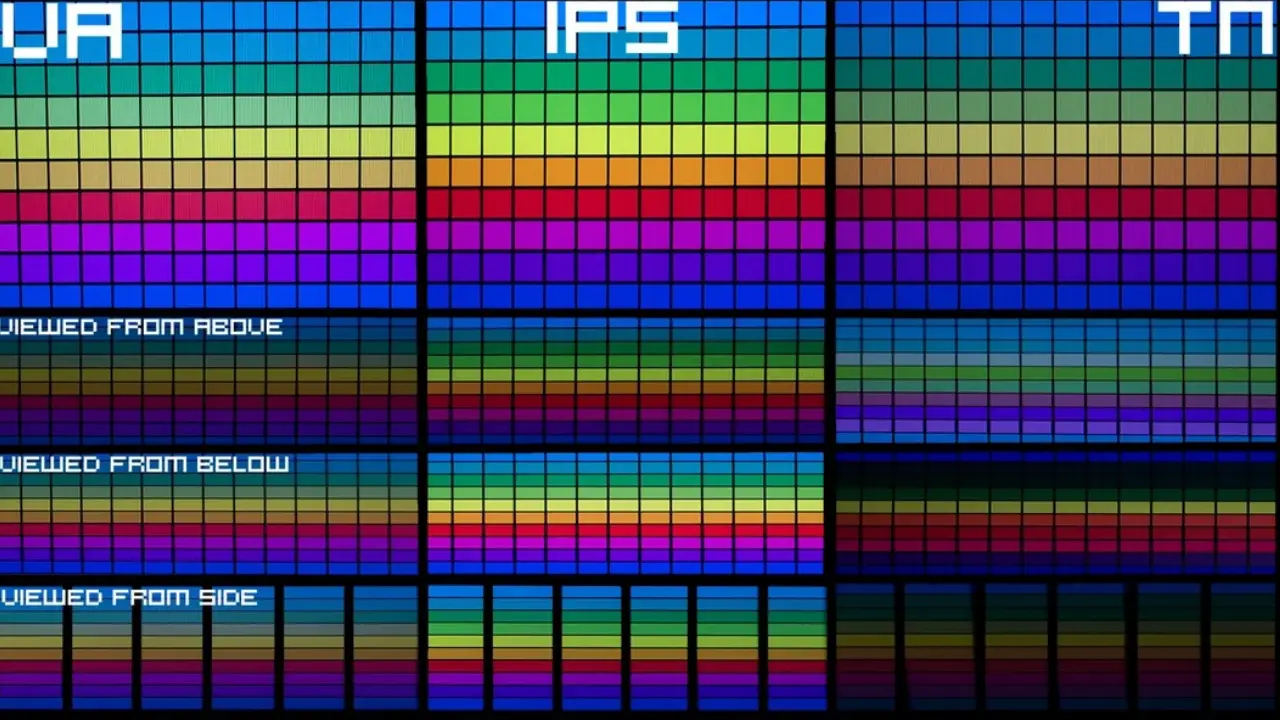
Position your monitor at eye level or slightly above. Now tilt the bottom edge toward you, angling the screen upward. On a TN panel, you'll see colors invert dramatically.
Blacks turn into a silvery white or purple-tinted negative image. Skin tones flip to their complementary colors.
IPS panels don't do this. When you tilt an IPS screen, colors shift slightly in brightness but stay recognizable. The image might look a bit washed out at extreme angles, but it won't invert.
Why this happens: TN crystals twist vertically when voltage is applied. Viewing from below reverses the light path through that twist. IPS crystals rotate horizontally within the plane of the panel, so vertical tilting doesn't cause the same inversion.
The Side Viewing Angle Test: Where IPS Dominates
This test separates the two panel types even more clearly. Sit in front of your monitor. Now move your head sharply to the left or right, about 45 to 60 degrees off-center, while keeping the screen at the same distance.
On an IPS panel, the image stays vivid. Colors remain accurate. You might notice a slight brightness drop or a subtle glow near the edges, known as IPS glow, but the content stays fully viewable.
On a TN panel, the image shifts noticeably. Colors wash out or invert depending on the direction. Move to the left and the screen might take on a warm, yellowish cast.
Move to the right and it cools down to blue. Vertical movement is even worse. Look from below and the image inverts.
Look from above and contrast drops to almost nothing.
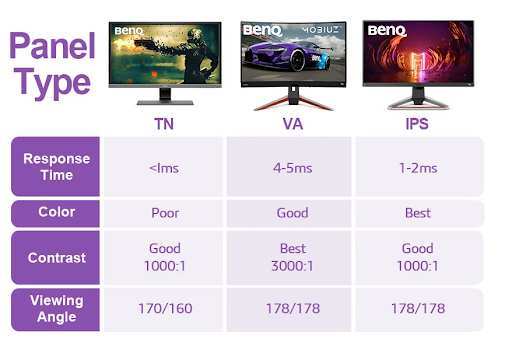
The numbers back this up. Manufacturer specifications list typical viewing angles as 178°/178° for IPS and 170°/160° for TN. That gap sounds small on paper. In practice, it's immediately obvious when you're looking at a TN panel from the side.
The Gentle Pressure Test: Watching Liquid Crystal Behavior
This one requires a light touch, literally. With the screen displaying a solid black image, gently press on the center of the panel with your fingertip. Don't press hard.
Just enough to create a slight flex in the surface.
Around the area you pressed, TN panels typically show a subtle water ripple effect with minimal color distortion. IPS panels tend to show a brighter halo or glow spreading outward from the pressure point. This happens because the liquid crystal alignment responds differently to physical pressure depending on the panel technology.
A word of caution. You're pressing on an LCD panel. Use very light pressure. If you see permanent discoloration or dead pixels after pressing, you've pushed too hard.
This test is safe when done gently, but it's optional. The tilt and angle tests are more than enough on their own.
Quick Reference: IPS vs. TN Visual Differences at a Glance
| Test | IPS Behavior | TN Behavior |
|---|---|---|
| Tilt upward (bottom edge toward you) | Colors stay accurate, slight brightness loss | Colors invert dramatically, blacks turn silver or purple |
| View from sharp side angle | Colors remain vivid, minor brightness drop | Colors wash out, shift warm or cool depending on direction |
| View from below | Slight dimming, image stays recognizable | Strong color inversion, negative-image effect |
| Gentle pressure on black screen | Brighter halo or glow around pressure point | Subtle water ripple, less color distortion |
| General color consistency | Uniform across screen at normal viewing | Noticeable shift even slightly off-center |
What Specs and Model Numbers Can (and Can't) Tell You
If you have access to the monitor's exact model number, you can usually find the panel type through the manufacturer's spec sheet or a detailed product listing. Look for terms like "IPS," "In-Plane Switching," or "Twisted Nematic" in the display specifications.
Where to check:
- The manufacturer's official product page
- Your operating system's display settings or graphics driver panel
- The monitor's on-screen display (OSD) menu under system information
- Service menus accessible through button combinations (varies by brand)
But here's the problem. Many monitors, especially budget models from lesser-known brands, don't clearly state the panel type. Some use vague terms like "IPS-level" or "IPS-type" that have no technical meaning.
Others simply omit the information entirely.
If you bought a used monitor or the label has worn off, you might not have the model number at all. That's exactly when the visual tests above become your most reliable option. They work regardless of brand, age, or whether you have any documentation.
Common Traps: "IPS-Type" Panels and Misleading Listings
This is where a lot of people get burned, especially shopping on large online marketplaces. Sellers sometimes advertise monitors as having "IPS technology" or being "IPS-type" when the actual panel is a cheaper TN or VA panel with software enhancements that mimic some IPS characteristics.
Red flags to watch for:
- The listing says "IPS-level," "IPS-style," or "IPS-like" without explicitly stating "IPS panel"
- The price seems too low for a true IPS monitor in that size range
- The viewing angle specification is missing or listed as something vague like "wide viewing angle"
- Customer reviews mention washed-out colors or color shifting when viewed from the side
A true IPS panel will be marketed as IPS. Manufacturers who use genuine IPS technology want you to know because it's a selling point. When a listing dances around the term, that's your cue to be skeptical.
If you're shopping online and can't verify the panel type through the listing, check the manufacturer's official page for that exact model number. Cross-reference what the seller claims against what the manufacturer states. When in doubt, assume it's not IPS unless confirmed otherwise.
When Panel Type Actually Matters for Your Use Case
Not everyone needs to care about panel type. But for certain use cases, the difference between IPS and TN is significant enough to affect your daily experience.
Competitive Gaming: TN Still Has a Legitimate Edge
If you play fast-paced competitive shooters or fighting games, TN panels offer response times as low as 1 millisecond. Most IPS panels sit around 4 to 5 milliseconds as of 2026, though some newer "Fast IPS" panels have closed that gap. For casual gaming, you won't notice the difference.
For competitive play where every millisecond counts, TN's speed advantage remains real.
That said, the gap has narrowed considerably. If you're not playing at a professional or high-level competitive tier, a good IPS panel will serve you perfectly well.
Design, Photo, and Video Work: IPS Is Non-Negotiable
If your work involves color accuracy, IPS is the minimum acceptable standard. TN panels typically cover only 60 to 90 percent of the sRGB color gamut. IPS panels routinely hit 95 to 100 percent sRGB and often extend into wider gamuts like DCI-P3 or Adobe RGB.
Color consistency across the screen matters too. On a TN panel, the color you see in the center might differ noticeably from what you see at the edges. That makes accurate editing impossible.
IPS maintains much more uniform color across the entire display surface.
General Office Use: Either Works, But IPS Costs Less Than You Think
For spreadsheets, email, web browsing, and document work, both panel types are perfectly adequate. TN monitors tend to be cheaper, but the price gap has shrunk. A basic 24-inch IPS monitor can be found for $120 to $150 as of 2026.
For most office environments, the better viewing angles of IPS make it worth the small premium, especially if multiple people might glance at the screen during conversations.
How to Check Through Your Operating System or Manufacturer Tools
Software can sometimes tell you what hardware you're running, though it's not always reliable for panel type specifically.
Windows:
- Right-click the desktop and select Display settings
- Navigate to Advanced display settings
- Check the display information, which sometimes lists panel details through the graphics driver
- NVIDIA Control Panel and AMD Radeon Software may show additional hardware information
macOS:
- Click the Apple menu and select About This Mac
- Click System Report
- Select Graphics/Displays for connected monitor details
Monitor OSD:
- Many monitors display panel information in the on-screen menu
- Look under System, Information, or Setup sections
- Some manufacturers include the panel model number, which you can then search for directly
Third-party tools:
- Tools like HWiNFO or AIDA64 can sometimes read EDID data from the monitor
- The EDID contains manufacturer and panel model information
- Searching that model number will tell you the panel type definitively
The limitation is that not all monitors report detailed panel information through EDID. Budget models especially tend to provide only basic resolution and refresh rate data. When software falls short, the visual tests remain your most dependable method.
The Bottom Line: Which Test Should You Trust Most?
The tilt test is the most definitive single check. If you tilt the monitor upward and see colors invert, you're looking at a TN panel. Period.
No IPS panel does that.
The side angle test is your second confirmation. If colors stay accurate and vivid from sharp angles, you've got IPS. If they wash out or shift, it's TN.
Use the pressure test only as a supplementary check. It's less definitive and requires more care. The first two tests alone will give you a confident answer in under 30 seconds.
If you're still unsure, try looking up the exact model number on the manufacturer's website. Between the visual tests and a quick spec check, you'll know exactly what panel you're working with.
Frequently Asked Questions
Can a monitor be both IPS and TN?
No. A single panel uses one technology. Some marketing uses confusing terms like "IPS-type," but the underlying hardware is either IPS, TN, VA, or OLED.
There's no hybrid.
Do IPS glow and TN color shift mean the panel is defective?
No. IPS glow is a normal characteristic of IPS technology. TN color shifting from off-axis viewing is inherent to how TN panels work.
Neither indicates a faulty unit unless the effect is extreme.
Can software accurately detect my panel type?
Sometimes. EDID data and system tools can report panel information, but many monitors don't transmit that level of detail. The visual tests are more reliable when software falls short.
Does panel type affect monitor lifespan?
Not significantly. Both IPS and TN panels have similar lifespans, typically rated at 30,000 to 60,000 hours before backlight dimming becomes noticeable. Usage patterns and build quality matter more than panel technology.
Is IPS always better than TN?
Not always. TN panels offer faster response times and lower cost. For competitive gaming on a budget, TN still makes sense.
For color work or general use, IPS is the better choice for most people.
What Specs and Model Numbers Can (and Can't) Tell You
If you have access to the monitor's exact model number, you can usually find the panel type through the manufacturer's spec sheet or a detailed product listing. Look for terms like "IPS," "In-Plane Switching," or "Twisted Nematic" in the display specifications.
Where to check:
- The manufacturer's official product page
- Your operating system's display settings or graphics driver panel
- The monitor's on-screen display (OSD) menu under system information
- Service menus accessible through button combinations (varies by brand)
But here's the problem. Many monitors, especially budget models from lesser-known brands, don't clearly state the panel type. Some use vague terms like "IPS-level" or "IPS-type" that have no technical meaning.
Others simply omit the information entirely.
If you bought a used monitor or the label has worn off, you might not have the model number at all. That's exactly when the visual tests above become your most reliable option. They work regardless of brand, age, or whether you have any documentation.
Common Traps: "IPS-Type" Panels and Misleading Listings
This is where a lot of people get burned, especially shopping on large online marketplaces. Sellers sometimes advertise monitors as having "IPS technology" or being "IPS-type" when the actual panel is a cheaper TN or VA panel with software enhancements that mimic some IPS characteristics.
Red flags to watch for:
- The listing says "IPS-level," "IPS-style," or "IPS-like" without explicitly stating "IPS panel"
- The price seems too low for a true IPS monitor in that size range
- The viewing angle specification is missing or listed as something vague like "wide viewing angle"
- Customer reviews mention washed-out colors or color shifting when viewed from the side
A true IPS panel will be marketed as IPS. Manufacturers who use genuine IPS technology want you to know because it's a selling point. When a listing dances around the term, that's cue to be skeptical.
If you're shopping online and can't verify the panel type through the listing, check the manufacturer's official page for that exact model number. Cross-reference what the seller claims against what the manufacturer states. When in doubt, assume it's not IPS unless confirmed otherwise.
When Panel Type Actually Matters for Your Use Case
Not everyone needs to care about panel type. But for certain use cases, the difference between IPS and TN is significant enough to affect your daily experience.
Competitive Gaming: TN Still Has a Legitimate Edge
If you play fast-paced competitive shooters or fighting games, TN panels offer response times as low as 1 millisecond. Most IPS panels sit around 4 to 5 milliseconds as of 2026, though some newer "Fast IPS" panels have closed that gap. For casual gaming, you won't notice the difference.
For competitive play where every millisecond counts, TN's speed advantage remains real.
That said, the gap has narrowed considerably. If you're not playing at a professional or high-level competitive tier, a good IPS panel will serve you perfectly well.
Design, Photo, and Video Work: IPS Is Non-Negotiable
If your work involves color accuracy, IPS is the minimum acceptable standard. TN panels typically cover only 60 to 90 percent of the sRGB color gamut. IPS panels routinely hit 95 to 100 percent sRGB and often extend into wider gamuts like DCI-P3 or Adobe RGB.
Color consistency across the screen matters too. On a TN panel, the color you see in the center might differ noticeably from what you see at the edges. That makes accurate editing impossible.
IPS maintains much more uniform color across the entire display surface.
General Office Use: Either Works, But IPS Costs Less Than You Think
For spreadsheets, email, web browsing, and document work, both panel types are perfectly adequate. TN monitors tend to be cheaper, but the price gap has shrunk. A basic 24-inch IPS monitor can be found for $120 to $150 as of 2026.
For most office environments, the better viewing angles of IPS make it worth the small premium, especially if multiple people might glance at the screen during conversations.
How to Check Through Your Operating System or Manufacturer Tools
Software can sometimes tell you what hardware you're running, though it's not always reliable for panel type specifically.
Windows:
- Right-click the desktop and select Display settings
- Navigate to Advanced display settings
- Check the display information, which sometimes lists panel details through the graphics driver
- NVIDIA Control Panel and AMD Radeon Software may show additional hardware information
macOS:
- Click the Apple menu and select About This Mac
- Click System Report
- Select Graphics/Displays for connected monitor details
Monitor OSD:
- Many monitors display panel information in the on-screen menu
- Look under System, Information, or Setup sections
- Some manufacturers include the panel model number, which you can then search for directly
Third-party tools:
- Tools like HWiNFO or AIDA64 can sometimes read EDID data from the monitor
- The EDID contains manufacturer and panel model information
- Searching that model number will tell you the panel type definitively
The limitation is that not all monitors report detailed panel information through EDID. Budget models especially tend to provide only basic resolution and refresh rate data. When software falls short, the visual tests remain your most dependable method.
The Bottom Line: Which Test Should You Trust Most?
The tilt test is the most definitive single check. If you tilt the monitor upward and see colors invert, you're looking at a TN panel. Period.
No IPS panel does that.
The side angle test is your second confirmation. If colors stay accurate and vivid from sharp angles, you've got IPS. If they wash out or shift, it's TN.
Use the pressure test only as a supplementary check. It's less definitive and requires more care. The first two tests alone will give you a confident answer in under 30 seconds.
If you're still unsure, try looking up the exact model number on the manufacturer's website. Between the visual tests and a quick spec check, you'll know exactly what panel you're working with.

Similar Posts





















