How to Fix Ips Monitor Flickering
So your IPS monitor's been flickering and you're over it. That stuttering, pulsing, or brightness-dipping screen is genuinely frustrating, especially when you paid good money for that crisp IPS panel.
Figuring out how to fix IPS monitor flickering comes down to isolating the cause, because the root issue could be anything from a $10 cable to a hardware defect. Let's walk through each possibility in order, so you can stop guessing and actually get this sorted.
Quick Answer
IPS monitor flickering usually comes down to cables, drivers, or PWM dimming. Start with reseating or swapping your video cable. Then check refresh rate settings and update GPU drivers.
If flickering gets worse at low brightness, PWM dimming is likely the cause. We'll walk you through each step below.
The 30-Second Diagnostic: Where to Start Based on Your Symptoms
Before you dive into settings menus, narrow down the cause with what you're actually seeing. Different flicker types point to different problems.
Here's a quick breakdown to help you figure out which section to jump to:
| Symptom | Likely Cause | Jump to Step |
|---|---|---|
| Flickering only when gaming or during heavy GPU load | Refresh rate mismatch or adaptive sync conflict | Step 2 |
| Flickering at low brightness (below 40-50%) even on desktop | PWM dimming | Step 5 |
| Flickering happens immediately on boot, before OS loads | Cable, port, or backlight hardware issue | Step 1 or Step 6 |
| Flickering started after a driver or OS update | GPU driver or firmware bug | Step 4 |
| Flickering only on one monitor in a multi-monitor setup | Mixed refresh rate conflict or cable swap needed | Step 3 or Step 2 |
| Brief brightness drops in specific app windows or HDR content | HDR toggle or app-specific rendering issue | Step 2 |
If you're not sure which category fits, start at Step 1. It's the fastest thing to check and it solves a surprising number of cases.
Step 1: Rule Out the Cable (It's the Culprit More Often Than You Think)
Here's the thing nobody wants to hear. Most monitor flickering issues come down to a bad cable or a loose connection. Before you start messing with drivers and settings, spend two minutes checking this.
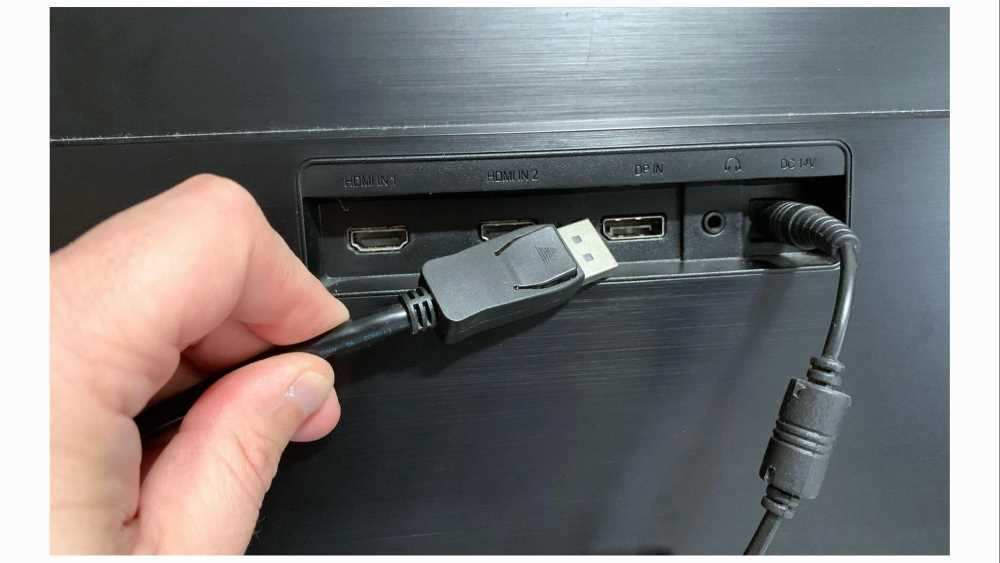
Reseat your video cable at both ends. Unplug it from the monitor, unplug it from the GPU, then plug both ends back in firmly. It sounds too simple, but loose DisplayPort connectors are the single most common cause of intermittent flicker.
If reseating doesn't help, try a different cable entirely. Keep these things in mind:
- Match the cable spec to your connection type. For DisplayPort, use a VESA-certified DisplayPort 1.4 cable if you're running high resolution and high refresh rate. For HDMI, make sure it's rated for the bandwidth you need (HDMI 2.0 for 4K at 60Hz, HDMI 2.1 for 4K at 120Hz or higher).
- Avoid cables longer than about 3 meters unless you're using an active cable. Signal degradation over long passive runs can cause flickering.
- Don't assume the cable that came with your monitor is good. Bundled cables are often the cheapest option the manufacturer could source.
One more thing. Try a different port on both your graphics card and your monitor if available. A single bent pin or damaged port can cause exactly the flickering you're describing, and swapping ports tells you whether the issue follows the port or the cable.
If the flicker stops after any of these cable steps, you've found your answer. Move on to Step 2 if nothing changes.
Step 2: Check Your Refresh Rate and Adaptive Sync Settings

Your Operating System and your graphics driver both control what refresh rate your monitor runs at. Sometimes they disagree. That mismatch is a very common flicker trigger.
Open your Windows display settings. Right-click the desktop, select Display settings, click Advanced display, and check the refresh rate listed there. Make sure it matches the rated spec of your monitor.
If your panel is 144Hz but Windows is set to 60Hz, you won't usually see flicker, but you will if adaptive sync gets confused trying to match frames.
Here's where things get tricky. Adaptive sync technologies like AMD FreeSync and NVIDIA G-Sync (including G-Sync Compatible mode) dynamically match your monitor's refresh rate to your GPU's frame rate. When that range is exceeded or when there's a conflict, you get visible flicker.
Check these settings depending on your GPU:
For NVIDIA users:
- Open the NVIDIA Control Panel, navigate to Display > Set up G-Sync, and try disabling it temporarily to see if flicker stops.
- If you're using a FreeSync monitor with a NVIDIA card, make sure G-Sync Compatible is actually supported and properly enabled. Running it on an uncertified panel often causes low-framerate flicker.
For AMD users:
- Open AMD Software: Adrenalin Edition, go to Display, and toggle AMD FreeSync off as a test.
- Check your monitor's adaptive sync range in its specs. For example, if your monitor only supports FreeSync from 48-144Hz and your frame rate drops below 48 FPS, Low Framerate Compensation (LFC) should kick in. If LFC isn't working properly (often because FreeSync is turned off due to HDR being on), that's where the flicker appears.
There's also a known conflict where enabling HDR in Windows display settings can disable FreeSync on many monitors, causing brightness flicker in HDR content. If your flicker happens when you turn on HDR, try disabling one or the other.
A quick test: disable adaptive sync entirely in both your GPU control panel and your monitor's OSD, then use the monitor at a fixed refresh rate. If the flicker disappears, adaptive sync was the problem and you can re-enable it later with adjusted settings.
Step 3: Isolate the Problem — Is It the Monitor, GPU, or Software?
At this point, you've checked the cable and the refresh rate settings. Time to figure out which piece of hardware or software is actually responsible.
The fastest way to isolate the issue is to change one variable at a time:
- Connect your IPS monitor to a different computer. If the flicker follows the monitor, the problem is in the monitor itself (backlight, panel, or internal hardware). If it stops, the issue is with your original GPU, drivers, or OS configuration.
- Connect a different monitor to your computer. If the flicker shows up on the second monitor too, your GPU or drivers are the culprit. If the second monitor is fine, your IPS panel has a hardware problem.
- Boot into Windows Safe Mode. Safe Mode loads only basic drivers. If the flicker disappears in Safe Mode, a software conflict or third-party app is likely causing the instability.
- Try a different GPU output. If you have an integrated GPU on your processor, plug the monitor into the motherboard video output instead of the dedicated graphics card. This helps rule out a failing GPU.
One common scenario worth mentioning. Many users run multi-monitor setups with different refresh rates (say, a 144Hz gaming panel alongside a 60Hz secondary display). Windows and some GPU drivers struggle with mixed refresh rates, and the result can be flickering on one or both screens, especially when video or animation plays on the lower-refresh-rate display.
If this sounds like your setup, try setting both monitors to the same refresh rate temporarily or disconnecting the secondary monitor to see if the flicker stops.
If the flicker only happens in certain apps or games, the problem may be related to how those applications interact with full-screen rendering or hardware acceleration. Try disabling hardware acceleration in the affected app's settings.
If the flicker happens at boot, before Windows even loads, you can skip ahead to Step 6, since this usually indicates a hardware issue.
Step 4: Driver and Firmware Fixes That Actually Work
If your flickering started after a Windows update or a GPU driver installation, there's a solid chance a driver issue is to blame. Both NVIDIA and AMD have released driver versions that caused flickering on specific monitor models. These things happen, and rolling back often fixes it.
Update (or Roll Back) Your GPU Drivers
NVIDIA users:
- Download the latest driver from nvidia.com, or a known stable previous version if you suspect a recent update caused the issue.
- For a clean install, use Display Driver Uninstaller (DDU) in Safe Mode first. DDU removes all remnants of the previous driver, which matters because leftover files from older versions can cause conflicts. After running DDU, install your chosen driver fresh.
- During installation, select "Custom (Advanced)" and check the box for a clean installation.
AMD users:
- Use the AMD Cleanup Utility to remove existing drivers before installing a new version from amd.com.
- If you're on a recent driver and experiencing flicker, roll back to the previous stable branch. AMD's release notes sometimes list known flickering issues per monitor model.
Intel Arc / integrated graphics users:
- Update through Intel's Driver & Support Assistant or download directly from intel.com. Integrated GPU drivers are often updated through Windows Update, so check there too.
Update Your Monitor Firmware
This one gets overlooked constantly. Monitor manufacturers release firmware updates that fix compatibility issues, flickering bugs, and adaptive sync problems. Here's what you need to know:
- Check the support page for your specific monitor model on the manufacturer's website (Dell, LG, ASUS, BenQ, Samsung, Acer, ViewSonic, and so on).
- Some monitors update firmware via USB drive. You download the file, put it on a FAT32-formatted USB stick, plug it into the monitor's USB port, and initiate the update through the OSD.
- Some brands like Dell and LG offer firmware updates through their companion software (Dell Display Manager, LG's OnScreen Control).
- If your monitor has a USB-C connection with firmware update capability, that's sometimes an option as well.
Important: Don't interrupt a monitor firmware update. Make sure the power is stable, don't unplug anything halfway through. A bricked monitor from a failed firmware flash is a much bigger problem than flickering.
Check for OS-Level Conflicts
Windows 10 and 11 have had several updates that introduced display-related bugs. If your flicker started right after a Windows update, check the Windows Update history in Settings and look for known issues related to display drivers. In some cases, uninstalling the most recent update or waiting for a patch is the only real solution.
Disable any third-party display management tools you might be running, such as:
- f.lux (or Windows Night Light, which does similar things)
- Third-party color calibration software
- Overclocking utilities that might be pushing your refresh rate beyond spec
These can interfere with how your GPU communicates with the IPS panel and cause intermittent flickering that's hard to pin down otherwise. Disable them all temporarily as a test before assuming it's a driver or hardware problem.
Step 5: The Low-Brightness Flicker Problem (PWM Dimming Explained)
This one catches a lot of people off guard because it doesn't look like a typical "flicker." If your IPS screen seems fine at full brightness but starts doing something weird when you dim it down, PWM dimming is almost certainly the cause.
What Is PWM Dimming?
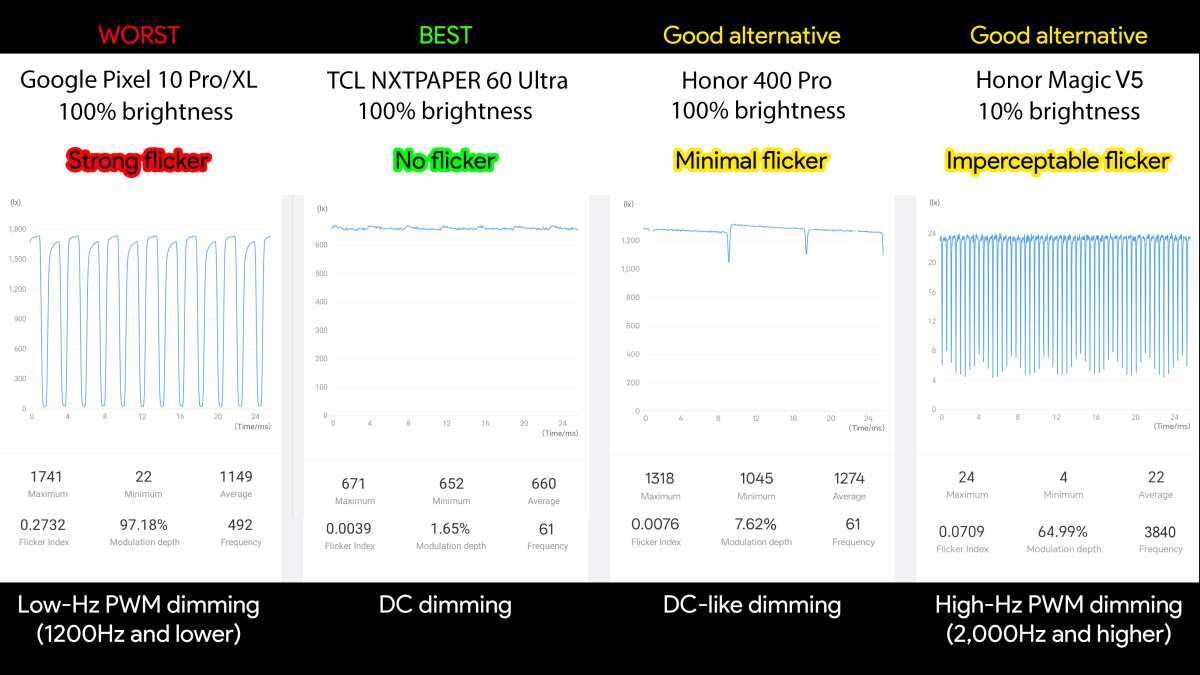
Pulse Width Modulation (PWM) is a method some monitor manufacturers use to control brightness. Instead of lowering the actual voltage to the backlight (called DC dimming), PWM rapidly turns the backlight on and off. The "on" portion of each cycle gets shorter as you lower brightness, and the "off" portion gets longer.
Your eyes average this out and perceive it as dimmer light.
At high PWM frequencies, usually around 2000Hz and above, this cycling is invisible and harmless. At lower frequencies, often 200Hz or below, some people notice it. The effects can range from eye strain and headaches to a visible shimmering or flickering that's especially noticeable in your peripheral vision.
How to Tell if PWM Is Your Problem
Here's the quick test: set your monitor brightness to around 20-30% using the OSD. Hold your phone's camera up to the screen. If you see visible banding, scrolling lines, or pulsing on your phone's display, that's PWM flicker being captured by your phone's camera sensor.
Another clue: if the flicker is perfectly correlated with your brightness setting and disappears when you raise brightness above roughly 40-50%, PWM is the issue.
What You Can Do About It
Option 1: Keep brightness above the PWM threshold. If your monitor only uses PWM dimming below 40% brightness, simply keep it at 40% or higher and reduce brightness using software (your GPU driver's luminance controls or a tool like ClickMonitorDDC).
Option 2: Check if your monitor offers DC dimming or a flicker-free mode. Some IPS panels have an OSD setting labeled "Flicker Free," "Low Blue Light," or "Comfort View" that switches to DC dimming. Look through your monitor's picture settings for anything like that. Monitors certified as flicker-free by TÜV Rheinland use either high-frequency PWM (typically 2000Hz+) or true DC dimming, so looking up whether your specific model has that certification online can give you a definitive answer.
Option 3: Use GPU-side software dimming as a workaround. In your NVIDIA Control Panel or AMD Software, you can lower the gamma or brightness at the GPU level while keeping the monitor's physical brightness high. This avoids the PWM range entirely.
If none of these options work and PWM sensitivity is a real problem for you, you may need to consider a monitor that specifically advertises DC dimming or flicker-free technology. But before going that route, exhaust the other steps first. Some monitors that do use PWM still have high enough frequencies that most users never notice it.
Step 6: When It's a Hardware Issue — Backlight Failure and Port Damage
If you've gone through every software and cable fix and the flicker persists across different computers and connections, you're likely dealing with a hardware problem inside the monitor itself.
Failing LED Backlight
IPS panels use an LED backlight array behind the liquid crystal layer. Over time, these LEDs can degrade unevenly or fail entirely. Signs of backlight failure include:
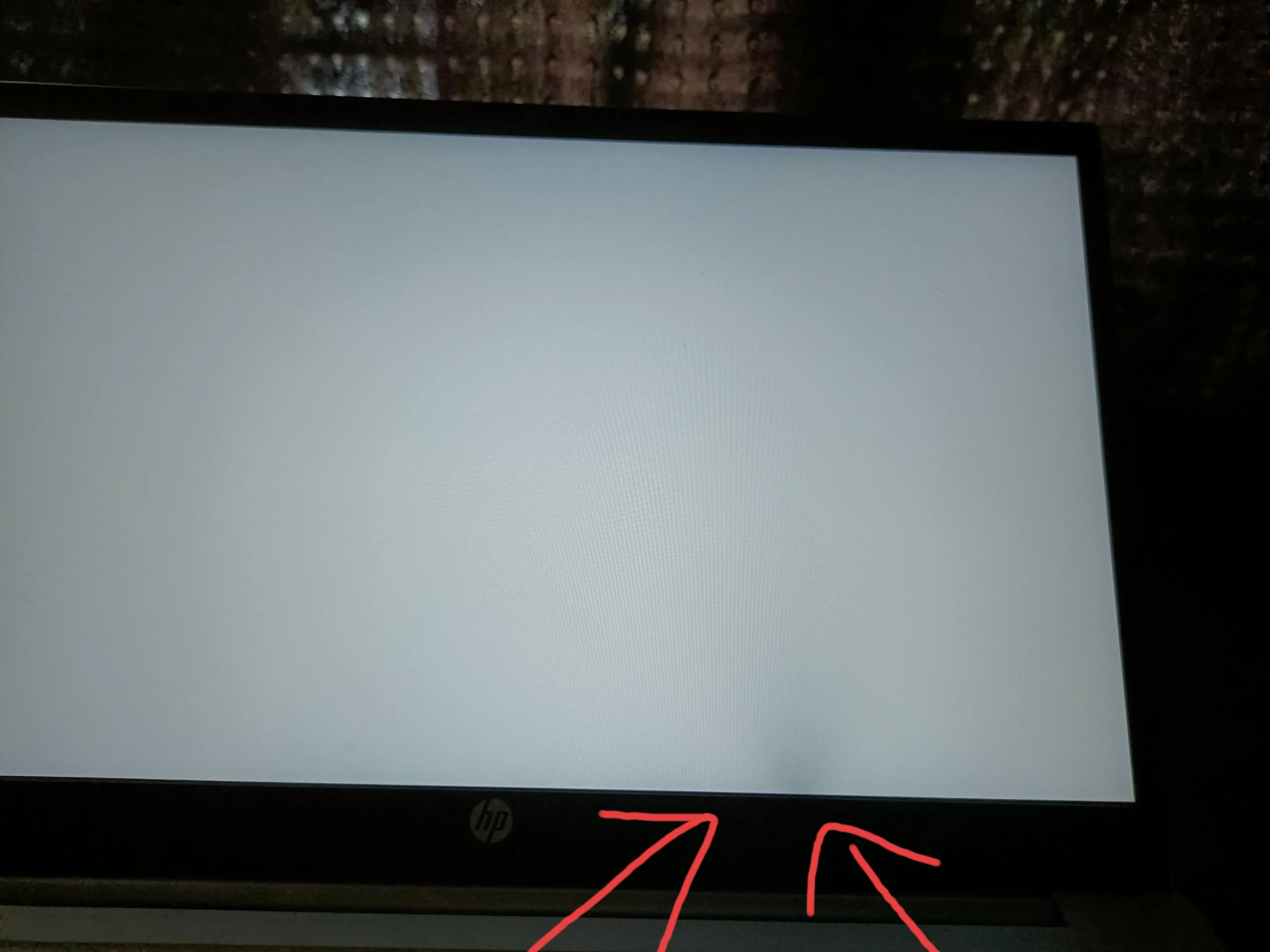
- Flickering that's worse in one area of the screen (often the bottom edge)
- A pink or yellowish tint before flickering starts
- Visible bright spots or dark patches that weren't there before
- Flickering that gets progressively worse over weeks
Backlight failure is more common in monitors that run at high brightness for extended periods, like displays used in bright offices or setups with HDR enabled full-time. Manufacturer specifications typically rate LED backlight life at 30,000 to 50,000 hours, but some units fail well before that.
Physical Port Damage
Inspect the video input ports on the back of your monitor. Look for bent pins (especially inside DisplayPort receptacles), debris, or signs of heat damage. A port that looks slightly off-center or has a loose feel when you plug in a cable can cause intermittent signal loss that looks exactly like flickering.
Use a flashlight and look straight into the port. If pins appear misaligned or if there's any discoloration, that port is likely the problem. Try using a different input on the monitor if one is available.
When It's the Panel Itself
In rare cases, the LCD panel's internal circuitry fails. This usually shows as flickering that's accompanied by other visual artifacts like horizontal lines, color shifts, or sections of the screen behaving independently. Panel-level failure isn't repairable at a practical level.
It's an RMA situation.
Common Mistakes People Make When Troubleshooting Flicker
A lot of wasted time comes from skipping steps or making assumptions. Here are the most common ones:
- Assuming it's a GPU problem and RMA'ing the graphics card. The monitor or cable is the culprit far more often than people think. Always test the monitor on another system first.
- Only checking software settings and never reseating the cable. Physical connections cause a huge percentage of flickering cases. Don't skip the basics.
- Using a cheap replacement cable that's not rated for the bandwidth. Swapping one bad cable for another bad cable tells you nothing. Use a known good, certified cable for testing.
- Ignoring the OSD settings. Features like dynamic contrast, ECO mode, and auto-brightness can cause brightness fluctuations that look like flickering. Turn all of these off as a test.
- Not checking whether the flicker is correlated with brightness level. If it only happens below a certain brightness threshold, that's PWM dimming, not a driver issue. No amount of driver updates will fix it.
- Running the monitor at an overclocked refresh rate. Some monitors advertise "165Hz" or "180Hz" as an overclock beyond their native spec. Running at an overclocked refresh rate can cause flickering that disappears when you return to the stock rating.
IPS Monitor Flicker vs. IPS Glow vs. Backlight Bleed — Know the Difference
These three things get confused constantly, and the distinction matters because only one of them is actually a defect.
Flickering is a temporal issue. The screen brightness or image stability changes over time, rapidly or intermittently. It's dynamic.
You'll see it change from moment to moment.
IPS glow is a static, spatial phenomenon. It appears as a silvery or whitish glow in the corners of the screen, most visible on dark content. It's caused by the way light passes through the IPS panel at angles.
IPS glow is present on virtually every IPS monitor to some degree and is considered a characteristic of the technology, not a defect. It doesn't change or pulse.
Backlight bleed is also static. It shows as uneven bright patches, usually along the edges or corners, where light from the backlight leaks around the edges of the panel. Like IPS glow, it doesn't flicker.
It's always there on dark screens.
Here's the simple test: open a full-screen black image. If the corners look brighter, that's IPS glow or backlight bleed. Both are normal to some extent.
If the brightness in those areas pulses, changes, or the screen flickers independently of the content, that's actual flickering and needs troubleshooting.
When to RMA Your Monitor vs. When It's Something Else
If you've systematically gone through every step above and the flicker persists, it's time to consider a warranty claim. But before you file, make sure you can answer these questions for the manufacturer's support team:
- Does the flicker happen on a different computer? (If yes, it's the monitor.)
- Does the flicker happen with a different cable and port? (If yes, it's the monitor.)
- Does the flicker happen in the monitor's OSD menu, independent of any computer input? (If yes, it's definitely a hardware issue.)
- Does the flicker happen before the operating system loads, during POST? (If yes, it's hardware.)
Having these answers ready speeds up the RMA process significantly. Most manufacturers will ask you to try a different cable and a different video source before approving a return. Having already done that puts you ahead.
Keep your proof of purchase accessible. Most IPS monitor warranties run three years from the date of purchase. Some premium models from brands like Dell UltraSharp or ASUS ProArt offer extended coverage.
Check your specific model's warranty terms on the manufacturer's support page.
Quick-Reference Troubleshooting Flowchart
Here's the full diagnostic path in condensed form:
- Reseat or swap the video cable. If fixed, done.
- Try a different port on GPU and monitor. If fixed, done.
- Check refresh rate in Windows and GPU control panel. Match to monitor spec.
- Disable adaptive sync (FreeSync/G-Sync) temporarily. If fixed, reconfigure sync settings.
- Update GPU drivers (clean install with DDU). If fixed, done.
- Update monitor firmware from manufacturer's website. If fixed, done.
- Test on a different computer. If flicker follows the monitor, it's hardware.
- Test a different monitor on your computer. If flicker is gone, it's the original monitor.
- Check for PWM dimming at low brightness. Raise brightness above 40-50%.
- Disable dynamic contrast, ECO mode, and auto-brightness in OSD.
- If all above fail, initiate RMA with manufacturer.
Frequently Asked Questions
Can a bad HDMI cable cause screen flickering?
Yes, absolutely. A damaged or under-spec HDMI cable is one of the most common causes of flickering. If the cable can't carry enough bandwidth for your resolution and refresh rate, the signal drops intermittently.
Swap to a certified HDMI 2.0 or 2.1 cable rated for your setup and see if the problem goes away.
Why does my monitor flicker only when I lower the brightness?
This is almost certainly PWM dimming. Many IPS monitors use pulse width modulation to control brightness at lower levels. The rapid on-off cycling of the backlight becomes visible and uncomfortable for some people.
Keep brightness above 40-50% or use GPU-side software dimming as a workaround.
Does FreeSync cause flickering?
It can, especially at low frame rates. If your GPU's frame rate drops below the minimum range of your monitor's FreeSync spec (for example, below 48Hz on a 48-144Hz panel), the monitor may flicker as it struggles to maintain sync. Enabling Low Framerate Compensation in your GPU settings or capping your frame rate above the minimum threshold usually resolves this.
Is monitor flickering harmful to my eyes?
Potentially, yes. Flickering at frequencies below roughly 2000Hz can cause eye strain, headaches, and fatigue, especially during extended use. Per IEEE 1789-2015 guidelines, LED flicker at lower frequencies poses a health risk for sensitive individuals.
If your monitor flickers and you experience discomfort, address it promptly rather than pushing through.
Can Windows updates cause monitor flickering?
Yes. Several Windows 10 and 11 updates have introduced display driver compatibility issues that caused flickering on specific monitor and GPU combinations. If flickering started immediately after an update, try rolling back the update or checking for a newer patch that addresses the issue.
Should I open my monitor to fix a flickering backlight?
No. Opening a monitor chassis exposes you to high-voltage capacitors that can retain a dangerous charge even when unplugged. Backlight replacement requires specialized tools and skills.
If your monitor is under warranty, file an RMA. If it's out of warranty, weigh the cost of professional repair against replacement. In most cases, replacement is the more practical option.
Final Recommendation / Verdict / Decision Guide
Here's the honest truth. Most IPS monitor flickering comes down to one of three things: a bad cable, an adaptive sync conflict, or PWM dimming at low brightness. The steps in this guide are ordered from most likely fix to least likely for a reason.
If you only do one thing, reseat your cable and swap to a certified one. That alone resolves the majority of cases. If you're dealing with low-brightness flicker, stop lowering the brightness and use software dimming instead.
If adaptive sync is causing issues during gaming, cap your frame rate within your monitor's sync range.
And if none of that works, don't keep troubleshooting indefinitely. You've got a warranty for a reason. Document what you tried, contact the manufacturer, and get it replaced.
A flickering IPS panel that survives every software and cable test is a hardware defect, not a settings problem.

Similar Posts





















