Do Curved Monitors Support Vesa Mount
Wondering if your curved monitor can be mounted on a VESA arm? This comprehensive guide answers that question and provides a detailed, step-by-step process for checking compatibility and successfully mounting your display. Learn about the benefits of VESA mounting, what to look for, and how to overcome common challenges. Get ready to free up desk space and improve your ergonomics!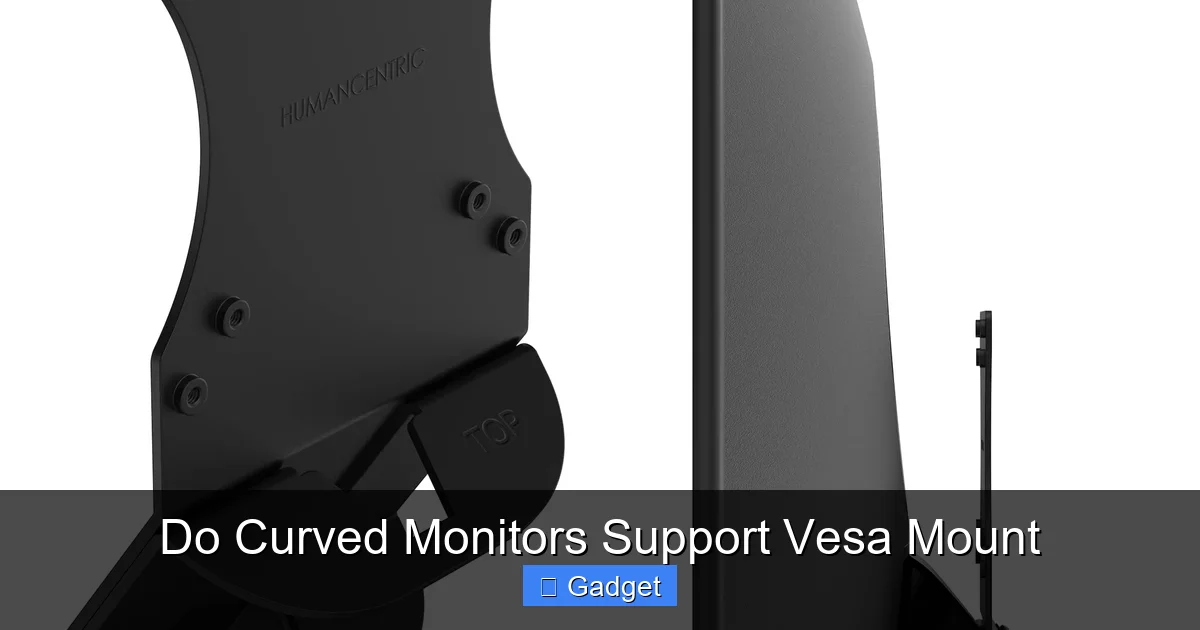 VESA (Video Electronics Standards Association) is an organization that sets standards for the display industry. A VESA mount interface is a set of standard dimensions and hole patterns on the back of most monitors and TVs that allows them to be attached to compatible mounts.
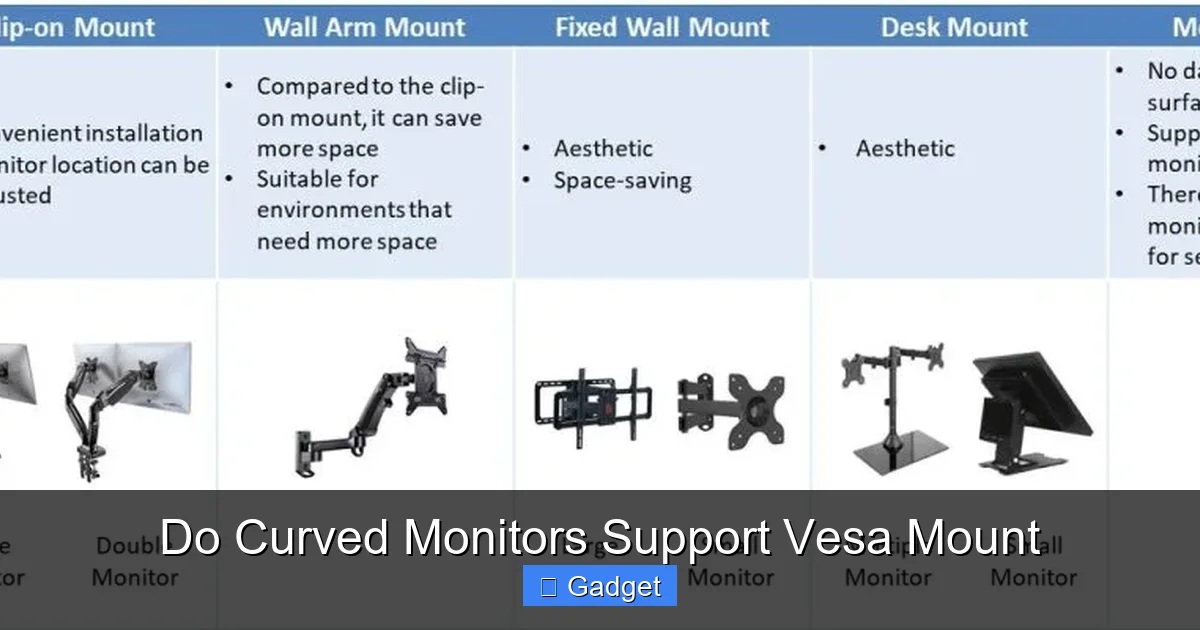
 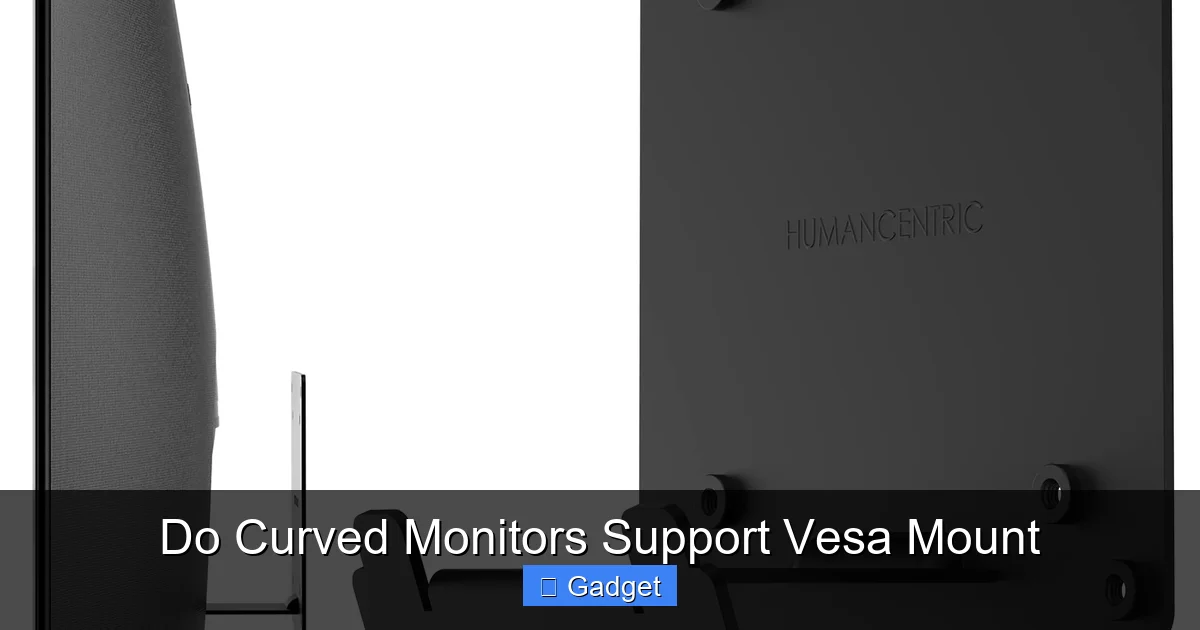 Once you’ve confirmed VESA compatibility (or have an adapter in mind), you need to select the right mount.
  Let’s get mounting! Remember to read your monitor’s manual and the mount’s instructions thoroughly before you begin.
Do Curved Monitors Support Vesa Mount
Welcome to our in-depth guide on VESA mounting your curved monitor! Many of us have fallen in love with the immersive experience that curved monitors offer. They wrap around your field of view, making gaming more engaging and productivity tasks more comfortable. But as our setups evolve, so does our desire for a cleaner desk and better ergonomics. This is where VESA mounts come in. You might be asking yourself, “Can I even mount my curved monitor?” The answer is often yes, but it’s not always as simple as with a flat panel. In this guide, we’ll demystify the process. We’ll cover everything you need to know, from how to determine if your curved monitor is VESA compatible to the step-by-step instructions for mounting it securely. We’ll also explore the advantages of VESA mounting and what to do if your monitor isn’t directly compatible. Get ready to transform your desk setup!Key Takeaways
- Not all curved monitors are VESA mount compatible out of the box: While many are, some models require specific adapters due to their design.
- VESA mounting offers significant benefits: Including improved ergonomics, desk space optimization, and enhanced display positioning.
- Checking for VESA compatibility is straightforward: Look for a square or rectangular pattern of screw holes on the back of your monitor.
- VESA mount standards vary: The most common are 75x75mm and 100x100mm, but larger monitors can use bigger patterns.
- Mounting a curved monitor can be trickier than a flat one: The curvature can affect adapter needs and the range of motion of your mount.
- Adapters are readily available: If your curved monitor doesn’t have built-in VESA holes, specific adapters can bridge the gap.
- Safety and stability are paramount: Always ensure your mount and the monitor are securely fastened to prevent accidents.
Why VESA Mount Your Curved Monitor?
Before we dive into the “how,” let’s talk about the “why.” VESA mounting isn’t just a trend; it’s a practical upgrade that offers several compelling benefits, especially for curved displays.Enhanced Ergonomics
One of the biggest advantages is the ability to position your monitor precisely where you want it. You can adjust the height, tilt, and swivel to find the perfect viewing angle. This can significantly reduce eye strain, neck pain, and shoulder discomfort, leading to a more comfortable and productive workday. For curved monitors, this fine-tuning is even more critical to ensure the entire screen is at the optimal focal distance.Desk Space Optimization
Let’s face it, monitor stands can be bulky. Removing the stand and attaching your monitor to a wall mount or a desk clamp mount frees up a substantial amount of precious desk real estate. This is particularly beneficial for larger curved monitors, which often have wider and deeper stands. A clean desk means a cleaner mind and more space for other essentials.Improved Viewing Angles and Immersion
Depending on your setup, a VESA mount can allow you to position your curved monitor closer to you or at a more ideal angle. This can further enhance the immersive qualities of the curved display, drawing you deeper into your games or content.Aesthetic Appeal
A mounted monitor often contributes to a sleek, minimalist aesthetic. Wires can be managed more easily, and the overall look of your workspace can be significantly tidied up.Understanding VESA Mount Compatibility
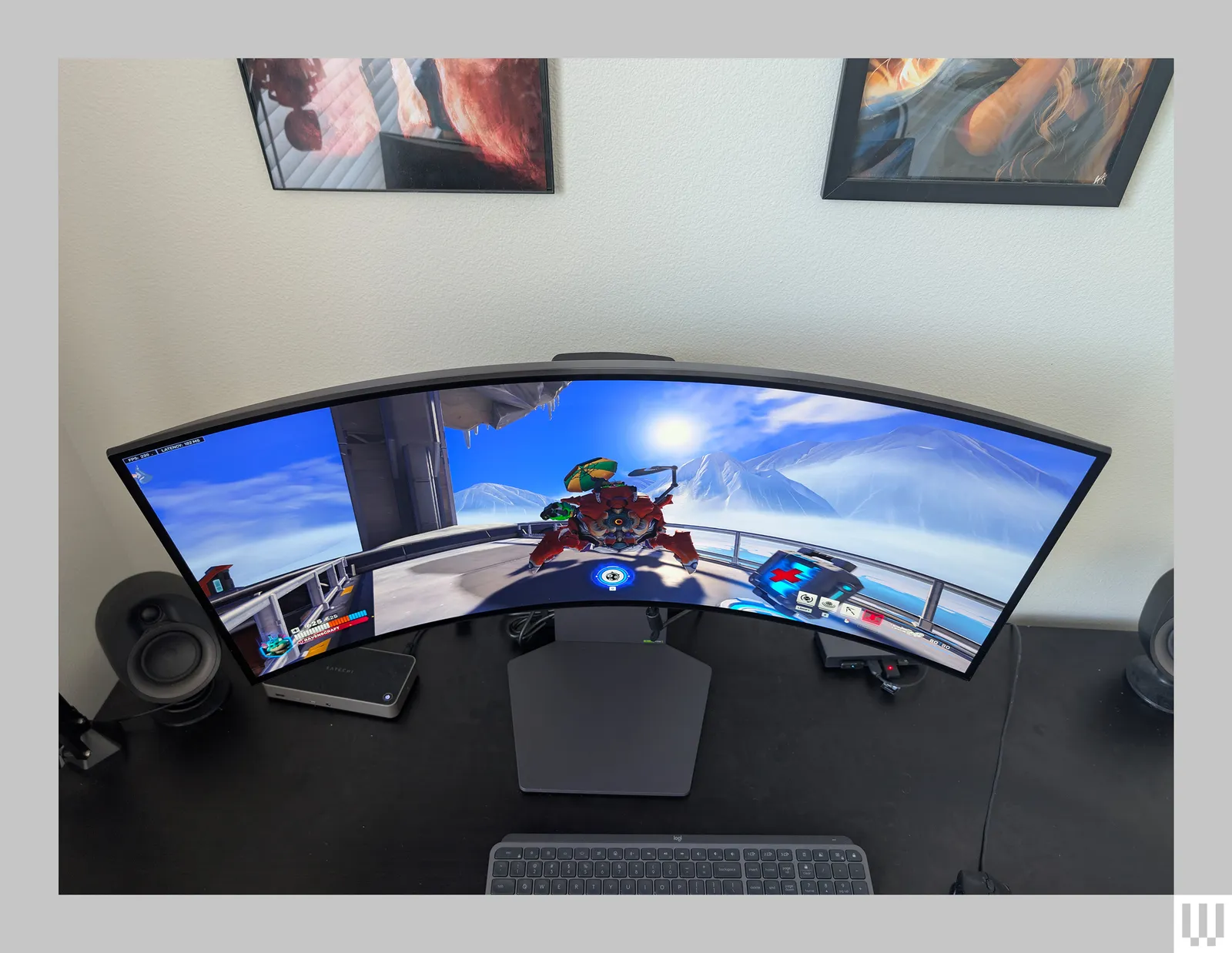
Visual guide about Do Curved Monitors Support Vesa Mount
How to Check if Your Curved Monitor is VESA Compatible
This is the crucial first step. Fortunately, it’s usually quite straightforward.1. Inspect the Back of Your Monitor
Turn off your monitor and gently lay it face-down on a soft surface (like a microfiber cloth or blanket) to avoid scratching the screen. Now, examine the rear panel of your monitor. You are looking for a pattern of four screw holes, typically arranged in a square or rectangular shape. * Look for the Pattern: The holes should be evenly spaced. The most common VESA patterns are 75mm x 75mm and 100mm x 100mm. You might see a small VESA logo nearby, but it’s not always present. * Measure the Spacing: If you can’t find a logo, you can measure the distance between the centers of the screw holes. Use a ruler or a measuring tape. Measure the horizontal distance and the vertical distance. If both are, for example, 100mm, then your monitor has a 100x100mm VESA pattern.2. Consult Your Monitor’s Manual or Specifications
If you can’t find the VESA holes or are unsure about your measurements, the next best step is to check your monitor’s documentation. * User Manual: The physical or digital user manual that came with your monitor will almost certainly list its VESA compatibility, if it has it. Look in the specifications section. * **Manufacturer’s Website:** Go to the support or product page for your specific monitor model on the manufacturer’s website. The technical specifications should clearly state the VESA mount pattern (e.g., VESA MIS-D, 100×100). * **Online Retailer Listings:** If you purchased your monitor online, check the product page on the retailer’s website. The specifications section usually includes VESA mount information.3. What if I Can’t Find VESA Holes?
This is where things get specific for some curved monitors. Due to the curvature and the design of the stand attachment, some manufacturers don’t include direct VESA mounting points. * **Non-VESA Monitors:** If you’ve thoroughly checked and confirmed there are no screw holes on the back, your monitor might not be VESA compatible out of the box. * **The Solution: VESA Adapters:** Don’t despair! For many curved monitors that lack direct VESA compatibility, there are aftermarket VESA adapters designed specifically for them. These adapters usually attach to the back of your monitor where the original stand connected and provide the standard VESA holes.Choosing the Right VESA Mount
Visual guide about Do Curved Monitors Support Vesa Mount
Types of VESA Mounts
* **Desk Mounts:** These attach to the edge of your desk using a clamp or grommet hole. They are popular for their adjustability and ability to save desk space without wall alteration. * **Wall Mounts:** These attach directly to your wall, offering a very clean look and the ability to position the monitor anywhere on the wall. * **Ceiling Mounts:** Less common for home use, but useful in specific commercial or entertainment setups.Considering Your Curved Monitor’s Size and Weight
* **Weight Capacity:** Ensure the mount you choose can support the weight of your curved monitor. This information is usually listed in the monitor’s specifications and the mount’s product details. * **Screen Size:** While VESA patterns are standardized, some mounts are rated for specific screen size ranges.VESA Mount Compatibility for Curved Monitors: Specific Considerations
The curvature of your monitor can sometimes influence the type of mount or adapter you need. * **Adapter Needs:** As mentioned, if your monitor doesn’t have built-in VESA holes, you’ll need an adapter. These adapters are designed to fit the unique curves and stand attachment points of specific monitor series. Research adapters for your exact monitor model. * **Mount Range of Motion:** A standard mount might have its movement restricted by the curve of the monitor, especially when tilting. Some mounts are designed with longer arms or more flexible joints to accommodate this. Check reviews or product descriptions for comments on curved monitor compatibility.Step-by-Step Guide to VESA Mounting Your Curved Monitor
Visual guide about Do Curved Monitors Support Vesa Mount
Step 1: Gather Your Tools and Components
You will need: * Your curved monitor * Your VESA mount (or VESA adapter if needed) * The screws and hardware that came with your VESA mount (or adapter) * A screwdriver (usually Phillips head) * A measuring tape or ruler (if you need to confirm VESA pattern) * A soft cloth or blanket to protect your monitor’s screen * A stud finder (if wall mounting) * A drill (if wall mounting and not using a pre-existing hole) * A level (for wall mounting)Step 2: Prepare Your Monitor
If you haven’t already, detach your monitor from its original stand. * **Remove the Stand:** Most stands have a release mechanism or a few screws at the connection point to the monitor’s VESA plate. Follow your monitor’s manual for specific instructions on how to safely remove the stand. * **Clean the Area:** Once the stand is removed, the area where the VESA holes are located should be clear. Give it a quick wipe down to remove any dust.Step 3: Attach the VESA Adapter (If Applicable)
If your monitor is not directly VESA compatible, this is when you’ll attach the adapter. * **Align the Adapter:** Carefully align the VESA adapter with the mounting points on the back of your monitor. The adapter will likely have its own set of screws to secure it to the monitor. * **Secure the Adapter:** Use the provided screws to firmly attach the adapter to your monitor. Do not overtighten, as this could damage the monitor casing.Step 4: Attach the VESA Plate/Arms to Your Monitor
Now, you’ll attach the part of the VESA mount that connects directly to your monitor. * **Identify the VESA Plate/Arms:** This is the piece with the VESA mounting pattern that will mate with the holes on your monitor (or adapter). * **Align with VESA Holes:** Carefully align the VESA holes on the mounting plate/arms with the corresponding VESA holes on your monitor or the attached VESA adapter. * **Secure the Plate/Arms:** Use the screws provided with your VESA mount. It’s crucial to use the correct screw length and type. Your VESA mount kit will usually come with a variety of screws for different monitor thicknesses and VESA hole depths. If you’re unsure, check your monitor’s manual for recommended screw depth, or err on the side of caution and use shorter screws if possible. If the screws go in too easily without resistance, they might be too short. If they don’t thread in or feel like they’re binding, they might be too long or the wrong thread pitch. * **Tighten Securely:** Once aligned, tighten the screws firmly but avoid overtightening. Ensure the plate is snug against the monitor.Step 5: Install the Mount Base (Desk or Wall)
This step depends on the type of mount you have.For Desk Mounts:
* **Clamp Mount:** * Position the clamp on the edge of your desk. Ensure it’s on a sturdy part of the desk. * Tighten the clamp mechanism securely against the desk. * Make sure the desk is wide enough to accommodate the clamp. * **Grommet Mount:** * If your desk has a grommet hole, insert the mount’s base through it. * Secure the base from underneath according to the mount’s instructions.For Wall Mounts:
* **Locate Studs:** Use a stud finder to locate wall studs. Mounting directly into studs is essential for safety and stability. If you cannot mount into studs, you will need appropriate heavy-duty drywall anchors, but stud mounting is always preferred. * **Mark Mounting Points:** Hold the wall-mounting bracket against the wall at your desired height and use a level to ensure it’s straight. Mark the screw hole locations. * **Drill Pilot Holes:** Drill pilot holes at your marked locations. The size of the pilot hole will depend on the type of screws you are using. * **Attach the Bracket:** Securely screw the wall-mounting bracket to the wall using the provided lag bolts or screws. Ensure it is firmly attached and will not budge.Step 6: Attach the Monitor to the Mount Arm
This is often the most delicate part, especially with larger monitors. It’s highly recommended to have a second person help you with this step. * **Lift and Align:** Carefully lift your monitor with the attached VESA plate/arms. * **Hook onto Mount:** Most desk and wall mounts have a “hook” system where the VESA plate on the monitor slots into a corresponding bracket on the mount arm. Gently hook the top of the VESA plate onto the mount’s bracket. * **Secure the Monitor:** There are usually locking screws or a mechanism at the bottom to secure the monitor to the mount, preventing it from accidentally dislodging. Make sure these are engaged and tightened properly.Step 7: Connect Cables and Adjust
* **Connect Power and Display Cables:** Route your monitor’s power and display cables (HDMI, DisplayPort, etc.) neatly. Many mounts have cable management clips. * **Adjust and Position:** Now, you can adjust your monitor to its desired position. Move it up, down, tilt it, and swivel it until you’re comfortable. * **Test Stability:** Gently nudge the monitor to ensure it is stable and securely mounted.Troubleshooting Common Issues
Even with careful planning, you might encounter a hiccup.Monitor Wobbles or Feels Loose
* **Check Screws:** Ensure all screws attaching the VESA plate to the monitor and the mount base to the desk/wall are fully tightened. * **Mount Stability:** If using a desk mount, make sure the clamp is secure and the desk surface is rigid. For wall mounts, confirm it’s properly anchored to studs. * **Loose Adapter:** If using a VESA adapter, double-check that it’s firmly attached to the monitor.VESA Screws Don’t Fit or Are Too Short/Long
* **Verify VESA Pattern:** Confirm your monitor’s VESA pattern (75×75, 100×100, etc.). * **Use Provided Hardware:** VESA mount kits come with various screw sizes. Refer to the mount’s manual and your monitor’s specifications to select the correct screws. If your monitor has deep VESA holes, you might need longer screws, which could be included or require a separate purchase. Be cautious with screw length to avoid damaging internal components. * **Adapter Compatibility:** If using an adapter, ensure it’s designed for your specific monitor model and that the adapter’s VESA holes match standard VESA screws.Mounting Arm Doesn’t Hold Position or Slumps
* **Tension Adjustment:** Most monitor arms have tension adjustment screws or knobs. These control how easily the arm moves and how well it holds its position. Consult your mount’s manual for instructions on how to adjust this tension. You may need to tighten it significantly for heavier or curved monitors. * **Weight Limit:** Ensure your monitor is within the weight capacity of the mount.Curved Monitor Tilt is Restricted
* **Arm Extension:** Some mounts have arms that extend further, providing more clearance for the curve. * **Adapter Design:** Certain VESA adapters are designed to position the monitor further from the mount, which can sometimes help with tilt.Conclusion
So, do curved monitors support VESA mount? In most cases, yes! While some may require a VESA adapter, the ability to mount your curved display is highly achievable. The benefits of improved ergonomics, a tidier workspace, and enhanced immersion make it a worthwhile endeavor. By carefully checking compatibility, choosing the right mount, and following these step-by-step instructions, you can successfully transform your desk setup and enjoy the full potential of your curved monitor. Happy mounting! If you’re considering upgrading your gaming setup, you might also want to explore what is the best monitor size for gaming to ensure your new mounted display delivers the ideal experience. For those interested in performance, understanding whether monitor response time matters for gaming can help you make a more informed decision when selecting your next curved panel. And if you’re curious about high refresh rates, check out our comparison of 144Hz vs 240Hz monitors to see if the upgrade is worth it for your gaming style.
Similar Posts