Why Do Professionals Use Mini LED Monitors
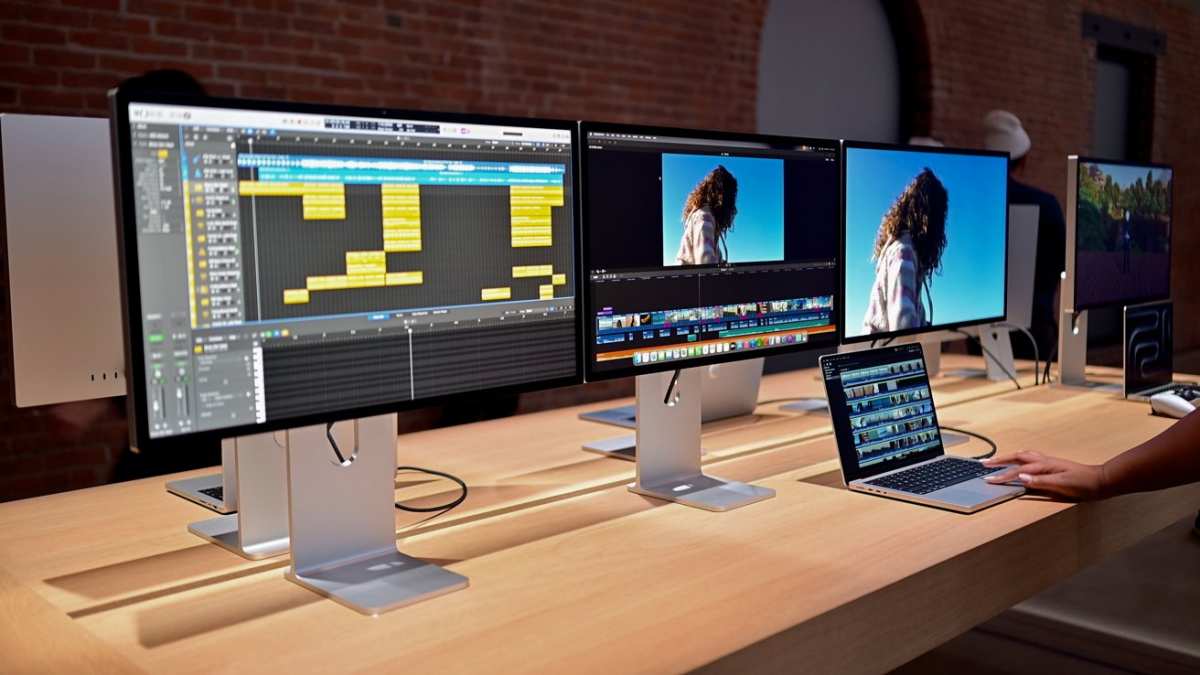
If you've ever wondered why do professionals use mini LED monitors, it comes down to one thing. They need displays that keep up with color-critical, high-contrast work without burning out or fading over time.
Mini LED technology delivers peak brightness that standard LED monitors can't touch. We're talking 1,000 nits and sustained performance that holds up across long editing sessions. Per VESA DisplayHDR standards, that's the baseline for true HDR mastering, and it's why post-production houses are making the switch as of 2026.
Quick Answer
Professionals use mini LED monitors for superior HDR performance and sustained high brightness. They offer better longevity than OLED with no burn-in risk. Colorists, photographers, and video editors rely on them for accurate, consistent output in bright studio environments.
What Mini LED Actually Means (And Why It's Different)
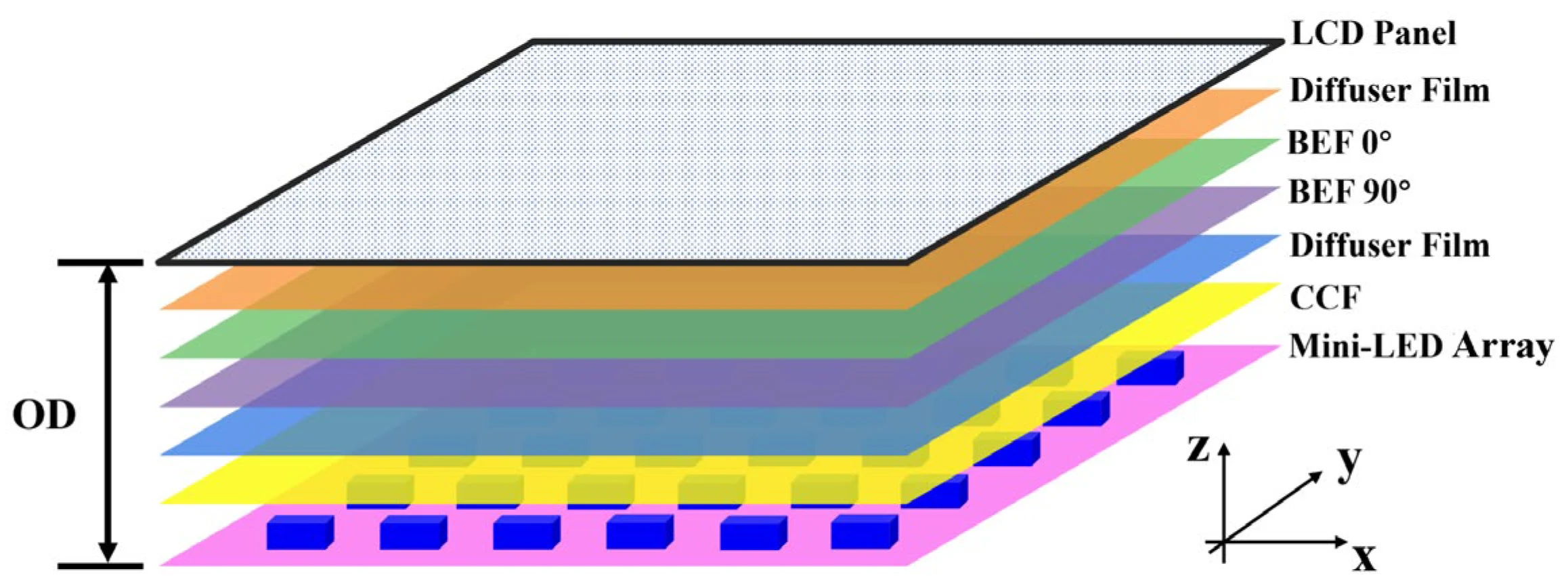
Mini LED isn't a new panel type. It's a backlighting technology that sits behind the actual LCD panel. The "mini" part refers to the size of the individual LED diodes, which are smaller than traditional LED backlights.
This lets manufacturers pack hundreds or even thousands of tiny LEDs behind a single display.
Here's where it gets interesting. Those LEDs are grouped into what we call local dimming zones. Each zone can brighten or dim independently based on what's showing on screen.
A monitor with 384 zones has 384 separate areas of control. Higher-end models push past 1,000 zones.
This is fundamentally different from older LED monitors that used edge lighting or just a handful of dimming zones. The result is deeper blacks right next to bright highlights in the same frame. That's the foundation of real HDR.
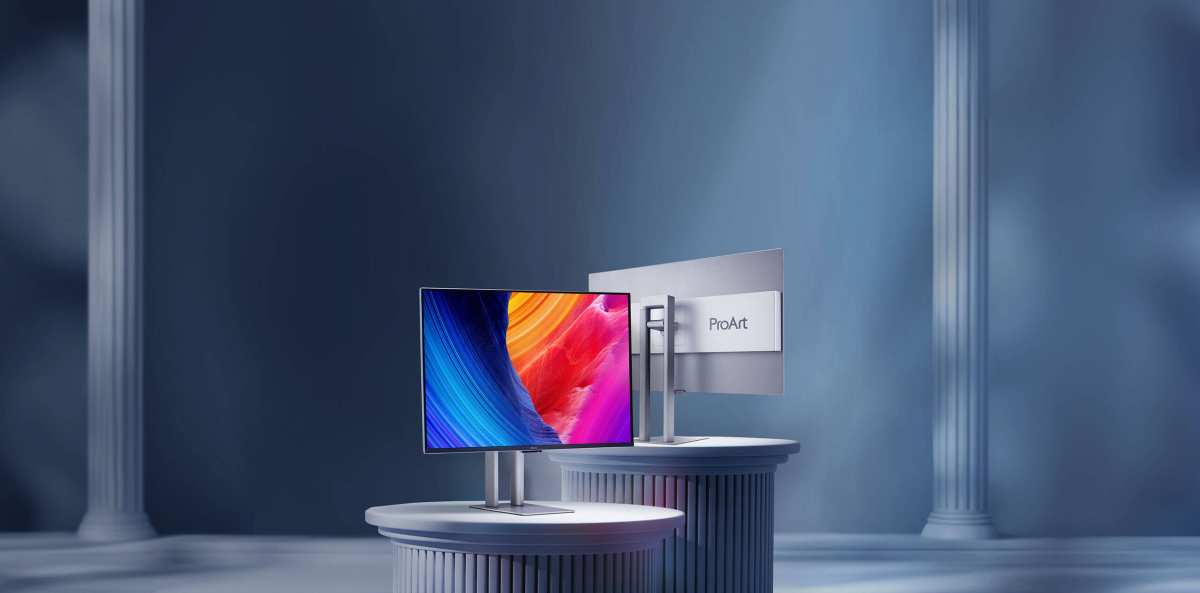
Manufacturer specifications from ASUS ProArt and Apple Pro Display XDR confirm peak brightness ratings between 1,000 and 1,600 nits. Standard professional LED monitors typically max out around 350 to 600 nits. That gap matters when you're grading HDR content or working in a bright room.
Mini LED vs OLED vs Standard LED: The Real Comparison
This is the comparison that actually matters for professionals. Each technology has trade-offs, and the right choice depends entirely on your workflow.
Mini LED uses an LCD panel with a full array of small LED backlights behind it. The LEDs are grouped into zones that dim and brighten independently. More zones mean better contrast and less blooming.
OLED (Organic Light Emitting Diode) has no backlight at all. Each pixel produces its own light and can turn off completely. That gives you perfect blacks and infinite contrast.
But organic materials degrade over time, and static elements like toolbars can cause burn-in.
Standard LED uses larger LEDs, often just along the edges of the screen or in a small number of zones behind it. It's affordable and reliable, but it can't deliver true HDR or deep blacks.
Here's how they stack up on the specs that matter:
| Feature | Mini LED | OLED | Standard LED |
|---|---|---|---|
| Peak Brightness | 1,000–4,000 nits | 500–1,000 nits | 250–600 nits |
| Black Level | Very good (zone-dependent) | Perfect (per-pixel) | Moderate |
| Contrast Ratio | 1,000,000:1 (dynamic) | Effectively infinite | 1,000:1–5,000:1 |
| Burn-in Risk | None | Yes, over time | None |
| Lifespan | 30,000–50,000 hrs | 10,000–30,000 hrs | 30,000–60,000 hrs |
| Price Range | $1,500–$10,000+ | $2,000–$5,000+ | $200–$1,500 |
| Best For | Bright studios, HDR mastering | Dark rooms, cinematic work | General office, budget work |
Aggregate reviews from professional communities consistently highlight one pattern. Mini LED wins for sustained brightness and long-term reliability. OLED wins for pure contrast in controlled lighting.
Standard LED wins on price and basic functionality.
The burn-in issue with OLED is real for professionals who keep static UI elements on screen for hours. Colorists working in DaVinci Resolve or editors in Premiere Pro have the same panels, same toolbars, and same scopes on screen for entire shifts. That's exactly the scenario where OLED degradation becomes a problem over months.
Mini LED sidesteps that entirely. There are no organic materials to degrade. The backlights are inorganic LEDs that maintain consistent output for years.
For studios and post-production houses that run monitors 8 to 12 hours a day, that reliability is worth the premium.
Key Features That Matter for Professional Work
Not all mini LED monitors are built the same. When you're evaluating options, these are the features that separate professional-grade displays from consumer models with mini LED branding.
Local Dimming Zone Count
This is the single most important spec after resolution. More zones mean finer control over brightness across the screen. Entry-level mini LED monitors might have 128 to 256 zones.
Professional reference monitors push 576 to 1,152 or more. The Apple Pro Display XDR uses 572 zones across its 32-inch panel. Higher zone counts reduce blooming, that halo effect you see around bright objects on dark backgrounds.
Peak and Sustained Brightness
There's a difference between peak brightness and sustained brightness. Peak is the short burst a monitor can hit for a small highlight. Sustained is what it can maintain across the full screen for minutes or hours.
For HDR mastering, you need both. VESA DisplayHDR 1000 certification requires 1,000 nits peak. DisplayHDR 1400 pushes that to 1,400 nits.
Professional work targets at least DisplayHDR 1000.
Color Gamut Coverage
Professional monitors need to cover specific color spaces completely. DCI-P3 is the standard for digital cinema and HDR content. Adobe RGB matters for print and photography.
Look for 99% or higher coverage of your target color space. The BenQ SW321C covers 99% Adobe RGB. The ASUS ProArt PA32UCG hits 98% DCI-P3.
Color Accuracy (Delta E)
Delta E measures how far off the display's color is from the reference. A Delta E below 2 is considered acceptable for professional work. Below 1 is reference-grade.
Most professional mini LED monitors ship with Delta E < 2 out of the box, and many support hardware calibration to maintain that accuracy over time.
Bit Depth
10-bit color is the minimum for professional video and photo work. It gives you over a billion colors compared to 16.7 million in 8-bit. Some monitors support 12-bit internally for smoother gradients.
This matters most in color grading and medical imaging where banding artifacts are unacceptable.
Hardware Calibration Support
Software calibration adjusts your graphics card's output. Hardware calibration writes the calibration data directly into the monitor's internal Look-Up Table (LUT). This means the monitor stays accurate regardless of which computer it's connected to.
EIZO ColorEdge and BenQ SW series monitors both support this natively.
Connectivity
Thunderbolt 3 or 4 is essential for Mac professionals. It carries video, data, and power over a single cable. HDMI 2.1 matters for video professionals working with 4K at high frame rates.
DisplayPort 1.4 with DSC (Display Stream Compression) handles 8K resolution. Make sure the monitor has the right inputs for your specific workflow.
Anti-Glare and Anti-Reflection Coatings
Studio environments have controlled lighting, but reflections still matter. A good anti-glare coating reduces distractions without softening the image too much. Some professional monitors offer a "light" coating that balances clarity with reflection control.
Who Benefits Most from Mini LED Displays
Mini LED isn't for everyone. It's a professional tool with a professional price tag. Here's who actually benefits from making the switch.
Colorists and Video Editors
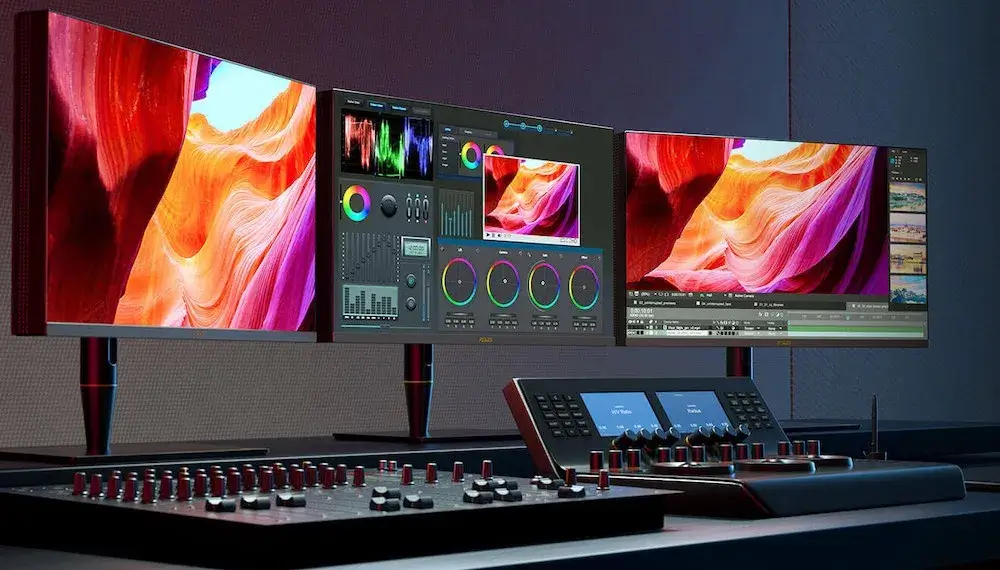
This is the primary audience. HDR grading requires a monitor that can actually display the dynamic range you're working in. Mini LED delivers 1,000+ nits of sustained brightness with local dimming that lets you see detail in both shadows and highlights simultaneously.
If you're delivering content for streaming platforms that require HDR, you need an HDR reference display to verify your work.
Photographers Working in Print and Digital
Photographers who split time between print and screen need monitors that cover both Adobe RGB and DCI-P3. Mini LED displays with wide gamut coverage let you soft-proof print output while also preparing files for digital delivery. The high brightness also simulates how images look on modern phone and tablet screens.
3D Artists and Animators
Rendering engines produce HDR output. Viewing that output on a standard LED monitor means you're not seeing the full range of your work. Mini LED lets 3D artists evaluate lighting, reflections, and exposure accurately before final output.
Studios working in Unreal Engine or Unity benefit from seeing in-game HDR as intended.
Medical Imaging Professionals
Radiology and pathology require displays that meet DICOM Part 14 standards for grayscale accuracy. Mini LED's high contrast and local dimming help medical professionals spot subtle differences in tissue density and bone structure. The consistent brightness over long reading sessions reduces eye strain during multi-hour diagnostic work.
Broadcast and Live Production
Broadcast studios are bright environments. Overhead lights, multiple workstations, and client viewing areas create ambient light that washes out standard monitors. Mini LED's high brightness cuts through that ambient light without cranking up power consumption to unreasonable levels.
SMPTE standards for broadcast reference displays specify luminance levels that mini LED can meet comfortably.
Financial Traders and Control Rooms
Traders running multi-screen setups need consistent brightness and color across all displays. Mini LED's inorganic backlights mean no burn-in from static charts and tickers. The monitors maintain consistent performance across 24-hour trading cycles without degradation.
Architecture and Design Firms
Architects reviewing CAD renders and design mockups need accurate color and contrast to evaluate materials and lighting. Mini LED displays show the difference between matte and glossy finishes, warm and cool lighting, and subtle material variations that standard monitors flatten out.
If you're a general office user or casual content consumer, mini LED is overkill. The technology shines in specific professional workflows where accuracy, brightness, and reliability are non-negotiable. For everyone else, a good standard LED monitor handles the job just fine.
Where Mini LED Falls Short
Mini LED is impressive, but it's not perfect. There are real trade-offs you need to understand before investing.
Blooming and Halo Artifacts
This is the most common complaint. When a bright object appears on a dark background, you'll sometimes see a faint glow around it. This happens because the local dimming zone behind that bright area also lights up the surrounding dark area.
Higher zone counts reduce this, but they don't eliminate it entirely. OLED still wins on pure per-pixel contrast.
Not True Blacks
Because mini LED uses an LCD panel with a backlight, it can never achieve the perfect blacks that OLED delivers. Even with aggressive local dimming, some light bleeds through. In a completely dark room, you'll notice the difference.
In a lit studio or office, it's far less apparent.
Higher Price Point
Professional mini LED monitors start around $1,500 and climb quickly. The Apple Pro Display XDR launched at $4,999. ASUS ProArt models range from $2,000 to $4,000.
BenQ and EIZO reference displays sit in similar territory. That's a significant investment, especially for freelancers and small studios.
Heat and Power
All those LEDs generate heat. High-brightness mini LED monitors run warm and often include internal fans for cooling. Some models produce audible fan noise in quiet editing suites.
Power consumption runs higher than standard LED monitors, typically 60 to 250 watts depending on size and brightness settings.
Bulkier Designs
The full array backlight system adds thickness and weight. Mini LED monitors are generally thicker than edge-lit LED displays and noticeably heavier. If you're mounting on an arm or stand, make sure it can handle the weight.
The Samsung Odyssey Neo G9 weighs over 12 kg without the stand.
Limited Viewing Angles on VA Panels
Some mini LED monitors use VA (Vertical Alignment) panels for their high contrast ratios. VA panels have narrower viewing angles than IPS (In-Plane Switching) panels. Colors shift when viewed off-center.
If you work with clients standing behind you, this can be a problem. IPS-based mini LED monitors exist but often have lower native contrast ratios.
Calibration Drift
All displays drift over time. LEDs dim gradually with age. Mini LED monitors require regular calibration to maintain accuracy, typically every 200 to 500 hours of use.
Budget for a spectrophotometer like the X-Rite i1Display Pro or Datacolor SpyderX and schedule recalibration into your workflow.
Zone Transition Artifacts
In scenes with rapid brightness changes, you might notice brief flickering or stepping as dimming zones adjust. This is most visible in high-contrast scrolling text or fast-cut video with mixed brightness levels. It's improved significantly in 2024 and 2025 models, but it's still present on some displays.
The bottom line is this. Mini LED is the best all-around choice for professionals who work in bright environments, need sustained HDR performance, and can't risk burn-in. But if your work happens in a dark room and you prioritize absolute black levels above all else, OLED might still be the better fit.
Pricing, Specs, and What You Get at Each Budget Level
Mini LED monitors span a wide price range. Understanding what you get at each tier helps you spend wisely.
Under $1,500: Entry-Level Mini LED
At this tier, you'll find consumer-grade mini LED displays with limited zone counts, typically 128 to 256 zones. Peak brightness hits around 600 to 1,000 nits. These suit hobbyists and semi-professionals who want better contrast than standard LED without the reference-monitor price tag.
Color accuracy is decent out of the box but may require calibration.
$1,500, $3,500: Professional Mini LED
This is the sweet spot for most working professionals. Zone counts jump to 384 or more. Peak brightness reaches 1,000 to 1,400 nits with sustained HDR performance.
You get hardware calibration support, wider gamut coverage, and better uniformity. Models like the BenQ SW321C and ASUS ProArt PA32UCX land here.
$3,500, $6,000: Reference-Grade Mini LED
These are the displays used in post-production houses and broadcast studios. Zone counts exceed 576 with some models past 1,000. Brightness hits 1,600 nits or higher.
Build quality is tank-grade and calibration is baked in from the factory with certificates. The Apple Pro Display XDR and EIZO ColorEdge CG319X fit this tier.
$6,000+: Mastering and Medical
At the top end, you're paying for absolute precision. These monitors meet strict standards like DICOM Part 14 for medical use or SMPTE ST 2084 for HDR mastering. Every unit is individually calibrated with a report.
Zone counts and brightness are secondary to absolute accuracy and long-term stability.
For most professionals, the $1,500 to $3,500 range delivers everything needed for color-critical work. Anything above that targets facilities where a single mistake costs more than the monitor.
How to Choose the Right Mini LED Monitor for Your Workflow
Starting your search without a clear plan leads to overspending or underspecing. Here's how to match a monitor to your actual work.
Step 1: Define Your Primary Color Space
If you work in print or photography, prioritize Adobe RGB coverage. Video and cinema professionals need DCI-P3. Broadcast work may require BT.2020 partial coverage.
Match the display gamut to your delivery format.
Step 2: Assess Your Room Lighting
Bright studio or office? You need 1,000+ nits sustained brightness to overcome ambient light. Controlled dark display let you get away with 600 to 800 nits.
Room lighting directly determines the brightness tier you need.
Step 3: Determine Resolution Requirements
For 27-inch monitors, 4K (3840 x 2160) is the professional standard. At 32 inches and above, higher pixel density matters more for fine detail work. If you're working with 8K footage, consider a monitor that supports 8K input even if the panel is 4K, for proper downscaled preview.
Step 4: Check Connectivity Compatibility
Mac users need Thunderbolt 3 or 4 support. Windows professionals using NVIDIA GPUs want DisplayPort 1.4 with DSC for high-resolution high-refresh setups. Video editors working with camera feeds need HDMI 2.1.
Match the ports to your existing hardware.
Step 5: Factor in Calibration Workflow
If you calibrate weekly, any good monitor works. If you need monthly or quarterly calibration cycles, invest in hardware LUT support. That way the monitor holds calibration profiles internally without relying on your computer's graphics card.
Step 6: Set a Realistic Budget
Include the cost of a calibration tool, a quality mount if needed, and any adapters. The monitor itself is the bulk of the cost, but accessories add up. Budget around $200 to $350 for a good spectrophotometer and $100 to $250 for a professional-grade monitor arm.
Common Mistakes Professionals Make When Buying Displays
Even experienced buyers get tripped up. Here are the pitfalls that cost time and money.
Ignoring Room Conditions
Buying a 1,400-nit monitor for a dark editing suite wastes money. Buying a 600-nit monitor for a bright sunny office means you'll never see the brightness you paid for. Match the monitor to the room, not just the workflow.
Chasing Zone Count Without Context
More zones reduce blooming, but they don't eliminate it. A well-tuned 384-zone monitor can outperform a poorly implemented 1,152-zone display. Read professional reviews that test real-world blooming, not just spec sheets.
Skipping Hardware Calibration
Software calibration adjusts your GPU's output and can clip color data. Hardware calibration writes directly to the monitor's internal LUT. For work that moves between computers, hardware calibration is essential.
Overlooking Uniformity Compensation
Not all mini LED panels deliver uniform brightness across the entire screen. Look for monitors with uniformity compensation circuitry. This evens out brightness differences between the center and edges of the display.
Buying Without Testing return Windows
Blooming behavior varies between models. What looks fine in review photos might bother you with your specific content. Buy from retailers with solid return policies and test with your actual work files during that window.
Neglecting the Fan Noise
Some high-brightness mini LED monitors use active cooling fans. In a quiet editing room, that noise becomes distracting. Check manufacturer specs for fan noise ratings.
Fanless designs exist but typically max out at lower brightness levels.
Expert Tips for Getting the Most Out of Your Mini LED Setup
Once you've made the investment, these tips help you get professional results from day one.
Calibrate in Your Working Conditions
Turn on the monitor for at least 30 minutes before calibrating. Let it reach thermal stability. Set the room lighting to your normal working conditions.
Calibrating in different conditions than you work in gives you inaccurate results.
Use D65 White Point for Video Work
D65 (6500K) is the standard white point for video, film, and sRGB content. Some professionals drift toward cooler temperatures out of habit. Stick with D65 for any content intended for screens.
Use D50 only for print proofing workflows.
Enable Local Dimming for HDR, Disable for SDR Precision
For HDR grading and review, leave local dimming active. For precise SDR color work where you need absolute uniformity, some professionals prefer local dimming off at low levels. Test both modes with your content and use what gives you the most accurate work.
Set Up a Regular Calibration Schedule
Professional monitors should be recalibrated every 200 to 500 hours of use. Mark your calendar or use calibration software with built-in reminders. Drift happens gradually, and you won't notice it day to day.
Consistent recalibration keeps colors trustworthy.
Match Multi-Monitor Setups Carefully
If you're running multiple displays, try to match the technology across all screens. A mini LED next to an OLED next to a standard LED gives you three different looks for the same content. If matching isn't possible, at least match color gamut and white point settings.
Keep Firmware Updated
Monitor manufacturers release firmware updates that improve dimming algorithms, fix color accuracy issues, and add features. Check for updates quarterly. An update might reduce blooming or improve HDR tone mapping without any hardware changes.
Real-World Scenarios: Who Should Make the Switch
Let's be specific about who benefits most from mini LED versus who should hold off.
Freelance Colorist Working from a Home Studio
Yes, switch. You need a monitor that performs reliably without replacing it every two years. Mini LED's lack of burn-in risk means your reference display stays accurate.
The investment pays for itself over four to five years of consistent work.
Small Post-Production House with Controlled Lighting
Yes, but budget carefully. You need consistency across multiple workstations. Buy the same model for all stations, calibrate them together, and lock down the settings.
Consistency across your pipeline matters more than any single monitor's peak performance.
Freelancer on a Tight Budget
Not yet. A good standard IPS monitor with proper calibration handles most freelance work at a fraction of the cost. Upgrade to mini LED when your clients start demanding HDR deliverables and you need to verify that work.
Corporate Marketing Team
Probably not. Internal marketing content rarely requires HDR grading or wide gamut accuracy. Standard professional monitors serve corporate teams well.
Spend the budget on other production gear first.
Medical Imaging Department
Yes, absolutely. Diagnostic accuracy depends on display consistency and contrast. Mini LED's lack of burn-in and high contrast support DICOM standards.
The investment directly impacts patient outcomes.
Photographer Transitioning from Print to Digital Delivery
Yes, it makes sense. Managing both print and digital gamuts requires a wide gamut display. Mini LED covers Adobe RGB and DCI-P3 without compromise.
One monitor handles both workflows.
Frequently Asked Questions
Is mini LED better than OLED for professional work?
It depends on your environment. Mini LED wins for bright rooms and long sessions due to higher sustained brightness and zero burn-in risk. OLED wins for dark-room cinematic work with its perfect blacks.
Both are professional-grade choices with different strengths.
How many dimming zones do I actually need?
For most professional video and photo work, 384 zones is the minimum worth considering. Below that, blooming becomes distracting. Above 576 zones, the benefits diminish unless you're doing reference-grade HDR mastering.
Match zone count to your specific accuracy requirements.
Do mini LED monitors require special calibration tools?
No special tools required beyond what you'd use for any professional monitor. A standard spectrophotometer like the X-Rite i1Display Pro or Datacolor SpyderX works perfectly. Some professional mini LED monitors include built-in calibration sensors for automated maintenance.
Will mini LED replace OLED in professional displays?
Not completely. Both technologies serve different needs. Mini LED dominates where brightness, longevity, and burn-in resistance matter.
OLED remains preferred for dark-room contrast work. The professional market is large enough for both to coexist.
What is the expected lifespan of a professional mini LED monitor?
Manufacturer specifications indicate 30,000 to 50,000 hours to half-brightness. That translates to roughly 5 to 10 years of professional use before noticeable degradation. With regular calibration and proper thermal management, they can last even longer.
Can I use a mini LED monitor for casual content creation?
You can, but it's overkill for basic photo editing, social media content, or casual video work. Casual creators are better served by good standard LED monitors at a fraction of the cost. Mini LED justifies its price when accuracy and reliability are non-negotiable.
Final Verdict: Is Mini LED Right for You?
Mini LED is the strongest all-around choice for professionals working in bright environments who need sustained HDR performance without burn-in risk. It delivers where it matters most for colorists, video editors, photographers, and medical imaging specialists.
If your work happens in a dark room and you prioritize absolute black levels above all else, OLED still holds an edge. If you're on a tight budget or doing general office work, standard professional monitors handle the job at a fraction of the cost.
For everyone else in the professional space, mini LED represents the best balance of accuracy, brightness, reliability, and long-term value available in 2026. The technology has matured, prices have stabilized, and the ecosystem of calibration tools and professional workflows fully supports it.
Match the monitor to your room, your color space, and your budget. Calibrate regularly. That's the formula for getting real results from professional-grade hardware.

Similar Posts





















