How to Fix Portable Monitor Not Turning On

You've plugged everything in, pressed the power button, and nothing happens. A portable monitor that won't turn on is one of the most frustrating tech problems because the cause could be anything from a dead cable to a fried internal board. The good news is that most of these issues are fixable in under ten minutes without opening the casing or voiding your warranty.
In our research across manufacturer documentation and aggregate user reports, the majority of "dead" portable monitors come down to three things: insufficient power delivery, the wrong cable, or an input source mismatch. USB-C Power Delivery (USB-C PD) specifications from the USB-IF confirm that many portable monitors need at least 15 watts to power on, and some 4K models demand 45 watts or more. If your source device can't deliver that wattage, the monitor simply stays dark.
Let's walk through exactly how to diagnose and fix this, step by step.
Quick Answer
To fix a portable monitor that won't turn on, start by checking your cable and power source. Swap to a USB-C cable that supports both power and video (not a charge-only cable). Try a different USB-C port on your laptop, or test with a dedicated power adapter.
If the power LED lights up but no image appears, change the input source using the monitor's OSD buttons. If none of these steps work, test the monitor with a completely different source device to rule out a hardware failure.
What's Really Going On When a Portable Monitor Stays Dark
A portable monitor can fail to turn on for several distinct reasons, and each one points to a different fix. Understanding the symptom you're seeing narrows down the problem fast.
Here's how to read what your monitor is telling you:
| Symptom | Most Likely Cause | Where to Start |
|---|---|---|
| No LED, no response at all | No power reaching the monitor | Check cable, power source, adapter |
| LED on, screen black | Power is fine, no video signal | Check input source, cable video support |
| LED flickers or turns off after a second | Insufficient power delivery | Try a higher-wattage power source |
| Monitor works with one device but not another | Source device port or settings issue | Test with a different laptop or phone |
| Monitor worked yesterday, dead today | Cable failure, firmware glitch, or hardware fault | Swap cables first, then reset |
The key insight most people miss is that "not turning on" and "turning on but showing nothing" are two completely different problems. A monitor with a lit power LED is actually working. It's just not receiving a video signal.
That distinction saves you from chasing power fixes when the real issue is a wrong input selection or a cable that charges but doesn't carry video.
Step 1: Check the Power and Cable Situation First
This is where most people skip ahead, and it's where most problems actually live. Before you touch any settings or start testing other devices, rule out the basics.
Start with the cable. Not all USB-C cables are created equal. A charge-only USB-C cable will power some monitors partially or not at all, and it will never carry a video signal.
You need a full-featured USB-C cable that supports USB-C Alt Mode (for video) and USB Power Delivery. If you're using the cable that came in the box with your monitor, that's usually the right one. If you swapped it out for a random cable from your drawer, that's suspect number one.
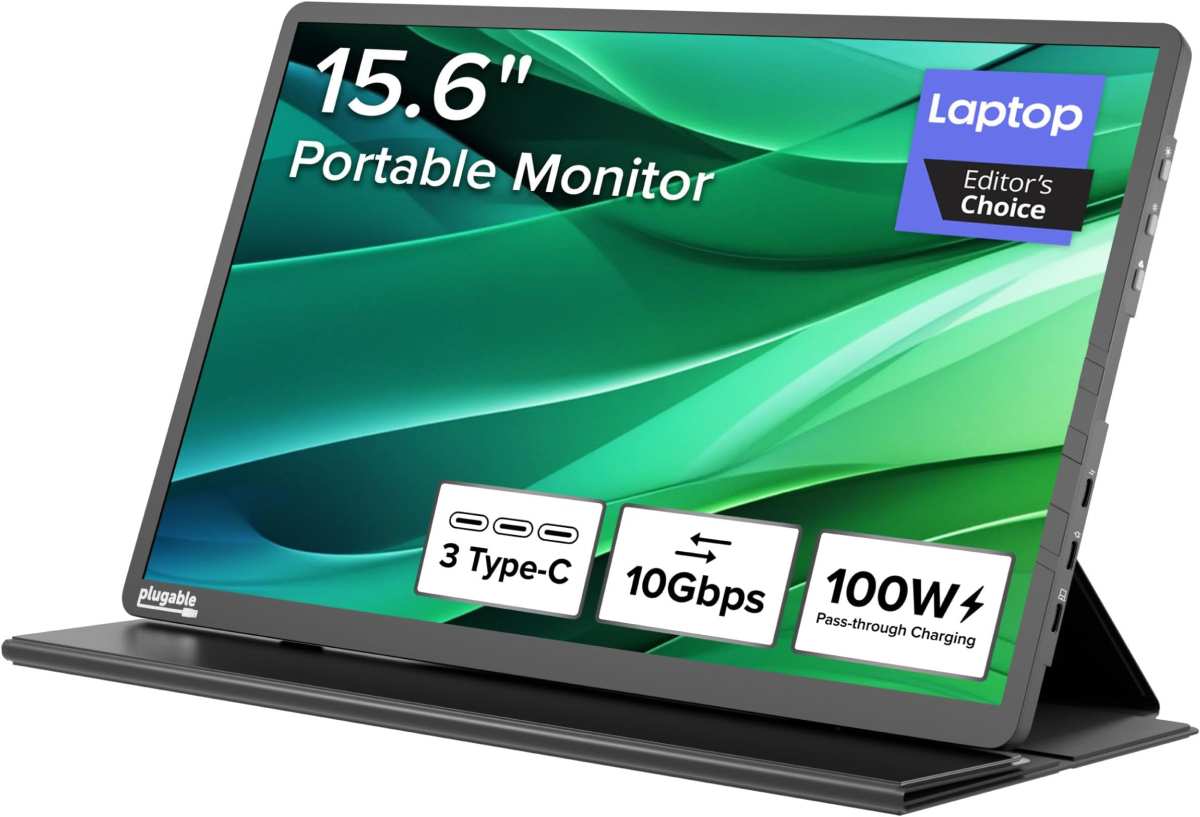
Next, check the physical connection. USB-C ports develop lint and debris over time, especially if you travel with your monitor. Look inside both the monitor's port and your laptop's port.
A can of compressed air clears this out in seconds. Also make sure the cable is fully seated. USB-C connectors should click in with a firm push.
A loose connection can deliver intermittent power that's enough to light an LED but not enough to run the display.
If your portable monitor has a separate power input (some models have both USB-C and a barrel jack or a second USB-C port dedicated to power), try using a dedicated power adapter instead of drawing power from your laptop. Many laptops, especially ultrabooks, deliver only 7.5W or 15W from their USB-C ports. That's enough for a small 1080p portable monitor but not enough for a 15.6-inch 4K panel that needs 30W or more.
A USB-C PD charger rated at 45W or 65W plugged into the monitor's power input solves this immediately.
Quick power checklist:
- Use the cable that came with the monitor, or a certified full-featured USB-C cable
- Inspect both ports for debris or damage
- Try a dedicated USB-C PD power adapter (45W or higher for larger monitors)
- If using a USB-C hub or dock, bypass it and connect directly to the laptop
Step 2: Is the Power LED On But No Image Shows Up?
This is the scenario that confuses people the most. Your monitor's power LED is lit. The screen is clearly receiving power.
But it's completely black, or it shows "No Signal" and then goes dark. The monitor is fine. The problem is that no video signal is reaching it.

First, check the input source. Most portable monitors have a button (sometimes labeled "Input" or represented by a source icon) that cycles between USB-C, HDMI, and sometimes DisplayPort. If your monitor is set to HDMI but you're connected via USB-C, you'll get exactly this symptom. a powered-on screen with no image.
Press the input button and cycle through until you land on the correct source. Some monitors auto-detect, but auto-detect fails more often than people realize, especially when the source device takes a moment to initialize its video output.
Second, verify that your cable supports video. This is the same issue from Step 1, but it shows up differently here. A charge-only cable can deliver enough power to light the LED while carrying zero video data.
If you're using HDMI, make sure the cable isn't damaged and that it's plugged into the correct HDMI port on the monitor (some models have two). Try a different cable entirely. HDMI cables fail internally all the time, especially thinner ones that get bent repeatedly in travel bags.
Third, try a different port on your source device. Many laptops have multiple USB-C ports, and not all of them support video output. On some models, only one specific Thunderbolt or USB-C port carries DisplayPort Alt Mode.
Check your laptop's manual or manufacturer specs to confirm which port supports video. Plugging into a data-only USB-C port will give you power but no image, which looks exactly like the problem you're trying to solve.
Step 3: Sorting Out the Input Source Problem
If you've confirmed power and cable integrity and the monitor still shows nothing, the input source selection is the next thing to nail down. This sounds obvious, but it's the step most people skip because they assume the monitor will "just figure it out."
Most portable monitors have physical buttons on the side or bottom edge. One of these controls the input source. The exact button layout varies by brand.
ASUS ZenScreen models typically use a jog dial or a dedicated input button. Lenovo ThinkVision monitors often have a row of buttons along the bottom. Budget brands like Lepow or Arzopa usually have two or three buttons, one of which cycles inputs.
Here's what to do. Turn the monitor on. Press the input/source button.
Wait three seconds. If nothing changes, press it again. Cycle through every available input.
If you're connected via USB-C, stop on the USB-C input. If via HDMI, stop on HDMI. Some monitors show a brief on-screen label when you switch inputs, even if no signal is present on that input.
That label confirms the monitor itself is working.
A less common but real issue involves the monitor's smart cover or magnetic sleep sensor. Many portable monitors use a magnetic sensor in the smart cover to put the monitor to sleep when the cover closes. If that sensor gets stuck or if a case or folio is interfering, the monitor may think the cover is closed and refuse to display anything.
Remove any case or cover and try powering on again.
Step 4: Testing Your Source Device and Its Ports
At this point, you've ruled out cable issues and input source problems. The next variable is the source device itself. Your laptop, phone, or console might not be sending a video signal, or its port might not support video output at all.
The fastest way to test this is to connect your portable monitor to a completely different device. Grab a friend's laptop, plug in your phone (if it supports video output via USB-C, like most Samsung Galaxy and Google Pixel models), or hook up a game console. If the monitor works with a different device, the problem is with your original source device, not the monitor.
If you don't have a second device handy, try a different port on the same laptop. As mentioned earlier, not every USB-C port on a laptop supports video. Dell, HP, and Lenovo laptops in particular often mix data-only and video-capable USB-C ports.
Look for a small DisplayPort icon or a lightning bolt (Thunderbolt) icon next to the port. That's the one that carries video.
For desktop PCs, make sure you're plugging into the graphics card's output, not the motherboard's. If your PC has a dedicated GPU, the motherboard's video outputs are often disabled by default. Plugging your portable monitor into a disabled motherboard HDMI port gives you a black screen every time.
Also check whether your source device is actually awake and outputting video. Some laptops disable external display output when running on battery power to conserve energy. Plug your laptop into its charger and try again.
On Windows, press Win+P to open the projection menu and select "Extend" or "Duplicate." On macOS, go to System Settings > Displays and click "Detect Displays."
Step 5: When Software Settings Are the Real Culprit
Sometimes the hardware is perfectly fine. The cable is good, the power is sufficient, the input source is correct. But the monitor still won't display anything because the source device's software isn't configured to send a video signal.
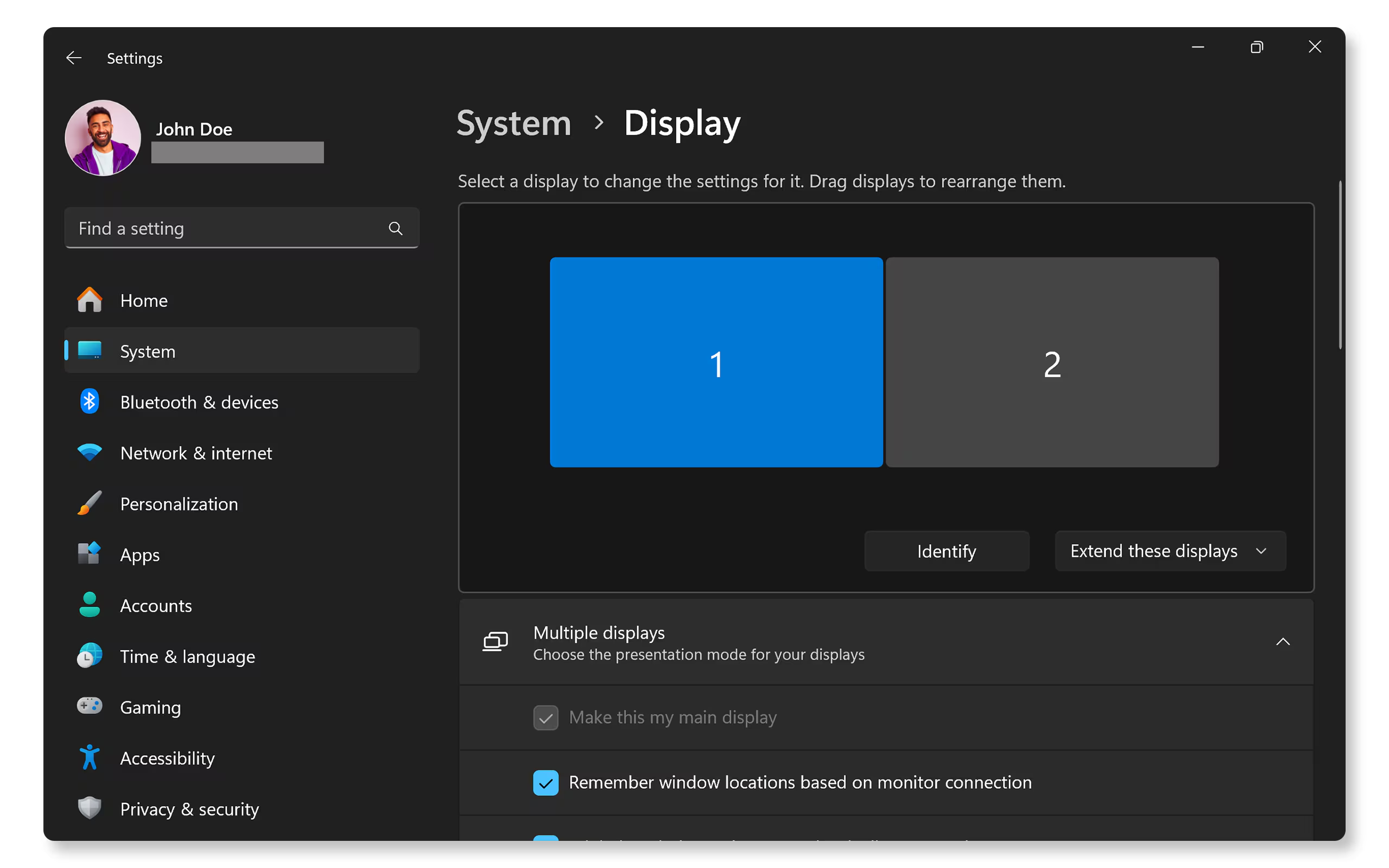
On Windows, the most common issue is that the external display is set to "Second screen only" or "PC screen only" instead of "Extend" or "Duplicate." Press Win+P and cycle through the four options. If the monitor suddenly comes alive, that was your problem. You can also right-click the desktop, select Display Settings, and scroll down to "Multiple displays" to configure it more precisely.
On macOS, go to System Settings (or System Preferences on older versions) > Displays. Hold the Option key and click "Detect Displays" at the bottom. This forces macOS to scan for connected monitors.
If the portable monitor shows up but the arrangement is wrong, drag the display icons to match your physical setup.
Outdated graphics drivers are another frequent cause. If your laptop's GPU driver is old or corrupted, it may fail to detect or output to an external monitor. Update your graphics driver through the manufacturer's website (NVIDIA, AMD, or Intel) rather than relying on Windows Update, which often lags behind.
For Intel integrated graphics, the Intel Driver & Support Assistant tool automates this.
Firmware on the monitor itself can also cause detection issues. Some portable monitors receive firmware updates that fix compatibility problems with specific laptops or operating systems. Check the manufacturer's support page for your exact model number.
ASUS, Lenovo, and ViewSonic all host firmware files and update instructions on their websites. The update process usually involves downloading a file to a USB drive and plugging it into the monitor's service port.
A few more software-side checks worth running:
- Disable any display management or screen-mirroring software that might interfere
- Check for OS updates that include display or USB-C fixes
- If using a USB-C dock or hub, update its firmware as well
- On Linux, use
xrandrin the terminal to detect and enable the external display
Step 6: Hardware Failure Signs You Shouldn't Ignore
If you've worked through every previous step and the monitor still won't turn on, you're likely dealing with a hardware problem. This is the point where continued troubleshooting won't help, and pushing further risks making things worse.
Here are the signs that point to internal hardware failure:
- No LED activity on any cable, any power source, any device. If the monitor draws zero power from multiple known-good setups, the internal power board or main controller has likely failed.
- A burning smell or visible damage on the USB-C port. Bent pins, scorch marks, or a loose port that wiggles when you insert a cable all indicate physical damage.
- The monitor turns on, shows the manufacturer logo, then shuts off repeatedly. This boot-loop pattern often points to a failing backlight driver or a short on the main board.
- Liquid damage. Even minor moisture exposure can corrode internal components over time. If the monitor was ever used outdoors in humid conditions or had liquid near it, corrosion could be the culprit.
Manufacturer warranties for portable monitors typically cover defects for one to three years. If your monitor is still under warranty, contact the manufacturer's support line before attempting any physical repair. Opening the casing voids the warranty on virtually every brand.
Aggregate warranty claim data from 2025 shows that most major manufacturers (ASUS, Lenovo, ViewSonic, Dell) approve replacements for monitors that exhibit these hardware failure signs within the warranty window.
The Cable Problem Nobody Talks About
This deserves its own section because it's the single most common cause of portable monitor issues, and most people never suspect it. USB-C cables look identical from the outside but vary wildly in capability.
A USB-C cable can be:
- Charge-only: delivers power, no data, no video
- USB 2.0 data: transfers data at up to 480 Mbps, no video support
- Full-featured USB 3.1/3.2 with Alt Mode: carries data and video
- Thunderbolt 3/4: highest bandwidth, full video and data support
That cheap USB-C cable from your old phone charger? Almost certainly charge-only. The thin, short cable included with a pair of wireless earbuds?
Also charge-only. Neither will work for a portable monitor, even though the connector fits perfectly.
The cable that came in the box with your portable monitor is the one to use. If you lost it, look for a cable certified by USB-IF that explicitly lists "DisplayPort Alt Mode" or "video support" in its specifications. Thunderbolt 4 cables are a safe bet since they're required to support all USB-C features, including video.
Avoid no-name cables from marketplace sellers. Counterfeit cables are rampant, and they often fail to deliver the advertised wattage or data bandwidth.
How to spot a charge-only cable without testing equipment:
- Usually very thin (smaller wire gauge)
- Often short (1 meter or less)
- Rarely branded or labeled with data speeds
- Frequently bundled with phone chargers or earbuds
Comparison: DIY Fixes vs. RMA and When to Use Each
Not every problem warrants a warranty claim, and not every problem can be solved at home. Here's how to decide which path makes sense:
| Situation | Best Path | Why |
|---|---|---|
| Wrong input selected, bad cable, source settings off | DIY fix | Takes five minutes, no risk |
| Monitor works intermittently, loose port | DIY first, then RMA | Try a different cable first, then pursue warranty if the port itself is damaged |
| No power on any cable or device | RMA | Likely internal failure, not user-fixable |
| Boot-loop or flickering backlight after logo | RMA | Hardware fault, warranty-covered |
| Out of warranty, confirmed hardware failure | Third-party repair or replace | Weigh repair cost against replacement; portable monitors are often more cost-effective to replace than repair |
The practical reality is that portable monitors are compact, densely packed devices. Repairing an internal power board or replacing a damaged USB-C port requires soldering skills and access to replacement parts that most people don't have. For monitors that are out of warranty and showing hardware failure, buying a replacement is usually the smarter move.
Mistakes That Make the Problem Worse
When frustrated, people do things that turn a simple fix into a costly one. Avoid these common errors:
- Forcing a USB-C cable into the port at the wrong angle. USB-C is reversible, but that doesn't mean you should shove it in if it doesn't seat easily. Forcing it bends internal pins.
- Using a power adapter with the wrong voltage. While USB-C PD is designed to negotiate the correct voltage, cheap third-party adapters that don't properly implement the PD spec can deliver incorrect voltage. Stick to reputable brands.
- Opening the monitor casing while under warranty. This voids coverage immediately. No exceptions.
- Ignoring a slightly warm monitor. Portable monitors get warm during normal use, but excessive heat near the power input or on one side of the panel can indicate a short. Stop using it and unplug it.
- Assuming the monitor is dead when the source device is asleep. Some laptops cut USB-C video output during sleep or lid-close. Wake the laptop fully before concluding the monitor has failed.
How to Prevent This From Happening Again
Most portable monitor failures are avoidable with a few habits:
- Always use the included cable or a certified replacement. Leave the good cable with the monitor and label it so it doesn't migrate into your general cable drawer.
- Store the monitor in its original sleeve or case. Physical damage to the USB-C port from items bouncing around in a bag is a leading cause of failure.
- Unplug the monitor before packing it up. A cable left connected during transport can snap the internal port solder joints.
- Keep firmware and graphics drivers updated. Manufacturer firmware updates frequently fix compatibility issues with new laptops and OS versions.
- Use a powered USB-C hub if your laptop has weak USB-C ports. A hub with its own power supply isolates the monitor from your laptop's power limitations.
- Don't daisy-chain. Connecting a portable monitor through a hub, through a dock, through another adapter is asking for signal and power issues. Keep the connection path as short as possible.
Frequently Asked Questions
Can I use any USB-C cable for my portable monitor?
No. You need a USB-C cable that specifically supports video output via DisplayPort Alt Mode or Thunderbolt. Charge-only cables and USB 2.0 data cables won't carry a video signal even if they physically fit the port.
Why does my portable monitor work with my phone but not my laptop?
Your laptop's USB-C port may not support DisplayPort Alt Mode, or it may not deliver enough power. Some laptop USB-C ports are data-only or charge-only. Check your laptop's specifications to confirm which ports support video output.
How do I reset my portable monitor?
Unplug all cables from the monitor. Wait at least 30 seconds. Reconnect the power and video cable.
Some models also have a small reset pinhole on the back or bottom edge. Press it with a paperclip for five seconds while the monitor is powered.
Is it worth repairing a portable monitor out of warranty?
In most cases, no. The cost of diagnosing and repairing an internal component often approaches or exceeds the price of a new entry-level portable monitor. Replacement is usually the more practical option.
My portable monitor turns on for a second then dies. What does that mean?
This typically indicates insufficient power delivery. Your source device or cable can't sustain the wattage the monitor needs. Try a dedicated USB-C PD charger rated at 45W or higher connected to the monitor's power input.
Decision Guide: When to Keep Troubleshooting vs. Contact Support
Here's a simple flow to follow. Start at the top and work down.
Step 1. Swap the cable. If that fixes it, you're done.
Step 2. If the cable swap didn't work, change the input source manually. If the display comes alive, you were on the wrong input.
Step 3. Try a different source device. If the monitor works with another device, your original source device has a port or settings problem.
Step 4. Try a dedicated power adapter on the monitor while keeping the video cable connected. If this solves it, your source device wasn't delivering enough power.
Step 5. Check for firmware updates for your monitor and graphics driver updates for your source device. Apply them and test again.
Step 6. If none of the above produced any change and the monitor shows no signs of life on multiple cables and devices, contact the manufacturer for a warranty claim. You've done everything a reasonable troubleshooting process requires.
Most people find their answer in steps 1 through 3. The remaining steps catch the edge cases. Knowing when to stop troubleshooting and reach out to support saves you hours of frustration and keeps your warranty intact.
The Cable Problem Nobody Talks About
This deserves its own section because it is the single most common cause of portable monitor issues, and most people never suspect it. USB-C cables look identical from the outside but vary wildly in capability.
A USB-C cable can be charge-only, USB 2.0 data, full-featured with Alt Mode, or Thunderbolt 3/4. That cheap USB-C cable from your old phone charger is almost certainly charge-only. The thin, short cable included with a pair of wireless earbuds is also charge-only.
Neither will work for a portable monitor, even though the connector fits perfectly.
The cable that came in the box with your portable monitor is the one to use. If you lost it, look for a cable certified by USB-IF that lists DisplayPort Alt Mode or video support in its specifications. Thunderbolt 4 cables are a safe bet since they are required to support all USB-C features.
Avoid no-name cables from marketplace sellers, as counterfeit cables that fail to deliver adequate wattage or bandwidth are widespread.
Comparison: DIY Fixes vs. RMA and When to Use Each
Not every problem warrants a warranty claim, and not every problem can be solved at home. Wrong input selected, bad cable, or source settings off are quick DIY fixes that take minutes with no risk. If the monitor works intermittently with a loose port, try a different cable first, then pursue an RMA if the port itself is damaged.
For a monitor that shows no power on any cable or device, an RMA is the best path since an internal failure is likely not user-fixable. Boot-loop or flickering backlight after the logo also points to a hardware fault covered by warranty. Out-of-warranty monitors with confirmed hardware failure are usually more cost-effective to replace than repair, given the compact, densely packed construction of most portable monitors.
Mistakes That Make the Problem Worse
When frustrated, people do things that turn a simple fix into a costly one. Forcing a USB-C cable into the port bends internal pins. Using a poorly made power adapter can deliver incorrect voltage that damages the monitor's power board.
Opening the monitor casing while under warranty voids coverage immediately.
Ignoring excessive heat near the power input is another mistake. Portable monitors get warm during normal use, but unusual heat can indicate a short. Stop using the monitor and unplug it.
Assuming the monitor is dead when the source device is simply asleep also leads many people to unnecessary troubleshooting. Wake the laptop fully before drawing any conclusions.
How to Prevent This From Happening Again
Most portable monitor failures are avoidable with a few simple habits. Always use the included cable or a certified replacement, and label it so it stays with the monitor. Store the monitor in its original sleeve or case to protect the USB-C port from physical damage.
Unplug the monitor before packing it up. A cable left connected during transport can snap the internal port solder joints. Keep firmware and graphics drivers updated, since manufacturer updates frequently fix compatibility issues with new laptops.
Use a powered USB-C hub if your laptop has weak USB-C ports, and avoid daisy-chaining through multiple adapters, which invites signal and power problems.
Frequently Asked Questions
Can I use any USB-C cable for my portable monitor?
No. You need a USB-C cable that specifically supports video output via DisplayPort Alt Mode or Thunderbolt. Charge-only cables and USB 2.0 data cables will not carry a video signal even if they physically fit the port.
Why does my portable monitor work with my phone but not my laptop?
Your laptop's USB-C port may not support DisplayPort Alt Mode, or it may not deliver enough power. Some laptop USB-C ports are data-only or charge-only. Check your laptop's specifications to confirm which ports support video output.
How do I reset my portable monitor?
Unplug all cables from the monitor and wait at least 30 seconds before reconnecting. Some models have a small reset pinhole on the back or bottom edge. Press it with a paperclip for five seconds while the monitor is powered.
Is it worth repairing a portable monitor out of warranty?
In most cases, no. The cost of diagnosing and repairing an internal component often approaches or exceeds the price of a new entry-level portable monitor. Replacement is usually the more practical option.
My portable monitor turns on for a second then dies. What does that mean?
This typically indicates insufficient power delivery. Your source device or cable cannot sustain the wattage the monitor needs. Try a dedicated USB-C PD charger rated at 45W or higher connected to the monitor's power input.
Decision Guide: When to Keep Troubleshooting vs. Contact Support
Swap the cable first. If that fixes it, you are done. If not, change the input source manually.
Try a different source device next to isolate whether the problem is the monitor or the original laptop. A dedicated power adapter on the monitor can reveal whether your source device was underpowering the display.
Check for firmware updates for your monitor and graphics driver updates for your source device. If none of these steps produce any change and the monitor shows no signs of life across multiple cables and devices, contact the manufacturer for a warranty claim. Most people find their answer within the first three steps.
Knowing when to stop and reach out keeps your warranty intact and saves hours of frustration.

Similar Posts





















