How to Fix Portable Monitor Flickering
If you're trying to figure out how to fix portable monitor flickering, the first thing to know is that the cause usually falls into one of five categories: cable issues, refresh rate mismatches, power problems, driver conflicts, or hardware defects. Each one requires a different fix, and guessing wrong wastes your time.
Our research into aggregate user reports and manufacturer troubleshooting guides shows that cable and connection issues account for the majority of flickering cases. The good news is that most of these fixes take under five minutes and cost nothing.
Image source: Bing (Web (fair-use with source credit))
Quick Answer
Start by reseating or swapping your video cable. That alone resolves most flickering. If that doesn't work, check your refresh rate in display settings and match it to your monitor's native spec.
Then verify your power delivery is sufficient. Update or roll back your GPU driver next. If none of that helps, you're likely dealing with a hardware defect.
Branch 1: Cable & Connection Issues
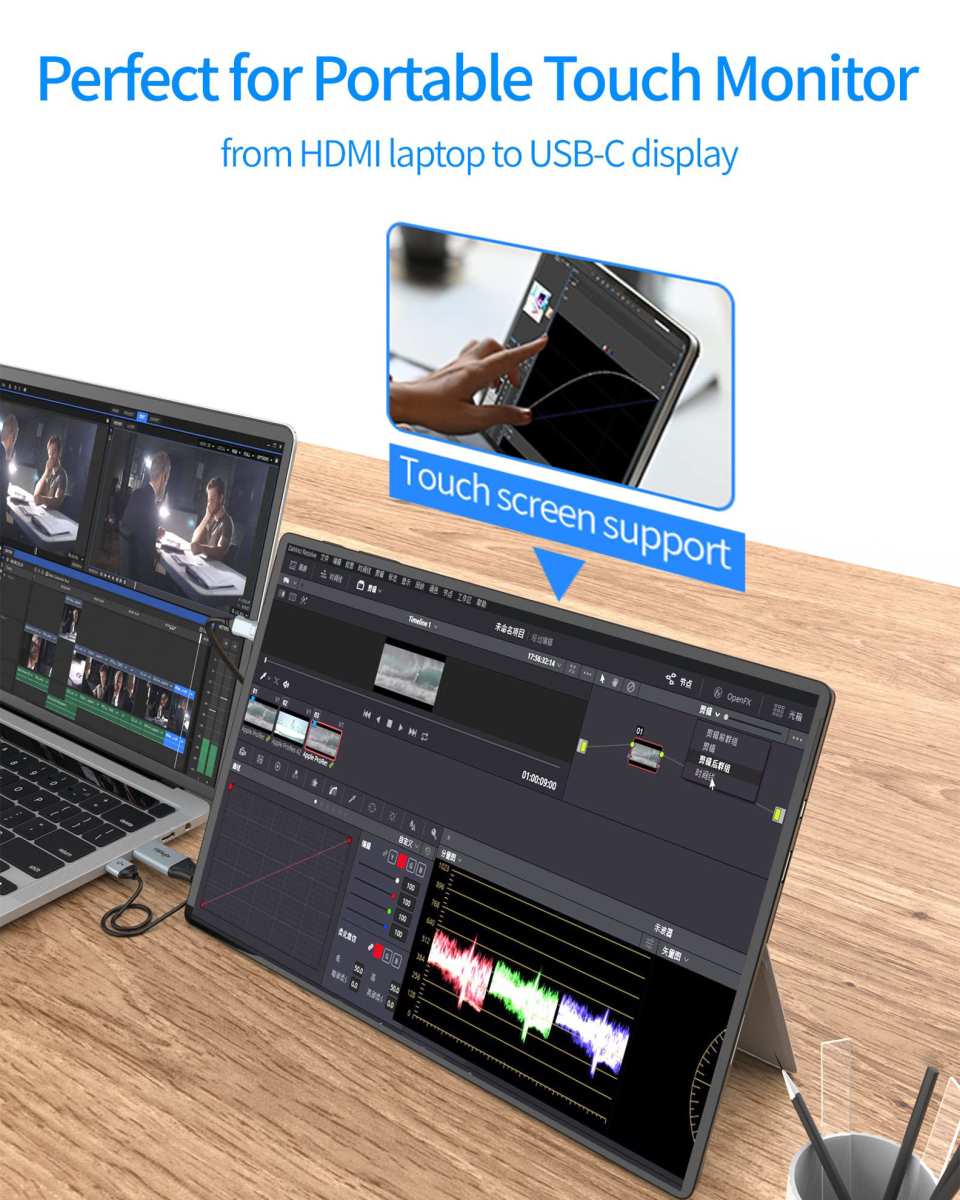
How to check if your cable is the problem
This is the most common culprit, and it's the easiest to test. A loose, damaged, or low-quality cable causes intermittent signal loss, which shows up as flickering, brief blackouts, or horizontal lines across the screen.
Here's what to do first:
- Unplug the cable from both ends and firmly reseat it. Listen for a click on USB-C connections.
- Wiggle the cable gently at each end while watching the screen. If flickering starts or stops, you've found your problem.
- Swap in a different cable of the same type. Even if your current cable looks fine, internal damage isn't always visible.
- Try a different port on your source device if one is available.
If the flickering stops after any of these steps, the cable or port was your issue. Replace the cable with a certified one rated for video output, not just charging.
USB-C vs. HDMI: which connection is more stable?
Both can work well, but they fail in different ways.
USB-C carries power, video, and data over one cable. That's convenient, but it also means more things can go wrong. Not every USB-C port supports DisplayPort Alt Mode for video output.
If your laptop port doesn't support it, you'll get no display or unstable signal. Check your laptop's specs sheet for "DisplayPort over USB-C" or "DP Alt Mode" before troubleshooting further.
HDMI is simpler and more predictable. It's dedicated to video, so there's no confusion about whether your port supports it. However, HDMI cables vary by version.
An HDMI 1.4 cable can't reliably handle 4K at 60Hz. You need HDMI 2.0 or higher for that. If you're running a high-resolution portable monitor through an old cable, flickering is a common symptom.
| Connection Type | Best For | Common Flicker Cause |
|---|---|---|
| USB-C (with DP Alt Mode) | Single-cable setups, power + video | Port doesn't support video output, cable not rated for DP |
| HDMI 2.0+ | Reliable dedicated video | Old cable (1.4) for high-res displays, loose connector |
| Mini HDMI / Micro HDMI | Compact portable monitors | Adapter quality issues, loose fit |
When the port itself is the issue
If you've tried multiple cables and the flickering persists, the port on either your monitor or your source device might be damaged. Look inside the port with a flashlight. Bent pins, debris, or a loose-feeling connector all point to physical damage.
On USB-C ports, the small tongue inside should be straight and centered. If it's tilted or cracked, the port needs professional repair.
Branch 2: Refresh Rate & Display Settings Mismatch
How to check and adjust your refresh rate
A refresh rate mismatch between what your GPU is outputting and what your monitor expects is a frequent cause of flickering. Your monitor is designed to run at a specific refresh rate, usually 60Hz for most portable displays. If your computer is sending a different rate, the panel struggles to keep up.
Here's how to check and fix it on Windows:
- Right-click the desktop and select Display settings.
- Scroll down and click Advanced display settings.
- Select your portable monitor from the display dropdown.
- Check the Refresh rate dropdown. Set it to the highest available option, typically 60Hz for portable monitors.
- If you see multiple options, start with 60Hz. Only go higher if your monitor spec sheet confirms support.
On macOS, go to System Settings > Displays, hold the Option key, and click Scaled to see available refresh rates.
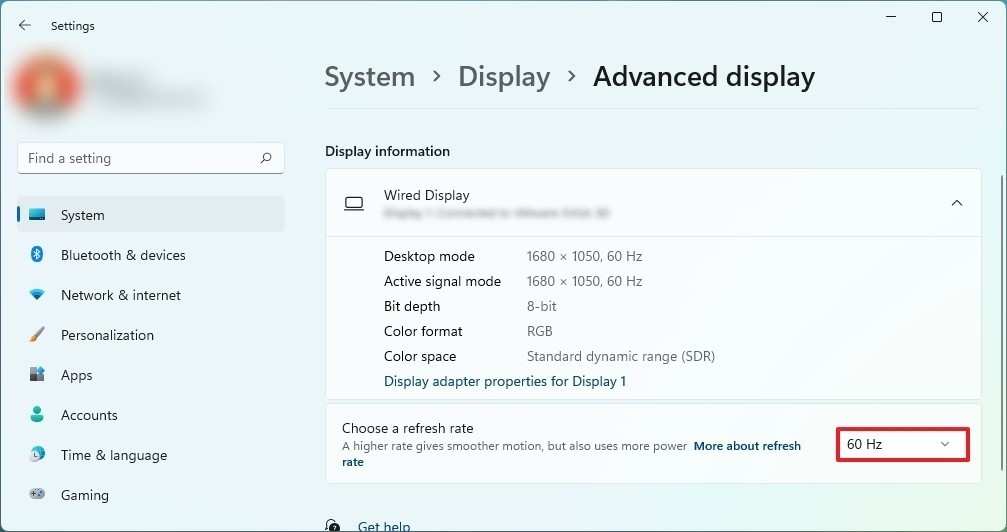
Image source: Bing (Web (fair-use with source credit))
When adaptive sync is causing the problem
Some portable monitors support adaptive sync technologies like FreeSync or G-Sync to reduce screen tearing. But these features can introduce flickering, especially when frame rates drop below the monitor's adaptive sync range. This is particularly common during desktop use when the frame rate fluctuates wildly compared to gaming.
Try disabling adaptive sync to see if the flickering stops:
- For FreeSync: Open AMD Radeon Software, go to Display settings, and toggle AMD FreeSync off.
- For G-Sync: Open NVIDIA Control Panel, navigate to Display > Set up G-Sync, and uncheck the box.
- On the monitor itself: Some portable monitors have adaptive sync toggled through the on-screen display (OSD) menu. Check your monitor's manual for the exact menu path.
If disabling adaptive sync fixes the flicker, you can leave it off or enable it only when gaming.
Resolution scaling conflicts
Running your portable monitor at a non-native resolution can cause soft flickering or a shimmering effect, especially on text and fine edges. Always set the resolution to the monitor's native spec. For most 15.6-inch portable monitors, that's 1920×1080 (Full HD).
For 13.4-inch models, it might be 1920×1200 or 2560×1600 depending on the panel.
Check the native resolution in your monitor's spec sheet or OSD info page, then match it exactly in your operating system's display settings.
Branch 3: Power Delivery Problems
Why low power causes flickering at low brightness
This one catches people off guard. Many portable monitors use pulse-width modulation (PWM) to control brightness at lower levels. When power is insufficient, the backlight can't maintain stable output, and the PWM cycling becomes visible as flickering.
This typically happens at brightness levels below 40-50%.
Manufacturer specifications for most 15.6-inch portable monitors indicate a power draw between 8 and 25 watts. If your USB-C cable or laptop port can't deliver enough wattage, the monitor compensates by cutting power to the backlight unevenly.
How to check if your USB-C cable supports enough wattage
Not all USB-C cables are created equal. Some are charge-only and don't support video at all. Others support video but only handle 15 watts of power, which isn't enough for many portable monitors under load.
Look for these specs on your cable or its packaging:
- USB-IF certification mark (ensures the cable meets standards)
- Power delivery rating of at least 45W (60W preferred for headroom)
- DisplayPort Alt Mode support explicitly listed
If your cable doesn't list these specs, assume it's the problem and swap in a certified cable. Cables rated for 100W power delivery and Thunderbolt 3/4 are safe bets.
When to use the monitor's dedicated power adapter instead
Some portable monitors come with their own DC power adapter or support a separate power input. If flickering persists over USB-C despite using a good cable, try powering the monitor through its dedicated adapter while running video over USB-C or HDMI. This separates the power load from the data connection and eliminates voltage-related flicker.
If your monitor doesn't have a separate power input, try connecting it to a USB-C wall charger that delivers at least 45W, then run video through a separate HDMI cable. This dual-cable approach gives the monitor stable power independent of your laptop's USB-C port capacity.
Branch 4: GPU Driver Conflicts
How to tell if it's a driver issue
Driver-related flickering usually has a few telltale signs. It often starts right after a graphics driver update. It might only happen in specific applications or when hardware acceleration is active.
You might also notice other display glitches like artifacts, color banding, or screen tearing alongside the flicker.
If your flickering started within a day or two of a driver update, that's a strong signal. Windows Update sometimes pushes GPU driver updates automatically, so the timing might not be obvious.
When to roll back vs. update your driver
Roll back if the flickering started after a recent update. Here's how:
- Open Device Manager (search for it in the Start menu).
- Expand Display adapters.
- Right-click your GPU and select Properties.
- Go to the Driver tab and click Roll Back Driver (if available).
- Restart your computer.
Update if you haven't updated in months or you're running the generic Windows display driver. Download the latest driver directly from the manufacturer:
- NVIDIA: Use GeForce Experience or download from nvidia.com
- AMD: Use AMD Adrenalin Software or download from amd.com
- Intel integrated graphics: Download from intel.com or use the Intel Driver & Support Assistant
Avoid third-party driver updater tools. They often install wrong or outdated versions.
Integrated vs. dedicated GPU flickering differences
Many laptops have both integrated graphics (Intel or AMD) and a dedicated GPU (NVIDIA or AMD). Your portable monitor might be routed through the integrated GPU even if you have a dedicated card. This can cause flickering if the integrated GPU driver is outdated or if there's a conflict between the two GPU drivers.
Check which GPU drives your portable monitor by opening your GPU control panel (NVIDIA Control Panel or AMD Software) and looking at display routing. If possible, force the dedicated GPU to handle the external display. This often resolves driver conflict flickering on laptops with switchable graphics.
Branch 5: Hardware Defects & Backlight Failure
How to confirm it's a hardware problem
If you've ruled out cables, settings, power, and drivers, the monitor itself may be defective. Here's how to confirm:
- Connect the monitor to a completely different device (a different laptop, a phone with USB-C video output, or a gaming console).
- Use a known-good cable that works fine with another display.
- If the flickering persists across all devices and cables, the problem is internal to the monitor.
Also check whether the flicker is visible in the monitor's own OSD menu. If the on-screen brightness or input menu flickers too, that confirms a hardware issue with the panel or backlight, not a signal problem.

Image source: Bing (Web (fair-use with source credit))
PWM dimming flicker (why some screens flicker and others don't)
Some portable monitors use PWM dimming at frequencies low enough to cause visible flicker, especially for people sensitive to it. This isn't a defect per se, but it can feel like one. PWM frequencies below 250Hz are noticeable to many users during prolonged use.
You can test for PWM flicker using a simple method: point your phone camera at the monitor at low brightness. If you see dark bands scrolling across the camera screen, the monitor uses low-frequency PWM. Monitors with DC dimming or PWM above 1000Hz won't show this.
Unfortunately, there's no software fix for low-frequency PWM. If it bothers you, you'll need to keep brightness above the PWM threshold (usually 50-60%) or consider a different monitor with DC dimming.
When to claim warranty vs. replace
Most portable monitors come with a one-year manufacturer warranty. If you've confirmed a hardware defect and the monitor is still under warranty, contact the manufacturer for a replacement. Document the flickering with video if possible, as some support teams request proof.
If the monitor is out of warranty, repair costs for panel or backlight issues often approach the price of a new unit. At that point, replacement is usually the more practical choice unless the monitor is a high-end model where the panel alone is worth replacing.
Flicker That Only Happens in Specific Situations
Flicker only on battery power
If your portable monitor flickers when your laptop is on battery but stops when plugged in, your laptop's power saving mode is likely throttling the USB-C port's power output. Many laptops reduce USB-C power delivery on battery to conserve energy. Check your power plan settings and look for USB selective suspend options.
Disabling USB selective suspend in advanced power settings often fixes this.
Flicker only with certain apps or full-screen content
This usually points to a GPU driver issue or an adaptive sync conflict. Some apps bypass the standard rendering pipeline and interact directly with the display hardware. Try disabling hardware acceleration in the affected app (Chrome, Discord, and Slack all have this option in their settings).
If that helps, update your GPU driver to the latest stable version.
Flicker after waking from sleep
This is a common annoyance with USB-C connected monitors. When your laptop sleeps, the USB-C connection resets, and sometimes the handshake between the laptop and monitor doesn't re-establish cleanly. Disabling USB selective suspend helps here too.
You can also try setting your laptop to never sleep when plugged in, or simply unplugging and replugging the USB-C cable after waking.
Common Mistakes That Make Flickering Worse
- Using cheap, uncertified USB-C cables. These often lack proper shielding and can't maintain stable video signals. A $3 cable from an unknown brand is not worth the headache.
- Ignoring the monitor's native refresh rate. Forcing 75Hz on a 60Hz panel causes frame skipping that looks like flickering.
- Running the monitor at very low brightness for extended sessions. If the monitor uses PWM dimming, low brightness is where flicker is most pronounced.
- Updating to the newest GPU driver immediately. Day-one driver releases sometimes introduce regressions. Waiting a week or checking user forums before updating can save you trouble.
- Not testing with a second device. People spend an hour tweaking settings when a quick test with a phone or another laptop would reveal the problem in 30 seconds.
When to Stop Troubleshooting and Get a Replacement
If you've tested with multiple cables, multiple devices, adjusted every relevant setting, updated or rolled back your GPU drivers, and the flickering persists, you're dealing with a hardware issue. No amount of software troubleshooting will fix a failing backlight or a defective panel.
At this point, check your warranty status. Most reputable brands like ASUS, Lenovo, LG, and Arzopa offer at least a one-year warranty covering display defects. Contact support with a clear description of the issue and video evidence.
If the monitor is out of warranty and the flicker makes it unusable, it's time to shop for a replacement rather than sinking more time into a dead unit.
Frequently Asked Questions
Can a bad USB-C cable cause screen flickering?
Yes, this is one of the most common causes. A cable that's damaged, uncertified, or not rated for video output can cause intermittent signal loss that shows up as flickering. Swap in a certified USB-C cable that supports DisplayPort Alt Mode and at least 45W power delivery.
Why does my portable monitor flicker only at low brightness?
This is likely PWM dimming. Many monitors use pulse-width modulation to control brightness at lower levels, and the cycling becomes visible as flicker below a certain threshold. Try keeping brightness above 50-60%.
If that fixes it, the monitor uses low-frequency PWM.
How do I know if flickering is a hardware defect or a software issue?
Connect the monitor to a different device using a known-good cable. If the flickering appears on the second device too, it's a hardware problem. If it only happens on your original computer, it's likely a driver, setting, or cable issue.
Does screen flickering damage my eyes?
Prolonged exposure to visible flicker can cause eye strain, headaches, and fatigue, especially for people sensitive to PWM. It won't cause permanent damage, but it's worth fixing promptly for comfort.
Will updating my GPU driver fix flickering?
It depends on the cause. If a recent driver update introduced the flickering, rolling back to the previous version will help. If you're running an outdated driver, updating might resolve a known bug.
Always download drivers from the GPU manufacturer's official site.
Quick Reference: Flicker Cause → Fix Cheat Sheet
| Flicker Symptom | Most Likely Cause | First Thing to Try |
|---|---|---|
| Flicker when moving the cable | Loose or damaged cable | Reseat or swap the cable |
| Flicker at low brightness only | PWM dimming | Raise brightness above 50% |
| Flicker started after a driver update | GPU driver bug | Roll back to previous driver |
| Flicker only on battery power | Insufficient USB-C power | Plug in or disable USB suspend |
| Flicker on all devices and cables | Hardware defect | Contact manufacturer for warranty |
| Flicker in full-screen apps only | Adaptive sync conflict | Disable FreeSync or G-Sync |
| Flicker after waking from sleep | USB-C handshake failure | Unplug and replug the cable |
Flicker That Only Happens in Specific Situations
Flicker only on battery power
If your portable monitor flickers when your laptop is on battery but stops when plugged in, your laptop's power saving mode is likely throttling the USB-C port's power output. Many laptops reduce USB-C power delivery on battery to conserve energy. Check your power plan settings and look for USB selective suspend options.
Disabling USB selective suspend in advanced power settings often fixes this.
Flicker only with certain apps or full-screen content
This usually points to a GPU driver issue or an adaptive sync conflict. Some apps bypass the standard rendering pipeline and interact directly with the display hardware. Try disabling hardware acceleration in the affected app.
Chrome, Discord, and Slack all have this option in their settings. If that helps, update your GPU driver to the latest stable version.
Flicker after waking from sleep
This is a common annoyance with USB-C connected monitors. When your laptop sleeps, the USB-C connection resets, and sometimes the handshake between the laptop and monitor doesn't re-establish cleanly. Disabling USB selective suspend helps here too.
You can also try setting your laptop to never sleep when plugged in, or simply unplugging and replugging the USB-C cable after waking.
Common Mistakes That Make Flickering Worse
- Using cheap, uncertified USB-C cables. These often lack proper shielding and can't maintain stable video signals. A $3 cable from an unknown brand is not worth the headache.
- Ignoring the monitor's native refresh rate. Forcing 75Hz on a 60Hz panel causes frame skipping that looks like flickering.
- Running the monitor at very low brightness for extended sessions. If the monitor uses PWM dimming, low brightness is where flicker is most pronounced.
- Updating to the newest GPU driver immediately. Day-one driver releases sometimes introduce regressions. Waiting a week or checking user forums before updating can save you trouble.
- Not testing with a second device. People spend an hour tweaking settings when a quick test with a phone or another laptop would reveal the problem in 30 seconds.
When to Stop Troubleshooting and Get a Replacement
If you've tested with multiple cables, multiple devices, adjusted every relevant setting, updated or rolled back your GPU drivers, and the flickering persists, you're dealing with a hardware issue. No amount of software troubleshooting will fix a failing backlight or a defective panel.
At this point, check your warranty status. Most reputable brands like ASUS, Lenovo, LG, and Arzopa offer at least a one-year warranty covering display defects. Contact support with a clear description of the issue and video evidence.
If the monitor is out of warranty and the flicker makes it unusable, it's time to shop for a replacement rather than sinking more time into a dead unit.
Frequently Asked Questions
Can a bad USB-C cable cause screen flickering?
Yes, this is one of the most common causes. A cable that's damaged, uncertified, or not rated for video output can cause intermittent signal loss that shows up as flickering. Swap in a certified USB-C cable that supports DisplayPort Alt Mode and at least 45W power delivery.
Why does my portable monitor flicker only at low brightness?
This is likely PWM dimming. Many monitors use pulse-width modulation to control brightness at lower levels, and the cycling becomes visible as flicker below a certain threshold. Try keeping brightness above 50-60%.
If that fixes it, the monitor uses low-frequency PWM.
How do I know if flickering is a hardware defect or a software issue?
Connect the monitor to a different device using a known-good cable. If the flickering appears on the second device too, it's a hardware problem. If it only happens on your original computer, it's likely a driver, setting, or cable issue.
Does screen flickering damage my eyes?
Prolonged exposure to visible flicker can cause eye strain, headaches, and fatigue, especially for people sensitive to PWM. It won't cause permanent damage, but it's worth fixing promptly for comfort.
Will updating my GPU driver fix flickering?
It depends on the cause. If a recent driver update introduced the flickering, rolling back to the previous version will help. If you're running an outdated driver, updating might resolve a known bug.
Always download drivers from the GPU manufacturer's official site.
 ✓
✓Chris Nolan
Senior Hardware & Tech Editor · Lead Benchmark SpecialistChris Nolan leads consumer electronics benchmarking and hardware diagnostics at TechBink. With over 15 years of laboratory stress-testing experience across mobile silicon, PC computing architectures, and cutting-edge gadgetry, Chris provides objective, data-backed hardware reviews and teardowns.

Similar Posts