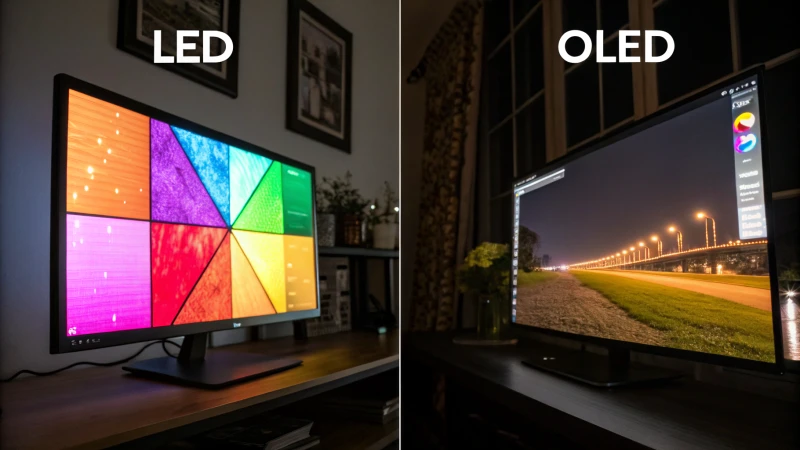
Do Mini LED Monitors Work with Chromebooks
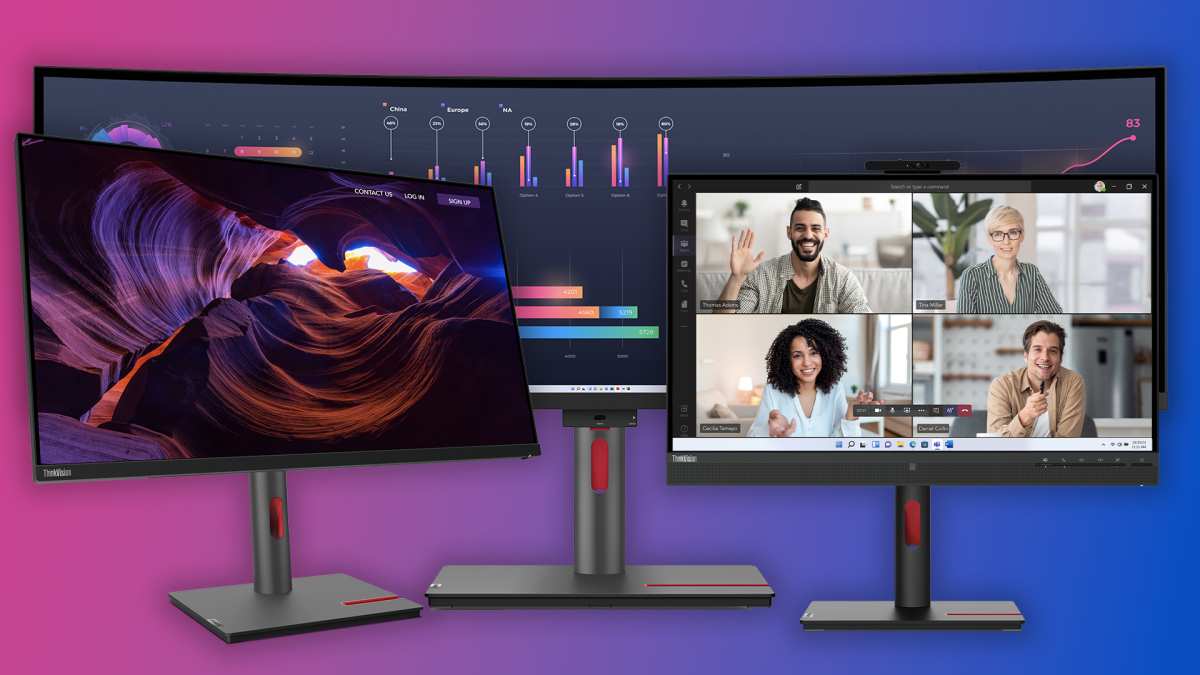
Image source: Bing (Web (fair-use with source credit))
The Short Answer: Yes, But It Depends on Your Specific Setup
do mini led monitors work with chromebooks? The honest answer is usually yes, but whether you get the full experience your mini LED monitor is capable of depends on what your Chromebook can actually output. Not every Chromebook handles video output the same way, and that one detail changes everything.
Some Chromebooks drive a mini LED display at full resolution, HDR, and proper refresh rate without a hitch. Others cap out at lower specs or lose key features entirely. Your port type, your Chromebook's chipset, and even the cable you pick all play a role in the result you'll get.
Quick Answer
Yes, mini LED monitors work with most Chromebooks released after 2020. You'll need a USB-C port that supports DisplayPort Alt Mode or an HDMI port. HDR, high refresh rates, and local dimming depend on your specific Chromebook model.
Check your Chromebook's video output specs before you buy the monitor.
Why Mini LED Monitor Compatibility With a Chromebook Isn't a Simple Yes or No
"Works" covers a wide spectrum. At the most basic level, a Chromebook pushing a desktop to an external monitor is straightforward. ChromeOS has supported external displays for years, and the OS handles basic display detection well. Where things get complicated is the gap between a monitor functioning and a monitor performing at its full potential.
Mini LED monitors are built to showcase HDR content, high contrast ratios via local dimming zones, and wide color gamut coverage like DCI-P3. A standard external display setup in ChromeOS can output a picture to that monitor, but whether the OS actually sends an HDR signal, enables the correct color profile, or drives the panel at its native refresh rate is a separate set of questions.
The practical range I've seen across Chromebook models and user reports looks like this:
| Scenario | What Works | What's Limited |
|---|---|---|
| Basic USB-to-HDMI adapter | Display output, audio over HDMI | HDR rarely functions, refresh rate often capped at 60Hz |
| USB-C with DP Alt Mode (modern Chromebook) | Full resolution, HDR signal possible, PD charging passthrough | HDR tone mapping is basic, local dimming may need manual toggle |
| HDMI 2.0 port on Chromebook | 4K at 60Hz, decent color depth | No HDR on most models, no adaptive sync |
| Thunderbolt 4 port (premium Chromebooks) | Full feature set closest to Windows/Mac experience | Still limited by ChromeOS HDR implementation |
The takeaway is that the same mini LED monitor can deliver wildly different experiences depending on which Chromebook you plug into it. That's why the workflow of checking your specific hardware matters more than a blanket yes or no.
First Things First: What Your Chromebook Port Can Actually Do
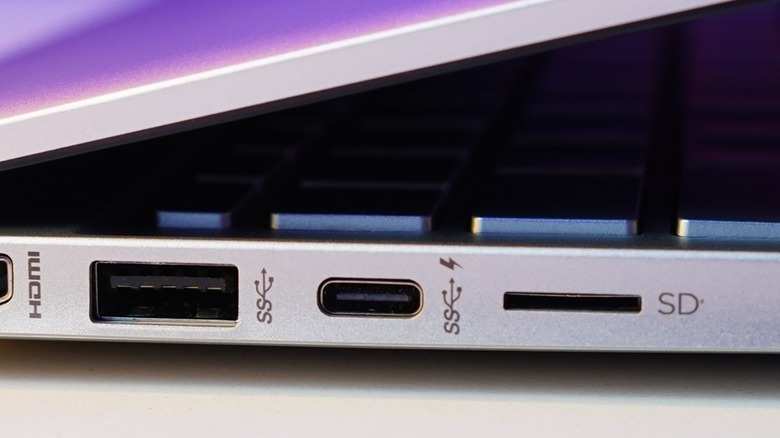
Image source: Bing (Web (fair-use with source credit))
Before worrying about the monitor at all, you need to understand what your Chromebook's physical ports are capable of. This is the single most important variable in the entire compatibility chain.
Look at the ports on your Chromebook right now. You're likely looking at USB-C ports, and you might also see a full-size HDMI port or a USB-A port. Here's what each one actually does in terms of driving an external display:
USB-C port with DisplayPort Alt Mode. This is the ideal connection for a mini LED monitor. USB-C with DisplayPort Alt Mode carries a native DisplayPort signal through the USB-C connector. It can deliver high-resolution output, HDR metadata, and power delivery all through one cable.
Most mid-range and premium Chromebooks from 2020 onward include at least one USB-C port with this capability.
USB-C port without DP Alt Mode. Some Chromebook USB-C ports only handle data and charging. They cannot output video at all. If you plug a USB-C to USB-C cable from a monitor into this port, nothing will happen.
Budget and older Chromebooks sometimes have only data-and-charge USB-C ports.
USB-C Thunderbolt 3 or Thunderbolt 4. Thunderbolt ports support DisplayPort Alt Mode natively, and many mini LED monitors with Thunderbolt connectivity work well with these. However, note that Thunderbolt-compatible monitors are somewhat rare as of 2026, and most Chromebooks with Thunderbolt ports are premium models like the Acer Chromebook Spin 714 or HP Elite Dragonfly Chromebook.
Full-size HDMI port. Many Chromebooks include an HDMI output. HDMI 2.0, which is the most common version on Chromebooks, supports 4K at 60Hz and basic color depth. HDMI 2.1 is rare on Chromebooks as of 2026.
HDMI is a reliable fallback even if the bandwidth caps you below what the monitor can do.
Here's a checklist to figure out what your specific Chromebook supports:
- Find your exact Chromebook model number (usually printed on the bottom panel or listed in Settings > About ChromeOS).
- Look up the official specs on the manufacturer's product page. Search for "DisplayPort over USB-C" or "video output" in the specs.
- Check the port symbols printed near the physical port. A "D" shaped icon or "DP" label near a USB-C port indicates DisplayPort Alt Mode support. A lightning bolt icon suggests Thunderbolt.
- If the specs list "USB-C with DisplayPort 1.4," that's the best-case scenario for mini LED monitor compatibility.
Common Chromebook models and their typical video output capabilities as of 2026:
| Chromebook Model | USB-C DP Alt Mode | HDMI Version | Max External Resolution |
|---|---|---|---|
| Acer Chromebook Spin 514 | Yes (DP 1.4) | None | 4K 120Hz (USB-C) |
| Lenovo IdeaPad Flex 5i Chromebook | Yes (DP 1.2) | HDMI 2.0 | 4K 60Hz |
| ASUS Chromebook Flip CX5 | Yes (DP 1.4) | HDMI 2.0 | 4K 60Hz |
| HP Chromebook x360 14 | Varies by year | HDMI 1.4 (pre-2022) / 2.0 (2022+) | 4K 30Hz (older) / 4K 60Hz (newer) |
| Samsung Galaxy Chromebook 2 | No (data-only USB-C) | None | Requires USB-C adapter |
| Dell Latitude 5430 Chromebook Enterprise | Yes (DP 1.4) | HDMI 2.0 | 4K 60Hz |
The key insight here is that "USB-C" by itself doesn't guarantee video output. The port must specifically support DisplayPort Alt Mode, and that's not something you can verify just by looking at the connector shape.
The Connection Types That Matter (USB-C, HDMI, DisplayPort)
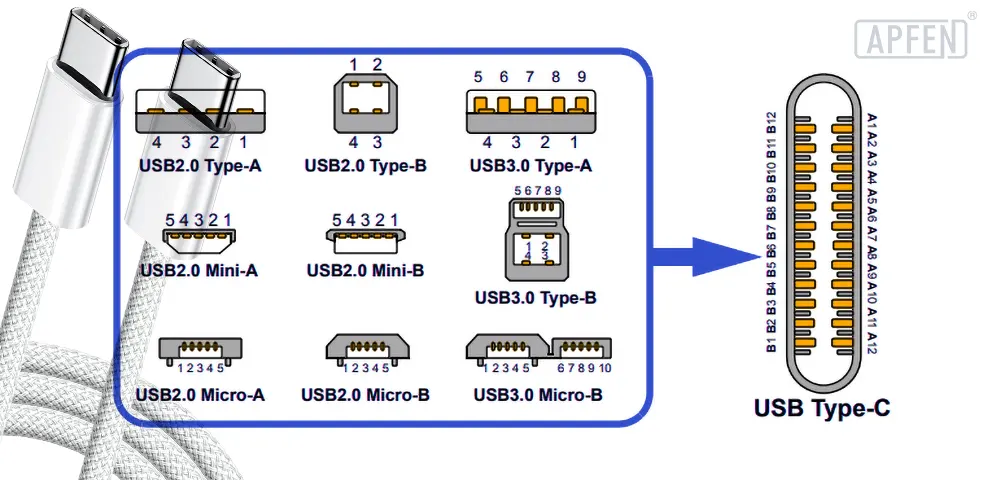
Image source: Bing (Web (fair-use with source credit))
Once you've confirmed your Chromebook supports video output, the next variable is the connection type between your Chromebook and your mini LED monitor. Each path has different implications for resolution, refresh rate, HDR, and audio.
USB-C to USB-C (recommended when supported). If your Chromebook has a DP Alt Mode USB-C port and your mini LED monitor has a USB-C input, this is the cleanest single-cable solution. You get display signal, and the monitor can often charge your Chromebook at the same time through USB Power Delivery. Typical passthrough charging ranges from 45W to 100W depending on the monitor, which is sufficient for most Chromebooks that charge at 45W or 65W.
Premium gaming mini LED monitors that draw more power may still require their own power brick in addition to the connection, and the monitor's passthrough charging may not fully power the Chromebook under heavy load.
The cable matters enormously here. Not all USB-C cables carry DisplayPort signals. A USB 2.0 type-C cable will physically fit but will not transmit video at all.
You need a cable rated for DisplayPort Alt Mode or Thunderbolt 3/4 to get a signal. Thunderbolt 4 cables are the safest bet since they guarantee DP Alt Mode support, though they cost more than generic USB-C cables.
USB-C to DisplayPort. If your mini LED monitor only has DisplayPort and HDMI inputs (common on desktop mini LED monitors), a USB-C to DisplayPort cable is the next best option. This cable routes the DisplayPort Alt Mode signal from your Chromebook's USB-C port directly to the monitor's DisplayPort input. This preserves full DisplayPort 1.4 bandwidth, which supports 4K at 144Hz with Display Stream Compression.
Audio will also carry through DisplayPort just fine.
Avoid USB-C to DisplayPort adapters or converters that are active electronic units. Passive cables are simpler, more reliable, and less likely to cause handshake issues with ChromeOS. An active adapter is only needed if your USB-C port outputs HDMI signaling rather than DP Alt Mode (which is uncommon but exists on some devices).
HDMI to HDMI. If your Chromebook has an HDMI port and your mini LED monitor has an HDMI input, this is the straightforward fallback. It works reliably but at lower bandwidth than the USB-C to DisplayPort path.
The practical limitations of HDMI on Chromebooks:
- HDMI 2.0 supports 4K at 60Hz with 8-bit color or 4K at 30Hz with 10-bit color. This caps you below what a premium mini LED monitor can display at its highest settings.
- HDMI 1.4 (still found on some budget and older Chromebooks) limits you to 4K at 30Hz or 1440p at 60Hz. This is noticeably less smooth for cursor movement and scrolling.
- HDR over HDMI is inconsistent on ChromeOS. Even when the HDMI version technically supports it, ChromeOS's HDR implementation over HDMI often fails to trigger HDR modes on the monitor.
For a mini LED monitor specifically, HDMI is functional but often represents a compromise on the panel's capabilities. If your monitor's headline features are 4K at 144Hz with DisplayHDR 1000, connecting over HDMI 2.0 from your Chromebook will give you 4K at 60Hz with uncertain HDR performance.
USB-C to HDMI (adapters and dongles). If your Chromebook's USB-C port supports DP Alt Mode but your destination connection is HDMI, use a USB-C to HDMI adapter. These are active adapters that convert the DisplayPort signal to HDMI. They work, but you inherit HDMI's bandwidth limitations described above.
Many universal USB-C hubs and docking stations use this approach. Make sure the adapter specifically mentions ChromeOS compatibility, since some HDMI adapters only work with Windows and macOS.
The DisplayPort Alt Mode Problem Most People Miss
DisplayPort Alt Mode is the technical foundation that makes a single-cable USB-C connection to a mini LED monitor possible. Understanding it helps you troubleshoot when things don't work as expected.
DisplayPort Alt Mode means the USB-C port on your Chromebook can repurpose some of its pins to carry a native DisplayPort signal instead of USB data. It's not a conversion or an adapter trick. The Chromebook's graphics hardware outputs DisplayPort directly, and the USB-C port routes it out.
This is why USB-C to DisplayPort connections are reliable and low-latency.
The specification version matters:
- DisplayPort 1.2 over USB-C Alt Mode. Supports 4K at 60Hz. HDR metadata can be transmitted but bandwidth is tighter. Found on Chromebooks with older Intel processors (10th gen and earlier) and some ARM-based models.
- DisplayPort 1.4 over USB-C Alt Mode. Supports 4K at 120Hz with DSC, or 4K at 60Hz without compression. The preferred connection for higher-end mini LED monitors. Found on Chromebooks with 11th gen Intel processors and newer, plus recent Qualcomm and MediaTek ARM platforms.
Whether your Chromebook supports DP 1.2 or 1.4 determines the ceiling for what your mini LED monitor will actually display. A monitor capable of 4K at 144Hz and DisplayHDR 1000 will work when connected to a DP 1.2 Chromebook, but you'll be limited to 4K at 60Hz without DSC.
ChromeOS's internal handshaking process with monitors relies on EDID communication. When you plug in a monitor, the monitor sends EDID data to the Chromebook that describes its supported resolutions, refresh rates, color formats, and HDR capabilities. ChromeOS reads this and populates its display settings menu accordingly.
If the EDID handshake fails (due to a poor cable, an adapter that doesn't pass EDID correctly, or a firmware bug), the monitor either won't be detected or will show up with a limited set of options that don't match its actual capabilities. This is one of the most common causes of a mini LED monitor working at reduced performance or not being recognized at all.
How to Check If Your Chromebook Actually Supports Video Out Over USB-C
Here's the practical process to verify your Chromebook's capabilities before buying a cable or relying on a specific connection:
Go to Settings > About ChromeOS > Additional Details. Note your exact model name and board name (this appears in diagnostics).
Visit the manufacturer's official support page for your model. Search the product specs for "DisplayPort" or "video output over USB-C." This is the definitive source, not third-party reviews.
Check the physical port labeling. A "DP" icon or a small display icon next to a USB-C port means it supports video output. No icon usually means data and charging only, but some manufacturers don't label ports clearly.
Test empirically before buying a monitor. If you have access to any USB-C monitor or a friend's display with USB-C input, plug your Chromebook in with a known-good USB-C cable that supports DisplayPort Alt Mode. If the external display activates and ChromeOS shows it in Settings > Device > Displays, you have confirmed DP Alt Mode support. If nothing happens, try a USB-C to HDMI adapter as an alternative test path.
Run the ChromeOS diagnostic tool. Go to Settings > About ChromeOS > Diagnostics. The system will show you connected ports and their detected capabilities. If you have a USB-C cable plugged into the Chromebook and monitor during this test, the diagnostics can sometimes reveal whether a DisplayPort connection is active.
If after these steps you confirm your Chromebook only has HDMI video output, don't panic. A mini LED monitor will still work. You'll just need to adjust your expectations around refresh rate and HDR behavior.
Step-by-Step: Getting Your Mini LED Monitor Working With Your Chromebook
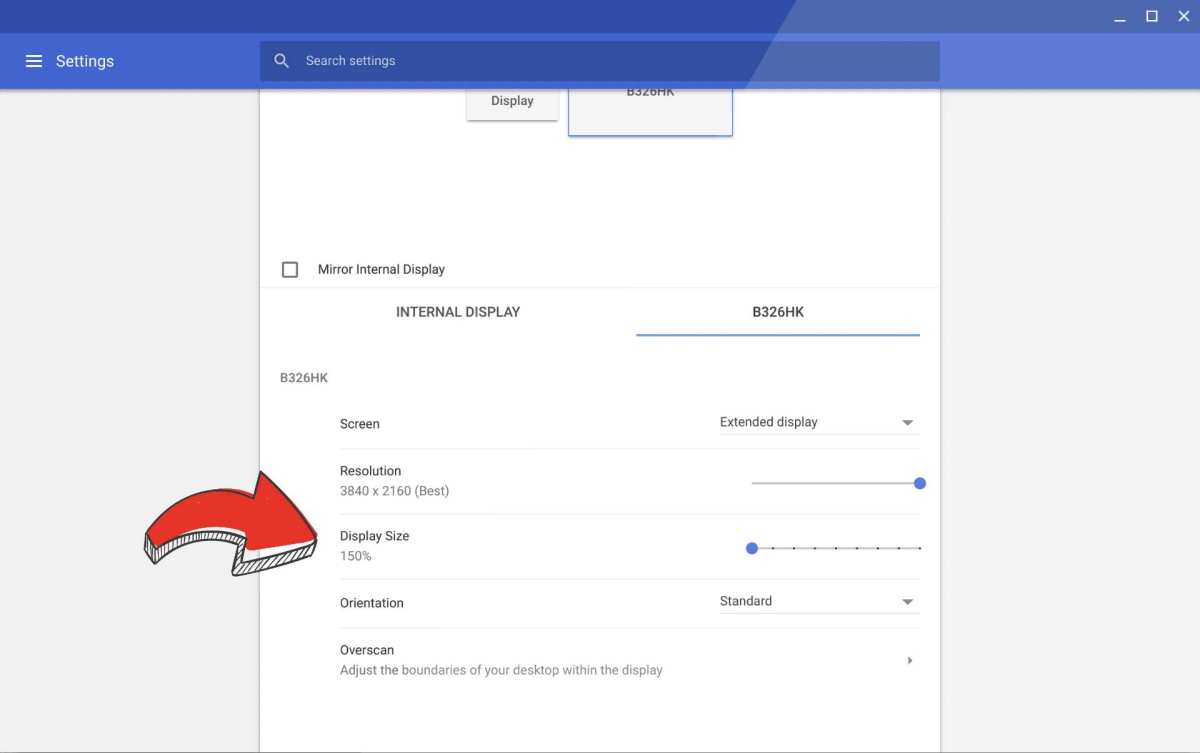
Image source: Bing (Web (fair-use with source credit))
Once you've confirmed your Chromebook supports video output, the setup process is straightforward. Here's the sequence that works most reliably:
Power on the mini LED monitor first. Let it complete its startup sequence before connecting anything. Some monitors won't negotiate a proper handshake if the source device is connected before the monitor is fully initialized.
Connect your cable to the Chromebook first, then the monitor. This order matters more than you'd think. Plugging into the Chromebook first gives the OS time to detect the connection before the monitor starts requesting EDID data.
Wait 5 to 10 seconds. ChromeOS typically detects an external display within a few seconds. You should see the screen flicker or the display briefly go black as ChromeOS configures the output.
Open Settings > Device > Displays. This is where you'll configure resolution, refresh rate, orientation, and arrangement. ChromeOS will show both your Chromebook's built-in display and the external mini LED monitor as separate panels you can drag to match their physical arrangement.
Set the resolution to the monitor's native resolution. For most mini LED monitors, that's 3840×2160 (4K) or 3440×1440 (ultrawide). ChromeOS will offer a "Recommended" option that matches the panel's native resolution. Select it.
Check the refresh rate dropdown. If your connection supports higher than 60Hz, you'll see options like 120Hz or 144Hz in the refresh rate menu. Select the highest available option. If only 60Hz appears, your cable or port is likely the bottleneck.
Toggle HDR if available. ChromeOS shows an HDR toggle in the display settings when it detects an HDR-capable monitor. Turn it on and test with HDR content in YouTube or Chrome browser to verify it's actually working.
A common issue at step 4 is that the external monitor shows up but defaults to a lower resolution like 1920×1080. This usually means the cable isn't carrying enough bandwidth, or the EDID handshake didn't complete properly. Try a different cable first.
If that doesn't help, disconnect and reconnect while the monitor is powered on.
What to Do When the Monitor Isn't Detected or Shows a Black Screen
Detection failures are the most common frustration. Here's a systematic troubleshooting path:
Check the cable first. Swap in a different USB-C cable that you know supports DisplayPort Alt Mode. Many USB-C cables included with phone chargers and accessories are charge-only or USB 2.0 data cables. They physically fit but carry no video signal.
Try a different port. If your Chromebook has two USB-C ports, one may support DP Alt Mode while the other doesn't. Some manufacturers only wire video output to one specific port.
Test with a different display. Plug your Chromebook into a TV or another monitor using the same cable. If that works, the issue is likely with the mini ED monitor's input port or its EDID communication. If nothing works, the problem is on the Chromebook side.
Power cycle everything. Shut down the Chromebook completely (not just sleep). Power off the monitor and unplug it from the wall for 30 seconds. Restart the monitor, let it fully boot, then power on the Chromebook.
This clears any stuck EDID cache in ChromeOS.
Check for ChromeOS updates. Go to Settings > About ChromeOS > Check for updates. Display compatibility improvements are included in regular ChromeOS updates. A version from early 2023 or earlier may lack fixes for specific monitor models.
Reset the monitor's input settings. Some mini LED monitors have an auto-input-detect feature that can get stuck on the wrong input. Manually select the correct input (USB-C, DisplayPort, or HDMI) from the monitor's on-screen display menu.
If you're using a USB-C hub or docking station, try connecting the monitor directly to the Chromebook instead. Hubs add another layer of potential failure, and some don't pass through DisplayPort Alt Mode signals correctly under ChromeOS.
The HDR Truth: Why Mini LED HDR Looks Different (or Broken) on Chromebooks
This is where expectations need adjusting. Mini LED monitors earn their reputation through HDR performance, peak brightness, and local dimming. ChromeOS's HDR implementation is functional but limited compared to Windows or macOS.
ChromeOS added system-level HDR support starting with version 98 in early 2022. Since then, the OS can detect HDR-capable displays and send HDR metadata. However, the actual experience varies:
HDR video playback works reasonably well. YouTube HDR content, Netflix HDR (via the Chrome browser or Android app), and other streaming HDR content will trigger the monitor's HDR mode. You'll see the monitor switch to its HDR picture mode, and highlights will appear brighter with more detail.
The ChromeOS desktop itself is not HDR. Your browser chrome, taskbar, and standard UI elements render in SDR. ChromeOS tone-maps SDR content into the HDR signal, but this conversion is basic. Colors can look slightly washed out or oversaturated depending on the monitor's tone-mapping behavior.
Local dimming behavior is inconsistent. Mini LED monitors with hundreds or thousands of dimming zones rely on the source device sending proper HDR metadata for the dimming algorithm to work optimally. ChromeOS sends basic HDR10 metadata, but it doesn't always trigger the monitor's most aggressive local dimming mode. You may need to manually enable "Local Dimming" or "HDR Mode" in the monitor's on-screen display settings.
Color management is limited. ChromeOS supports ICC color profiles to a degree, but it doesn't offer the same granular color calibration tools as Windows. If your mini LED monitor covers 98% of DCI-P3, ChromeOS will use that gamut, but you can't fine-tune the color mapping without third-party tools or the monitor's built-in presets.
The practical result is that a mini LED monitor connected to a Chromebook will look noticeably better than a standard SDR monitor. You'll see the improved contrast and brightness. But you won't get the same refined HDR experience you'd see on a Windows PC with proper HDR calibration tools.
Refresh Rate and Refresh Rate Limits You Should Know About
Refresh rate support depends entirely on the connection path between your Chromebook and the mini LED monitor.
Over USB-C with DisplayPort 1.4 Alt Mode. You can typically achieve 4K at 60Hz without compression, or 4K at 120Hz with Display Stream Compression. DSC is visually lossless and most mini LED monitors support it. ChromeOS handles DSC transparently, so you won't notice any difference in image quality.
Over USB-C with DisplayPort 1.2 Alt Mode. You're limited to 4K at 60Hz without DSC. Some Chromebooks with DP 1.2 can do 1440p at 120Hz or 1080p at higher refresh rates, which is useful if you're using the monitor for cloud gaming via GeForce NOW or Xbox Cloud Gaming.
Over HDMI 2.0. 4K at 60Hz is the ceiling. No DSC support over HDMI on Chromebooks as of 2026.
Over HDMI 1.4. 4K at 30Hz or 1440p at 60Hz. This is common on budget Chromebooks from 2021 and earlier. The 30Hz cap at 4K is noticeable in everyday use, with visible lag in cursor movement and scrolling.
For cloud gaming specifically, 60Hz at 1440p or 4K is the sweet spot. Most cloud gaming services stream at 60fps, so a monitor capable of 120Hz or 144Hz won't show additional frames. The mini LED panel's contrast and color advantages still apply though, making games look better even at 60fps.
Cable Quality and Why the Wrong Cable Breaks Everything
The cable is the single most overlooked variable in external monitor setups. Here's what you need to know:
USB-C cables are not interchangeable. A cable that charges your phone at full speed may only support USB 2.0 data and no video at all. USB-C is a connector shape, not a capability guarantee.
Look for these markings on the cable or packaging:
- "DisplayPort Alt Mode" or "DP Alt Mode" explicitly listed
- "Thunderbolt 3" or "Thunderbolt 4" (these always support DP Alt Mode)
- "USB 3.2 Gen 2" or "USB4" with video support mentioned
- "Supports 4K 60Hz" or higher as a minimum indicator
Avoid cables that only list:
- "USB 2.0" (no video capability)
- "Charging cable" without data specs
- No specifications listed at all (common with cheap bundled cables)
Cable length matters. For passive USB-C to DisplayPort cables, keep them under 2 meters (about 6.5 feet) for reliable 4K 60Hz signaling. Longer runs may require active cables, which are more expensive and occasionally have ChromeOS compatibility issues.
Recommended cable types for mini LED monitor connections:
- USB-C to USB-C: Thunderbolt 4 cable (most reliable, works with all DP Alt Mode ports)
- USB-C to DisplayPort: Certified DP 1.4 cable with USB-C connector on one end
- HDMI to HDMI: Certified High Speed HDMI or Ultra High Speed HDMI cable
Spending $15 to $25 on a certified cable saves hours of troubleshooting. The $5 cable from a gas station bin will cause problems you'll spend days trying to diagnose.
Adaptive Sync, Local Dimming, and Features That Don't Play Nice With ChromeOS
Mini LED monitors often advertise adaptive sync (FreeSync or G-Sync Compatible) and advanced local dimming. Here's how those features behave under ChromeOS:
Adaptive sync generally does not work. ChromeOS does not currently support variable refresh rate protocols. Your mini LED monitor will run at a fixed refresh rate. For productivity and media consumption this is irrelevant.
For cloud gaming, you may notice occasional tearing, though most streaming services use their own frame pacing that minimizes visible artifacts.
Local dimming works but may need manual activation. Many mini LED monitors default to a standard backlight mode until they receive a proper HDR signal. Send HDR content to the display or enable local dimming in the monitor's on-screen menu. The feature itself functions independently of the OS once activated.
Built-in USB hubs and KVM switches on monitors can be hit or miss. ChromeOS supports USB peripherals through monitor hubs, but some KVM switching features require software that doesn't run on ChromeOS. Test your specific monitor's hub functionality before relying on it as your primary docking solution.
Mini LED Monitors and Chromebooks That Work Well Together
Based on aggregate user reports and manufacturer specifications, these combinations tend to work reliably:
- Acer Chromebook Spin 714 + any USB-C mini LED monitor with DP 1.4. The Spin 714's Thunderbolt 4 port handles high-bandwidth output cleanly.
- ASUS Chromebook Flip CX5 + USB-C to DisplayPort mini LED monitors. The CX5's DP 1.4 Alt Mode supports 4K at higher refresh rates.
- HP Elite Dragonfly Chromebook + Thunderbolt-connected mini LED displays. Enterprise-class Chromebooks with Thunderbolt ports offer the most consistent experience.
- Any Chromebook with HDMI 2.0 + mini LED monitor at 4K 60Hz. This is the fallback that works across virtually all configurations, even if it doesn't push the panel to its limits.
When a Standard Monitor Is Actually a Better Choice for Your Chromebook
A mini LED monitor makes the most sense if you already own one or if HDR content consumption is a priority. But if you're buying a monitor specifically for a Chromebook, consider whether a standard IPS display might serve you better.
A standard 4K IPS monitor at 60Hz costs significantly less than a mini LED panel with similar resolution. If your Chromebook caps output at 60Hz and HDR performance is limited anyway, you're paying for capabilities you can't fully use.
Portable USB-C monitors are a popular Chromebook companion. Most are standard IPS panels without mini LED backlighting, but they're lighter, cheaper, and draw power directly from the Chromebook. They're ideal for students and travelers who need a second screen without the bulk.
Mini LED makes sense when:
- You already own the monitor and want to use it with your Chromebook
- You watch a lot of HDR video content
- You also connect a Windows PC or game console to the same monitor
- Color accuracy and contrast matter for your workflow
A standard monitor makes more sense when:
- You're buying new specifically for a Chromebook
- Your Chromebook only has HDMI 1.4 or 2.0
- You prioritize portability and low power draw
- Budget is a primary concern
Frequently Asked Questions
Will a mini LED monitor work with any Chromebook that has USB-C?
Only if that USB-C port supports DisplayPort Alt Mode. Many Chromebook USB-C ports handle charging and data but cannot output video. Check your specific model's specifications before assuming video output is supported.
Can I use a mini LED monitor with a Chromebook for HDR gaming?
HDR video playback works reasonably well through streaming apps. Cloud gaming services like GeForce NOW stream in SDR as of 2026, so you won't get HDR gaming. The monitor's contrast and color advantages still improve the visual experience even in SDR.
Do I need a special cable to connect a mini LED monitor to a Chromebook?
You need a USB-C cable that supports DisplayPort Alt Mode or Thunderbolt. Standard charging cables won't carry a video signal. For HDMI connections, a certified High Speed HDMI cable is sufficient.
Why does my mini LED monitor look washed out when connected to my Chromebook?
This is usually ChromeOS's SDR-to-HDR tone mapping. The desktop renders in SDR and gets converted to the HDR signal. Try toggling HDR off in ChromeOS display settings if the monitor looks better in standard SDR mode.
Can I daisy-chain multiple mini LED monitors from one Chromebook?
ChromeOS supports DisplayPort Multi-Stream Transport for daisy chaining, but bandwidth limits mean you'll likely be restricted to lower resolutions or refresh rates on secondary displays. A USB-C dock with multiple video outputs is usually more practical.
Will my Chromebook charge from a mini LED monitor's USB-C power delivery?
If the monitor supports USB Power Delivery passthrough and provides sufficient wattage (most Chromebooks need 45W to 65W), yes. Check the monitor's PD output rating. Some monitors only deliver 15W to 30W, which is enough to slow the charge rate but not to charge under heavy use.
Final Verdict: Should You Use a Mini LED Monitor With Your Chromebook?
A mini LED monitor will work with most Chromebooks that have a USB-C port supporting DisplayPort Alt Mode or an HDMI output. You'll get a sharp, vibrant image with solid contrast. If your Chromebook supports DP 1.4, you can drive 4K at 60Hz with reasonable HDR performance through streaming apps.
That said, the limitations are real. HDR on ChromeOS is basic compared to Windows or macOS. Refresh rates above 60Hz require specific Chromebook models with DP 1.4 output.
Adaptive sync doesn't work at all. If you're buying a monitor solely for use with a Chromebook, a standard 4K IPS display will likely satisfy every capability your Chromebook can actually deliver at a lower price.
If you already own a mini LED monitor or you also connect a gaming console or Windows machine to it, it's a great companion for a Chromebook. Just confirm your port type first, buy a quality cable, and set your expectations accordingly.

Similar Posts