How to Use Portable Monitor Without Drivers
So you've got a portable monitor and you want to get it working without hunting down drivers, waiting through installations, or begging IT for admin rights. Good news: most portable monitors work just fine without any driver installation at all, as long as you've got the right connection type and the right cable.
The trick is understanding the difference between USB-C Alt Mode (true plug-and-play) and DisplayLink (which absolutely needs drivers). Once you know which one you're dealing with, the whole process takes about 30 seconds. Let's walk through exactly how to make it work.
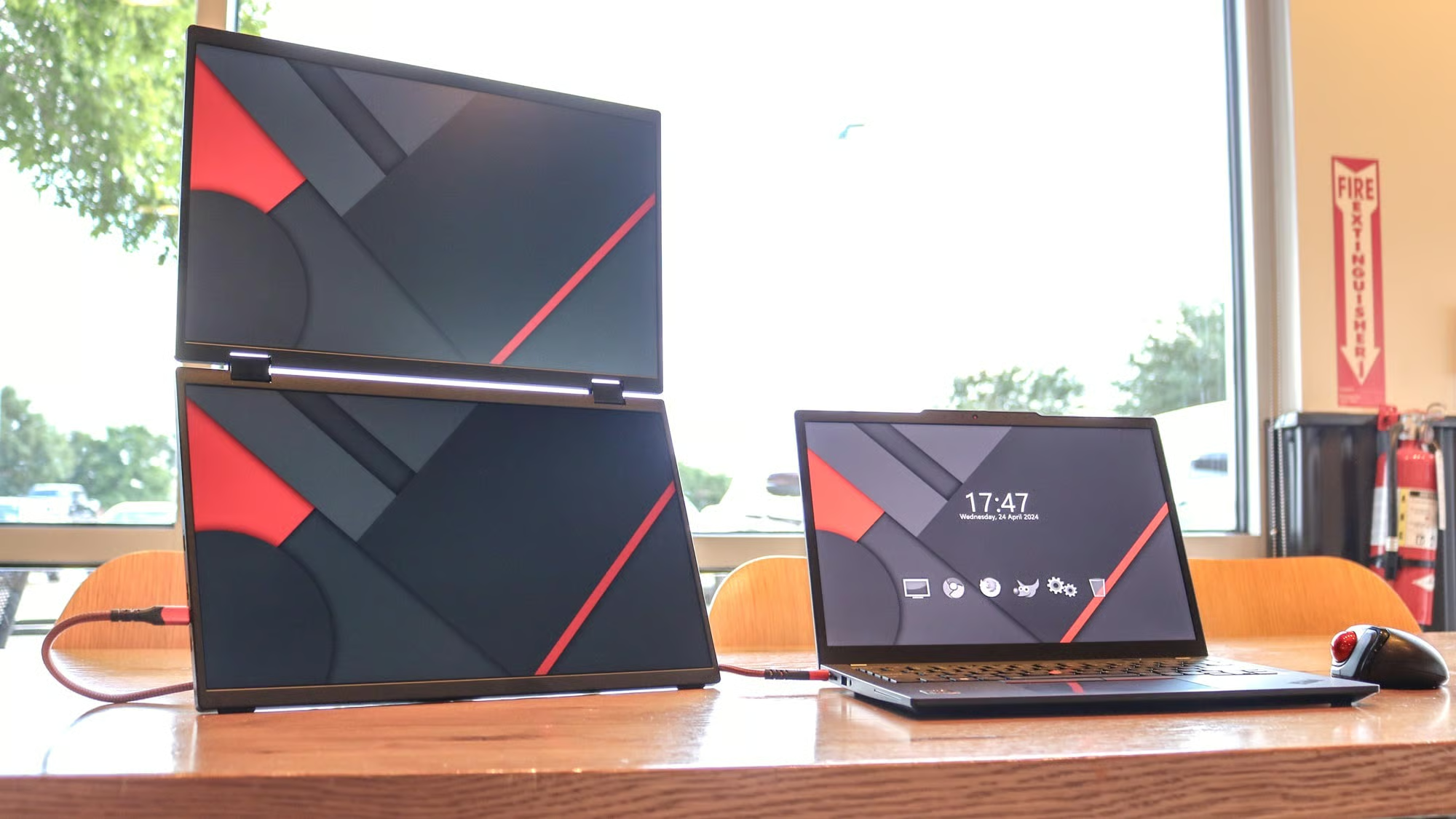
Image source: Bing (Web (fair-use with source credit))
Quick Answer
You can use a portable monitor without drivers by connecting it through USB-C Alt Mode or HDMI. USB-C Alt Mode carries both video and power through a single cable. HDMI connections are always driver-free.
Just plug in the correct cable, and your operating system detects the display automatically. No software installation needed.
Why Driver-Free Setup Matters (And Who Needs It)
Not everyone can install drivers. If you're on a locked-down corporate laptop where IT controls what software goes on your machine, you can't just download and install DisplayLink drivers whenever you feel like it. You'd need approval, a ticket, and probably two weeks of waiting.
Driver-free setup also matters for speed. Maybe you're hot-desking in a shared office and need a second screen right now. Maybe you're at a client site and pulling a presentation together in the lobby.
Maybe you just don't want another piece of software running in the background eating up resources.
Here's who benefits most from driver-free portable monitor setup:
- Corporate employees on managed devices without admin access
- Students using university-owned or restricted laptops
- Travelers who need fast setup on the go
- IT admins deploying standardized workstations across teams
- Chromebook users who can't install traditional drivers
- Anyone who just wants plug-and-play simplicity
The bottom line is simple. If your hardware supports it, a driver-free connection is always faster, cleaner, and less hassle than installing extra software.
How Portable Monitors Actually Work: The Two Connection Types You Need to Know
This is where most of the confusion comes from. Not all USB-C connections are created equal, and manufacturers don't always make the distinction clear on the box.
There are two fundamentally different ways a portable monitor receives its signal through USB-C. One is truly driver-free. The other is not.
Mixing them up is the number one reason people think their monitor is broken.
USB-C Alt Mode: The True Plug-and-Play Path
USB-C Alt Mode (short for Alternate Mode) is a standard defined by the USB Implementers Forum. It lets a USB-C port carry DisplayPort video signals natively, without any translation layer or software middleman.
When your laptop supports USB-C Alt Mode and your monitor accepts it, here's what happens. You plug in a single USB-C cable. The laptop negotiates power delivery and video output simultaneously.
The monitor lights up. Your operating system sees a second display. Done.
No drivers. No software. No fuss.
The USB-C Alt Mode standard supports up to 4K resolution at 60Hz when using DisplayPort 1.4. That's more than enough for productivity work, photo editing, and even video playback.
Most modern laptops from 2018 onward support USB-C Alt Mode, especially those with Thunderbolt 3 or Thunderbolt 4 ports. The key is verifying that your specific USB-C port supports video output, which we'll cover in the decision tree below.
DisplayLink: Why It's NOT Driver-Free (Despite What the Box Says)
DisplayLink is a technology owned by Synaptics that compresses video data over a standard USB data connection. It's clever technology. It lets you run multiple monitors through a USB 3.0 port that has no native video capability.
But here's the critical part. DisplayLink requires a software driver on your computer. The driver captures the display output, compresses it, sends it over USB data, and the DisplayLink chip in the monitor decompresses it back into a video signal.
Without that driver installed, a DisplayLink monitor is just a dead screen plugged into a USB port.
Some manufacturers market DisplayLink monitors with phrases like "driver-free on macOS" or "plug and play." What they usually mean is that macOS has built-in support for basic DisplayLink functionality in some versions, or that the monitor also supports HDMI as a fallback. The DisplayLink USB connection itself always needs its driver.
Here's a quick comparison to make the distinction crystal clear:
| Feature | USB-C Alt Mode | DisplayLink |
|---|---|---|
| Drivers required | No | Yes |
| Connection type | USB-C with DP support | USB-C (data), USB-A, or HDMI adapter |
| Max resolution | Up to 4K@60Hz (DP 1.4) | Up to 4K@60Hz (DL-6950 chip) |
| CPU overhead | Minimal | Moderate (software compression) |
| Works on any USB-C port | No (must support Alt Mode) | Yes (with driver installed) |
| Touchscreen support | Usually no driver needed | Often requires driver |
| Multi-monitor daisy chain | Possible (with MST) | Yes (through DisplayLink dock) |
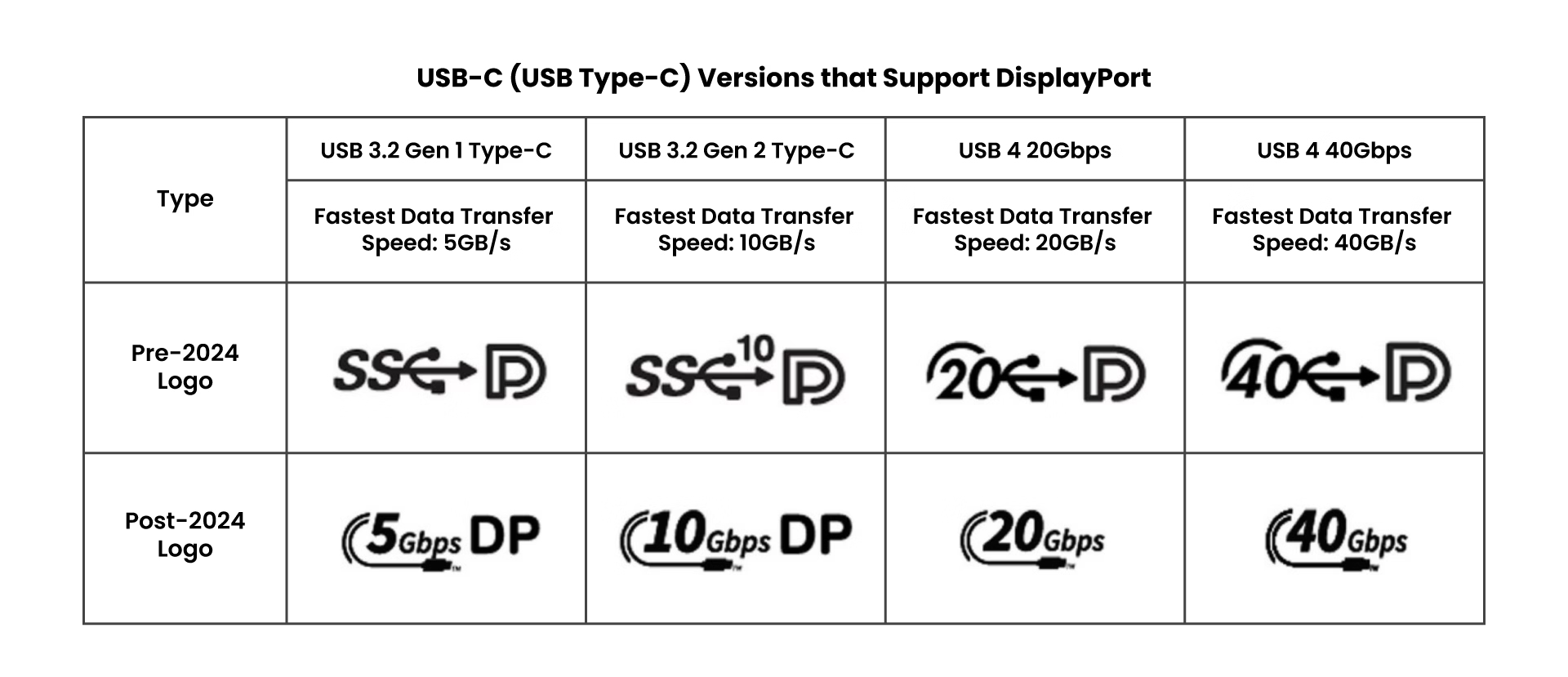
Image source: Bing (Web (fair-use with source credit))
Decision Tree: Will Your Setup Work Without Drivers?
Before you plug anything in, let's figure out whether your specific setup can work driver-free. Answer these three questions in order.
Step 1: What Ports Does Your Device Have?
Look at your laptop, tablet, or phone. Identify what ports are available and whether they support video output.
USB-C with video support: Look for a lightning bolt symbol, a "D" shape with a "P" inside (DisplayPort logo), or the letters "DP" next to the USB-C port. These markings indicate the port supports video output through USB-C Alt Mode.
If you see no symbol at all next to your USB-C port, it might be data-only and power-only. Many budget laptops include USB-C ports that handle charging and file transfers but don't support video. Check your laptop's specifications on the manufacturer's website to confirm.
HDMI port: Full-size HDMI or mini-HDMI ports always carry video without drivers. If your device has one, you're in good shape.
USB-A ports only: Standard rectangular USB-A ports cannot carry video natively. You'd need a DisplayLink adapter with its driver, which breaks the driver-free requirement.
Here's a quick reference:
| Port Type | Video Without Drivers? | Notes |
|---|---|---|
| USB-C with DP Alt Mode | Yes | Look for DP/lightning bolt symbol |
| Thunderbolt 3 / 4 | Yes | Always supports DP Alt Mode |
| HDMI (full or mini) | Yes | Always driver-free |
| USB-A (standard) | No | Requires DisplayLink + driver |
| USB-C (data only) | No | Check your laptop specs |
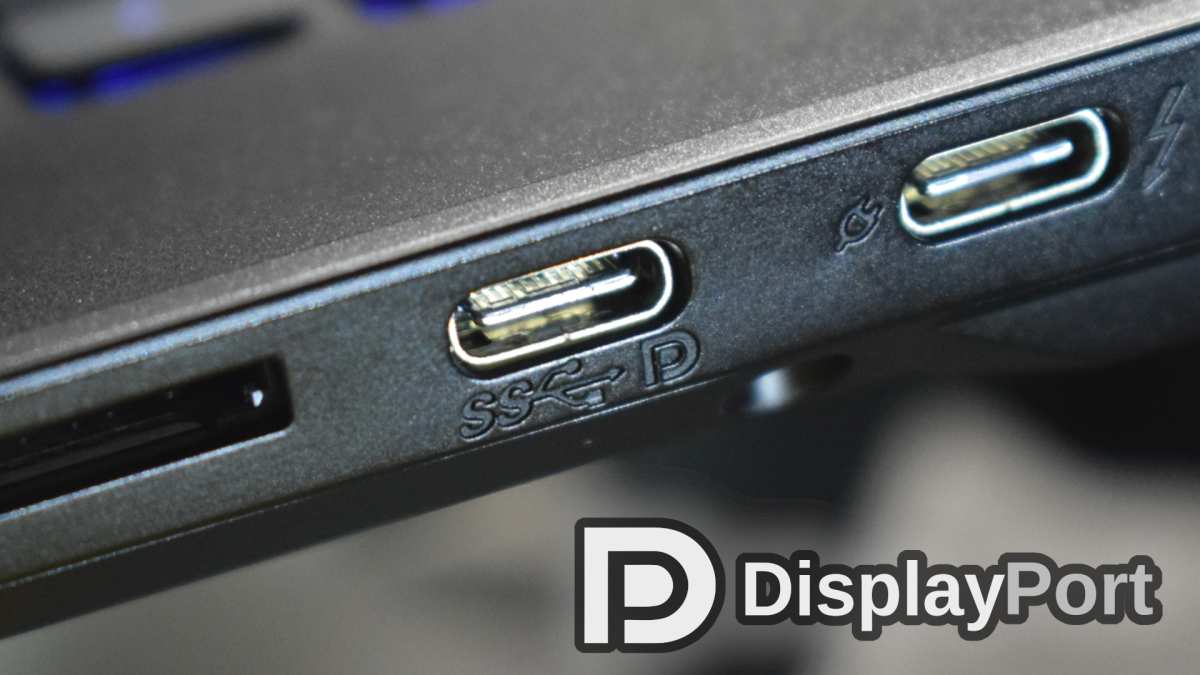
Image source: Bing (Web (fair-use with source credit))
Step 2: What Input Does Your Monitor Accept?
Check the ports on your portable monitor. Most portable monitors offer one or more of these connections:
- USB-C input: This could be Alt Mode or DisplayLink, depending on the monitor model. Check the manual or product page. If the monitor uses DisplayLink, the USB-C port requires a driver.
- HDMI input (micro or mini): Always driver-free. If your monitor has an HDMI port, you can connect from any device with HDMI output.
- Both USB-C and HDMI: Best of both worlds. Use whichever connection matches your source device.
If your monitor only has a USB-C input and you're not sure whether it's Alt Mode or DisplayLink, look up the exact model number on the manufacturer's website. The product specifications page will tell you which technology it uses.
Step 3: Do You Have the Right Cable?
This is where things go wrong for most people. Not all USB-C cables support video.
A USB-C cable that only handles charging and USB 2.0 data will not carry a video signal, even if both your laptop and monitor support Alt Mode. You need a cable rated for USB 3.1 Gen 2 or higher, or a Thunderbolt 3/4 cable.
Look for these markings on the cable or its packaging:
- "USB 3.1 Gen 2" or "10Gbps"
- "Thunderbolt 3" or "Thunderbolt 4"
- "Supports DisplayPort Alt Mode"
- "4K@60Hz video support"
If the cable came in the box with your portable monitor, it's almost certainly the right one. If you're using a random cable from your desk drawer, it might not be.
For HDMI connections: Any standard HDMI cable works. If your monitor uses micro-HDMI or mini-HDMI, you'll need a cable with the appropriate connector on one end, or a small adapter.
Step-by-Step: How to Connect a Portable Monitor Without Drivers
Once you've confirmed your ports and have the right cable, the actual setup is straightforward. Here's how to do it for each connection type.
USB-C Alt Mode Connection
- Power on your portable monitor if it has a separate power input. Many USB-C monitors draw power directly from the laptop, but some larger models need their own power adapter.
- Connect the USB-C cable to your laptop's video-capable USB-C port.
- Connect the other end to the monitor's USB-C input.
- Wait 3-5 seconds. Your operating system should detect the new display automatically.
- Check your display settings if the screen doesn't light up immediately. On Windows, press
Windows + Pto cycle through display modes. On macOS, go to System Settings > Displays.
If the monitor isn't detected, try these quick fixes:
- Unplug and replug the cable
- Try a different USB-C cable rated for video
- Restart the monitor
- Make sure your laptop's USB-C port actually supports DP Alt Mode
HDMI Connection
- Connect an HDMI cable from your laptop's HDMI output to the monitor's HDMI input.
- Power on the monitor if it requires separate power.
- Select the correct input source on the monitor if it has multiple inputs (some monitors have a button to switch between USB-C and HDMI).
- Wait for auto-detection. The display should appear within a few seconds.
HDMI connections are the most reliable driver-free option because there's no ambiguity about what's happening. It's just a video signal going from point A to point B.
What to Do When the Screen Stays Black
If nothing shows up after connecting, don't panic. Work through this checklist:
- Is the monitor powered on? Some monitors have a power button that needs to be pressed. Others have an auto-on feature that doesn't always work reliably.
- Is the input source correct? If your monitor has both USB-C and HDMI inputs, make sure it's set to the one you're using.
- Is the cable fully seated? USB-C connectors sometimes feel like they're in when they're not quite clicked all the way. Push firmly.
- Does your laptop recognize a second display? On Windows, right-click the desktop and select "Display settings" to see if the monitor appears in the display layout. On macOS, open System Settings > Displays.
- Try the other connection type. If USB-C isn't working, try HDMI. If your monitor supports both, one of them should work.
Mistakes That Cause "Driver-Free" Setups to Fail
Even when everything should work, people run into the same handful of problems over and over. Here are the most common mistakes and how to avoid them.
Using a charge-only USB-C cable. This is the single biggest culprit. That thin USB-C cable that came with your phone charger? It probably only handles power.
It won't carry video. You need a data-rated cable that explicitly supports video output.
Assuming all USB-C ports are the same. Many laptops have multiple USB-C ports, and not all of them support video. On some Dell and Lenovo models, only one specific port has DP Alt Mode support. Check your laptop's manual or look for the DP symbol next to the port.
Buying a DisplayLink monitor thinking it's driver-free. Some product listings are misleading. If the monitor only connects via USB-C and mentions "DisplayLink" anywhere in the specs, it needs a driver. Always verify the connection technology before purchasing.
Forgetting to power the monitor. Some portable monitors need external power even when connected via USB-C. If your monitor has a power adapter in the box, use it. The USB-C connection from your laptop might not provide enough wattage to run the display.
Not checking the resolution and refresh rate. Your monitor might be detected but stuck at 30Hz or a weird resolution. On Windows, go to Settings > System > Display > Advanced display settings to adjust. On macOS, hold Option while clicking "Scaled" in Displays settings to see all available resolutions.
Ignoring the monitor's on-screen menu. Most portable monitors have a small joystick or button that opens an on-screen display menu. This is where you can select the input source, adjust brightness, and sometimes enable specific features. If your screen is black, the monitor might be set to the wrong input.
Trying to use a USB-C hub in the middle. Some USB-C hubs and docks don't pass through DisplayPort Alt Mode correctly. If you're going through a hub and getting no signal, try connecting the monitor directly to your laptop first.
Portable Monitors That Work Without Drivers (And Which Ones Don't)
The market for portable monitors has exploded, and most models in the $100 to $300 range support driver-free connections. The key is knowing what to look for before you buy.
Monitors that typically work without drivers:
Most portable monitors that accept USB-C Alt Mode or HDMI input work plug-and-play. Models from ASUS (ZenScreen series), Lenovo (ThinkVision M14), LG, and Dell fall into this category. Budget-friendly brands like ARZOPA, KYY, and CRUA also offer monitors with USB-C Alt Mode support at lower price points.
Monitors that require drivers:
Any portable monitor built around DisplayLink technology needs its driver installed. The Targus USB-C Universal DV4K Docking Station with DisplayLink chips is one example, along with various no-name docking monitors on Amazon. Monitors that advertise "USB 3.0 display" without mentioning Alt Mode are usually using DisplayLink under the hood.
How to verify before purchasing:
- Check the product specifications for "DP Alt Mode" or "DisplayPort Alt Mode over USB-C"
- Look for "DisplayLink" in the specs (this means drivers required)
- Verify the monitor has at least one HDMI input if you want a guaranteed driver-free connection
- Check verified buyer reviews for mentions of plug-and-play functionality
When You Actually DO Need Drivers (And How to Handle It)
Sometimes you can't avoid the driver. Maybe the only portable monitor available to you uses DisplayLink. Maybe you need to run six monitors off one laptop and Alt Mode can't handle that many.
In those cases, here's what you need to know.
DisplayLink driver installation:
Download the driver directly from Synaptics' DisplayLink website. Avoid third-party download sites. The official driver package supports Windows 10/11, macOS (including Apple Silicon), and ChromeOS.
On Windows, the driver installs like any other software and you restart once. On macOS, you need to grant the driver permission in System Settings > Privacy & Security, and on newer macOS versions you need to allow the system extension in Recovery Mode on Apple Silicon Macs.
Chromebook users:
ChromeOS has built-in DisplayLink support through the Linux layer on most modern Chromebooks. You may need to enable Linux (Beta) in settings first. Performance is usable for productivity but not ideal for video playback.
Corporate device limitations:
If your IT department doesn't allow software installation and you have a DisplayLink monitor, your only option is switching to a USB-C Alt Mode or HDMI monitor. No workaround exists for this. DisplayLink is software-dependent by design.
Troubleshooting: Quick Fixes When Nothing Shows Up
You've plugged everything in correctly, verified your ports, confirmed your cable supports video, and you still get a black screen. Here's what to try next.
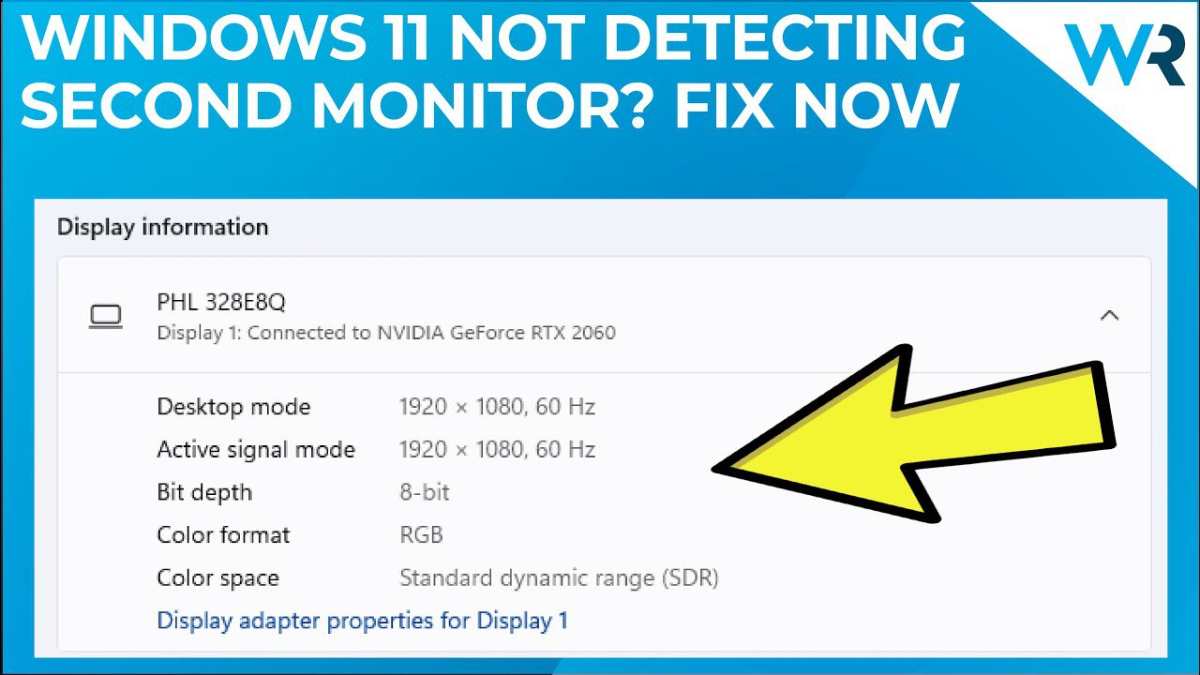
Image source: Bing (Web (fair-use with source credit))
Windows specific fixes:
Open Settings > System > Display and click "Detect" under the display layout diagram. If the monitor appears as "Disconnected," try selecting it and choosing "Extend desktop to this display" from the dropdown.
Check Device Manager under "Monitors" to see if the display shows up. If it appears with a yellow warning triangle, right-click and select "Enable device."
Try Windows + P and cycle through PC screen only, Duplicate, Extend, and Second screen only. Sometimes Windows defaults to a mode that doesn't output to the external display.
macOS specific fixes:
Go to System Settings > Displays. If the monitor isn't showing up, hold the Option key. This changes the "Detect Displays" button from a hidden option to a clickable one.
Click it.
Reset the NVRAM on Intel Macs by shutting down, then powering on and immediately holding Option + Command + P + R for about 20 seconds. On Apple Silicon Macs, NVRAM resets automatically during restart if needed.
Cross-platform fixes to try:
Unplug the monitor, wait 10 seconds, and plug it back in. Try a different USB-C cable even if the one you're using looks correct. Connect the monitor to a different source device to rule out a monitor hardware issue.
Update your laptop's graphics drivers, as outdated Intel or AMD drivers sometimes fail to detect external displays over USB-C.
Display Settings After Connection: Getting It to Look Right
Once your monitor is detected, you'll probably need to adjust a few settings to make it usable.
Resolution and scaling: Your laptop might set the portable monitor to a mismatched resolution. On Windows, select the monitor in Display Settings and set the resolution to its native value (usually 1920×1080 for 15.6-inch portable monitors). On macOS, you'll see resolution options when you select the external display.
Refresh rate: Some portable monitors cap at 30Hz over certain connections. Check Advanced Display Settings on Windows or the Display panel in macOS to confirm you're running at 60Hz if the monitor supports it.
Display arrangement: Your monitor might be positioned to the left, right, above, or below your laptop screen in the virtual layout. Drag the display boxes in your OS settings to match their physical arrangement so your mouse cursor moves correctly between screens.
Orientation: If you're using the monitor in portrait mode for coding or reading documents, both Windows and macOS let you rotate the display in settings. Windows has a dropdown under Display Orientation. macOS shows rotation options in the Display settings when an external monitor is connected.
Frequently Asked Questions
Do all portable monitors work without drivers?
No. Only monitors that use USB-C Alt Mode or HDMI connections work truly driver-free. Monitors using DisplayLink technology require a software driver on your computer.
Always check the monitor's specifications before purchasing.
Can I use a portable monitor with my phone?
Yes, if your phone supports USB-C video output. Most Samsung Galaxy S and Note series phones support this, along with select Huawei, Motorola, and some Google Pixel models. iPhones with USB-C (iPhone 15 and later) also support external display output.
What if my laptop only has USB-A ports?
You'll need a USB-A to HDMI adapter, and most of these use DisplayLink technology which requires a driver. There's no true driver-free way to output video from a standard USB-A port. Your best option is upgrading to a laptop with USB-C, or accepting the DisplayLink driver installation.
Does touchscreen work without drivers on portable monitors?
Basic touch functionality usually works through standard USB HID protocols without special drivers. However, advanced features like multi-touch gestures, pressure sensitivity, or touch-specific configuration software may require manufacturer drivers. The display itself always works driver-free if you're using Alt Mode or HDMI.
How many portable monitors can I connect without drivers?
It depends on your laptop's graphics capability. Most modern laptops support two external displays through USB-C Alt Mode plus the built-in screen. Some support three.
Check your laptop's specs for the maximum number of supported displays.
Costs and Pricing: What You'll Actually Pay
Portable monitors with driver-free USB-C Alt Mode support typically run between $100 and $300 as of 2026. You don't pay a premium for Alt Mode support since it's a standard implementation, not a proprietary feature.
Basic 15.6-inch 1080p models with USB-C and HDMI inputs start around $100 to $130. Mid-range options with better color accuracy, higher brightness, and slimmer profiles run $150 to $220. Premium models with 4K panels, touchscreen support, or integrated batteries push $250 to $400.
DisplayLink-based portable monitors and docking monitors often cost more, typically $200 to $500, because they include additional chips and capabilities. Factor in the cost of your time dealing with driver updates when choosing between them.
Expert Tips: Getting the Most From Your Setup
Always use the cable that came in the box with your portable monitor. Manufacturer-supplied cables are guaranteed to support the correct specifications. A $5 random cable from your drawer is the most common cause of connection failures.
Label your cable. If you carry a portable monitor while traveling, mark the video-capable cable with a small tag or colored tape so you always grab the right one from your bag from the rest of your USB-C cables.
Check for firmware updates on your monitor. Some portable monitors receive firmware updates that fix compatibility issues. These updates usually require a temporary software install, but once applied, your monitor works driver-free going forward.
Carry a backup HDMI cable. If your USB-C connection fails for any reason, a cheap HDMI cable provides a reliable fallback that always works without drivers.
Safety and Warnings
Use certified cables and adapters. Uncertified USB-C cables can cause short circuits or damage your devices' ports. The USB-IF certification logo is your guarantee that the cable meets safety standards.
Be cautious with third-party docks and hubs. Some cheaper USB-C hubs don't properly implement USB-C Alt Mode pass-through. If your monitor works when connected directly to your laptop but fails through a hub, the hub is likely the problem.
Final Recommendation
Most portable monitors work without drivers. The key is choosing a device that supports USB-C Alt Mode or HDMI input, and using the right cable.
Avoid DisplayLink monitors if you can't install drivers. Drive free setup requires no extra software and less maintenance long term.
If you're buying new, look for a 15.6-inch monitor with both USB-C and HDMI inputs. Prices are reasonable, compatibility is broad, and the experience is genuinely plug-and-play.

Similar Posts