Can Mini LED Monitors Connect to Docking Stations
Can Mini LED monitors connect to docking stations? That's the question that trips people up when they've just unboxed a gorgeous high-brightness display and want to run it through a single-cable dock setup. The short answer is yes, but whether you get the full experience, full resolution, HDR, and a smooth refresh rate depends on a handful of specific technical details.
Mini LED monitors use the same video input standards as any other display. What makes this tricky is that many of these panels push high resolutions at high refresh rates with HDR, and not every dock can pass that signal through unchanged. Let's walk through exactly what determines whether your specific combination will work.
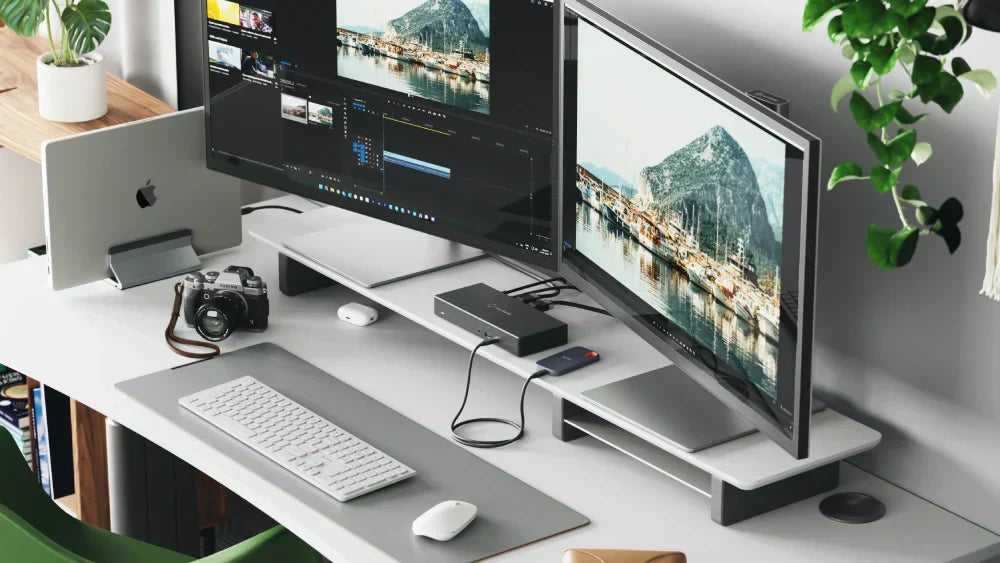
Image source: Bing (Web (fair-use with source credit))
Quick Answer
Yes, Mini LED monitors can connect to docking stations. The monitor uses standard video inputs like USB-C, DisplayPort, or HDMI. The dock must support the monitor's resolution and refresh rate.
Most 4K 60Hz Mini LED displays work through Thunderbolt and USB-C docks. High refresh rate models may need a direct connection.
Why This Isn't a Simple Yes or No
Here's where people get burned. They assume "USB-C" means everything just works. It doesn't.
A Mini LED monitor is just a display at the end of the day. It doesn't care whether it's getting its signal from a dock, a direct cable, or a gaming console. The real question is whether your dock can output the signal that monitor expects.
Think of it like plumbing. The monitor is the faucet. The dock is the junction.
The cable is the pipe. If any one of those three is undersized, you get reduced flow. In our research, the most common bottleneck isn't the monitor itself.
It's the dock's output specs or the cable sitting between them.
Manufacturer specifications indicate that most Mini LED monitors ship with one or more of these inputs: USB-C with DisplayPort Alt Mode, full-size DisplayPort 1.4, or HDMI 2.1. Each of those has different bandwidth limits, and your dock needs to match or exceed what the monitor demands.
What Actually Determines Compatibility
Five things decide whether your Mini LED monitor will work properly through a dock. Miss one and you'll either get no signal or a degraded experience.
1. Monitor input specifications. Check what physical ports your monitor has and what standards they support. A monitor with USB-C DP Alt Mode is much more dock-friendly than one that only has HDMI 2.0.
2. Dock output capabilities. This is the big one. Your dock needs to output at least the resolution and refresh rate you want.
A dock capped at 4K 30Hz will technically "work" with a 4K 144Hz Mini LED panel, but you'll be leaving 75% of your refresh rate on the table.
3. Cable specifications. Not all USB-C cables are created equal. Some only support USB 2.0 data speeds with no video at all.
You need a cable that explicitly supports DisplayPort Alt Mode or Thunderbolt.
4. Power delivery. If you're planning to charge your laptop through the dock while driving the monitor, make sure the dock provides enough watts. Most Thunderbolt 4 docks deliver 90 to 100 watts, which covers most laptops.
Cheaper USB-C docks might only offer 60 watts.
5. Display Stream Compression (DSC). For high-resolution, high-refresh-rate setups, DSC lets the signal squeeze through the available bandwidth. Both the dock and the monitor need to support it.
If one doesn't, the connection falls back to a lower resolution or refresh rate.
The Decision Tree: Will Your Setup Work?
Let's cut through the noise. Follow this logic based on what gear you have or plan to buy.
If your Mini LED monitor has USB-C with DP Alt Mode:
- And your dock has USB-C or Thunderbolt output with DP Alt Mode, you're good. Use a certified USB-C or Thunderbolt cable.
- And your dock only has HDMI output, check whether the dock's HDMI version matches your monitor's HDMI version. HDMI 2.0 caps 4K at 60Hz. HDMI 2.1 handles 4K at 120Hz.
If your Mini LED monitor only has DisplayPort:
- You'll need a dock with a DisplayPort output, or a USB-C dock that supports DP Alt Mode with a USB-C to DisplayPort cable or adapter.
- Make sure the dock supports DP 1.4 if you want 4K at high refresh rates with HDR.
If your Mini LED monitor only has HDMI:
- Any dock with HDMI output will give you a picture, but check the HDMI version. This is the most likely place you'll hit a refresh rate wall.
If you want 4K at 120Hz or higher through a dock:
- You need a Thunderbolt 4 dock with DP 1.4 output and DSC support, or a direct connection. Most standard USB-C docks won't get you there.
If you want HDR through the dock:
- The dock needs to pass through the full signal without stripping metadata. Thunderbolt 4 docks generally handle this well. Budget USB-C docks often don't.
Common Scenarios That Work (and Ones That Don't)
Let's get specific. Here are the setups we see most often and whether they deliver the full Mini LED experience.
Direct USB-C Alt Mode connection
This is the simplest path. One USB-C cable from laptop to monitor carries video, data, and power simultaneously. Most Mini LED monitors with USB-C input support at least 4K 60Hz this way.
Some newer panels handle 4K 144Hz over USB-C with DP 1.4 and DSC. This scenario works well and eliminates the dock entirely for single-monitor setups.
Through a Thunderbolt 4 dock
Thunderbolt 4 docks are the gold standard here. They guarantee 4K 60Hz output through DisplayPort or USB-C, and many support 4K 120Hz with DSC. Power delivery hits 90 to 100 watts.
HDR passthrough is reliable. If you're running a high-end Mini LED display and want a clean single-cable workflow, this is the way to go.
Through a basic USB-C dock with HDMI
This is where things get dicey. Many affordable USB-C docks output HDMI 2.0, which means 4K at 60Hz maximum. That's fine for productivity work.
It's not fine if you bought a 144Hz Mini LED gaming monitor. You'll also want to confirm the dock supports HDR passthrough, because many budget models strip it.
DisplayLink-based setups
DisplayLink docks use software-driven video output rather than native DisplayPort Alt Mode. They work with almost any monitor, including Mini LED panels. The tradeoff is higher CPU usage and slightly increased latency.
For office work and content editing, most people won't notice. For gaming or color-critical video work, DisplayLink introduces compromises that make it less than ideal.
When things fall short
The most common failure we see is someone buying a $50 USB-C hub and expecting it to drive a $500 Mini LED monitor at full spec. These hubs often cap at 4K 30Hz over HDMI and may not support DP Alt Mode at all. Another frequent issue is using a USB-C cable that only supports charging and USB 2.0 data.
No video signal gets through.
What Gets Throttled Through a Dock
Even when the connection "works," you might not be getting what you paid for. Here's what typically gets compromised.
Refresh rate caps. This is the number one complaint. A Mini LED monitor rated for 144Hz or 240Hz might only run at 60Hz through a dock that doesn't have enough bandwidth. You'll still get a picture, but you lose the smooth motion that makes high-refresh displays worth buying.
HDR passthrough issues. Some docks don't pass HDR metadata correctly. The monitor receives a standard dynamic range signal even when HDR is enabled in your operating system. You might need to manually toggle HDR in your display settings after connecting through the dock.
Color depth reduction. At high resolutions and refresh rates with limited bandwidth, the signal might drop from 10-bit to 8-bit color. For everyday use this is barely noticeable. For photo editing or color grading, it matters.
Power delivery limitations. If your dock only provides 60 watts and your laptop needs 90, the battery will drain under load even while "plugged in." This isn't a display issue, but it's a frustrating surprise when you're trying to build a clean single-cable setup.
Cable and Port Mistakes That Kill the Connection

This section saves you hours of troubleshooting. The cable is the most overlooked part of any dock setup.
Image source: Wikimedia Commons / Santeri Viinamäki (CC BY-SA)
Using a charge-only USB-C cable. These cables have no data lines. They literally cannot carry a video signal. If you're getting no picture, check this first.
Using a USB 2.0 USB-C cable. These support data transfer but not DisplayPort Alt Mode. They'll charge your laptop and connect peripherals, but the monitor stays black.
Mismatching Thunderbolt cable versions. A Thunderbolt 3 cable works with a Thunderbolt 4 dock, but it may limit bandwidth over longer distances. For runs over 2 meters, use a certified Thunderbolt 4 cable to maintain full 40Gbps throughput.
Plugging into the wrong port on the dock. Some docks have multiple USB-C ports, but only one supports video output. Check the documentation. The port with the DisplayPort or Thunderbolt icon is the one you want.
Forgetting to update dock firmware. Dock manufacturers regularly release firmware updates that fix compatibility issues with newer monitors. If your Mini LED display works directly but not through the dock, a firmware update might solve it.
Best Dock Types for Mini LED Monitors
Not all docks are built for high-bandwidth displays. Here's how the main categories stack up for Mini LED use.
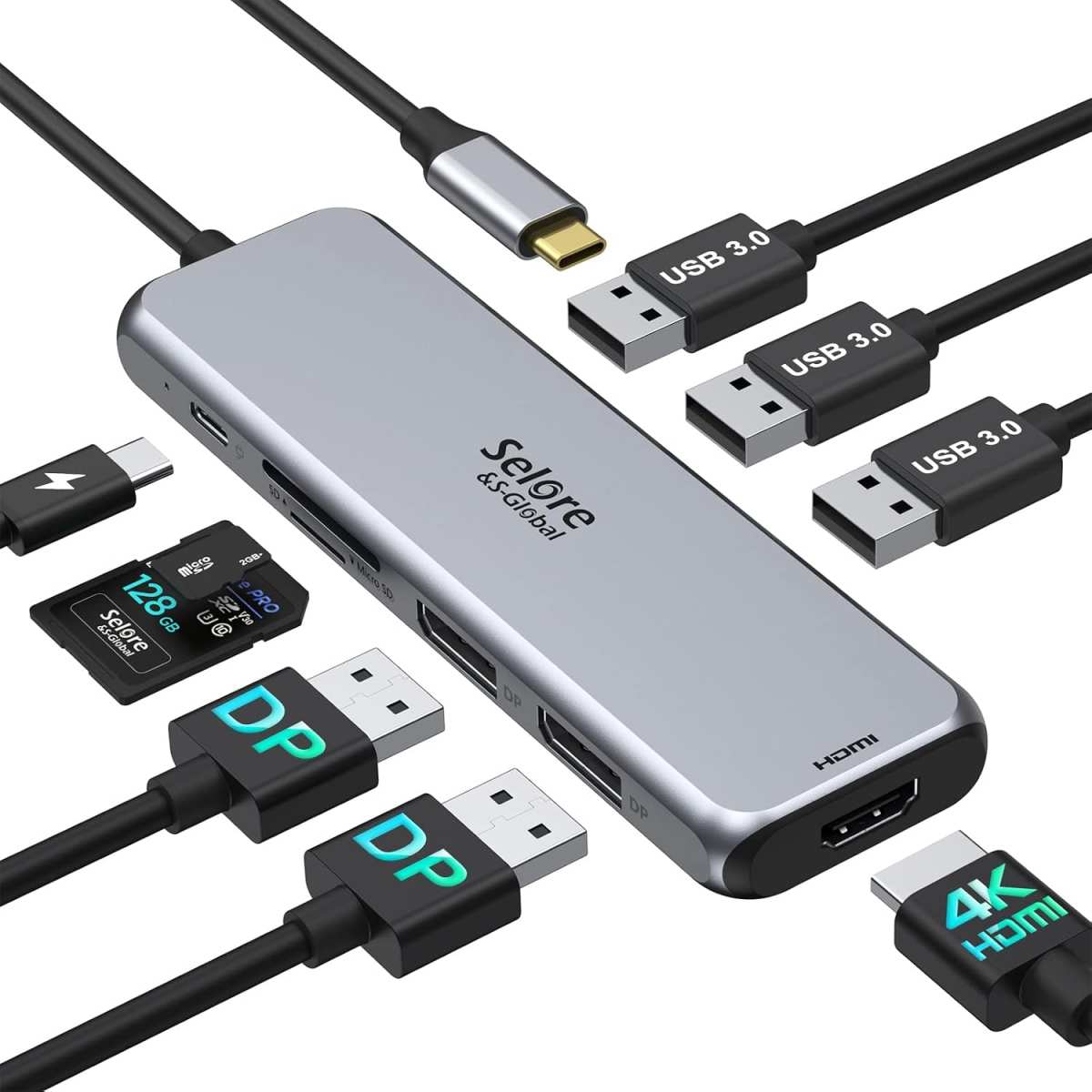
Image source: Bing (Web (fair-use with source credit))
Thunderbolt 4 docks
Best for: High-refresh 4K Mini LED monitors, HDR workflows, single-cable charging and video.
Thunderbolt 4 guarantees a minimum of 40Gbps bandwidth and supports DisplayPort 1.4 output with DSC. This means 4K 120Hz or even 4K 144Hz is achievable depending on the specific dock. Power delivery hits 90 to 100 watts.
HDR passthrough is reliable. The downside is price. Most quality Thunderbolt 4 docks run $200 to $350 as of 2026.
USB-C Alt Mode docks with DP 1.4
Best for: 4K 60Hz Mini LED monitors, productivity-focused setups.
These docks use native DisplayPort Alt Mode over USB-C. They're more affordable than Thunderbolt options, typically $80 to $200. Look for models that explicitly list DP 1.4 support and DSC.
Without DSC, you'll hit bandwidth limits at higher refresh rates.
DisplayLink docks
Best for: Compatibility when Alt Mode isn't available, multi-monitor setups.
DisplayLink technology compresses the video signal and sends it over USB data. It works with virtually any monitor. The tradeoff is CPU overhead and slightly higher latency.
For office work, web browsing, and video playback, it's perfectly fine. For gaming or professional color work, native Alt Mode or Thunderbolt is better.
What to avoid
Avoid unbranded or ultra-budget USB-C hubs that don't list video output specifications. If the product page doesn't explicitly mention DisplayPort Alt Mode or a maximum resolution and refresh rate, assume it doesn't support video. Also avoid docks that only list HDMI 1.4 output.
That standard caps 4K at 30Hz, which feels sluggish on any modern display.
Real Setup Examples That Actually Work
Let's look at three real-world configurations that deliver the full Mini LED experience through a dock.
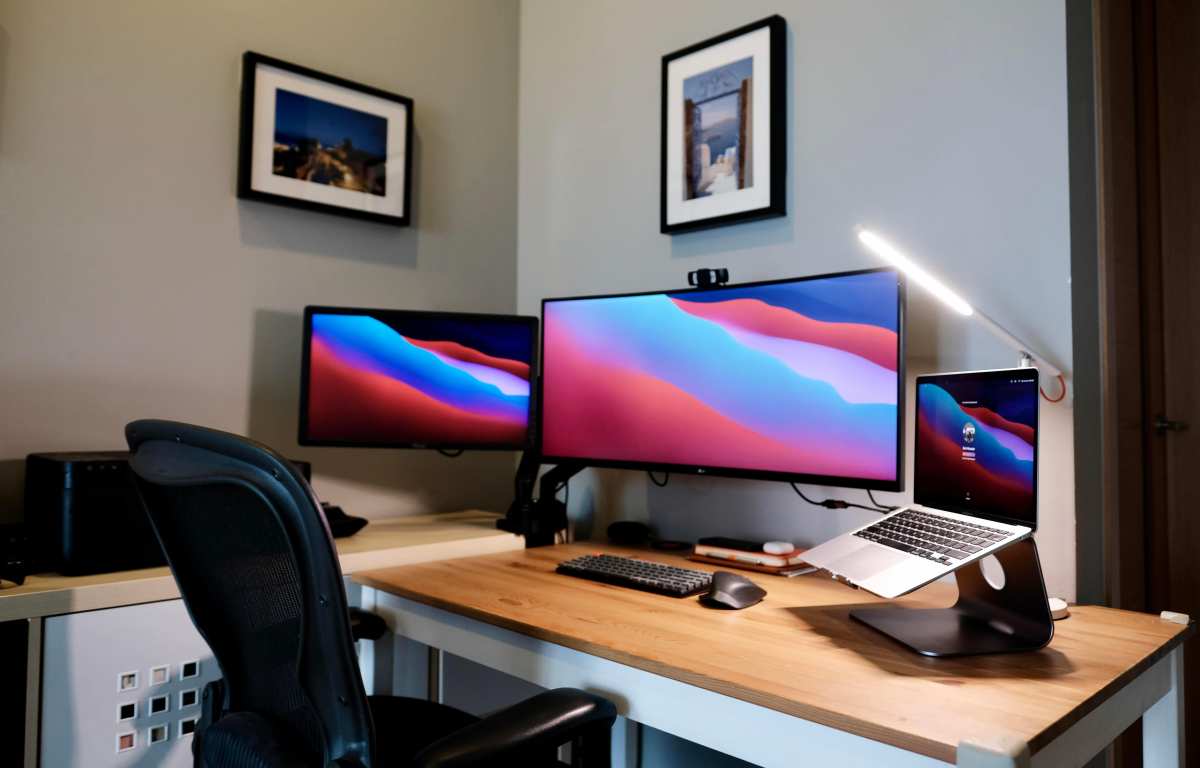
Image source: Bing (Web (fair-use with source credit))
Portable Mini LED + Thunderbolt dock for travel
A 15.6-inch 4K Mini LED portable monitor with USB-C input paired with a Thunderbolt 4 dock. One cable from the dock to the monitor carries video and power. Another cable from the dock to the laptop handles everything.
This gives you a dual-screen HDR setup with a single connection to the laptop. Total cable count at your desk: one.
4K Mini LED desktop monitor + USB-C dock for work
A 27-inch 4K 60Hz Mini LED display with USB-C DP Alt Mode connected to a USB-C Alt Mode dock with DP 1.4 output. The dock drives the monitor at native 4K 60Hz with HDR enabled. The laptop charges at 90 watts through the same dock.
Peripheral devices connect through the dock's USB-A and USB-C ports. This is the sweet spot for most professionals who need color accuracy without gaming-level refresh rates.
Dual Mini LED setup through a single dock
A Thunderbolt 4 dock with dual DisplayPort outputs driving two 4K Mini LED monitors. This requires a dock that supports MST (Multi-Stream Transport) or has two separate video output ports. Not all docks handle dual 4K displays well, so verify the specs before buying.
CalDigit and Plugable make docks specifically designed for this use case.
Quick Compatibility Reference Table
| Monitor Input | Dock Output | Cable Needed | Max Typical Result |
|---|---|---|---|
| USB-C DP Alt Mode | USB-C DP Alt Mode | USB-C to USB-C (Alt Mode) | 4K 60Hz to 4K 144Hz (with DSC) |
| USB-C DP Alt Mode | Thunderbolt 4 | Thunderbolt 4 cable | 4K 120Hz with HDR |
| DisplayPort 1.4 | DisplayPort 1.4 | None (direct DP cable) | 4K 144Hz with DSC and HDR |
| HDMI 2.1 | HDMI 2.1 | None (direct HDMI cable) | 4K 120Hz with HDR |
| Any | DisplayLink dock | USB-C to USB-A or USB-C | 4K 60Hz, slight latency |
| Any | HDMI 2.0 dock | USB-C to HDMI | 4K 60Hz, no HDR on some docks |
Final Checklist Before You Buy Anything
Before you spend money on a dock for your Mini LED monitor, run through this checklist.
- Check your monitor's exact input specs. Look in the manual or spec sheet for the specific version of USB-C, DisplayPort, or HDMI. Don't guess.
- Match the dock output to your desired resolution and refresh rate. If you want 4K 120Hz, the dock must explicitly support it.
- Verify cable compatibility. Buy cables certified for the standard you need. Thunderbolt 4 cables for Thunderbolt docks. USB-C cables rated for DP Alt Mode for Alt Mode docks.
- Confirm power delivery meets your laptop's needs. Check your laptop's charger wattage and make sure the dock meets or exceeds it.
- Look for user reports with your specific monitor model. Compatibility quirks pop up between specific dock and monitor combinations. A quick search for your exact model numbers together can save you a return.
- Update everything before troubleshooting. Dock firmware, laptop GPU drivers, and monitor firmware should all be current before you assume something doesn't work.
Frequently Asked Questions
Do all Mini LED monitors have USB-C input?
No. Some Mini LED monitors only ship with DisplayPort and HDMI inputs. Check your specific model's spec sheet before assuming USB-C is available.
Will a USB-C dock work with a Mini LED monitor that only has DisplayPort?
Yes, if the dock supports DisplayPort Alt Mode output and you use a USB-C to DisplayPort cable or adapter. The dock converts its USB-C output into a DisplayPort signal your monitor can receive.
Can I run HDR through a docking station?
You can, but only if the dock supports full HDR passthrough. Thunderbolt 4 docks generally handle this well. Budget USB-C docks often strip HDR metadata from the signal.
Does using a dock add noticeable input lag?
With native DisplayPort Alt Mode or Thunderbolt docks, the added latency is negligible. DisplayLink docks introduce slightly more latency due to software processing, which matters for gaming but not for general use.
Can I daisy-chain two Mini LED monitors through one dock?
Yes, if both monitors support MST and your dock has sufficient bandwidth. Thunderbolt 4 docks with dual DisplayPort outputs are the more reliable option for dual high-resolution setups.
What's the cheapest dock that works with a 4K Mini LED monitor?
A USB-C Alt Mode dock with DP 1.4 support will handle 4K 60Hz reliably. Expect to pay $80 to $150 for a solid option. Anything cheaper likely caps at 4K 30Hz or lacks proper Alt Mode support.

Similar Posts





















