How to Connect Portable Monitor via USB C
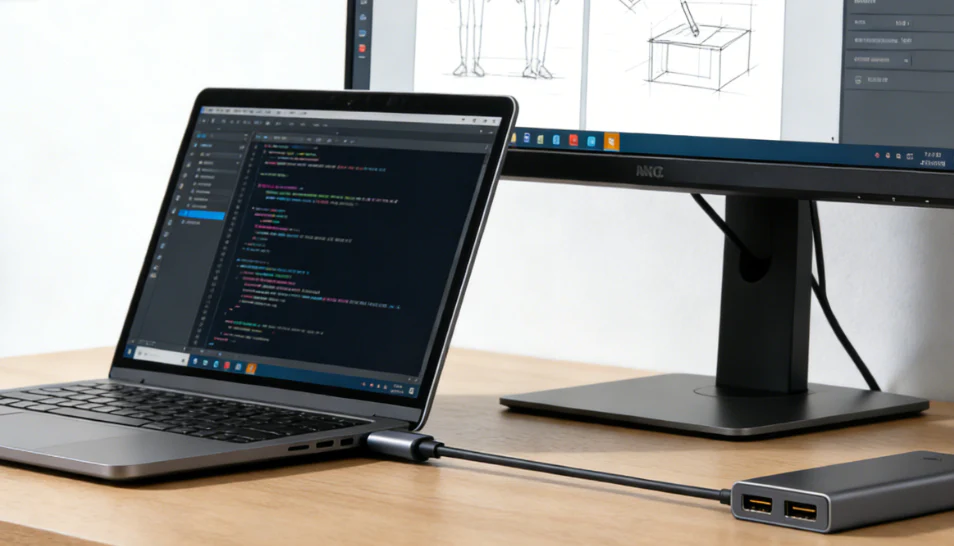
So you bought a USB-C portable monitor and you're ready to go. You plug it in and… nothing. No signal.
No display. Maybe the screen flickers for a second and then goes dark. You're not alone, and the problem almost always comes down to one of three things: your port, your cable, or a setting you didn't know existed.
Learning how to connect portable monitor via USB-C isn't as simple as "plug and play" because not every USB-C setup works the same way. The good news is that once you understand the three compatibility factors, you can diagnose any connection issue in under two minutes. Let's walk through it.
Quick Answer
Connect your portable monitor via USB-C by plugging a full-featured USB-C cable from your laptop's video-capable USB-C port into the monitor. Your device must support DisplayPort Alt Mode or Thunderbolt. The cable must carry a video signal, not just power.
If the screen stays black, check your cable first, then your display settings.
Why Your USB-C Portable Monitor Might Not Work (And How to Fix It)
The number one reason USB-C portable monitors fail to connect is mismatched expectations about what the port can do. You assume USB-C means video output. It doesn't always.
Some USB-C ports on laptops only handle charging and data transfer. They cannot send a display signal at all.
Here's the basic compatibility chain that has to line up for this to work:
- Your source device (laptop, phone, tablet) must support video output over USB-C
- Your cable must be rated for video transmission (not charge-only)
- Your monitor must accept the signal type being sent
If any one of those three fails, you get nothing. The fix depends on which link in the chain is broken, and we'll show you how to check each one in the sections below.
Understanding What Your USB-C Port Can Actually Do
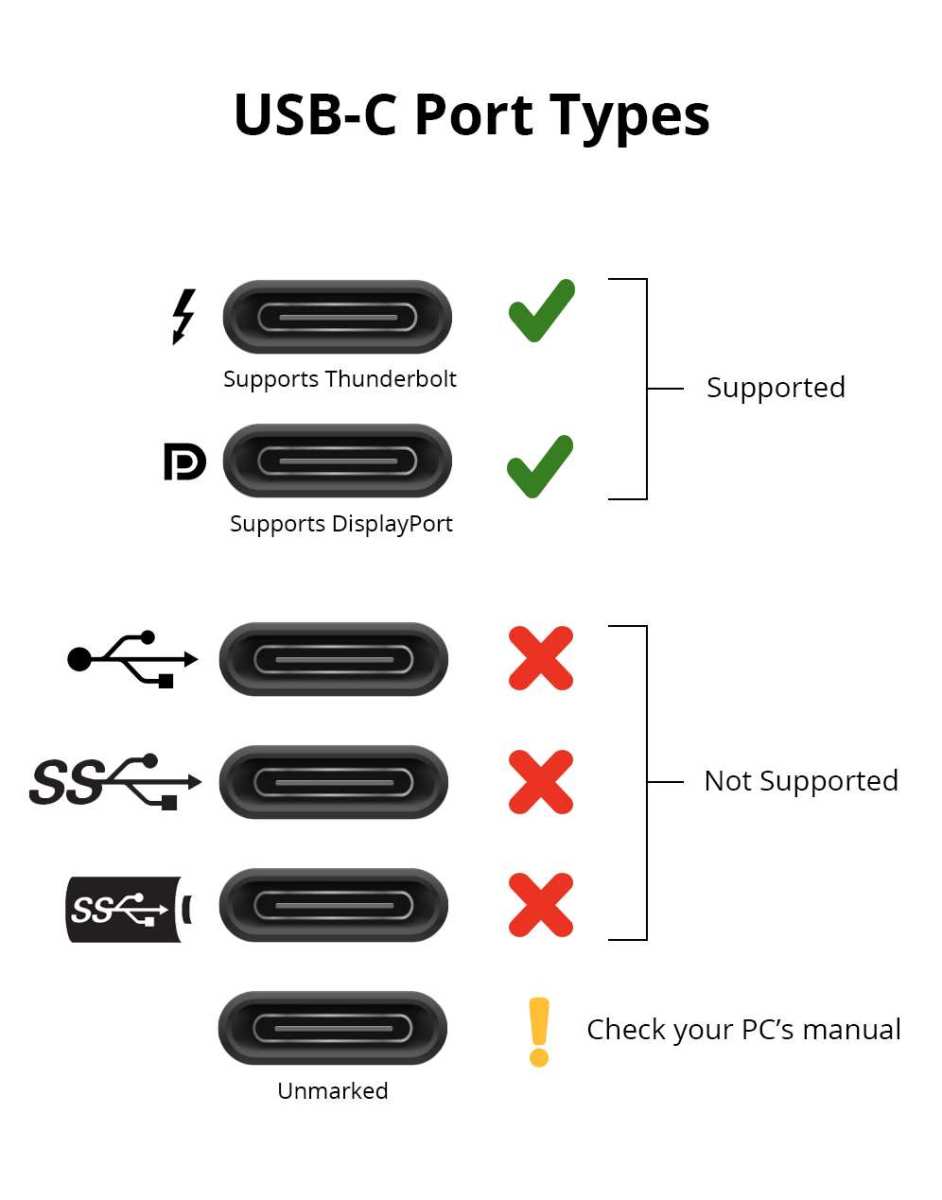
Not All USB-C Ports Are Created Equal
This is where most people get tripped up. USB-C describes the physical connector shape, not what the port can actually do. A single laptop might have two USB-C ports with completely different capabilities.
One might handle video, data, and 100 watts of power delivery. The other might only charge your phone.
The USB Implementers Forum (USB-IF) defines several protocols that can run over the same USB-C connector. Your port might support:
- USB data transfer only (USB 2.0 or USB 3.2)
- USB Power Delivery (PD) for charging
- DisplayPort Alt Mode (DP Alt Mode) for video output
- Thunderbolt 3 or Thunderbolt 4 (which includes video, data, and power)
- USB4 (the newer unified standard)
A budget laptop from 2022 might have a USB-C port that does charging and data but has no video capability whatsoever. Manufacturer specifications confirm this is common in the sub-$500 laptop market. The port physically looks identical to a fully capable one.
How to Check If Your Device Supports Video Over USB-C
Look for symbols next to the port on your laptop. This is the fastest way to know what you're working with.
| Symbol | What It Means |
|---|---|
| DP or D inside a P | DisplayPort Alt Mode supported |
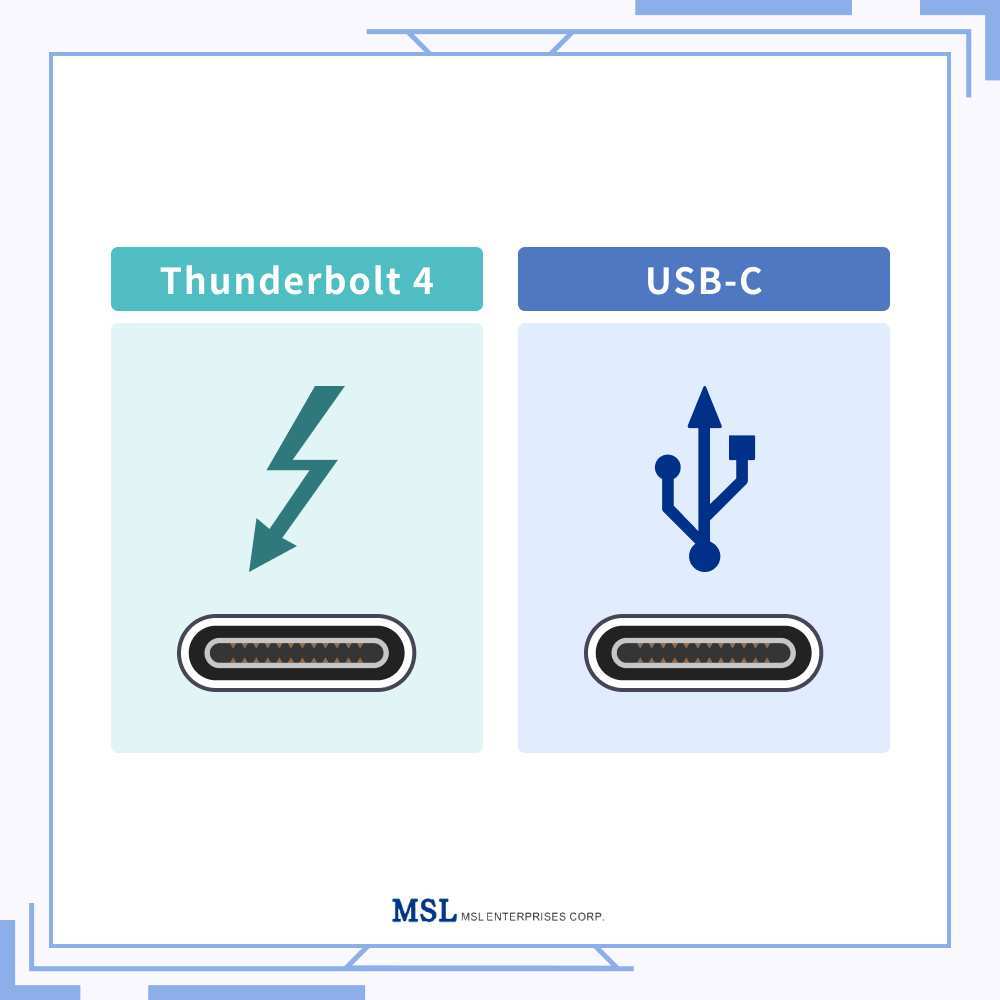
| Lightning bolt | Thunderbolt 3 or 4 supported |
| USB trident only | Data and charging, likely no video |
| Battery icon | Charging only, no video |
No symbol at all? Check your laptop's technical specifications on the manufacturer's website. Search for your exact model number plus "USB-C specifications" or "DP Alt Mode." You're looking for explicit mention of "DisplayPort over USB-C" or "video output via USB-C."
For MacBooks, every Thunderbolt 3 port (2016 and later Intel models) and every Thunderbolt/USB4 port on Apple Silicon models supports video output natively. For Windows laptops, you'll need to verify per model. For phones, Samsung Galaxy S-series and Note-series devices support Samsung DeX over USB-C.
Most other Android phones do not output video through USB-C.
Step-by-Step: Connecting Your Portable Monitor via USB-C
Step 1: Verify Your Source Device Supports DP Alt Mode
Before you touch a cable, confirm your device can actually send a video signal. Check the port symbols as described above. If you see a DisplayPort or Thunderbolt symbol, you're good.
If you see only a USB trident or battery icon, your port likely cannot output video, and no cable will fix that.
For phones, check if your device supports a desktop mode. Samsung DeX is the main one. iPads with USB-C can output video to external displays. Most other phones cannot.
Step 2: Use the Right Cable (This Trips Up Most People)
Here's the cable problem in plain terms. Not all USB-C cables are built the same. A cable that charges your laptop perfectly fine might have no ability to carry a video signal.
These "charge-only" or "USB 2.0 only" cables have fewer internal wires. They handle power and basic data but lack the wiring needed for DisplayPort Alt Mode.
You need a cable that explicitly supports one of these:
- DisplayPort Alt Mode (most common for portable monitors)
- Thunderbolt 3 or Thunderbolt 4 (higher bandwidth, backward compatible)
- USB4 (supports DP tunneling)
Look for markings on the cable itself. Thunderbolt cables often have a small lightning bolt printed on the connector housing. Cables rated for "40Gbps" or "video support" or "DP Alt Mode" will work.
Cables that only say "USB 2.0" or "charging cable" will not carry video.
If your portable monitor came with a cable in the box, use that one first. Manufacturers include cables rated for their specific monitor's bandwidth requirements. Third-party cables work fine as long as they meet the spec.
Step 3: Connect and Configure Your Display Settings
Plug one end into your laptop's video-capable USB-C port and the other into the monitor's USB-C input. The monitor should power on and display your desktop within a few seconds. If it doesn't, don't unplug yet.
Your computer might just need to be told to send the signal.
On Windows:
- Press Windows + P to open the projection menu
- Select Duplicate (mirror your screen) or Extend (use the portable monitor as a second desktop)
- Or right-click the desktop, choose Display Settings, and click Detect if the monitor isn't showing up
On macOS:
- Go to System Settings > Displays
- The monitor should appear automatically
- Arrange the displays by dragging them into your preferred layout
On Samsung DeX:
- Connect the cable
- Your phone will prompt you to launch DeX mode
- The monitor switches to a desktop-style interface
Step 4: Troubleshooting When Nothing Happens
If the monitor powers on but shows "No Signal" or stays black, work through this checklist in order:
- Swap the cable. Try a different USB-C cable rated for video. This fixes the problem more often than you'd think.
- Try a different port. If your laptop has two USB-C ports, the other one might be the video-capable one.
- Check the monitor's input source. Some portable monitors have multiple inputs. Make sure it's set to USB-C.
- Restart with the monitor connected. Sometimes the graphics driver needs a reboot to detect a new display.
- Update your graphics drivers. Outdated Intel, AMD, or NVIDIA drivers can prevent external display detection.
- Try the monitor on a different device. This tells you whether the problem is the monitor or your laptop.
When One Cable Isn't Enough: Dual-Cable and Power Delivery Setups
Why Some Monitors Need Two Cables
Some portable monitors draw more power than a single USB-C port can provide, especially larger 15.6-inch and 16-inch models with high brightness. Others have limited power delivery from their USB-C input. In these cases, you'll need a dual-cable setup.
The typical dual-cable configuration works like this:
- Cable 1: USB-C from laptop to monitor (carries video signal)
- Cable 2: USB-C from a wall charger to the monitor's second USB-C port (provides supplemental power)
This setup keeps the monitor running without draining your laptop battery or causing the display to flicker due to insufficient power. Monitors like the ASUS ZenScreen and some KYY models ship with this dual-cable design intentionally.
Power Delivery Passthrough Explained
Many portable monitors with a single USB-C input support USB Power Delivery passthrough. This means the monitor receives video and power from your laptop through one cable, and the monitor passes some of that power back to charge your laptop simultaneously.
The wattage varies. A monitor might accept 60 watts from your laptop's charger (through the laptop's USB-C port) and pass 45 watts back to charge the laptop while using 15 watts to run the display. Check your monitor's specifications for its PD passthrough rating.
If your laptop doesn't output enough power through USB-C (some only provide 15 watts), the monitor might not turn on or might flicker under high brightness. In that case, use the monitor's included power adapter or a separate USB-C charger connected to the monitor's power input.
Common Mistakes That Cause "No Signal" Headaches
Using a Charge-Only USB-C Cable
This is the single most common mistake. That USB-C cable bundled with your phone charger or power bank likely only handles power delivery. It physically cannot transmit a video signal.
You need a cable rated for data and video, not just charging.
Plugging Into a Non-Video USB-C Port
Many laptops, especially budget and mid-range models, have USB-C ports that only support charging and data transfer. No DisplayPort Alt Mode. No video output.
Check your port symbols before you assume the monitor is broken.
Forgetting to Adjust Display Settings
Sometimes the connection works perfectly, but your computer defaults to "PC screen only" mode and never sends signal to the external display. Press Windows + P on Windows or check Display Settings on macOS. The monitor is connected.
Your computer just doesn't know you want to use it.
Ignoring Power Requirements
Larger portable monitors (15.6 inches and above) often need more power than a single USB-C port provides. If the monitor flickers, won't turn on, or shuts off randomly, it's likely a power issue. Use the included power adapter or connect a separate charger to the monitor's power input.
Real-World Setup Scenarios
MacBook to USB-C Portable Monitor
Every MacBook with Thunderbolt 3 (2016 and later Intel models) or Apple Silicon supports video output over USB-C natively. Connect any Thunderbolt or USB4 cable from your MacBook to the monitor. macOS will detect it automatically. Go to System Settings > Displays to arrange and configure.
One limitation: base model M1 and M2 MacBooks only support one external display natively. If you're running multiple external monitors, you'll need a DisplayLink dock or a workaround. M3 and later chips support multiple displays.
Windows Laptop to USB-C Portable Monitor
Windows laptops vary wildly in USB-C capability. Check your specific model's specs for DP Alt Mode support. Once confirmed, connect a compatible cable and press Windows + P to select your display mode.
If the monitor isn't detected, update your graphics drivers from Intel, AMD, or NVIDIA's website.
Samsung Phone (DeX) to USB-C Monitor
Samsung Galaxy S and Note series phones support DeX, a desktop mode that outputs to external displays via USB-C. Connect your phone to the monitor with a USB-C cable. Your phone will prompt you to launch DeX.
The monitor displays a full desktop interface with resizable windows, taskbar, and right-click support.
This works best with Samsung's own monitors or any USB-C portable monitor that supports at least 1080p. No additional apps needed on newer models.
Nintendo Switch to USB-C Portable Monitor
The Nintendo Switch outputs video over USB-C in docked mode. Connect the Switch's USB-C port to a portable monitor with a USB-C cable. The monitor should detect the signal and display the Switch's output.
Note: the Switch doesn't charge through all portable monitors. You may need to keep the Switch's own charger connected separately for extended play sessions.
USB-C vs. HDMI vs. Wireless: Which Connection Should You Use?
USB-C wins on simplicity. One cable for video and power. No adapter needed.
It's the ideal connection for portable monitors designed around it.
HDMI requires a USB-C to HDMI adapter or cable. Use this when your monitor only has HDMI input or when your laptop's USB-C port doesn't support video. The tradeoff is you'll likely need a separate power cable for the monitor.
Wireless display options like Miracast or AirPlay add latency and reduce image quality. They're fine for presentations or casual browsing. They're not suitable for productivity work, gaming, or anything requiring sharp text rendering.
| Connection Type | Best For | Latency | Cable Count |
|---|---|---|---|
| USB-C (Alt Mode) | Single-cable simplicity | Lowest | 1 |
| HDMI via adapter | Monitors without USB-C | Low | 2 (video + power) |
| Wireless (Miracast/AirPlay) | Casual screen mirroring | High | 1 (power only) |
Quick Reference: Cable and Port Compatibility Chart
| Cable/Port Type | Carries Video | Carries Power | Max Resolution |
|---|---|---|---|
| USB-C USB 2.0 | No | Yes (low wattage) | N/A |
| USB-C USB 3.1 (no DP Alt Mode) | No | Yes (up to 100W) | N/A |
| USB-C with DP Alt Mode | Yes | Yes (varies) | 4K at 60Hz (DP 1.2) |
| Thunderbolt 3 | Yes | Yes (up to 100W) | 4K at 60Hz |
| Thunderbolt 4 | Yes | Yes (up to 100W) | 4K at 120Hz or 8K at 60Hz (DP 1.4) |
| USB4 | Yes | Yes (up to 240W with PD 3.1) | 4K at 120Hz+ |
Frequently Asked Questions
Can I use any USB-C cable for my portable monitor?
No. The cable must support video transmission. Look for cables rated for DisplayPort Alt Mode, Thunderbolt, or USB4.
Basic charge-only cables will not work.
Why does my portable monitor turn on but show no signal?
Your cable probably doesn't carry video, or your laptop's USB-C port doesn't support DP Alt Mode. Try a different cable first. Check your port symbols second.
Does USB-C portable monitor work with iPhone?
Only iPhone 15 and later models have USB-C ports. Even then, external display support is limited. Most portable monitors work with MacBooks, not iPhones.
Can I connect two portable monitors to one laptop?
It depends on your laptop's capabilities. You'll need multiple video-capable USB-C ports or a Thunderbolt dock that supports daisy chaining. Check your laptop's specs for multi-display support.
Do I need to install drivers for a USB-C portable monitor?
Almost never. USB-C displays use standard DisplayPort or HDMI protocols. Windows and macOS detect them automatically.
The exception is DisplayLink-based monitors, which require a driver download.

Similar Posts





















