How to Power Portable Monitor
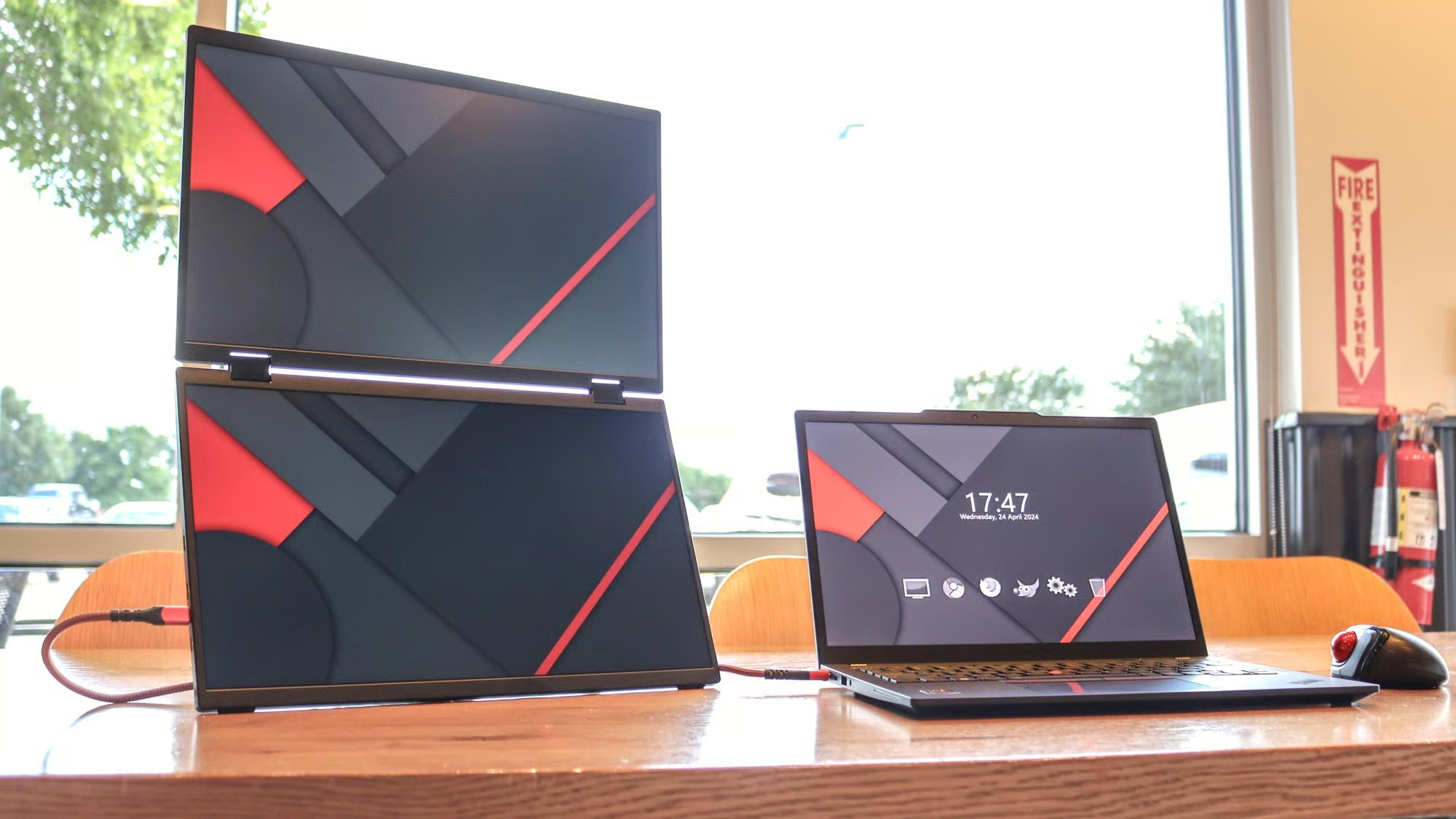
Image source: Bing (Web (fair-use with source credit))
So you've got a sleek portable monitor and you're ready to double your screen real estate. You plug it in. Nothing happens.
The screen stays black, and you're left wondering what went wrong. You're not alone, this is hands down the single most common frustration people run into.
Figuring out how to power a portable monitor isn't as straightforward as it should be. The answer depends on what monitor you have, what you're connecting it to, and where you're using it. Let's walk through every option so you can get your second screen up and running, no matter the situation.
Quick Answer
There are four main ways to power a portable monitor. USB-C from your laptop, a wall adapter, a power bank, or the monitor's own built-in battery. USB-C Power Delivery is the best option when your devices support it.
You get video and power through one cable. Check your monitor's input type and power requirements first. Then match your power source accordingly.
The 4 Ways to Power a Portable Monitor — And When Each One Works
Before we dive into the decision tree, let's lay out what's actually on the table. Each power method has real trade-offs. Not every method works with every monitor, and some methods that sound great on paper fall apart in practice.
Here's the honest breakdown:
| Method | Best For | Watch Out For |
|---|---|---|
| USB-C from laptop | Single-cable simplicity at a desk | Your laptop needs DP Alt Mode + enough wattage output |
| Wall adapter (AC) | Reliable, all-day use | Ties you to an outlet; not portable |
| Power bank | True portability on the go | Must deliver sustained wattage above your monitor's draw |
| Built-in battery | No accessories needed | Limited runtime; adds weight to the monitor |
The USB-IF USB Power Delivery spec defines standard power tiers: 15W, 27W, 45W, 60W, and 100W. Most portable monitors draw between 7W and 25W. The key variable is whether your power source can actually deliver that consistently.
USB-C from Your Laptop: The Ideal Single-Cable Setup
This is what everyone wants, and for good reason. One cable from your laptop to the monitor. It handles video and power simultaneously.
Clean, simple, no extra adapters cluttering your bag.
But it only works if your laptop's USB-C port supports both DisplayPort Alt Mode (for video) and Power Delivery output (for power). Not all USB-C ports do both. Some only handle data.
Some only charge. Some do neither.
Here's your checklist before going single-cable:
- Your laptop's USB-C port must support DisplayPort Alt Mode (check your laptop spec sheet or manual)
- The port must output at least as many watts as your monitor needs (typically 15W to 27W for most 15.6-inch monitors)
- You need a USB-C cable that supports both data/video and power delivery (not all cables do, more on this later)
If your laptop only outputs 10W from its USB-C port but your monitor needs 20W, the monitor either won't turn on or will run dim and unstable. This is the number one reason people think their monitor is defective when it's actually a power mismatch.
Some higher-end laptops like the MacBook Pro and Dell XPS series can output 60W or more from USB-C. Plenty for any portable monitor. Budget laptops and many Chromebooks are more limited.
Check your specific model's specs before you plan around this method.
Wall Adapter (AC Power): Most Reliable, Least Portable
Sometimes the simplest answer is the right one. A wall adapter plugged into your monitor's USB-C or DC barrel port gives you consistent, reliable power every single time. No guessing about wattage.
No compatibility headaches.
Many portable monitors ship with a USB-C cable and expect you to provide your own power adapter. Some include a basic one. Either way, any quality USB-C PD adapter that meets or exceeds your monitor's power requirement will work perfectly.
This is the right choice when:
- You're working at a fixed desk or station
- You need guaranteed, uninterrupted power all day
- Your laptop's USB-C can't spare enough wattage
- You're using an HDMI-only monitor (which always needs a separate power source)
The downside is obvious. You've got to find a wall outlet. It kills the whole "portable" appeal.
But if your monitor lives on a desk 90% of the time, this is honestly the most reliable method.
Power Bank: True Portable Freedom
A power bank lets you run your portable monitor completely untethered. No laptop dependency, no wall outlet, just pure mobile productivity. But this is where most people run into trouble.
The core problem: wattage and auto-shutoff.
Many power banks have an auto-off feature that cuts power when the current draw is too low. Some portable monitors draw only 8W to 10W at low brightness. The power bank sees that tiny draw, thinks nothing's connected, and shuts off.
Your monitor blinks and dies. You think the power bank is broken. It's not.
It just needs a model that supports low-current sustained output.
What to look for in a power bank for monitor use:
- Minimum 30W USB-C PD output (20W can work but leaves little headroom)
- Capacity of 20,000mAh or more for meaningful runtime
- Sustained output mode or "low current mode" (some brands call it different things)
- USB-IF certified cables and adapters for safety and compatibility
A 20,000mAh power bank at 36Wh usable capacity can typically power a 15W monitor for around 2 to 3 hours. A 26,800mAh bank (the common airline limit) might get you 3.5 to 5 hours depending on brightness. Passthrough charging (charging the power bank while it powers the monitor) does work on some models, but expect some energy loss in the conversion.
Built-in Battery Monitors: The Self-Powered Option
Some portable monitors, like certain ASUS ZenScreen models or the LG Gram +View, come with their own internal battery. No external power source needed, at least not initially.
These are convenient out of the box. Unbox, connect to your laptop via HDMI or USB-C, and you're running. The built-in battery typically lasts 2.5 to 4 hours depending on the model and brightness settings.
The trade-offs are worth knowing about:
- Battery life is limited and degrades over time like any rechargeable battery
- The monitor is heavier and slightly thicker than battery equivalents
- When the battery dies, you need to find a power source anyway
- Replacement batteries are often not user-serviceable
Built-in battery monitors are great for short bursts. Traveling between meetings. Quick presentations.
Field work where you only need the screen for a couple hours. For all-day use, you'll still end up plugging in eventually.
How to Pick the Right Power Source: A Decision Tree
Here's where we turn all this into a practical plan. Answer these four questions in order and you'll land on the right power method for your specific situation.
Step 1: What's Your Monitor's Power Input?
Look at the back of your monitor or check the spec sheet. You're looking for one of these input types:
- Single USB-C port, Your monitor accepts both power and video through one USB-C connection. This is the simplest setup IF your source supports it.
- Dual USB-C ports, One port handles power, the other handles video (or data). You'll need to connect both, possibly to different sources. One USB-C to your laptop for video, another USB-C to a power adapter or power bank for juice.
- USB-C + HDMI, HDMI carries the video signal. USB-C handles power only. Your laptop doesn't need USB-C video output. You just need any power source on the USB-C line.
- DC barrel jack, A round power connector. You'll need a matching adapter (usually included) or a USB-C to barrel jack cable rated for the correct voltage. Video comes through HDMI or DisplayPort separately.
- Micro-USB input, Budget monitors sometimes use micro-USB for power. These draw very little (often/2A or 10W). A basic power bank or USB charger can usually handle this, but quality matters. Cheap adapters can cause flickering.
Important for DC barrel jack users: Check the voltage rating on your monitor's spec. Most require 12V. Some accept a range like 5V to 20V.
Using a 20V adapter on a monitor rated for 12V only can permanently damage the board. Match the voltage. Match the polarity.
Don't guess.
Step 2: What's Your Video Source Capable Of?
This is the step everyone skips. You've got a USB-C cable and a monitor. But does your laptop actually output video through USB-C?
Quick test: Plug a USB-C to USB-C cable from your laptop to your monitor. If the monitor doesn't detect a signal, your laptop's USB-C port probably doesn't support DisplayPort Alt Mode. Time to check the manual or manufacturer spec page.
Here's a rough guide by device category:
| Device Type | USB-C Video Output? | Enough Power for Monitor? |
|---|---|---|
| MacBook Pro (2019+) | Yes | Yes (60W+ ports) |
| MacBook Air M1/M2/M3 | Yes | Usually (30W+ budget models) |
| Dell XPS / Latitude | Yes | Varies by model (check specs) |
| ThinkPad T-series / X-series | Yes | Usually 15W to 65W |
| Most Chromebooks | Often yes | Often limited (10W-45W) |
| Budget Windows laptops | Not always | Unreliable (check manual) |
| Desktop PC | Not usually | Check motherboard specs |
| Phone (Samsung DeX, etc.) | Select models only | DeX-compatible phones only |
| Tablet | Select models | Varies widely |
No USB-C video on your source? No problem. Use HDMI for video and a separate power source for the monitor. This is actually the most common setup for HDMI-only portable monitors.
You run an HDMI cable for the display signal and a USB-C cable from a wall adapter or power bank for power. Two cables, bulletproof reliability.
Step 3: Where Are You Using It?
Your environment dictates your best power option more than anything else:
At your home or office desk:
USB-C from a compatible laptop is king here. One cable. Clean setup.
If your laptop can also keep its own charge, you're golden. Wall adapter as backup if your laptop can't supply enough watts.
At a coffee shop or co-working space with limited outlets:
Power bank is your best friend. Monitor draws from the bank, laptop runs on its own battery. Just make sure the power bank can output more than your monitor draws.
Starting the day with a full power bank and a full laptop battery, you can realistically get 3 to 4 hours of dual-screen work time.
Traveling (plane, train, hotel):
Power bank again, but check airline limits. The FAA allows power banks under 100Wh in carry-on luggage. A 26,800mAh power bank at 3.7V equals about 99Wh, right at the most commonly cited guideline.
Verify current limits with the airline you're flying, as different carriers may have stricter rules. Some Asian carriers restrict power banks more tightly than US or EU airlines.
Client site or conference:
Bring both. USB-C cable for the single-cable attempt, plus a compact USB-C wall adapter as backup. If the client's conference room has outlets, you can plug in and keep everything topped up.
If not, a small power bank in your bag covers you for a few hours of presentations.
Step 4: Match Source to Situation
Let me give you the direct recommendations:
You have a modern MacBook or premium laptop with USB-C DP Alt Mode: Use a single USB-C to USB-C cable. Check if your laptop's port outputs at least 15W. If yes, you're done. This is the ideal scenario.
You have a laptop with USB-C but low power output (under 15W): Use HDMI for video and a USB-C wall adapter for power. Two cables, but it works reliably every time.
You have a desktop or older laptop without USB-C video: HDMI or DisplayPort cable for video. USB-C wall adapter for power. Same two-cable setup. Works with basically any portable monitor.
You need true portability and can't find outlets: Power bank with 30W+ output plus USB-C for combined power and video. Or power bank to the USB-C power port plus HDMI for video, depending on your monitor's input configuration.
You want the simplest possible experience and your monitor has a built-in battery: Just connect via USB-C or HDMI and run on battery for short sessions. Keep a USB-C cable handy for when you need to recharge the monitor or switch to wired power.
Side-by-Side Power Method Comparison
Here's a full breakdown so you can scan the trade-offs at a glance:
| Factor | USB-C from Laptop | Wall Adapter | Power Bank | Built-in Battery |
|---|---|---|---|---|
| Cables needed | 1 | 1-2 | 1-2 | 0-1 |
| Portability | High | Low | High | Highest |
| Reliability | High (if compatible) | Very High | Medium (depends on capacity) | Medium (limited runtime) |
| Setup complexity | Low | Low | Medium | Lowest |
| Runtime | Unlimited | Unlimited | 2-5 hours typical | 2.5-4 hours typical |
| Risk of failure | Compatibility issues | None | Auto-shutoff, capacity limits | Battery drain mid-task |
| Best paired with | Modern laptops, desk use | Fixed workstations | Travel, outdoor use | Short sessions, quick setups |
| Approximate cost (accessories) | $0 if cable included | $15-30 for adapter | $40-80 for quality bank | Built into monitor ($50-150 premium) |
What Most People Get Wrong (And Why Their Monitor Won't Turn On)
After looking at thousands of user reviews, forum posts, and spec sheets, the same five mistakes show up over and over. Let's save you the frustration.
Your USB-C Cable Doesn't Support Power Delivery
This is the big one. Not all USB-C cables are created equal. A cable that charges your phone fine might only support USB 2.0 data and 60W PD.
Or it might support data and charging but not DisplayPort Alt Mode video. Or it might handle video and data but max out at 15W power.
Your cable needs to support both whatever your monitor needs for video (DisplayPort Alt Mode or basic USB data) and enough power delivery for the monitor's draw. A cable rated for USB 3.1 Gen 2 with PD 3.0 and DisplayPort Alt Mode covers basically all bases. Look for cables explicitly labeled with these specs.
Generic gas station USB-C cables are not your friend here.
Your Laptop's USB-C Port Doesn't Output Enough Watts
You've got the right cable. The connections are solid. The monitor just won't turn on, or it turns on for a second and dies.
The issue is likely that your laptop's USB-C port can't supply enough power.
Many budget laptops output only 10W or even 5W from their USB-C ports. If your monitor needs 20W, you're dead on arrival. The fix is powering the monitor separately.
Use a wall adapter or power bank feeding the monitor's power port while your laptop handles video over USB-C or HDMI.
Your Power Bank Auto-Shuts Off From Low Draw
We covered this earlier, but it's worth repeating because it trips people up constantly. Your power bank clicks off after 30 seconds. The monitor flickers and repeats.
This is the low-current auto-protection doing its job.
The solution is a power bank that supports continuous low-current output. Some brands include a dedicated button or app setting for this. Without it, your power bank thinks the monitor is an idle device and cuts the circuit to save energy.
Read the power bank's specs carefully before buying. "Sustained output" or "low power mode" is what you want.
You Forgot HDMI-Only Monitors Need Separate Power
Here's one that catches people at the worst possible moment, like walking into a client presentation. Your monitor has HDMI input and USB-C power input. You plug HDMI into your laptop.
Nothing. Because HDMI carries video but never carries power to the monitor.
You always need a separate power connection on HDMI-only monitors. USB-C cable to a wall adapter, or a power bank, for HDMI-only models. Two cables total.
This isn't a cable quality issue. It's how the hardware works. Budget a USB-C charger specifically for your monitor when packing for the day.
You're Using the Wrong Voltage Adapter
If your monitor has a DC barrel jack, the voltage matters. A lot. Most portable monitors with barrel jacks use 12V.
Plugging in a 20V adapter purchased separately can fry the power regulation board instantly and that's not a warranty issue manufacturers typically cover.
Check the label near your monitor's power jack or the spec sheet. It will list something like "12V/2A" or "5V-20V, 3A." Match the voltage exactly. The amperage can be higher on the adapter than the monitor requires (the monitor only draws what it needs), but the voltage must match.
Always.
Understanding Power Numbers: Watts, Volts, and What Your Monitor Actually Needs
Let's demystify the numbers so you can shop and troubleshoot with confidence. You don't need an engineering degree here. You just need to understand three values: the monitor's power draw, the power source's output, and how they match up.
Typical portable monitor power consumption by size:
| Monitor Size | Typical Power Draw | Example Models |
|---|---|---|
| 13.3-inch | 7W – 12W | ASUS ZenScreen MB1382, AOC e138 |
| 14-inch | 8W – 14W | ThinkVision M14t (2nd Gen), Innolux panels |
| 15.6-inch | 10W – 22W | ASUS ZenScreen MB168BG, Arzopa A1 Gamut, KYY K3 |
| 15.6-inch (high brightness) | 15W – 25W | ASUS ROG Strix XG16AHPE, Lenovo Legion |
| 17.3-inch | 15W – 27W | LG Gram +View, ASUS ZenScreen MB1782 |
| 14-inch OLED | 12W – 22W | ASUS ZenScreen OLED MQ1492, Lenovo ThinkVision |
Higher brightness means higher draw. Running your monitor at 100% brightness can increase power consumption by 40-60% compared to 50% brightness. If you're on a power bank and trying to stretch runtime, dropping brightness to 50-70% is the single most effective thing you can do.
Matching your power source to your monitor's needs:
Here's the golden rule: your power source must output at least 10-20% more watts than your monitor's maximum rated draw. This gives you headroom for power spikes (like when the display changes rapidly) and prevents the source from running at maximum capacity constantly, which causes instability.
Practical examples:
- Monitor draws 10W → Power source should output at least 15W
- Monitor draws 20W → Power source should output at least 27W
- Monitor draws 25W → Power source should output at least 30W
If you're using a power bank, check its USB-C output rating specifically. A bank rated at "65W total" might only deliver 30W from its USB-C port and the rest via USB-A. Read the per-port output specs, not just the total.
USB-C Power Delivery voltage profiles:
USB-C PD negotiates voltage between the source and device. The common profiles are:
| Profile | Voltage | Max Current | Maxage |
|---|---|---|---|
| PD 2.0 / 3.0 Basic | 5V | 3A | 15W |
| PD 2.0 / 3.0 Standard | 9V | 3A | 27W |
| PD 3.0 Extended | 15V | 3A | 45W |
| PD 3.0 / 3.1 | 20V | 3A | 60W |
| PD 3.1 EPR | 20V | 5A | 100W |
Your monitor and power source negotiate the best profile automatically. You don't need to manually select anything. But knowing these tiers helps you understand why a 65W laptop charger might only deliver 45W to a monitor that requests a specific profile.
The negotiation picks the highest both sides support.
Real-World Scenarios: How I'd Power a Monitor in These Common Situations
Theory is great. Practical application is better. Here's how I'd approach the power question in the situations people actually encounter.
Working From a Café for the Day
Setup: USB-C from laptop for video + power if the laptop supports it. Power bank as backup for the monitor if the laptop can't supply enough watts.
Most café sessions are 2-3 hours. A single USB-C cable from a capable laptop covers this perfectly. If the laptop's USB-C output is weak, run HDMI for video and plug a compact USB-C wall adapter into whatever outlet you can find under the table.
Pro tip: Keep a short (6-inch or 15cm) USB-C to USB-C cable in your bag for power-only connections when you're powering the monitor from a wall adapter. Short cables are lighter and less awkward on a small table.
Traveling Light for a Conference Trip
Setup: HDMI for video + USB-C wall adapter for power at the venue. Power bank in shoulder bag for commute gaps between train stations or airports where outlets are scarce.
Conferences almost always have outlets near presentation tables. Your wall adapter handles the heavy lifting. For the train ride between venues where you're prepping slides, a power bank with 20W+ output keeps the monitor alive while your laptop runs on its own battery.
Aim for a 20,000mAh bank that's under 100Wh for airline safety adherence.
What to pack: HDMI cable (short, 3ft), USB-C to USB-C cable, compact 30W USB-C wall adapter, power bank with USB-C PD output. Total added weight: roughly 1.2 pounds including cables.
Dual-Screen Setup at a Client's Office
Setup: HDMI or USB-C for video. Power from a wall adapter at the client's desk. Always assume the client doesn't have the right cables or adapters.
Bring your own cable set. A short HDMI cable and a USB-C PD adapter cover 95% of scenarios. If your laptop supports single-cable USB-C, bring that too as your primary option.
Test the single-cable setup at home before you leave so you're not troubleshooting in front of the client.
The one thing that always happens: The client's conference room has a table with no accessible outlets. Your power bank saves you. Plug in before the meeting starts.
A full charge plus reduced brightness gives you 2-3 hours of demo time.
Editing Photos on a Long Flight
Setup: Built-in battery monitor if available, otherwise a quality power bank for extended runtime.
Airline USB-A seat ports output only 5W to 7.5W, not enough for any portable monitor. The USB-C outlets on newer aircraft may provide 15W or may not exist yet depending on the carrier. Your best bet is a full power bank charged before boarding.
At 20,000mAh with a monitor drawing 15W, you get roughly 2 hours plus a bit from the bank's efficiency curve.
Extra tip: Lower brightness to 40-50%, switch to dark mode in your editing software. You'll stretch that power bank runtime closer to 3 hours. For flights over 4 hours, bring two banks or accept partial coverage.
Cables, Chargers, and Power Banks: What to Actually Buy
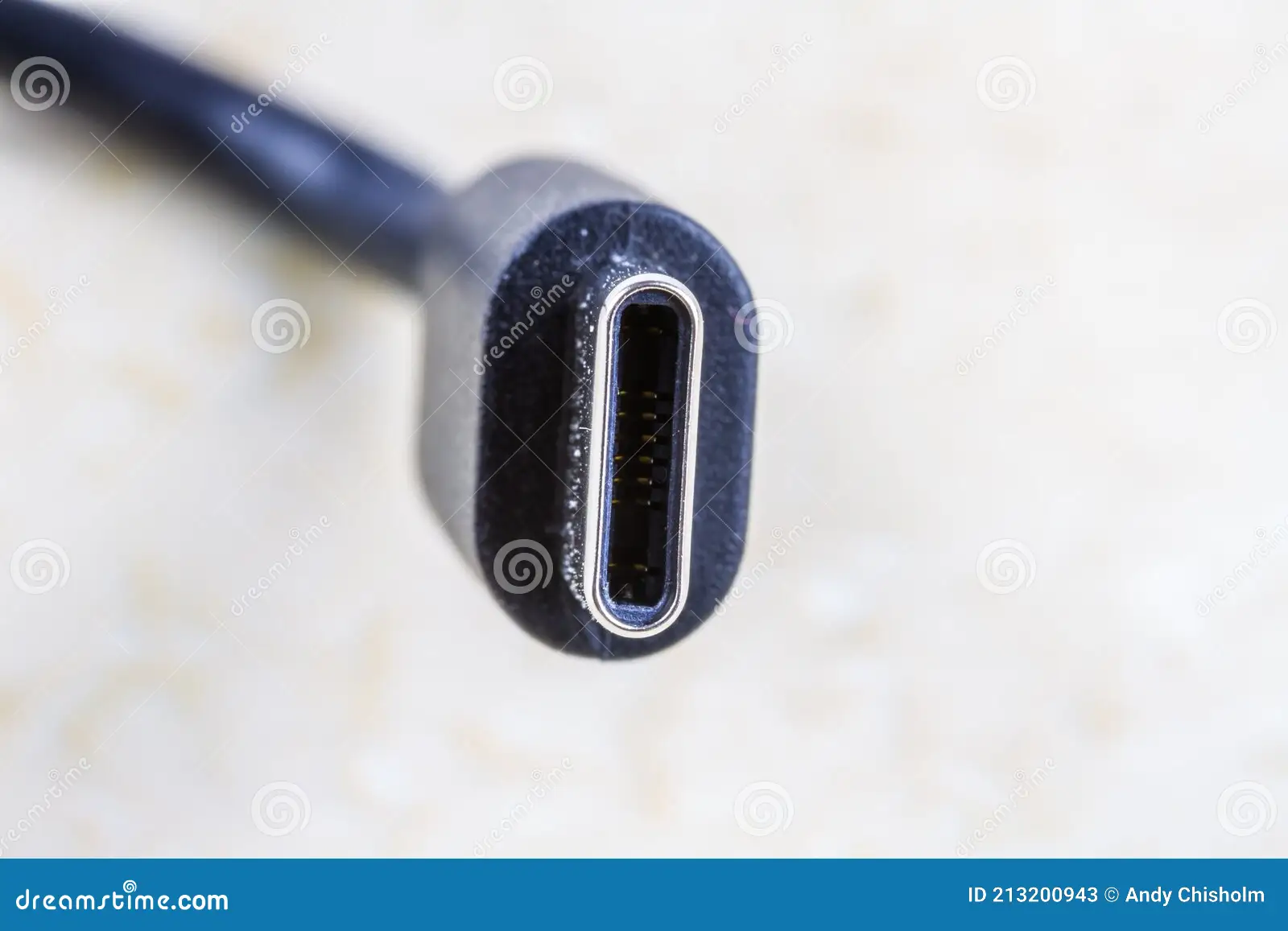
You don't need to spend a fortune, but you need the right specs. Here's a practical shopping list with exactly what to look for.
USB-C Cable (most important accessory):
Look for a cable that supports all three: USB 3.1 or higher data, DisplayPort Alt Mode, and USB Power Delivery 3.0 at the wattage your monitor needs. Anker, Cable Matters, and Uni make reliable options in the $12-25 range. Avoid the $3 AliExpress cables.
They overpromise specs and underdeliver, often missing the e-marker chip required for higher wattage PD negotiation.
If you're going single-cable (video + power through one USB-C), get a cable rated for at least 10 Gbps data and 100W PD. It's backward compatible with everything and future-proof for higher-draw monitors.
Length matters. 3 feet (1 meter) is ideal for desk use. 6 feet gives more flexibility but adds weight. Over 6 feet, signal degradation can become an issue for high-resolution displays if the cable isn't active or well-shielded.
Wall Adapter:
Any USB-C PD adapter meeting your monitor's wattage needs works. For a typical 15.6-inch monitor drawing 15-20W, a 30W adapter provides comfortable headroom. Anker 30W Nano or Ugreen 34W dual-port are compact, reliable, and under $25.
If you want one adapter for both your laptop and monitor, get at least 65W. That covers both devices charging simultaneously from a dual-port adapter. Anker 735 (65W, 3-port) is a popular choice that handles most laptop + monitor combos without breaking a sweat.
Power Bank:
Here are the minimum specs for reliable monitor use:
- USB-C PD output rated at 30W or higher
- 20,000mAh capacity minimum
- Supports continuous low-current output (check reviews specifically for monitor use)
- Uses quality cells (LG, Samsung, or Panasonic cells are preferred)
The Anker 737 Power Bank (140W, 24,000mAh) is overkill for most monitors but handles everything including power-hungry laptops. For monitor-only use, the Baseus Blade (100W, 20,000mAh) or Anker 535 PowerHouse (52,000mAh 20W output) offer better value per dollar when you're only powering the screen.
Budget option: The ChiCy 30W power bank specifically markets to portable monitor users and tends to underpromise and overspec its PD output. Under $40 and reliable in aggregate reviews.
Quick Reference: Monitor Power Requirements by Type
Save this table for quick lookup when you're shopping or troubleshooting:
| Monitor Type | Typical Input | Typical Draw | Single-Cable Power? | Separate Power Source Needed? |
|---|---|---|---|---|
| Budget 15.6-inch (USB-C + HDMI) | USB-C + HDMI | 10W-14W | Yes, if laptop supports DP Alt Mode | Wall adapter or power bank via USB-C |
| Premium 15.6-inch (single USB-C) | USB-C only | 15W-25W | Yes, requires PD-compatible laptop | Wall adapter or power bank as fallback |
| 13.3-inch portable | USB-C or micro-USB | 7W-12W | Depends on laptop output | Often USB-C wall charger (15W+) |
| Built-in battery models | USB-C (+ internal battery) | 8W-15W | Yes | Internal first, then wall adapter or USB-C |
| Dual USB-C port models | 2x USB-C (power + video) | 15W-22W | No, video from one port, power from another | Wall adapter or power bank to power port |
| HDMI-only models (USB-C power) | HDMI + USB-C power | 10W-20W | No, HDMI never carries power | Always: wall adapter or power bank |
Frequently Asked Questions
Can you power a portable monitor with a power bank?
Yes, absolutely. Use a power bank with USB-C PD output rated at 30W or higher and at least 20,000mAh capacity for 2-4 hours of runtime. Make sure the power bank supports sustained low-current output to avoid auto-shutoff issues.
Why does my portable monitor not turn on with USB-C?
Most likely a compatibility issue. Your laptop's USB-C port may not support DisplayPort Alt Mode for video, or it may not output enough wattage for the monitor. Check your laptop's specific USB-C capabilities in the spec sheet or manual.
Can I use a USB-C charger to power my portable monitor?
Yes, if your monitor has a USB-C power input. A USB-C PD wall adapter that meets or exceeds the monitor's wattage requirement works perfectly. Most monitors need 15W-30W, so a standard 30W USB-C adapter covers most models.
Does HDMI provide power to a portable monitor?
No. HDMI only carries video and audio signals. It does not deliver power.
If your portable monitor connects via HDMI, you always need a separate power source through USB-C or a DC barrel jack.
How long does a power bank last with a portable monitor?
Roughly 2-4 hours for a 20,000mAh power bank powering a 15W monitor. Runtime depends on the monitor's actual power draw, brightness settings, and the power bank's conversion efficiency. Lower brightness extends runtime significantly.
Can I charge my laptop from a portable monitor?
Some portable monitors with USB-C passthrough charging can accept power from a wall adapter and pass a portion to your laptop. Check your monitor's spec for passthrough wattage rating. Typical passthrough is 45W-65W depending on the model.
Not all monitors support this feature, so verify before counting on it.
Final Decision Guide: What Should You Use?
If you've read this far, you've got all the information. But let me make it even simpler. Here's your at-a-glance recommendation:
Best overall method (if your gear supports it): Single USB-C cable from a laptop with DP Alt Mode and at least 20W USB-C power output. One cable, maximum simplicity, no extra accessories needed.
Most reliable method: USB-C wall adapter (30W+). Always works, no compatibility questions. Ideal for desk use and anyone who doesn't want to think about power at all.
Best for travel and mobility: Quality power bank (30W+ USB-C PD, 20,000mAh+). Pairs with HDMI or USB-C video connection. Genuine freedom from outlets.
Best for quick short sessions: Built-in battery monitor. Grab, connect, work for 2-3 hours, done. Perfect for presentations and brief remote work stints.
The universal fallback: HDMI for video + USB-C wall adapter for power. Works with 99% of portable monitors and 99% of laptops, desktops, and devices. If nothing else works, this will.
Here's the real deal, and I want to be straight with you. Powering a portable monitor is not complicated once you know your monitor's input type and your power source's output capability. Those two pieces of information answer 90% of the question.
Check your monitor's spec sheet. Check your laptop's USB-C port specs. Match wattage to wattage.
Use the right cable. You'll be set.
The other 10% is experimentation and having a backup plan. Bring a wall adapter when you travel. Keep a spare USB-C cable rated for PD and DP Alt Mode.
Know that HDMI always needs separate power. That's the whole playbook. Now go set up that second screen and enjoy the productivity boost.
I've already covered the most practical ground, but a couple more sections round this out usefully. Let me cover what to do when things still aren't working, and what monitor-specific quirks to watch for.
What to Do When Your Monitor Still Won't Power On
You've checked the cable, confirmed your laptop's specs, and tried different combinations. The screen stays black. Before assuming the monitor is dead, run through this sequence.
1. Check the basics most people skip:
- Is the monitor's power button actually held down for 2-3 seconds? Many portable monitors require a deliberate press, not a tap.
- Is the USB-C cable fully seated? USB-C connectors can feel connected while sitting slightly loose. Push firmly.
- Try a different video source. Connect the monitor to a different laptop, phone (Samsung DeX supported models), or even a USB-C phone charger to isolate whether the problem is the monitor or the source.
2. Isolate the power problem:
- If using USB-C for combined power and video, try powering the monitor separately. Plug a USB-C wall adapter into the monitor's power port, then connect video via HDMI. If the monitor turns on, your laptop's USB-C output was the issue.
- If the monitor works with a wall adapter but not a power bank, your power bank's output is too low or it's auto-shutting off. Try a different power bank or enable the low-current mode if available.
3. Cable swap test:
- Try a different USB-C cable. Confirm the replacement supports DP Alt Mode and PD. Many bundled cables are charge-only or data-only and won't carry video.
- If using HDMI, try a different HDMI cable. Faulty HDMI cables are far more common than people realize. Use a known-good cable from another device.
4. Reset the monitor:
- Some portable monitors have a small reset pinhole. Use a paperclip to press and hold for 5-10 seconds. This resets the internal controller and can resolve handshake failures between the monitor and source device.
5. Check for firmware updates:
- Certain monitors, particularly early models with USB-C, had firmware bugs that caused power handshake failures. Check the manufacturer's support page for firmware updates. ASUS and Lenovo have both released USB-C compatibility updates in the past.
If none of these steps work and the monitor is new, contact the manufacturer. A monitor that won't power on with any known-good cable and any known-good power source likely has a hardware defect. Most reputable brands will replace within the first 30 days.
Monitor-Specific Power Quirks and Known Issues
Every portable monitor family has its quirks. Here are the most commonly reported ones across major brands.
ASUS ZenScreen (MB series):
Most ZenScreen models use a single USB-C port for both power and video. But some older models like the MB168B+ only support video through a specific USB-C cable that was included with the monitor. Third-party cables may not work.
If the monitor turns on but shows no image, try the included cable first.
Lenovo ThinkVision M14 / M14t:
The M14 has dual USB-C ports, both of which can carry video and power. You only need one connected. The touch-screen M14t model, however, requires both USB-C ports connected on some laptop configurations to support both display and touch input simultaneously.
Lenovo's support documentation confirms this requirement in their FAQ section.
LG Gram +View:
This monitor has a built-in battery with roughly 3 hours of runtime at default brightness. The battery indicator is on the OSD menu, not always visible. Users report the monitor sometimes doesn't auto-wake from sleep after the battery drops below 10%.
Plug in USB-C power to resume operation.
KYY / ARZOPA budget models:
These Amazon-popular monitors typically use a dual-input setup (mini-HDMI for video, USB-C for power). Users frequently report that outlet USB-C ports don't deliver enough sustained power for stable operation. A dedicated USB-C PD adapter is more reliable than laptop USB-C for these models.
Espresso Displays:
These high-resolution portable monitors require significant power for their high pixel density. They often need a 45W+ USB-C PD source to function reliably. Standard laptop USB-C ports at 15W may not suffice.
Check the specific model's power requirements before assuming your laptop can drive it.
Frequently Asked Questions
Can I use any USB-C cable to power my portable monitor?
No. The cable must support both DisplayPort Alt Mode (for video) and USB Power Delivery (for power). A charge-only cable won't carry video.
A data-only cable may not support enough power. Look for cables explicitly rated for video and PD 3.0 or higher.
Why does my monitor flicker when powered by a power bank?
Flickering usually means the power bank can't deliver consistent wattage. The monitor's draw spikes during bright scene changes, the power bank dips below the required threshold, and the monitor flickers. Use a power bank rated at least 30W output and lower the monitor's brightness to reduce peak draw.
Can I power a portable monitor from my phone?
Only if your phone supports USB-C DisplayPort Alt Mode or Samsung DeX. Compatible devices include Samsung Galaxy S-series (S8 and newer), select Huawei and Motorola models, and some Google Pixel phones. Most phones only support USB-C charging output, not video output.
Check your phone's specific capabilities before trying.
Does a portable monitor drain my laptop battery faster?
Yes. Powering an external display increases your laptop's GPU and CPU workload. Expect 15-30% faster battery drain depending on the monitor's power draw and your laptop's efficiency.
If your laptop is also powering the monitor through USB-C, the drain is even more significant. Plan for shorter unplugged sessions or use a separate power source for the monitor.
Is it safe to leave a portable monitor plugged in all day?
Yes. Modern monitors have built-in power management that prevents overcharging on models with internal batteries. For monitors without batteries, continuous AC power is fine.
The monitor only draws what it needs. Just ensure adequate ventilation so heat doesn't build up around the power input area.
What's the difference between USB-C power delivery and regular USB-C charging?
USB-C Power Delivery is a negotiated protocol where the source and device agree on the optimal voltage and wattage. Regular USB-C charging defaults to 5V/1.5A (7.5W) without negotiation. A monitor needing 15W won't work on a non-PD USB-C port.
Always confirm your source supports PD output at the wattage your monitor requires.

Similar Posts





















