What Ports Do Mini LED Monitors Use
If you've been shopping for a mini LED monitor, you've probably noticed that port selection varies wildly between models. Knowing what ports mini LED monitors use matters because the wrong connection can bottleneck your refresh rate, limit HDR, or leave your laptop unplugged when you need power most.
The short answer is that most mini LED monitors in 2026 use some combination of USB-C, HDMI, and DisplayPort. But which ones you get, and what those ports actually support, depends heavily on whether you're looking at a portable panel, a gaming display, or a professional reference monitor. Let's break it all down.
Quick Answer
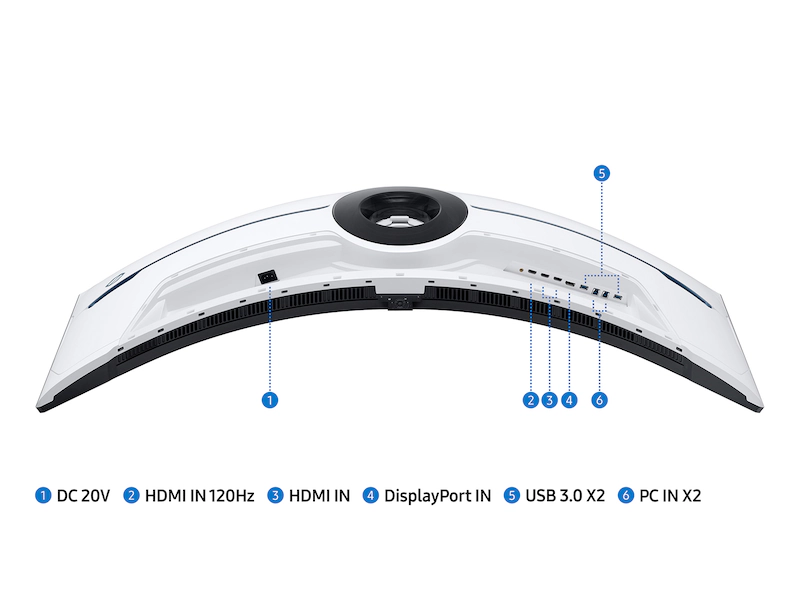
Mini LED monitors typically use USB-C, HDMI, and DisplayPort connections. USB-C often handles video and power delivery simultaneously. HDMI 2.1 supports 4K at high refresh rates.
DisplayPort 1.4 or 2.1 serves PC gaming and professional setups. Some models also include Thunderbolt 4, USB-A hubs, and audio jacks.
The Core Port Types Found on Mini LED Monitors
Not all ports are created equal, even when they look the same. Here's what you'll actually find on the back and sides of mini LED monitors right now.
USB-C (With Power Delivery and DisplayPort Alt Mode)
USB-C is the most versatile port you'll find on modern mini LED monitors. A single USB-C cable can carry video signal, data, and power simultaneously. This is why portable mini LED monitors almost universally adopt USB-C as their primary input.
The key specs to watch for are DisplayPort Alt Mode support and Power Delivery wattage. DisplayPort Alt Mode lets the USB-C port carry a full video signal from your laptop or phone. Power Delivery (PD) determines how much wattage the monitor can pass through to charge your device.
Most portable mini LED monitors offer 15W to 65W PD. Desktop models with built-in power supplies sometimes push 90W or 100W.
Here's the catch. Not every USB-C cable supports video. Some USB-C cables are charge-only.
If you plug in a basic charging cable and get no display, that's almost always the culprit. You need a cable rated for USB 3.1 Gen 2 or higher with explicit DP Alt Mode support.
HDMI 2.0 vs. HDMI 2.1
HDMI remains the most common video input on mini LED monitors. But there's a massive performance gap between HDMI 2.0 and HDMI 2.1 that directly affects what your display can do.
| Spec | HDMI 2.0 | HDMI 2.1 |
|---|---|---|
| Max Bandwidth | 18 Gbps | 48 Gbps |
| 4K Refresh Rate | 60 Hz | 120 Hz (with DSC: 144 Hz+) |
| 1440p Refresh Rate | 144 Hz | 240 Hz |
| HDR Support | Static HDR | Dynamic HDR (HDR10+, Dolby Vision) |
| VRR | No | Yes (HDMI VRR) |
If you're connecting a PlayStation 5 or Xbox Series X to a mini LED gaming monitor, HDMI 2.1 is essentially mandatory to get the full experience. Without it, you're capped at 4K 60Hz, which defeats the purpose of a high-refresh mini LED panel.
Most desktop mini LED gaming monitors in 2026 ship with at least one HDMI 2.1 port. Budget and older models may still use HDMI 2.0. Always check the spec sheet before assuming.
DisplayPort 1.4 and the New DisplayPort 2.1
DisplayPort is the go-to connection for PC users, especially gamers and professionals who need maximum bandwidth and adaptive sync support.
DisplayPort 1.4 tops out at 32.4 Gbps. That's enough for 4K at 120Hz with Display Stream Compression (DSC), or 1440p at 240Hz. DSC is a visually lossless compression technique that lets you push higher resolutions and refresh rates without perceptible quality loss.
Most modern GPUs from NVIDIA and AMD support DSC over DisplayPort.
DisplayPort 2.1 is the newer standard, offering up to 80 Gbps in its UHBR20 configuration. This unlocks 4K at 240Hz without compression and 8K at 60Hz. As of 2026, DP 2.1 is appearing on newer mini LED monitors paired with the latest GPUs like the NVIDIA RTX 50 series.
For most PC gamers, DisplayPort 1.4 with DSC handles everything you need today. DP 2.1 is more about future-proofing.
Thunderbolt 4 and USB4
Thunderbolt 4 and USB4 use the same USB-C connector but offer significantly more capability. Thunderbolt 4 provides 40 Gbps of dedicated bandwidth and supports daisy-chaining two displays from a single laptop port. USB4 offers similar flexibility with optional tunneling for DisplayPort and PCIe data.
You'll find Thunderbolt 4 on professional-grade mini LED monitors aimed at video editors, colorists, and creative workflows. These monitors often include downstream Thunderbolt ports, turning the display into a full docking station.
The practical benefit is enormous for laptop users. One cable from your laptop to the monitor gives you video output, charging, and access to peripherals connected to the monitor's USB hub.
Auxiliary Ports: Audio Jacks, USB Hubs, and SD Card Slots
Beyond the main video inputs, many mini LED monitors include additional ports that add real convenience.
- 3.5mm audio output: Lets you plug in headphones or speakers directly to the monitor. Essential if you're using HDMI for video, since HDMI carries audio to the monitor but your laptop's headphone jack might be across the room.
- USB-A hub: Turns your monitor into a pass-through USB hub. Your keyboard, mouse, or external drive connects to the monitor, which routes everything through the single USB-C cable to your laptop.
- SD card reader: Found on creator-focused monitors. Useful for photographers and video editors who offload footage regularly.
- Ethernet pass-through: Rare, but some Thunderbolt-connected monitors include an Ethernet port for wired networking through the display cable.
Side-by-Side Port Comparison for Mini LED Monitors
Here's how the main video ports stack up for common mini LED monitor use cases.
| Port | Max Resolution/Refresh | Power Delivery | Daisy-Chain | Best For |
|---|---|---|---|---|
| USB-C (DP Alt Mode) | 4K 60Hz to 4K 120Hz | Yes (15W–100W+) | No | Laptop docking, portable setups |
| HDMI 2.0 | 4K 60Hz | No | No | Consoles at 60Hz, older devices |
| HDMI 2.1 | 4K 120Hz | No | No | PS5, Xbox Series X, high-refresh console gaming |
| DisplayPort 1.4 | 4K 120Hz (DSC: 144Hz+) | No | Yes (MST) | PC gaming, adaptive sync |
| DisplayPort 2.1 | 4K 240Hz+ | No | Yes (MST) | Future-proof PC gaming, 8K |
| Thunderbolt 4 | 4K 120Hz+ (tunneled DP) | Yes (up to 100W) | Yes | Professional workflows, docking |
How Port Selection Changes by Monitor Type
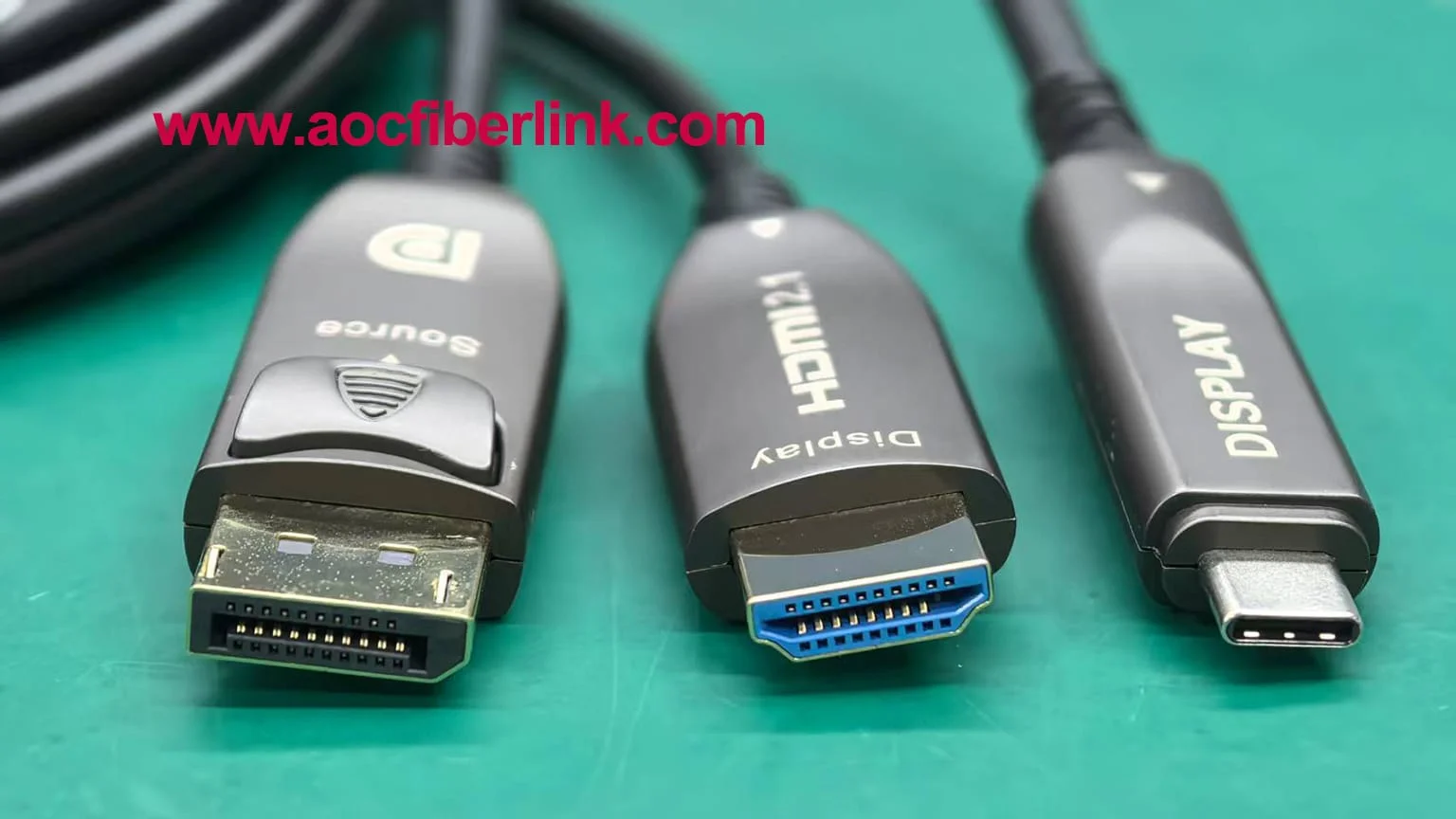
This is where things get practical. The ports on a mini LED monitor depend heavily on what kind of monitor it is. A portable 15.6-inch panel has very different needs than a 32-inch desktop gaming display.
Portable Mini LED Monitors (15.6" and Under)
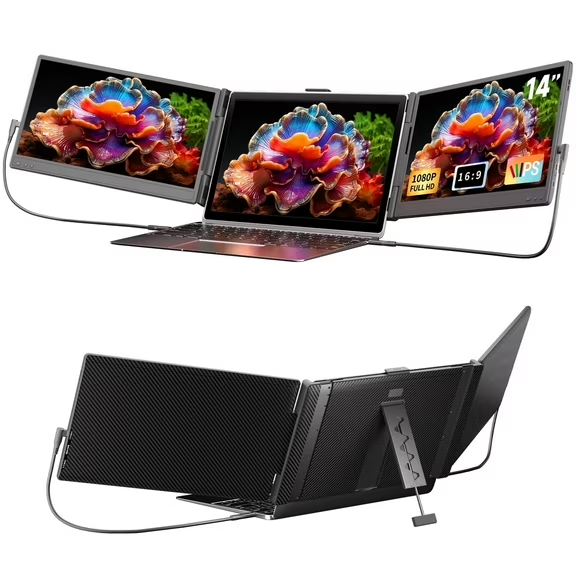
Portable mini LED monitors prioritize USB-C because their whole purpose is simplicity. You want one cable from your laptop or phone to the monitor that handles video and power.
Most portable mini LED monitors include:
- 1 to 2 USB-C ports (at least one with DP Alt Mode and PD)
- 1 mini HDMI or full-size HDMI port (varies by model)
- 3.5mm audio jack (common)
- No DisplayPort (rarely included due to size constraints)
The USB-C port on these monitors typically supports 15W to 65W power delivery. Some models like the ASUS ROG Strix XG16AHPE or InnoCN 15.6Q1 portable panels offer two USB-C ports, letting you connect to your laptop on one side and pass power through on the other.
One important note. Some portable mini LED monitors can run entirely off USB-C power from your laptop. But if your laptop's USB-C port doesn't supply enough wattage, the monitor may dim its backlight or refuse to turn on.
Always check the monitor's minimum power requirement against your laptop's USB-C output.
Desktop Gaming Mini LED Monitors
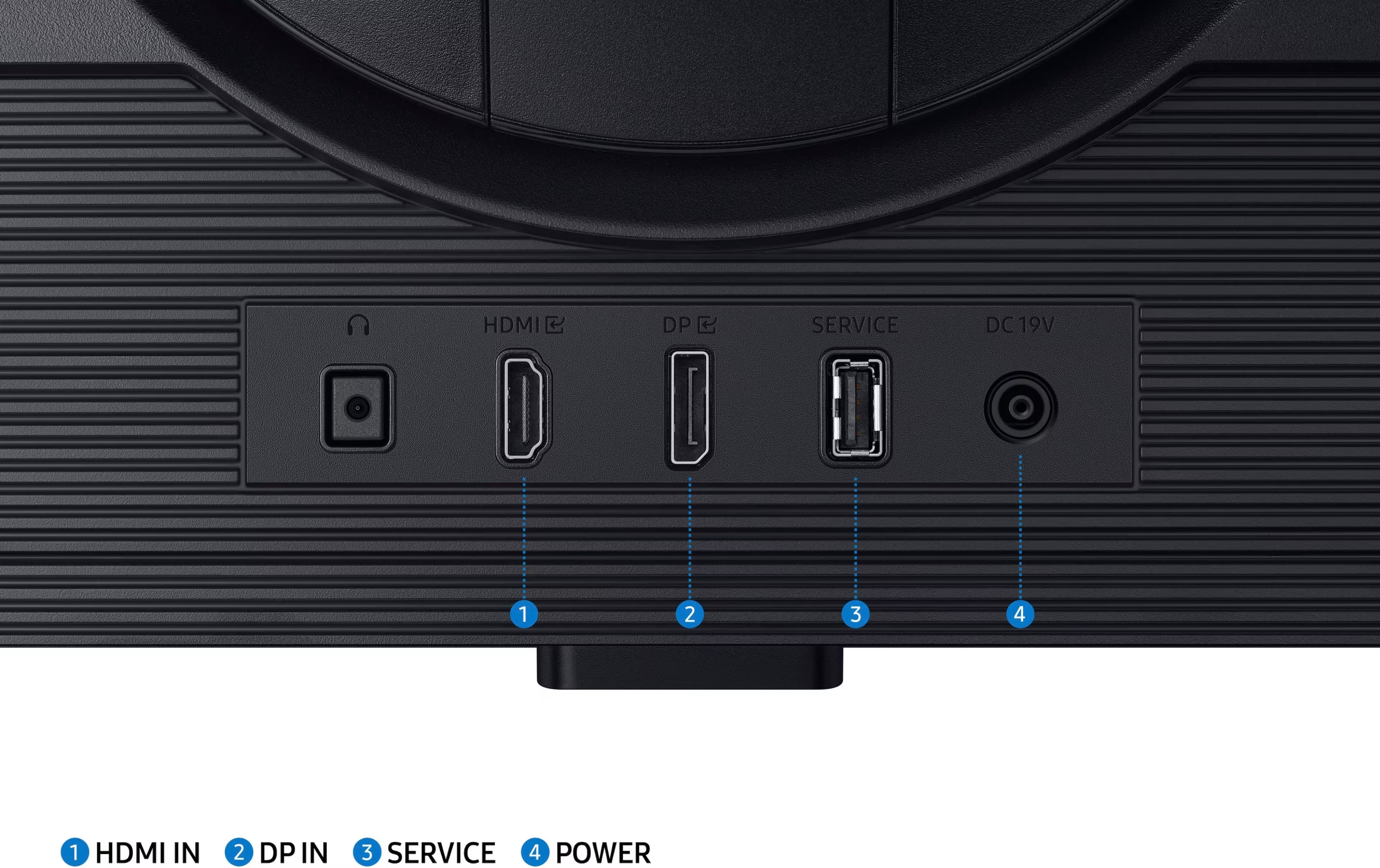
Desktop gaming mini LED monitors offer the widest port selection. These are the 27-inch to 49-inch displays with high refresh rates, HDR, and local dimming zones numbering in the hundreds or thousands.
Typical port configuration:
- 1 to 2 HDMI 2.1 ports
- 1 DisplayPort 1.4 (some newer models have DP 2.1)
- 1 USB-C port (often with DP Alt Mode and 15W to 90W PD)
- USB hub (2 to 4 USB-A ports, sometimes USB-B upstream)
- 3.5mm audio output
The Samsung Odyssey Neo G7 and G8 series, for example, include HDMI 2.1, DisplayPort 1.4, a USB hub, and USB-C with PD. Gigabyte's AORUS FU1524 and CO49DQ models follow a similar pattern.
For console gamers, the HDMI 2.1 port is your best friend. For PC gamers, DisplayPort remains the preferred connection for G-Sync and FreeSync compatibility. The USB-C port on these monitors is convenient for laptop connections but usually doesn't support the same high refresh rates as DisplayPort.
Professional and Creator Mini LED Monitors
Professional mini LED monitors, the ones used for color grading, video editing, and photography, tend to prioritize DisplayPort and Thunderbolt connectivity.
You'll typically see:
- 1 to 2 DisplayPort 1.4 or 2.1 inputs
- 1 to 2 Thunderbolt 4 ports (with daisy-chain support)
- 1 HDMI 2.0 or 2.1 port (secondary input)
- USB hub with multiple downstream ports
- SD card reader (on some models)
- 3.5mm audio output
Apple's Pro Display XDR and similar reference-class mini LED panels use Thunderbolt 3 as their primary connection. These monitors function as complete docking stations. One Thunderbolt cable from your MacBook gives you the display, charging, and access to all connected peripherals.
The key advantage here is daisy-chaining. With Thunderbolt 4 or DisplayPort Multi-Stream Transport (MST), you can connect two 4K mini LED monitors through a single port on your computer. This is a massive workflow improvement for editors and developers running multi-display setups.
Matching Ports to Your Use Case
Now let's get specific. Your ideal port depends entirely on what you're connecting and what you need the monitor to do.
For Laptop Docking (Single Cable Setup)
USB-C with DisplayPort Alt Mode and Power Delivery is what you need. Look for a monitor that offers at least 60W PD if you're using a thin-and-light laptop, or 90W+ if you're on a workstation or gaming laptop.
The single-cable dream is real with USB-C. Video, power, and data all flow through one connection. Just make sure your laptop's USB-C port supports DP Alt Mode.
Most modern laptops do, but some budget models only support data and charging over USB-C.
For Console Gaming (PS5 / Xbox Series X)
HDMI 2.1 is non-negotiable. Both the PS5 and Xbox Series X output 4K at 120Hz over HDMI 2.1. If your mini LED monitor only has HDMI 2.0, you'll be stuck at 4K 60Hz, which wastes the high-refresh capability of most mini LED gaming panels.
Plug directly into the HDMI 2.1 port on the monitor. Avoid adapters or splitters, as they can strip out the full bandwidth needed for 4K 120Hz with HDR.
For PC Gaming at High Refresh Rates
DisplayPort 1.4 or 2.1 is the standard here. DisplayPort has native support for G-Sync and FreeSync, which eliminates screen tearing and minimizes stuttering. HDMI 2.1 also supports VRR, but DisplayPort remains the more reliable choice for adaptive sync on PC.
If your GPU supports Display Stream Compression (and most RTX 20-series and newer cards do), DisplayPort 1.4 can handle 4K at 144Hz with DSC. For 4K at 240Hz without compression, you'll need DisplayPort 2.1 on both the GPU and monitor.
For Content Creation and HDR Grading
DisplayPort or Thunderbolt, depending on your workflow. DisplayPort gives you the most reliable connection for high-bit-depth color output. Thunderbolt adds the convenience of daisy-chaining and USB hub functionality.
For HDR work, make sure your connection can handle the full bandwidth. 4K at 60Hz with 10-bit color and HDR requires DisplayPort 1.4 or HDMI 2.0 at minimum. For 4K 120Hz with 10-bit HDR, you need DisplayPort 1.4 with DSC or HDMI 2.1.
Common Port Mistakes People Made With Mini LED Monitors
After reviewing manufacturer specs and aggregate user feedback, these are the most frequent port-related issues people run into.
- Using a charge-only USB-C cable: Not all USB-C cables carry video. If your monitor shows "no signal," swap the cable for one rated for DP Alt Mode.
- Assuming HDMI 2.1 on the monitor means HDMI 2.1 on the cable: You need an Ultra High Speed HDMI cable (certified for 48 Gbps) to get full HDMI 2.1 bandwidth. Older HDMI cables will work but at reduced performance.
- Plugging into the wrong USB-C port on the monitor: Some monitors have two USB-C ports. One may support DP Alt Mode and PD, while the other is data-only. Check the manual.
- Ignoring PD wattage mismatches: If your laptop needs 67W to charge and the monitor only supplies 15W, your laptop will drain battery while connected, just slower.
- Forgetting to change the input source: This sounds obvious, but many people plug into HDMI 1 and wonder why the screen is black while the monitor is set to DisplayPort. Use the monitor's on-screen display (OSD) menu to select the correct input.
- Using adapters that strip bandwidth: A USB-C to HDMI adapter might only support HDMI 2.0 bandwidth even if your monitor has HDMI 2.1. Passive adapters are usually fine, but cheap active adapters can be a bottleneck.
Real-World Port Configurations From Popular Mini LED Monitors
Let's look at what specific models actually offer. This gives you a concrete sense of what to expect at different price points and sizes.
| Monitor | Size | USB-C (PD) | HDMI | DisplayPort | Other |
|---|---|---|---|---|---|
| Samsung Odyssey Neo G8 (S32BG85) | 32" | 1 (65W) | 2 (HDMI 2.1) | 1 (DP 1.4) | USB hub, audio out |
| Gigabyte AORUS FU1524 | 34" | 1 (18W) | 2 (HDMI 2.1) | 1 (DP 1.4) | USB hub, audio out |
| InnoCN 15Q1 (portable) | 15.6" | 2 (PD passthrough) | 1 (mini HDMI) | None | Audio out |
| Cooler Master Tempest GP27U | 27" | 1 (65W) | 2 (HDMI 2.1) | 1 (DP 1.4) | USB hub, audio out |
| ASUS ROG Swift PG32UQX | 32" | 1 (60W) | 2 (HDMI 2.1) | 1 (DP 1.4) | USB hub, audio out |
These configurations represent the most common port layouts in 2026. Portable models lean heavily on USB-C. Desktop gaming monitors balance HDMI 2.1 and DisplayPort.
Professional models add Thunderbolt into the mix.
How to Verify Your Setup Will Actually Work
Before you buy a mini LED monitor, take five minutes to check these things. It'll save you a return.
Check your source device's output capabilities. Look up your laptop or GPU's port specs. Does its USB-C port support DP Alt Mode? Does its HDMI port output 2.1? This determines what the monitor's ports can actually deliver.
Match the cable to the port version. An HDMI 2.1 port needs an Ultra High Speed HDMI cable. A DisplayPort 1.4 port needs a DP 1.4-rated cable. Using an older cable works but limits performance.
Confirm PD wattage meets your needs. If you want the monitor to charge your laptop, the monitor's USB-C PD output must meet or exceed your laptop's charging requirement. A 30W PD output won't keep a 100W workstation laptop charged under load.
Read the monitor's spec sheet for port-specific limitations. Some monitors share bandwidth between ports. For example, using the USB-C port might disable one HDMI port. The manual will spell this out.
Test before you mount or position the monitor. Plug everything in and verify you get the expected resolution, refresh rate, and HDR behavior before running cables through walls or under desks.
Frequently Asked Questions
Can I use USB-C for video on every mini LED monitor?
No. The USB-C port must explicitly support DisplayPort Alt Mode. Some monitors include USB-C ports that only handle data and charging.
Always check the spec sheet for "DP Alt Mode" or "video over USB-C" before relying on it.
Do mini LED monitors need DisplayPort for HDR?
No. HDR works over both HDMI 2.0+ and DisplayPort 1.4+. However, for dynamic HDR formats like Dolby Vision or HDR10+, you generally need HDMI 2.1 or DisplayPort 2.1 with sufficient bandwidth.
What's the best port for connecting a PS5 to a mini LED monitor?
HDMI 2.1. The PS5 outputs 4K 120Hz over HDMI 2.1, and that's the only connection that supports the console's full capabilities including VRR.
Can I daisy-chain two mini LED monitors together?
Yes, if the monitors support DisplayPort Multi-Stream Transport (MST) or Thunderbolt daisy-chaining. Not all monitors include MST support, so verify this in the specs before planning a daisy-chain setup.
Will a USB-C hub replace the need for multiple ports on the monitor?
Partially. A USB-C hub can add extra USB-A ports and even additional display outputs. But it won't add native HDMI 2.1 or DisplayPort connections, and it can introduce bandwidth limitations if you're running multiple high-resolution displays through a single hub.
Do portable mini LED monitors work with phones?
Many do, if your phone supports USB-C DP Alt Mode. Samsung Galaxy S-series and some Google Pixel models can output video directly to portable USB-C monitors. iPhones require a Lightning to HDMI or USB-C adapter depending on the model.
Final Recommendation: Which Ports Should Your Mini LED Monitor Have?
The right ports depend on your setup, but here's a practical framework.
If you're a laptop user who wants one cable for everything, prioritize USB-C with DisplayPort Alt Mode and at least 65W Power Delivery. This gives you video, charging, and data through a single connection.
If you're a console gamer, make sure you get at least one HDMI 2.1 port. Without it, you can't use 4K 120Hz on PS5 or Xbox Series X, and you'll miss out on console VRR.
If you're a PC gamer, DisplayPort 1.4 or higher should be your primary connection. It offers the most reliable adaptive sync support and the highest bandwidth for high-refresh 4K gaming.
If you're a creative professional, look for DisplayPort plus Thunderbolt 4. Thunderbolt gives you daisy-charging, USB hub functionality, and the most stable connection for color-critical work.
The bottom line is this. Check what your source device can output, match it to the monitor's input capabilities, and don't assume every port labeled with the same standard performs identically. A few minutes of spec-checking before you buy saves hours of troubleshooting after.
Common Port Mistakes People Make With Mini LED Monitors
After reviewing manufacturer specs and aggregate user feedback, these are the most frequent port-related issues people run into.
- Using a charge-only USB-C cable: Not all USB-C cables carry video. If your monitor shows "no signal," swap the cable for one rated for DP Alt Mode.
- Assuming HDMI 2.1 on the monitor means HDMI 2.1 on the cable: You need an Ultra High Speed HDMI cable (certified for 48 Gbps) to get full HDMI 2.1 bandwidth. Older HDMI cables will work but at reduced performance.
- Plugging into the wrong USB-C port on the monitor: Some monitors have two USB-C ports. One may support DP Alt Mode and PD, while the other is data-only. Check the manual.
- Ignoring PD wattage mismatches: If your laptop needs 67W to charge and the monitor only supplies 15W, your laptop will drain battery while connected, just slower.
- Forgetting to change the input source: This sounds obvious, but many people plug into HDMI 1 and wonder why the screen is black while the monitor is set to DisplayPort. Use the monitor's on-screen display (OSD) menu to select the correct input.
- Using adapters that strip bandwidth: A USB-C to HDMI adapter might only support HDMI 2.0 bandwidth even if your monitor has HDMI 2.1. Passive adapters are usually fine, but cheap active adapters can be a bottleneck.
Real-World Port Configurations From Popular Mini LED Monitors
Let's look at what specific models actually offer. This gives you a concrete sense of what to expect at different price points and sizes.
| Monitor | Size | USB-C (PD) | HDMI | DisplayPort | Other |
|---|---|---|---|---|---|
| Samsung Odyssey Neo G8 (S32BG85) | 32" | 1 (65W) | 2 (HDMI 2.1) | 1 (DP 1.4) | USB hub, audio out |
| Gigabyte AORUS FU1524 | 34" | 1 (18W) | 2 (HDMI 2.1) | 1 (DP 1.4) | USB hub, audio out |
| InnoCN 15Q1 (portable) | 15.6" | 2 (PD passthrough) | 1 (mini HDMI) | None | Audio out |
| Cooler Master Tempest GP27U | 27" | 1 (65W) | 2 (HDMI 2.1) | 1 (DP 1.4) | USB hub, audio out |
| ASUS ROG Swift PG32UQX | 32" | 1 (60W) | 2 (HDMI 2.1) | 1 (DP 1.4) | USB hub, audio out |
These configurations represent the most common port layouts in 2026. Portable models lean heavily on USB-C. Desktop gaming monitors balance HDMI 2.1 and DisplayPort.
Professional models add Thunderbolt into the mix.
How to Verify Your Setup Will Actually Work
Before you buy a mini LED monitor, take five minutes to check these things. It'll save you a return.
Check your source device's output capabilities. Look up your laptop or GPU's port specs. Does its USB-C port support DP Alt Mode? Does its HDMI port output 2.1? This determines what the monitor's ports can actually deliver.
Match the cable to the port version. An HDMI 2.1 port needs an Ultra High Speed HDMI cable. A DisplayPort 1.4 port needs a DP 1.4-rated cable. Using an older cable works but limits performance.
Confirm PD wattage meets your needs. If you want the monitor to charge your laptop, the monitor's USB-C PD output must meet or exceed your laptop's charging requirement. A 30W PD output won't keep a 100W workstation laptop charged under load.
Read the monitor's spec sheet for port-specific limitations. Some monitors share bandwidth between ports. For example, using the USB-C port might disable one HDMI port. The manual will spell this out.
Test before you mount or position the monitor. Plug everything in and verify you get the expected resolution, refresh rate, and HDR behavior before running cables through walls or under desks.
Frequently Asked Questions
Can I use USB-C for video on every mini LED monitor?
No. The USB-C port must explicitly support DisplayPort Alt Mode. Some monitors include USB-C ports that only handle data and charging.
Always check the spec sheet for "DP Alt Mode" or "video over USB-C" before relying on it.
Do mini LED monitors need DisplayPort for HDR?
No. HDR works over both HDMI 2.0+ and DisplayPort 1.4+. However, for dynamic HDR formats like Dolby Vision or HDR10+, you generally need HDMI 2.1 or DisplayPort 2.1 with sufficient bandwidth.
What's the best port for connecting a PS5 to a mini LED monitor?
HDMI 2.1. The PS5 outputs 4K 120Hz over HDMI 2.1, and that's the only connection that supports the console's full capabilities including VRR.
Can I daisy-chain two mini LED monitors together?
Yes, if the monitors support DisplayPort Multi-Stream Transport (MST) or Thunderbolt daisy-chaining. Not all monitors include MST support, so verify this in the specs before planning a daisy-chain setup.
Will a USB-C hub replace the need for multiple ports on the monitor?
Partially. A USB-C hub can add extra USB-A ports and even additional display outputs. But it won't add native HDMI 2.1 or DisplayPort connections, and it can introduce bandwidth limitations if you're running multiple high-resolution displays through a single hub.
Do portable mini LED monitors work with phones?
Many do, if your phone supports USB-C DP Alt Mode. Samsung Galaxy S-series and some Google Pixel models can output video directly to portable USB-C monitors. iPhones require a Lightning to HDMI or USB-C adapter depending on the model.
Final Recommendation: Which Ports Should Your Mini LED Monitor Have?
The right ports depend on your setup, but here's a practical framework.
If you're a laptop user who wants one cable for everything, prioritize USB-C with DisplayPort Alt Mode and at least 65W Power Delivery. This gives you video, charging, and data through a single connection.
If you're a console gamer, make sure you get at least one HDMI 2.1 port. Without it, you can't use 4K 120Hz on PS5 or Xbox Series X, and you'll miss out on console VRR.
If you're a PC gamer, DisplayPort 1.4 or higher should be your primary connection. It offers the most reliable adaptive sync support and the highest bandwidth for high-refresh 4K gaming.
If you're a creative professional, look for DisplayPort plus Thunderbolt 4. Thunderbolt gives you daisy-chaining, USB hub functionality, and the most stable connection for color-critical work.
The bottom line is this. Check what your source device can output, match it to the monitor's input capabilities, and don't assume every port labeled with the same standard performs identically. A few minutes of spec-checking before you buy saves hours of troubleshooting after.

Similar Posts





















